

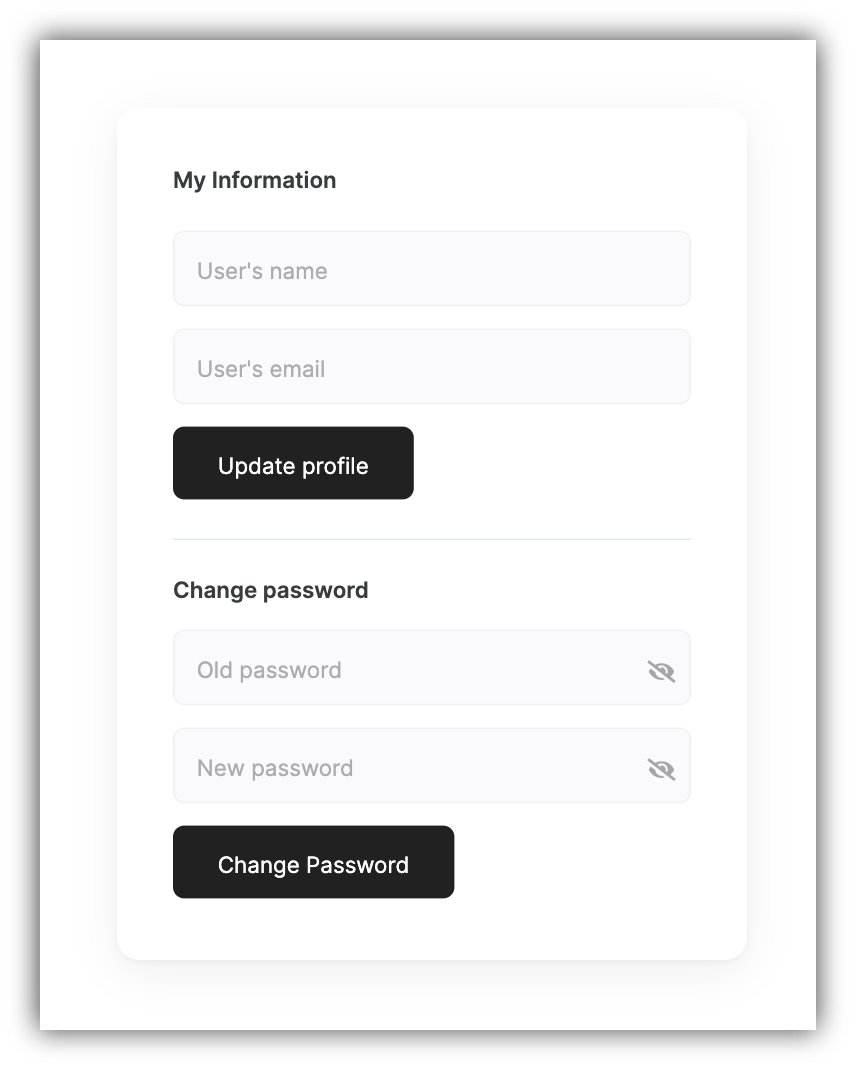
User profile block
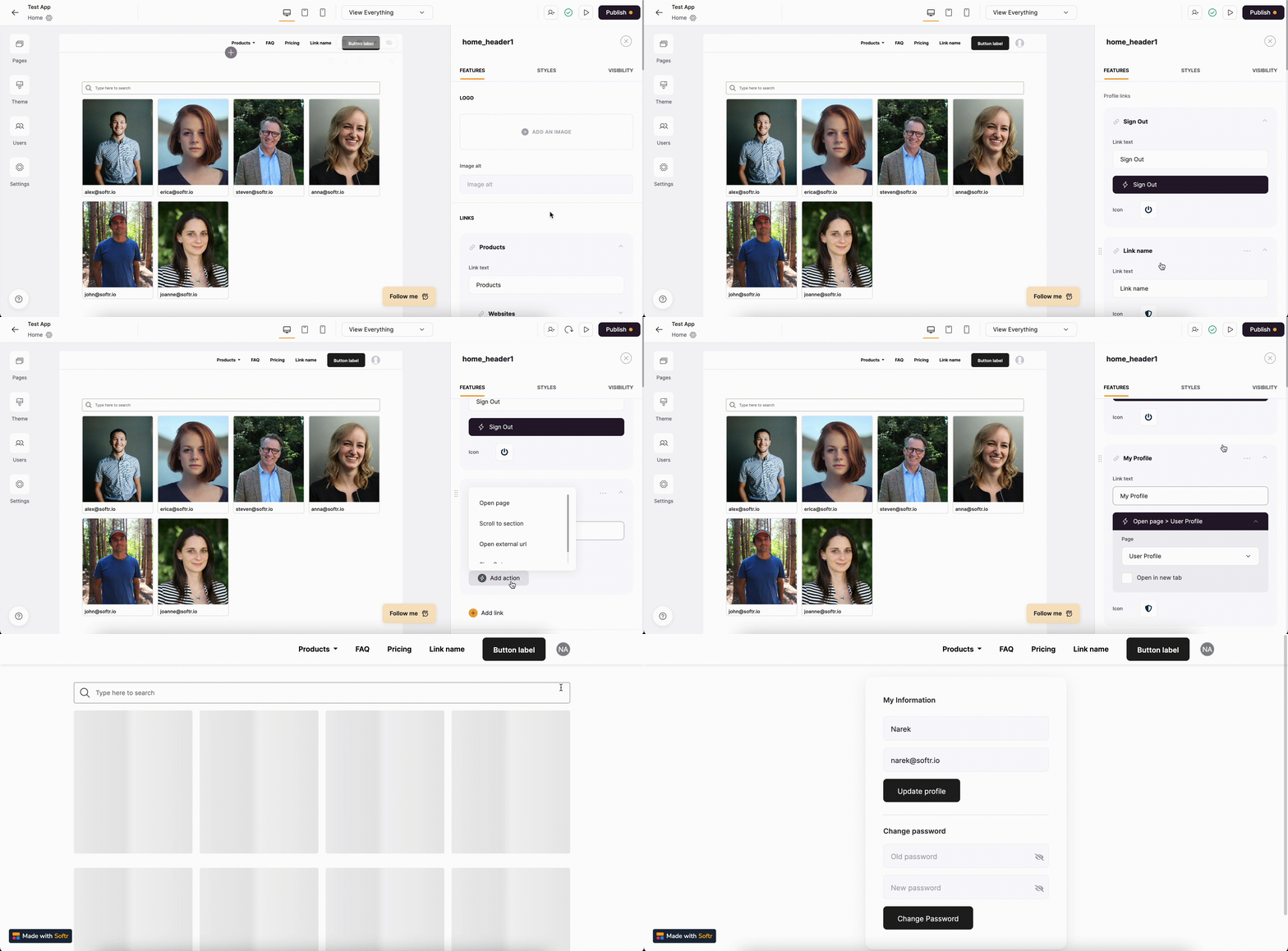
Adding a link to User Profile under Profile Links
Background image
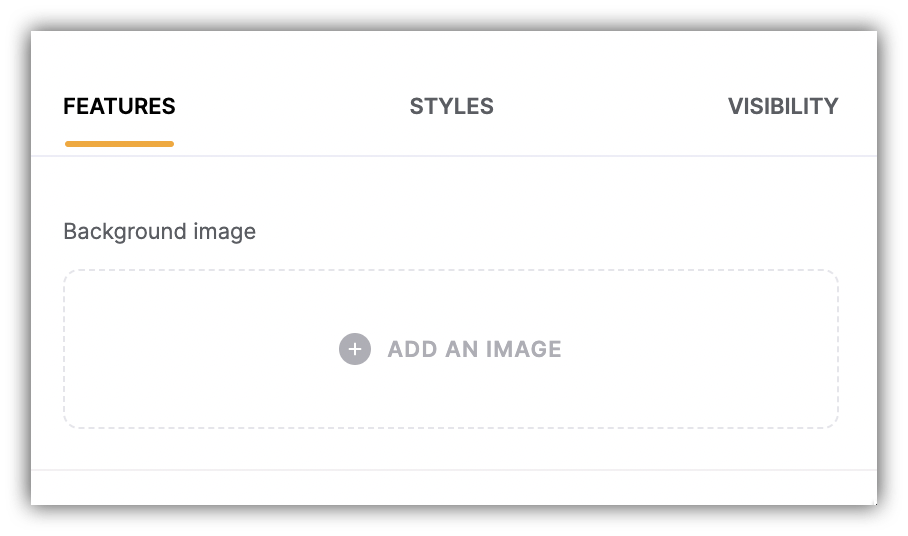
Block’s background image option
My Profile
Default Fields
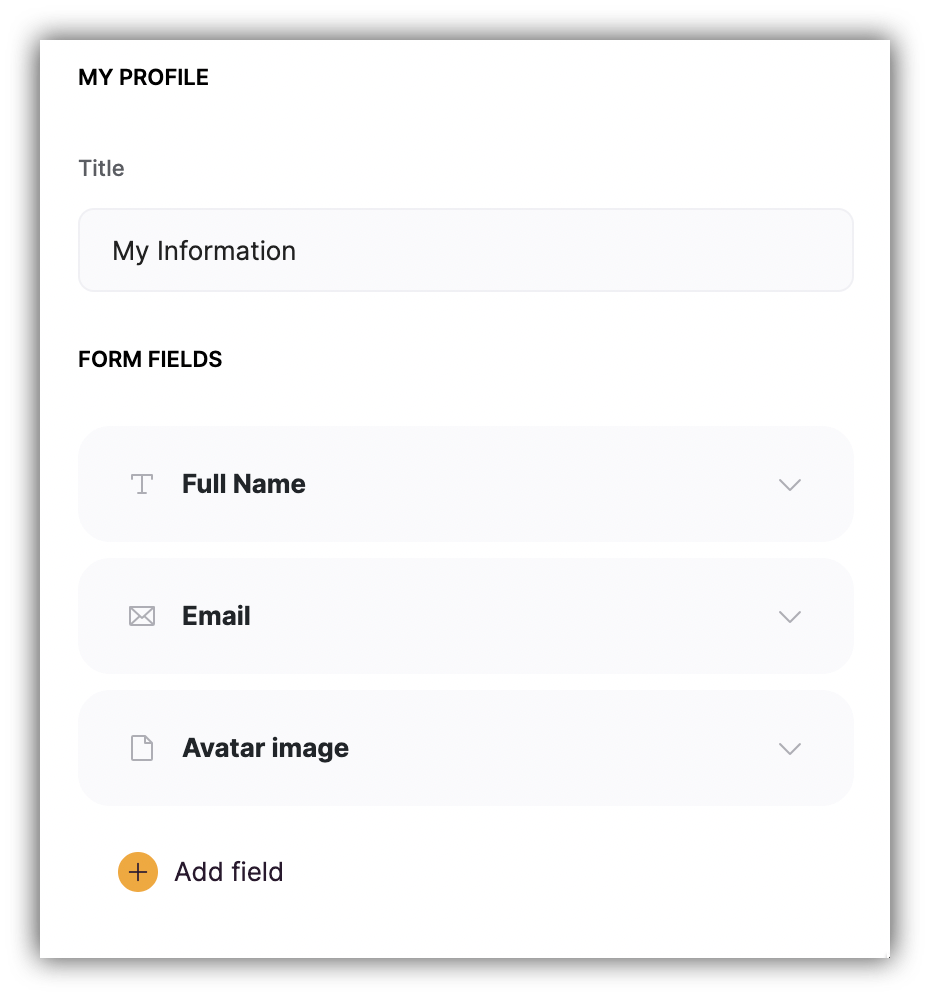
My Profile Default fields
Additional Fields
If you’ve connected users to a data source with additional user parameters, you can add more fields to the User Profile block and link them to these parameter fields in your data source, so that your users are able to edit those as well. If there’s no data source connected yet, you’ll see a Create Data Source button, which you can use to connect one. Let’s examine this on a specific example. Let’s say our users are company employees that have a Position within the company. To account for that, we have an additional Position field in our users Airtable along with its different options.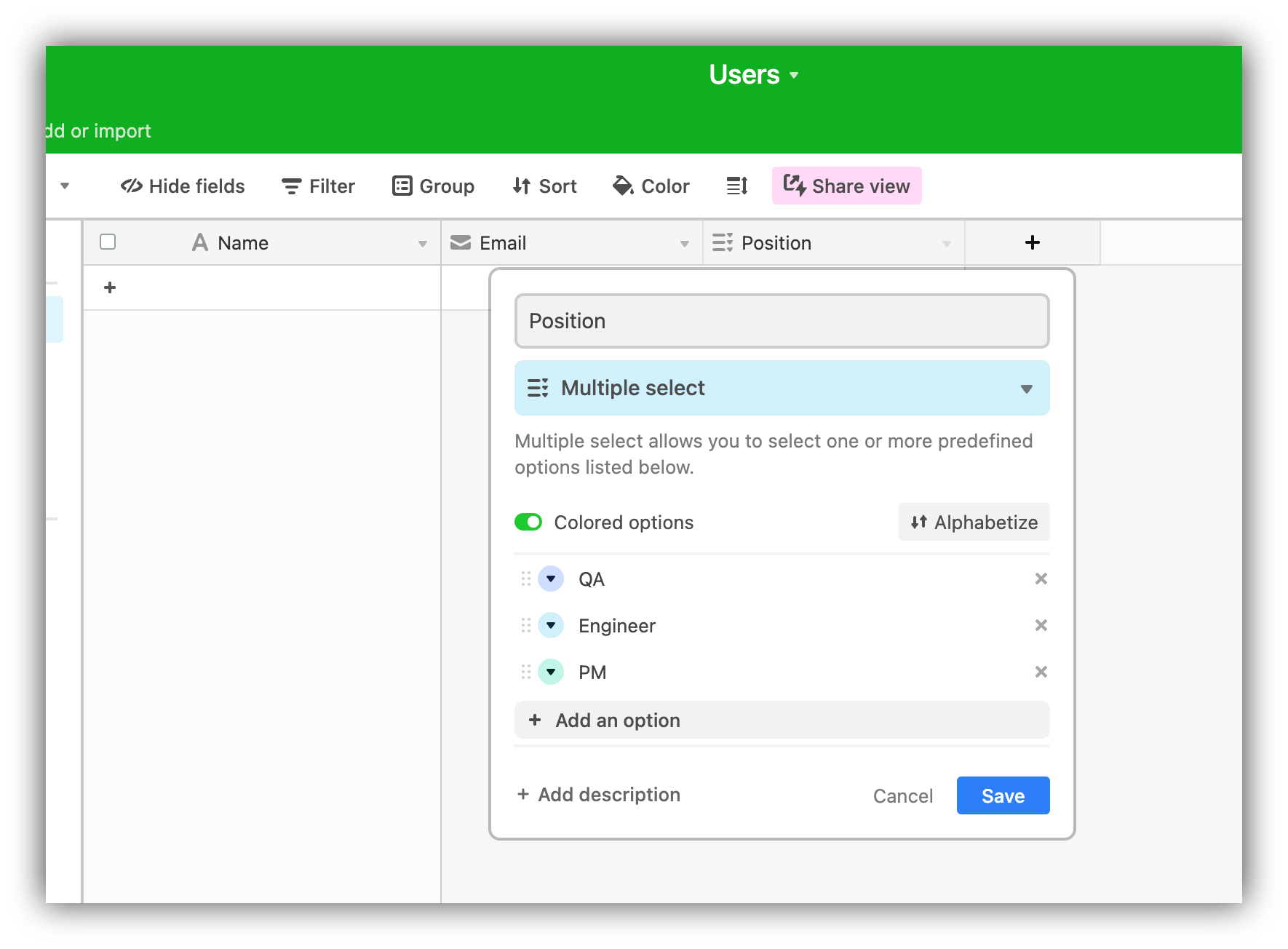
Additional Position field on Airtable
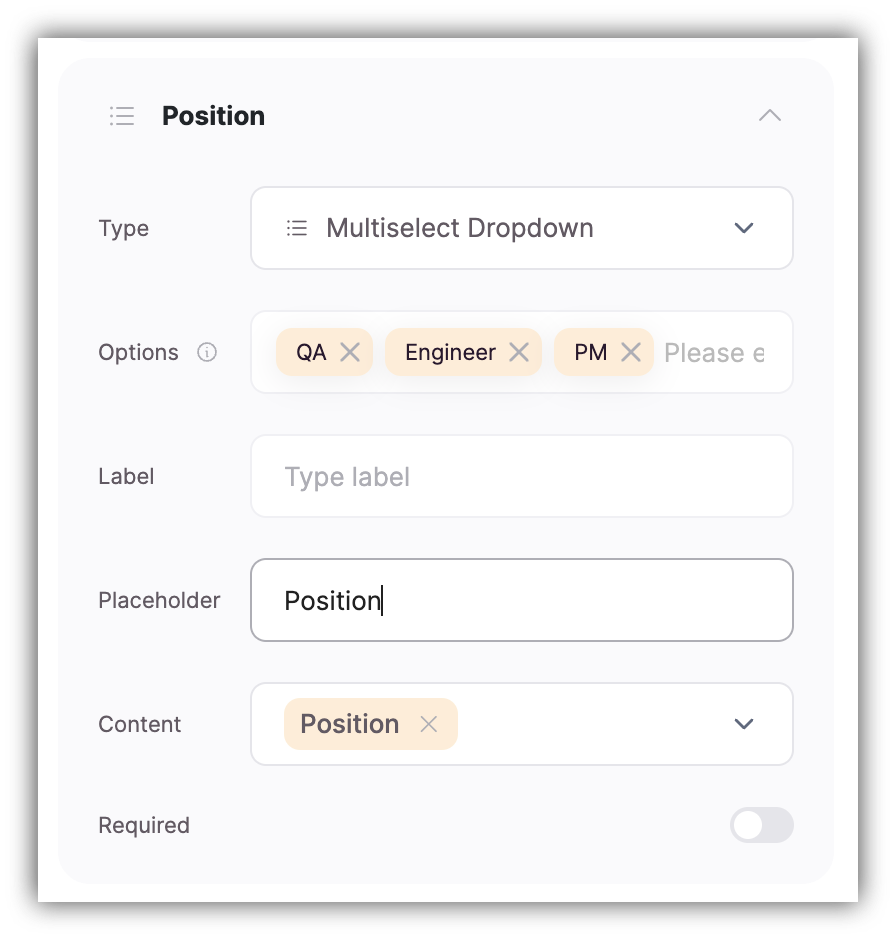
Mapping the position field
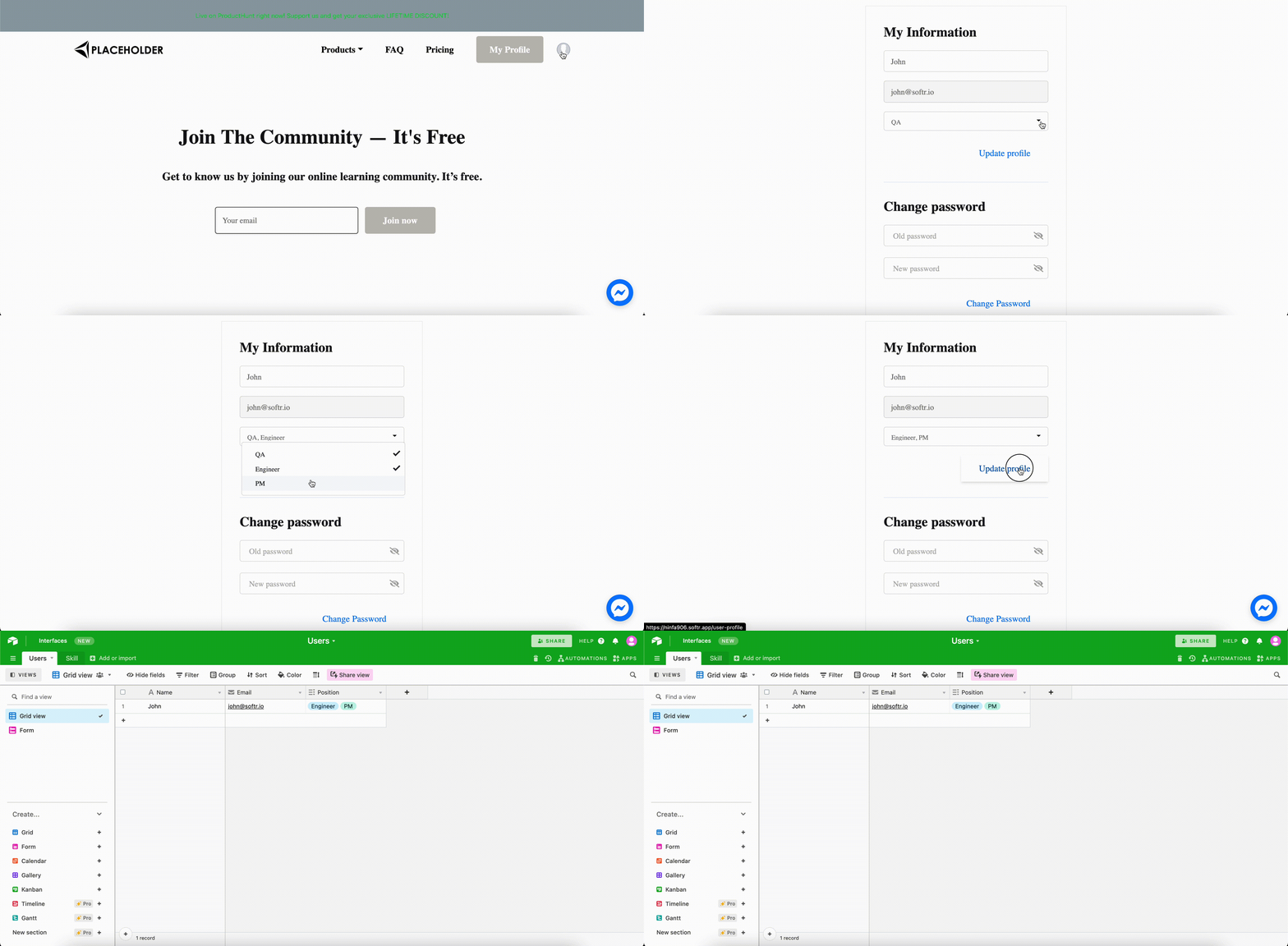
User changing his/her Position
Change Password
Here, you can configure the placeholder texts of the Change Password fields and modify the section title.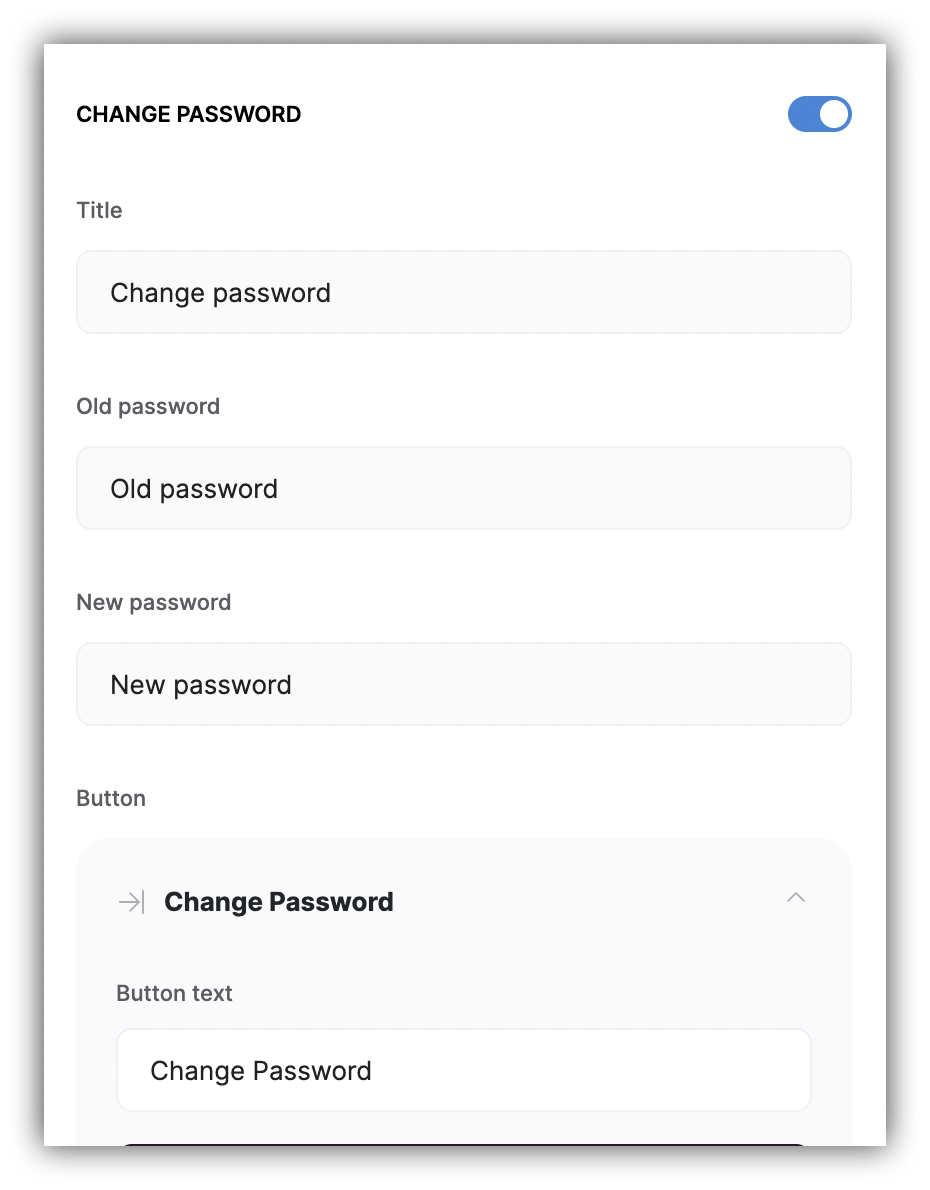
“Change Password” section
Enabling user avatar
Let’s see how you can allow your users to upload avatar images to be shown on site header.Enabling user profile on header
First of all, you need to enable the “Show user profile” toggle on your Softr app header.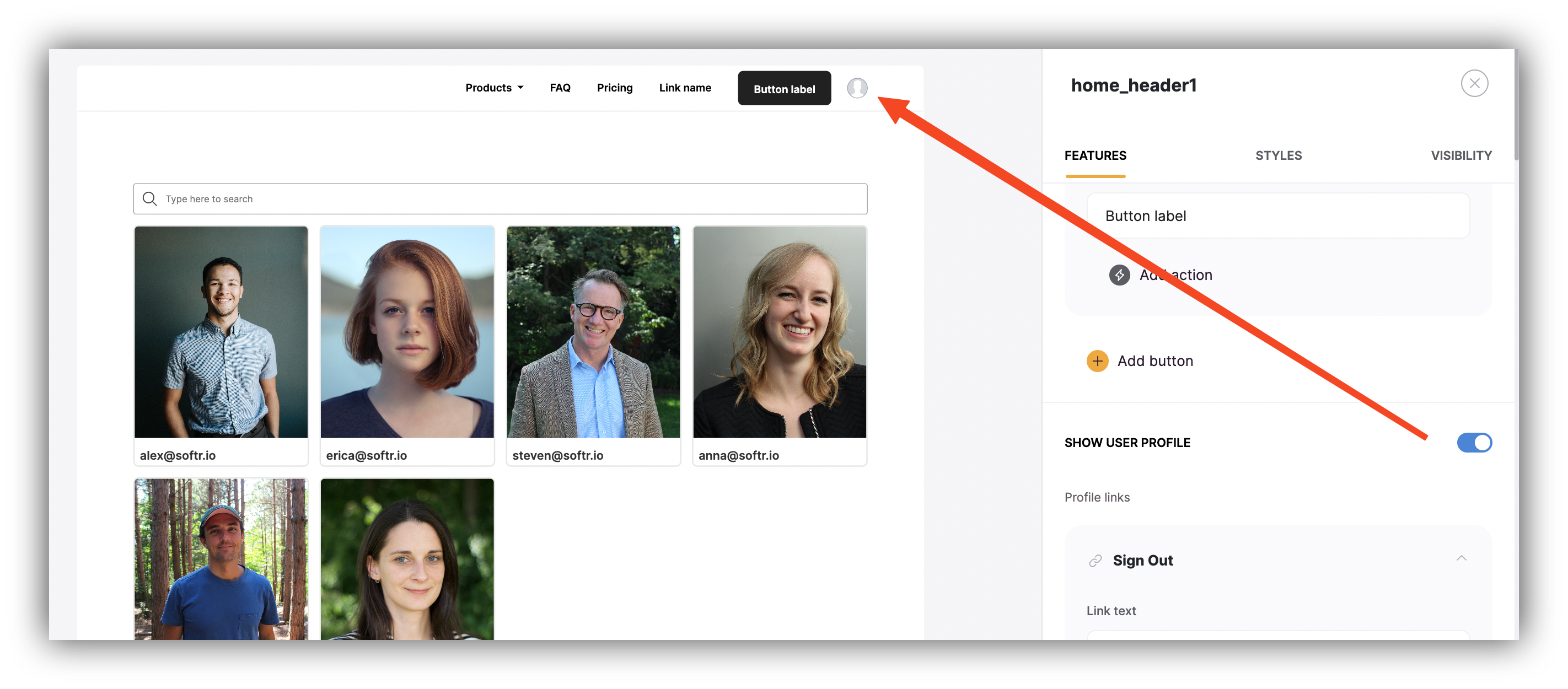
Show user profile
Mapping the avatar field to a data source
Now, you need to map the avatar field to a data source, so that images uploaded by users are stored there. You may or may not have your users base connected to a data source already. Let’s consider the two cases separately as the workflow is a bit different for each. Data source is not connected If you haven’t connected your users to a data source, you can do so from the User Profile block or Users Tab, mapping the Avatar field. As soon as you do that, the Avatar field will automatically appear on your User Profile block as shown below. Below, you can see how we connect Airtable and map the avatar field.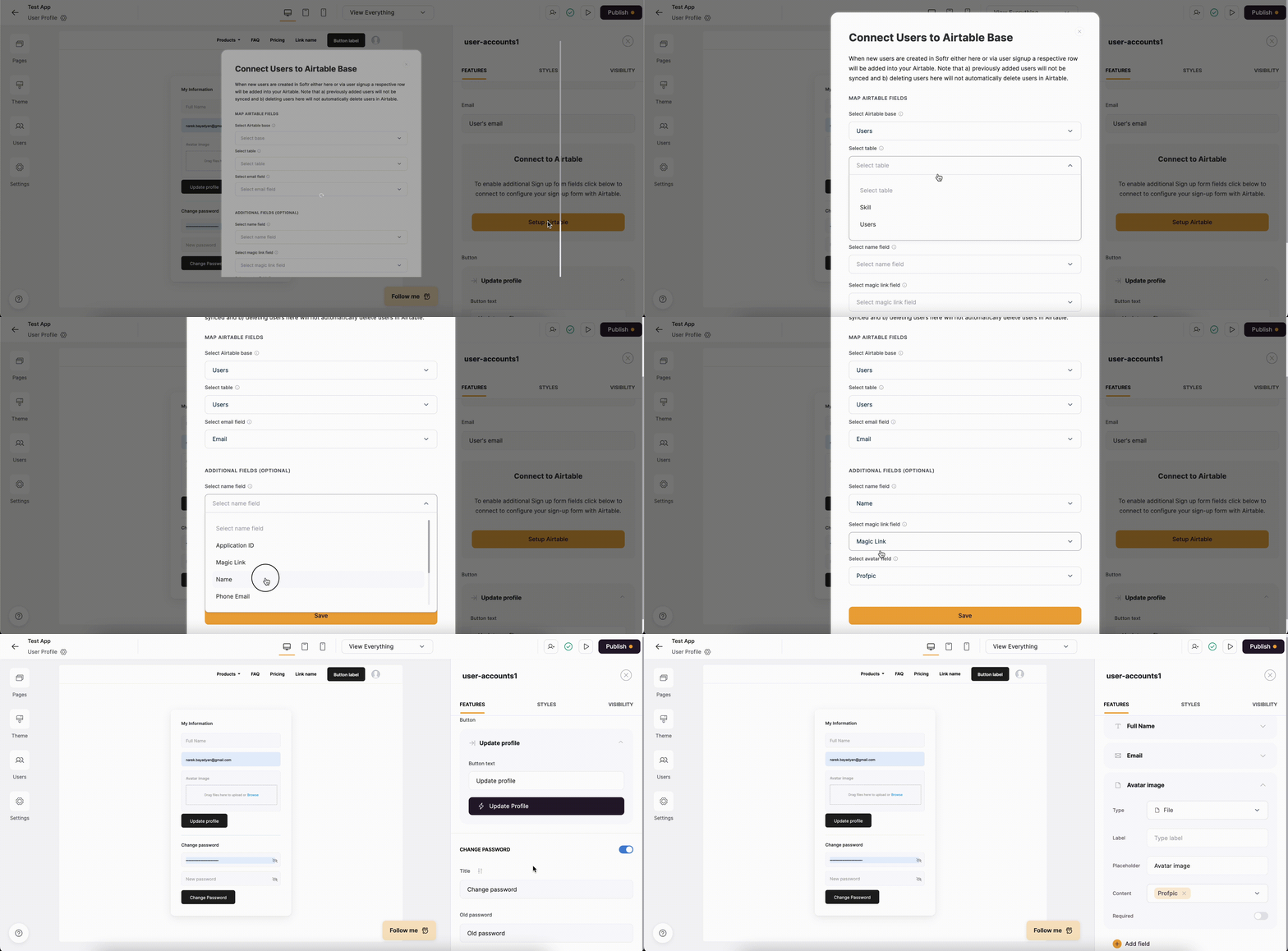
Connecting Airtable and mapping the Avatar field
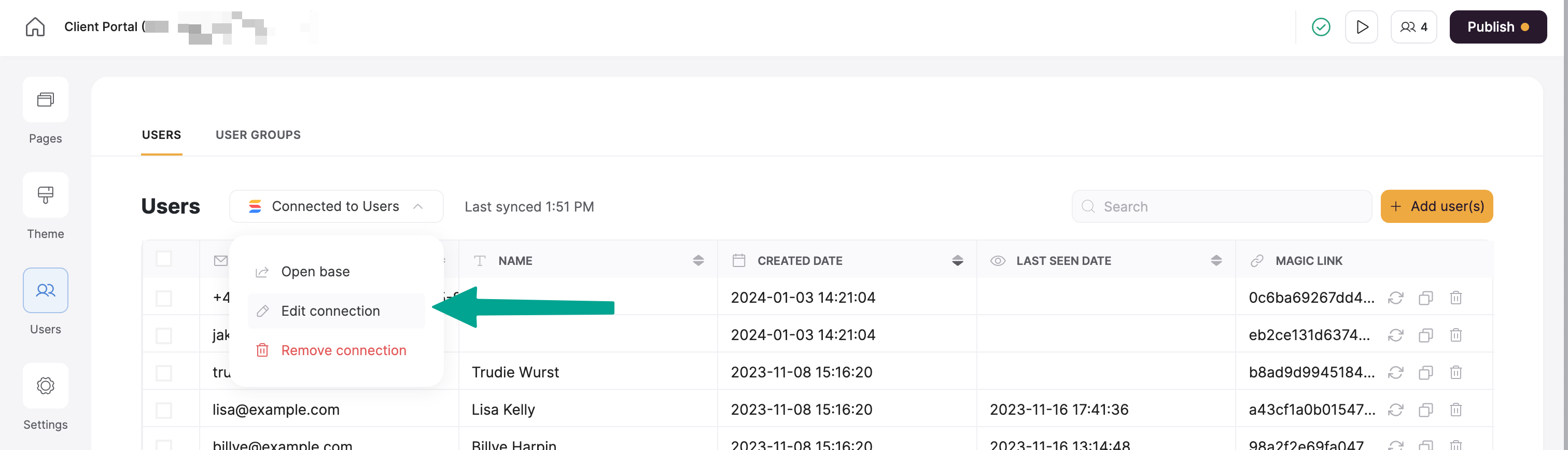
Avatar upload by the user
That’s it, now the logged-in users will see an option to upload an avatar on their User Profile and can update it at any time. See below how it works.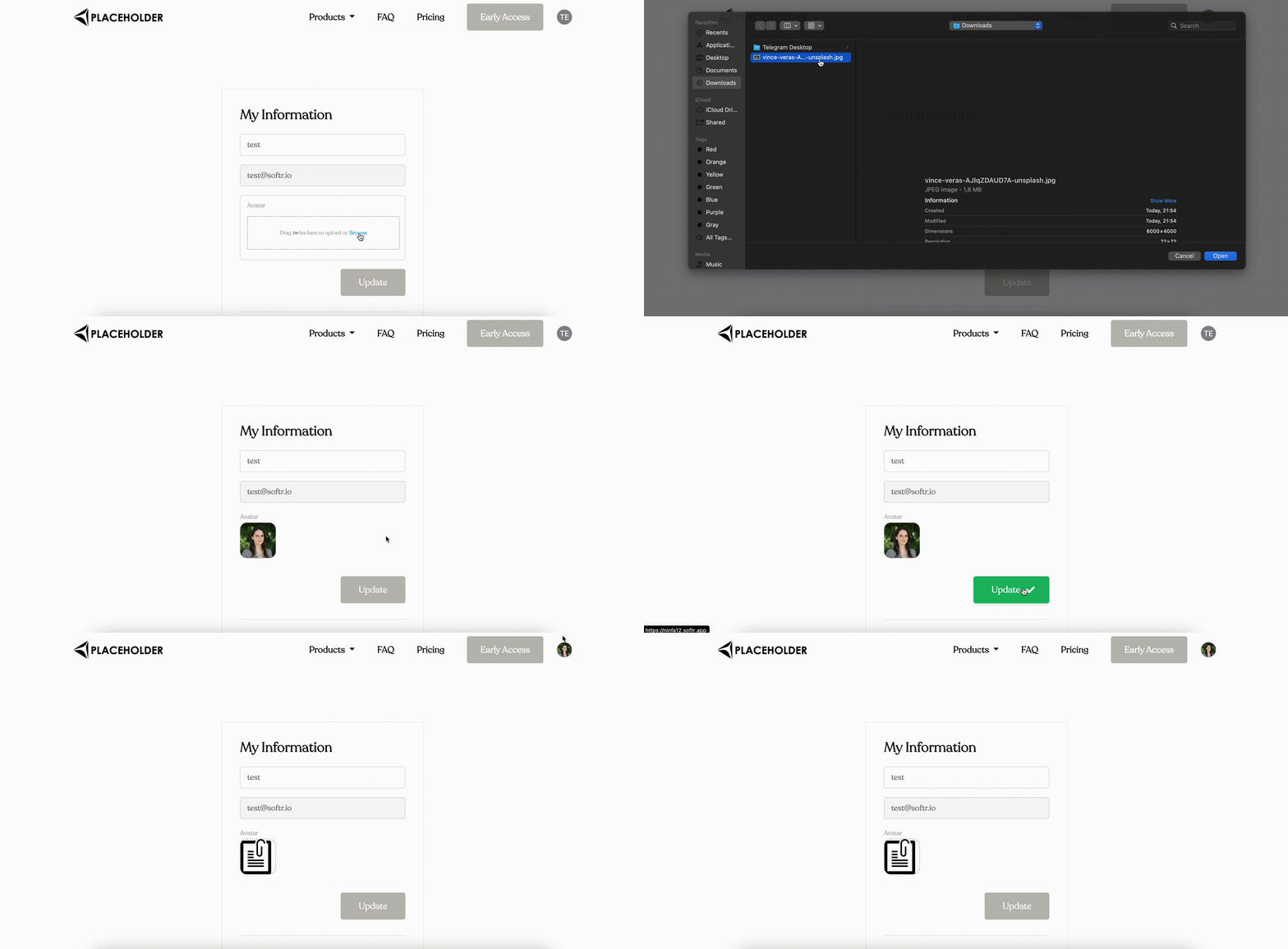
User uploading an avatar