Utility Pages
Customize pre-built utility pages.
Utility pages are the pages for logging in, signing up and resetting a password, and the pages people see when something goes wrong. Softr creates them for you and shows the ones that apply based on your settings in Users > Authentication (see User Authentication). You find them under Utility pages in the Pages panel.
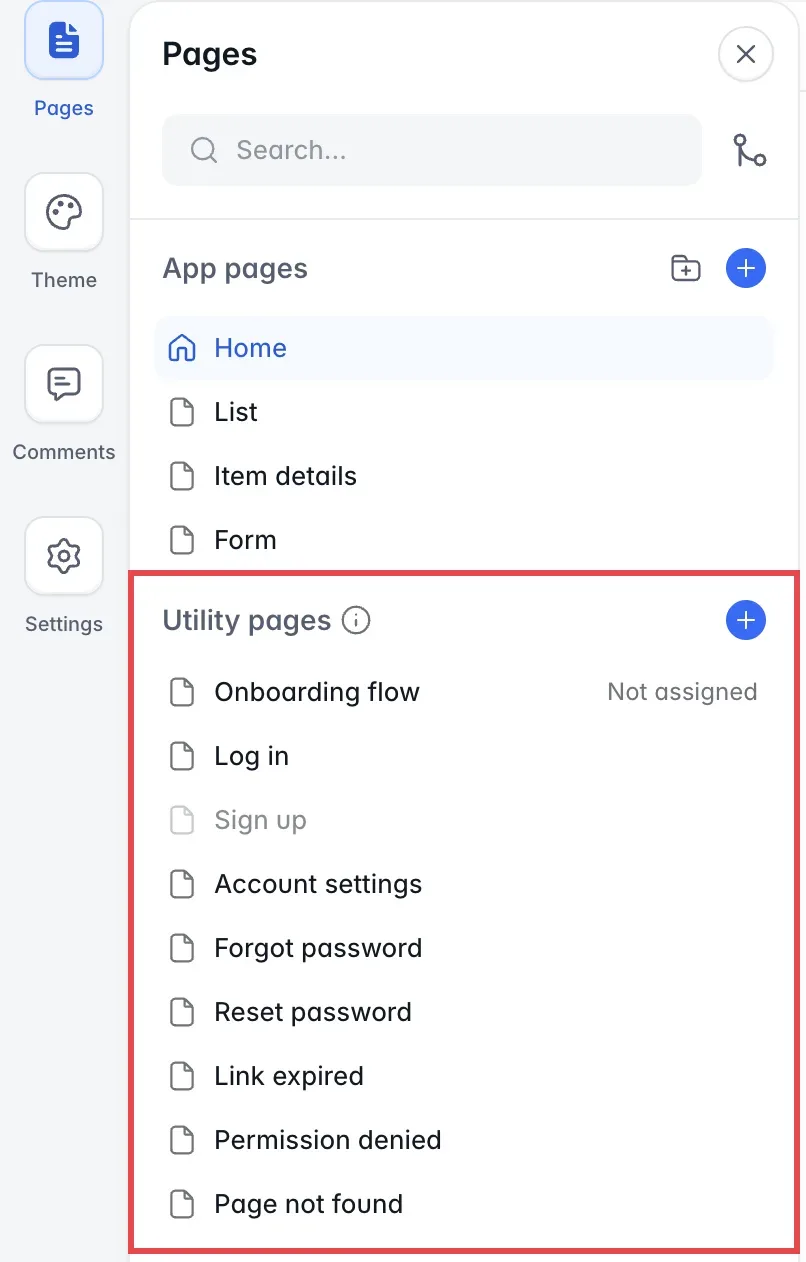
You cannot delete a utility page, but you can change its name and URL in its page settings and edit its blocks. You can duplicate the Log in, Sign up and Onboarding flow pages, for example to brand them differently for different roles, and delete the copies. When login is enabled, the + button next to Utility pages adds a new login page, signup page or onboarding flow.
If Login is disabled in your authentication settings, only Page not found is available in your app, and Log in and Sign up show greyed out in the list. Otherwise, these are the utility pages, by their default names:
-
Log in: lets your app users log in.
-
Sign up: lets people sign up to your app as users. It is available only if sign up is enabled in your authentication settings; otherwise it shows greyed out.
-
Onboarding flow: onboarding steps new users go through, assigned by things like their user group or email domain. Use it to send people to different pages, ask them to complete their profile, or create their company page before they go deeper into the app. Onboarding flows are available on the Professional plan and above.
-
Account settings: lets users edit their account information, such as their name, email, password, avatar and any other information you let them edit.
-
Forgot password: lets users enter the email of their account to receive a forgot password email. It is available only if users can log in with email and password.
-
Reset password: lets users enter a new password after they select the link in the forgot password email. It is available only if users can log in with email and password.
-
Link expired: shown when someone opens an invitation or password reset link that has expired or is no longer valid.
-
Permission denied: the equivalent of a traditional 401 page, shown to logged-in users who try to open a page they are not allowed to see. Visitors who are not logged in see the Log in page instead.
-
Page not found: the equivalent of a traditional 404 page, shown to users who open a page or link that does not exist in your app. It is always available.
Apps that use the legacy user authentication have no utility pages. See Migrating App Versions.