

Building a new app with AI
How to start
From the Softr dashboard, click Create new app and select Generate with AI. Type a description of the app you want to build in the chat box and press Enter.
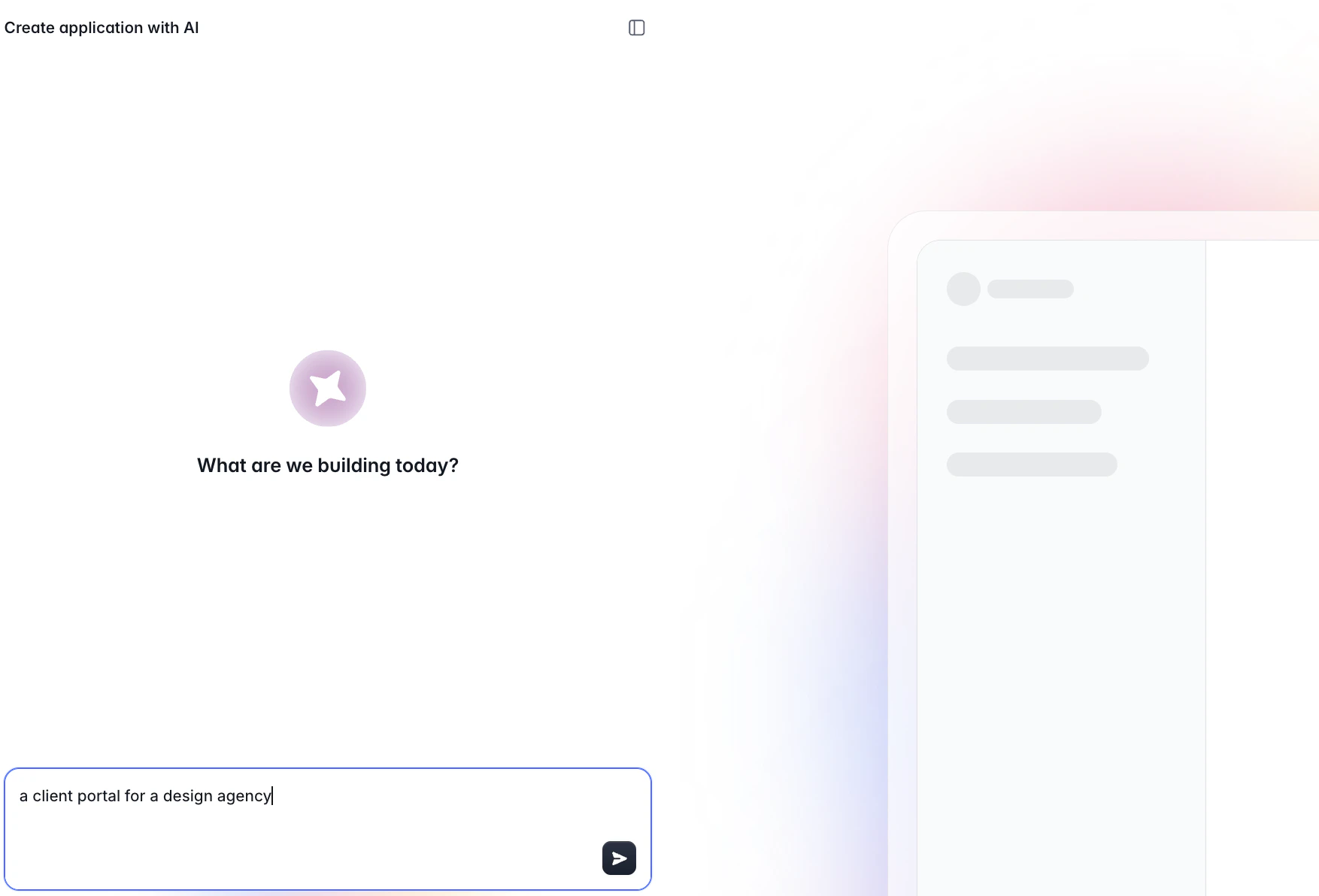
- “I run a cleaning company and need to manage clients, bookings, and subscription tiers.”
- “Build a project tracker for a software team with tasks, milestones, and team members.”
- “I need a CRM to track deals and clients with a sales pipeline.”
The requirements phase
After you submit your prompt, the AI may ask 2-3 short clarifying questions. These appear as multiple-choice options, but you can always type your own answer if none of the options fit. The AI will ask only when it needs more information. If your prompt is already detailed, it may skip straight to building.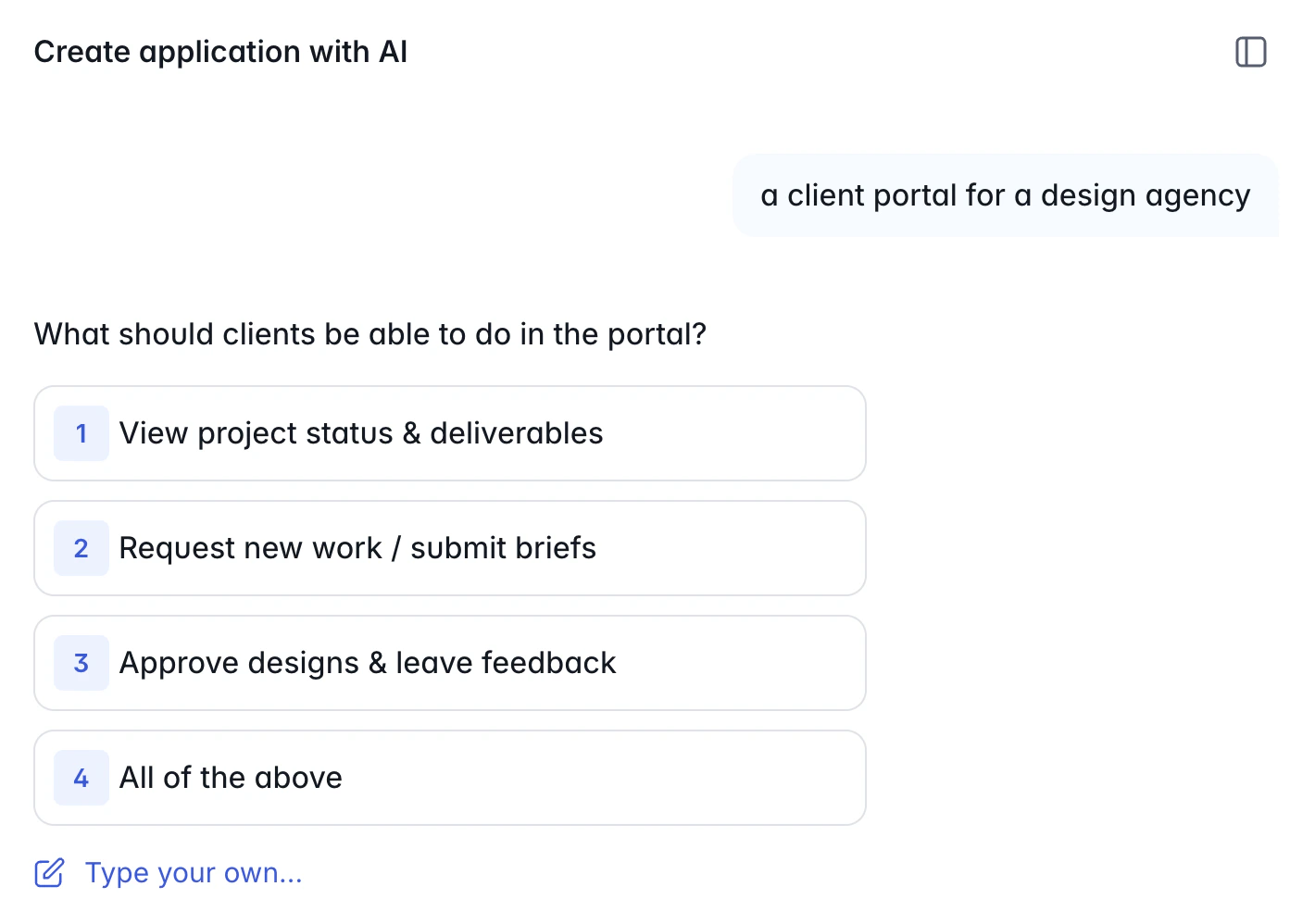
What the AI builds automatically
Once it has enough information, the AI builds a complete, connected system. It doesn’t just generate screens; it constructs the entire underlying architecture step by step:- Database — creates the tables and fields your app needs, sets up relationships between them (e.g., Projects linked to Tasks), and populates realistic sample data so you can see how everything looks right away
- Interface & Pages — creates a page structure suited to your use case, with a navigation menu already configured, using robust native blocks
- Business Logic & Access — sets up user groups based on the roles you described (e.g., Admin and Client), with secure, appropriate permissions per group
- Theme and layout — picks a clean layout and color theme to start from, ensuring the app is ready for production from day one.
Tips for a better first app
- Name your domain: “cleaning company”, “SaaS product”, “real estate agency” gives the AI the context it needs to infer the right entities and workflows
- Mention who uses the app: “admins manage bookings, clients view their own appointments” helps the AI set up the right user roles and page visibility
- Describe key actions: “staff should be able to update task status” or “clients can submit support requests” helps the AI add the right buttons and forms
- Don’t over-specify: you don’t need to list every field. The AI will infer sensible defaults and you can always edit afterward
Modifying an existing app with AI
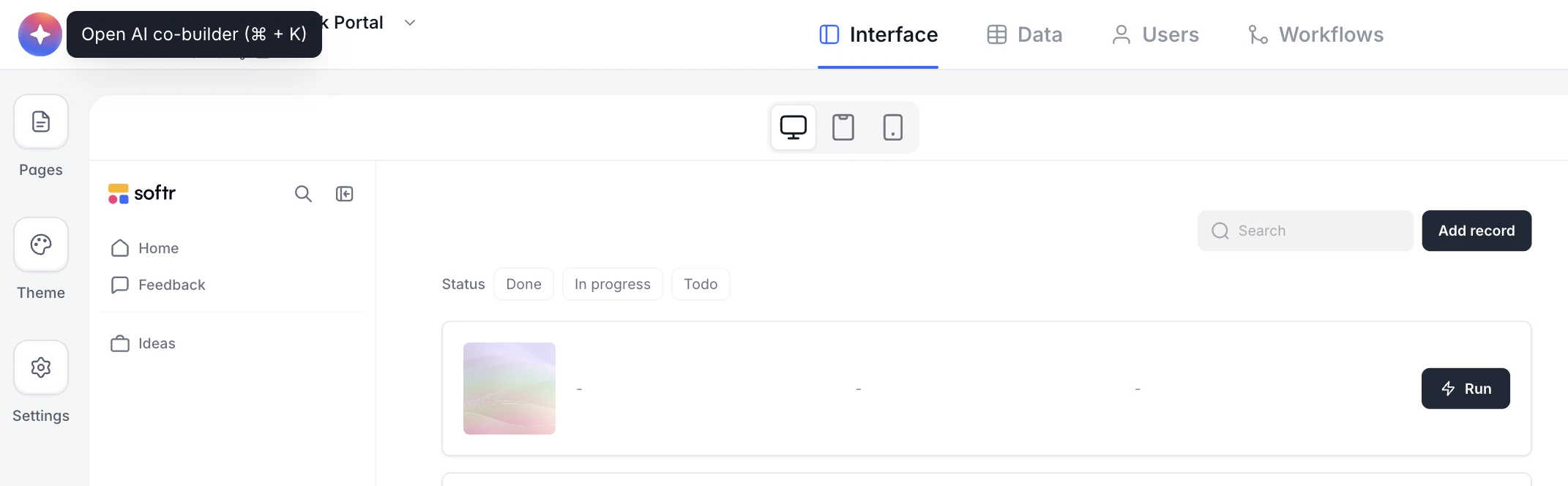
How it works
Type what you want in plain language and submit. The AI reads the current state of your app (the page you’re on, the data sources connected, existing blocks) and makes the change directly. You see the result immediately without leaving the editor.Things you can ask
Adding Blocks:- “Add a kanban board showing my Tasks sorted by status”
- “Add a table of all customers with their email and subscription plan”
- “Add a calendar block for the Bookings table”
- “Add a map showing all property locations”
- “Create a form page where new clients can submit a request”
- “Add a details page for each Project showing its linked tasks”
- “Add a dashboard page with charts for total revenue and open deals”
- “Add an Edit button to the Projects list”
- “Show the client’s name, email, and plan status on the card”
- “Add a search bar and filter by status to the Tasks table”
- “Add a metric showing total open issues”
- “Add a pie chart breaking down tasks by status”
- “Add a column chart showing revenue by month”
Context awareness
The AI knows which page you’re on, which data sources your app uses, and the fields available in each table. You don’t need to specify technical details like field IDs or block types. Just describe what you want in natural terms.Custom UI components
If you need something that doesn’t exist as a standard block (a Gantt chart, a pricing calculator, a custom timeline, an org chart) the AI can generate a fully custom component for you automatically. Just describe it as you would any other request.“Add a Gantt chart showing project timelines with start and end dates”The AI will build and embed the custom component on your page without any manual coding.
What the AI can and can’t do
What it can do
Current limitations
- Multi-step form branching: The AI can create multi-step forms and add fields to each step, but conditional branching logic (e.g., “if the user selects X, skip to step 3”) must be configured manually in the form’s Logic tab after the AI sets up the structure.
- Workflow automation: The AI can create simple workflows, but complex multi-step automations may need manual adjustments.
- System pages: Some Softr system pages (like the sign-in page) cannot have custom blocks added through the AI. Those are configured through dedicated settings panels.
Frequently asked questions
Can I edit what the AI creates?
Can I edit what the AI creates?
Yes. Everything the AI generates is fully editable. Use the AI as a starting point and adjust any block, field, or page manually using the regular editor controls.
What if the AI gets something wrong?
What if the AI gets something wrong?
Just describe the correction in the chat. For example: “Change the status field on the kanban to use the Priority field instead” or “Remove the map block from the Projects page.”
Does the AI remember previous conversations?
Does the AI remember previous conversations?
Yes. You can resume a previous conversation to continue where you left off, or start a new chat at any time. The AI always has accurate context about your app’s current state regardless of which you choose.
How many AI credits does it use?
How many AI credits does it use?
It depends on the complexity of your request. Simple changes like adding a single block use fewer credits than generating a full app from scratch. You can check your credit balance in your workspace settings.
Can I use the AI on any page?
Can I use the AI on any page?
Yes. The AI works on any user-created page in your application. Navigate to the page you want to modify, then use the chat to make changes specific to that page.