Record Filters
Apply conditional filters to a list of records or even a single record
Overview
Record filters are conditional filters you can apply on dynamic blocks (e.g., List, Table, Grid, Kanban) to control which records from a data source are displayed.
Record filters are simply one area where conditional filtering can be applied. To learn more about conditional filters and where they can be applied, check out the Conditional Filters doc.
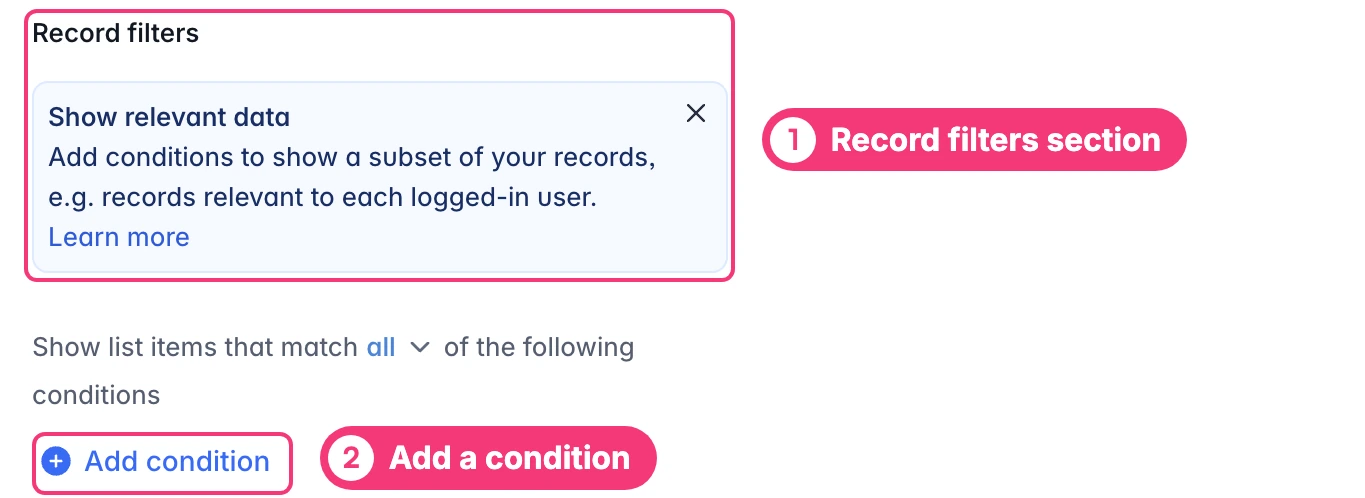
Key Use Cases
There are a few ways in which you can use conditional filtering to only show specific record(s) on a block. Note that this filtering is not accessible to the end user and essentially pre-filters the list or items for them to only see a specific record or set of records.
-
Basic Filtering: Display only records meeting static criteria, such as tasks in a specific status (e.g., “In Progress”) or events in the current year (e.g., date field is after a certain date). This is ideal for curating views without user input and acts as a sort of pre-filter.
-
Show records relevant to the current user: Show items relevant to the logged-in user, like tasks assigned to their email (e.g., ‘Assignee’ field is Logged-in user’s Email). This personalizes the experience and enhances security by hiding irrelevant data.
- Integration with Global Data Restrictions: Global data restrictions apply app-wide rules first (for example, restricting a user group to view only certain records), and record filters layer on top for block-specific refinements. They work together seamlessly: global data restrictions enforce broad access controls, while record filters handle granular display logic within allowed data. For example, if globals restrict a table to user-owned records, record filters can further narrow to a specific status. Additionally, record filtering for specific user groups using global data restrictions can save you time by not having to manually apply record filtering to multiple blocks that show the same data.
-
Show only records relevant to current details page’s record: In linked list setups, filter sub-items based on the selected main record (e.g., show tasks linked to the current project via a record ID match). This creates hierarchical views, like a project details page displaying only associated tasks.

Tips and Tricks
- You can combine filters to create complex logic using “And” and “Or” type filtering to achieve the desired result. In the event you need cascading or sub-grouping of filters, a tab container can help by branching each block out into the needed sub-grouping.