Pipedrive
Using Pipedrive as a data source for your Softr app.
Pipedrive is a sales-focused CRM built around a visual pipeline, helping sales teams track deals, contacts, and activities from first contact to close.
Pipedrive organizes data into a fixed set of objects, which makes it a straightforward data source for sales dashboards, client portals, and internal tools built on Softr. To learn more about Pipedrive, visit the official Pipedrive website.
In this article, we’ll cover how to connect Pipedrive to Softr and take a closer look at the features that matter in that context.
1. Connect your Pipedrive account
To use Pipedrive in Softr, you must first connect your Pipedrive account. Any Pipedrive data source you connect in Softr can be used by all of the workspace’s collaborators in all of the workspace’s apps.
Add Pipedrive data source to your workspace
-
In your Softr Dashboard, navigate to Data Sources in the left menu.
-
Click Connect Data Source.
-
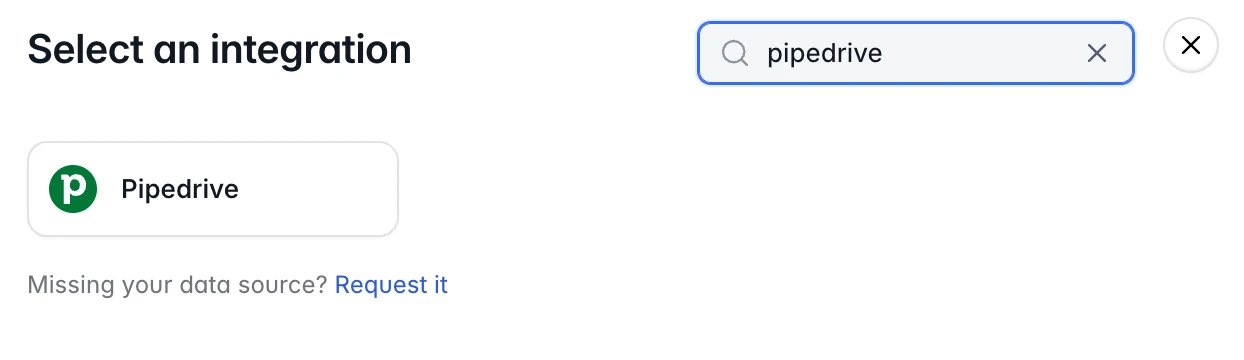
Select Pipedrive and proceed to authenticate your account.
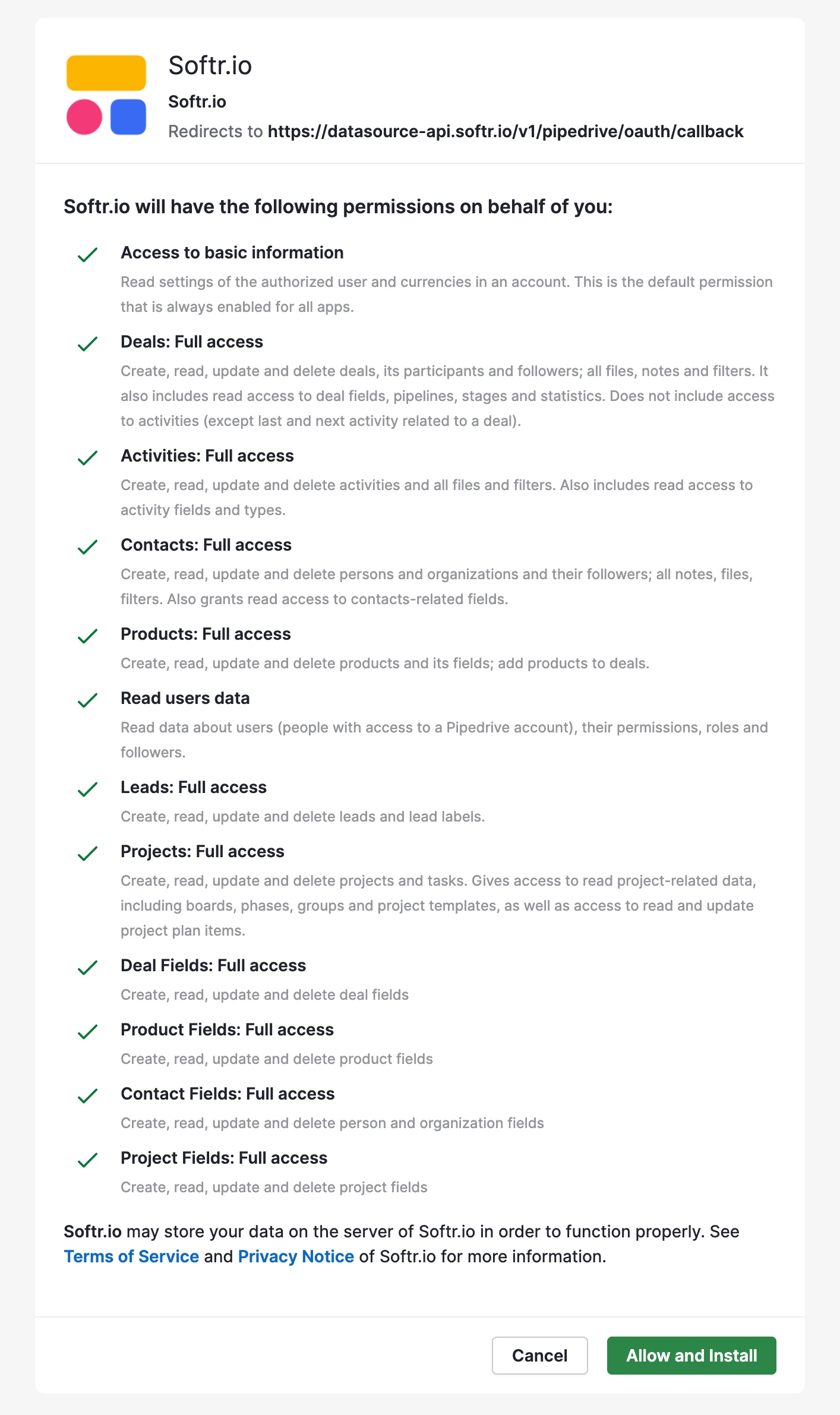
Grant access to Pipedrive
-
Sign in to your Pipedrive account when redirected.
-
Approve the requested permissions to complete the connection.
2. Connect your Pipedrive data to a Softr app
Once your Pipedrive account is connected, you can use the authorized account across one or multiple Softr applications.
Connect the Pipedrive objects to a Dynamic Block
To display your data in the app, connect a dynamic block (e.g. List, Grid, Table) to your Pipedrive objects:
-
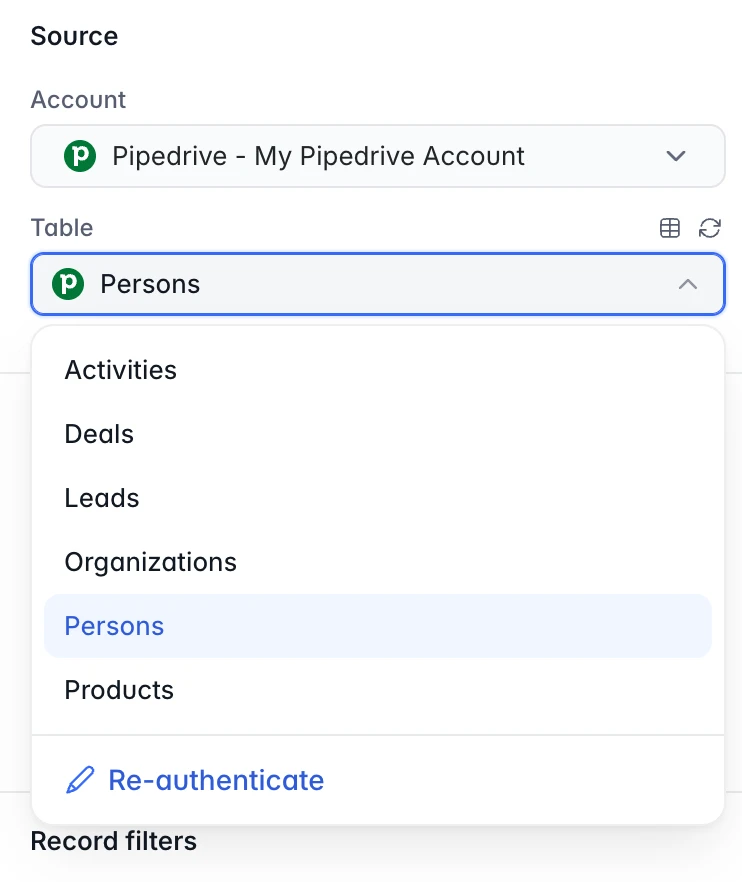
In the block source tab, select the authenticated Pipedrive integration.
-
Choose the Object you want to use.
Supported Pipedrive Objects
Softr supports the following Pipedrive objects:
-
Deals
-
Persons
-
Organizations
-
Products
-
Activities
-
Leads
Mapping Pipedrive object fields
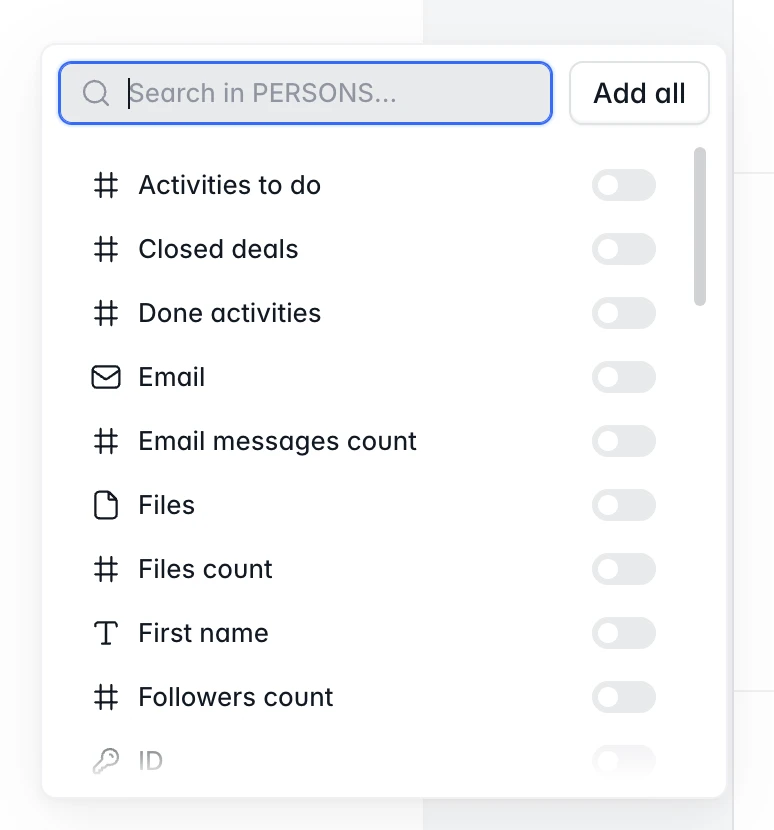
When you select the object type you want to show, you can customize which object fields you want to visualize alongside. Each Pipedrive object has predefined field types like text, dropdowns, and date pickers. Since Softr also has its own field types, it’s important to map fields correctly to ensure your data appears as expected.
Supported Fields
Softr supports:
-
All default Pipedrive object fields
-
All custom fields you’ve created in Pipedrive
However, some fields are read-only in Softr, including:
-
Computed counters such as Activities count, Files count, Followers count, Open deals count, and similar roll-up counts.
-
Fields Pipedrive sets automatically, such as Won time, Lost time, Last activity, Is archived, and the record Creator.
-
On Activities, the linked Person is set through participants, not directly.
-
On Persons, the Name field: set the First name and Last name fields instead, and Pipedrive builds the full name from them.
-
On Leads, a few fields Pipedrive derives from the linked deal or that Softr cannot write yet, such as Value, Source, and Deal.
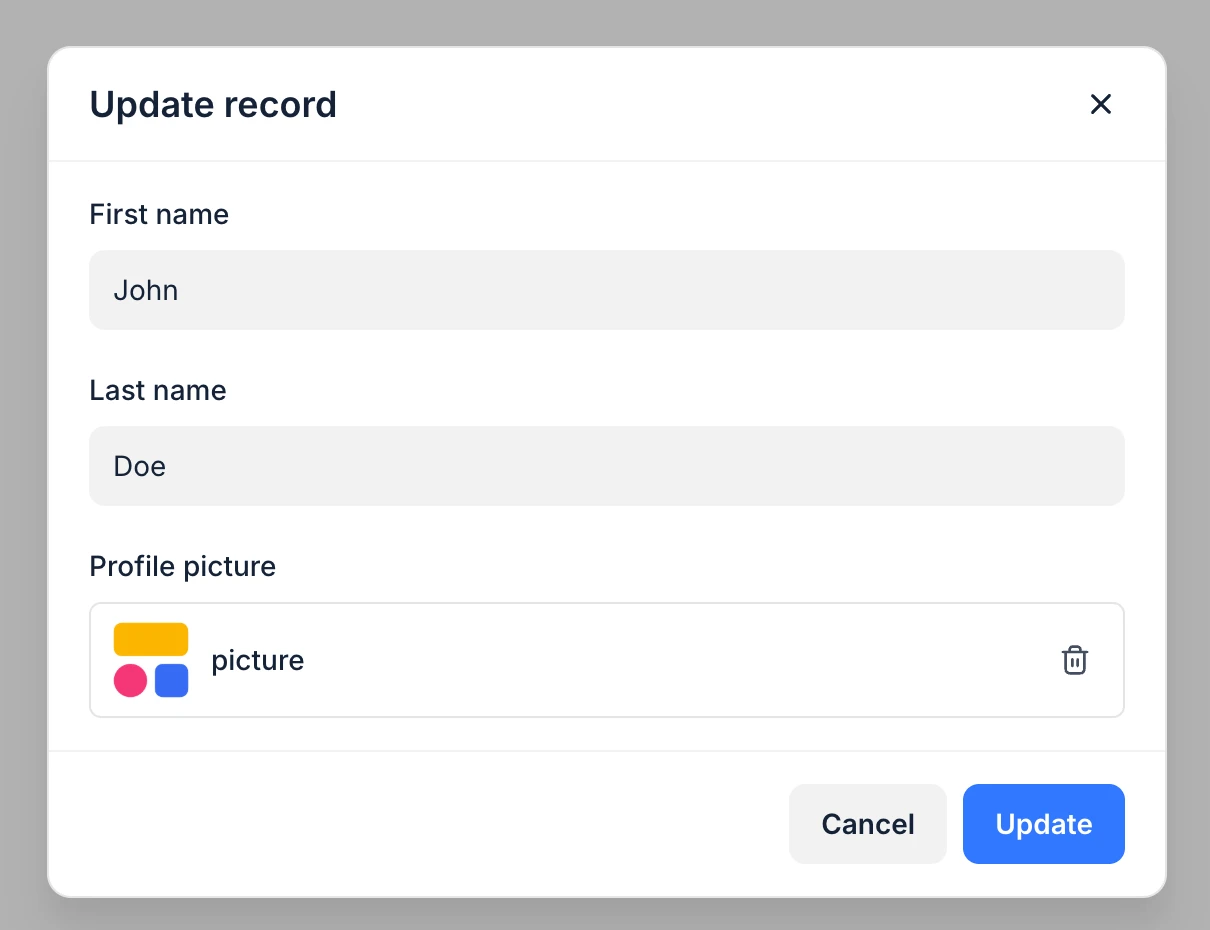
Pictures, files, and product images
Pipedrive stores person profile pictures, product images, and record attachments (files) outside the regular field data. Softr supports all three:
-
Person profile pictures: upload, replace, and remove a person’s picture from a Softr form.
-
Product images: upload, replace, and remove a product’s image.
-
Record files: attach, download, and remove files on deals, persons, organizations, and activities.
Pipedrive object relationships
Pipedrive works as a relational database, meaning objects can be linked together, such as:
-
A Deal linked to a Person and an Organization
-
An Activity linked to a Deal, a Lead, or a Project (at most one of the three at a time — see the note below)
In Softr, you can show linked objects using:
-
Linked record fields
FAQs
Why can't I see certain Pipedrive fields in Softr?
Some fields are calculated by Pipedrive (counters, won/lost timestamps, and similar) and only ever show up as read-only in Softr. If a custom field is missing entirely, reconnect the Pipedrive data source to refresh the field list.
Can I use an API token instead of signing in?
No. Softr connects to Pipedrive through OAuth only, so you authenticate by signing in and approving the connection.
Can I use multiple Pipedrive accounts in one Softr app?
Yes. You can connect multiple Pipedrive accounts, but you’ll need to use separate Softr blocks for each object from each account.
Why does updating an Activity fail with an error about deal, lead, or project?
Pipedrive allows an Activity to link to only one of Deal, Lead, or Project at a time. Check that your form or workflow isn’t setting more than one of these fields on the same update.