

Much of what your app Navigation does and shows depends upon your User Authentication settings and the Pages available in your app. We recommend reading up on those before exploring this article.
Setting up page navigation
To turn on Navigation for a page, go to the page settings and select the Navigation dropdown. Here you can choose to either turn off the navigation for the page, select an existing navigation, or create a brand new navigation. Any new navigations you create can also be used on other pages.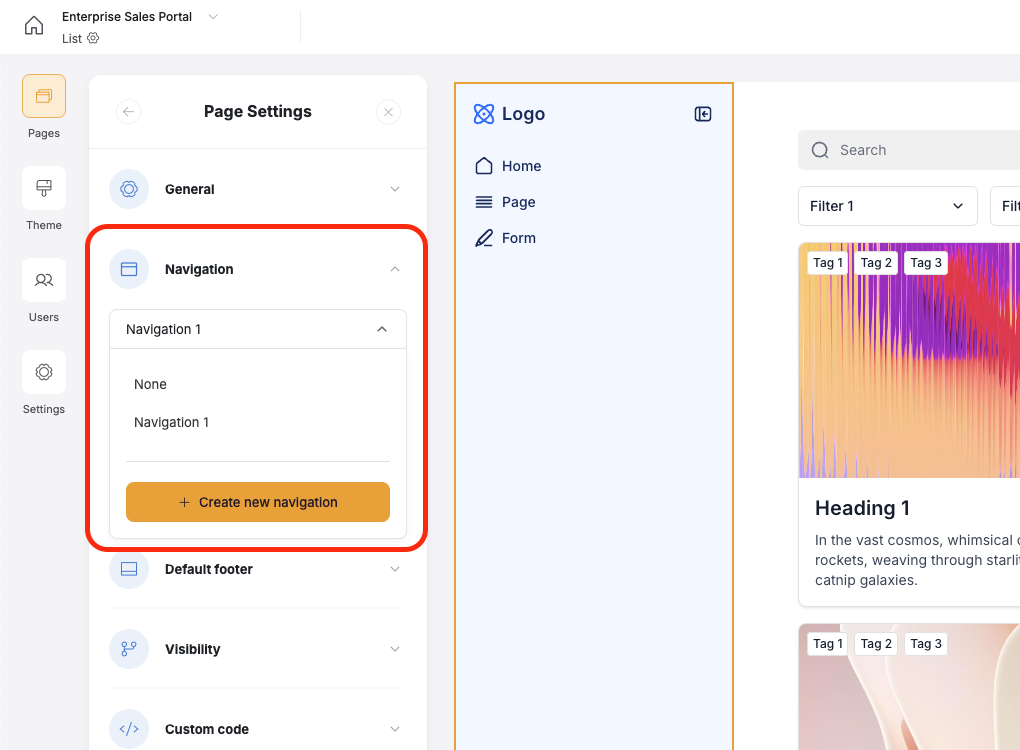
Content
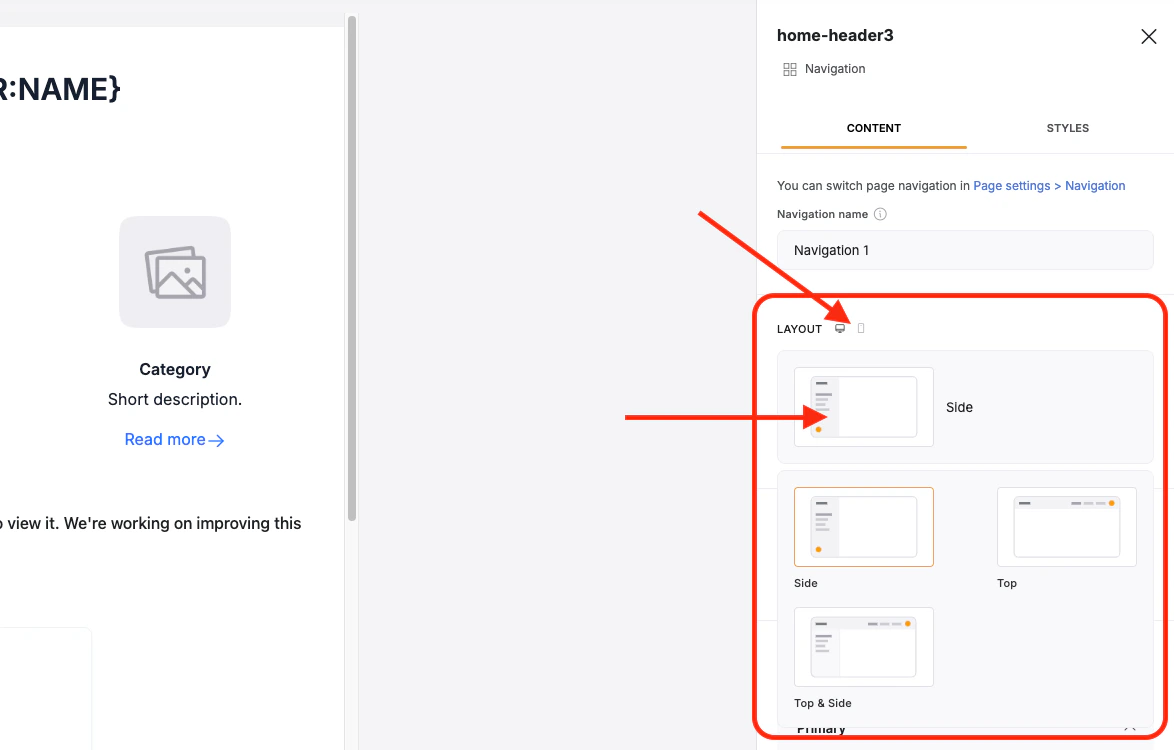
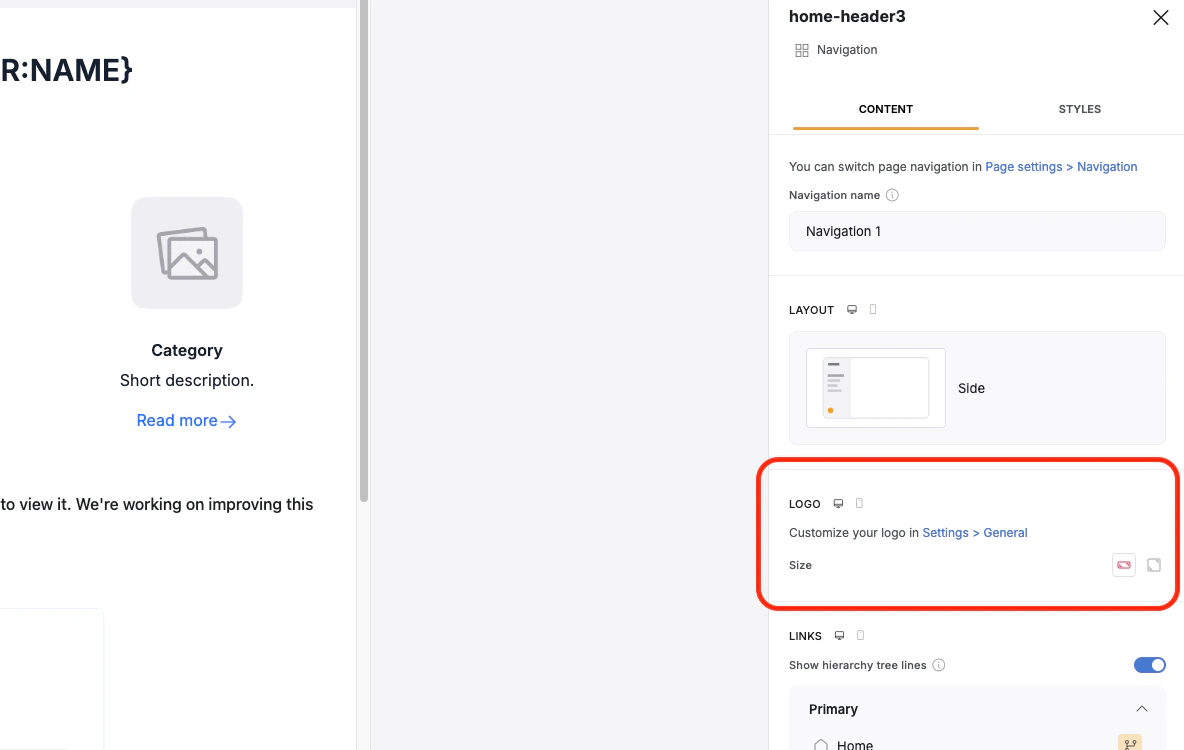
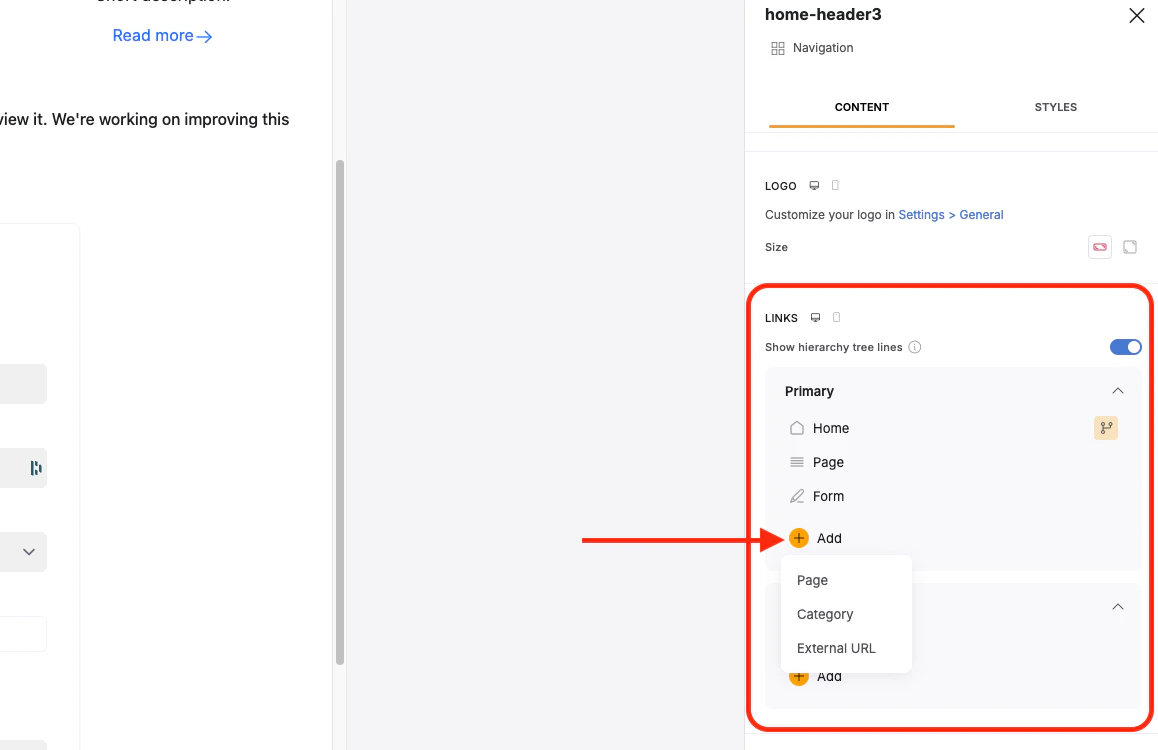
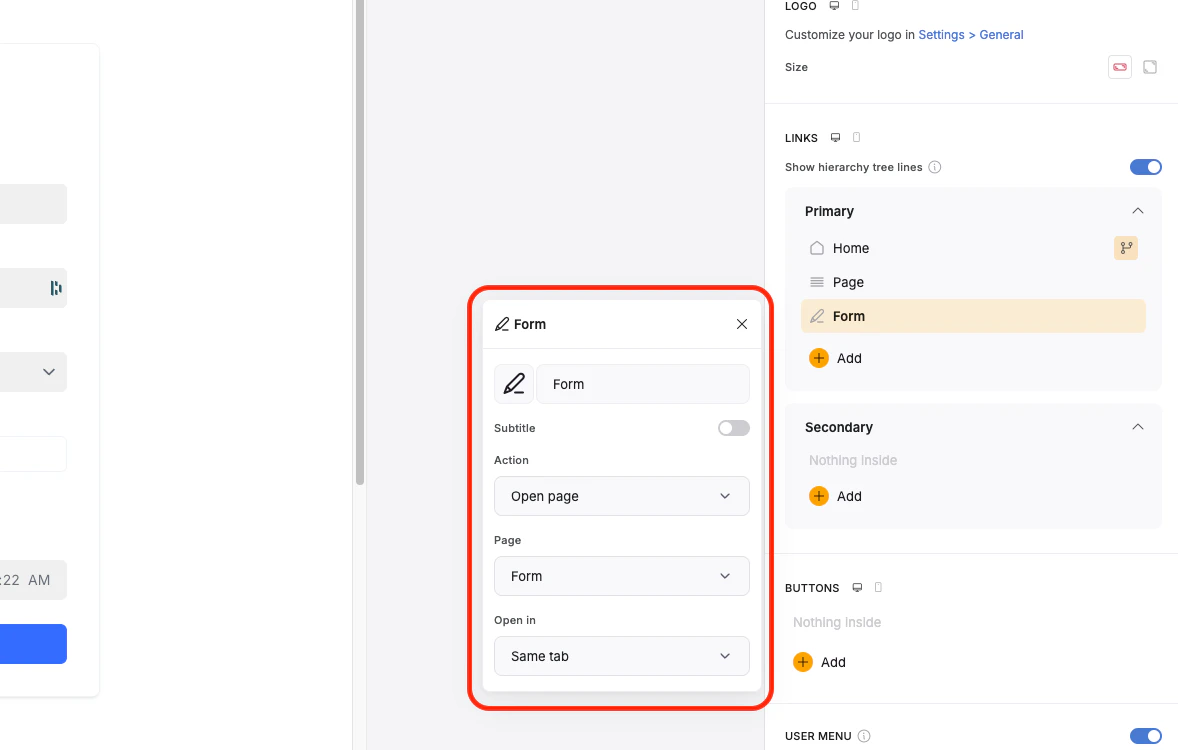
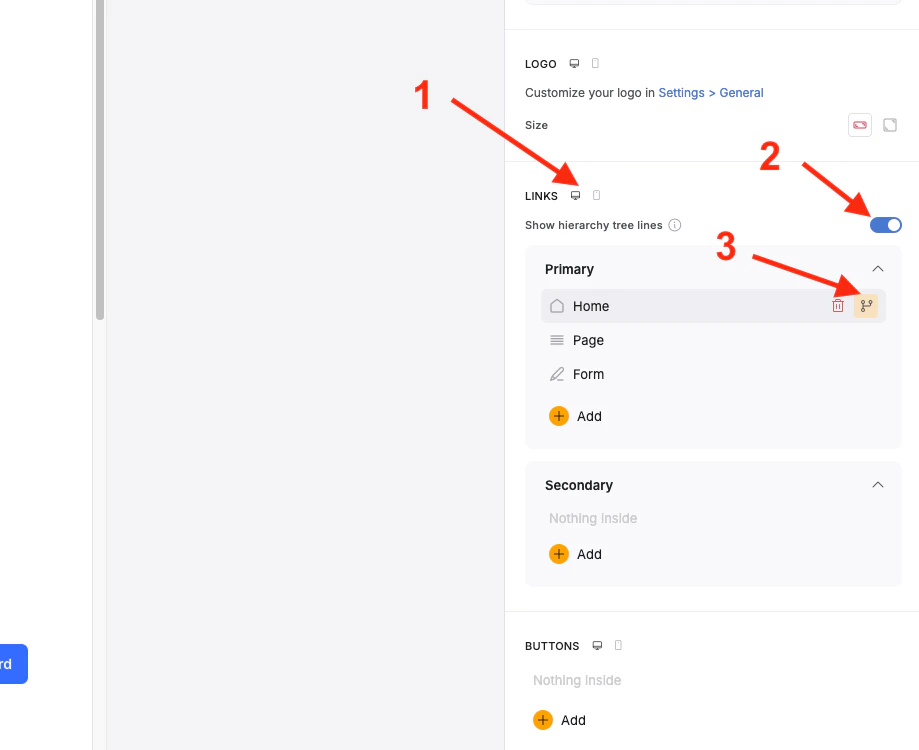
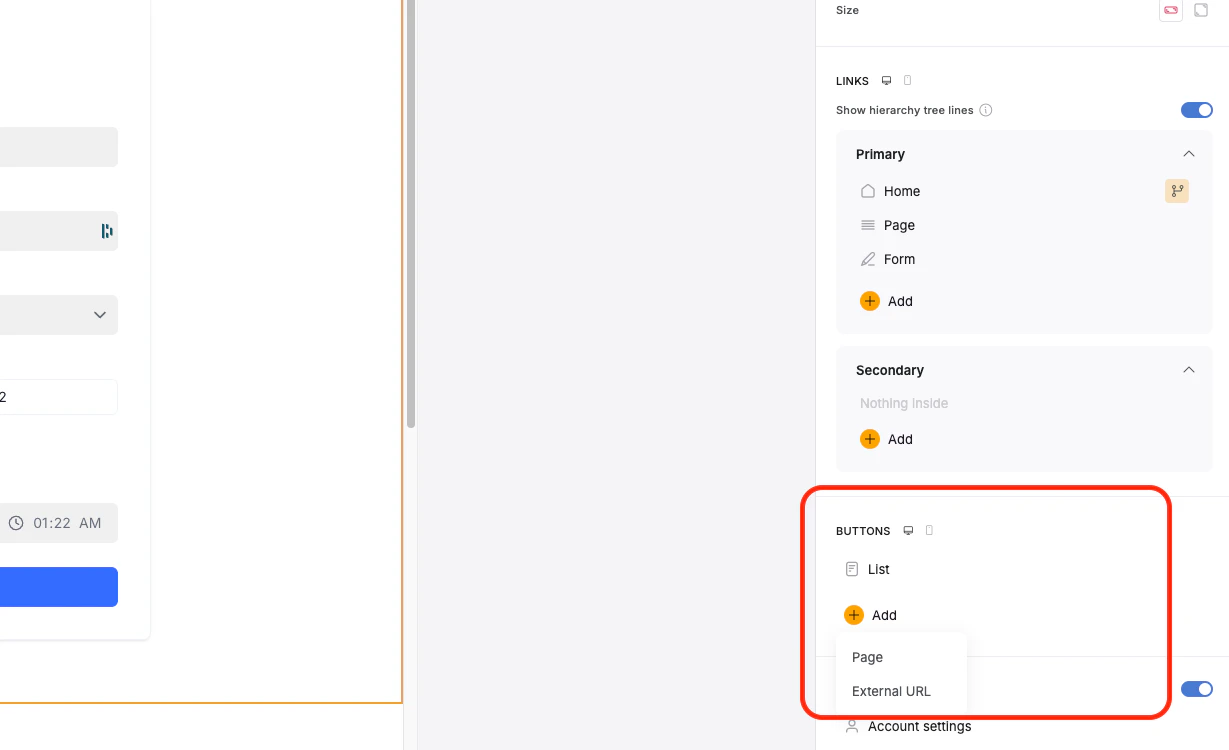
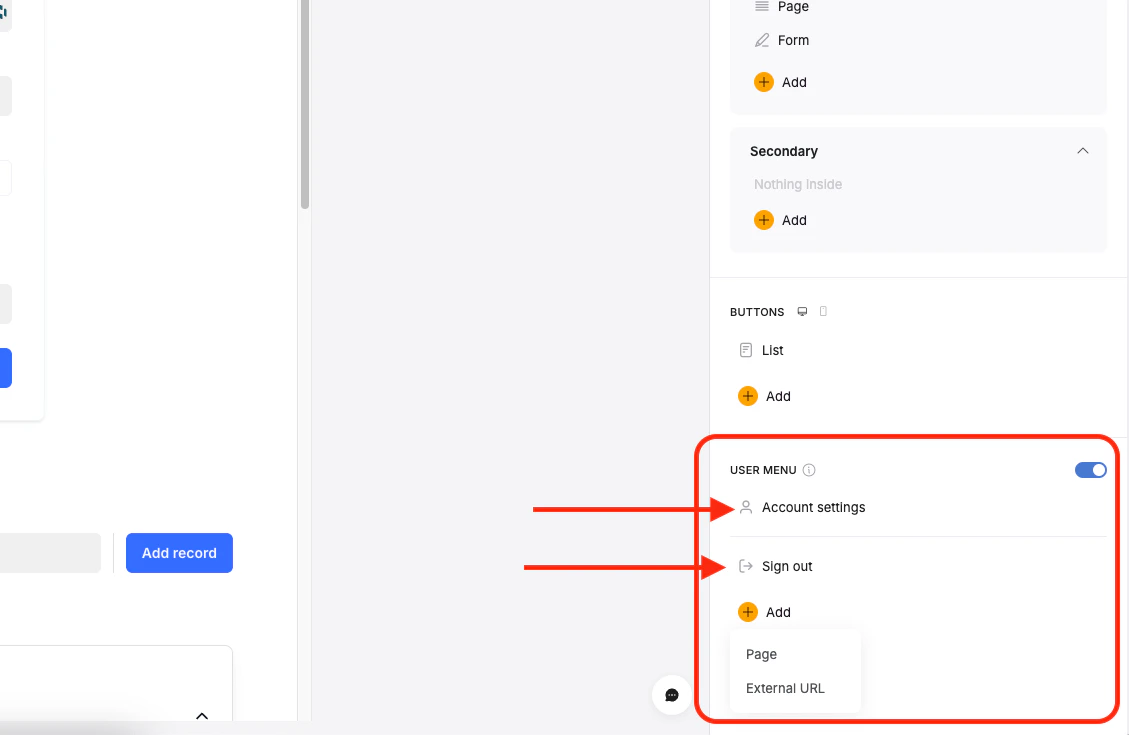
With the navigation block selected, you will be able to change the Navigation’s name and see the Content tab where you can adjust various settings for your navigation.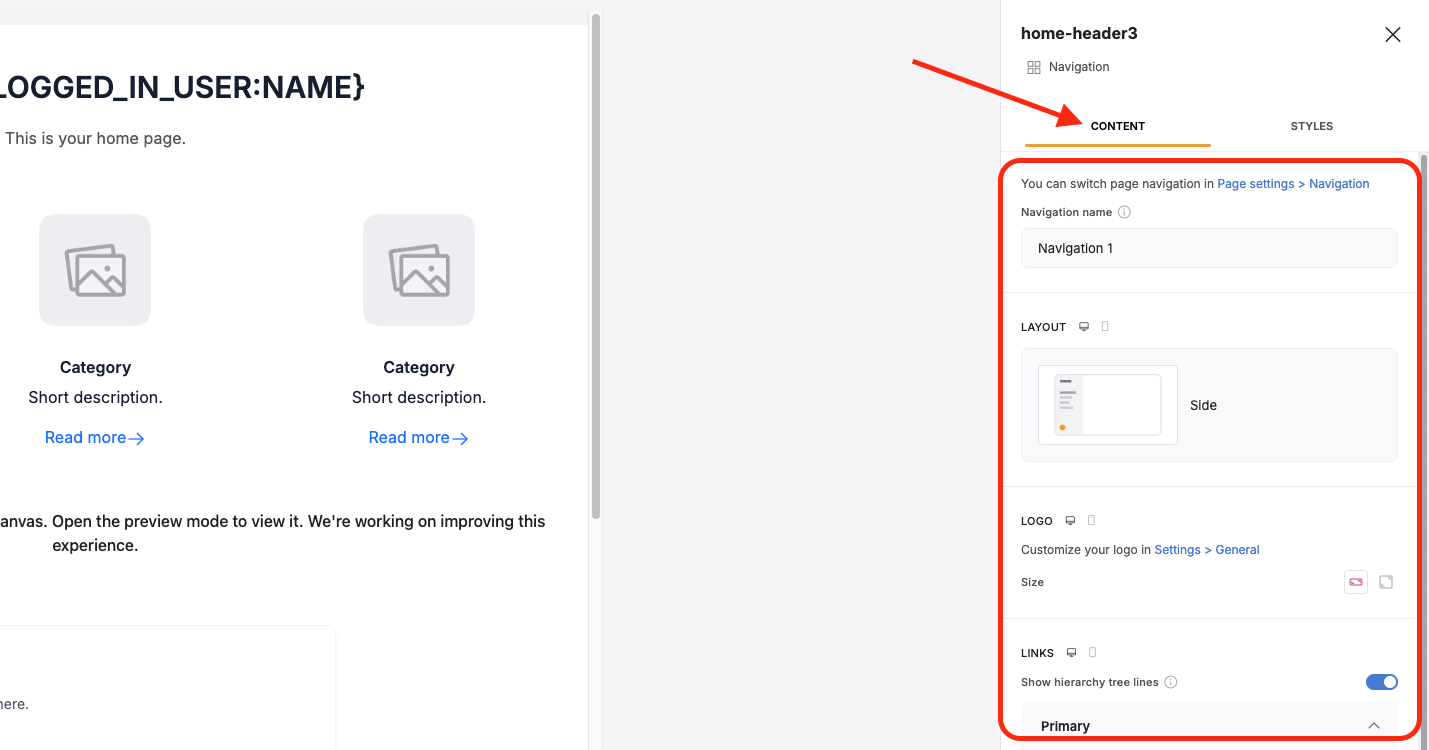
Styles
In addition to the Content Tab, clicking on the Styles tab at the top of the Navigation settings will bring up some options for customizing the look and feel of your Navigation. You can adjust the styling separately for Desktop and Mobile/Tablet.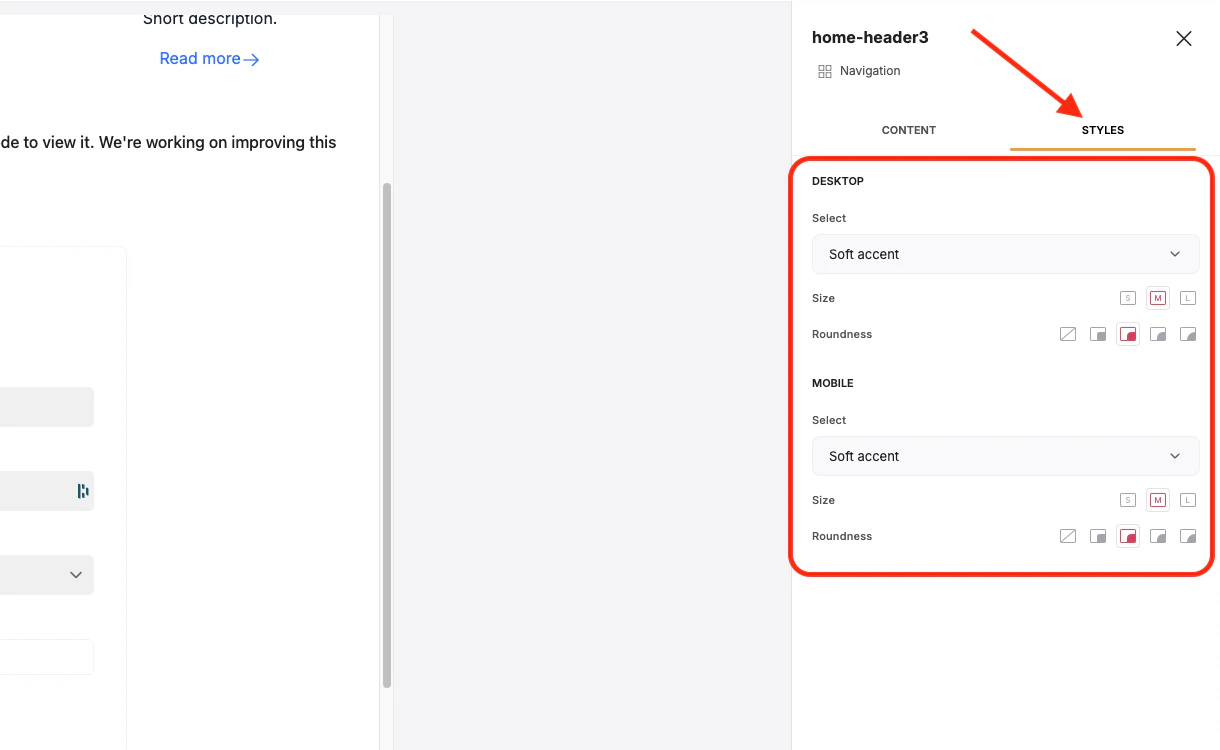
- Regular - This will adjust the navigation styling to match the background colors in the Theme menu.
- Accent - This will adjust the navigation styling to match the accent colors in the Theme menu
- Soft Accent - This will adjust the navigation styling to be a lightened shade of the accent color in the Theme menu.