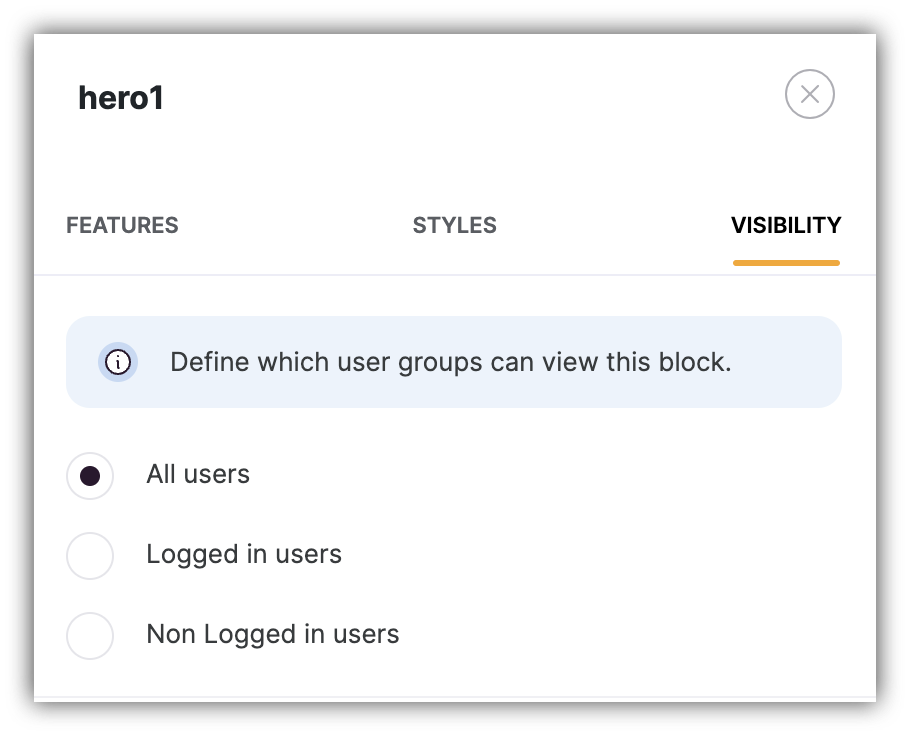
This section goes through the process of configuring the visibility of any block in your Softr app.As soon as you have set up memberships, you can choose which user group you want a particular block to be visible to. This is configured through Visibility tab in block settings and has the following options:
All users (selected by default)
Logged in users
Non Logged in users
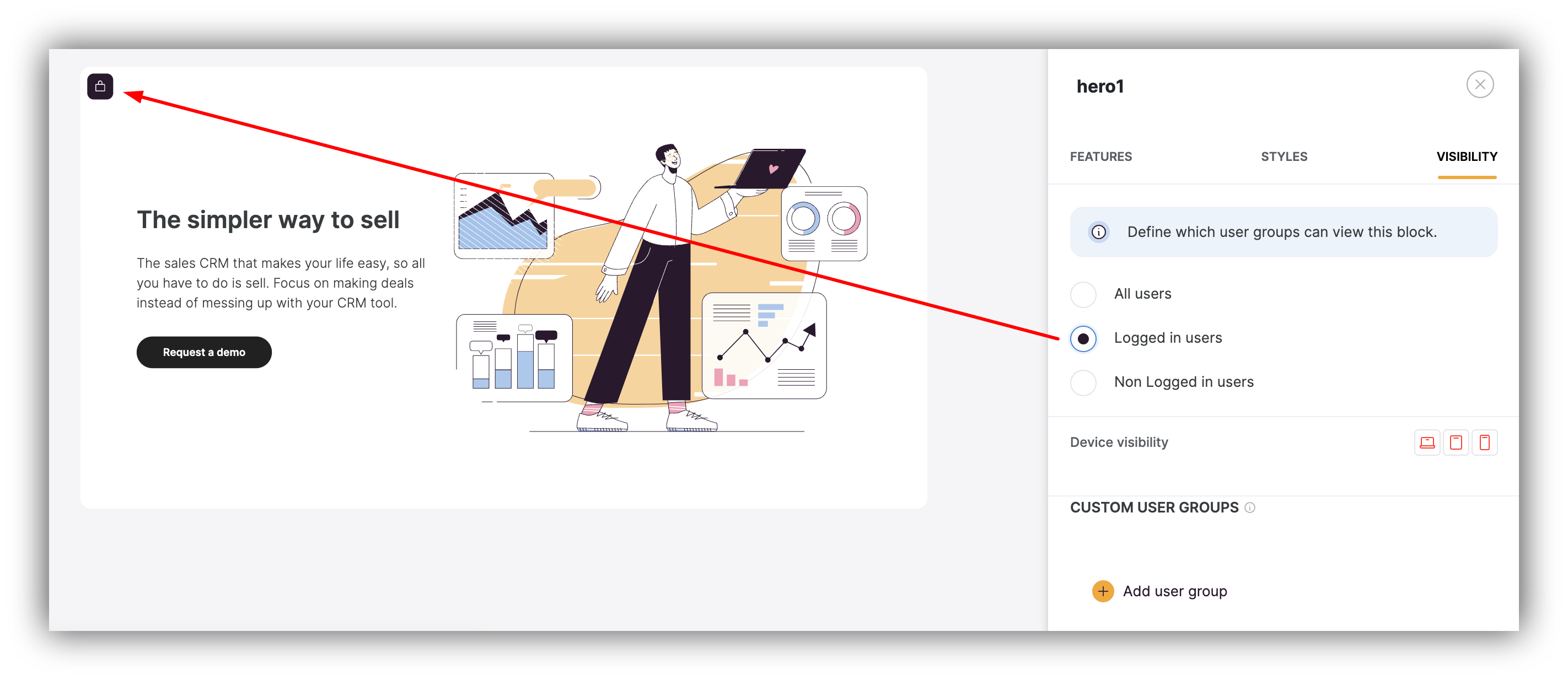
If you switch the block visibility to Logged in users or to Non Logged in users, a padlock icon will start appearing on the block, as shown below, indicating that it’s gated content with limited visibility.
Please, keep in mind that gated content (e.g. blocks that are only accessible to logged-in users or a specific group of users) will not be crawled by search engines.
For example, the block visibility feature can be used to show a header with log-in/sign-up buttons to non-logged-in users and a different header without buttons to logged-in users (discussed here). But that’s just one case, and there can be many other cases when you need to display/hide a certain block from a different user group, thus having different content for logged-in and non-logged-in users.
Apart from setting block visibility for certain user groups, you can set device-based visibility.
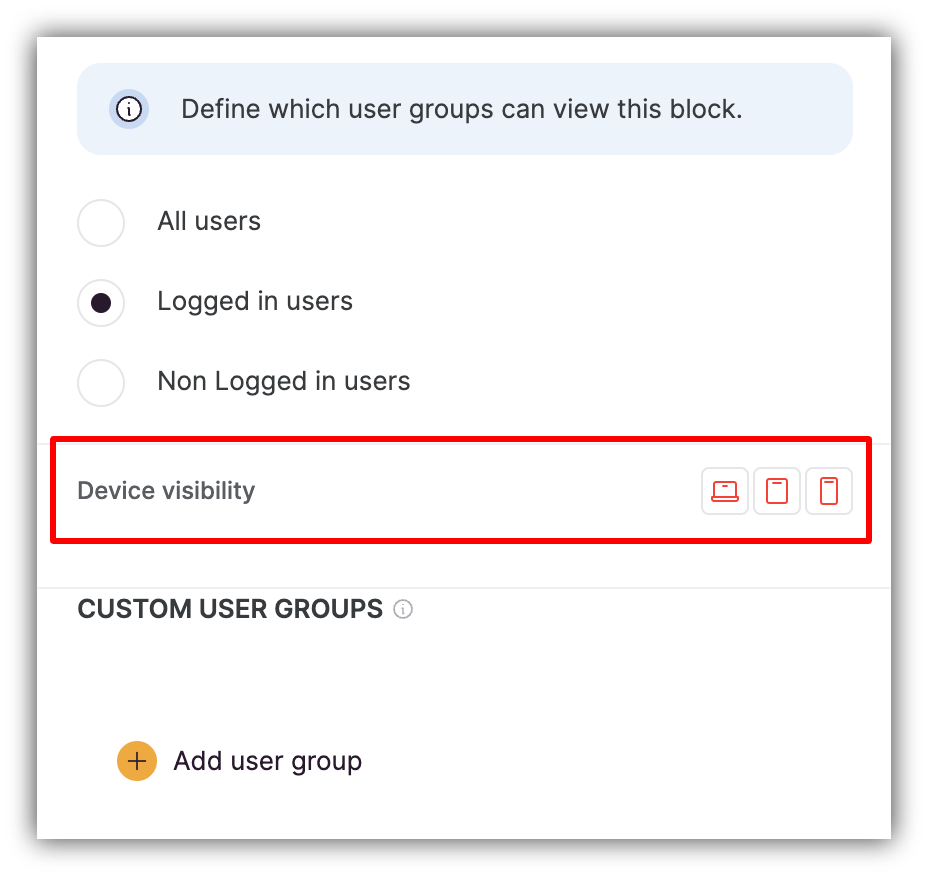
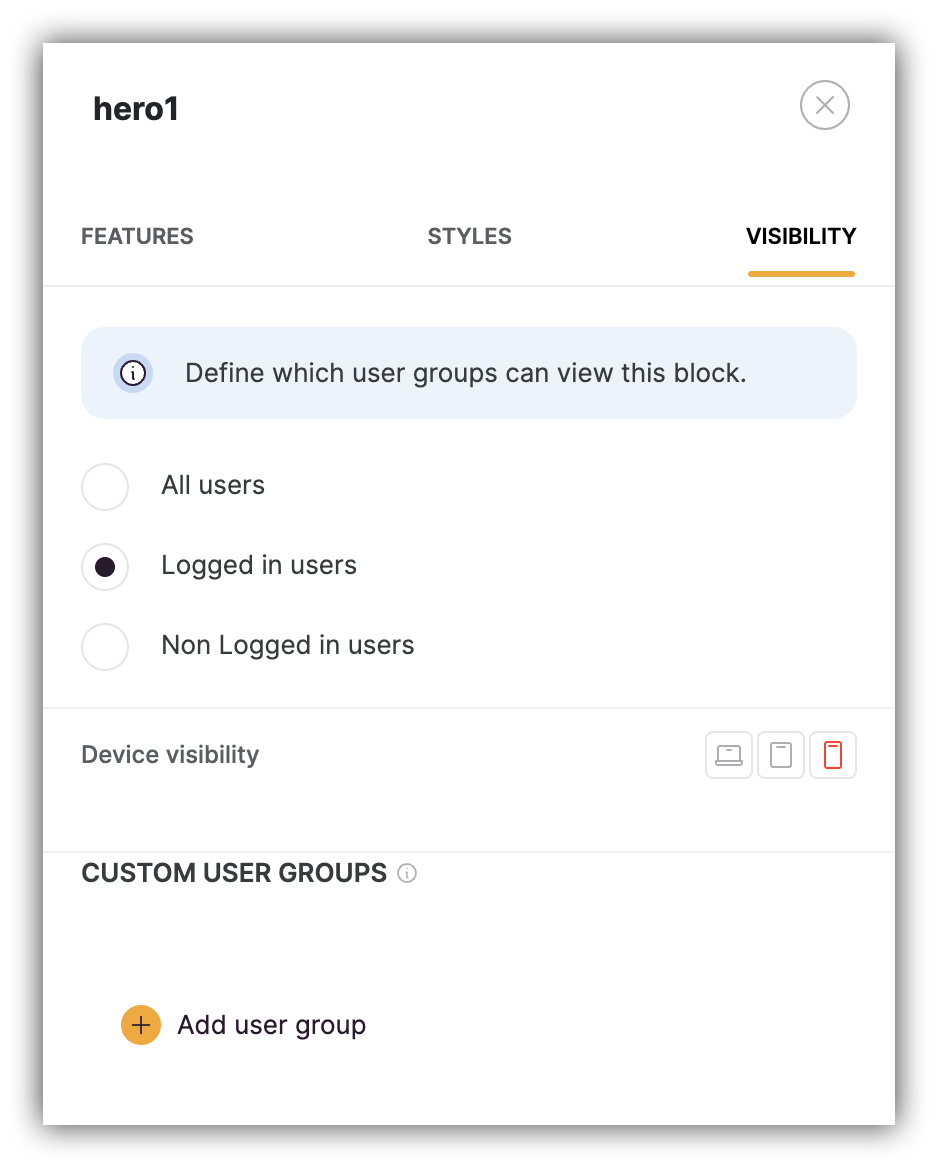
By default, Desktop, Tablet, and Mobile options are enabled. You can disable any of the options by clicking on it. In the example below, only logged-in users who are viewing the page on a mobile device will see the block.
Softr viability checks and record conditional filters are applied on the server side, and there is no way to trick the system. Learn more about Softr App Security.