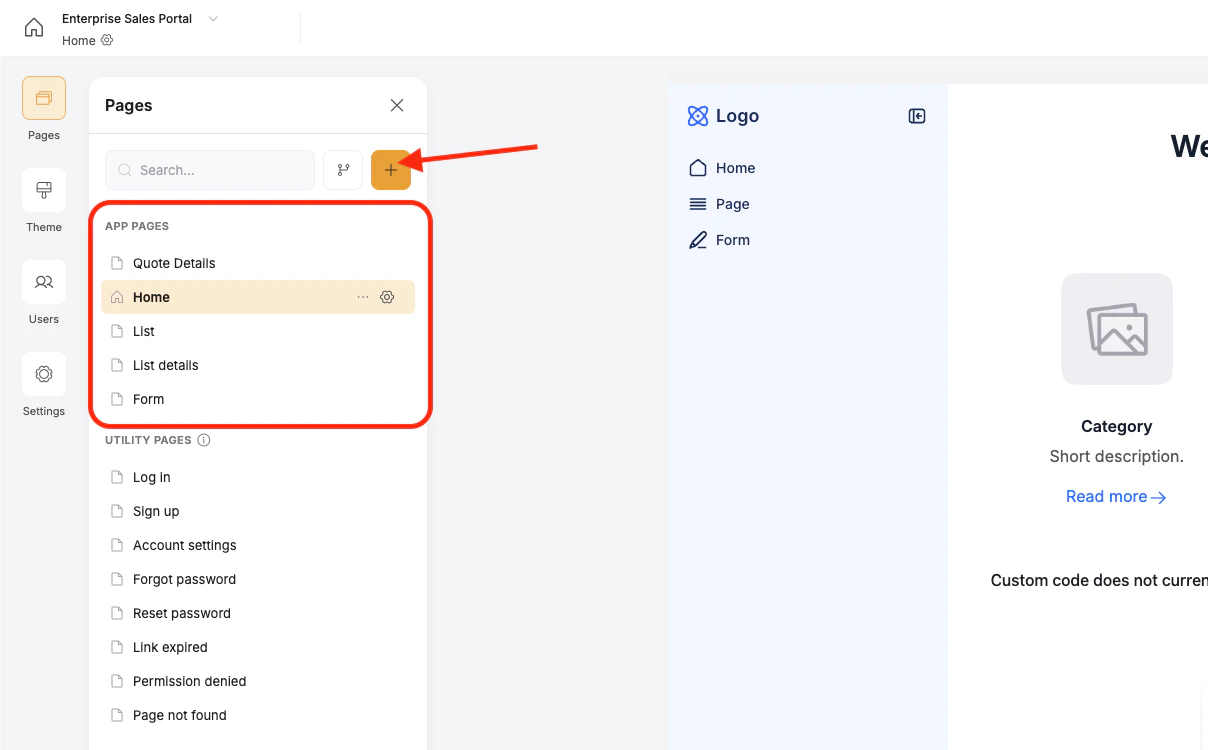
- Application Pages - These pages will hold the primary content of your app, whether its static content or dynamic content pulled from your datasource. You can fully customize these to suit your needs.
- Utility Pages - These pages are generated for you and handle more of the “housekeeping” side of your app such as password reset pages, 401 pages, invalid link pages, signup, login, and more. You can customize these to match your brand, but the core function of these pages is set for you.
Creating a page
You can access all pages by clicking on the Pages menu in the upper left of Softr Studio: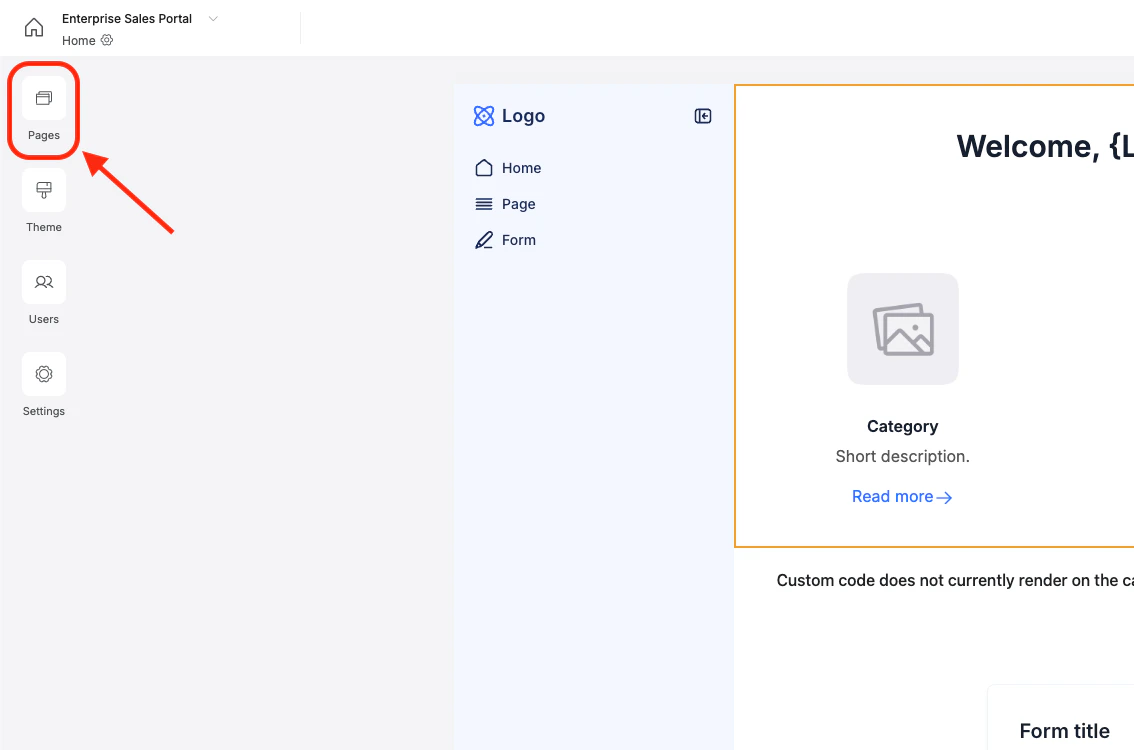
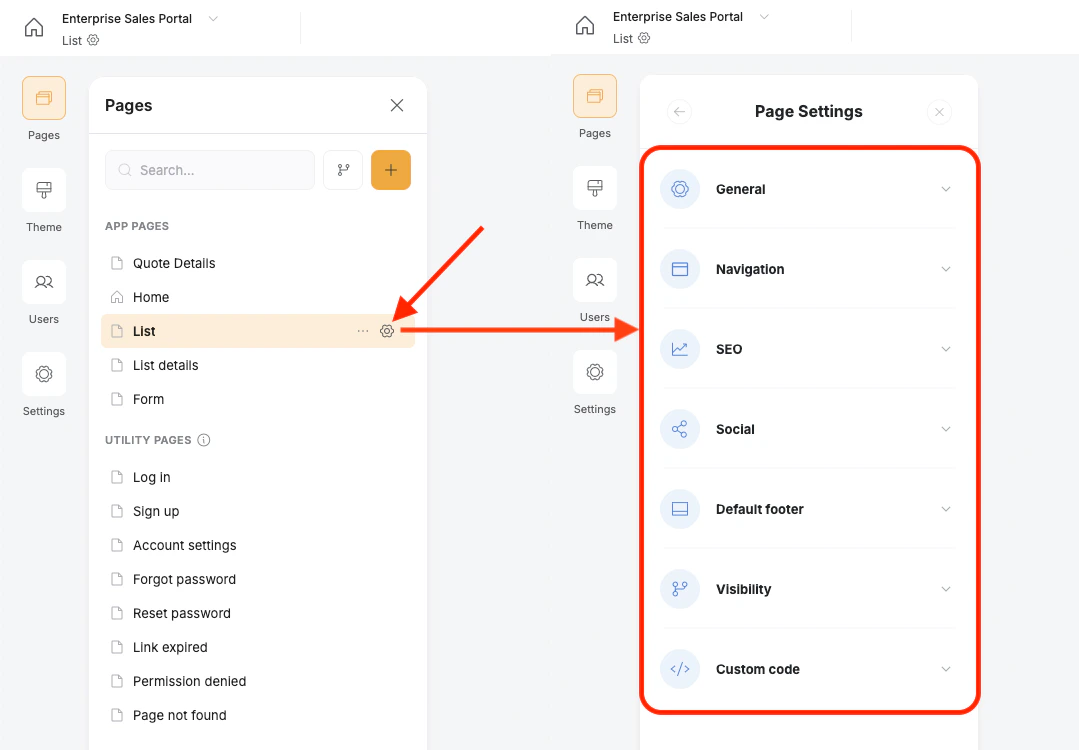
Page Settings
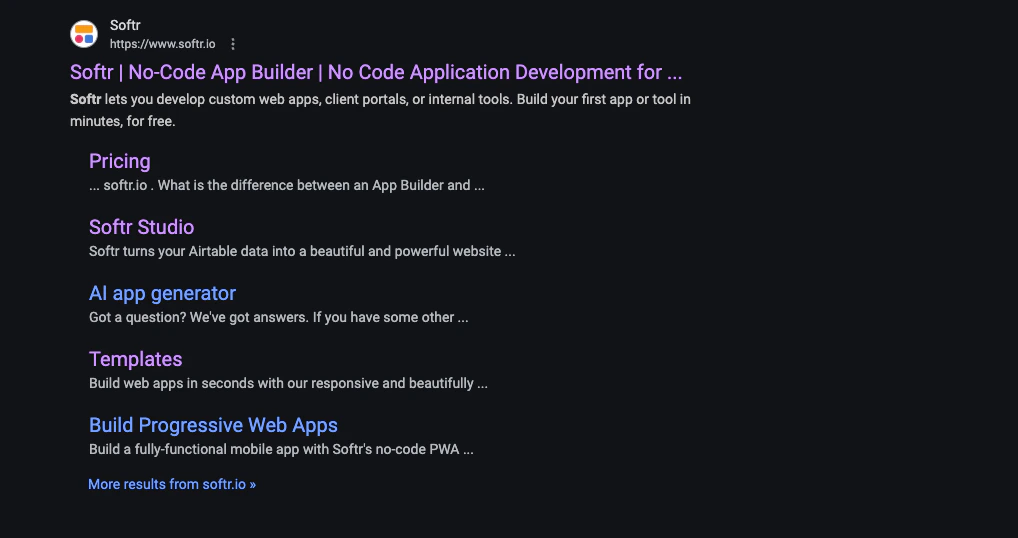
General In the general settings, you can change the Page’s name (visible in Studio and in search engine results) and the url slug for the page (used to link people directly to this page in your app).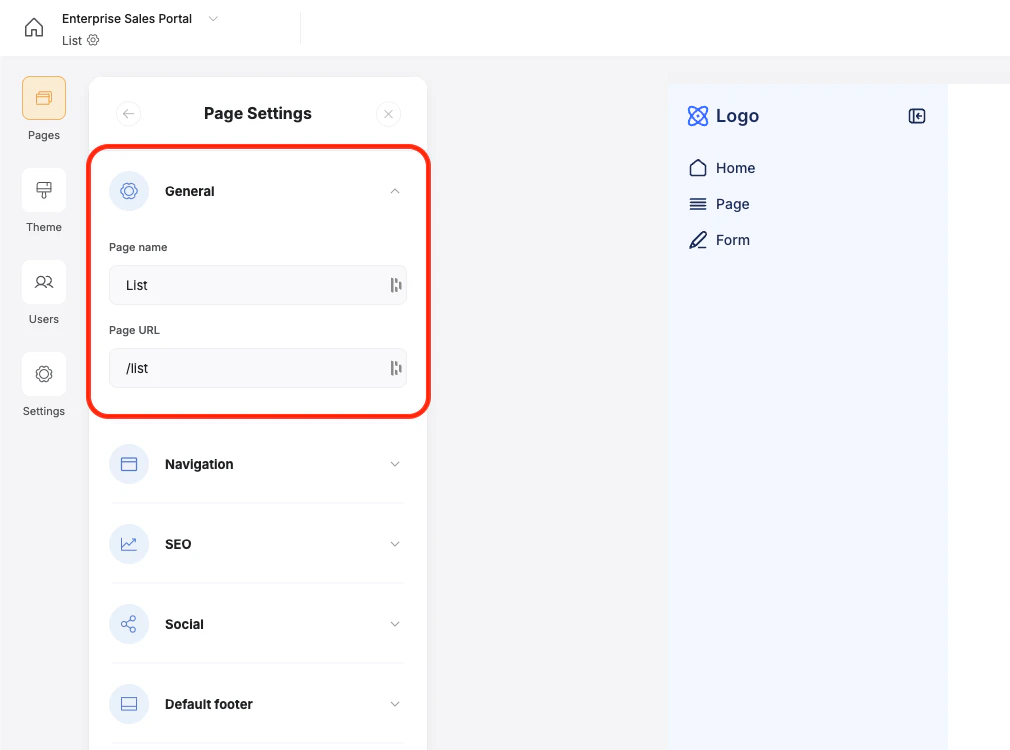
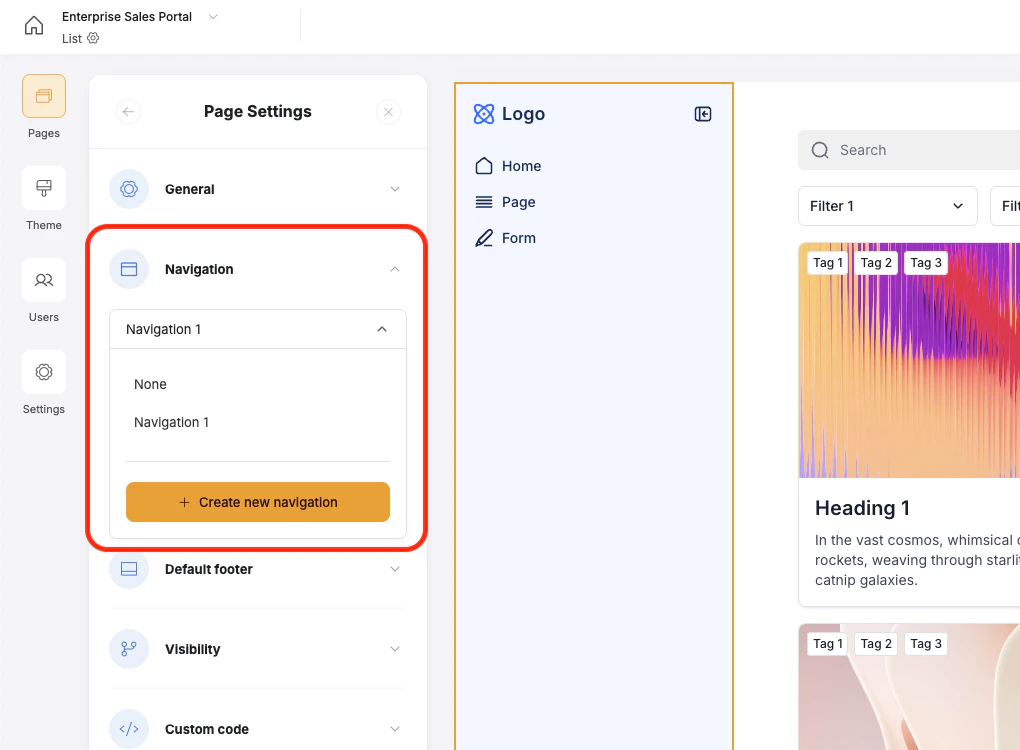
- Title - Shown in search engine results
- Description - Show in search engine results
- Search engine indexing - Turn this on for your page to appear in search engines and off to prevent search engines from showing it in search results. This is handy for hiding non-relevant pages to search engines such as account pages, private pages, or pages with sensitive information.
-
Canonical URL - You can tell search engines to prefer another version of this page over the current one. For instance, you have an old pricing page called
/old-pricingthat you still need to reference and show up in search results, but you prefer to show the new one called/pricinganytime someone performs a search for “app pricing”.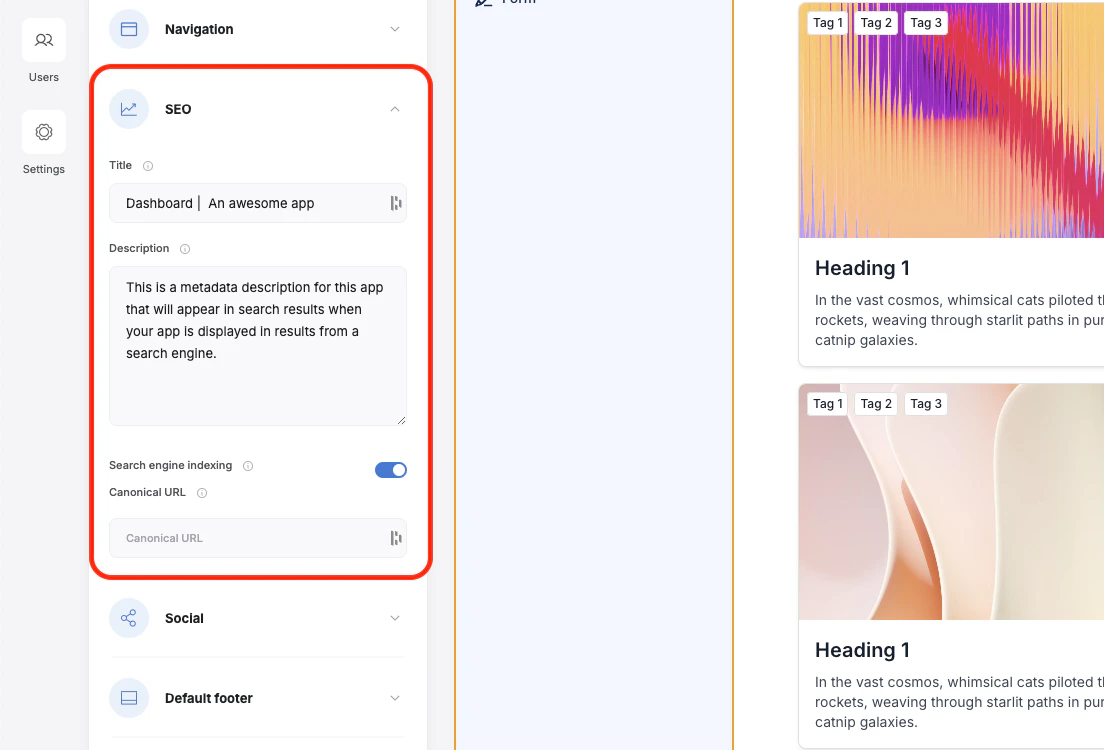
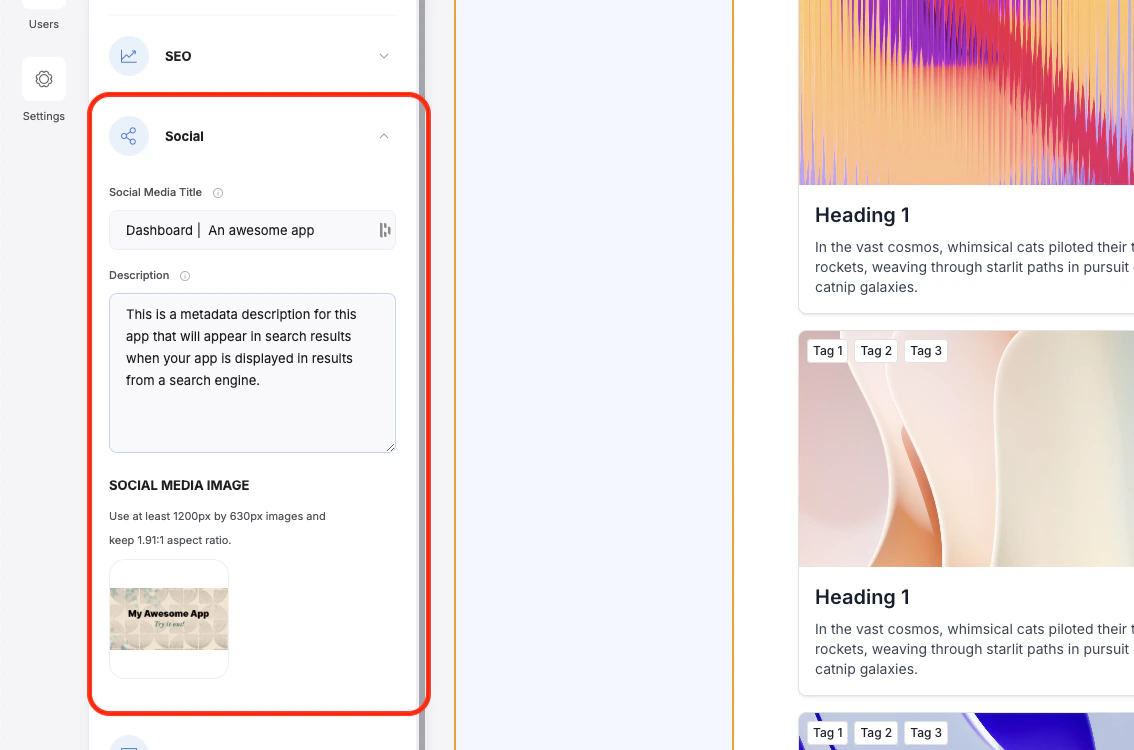
- Title - This title is displayed as the page name in the social preview
- Description - This is displayed as the page description in the social preview
-
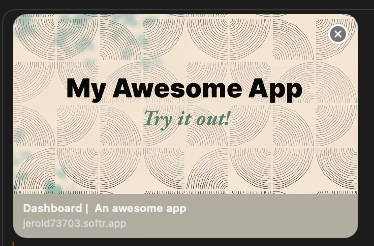
Social Image - This image is shown in the social preview and looks best when following the recommended aspect ratio and pixel sizes.