Database AI Agents
Use Database AI Agents in your Softr Databases to auto-fill, generate content, and more.
Overview
Database AI Agents are AI helpers that live inside your Softr Databases fields. (This is distinct from any other AI feature in Softr; throughout this page, “Database AI Agents” always refers to the AI helpers that run on fields in Softr Databases.) They can auto-fill and tag fields, summarize insights, pull details from PDFs, enrich records with live web data, and more. You decide when they run, with filters and conditions to make sure they only trigger on the records you want.
How to Add a Database AI Agent to a Field
Add an AI field
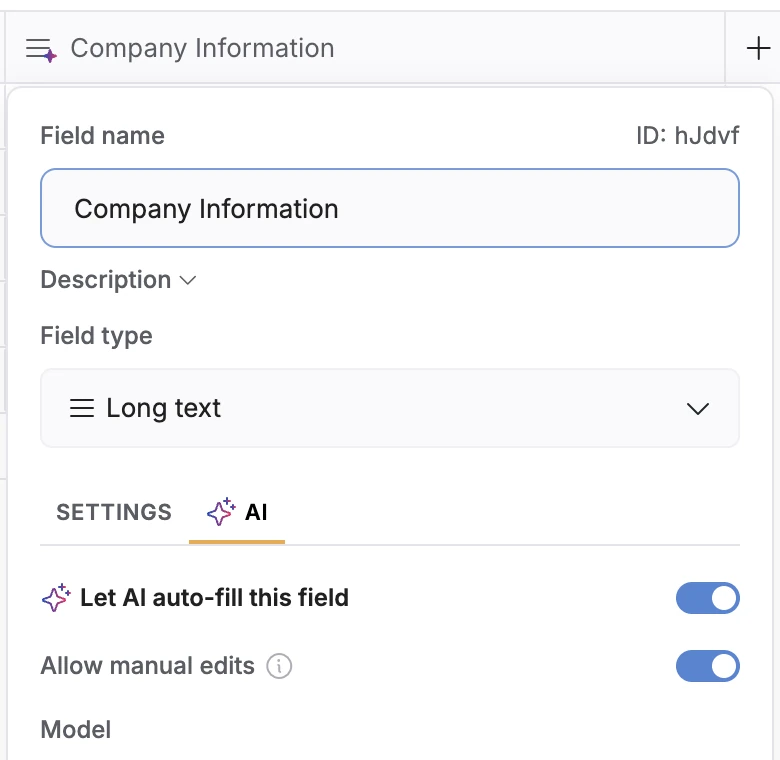
Open your table in Softr Databases. Add a new AI field, or edit an existing text field and toggle on Let AI auto-fill this field in the AI tab.
Pick a model and write your prompt
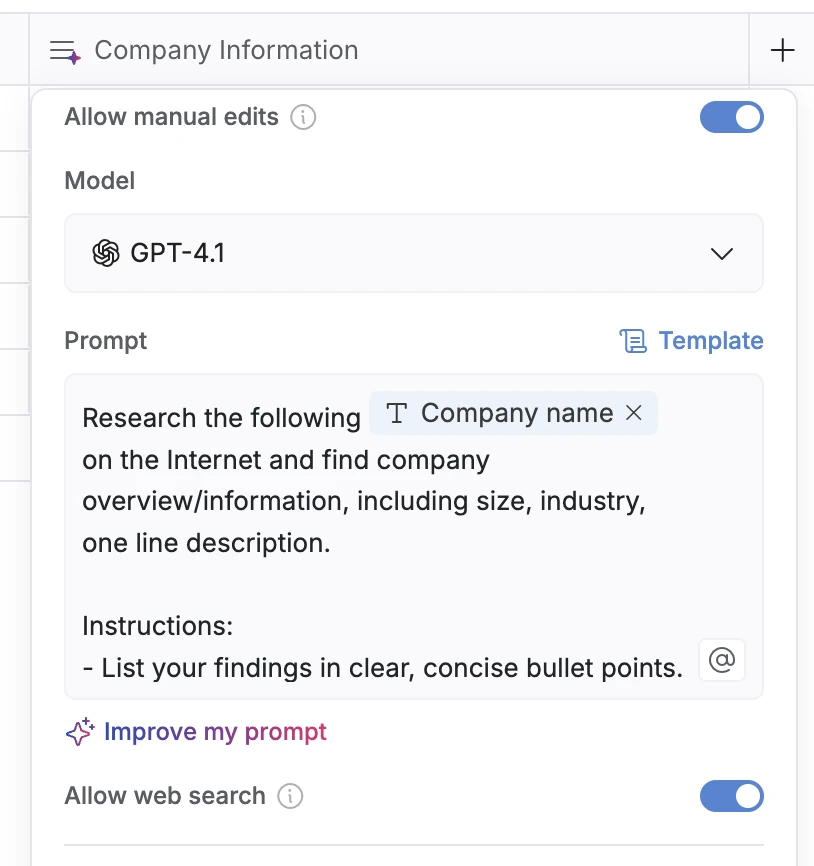
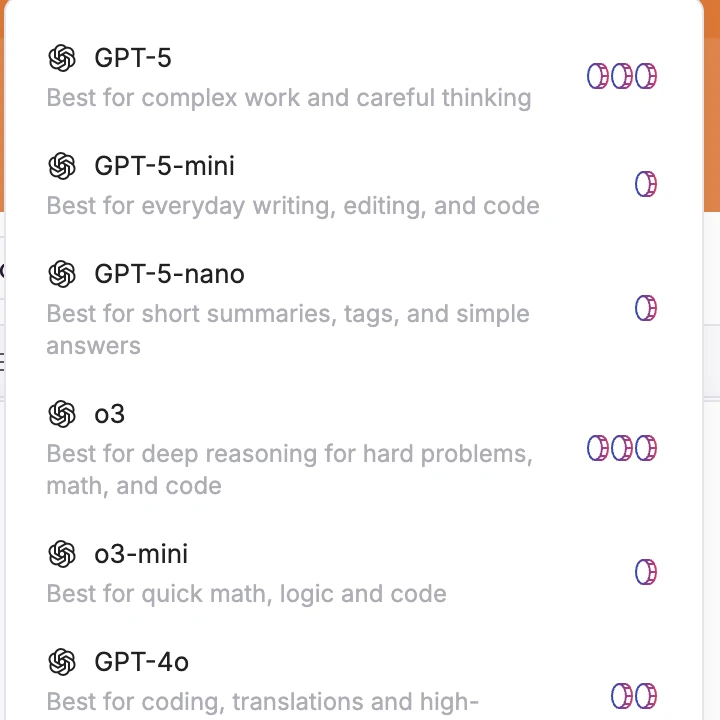
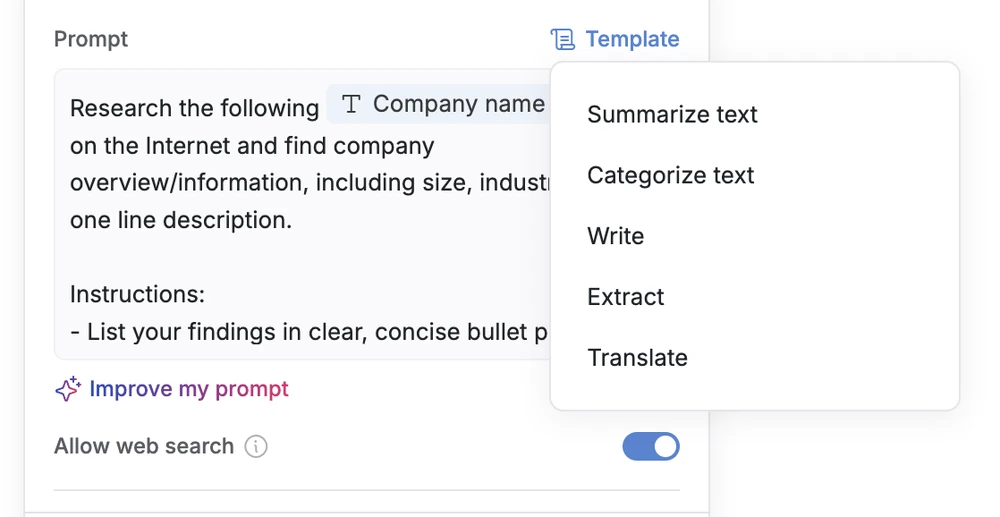
Pick the AI model. You can choose from models by leading providers like Anthropic, OpenAI, and Gemini, depending on the balance of speed, accuracy, and cost you need. Then write your own prompt, like ‘Summarize the resume into key skills’, or start with a ready-made template. Use @ to reference other database fields in your prompts.
Set when the agent runs
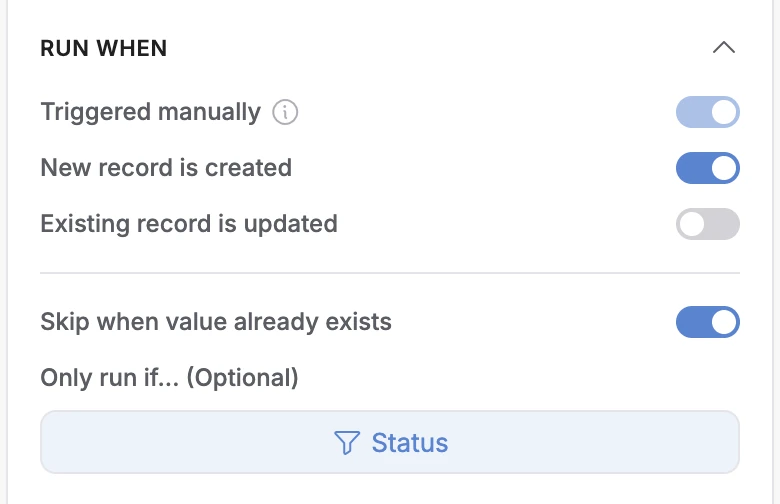
Under the Run When section, set whether the agent is triggered manually OR runs automatically when a record is created or updated. Add Only run if… filters so the agent triggers only when conditions are met (e.g. run only if Status = ‘Approved’). This prevents unnecessary runs and saves credits.
Preview and save
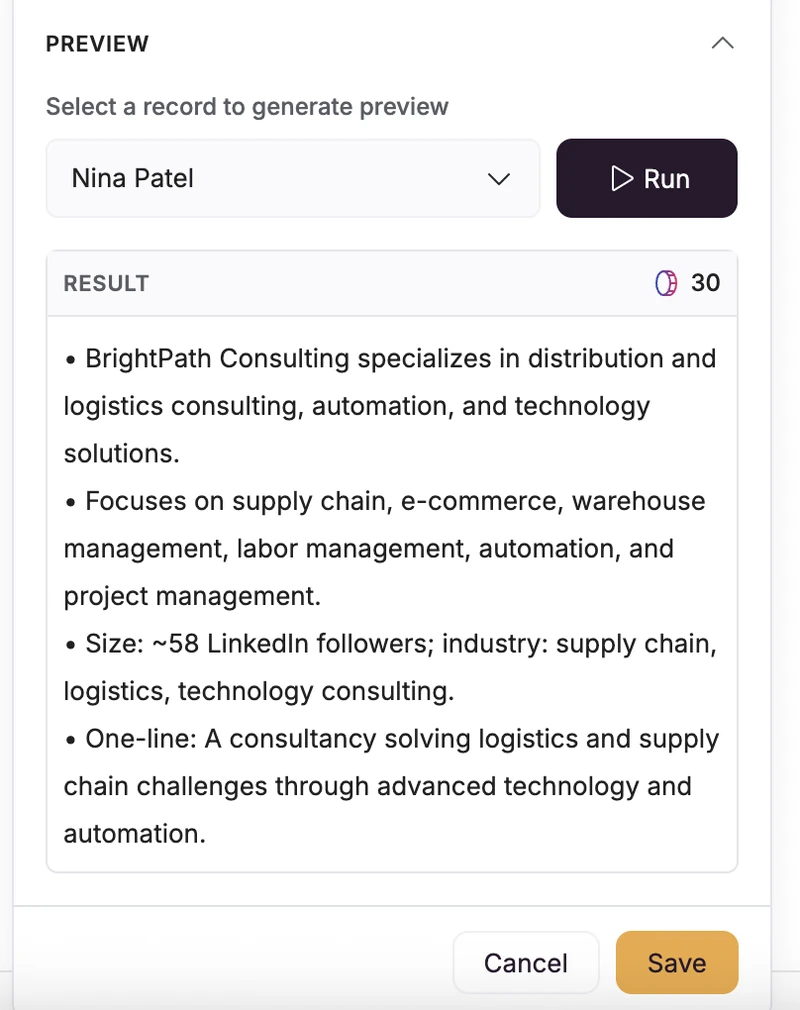
Under Preview, select a record to generate a preview of what the agent will populate and how many AI credits it will consume. Click Save when you’re ready to activate the agent.
Web Search
AI Agents can search the web to enrich your data, for example, pulling the latest company info, fact-checking details, or adding context. Toggle on Allow web search in the AI settings, then specify in your prompt what to look up and how to format it (e.g. ‘Find the latest average delivery rates in Ontario; extract the number and cite the domain in brackets’).
AI Settings & Conditions
You’re fully in control of when and how your AI agents run:
-
Allow manual edits: Toggle this on to enable review on AI-generated fields.
-
Model: Choose from dozens of models by leading providers like Anthropic, OpenAI, and Gemini, depending on the task and the balance of speed, accuracy, and cost you need.
- Run mode options:
- Triggered manually: Run the agent only when you click. Useful for testing or expensive operations.
- New record is created: Runs automatically when a new record is added.
- Existing record is updated: Runs automatically when an existing record is updated.
- Skip when value already exists: Prevents the agent from running if the field already has data (so existing values aren’t overwritten).
- “Only run if…” filters & conditions: Add rules to specify exactly when the agent should run. Example: Run only if Status = “Ready for AI” or Category = “Hardware.”
Agent Templates
Start from a ready-made agent template by clicking Template in the AI field settings to see a task description that you can customize to your needs.
AI Credits & Billing
-
Included credits: Every Softr plan (including Free) comes with a set number of AI credits you can use with Softr’s AI features. If you use up your monthly AI credits, AI features will pause until your credits reset with your plan, or you add more with a credit add-on. Learn more about AI credits.
-
Checking Database Agent AI credit usage: When you’re setting up an AI agent, use the Preview function to check what a run will cost (but note that every run will be different due to many factors). Credit usage depends on factors like the AI model selected, action type and input size, number of records processed, web search, and output length and format.
-
Visibility: You can see credit usage in your Plans & Billing page.
FAQs
What are Softr Database AI Agents?
Think of AI agents as helpers that handle your most tedious data tasks, like auto-filling fields, summarizing information, pulling insights from PDFs and the web, and keeping your records accurate in real time.
Can I use AI agents on the free plan?
All Softr plans (including Free) include monthly AI credits, and paid plans can purchase credit add-ons as needed.
When you’re setting up an AI agent, use the preview function to check what a run will cost (but note that every run will be different due to many factors). Credit usage depends on factors like the AI model selected, input size, number of records processed, web search, and output length.
How do AI credits work?
AI credits reset on a monthly basis according to your plan (see the pricing page for more details). If you run out of credits, your AI features will pause running until your monthly credits reset with your plan or you purchase add-on credits.
Can you help me set up my agents?
You can write your own prompts or use our sample templates to define the database tasks you want AI to handle. Use “@” to reference other database fields in your prompts.
Can I control when and how an agent runs?
Yes, you can choose to run AI agents manually or automatically when records are added or updated. You can also add filters and conditions (“only run when…”) so agents trigger only on the records you specify. This added level of customization gives you more control over your AI credits and costs.
Can I choose which AI model powers my agent?
Yes. Pick from dozens of models by leading providers like Anthropic, OpenAI, and Gemini, depending on the task and the balance of speed, accuracy, and cost you need.
Can I test an agent before turning it on?
Yes. Use the Preview section in a field’s AI settings to see the output on a sample record before saving the agent or running it on bulk records.
What fields can I use AI agents in?
Most text-like fields are supported. Agents cannot write to system fields (ID, Created/Updated at) or calculated fields (Formula/Rollup).
How do I get AI to extract information from files or PDFs?
Place the file URL or attachment in a field (e.g., File or URL). Then use the PDF/Extraction prompt templates to parse, search, or summarize the text (e.g., “summarize this contract”), referencing the field where the file is attached, e.g. @file.
How do I run web search?
Toggle on Allow web search in a field’s AI settings, then write a prompt telling the agent what to look up, the format you want the output in, and websites to reference (optional). Preview results before enabling auto-runs. For best results, be specific in your prompt and add conditions (e.g. only search when “Market data” is empty).