Related Record, Lookup, and Rollup Fields
Fields for working with linked data across tables.
You can use related record, lookup, and rollup fields in Softr to manage and display data across tables in your Database. These field types allow you to connect data, pull information from related records, and perform calculations or aggregations, enhancing the functionality of your Softr Databases and Softr Apps.
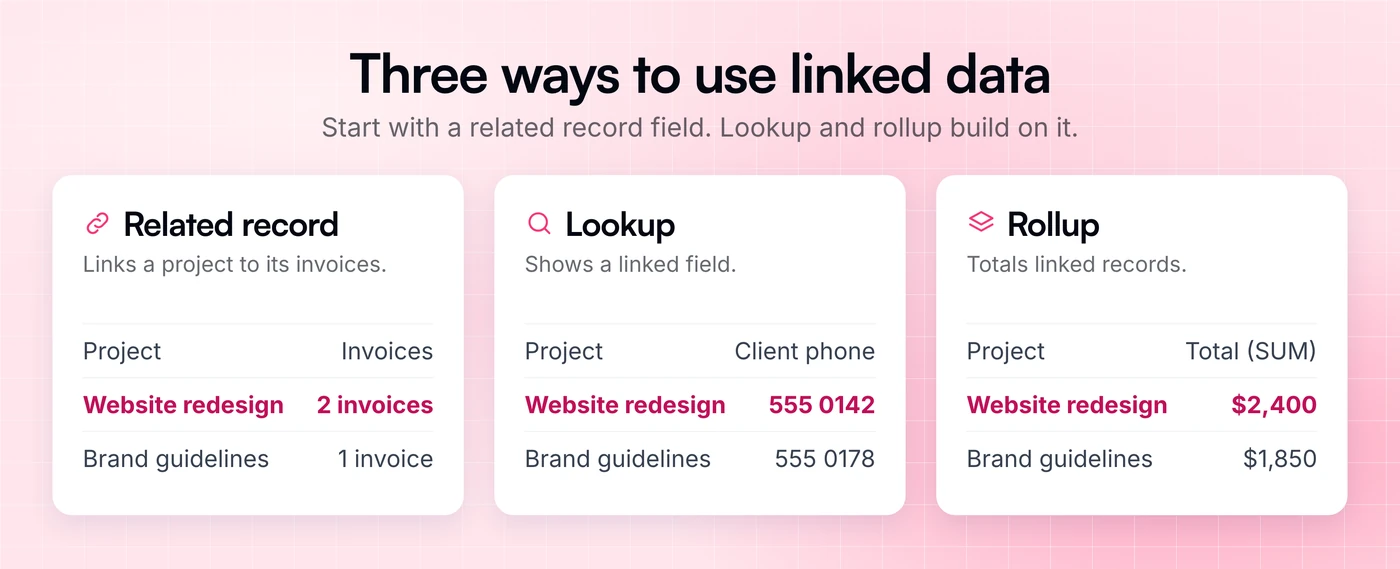
Related Records
A related record field (also known as a relationship field) allows you to connect records between two tables in a Softr Database. By establishing linked records, you can reference data from one table in another, creating dynamic connections between datasets.
How to Set Up a Related Record Field
-
Navigate to Your Database: Open your Softr Database and select the table where you want to add a related record field.
-
Add a New Field: Click Add field at the end of the table header.
-
Choose Related Record Field Type: Select “Related record” from the field type dropdown.
-
Link to Another Table: Choose the Source table to link to. For example, if you have a “Tasks” table and a “Users” table, you can link each task to a specific employee in your Users table.
-
Configure the related record field:
- Softr will automatically create a corresponding related record field in the linked table.
- Decide if the relationship is one-to-one, one-to-many, or many-to-many by toggling Allow linking to multiple records on the related record fields in both tables.
-
Save: Name the field(s) and click Save.
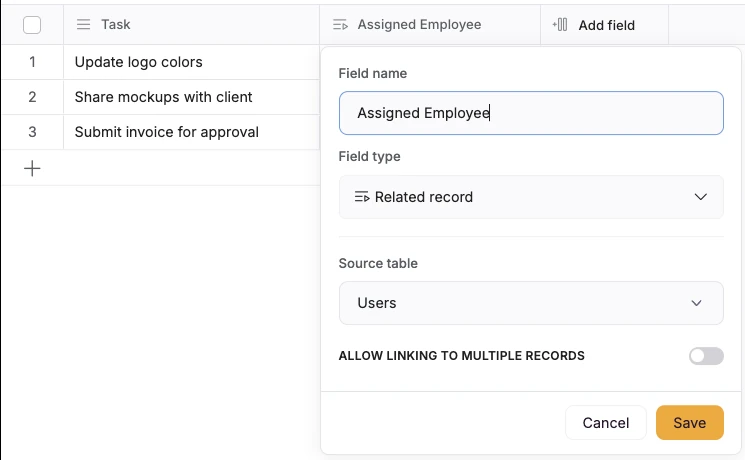
Creating a related record field that links each task to a user.
Example Use Case
-
Database Setup: You have a “Tasks” table and a “Users” table.
-
Relationship: Create a related record field in the “Tasks” table to assign each task to a person from the “Users” table.
-
Result: Each task record can now display the assigned employee’s name, and the “Users” table can show all tasks assigned to each employee.
Tips
-
Use related record fields to avoid duplicating data across tables.
-
Related record fields are bidirectional, so changes in one table will reflect in the linked table.
Lookup Fields
A lookup field pulls data from a related table via a Related record field. It allows you to display specific fields from related records without manually copying the data.
How to Set Up a Lookup Field
-
Ensure a Related record field Exists: You must have a related record field connecting two tables (e.g., “Projects” linked to “Clients”).
-
Add a Lookup Field: In the table with the Related record field, click Add field and select Lookup as the field type.
-
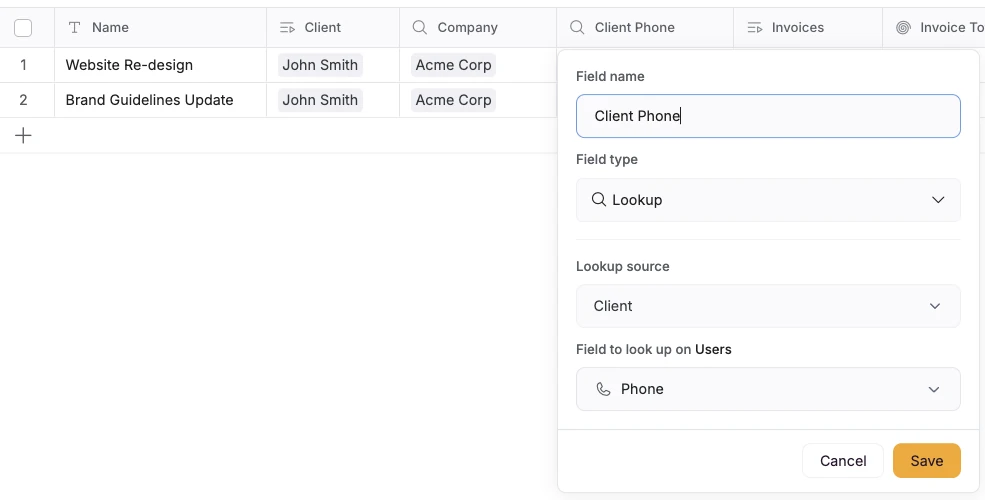
Select the Lookup source: Choose the Related record field that connects to the other table.
-
Choose the Field to Display: Under Field to look up, select the field from the linked table you want to show (e.g., “Phone” or “Email”).
-
Save: Name the lookup field and save.
Example Use Case
-
Database Setup: The “Projects” table has a Related record field linking to the “Clients” table.
-
Lookup Field: Create a lookup field in the “Projects” table to display the “Client Phone Number” from the linked client record.
-
Result: Each project record now shows the client’s phone number alongside other project details.
Tips
-
Lookup fields are read-only and update automatically when the source data changes.
-
Use lookup fields to display supplementary information without cluttering your table with manual entries.
Rollup Fields
A rollup field aggregates or transforms data from a related table using a formula. It builds on a Related record field and allows you to summarize, count, or manipulate data from linked records.
How to Set Up a Rollup Field
-
Ensure a Related record field exists: You need a Related record field connecting two tables.
-
Add a Rollup Field: In the table with the related record field, click Add field and select Rollup as the field type.
-
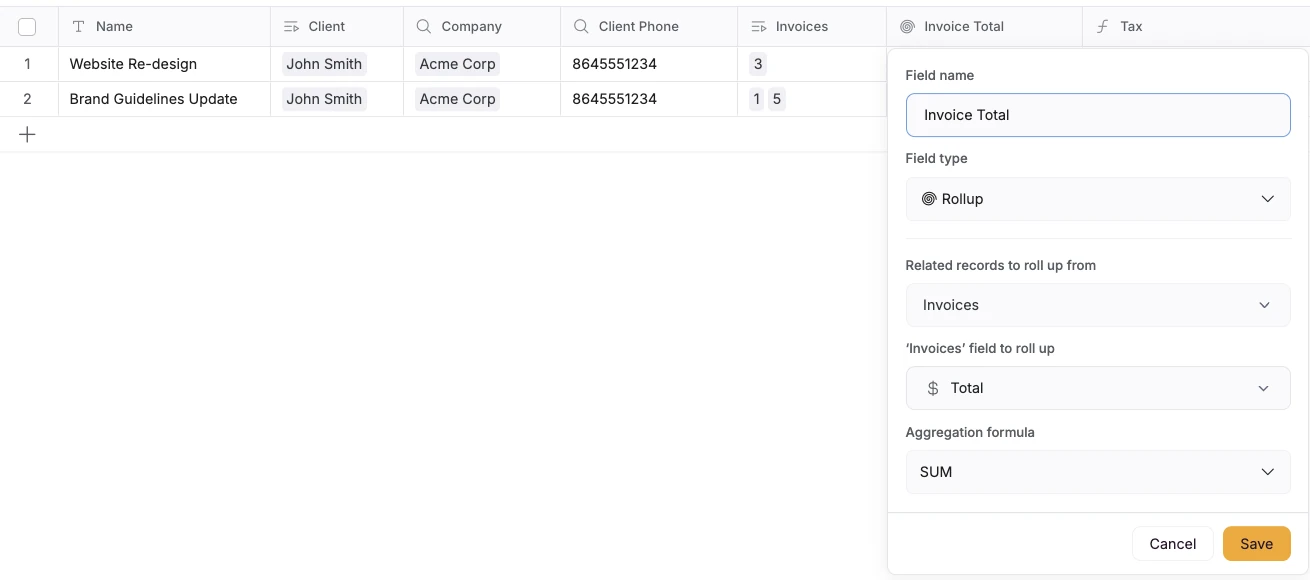
Select the related record field under Related records to roll up from.
-
Choose the Field to Roll Up: Select the field from the linked table you want to aggregate, under field to roll up (e.g., “Task Status” or “Invoice Amount”).
-
Define the Formula: Pick the Aggregation formula. Options include:
- MIN: Finds and displays the minimum numeric value of a list of related records for a specific field.
- MAX: Finds and displays the maximum numeric value of a list of related records for a specific field.
- SUM: Adds all numeric values of a specific field for a list of related records
- AVERAGE: Averages all numeric values of a specific field for a list of related records
- COUNT: Counts the number of non-empty numeric values for a list of related records
- COUNTA: Counts the number of non-empty text or numeric values for a list of related records
- COUNTALL: Counts the number of all values (even empty ones) for a list of related records
- ARRAYJOIN: Concatenates all elements into a single string separated by semicolons (e.g. [1, 2] → “1; 2”)
- ARRAYUNIQUE: Removes duplicate items, preserving the first occurrence of each.
- ARRAYCOMPACT: Strips out blank/empty/NULL elements.
-
Save: Name the rollup field and save.
Example Use Case
-
Database Setup: The “Projects” table is linked to the “Invoices” table via a related record field.
-
Rollup Field: Create a rollup field in the “Projects” table to calculate the total “Invoice Amount” for all invoices linked to each project.
-
Formula: Use SUM to add up the invoice amounts.
-
Result: Each project record displays the total invoiced amount for a given project.
Tips
-
Rollup fields are dynamic and update when related records change.
-
Use rollup fields for calculations like totaling values, counting records, or filtering arrays of data
Key Differences and When to Use Each
| Field Type | Purpose | When to Use |
| Related Record | Connects records between two tables. | To link related data, such as assigning tasks to employees or projects to clients. |
| Lookup | Displays data from a related table’s field. | To show additional details from related records, like a client’s contact info in a project table. |
| Rollup | Aggregates or transforms data from related records. | To summarize or calculate data, such as totaling invoices or counting completed tasks. |
Best Practices
-
Plan Your Database Structure: Before adding related record fields, map out how your tables should connect to avoid redundant links. Think about the “nouns” of your application and avoid using adjectives in your table names - save those for Category, Type, or Status fields.
-
Use Descriptive Field Names: Clearly name related record, lookup, and rollup fields to make their purpose obvious (e.g., “Related Client Name” or “Total Invoice Rollup”).
-
Test Formulas in Rollups: Double-check rollup formulas to ensure they produce the expected results, especially for complex aggregations.
-
Limit Lookup and Rollup Fields: Too many can slow down your Database, so only include what’s necessary for visibility in your app.
Troubleshooting
-
Related Record Field Not Showing Records: Ensure both tables are in the same Database and that the related record field is correctly configured.
-
Lookup Field Is Blank: Verify that the related record field has linked records and that the target field in the linked table contains data.
-
Rollup Field Shows Errors: Check the formula being used and ensure the source field in the linked table has compatible data (e.g., numbers for SUM, MIN, etc.).
Additional Resources
-
Softr Academy: Visit the Softr Academy to take full courses on building Softr apps.
-
Community Forums: Join the Softr community to ask questions and share tips.
-
Support: Contact Softr support at support@softr.io if you get stuck with your Database setup.