Database Snapshots
Capture a point-in-time copy of a Softr database and restore it later as a separate, new database.
A snapshot is a point-in-time copy of a whole Softr database: its tables, fields, views, records, and the links between related records. Take one before any change you might want to walk back: a bulk import, a field type change, a mass delete, or the first run of a new workflow against real data.
Restoring a snapshot creates a new database and leaves the original exactly as it is, so recovering data is never destructive. You get the old and the new side by side and decide what to do next.
Taking a snapshot
Open the Snapshots panel
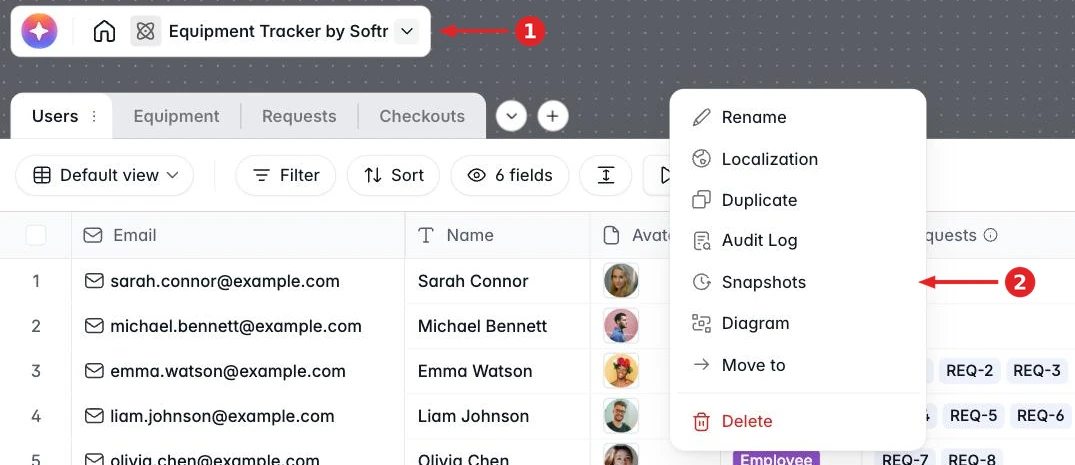
Open the database, click its name in the top-left corner, and choose Snapshots. The panel opens on the right.
Take the snapshot
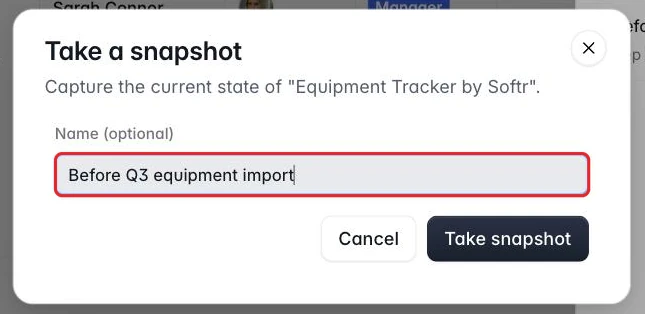
Click + Take a snapshot, optionally give it a name, and confirm with Take snapshot.
Wait for it to become ready
The snapshot appears in the panel straight away with a CREATING… badge, and the Take a snapshot button is disabled while it works. After a few seconds the badge changes to READY and the snapshot can be restored.
Managing your snapshots
The panel lists every snapshot for the database, newest first, each with its name, the date and time it was taken, and its status. Hovering a snapshot reveals its two actions.
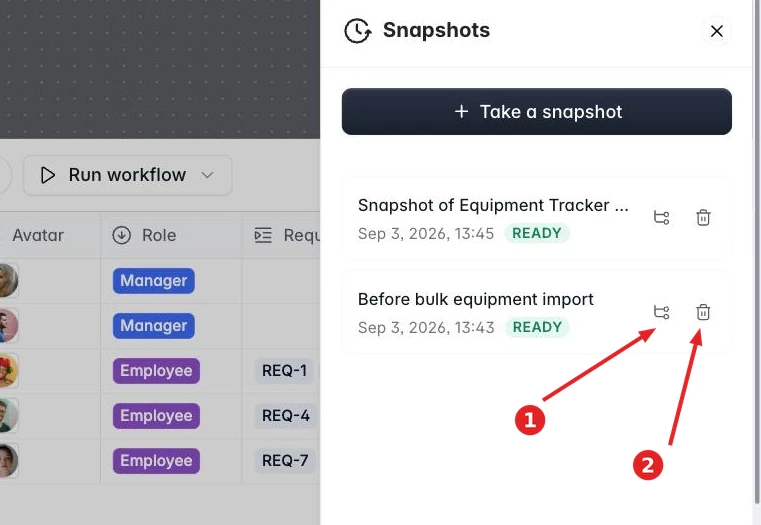
- Restore to a new database: builds a new database from this snapshot.
- Delete: removes the snapshot.
Restoring a snapshot
Restoring does not roll your database back in place. It creates a separate copy, which means you can restore freely without risking the data you have now.
Start the restore
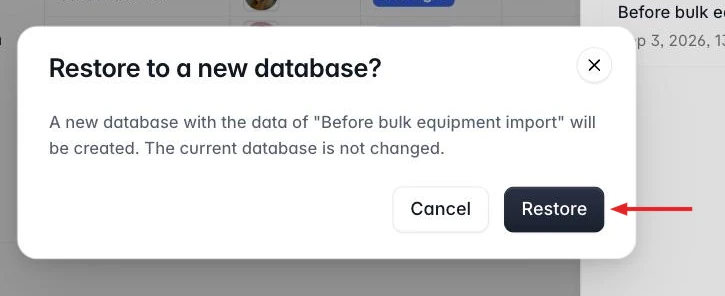
Hover the snapshot you want and click Restore to a new database. Softr confirms what will happen before doing anything.
Open the restored database
The new database appears in your Databases list as Restored: <original database name>, with the tables, fields, views and records the snapshot captured.
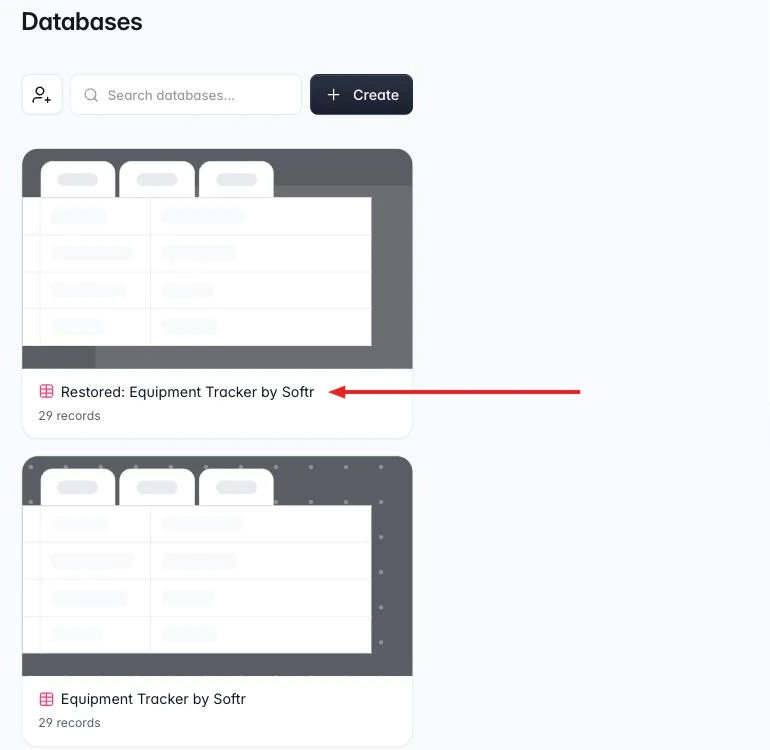
The restored database is independent from that point on. Your apps keep reading from the original database until you connect them to the restored one, so you can open both, compare them, and copy across only what you need.
Snapshots vs. App History
The two features protect different things, and one is not a substitute for the other:
- Snapshots capture your data: the contents and structure of a database.
- App History captures your app: its pages, blocks and settings. Restoring an earlier app version does not bring back deleted records.
If you are about to make a change that touches both, take a snapshot and note the app version before you start.
Related
Expanded Record View
Open a record to see and edit all of its fields in one panel.
Softr Databases Overview
How Softr Databases work, and their structure limits.
Field Types
Every field type available in a Softr database.
App History
Restore an earlier version of your app.
Migrate data from Airtable
Move an Airtable base into Softr Databases.