

AI chat
Describe what you want in plain English and Softr rewrites the whole block for you — names, descriptions, prices, features, button labels.
Content settings
Open the Content tab and edit any field by hand. This is exactly the same data the AI writes to, so you can switch between the two at any time.
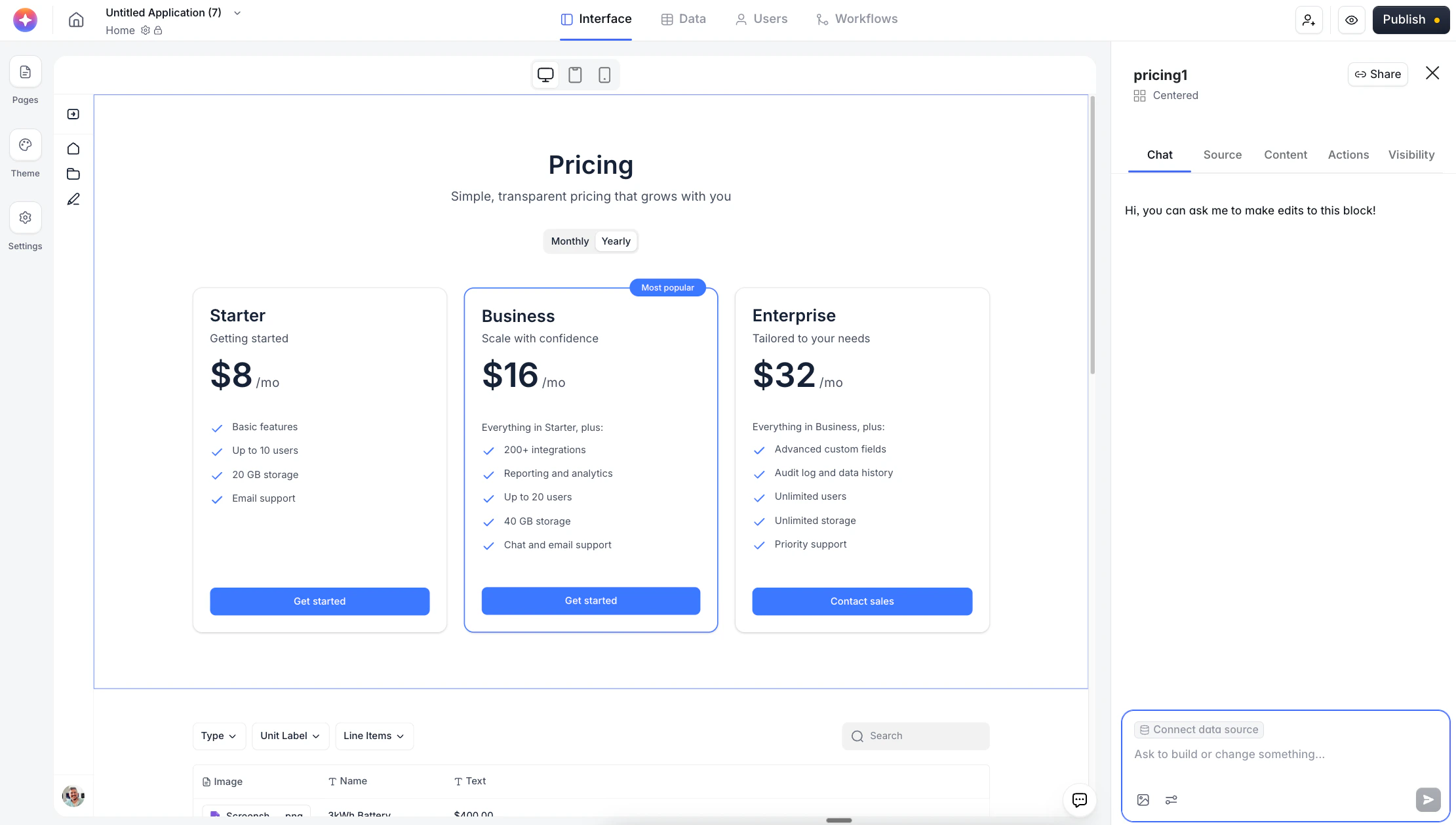
A freshly added Centered Pricing block. The right-panel tabs are the full editing surface — Chat is the AI, Content is the manual settings the AI writes to.
Adding a Pricing block
1
Open the page
Open the page you want the block on.
2
Open Browse blocks
Click an empty area of the canvas (or the + between two blocks) to open Browse blocks.
3
Switch to the Static tab
The Pricing category lives here, alongside Hero, CTA, Team, Testimonial, and FAQ.
4
Pick a variant
Expand the Pricing category and click the variant you want.
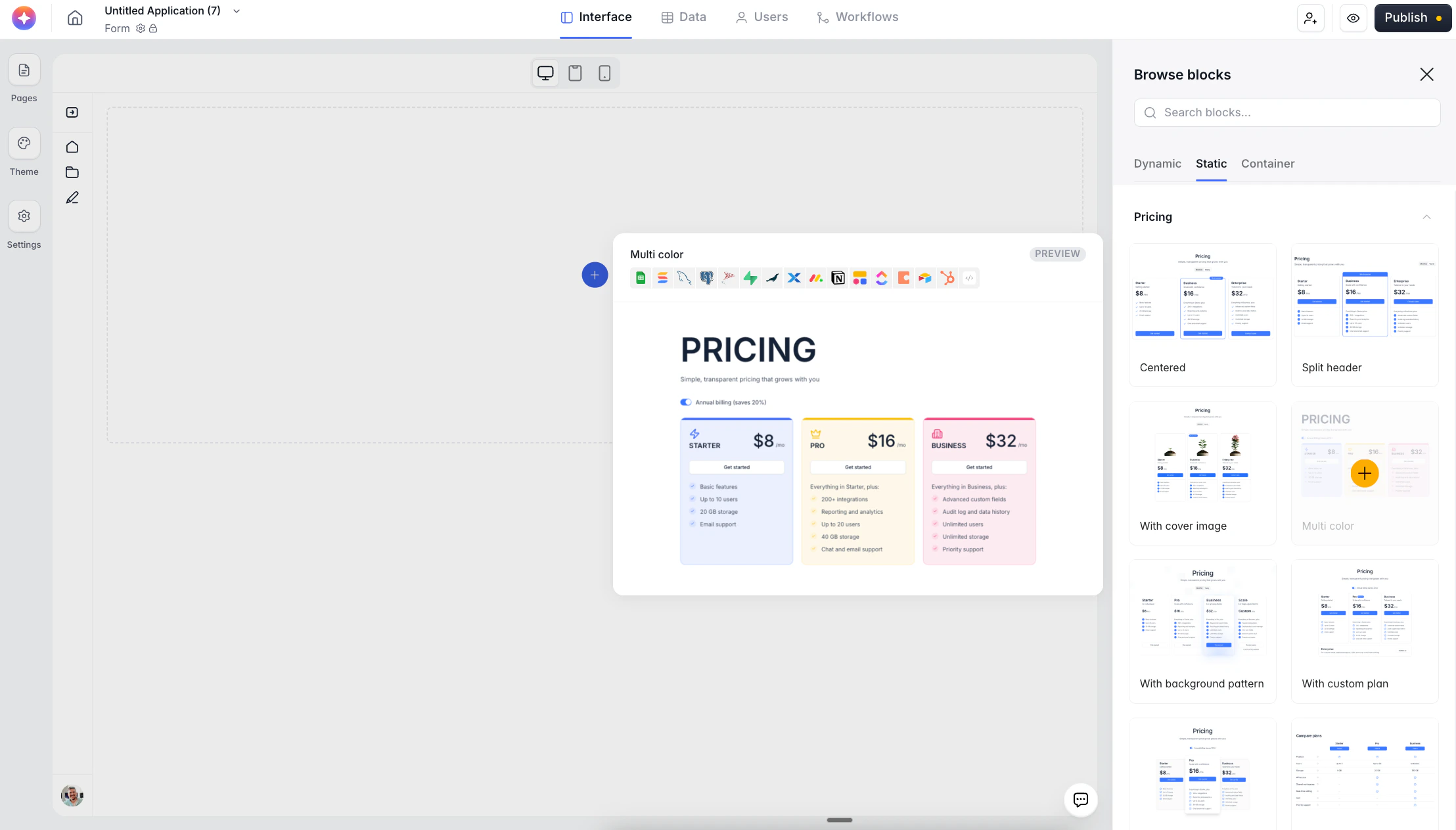
Pricing variants at a glance
Softr ships 11 Pricing variants. They all share the same underlying content model, so switching between them is safe — your plans, prices, and features carry over.Centered
Three-tier layout with a centered header and a highlighted “Most popular” card.
Split header
Heading on the left, plans on the right.
With cover image
Three tiers with illustrated imagery above each card.
Multi color
Three tiers with distinct colored backgrounds per card.
With background pattern
Three tiers on a decorative patterned background.
With custom plan
Three tiers plus a wider custom/enterprise row underneath.
Hovered card
Three tiers where the middle card lifts on hover.
Simple table
Comparison table with features in rows and plans in columns.
Card grid
Feature matrix presented as a grid of cards.
Plan recommender
Interactive quiz that recommends a plan based on the visitor’s answers.
Price calculator
Slider/input driven calculator that produces a live price estimate.
The first nine variants are purely presentational. Plan recommender and Price calculator include interactive logic — editable the same way, but with extra settings for the quiz questions or calculator inputs.
Editing with AI (the Chat tab)
Click the block on the canvas. The right panel opens with Chat active and a greeting: “Hi, you can ask me to make edits to this block!” Type what you want and hit send.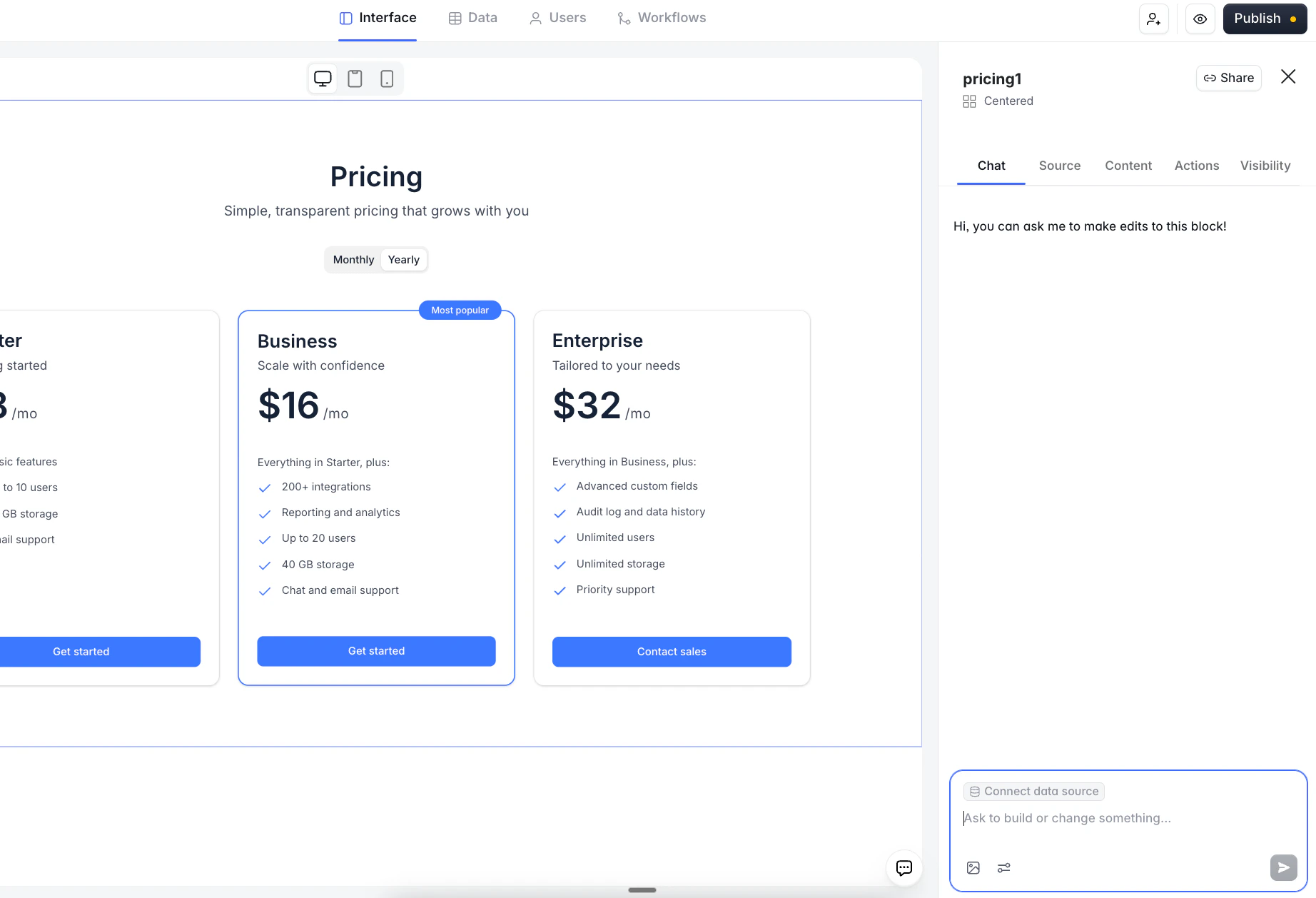
What the AI can rewrite in one go
A single prompt can set any combination of:- Block title and description
- Each tier’s plan name, tagline, monthly price, and yearly price
- Each tier’s feature list (including the “Everything in X, plus:” label on higher tiers)
- The CTA button text and link for each tier
- Which tier is badged Most popular
A worked example
Prompt: Change the pricing to three tiers for a photography studio: Basic $99, Standard $249, Premium $499. Update features to match.
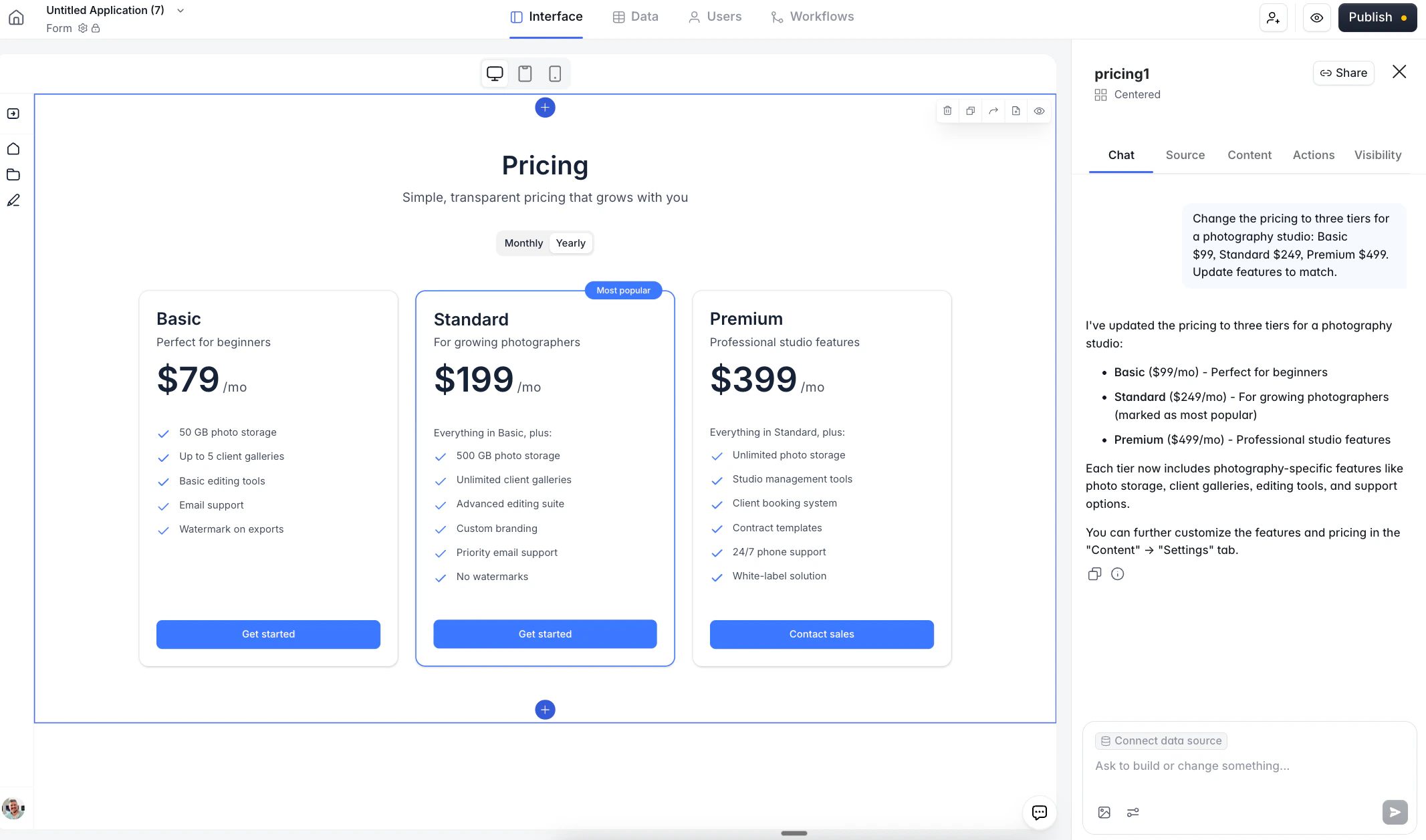
The AI writes to the same fields you'd edit manually — so the new content shows up in the Content tab too.
Iterating with follow-up prompts
The chat is conversational. Use short follow-ups rather than rewriting from scratch:- “Make the middle tier not most popular, highlight Premium instead.”
- “Add a ‘Print album included’ feature to the Premium tier.”
- “Change the billing period from monthly to per session.”
- “Drop the yearly prices, I only offer monthly.”
Credits. Every AI edit consumes a small number of AI credits — typically well under one credit per prompt. After the AI replies, a credit cost appears under the message (e.g. “0.89 credits used”). Credits are scoped to your workspace plan; tight loops of small follow-up prompts are cheap.
Editing in the Content tab
Open Content to see every field the AI is writing to. Whether you got here after an AI edit or you’re starting fresh, the layout is the same.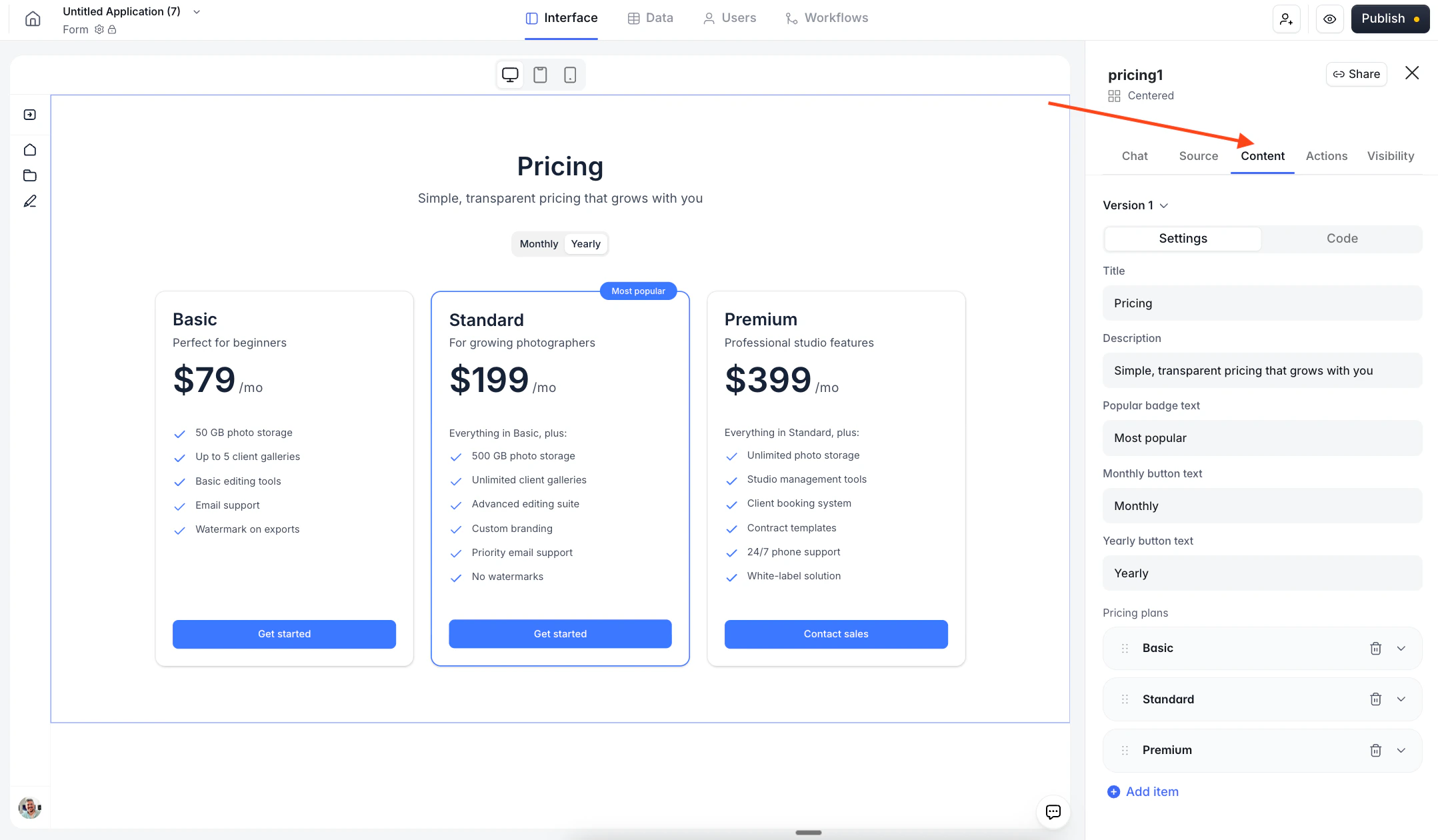
- Settings
- Code
The structured editor described below. This is what most people use, but could change depending on what you prompt the AI.
Block-level fields
At the top of Settings:- Title — big heading at the top of the block (e.g. “Pricing”).
- Description — smaller subheading below the title.
- Popular badge text — text shown on the highlighted plan’s badge. Defaults to “Most popular”.
- Monthly button text / Yearly button text — the labels on the billing-period toggle above the plan cards. Edit these if you want different wording (e.g. “Per month” / “Per year”) or if you’re showing something other than monthly/yearly (e.g. “Per session” / “Per project”).
Pricing plans
Below that, the Pricing plans list shows every tier as a draggable, collapsible row. Hover a row to reveal the trash and drag handles. Click the chevron to expand and see the plan’s own fields.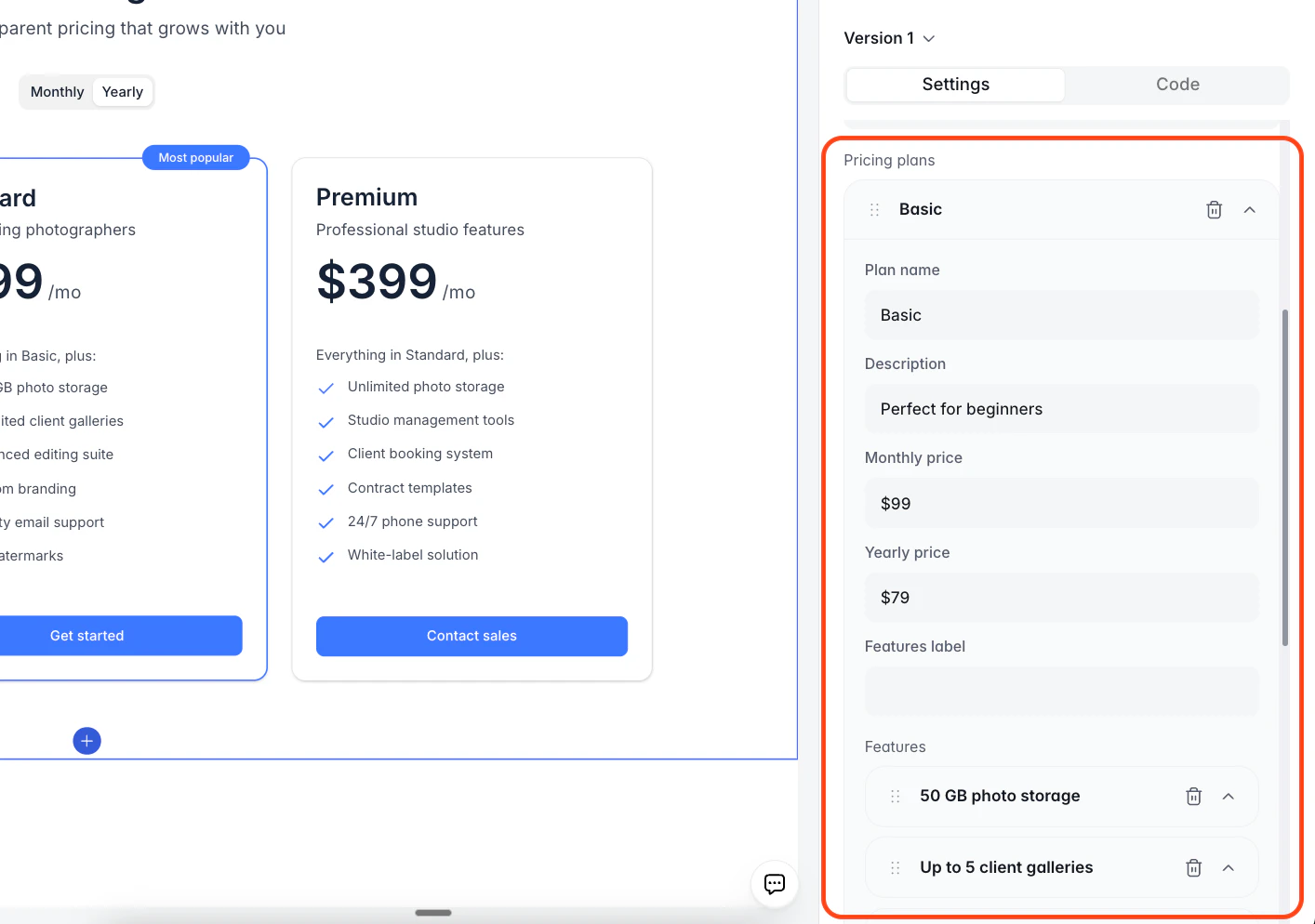
- Plan name — e.g. “Basic”, “Standard”, “Premium”.
- Description — one-line tagline under the name (e.g. “Getting started”).
- Monthly price / Yearly price — free-text, so
$99,£79,€49 + VAT, orContact usall work. - Features label — the line above the feature list. Leave blank on the first tier; use “Everything in Basic, plus:” style text on higher tiers.
- Features — the bullet list. Each feature is its own draggable row with a trash icon. + Add item adds a new one.
- Is most popular — a per-plan toggle. Turning it on adds the Most popular badge to that tier. Only one plan should have this enabled at a time.
- CTA text — the button label on that card.
- CTA URL — where the button goes. Softr shows a dropdown of existing app pages; you can also paste an external URL or connect to a workflow.
Versions and rollback
Every AI edit is saved as a version. Above the Settings editor you’ll see a Version 1 dropdown with a chevron — open it to see the history.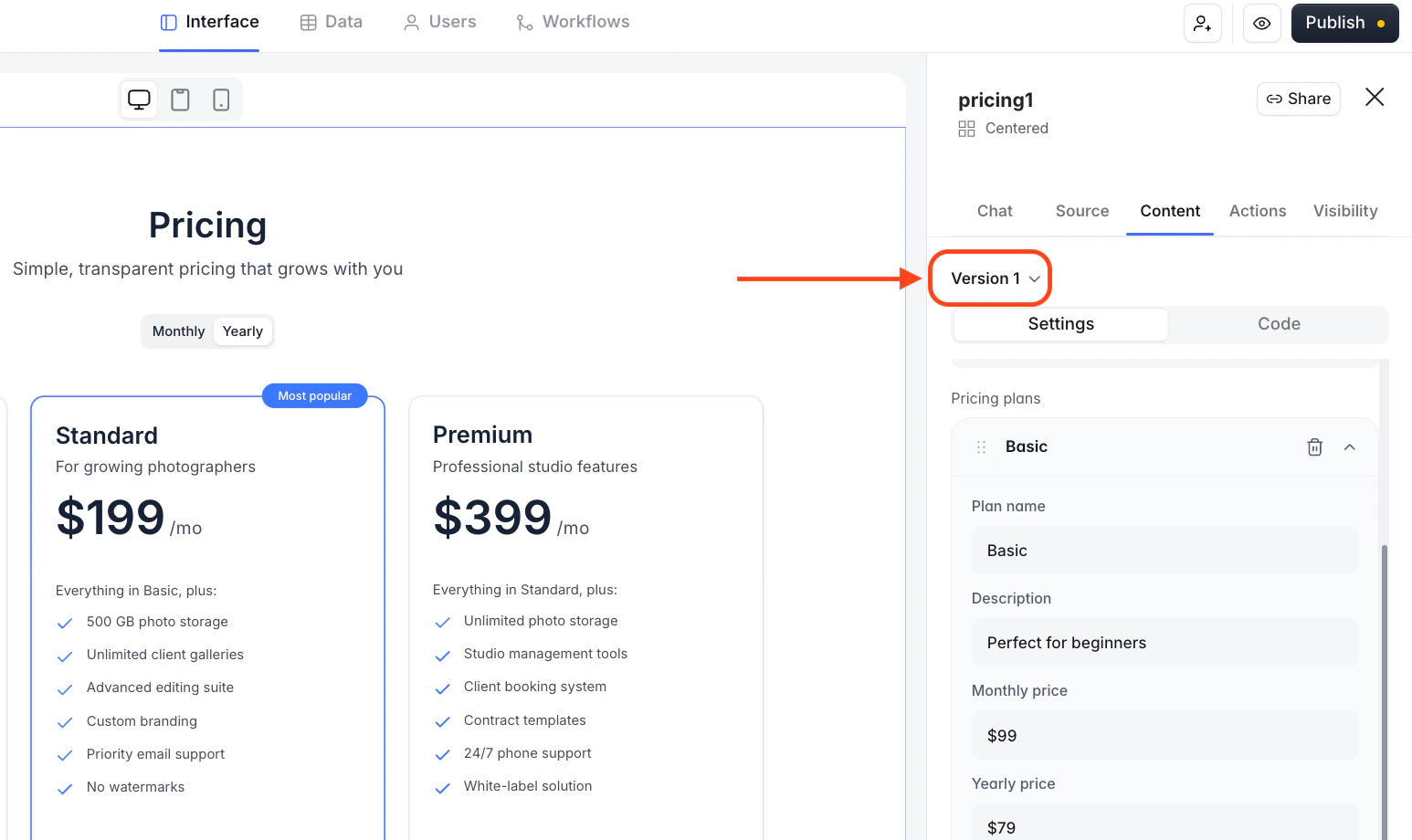
- The prompt that produced it (or “Initial Version Prompt” for the starting template).
- The date and time.
- The label (Latest) on the current one.
Pick any version to roll the block back. This is the easiest way to recover from a prompt that didn’t go the way you wanted — no undo stack, no copy-paste, just a single click.
Connecting a data source (optional)
Pricing blocks are static by default — the prices and features live in the block itself, not in a database.
FAQ
If I use the AI and then edit a field in Content, will my next AI prompt overwrite what I edited?
If I use the AI and then edit a field in Content, will my next AI prompt overwrite what I edited?
It might. The AI rewrites whichever fields your prompt implies are in scope. Narrow prompts (“change the Standard tier price to $299”) touch only that field; broad prompts (“rewrite the whole pricing section for a consulting business”) will reset most fields.If you’ve made manual tweaks you want to keep, either rely on version history (every AI edit is saved automatically — see Versions and rollback) or include your tweaks in the prompt (“keep the current features on Basic, just change the price”).
How are AI credits charged for the chat edits?
How are AI credits charged for the chat edits?
Each prompt-response pair costs AI credits — usually well under one credit for a single pricing edit. You can see the exact cost under each AI reply via the info icon. Credits are pooled at the workspace level and replenish based on your Softr plan; check Settings → Billing for your current allowance.
Can the AI change the block's visual layout — e.g. turn Centered into Simple table?
Can the AI change the block's visual layout — e.g. turn Centered into Simple table?
No. The AI edits content within the current variant. To switch layouts, delete the block and add a different variant from the library, or pick a variant and then re-run your AI prompt — the copy you wrote works the same across variants because they share one content model.
My pricing is "Contact us" — can I put non-numeric text in the price field?
My pricing is "Contact us" — can I put non-numeric text in the price field?
Yes. Monthly price and Yearly price are free-text, so
$49, £29.99/mo, Contact us, and Custom all render correctly. The billing-period toggle still applies, though — if you only have one price, either set both Monthly and Yearly to the same value, or word the button text to match what you’re actually charging for.If something in this doc looks wrong or out of date, please contact support.