Hero
The main features of the Hero block.
The “Hero” area is a large area at the top of the page (usually full width) that is supposed to give the user a general idea of what the website is about. If you are offering a certain product, the Hero area is usually the place where you put the value proposition of your product, summarizing what problems the product solves, what value it delivers to its customers, how it differentiates itself as the preferred provider of this value, and so on.
Hero areas often contain images, videos, dynamic text, etc. Softr offers a variety of layouts for the Hero block to choose from. In this section, we’ll review all the layouts to give you a better understanding of how they can be configured and applied.
First, let’s examine the features that all or most of the layouts have in common. Afterwards, we’ll investigate the specifics of each layout one by one.
Common Hero Block Features
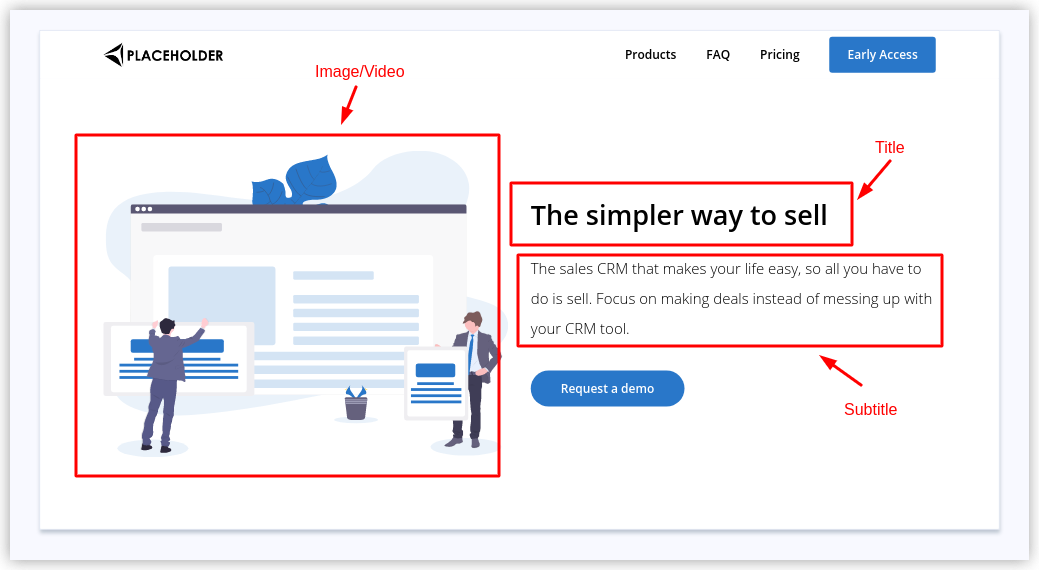
As you can see in the above image, the Hero block usually has the following components:
-
Title
-
Subtitle
-
Image/Video
-
Buttons
Let’s take a closer look at each component.
Title and Subtitle
The Title and Subtitle are simple text areas where you can add main and secondary text.

Image/Video
Next, you can add an image or a video to accompany the text. Below the image/video field there is an option to switch the image position as well as an option to upload a background image for the whole Hero area.

Buttons
Lastly, you have the Button element, which is a regular button with Open page, Scroll to section, and Open external url actions. You can also add more buttons with Add button below.

Hero Block Layouts
Layout: Hero with call to action

This layout has all the features discussed in the block overview. It has an Image/Video area, a Title and a Subtitle, as well as a call to action button at the bottom.
Layout: Hero with email capture

This layout has the common Image/Video, Title, and Subtitle fields, but instead of a CTA button it has an email capture.

The email capture has an Email input where the user is supposed to provide his/her email address, and a Button next to the input to complete the action. As you can see in the screenshot above, the button has various possible actions to be attached to it. You can learn more about the different service integrations listed here in the Integrations section.
Layout: Hero with video

This layout allows you to add a video through URL (e.g. YouTube) to be opened in a pop-up after clicking on the play button (you can modify the background under the play button as well).

Layout: Hero with appstore buttons

This layout allows you to add a video through URL (e.g. YouTube) to be opened in a pop-up after clicking on the play button (you can modify the background under the play button as well).

Layout: Hero with email capture and typewriter
This layout has an Email capture similar to the Hero with email capture layout, but it also has a typewriter effect as shown in the animation above.
In the screenshot below, you can see how the typewriter effect is customized.

In the first Title field you provide the static text, while in the second Title below you are supposed to add the changing pieces of text separated by a comma. Each piece is typed in and is then replaced by the next piece, as you could see in the animation.
Next we have Type Speed and Delete Speed. Here you set how many milliseconds it should take for one letter to be added/deleted. In the animation below, we’ve applied a slower transition speed (both Type Speed and Delete Speed are set to 1000 milliseconds = 1 second), so that you can see how it works.