

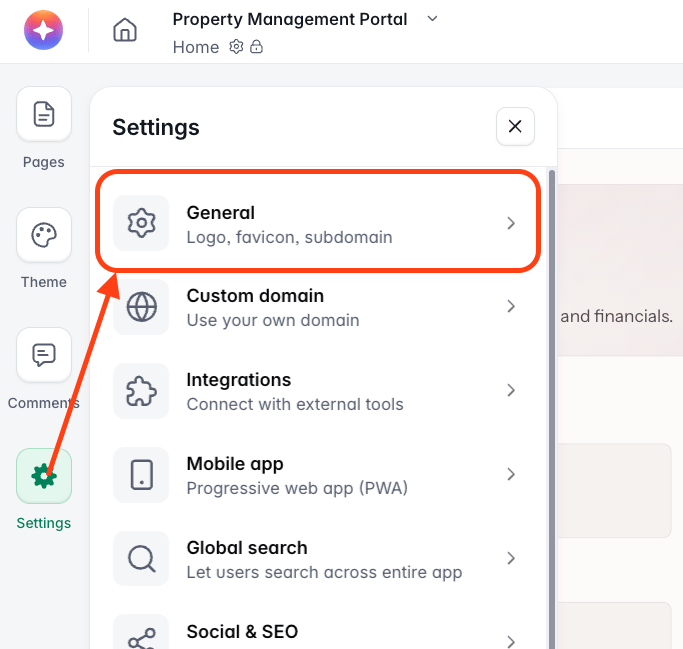
The Logo section in Settings → General, with the Dynamic logo toggle at the bottom.
Before you start
Dynamic logo reads images out of your data, so you need two things in place first.1
A default logo
Upload a Horizontal and, if you use it, a Square logo in the Logo section. This is what users see when no image is found for them, so it is worth setting even when most users have their own. See General Settings for the rest of this panel.
2
A field holding each user's logo
Add an image field to the table your logos live in and fill it in. In Softr Databases this is a File field; in Airtable it is an attachment field. In other data sources it may be an attachment or file field of a similar nature.
Turn on Dynamic logo
1
Open the setting
In Studio, open Settings from the left toolbar, then General. Scroll to the Logo section.
2
Switch on Dynamic logo
Turn on the Dynamic logo toggle at the bottom of the section. A Configure button appears below it, marked with a dot to show it still needs setting up.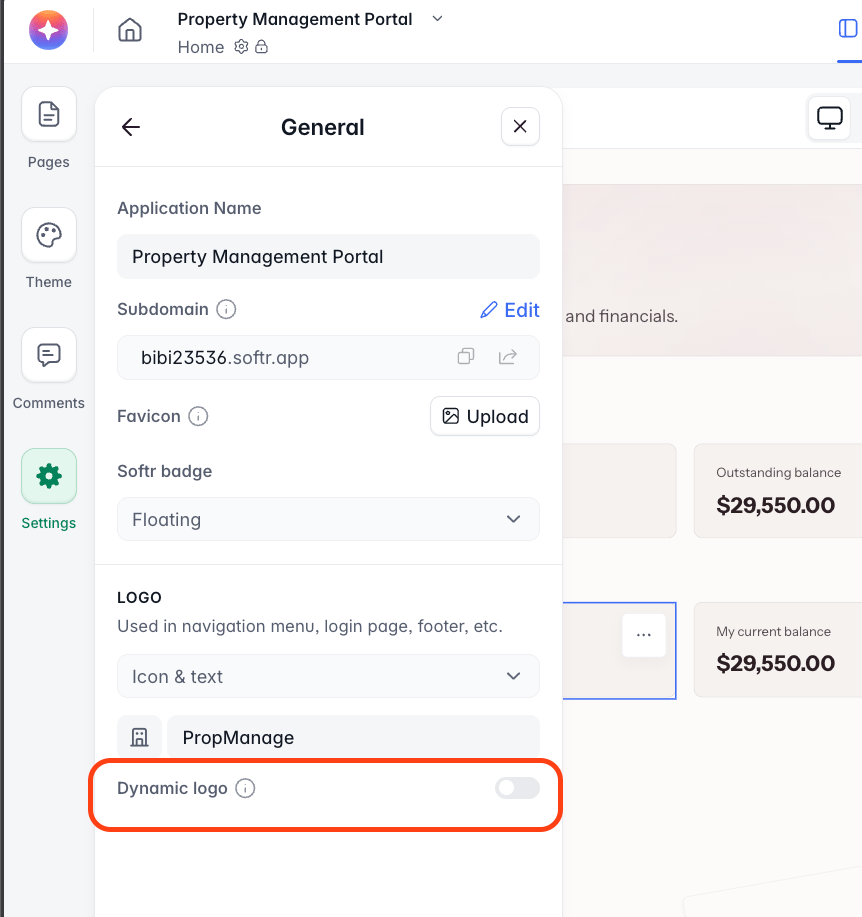
3
Click Configure
This opens the Configure dynamic logo dialog, where you point Softr at the fields holding your logos.
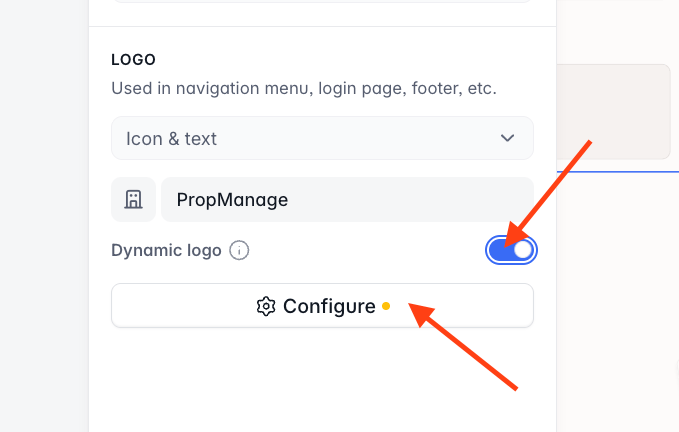
Turning on Dynamic logo reveals the Configure button.
Map your logo fields
The Configure dynamic logo dialog asks where the logos are stored. Work through it top to bottom — each choice narrows the next.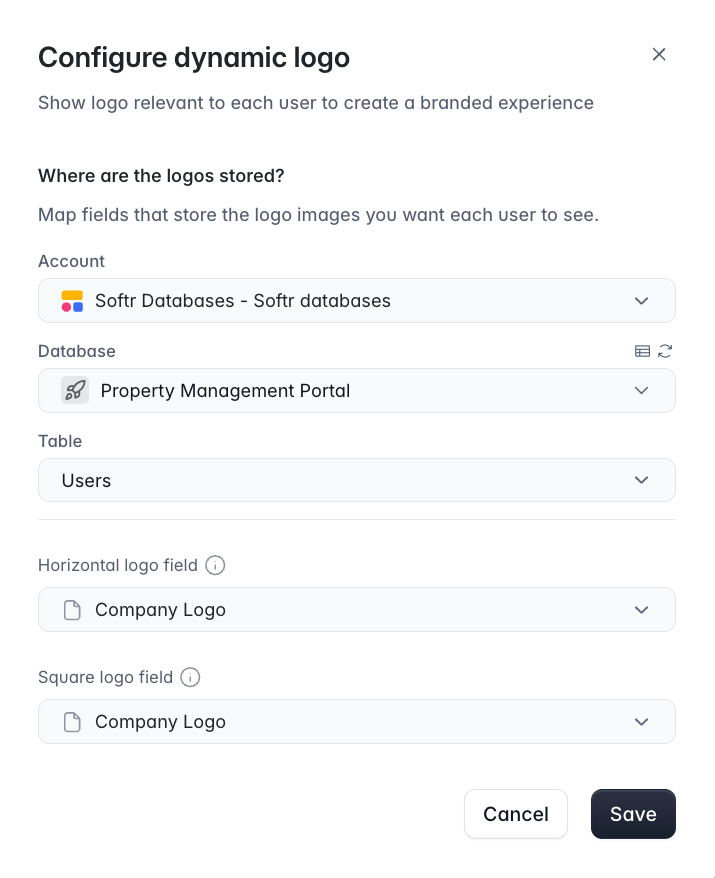
The Configure dynamic logo dialog.
1
Account
Pick the data source holding your logos. Every data source connected to your workspace is listed, and Add another data source at the bottom lets you connect a new one without leaving the dialog.
2
Database
Choose the database or base within that account.
3
Table
Choose the table. This should be the table your app’s users come from, so that Softr can match the logged-in user to a row.
4
Horizontal logo field
Choose the field storing the wide, banner-shaped logo. Image fields appear under Suggested; everything else is under Other fields. Use the search box if the table has many fields.
5
Square logo field
Choose the field storing the square, icon-shaped logo. You can leave this as None if you only use the horizontal logo.
6
Save
Click Save to close the dialog, then Save again at the bottom of the General settings panel. Publish your app for the change to reach your live users.
Both field dropdowns include a None option, so you can map only one shape and let the other fall back to your default logo.
What users see
Softr looks up the logged-in user’s row and uses the image in the mapped field. The logo appears wherever your app logo normally does — the navigation menu, the login page, and the footer. If no image is found for a user, they see the default app logo you uploaded in the Logo section. That covers users whose logo field is empty, and users who have no matching row at all — so the app never renders without a logo.Choosing where to store the logos
Which table you point at depends on how your data is shaped.- Logo on the user record
- One logo per client company
The simplest setup, and the one to reach for first. Add the image field directly to your users table and fill it in per user. Point the dialog at that table and map the field. This works well when logos are genuinely per-person, or when your user list is short enough that repeating a company logo across a handful of rows costs nothing.
Keep the logo from disappearing
If your logos live in a Softr Databases File field, check the field’s Expiring file links setting. When that setting is on, Softr hands out links that stop working after a set period, customizable anywhere from 1 hour to 168 hours (7 days). That is useful for private documents, but a logo is meant to be public and permanent. Open the field, switch Expiring file links off, and your logo URLs will keep resolving. It’s also helpful to turn off the multiple files option here, since Softr will only use the first file in the field. Storing more than one can become confusing if the wrong one is being show in the app.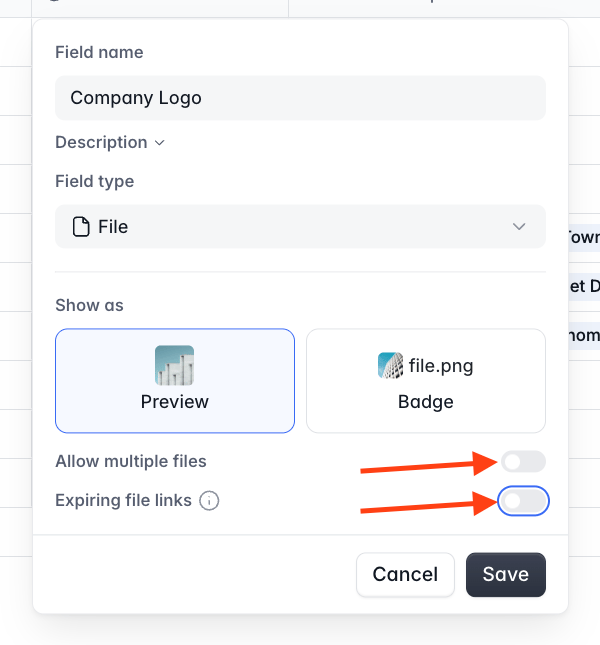
The Expiring file links setting on a File field.
Troubleshooting
Everyone still sees the default logo
Everyone still sees the default logo
Softr falls back to the default whenever it cannot find an image for the user. Check that the mapped field actually holds an image on that user’s row, that you picked the table your users come from, and that you saved both the dialog and the General settings panel and then published.
The logo shows in Studio but breaks later for users
The logo shows in Studio but breaks later for users
This is the signature of expiring file links. Turn that setting off on the File field holding your logos.
Only some users get their own logo
Only some users get their own logo
Those users’ rows are missing an image, or they have no row in the mapped table. Users added manually rather than synced from your data source are a common cause, since they may not exist in the table you mapped. If you are using a Lookup field, check that the affected users are linked to a company at all, and that the company record has a logo. Users linked to the same company should all resolve identically. If one company’s users are the only ones failing, the problem is that company record, not your configuration.
The square logo never appears
The square logo never appears
Some surfaces only use the horizontal version. Check which one the surface is set to show — Navigation settings and Footer settings each let you pick between the banner and square versions of your logo.
Related
General Settings
The rest of the app settings panel, including favicon and Softr branding.
Navigation settings
Choose which version of your logo the navigation bar shows.
Footer Settings
Choose which version of your logo the footer shows.
Application Theme
Colors, fonts, and the rest of your app’s branding.