Expanded Record View
Open a record in a Softr Database to read and edit all of its fields in one panel, move between records, and see its revision history.
A table only shows as many columns as fit across your screen, so a record with a long description, a dozen linked records and a cover image is impossible to take in from the grid. Expanding a record opens it in a panel that lists every field in the current view, one under another, with each value editable in place.
Expand a record
Open the table
Open your database and select the table you want to work in.
Hover over the record
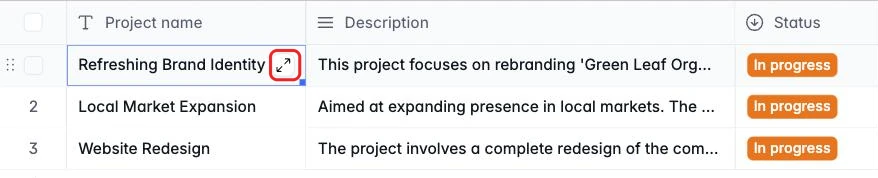
Hover over the row. An expand icon (two diagonal arrows) appears at the right edge of the first column.
Click the expand icon
The record opens in a panel over the table.
Every field in the view is listed in order, each with its field-type icon, its name, and its value in an editable control.
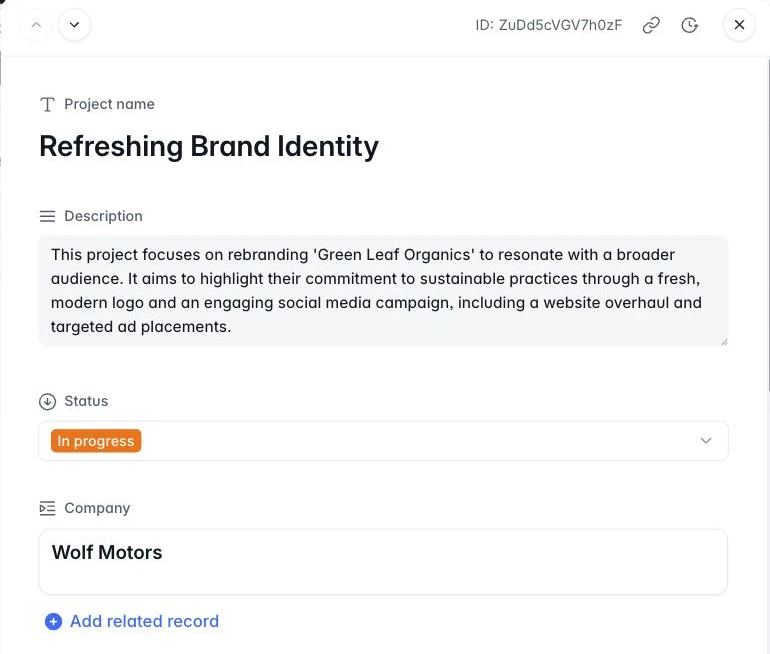
Editing here works exactly as it does in the grid: change a value and it saves straight away. There is no save button. Read-only fields such as formulas, rollups and lookups appear greyed out and can’t be edited from the panel, the same as in the table.
Controls at the top of the panel

- Previous and next record. Step through the records of the current view without going back to the grid. The arrows follow the view’s own filters and sort order, and the upward arrow is greyed out on the first record, the downward arrow on the last.
- Copy link to this record. Copies a link that reopens the database with this record already expanded. Use it to point a teammate at one row from a ticket or a chat message. Whoever opens it still needs access to the database.
- Revision history. Opens the history panel described below.
The record’s ID is shown beside these controls, and Escape or the ✕ closes the panel.
Revision history
Revision history records every change made to the record: who made it, when, which field, and what the value was before and after.
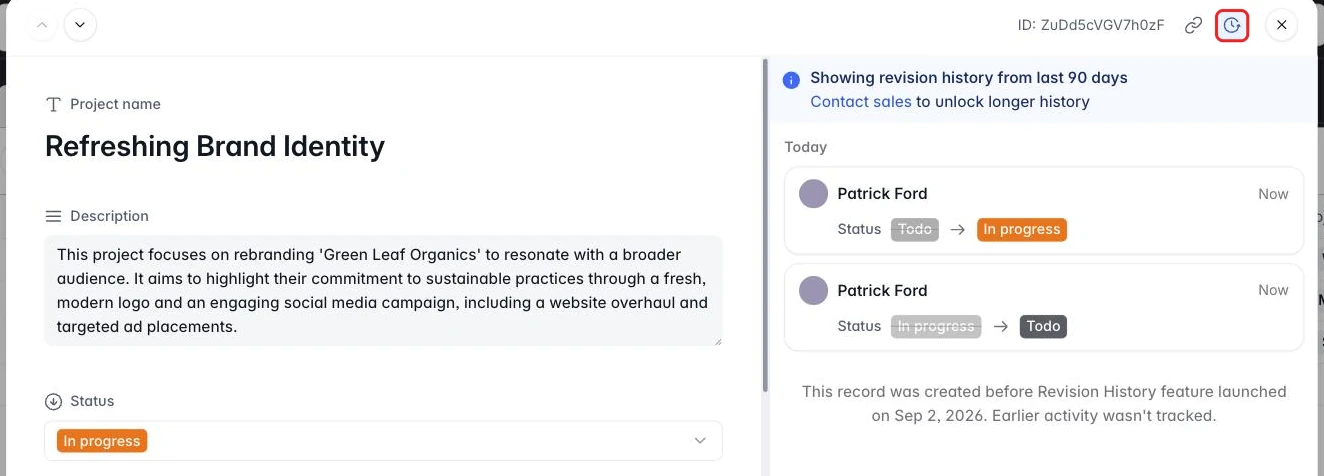
A banner at the top of the panel states how far back the history goes on your plan. Changes made before Softr started tracking revisions aren’t shown. On older records, the panel says so at the end of the list.
Related
Database Snapshots
Take a point-in-time copy of a database and restore it later.
Softr Databases Overview
Create a database, add tables, and connect it to an app.
Field Types
What each field type stores and how it behaves.
Related Record, Lookup, and Rollup Fields
Link records across tables and pull values between them.
Formula Glossary
The functions available in formula fields.