The Facebook Pixel is a code snippet placed on your website or web app that lets you track and optimize the audience that visits your site as a result of your Facebook ad campaigns (paid) or organically (unpaid). For instance, if someone lands on your website and then makes a purchase or performs some other action, you can track that activity through Facebook Pixel and tie it to a Facebook Ad. Thus, Pixel tracks all the actions that users make on your website but then ties that traffic directly to an ad if you are running Facebook ads. Then, you can, for instance, retarget your Facebook ads to show them only to your website visitors.In order to activate the Pixel on your Softr app, you need to locate your Pixel ID and add it in Settings⇒Integrations⇒Facebook Pixel. Let’s see where you can find the ID.
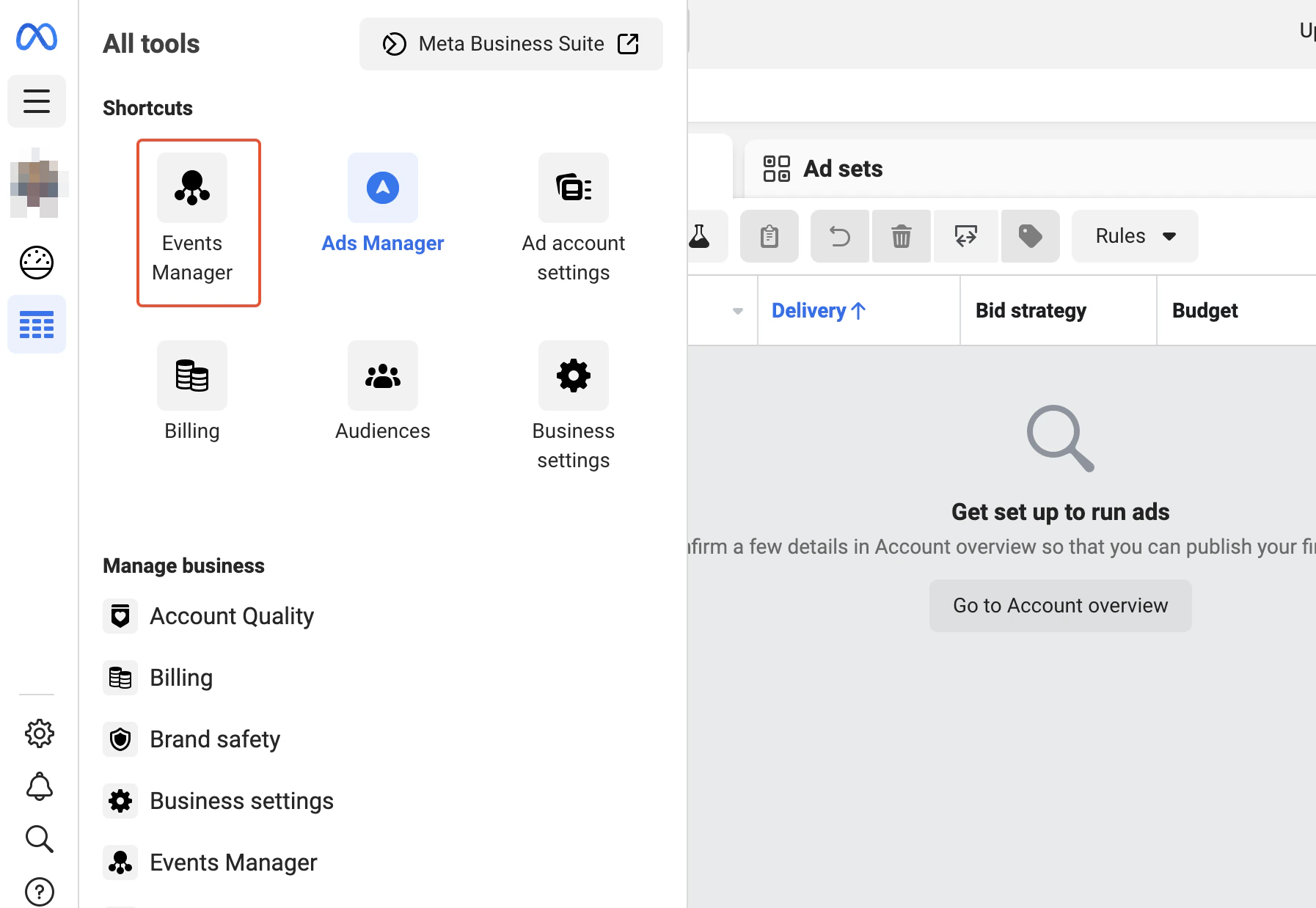
Navigate to Facebook Ads Manager and, in the left-hand navigation menu, locate the Events Manager tool.
Navigating to Events Manager
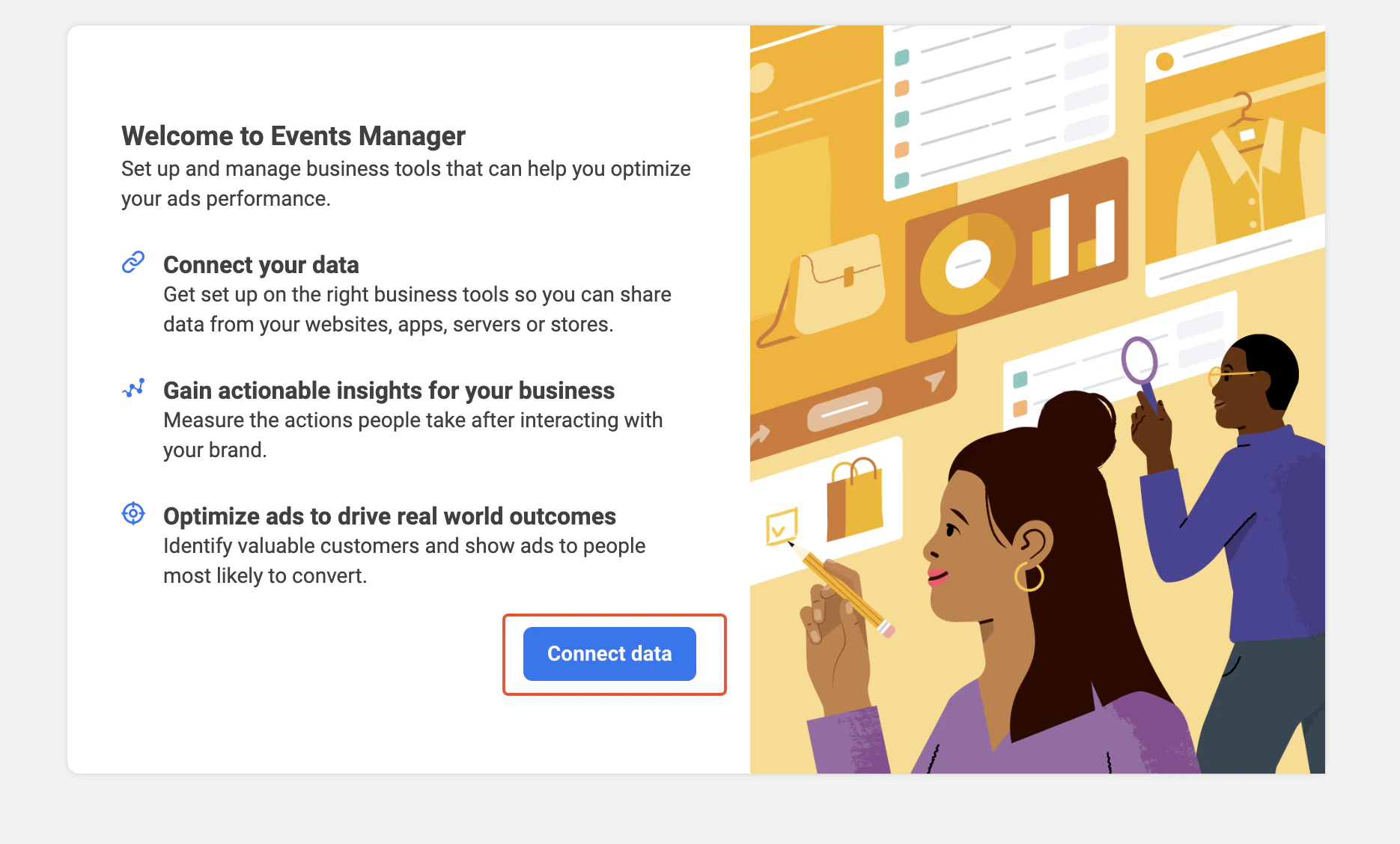
Next, if you don’t yet have any data connected, a pop-up will appears, prompting you to connect your data. Hit Connect Data to continue.
Connect Data
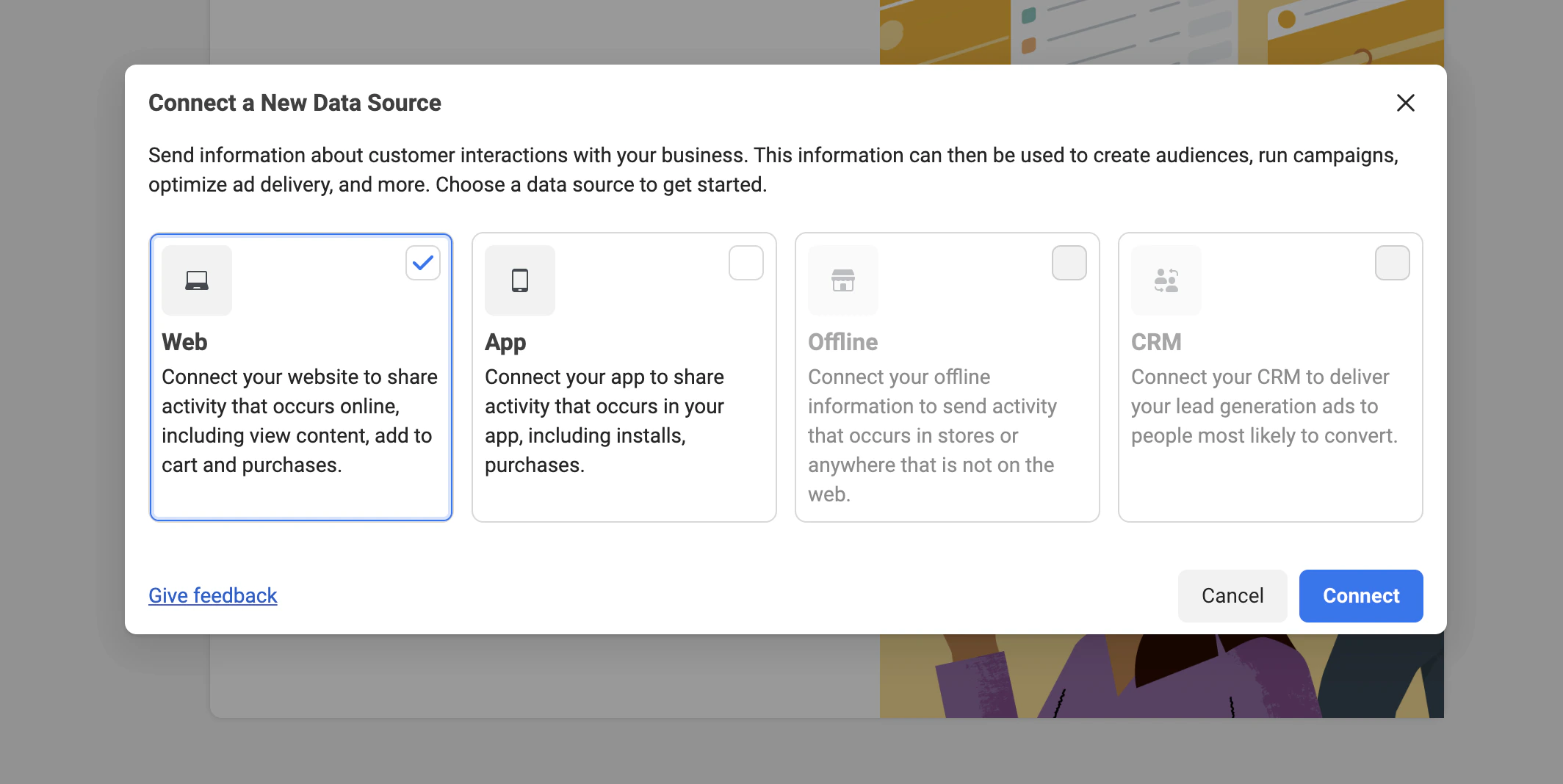
Choose the Web option and hit Connect.
Connect a website
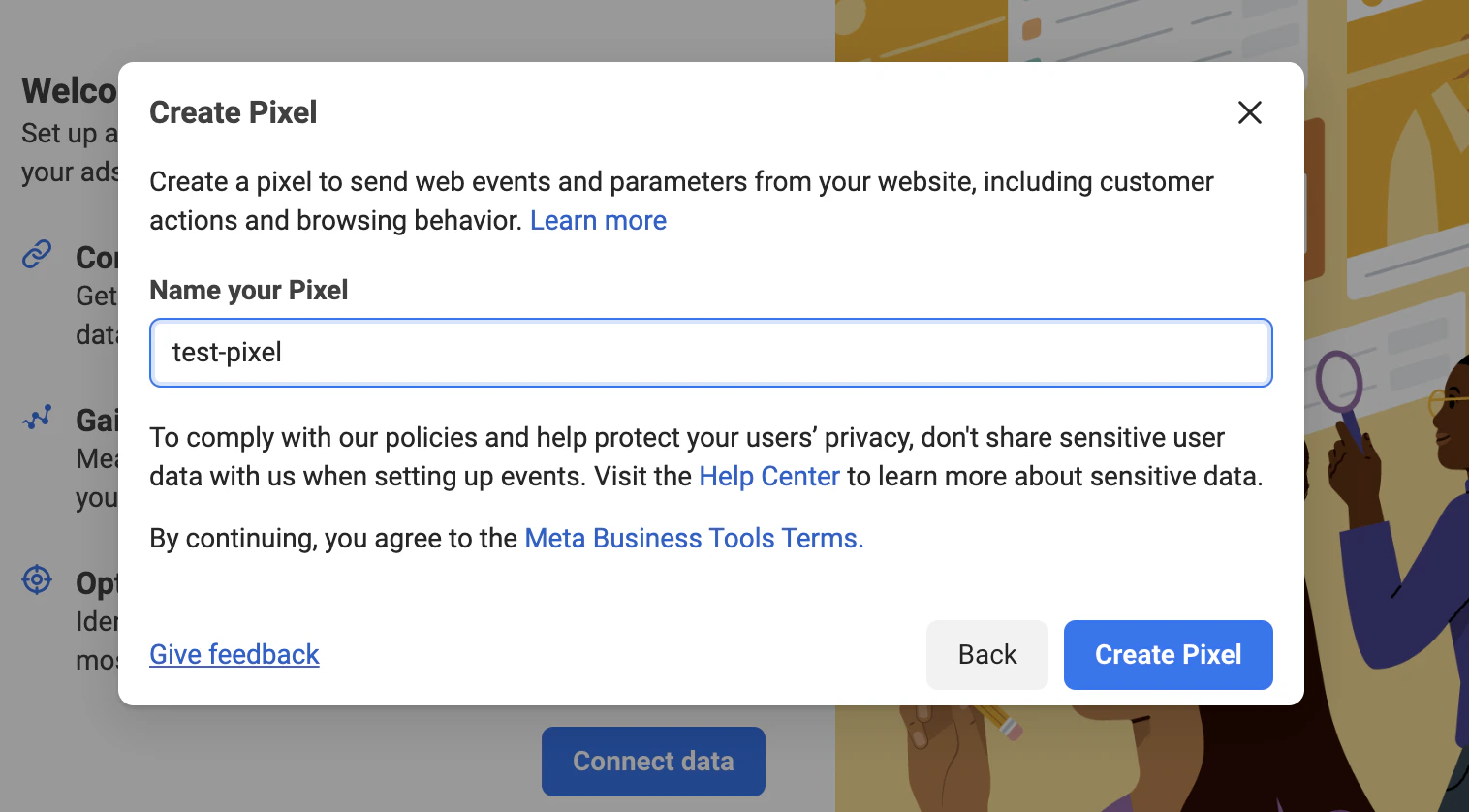
Further on, you need to name your Pixel.
Naming the Pixel
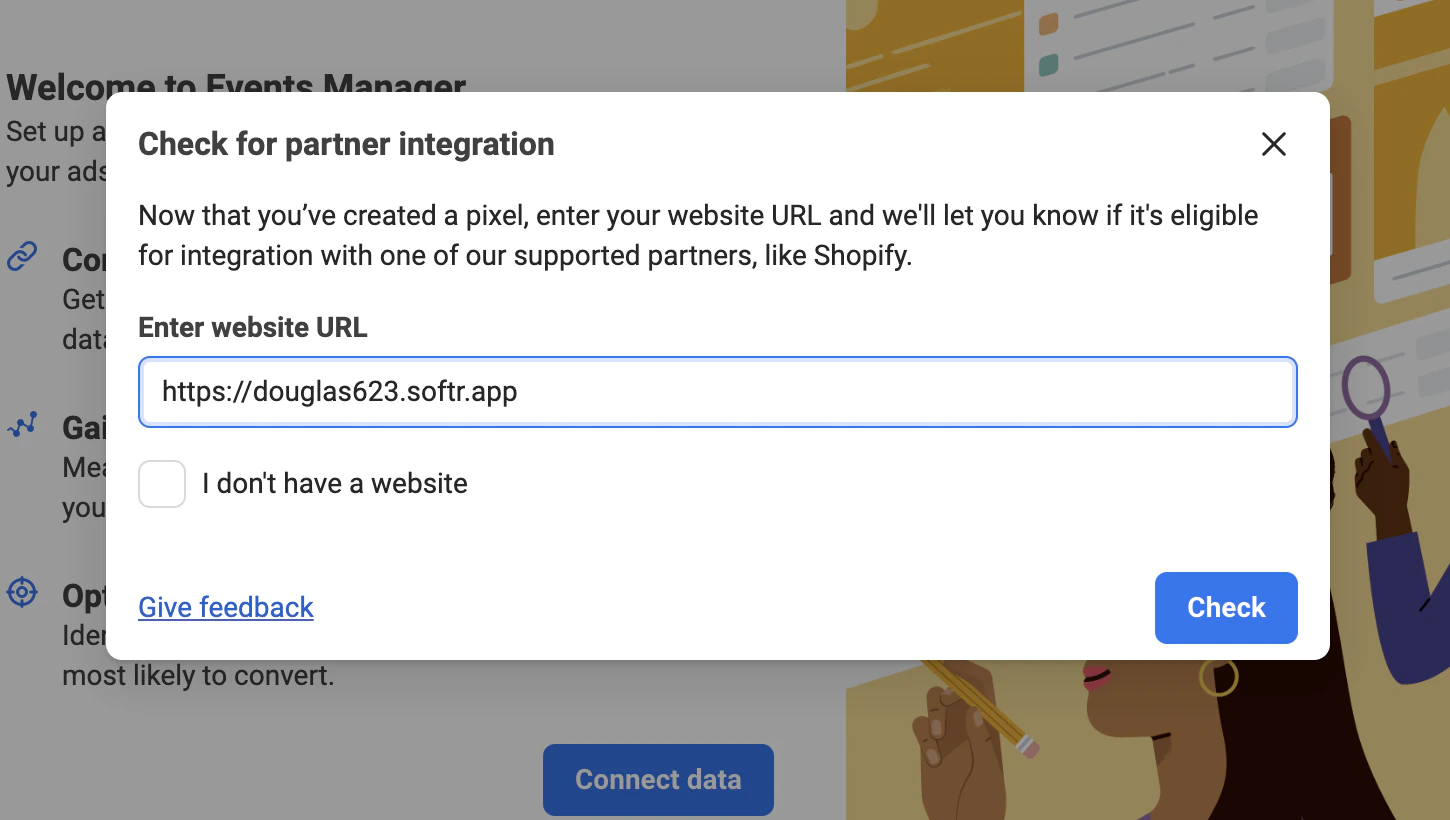
And also enter your website URL.
Entering website URL
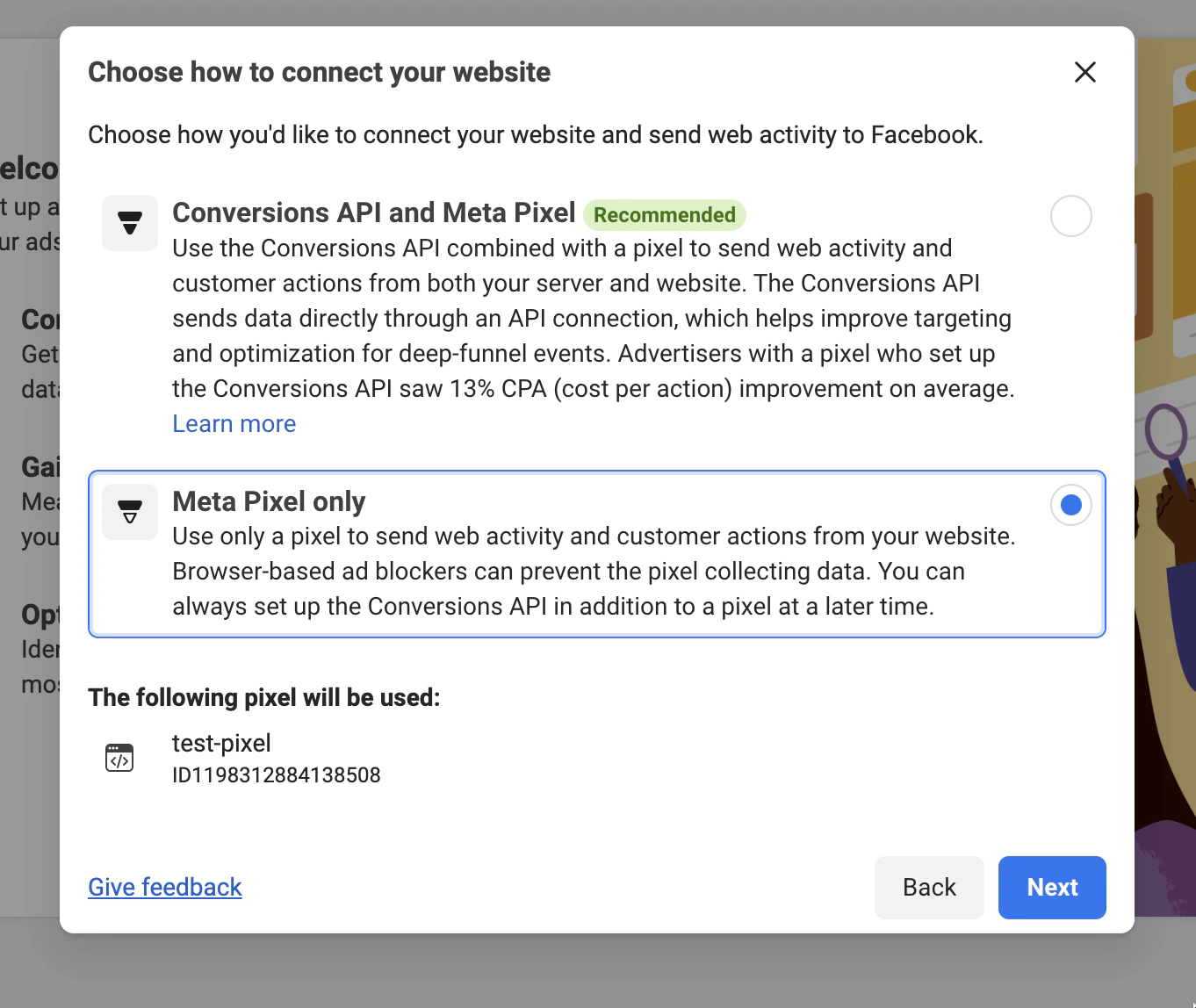
In the following screen, you need to choose the connection type. Conversions API+ Meta Pixel is a more advanced option, and you can learn more about it here. Here, we are going to choose the Meta Pixel only option and finalize the setup.
Connection type
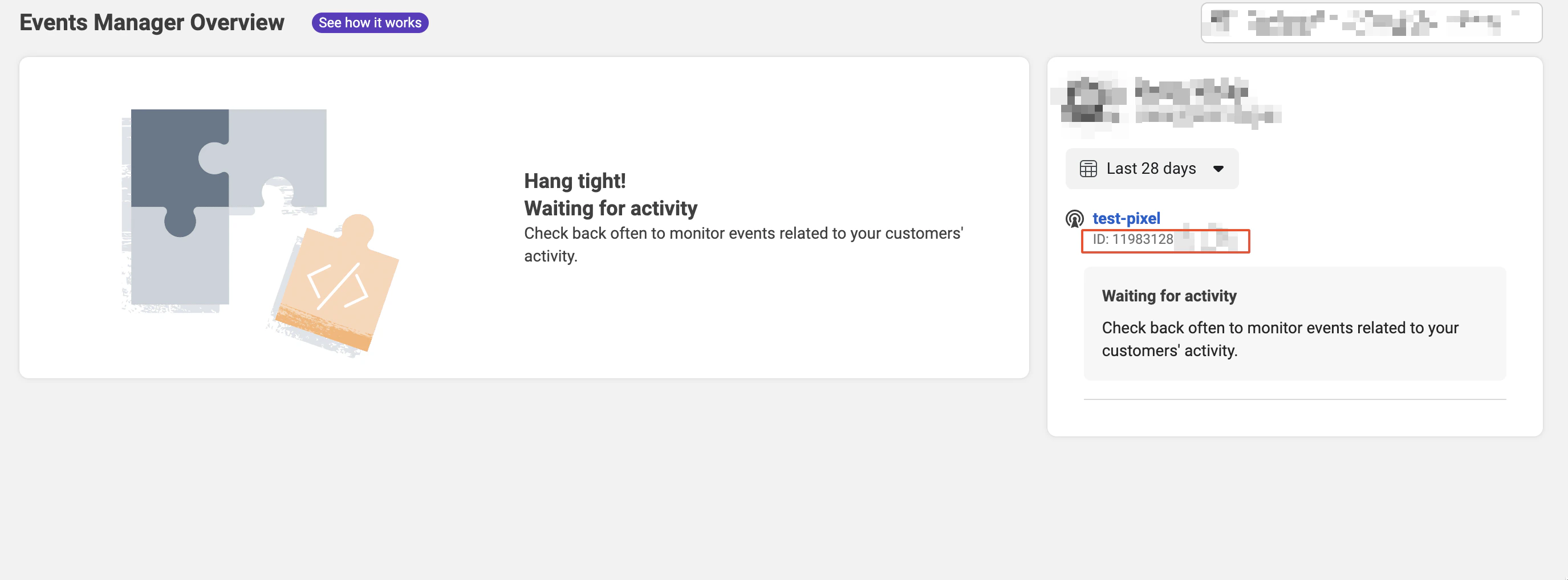
As soon as you finish setting up your Pixel, you’ll be taken to the Events Manager Overview, where you should see all the Pixel-related activity. Here, you need to locate your Pixel ID (shown in the screenshot below) and paste in your Softr app’s Settings ⇒ Integrations ⇒ Facebook Pixel.
Events Manager Overview
That’s it. Now, you should start receiving activity from your site.
It can take up to 24 hours before Facebook starts recording activity from the Pixel.
Now, let’s see how you can make sure Pixel is installed correctly on your site.
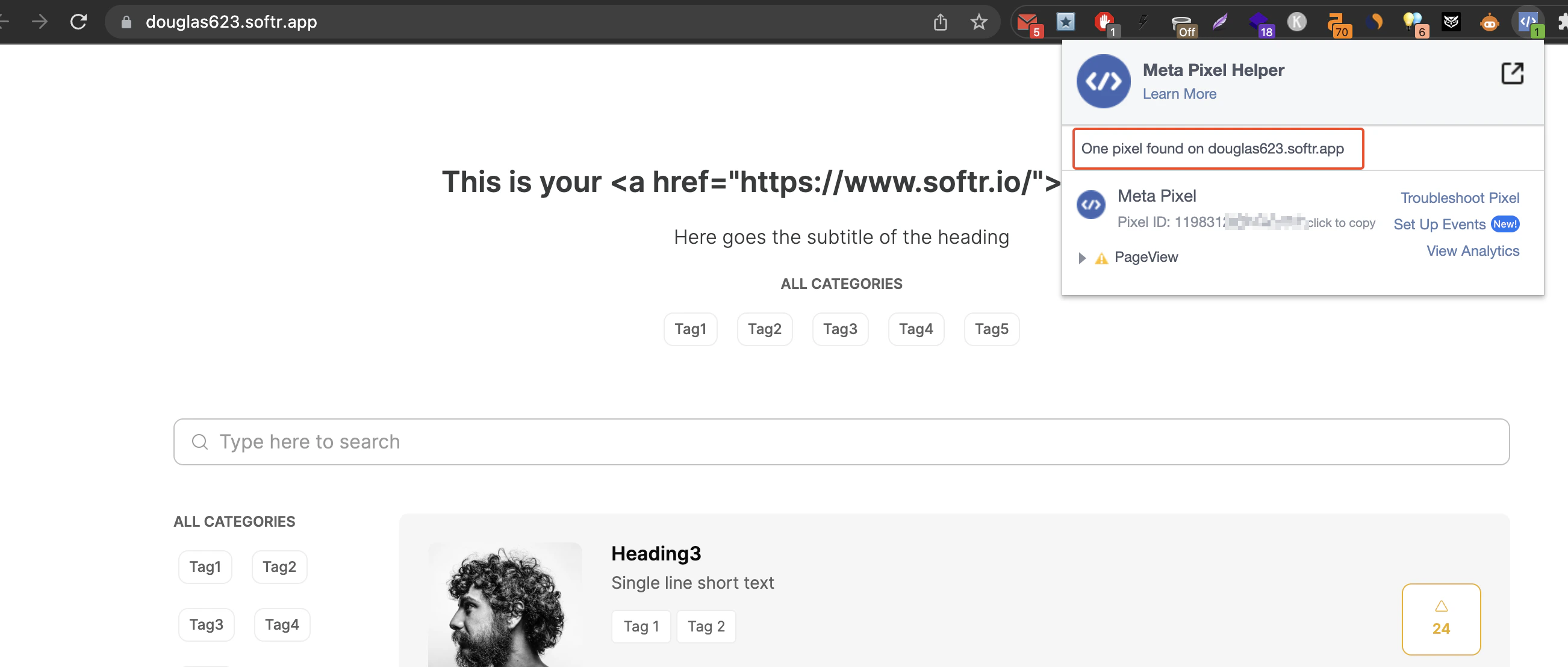
If you use Chrome, there’s a handy extensions called Meta Pixel Helper that lets you test Pixel setup on any of your site’s pages. Just activate the extension and open it on any of the pages where you have Pixel installed. Below, you can see how we test it on an app we just installed Pixel on. As you can see, the extension is able to detect the Pixel successfully.
What we just did is just the basic setup of Facebook Pixel. However, you can do much more with it, adding standard and custom events to track such actions as add to cart, purchase, and more.
You can use the Header Custom Code of your Softr page to add the event code.
Was this page helpful?
{"docsConfig":{"theme":"aspen","$schema":"https://mintlify.com/docs.json","name":"Softr Documentation","colors":{"primary":"#386AF5","light":"#fff","dark":"#030712"},"logo":{"light":"https://mintcdn.com/softr-2b8a27e1/HXG2UYaIUrK-BV-R/logo/dark.svg?fit=max\u0026auto=format\u0026n=HXG2UYaIUrK-BV-R\u0026q=85\u0026s=5c6f3b3fe9daa5c70059c7eb3389cd06","dark":"https://mintcdn.com/softr-2b8a27e1/HXG2UYaIUrK-BV-R/logo/light.svg?fit=max\u0026auto=format\u0026n=HXG2UYaIUrK-BV-R\u0026q=85\u0026s=43609f734df1691b8a6e227776643a0f"},"favicon":"https://mintcdn.com/softr-2b8a27e1/HXG2UYaIUrK-BV-R/logo-light.svg?fit=max\u0026auto=format\u0026n=HXG2UYaIUrK-BV-R\u0026q=85\u0026s=21111872c2f4d5c53e6924606a78a163","appearance":{"default":"light"},"background":{"color":{"dark":"#111827"}},"navbar":{"links":[{"href":"https://community.softr.io/","label":"Community"},{"href":"https://www.softr.io/partners?from=docs","label":"Hire an Expert"}],"primary":{"type":"button","label":"Sign Up","href":"https://studio.softr.io/auth/signin"}},"footer":{"links":[{"header":" ","items":[{"label":"Sign Up","href":"https://studio.softr.io/auth/signin"},{"label":"Hire an Expert","href":"https://www.softr.io/partners?from=docs"},{"label":"Blog","href":"https://www.softr.io/blog"},{"label":"Follow Us","href":"https://www.linkedin.com/company/softr"},{"label":"Contact Us","href":"mailto:support@softr.io"}]}]},"fonts":{"heading":{"family":"Inter"},"body":{"family":"Inter"}},"contextual":{"options":["copy","view","chatgpt","claude","perplexity"],"display":"header"},"styling":{"latex":false},"navigation":{"pages":[]}},"deployment":{"deploymentMetadataValue":{"subdomain":"softr-2b8a27e1","hasAudioNarration":false,"actualSubdomain":"softr-2b8a27e1","customDomains":["docs.softr.io"],"gitSource":{"type":"github","owner":"softr-io","repo":"softr-public-documentation","deployBranch":"main","contentDirectory":"","isPrivate":true,"mountPath":"","label":""},"chroma":{"liveDeploymentHistoryId":"6adb157b7ebcfcb7ce7748ae","collectionId":"cf6b6a92-d36e-49d7-9144-e1004e459d1d","schemaVersion":"v3","latestBuiltDeploymentHistoryId":"6adb157b7ebcfcb7ce7748ae"},"feedback":{"thumbs":true},"entitlements":{"AI_CHAT":{"status":"ENABLED"},"WEB_MCP":{"status":"ENABLED"},"NARRATION":{"status":"ENABLED"}},"buildId":"6adb157b7ebcfcb7ce7748ae","clientVersion":"0.0.3952","searchFilterCounts":[{"language":"default","tag":"Integrations","count":85},{"language":"default","tag":"Softr Workflows","count":62},{"language":"default","tag":"Building Blocks","count":50},{"language":"default","tag":"Softr API","count":27},{"language":"default","tag":"Softr Database API","count":24},{"language":"default","tag":"Add and Manage Users","count":20},{"language":"default","tag":"Data Sources","count":16},{"language":"default","tag":"How to Guides","count":14},{"language":"default","tag":"Actions","count":13},{"language":"default","tag":"Publishing","count":12}]},"assistantConfig":{},"hasChatPermissions":false,"hasWebMcpPermissions":true,"toggles":[{"name":"kill-isr","enabled":true,"variant":{"name":"disabled","enabled":false,"feature_enabled":true},"impressionData":false},{"name":"agent-mintlify-slack","enabled":true,"variant":{"name":"disabled","enabled":false,"feature_enabled":true},"impressionData":false},{"name":"editor-v7-file-tree","enabled":true,"variant":{"name":"disabled","enabled":false,"feature_enabled":true},"impressionData":false},{"name":"agent-integrations-settings","enabled":true,"variant":{"name":"disabled","enabled":false,"feature_enabled":true},"impressionData":false},{"name":"automations-pr-grouping","enabled":true,"variant":{"name":"disabled","enabled":false,"feature_enabled":true},"impressionData":false},{"name":"custom-prefix","enabled":true,"variant":{"name":"disabled","enabled":false,"feature_enabled":true},"impressionData":false},{"name":"analytics-v7","enabled":true,"variant":{"name":"disabled","enabled":false,"feature_enabled":true},"impressionData":false},{"name":"user-flows-analytics","enabled":true,"variant":{"name":"disabled","enabled":false,"feature_enabled":true},"impressionData":false},{"name":"no-publish-flow","enabled":true,"variant":{"name":"disabled","enabled":false,"feature_enabled":true},"impressionData":false},{"name":"workos-onboarding","enabled":true,"variant":{"name":"disabled","enabled":false,"feature_enabled":true},"impressionData":false},{"name":"llms-txt-v2","enabled":true,"variant":{"name":"disabled","enabled":false,"feature_enabled":true},"impressionData":false},{"name":"pause-universal-search-reconcile","enabled":true,"variant":{"name":"disabled","enabled":false,"feature_enabled":true},"impressionData":false},{"name":"snapshot-serving-live","enabled":true,"variant":{"name":"disabled","enabled":false,"feature_enabled":true},"impressionData":false},{"name":"stripTemperatureMiddleware","enabled":true,"variant":{"name":"disabled","enabled":false,"feature_enabled":true},"impressionData":false},{"name":"per-site-search-delta","enabled":true,"variant":{"name":"disabled","enabled":false,"feature_enabled":true},"impressionData":false},{"name":"support-platform-pylon-zendesk","enabled":true,"variant":{"name":"disabled","enabled":false,"feature_enabled":true},"impressionData":false},{"name":"snapshot-serving","enabled":true,"variant":{"name":"disabled","enabled":false,"feature_enabled":true},"impressionData":false},{"name":"instant-rollback","enabled":true,"variant":{"name":"disabled","enabled":false,"feature_enabled":true},"impressionData":false},{"name":"granular-notifications-server","enabled":true,"variant":{"name":"disabled","enabled":false,"feature_enabled":true},"impressionData":false},{"name":"granular-notifications","enabled":true,"variant":{"name":"disabled","enabled":false,"feature_enabled":true},"impressionData":false},{"name":"editor-private-page-search","enabled":true,"variant":{"name":"disabled","enabled":false,"feature_enabled":true},"impressionData":false},{"name":"automations-fable","enabled":true,"variant":{"name":"disabled","enabled":false,"feature_enabled":true},"impressionData":false},{"name":"fixed-ai-action-pricing","enabled":true,"variant":{"name":"disabled","enabled":false,"feature_enabled":true},"impressionData":false},{"name":"automation-resolve-merge-conflict","enabled":true,"variant":{"name":"disabled","enabled":false,"feature_enabled":true},"impressionData":false},{"name":"scoped-publishing","enabled":true,"variant":{"name":"disabled","enabled":false,"feature_enabled":true},"impressionData":false},{"name":"mintql","enabled":true,"variant":{"name":"disabled","enabled":false,"feature_enabled":true},"impressionData":false},{"name":"page-level-analytics","enabled":true,"variant":{"name":"disabled","enabled":false,"feature_enabled":true},"impressionData":false},{"name":"editor-version-history-v2","enabled":true,"variant":{"name":"disabled","enabled":false,"feature_enabled":true},"impressionData":false},{"name":"editor-nav-generations","enabled":true,"variant":{"name":"disabled","enabled":false,"feature_enabled":true},"impressionData":false},{"name":"billing-page-v2","enabled":true,"variant":{"name":"disabled","enabled":false,"feature_enabled":true},"impressionData":false},{"name":"workspace-projects","enabled":true,"variant":{"name":"disabled","enabled":false,"feature_enabled":true},"impressionData":false},{"name":"assistant-v5","enabled":true,"variant":{"name":"disabled","enabled":false,"feature_enabled":true},"impressionData":false},{"name":"byok-sep-25","enabled":true,"variant":{"name":"disabled","enabled":false,"feature_enabled":true},"impressionData":false},{"name":"fork-pr-previews","enabled":true,"variant":{"name":"disabled","enabled":false,"feature_enabled":true},"impressionData":false},{"name":"revalidation-jwt","enabled":true,"variant":{"name":"disabled","enabled":false,"feature_enabled":true},"impressionData":false},{"name":"vite-origin","enabled":true,"variant":{"name":"disabled","enabled":false,"feature_enabled":true},"impressionData":false},{"name":"editor-agent-model-picker","enabled":true,"variant":{"name":"disabled","enabled":false,"feature_enabled":true},"impressionData":false},{"name":"billing-updated-9-15","enabled":true,"variant":{"name":"disabled","enabled":false,"feature_enabled":true},"impressionData":false},{"name":"hobby-abuse-scan","enabled":true,"variant":{"name":"disabled","enabled":false,"feature_enabled":true},"impressionData":false},{"name":"dashboard-inbox","enabled":true,"variant":{"name":"disabled","enabled":false,"feature_enabled":true},"impressionData":false}],"isAtlas":false,"googleFontsInlined":false},"customCss":[{"filePath":"style.css","content":"ol ol{list-style-type:decimal!important}.dark .prose span :where(a):not(:where([class~=\"not-prose\"], [class~=\"not-prose\"] *)){border-bottom:1px solid #f9a619}.dark .prose span :where(a:hover):not(:where([class~=\"not-prose\"], [class~=\"not-prose\"] *)){border-bottom-width:2px}"}],"page":{"pagePath":"integrations/facebook-pixel","slug":"/integrations/facebook-pixel","pageMetadata":{"title":"Facebook Pixel","permalink":"aBcMovzWwwQnP3UFW17x6R","description":"Integrating Facebook Pixel on your Softr app.","og:title":"Facebook Pixel – Softr Help Docs","og:description":"Integrating Facebook Pixel on your Softr app.","og:image":"https://res.cloudinary.com/helpkit/image/upload/c_scale,w_700,q_auto/v1674219840/softrdocs_meta_OG_Image_Url_258f31c013.png","twitter:title":"Facebook Pixel – Softr Help Docs","twitter:description":"Integrating Facebook Pixel on your Softr app.","href":"/integrations/facebook-pixel"},"description":{"compiledSource":"\"use strict\";\nconst {jsx: _jsx} = arguments[0];\nconst {useMDXComponents: _provideComponents} = arguments[0];\nfunction _createMdxContent(props) {\n const _components = {\n p: \"p\",\n ..._provideComponents(),\n ...props.components\n };\n return _jsx(_components.p, {\n children: \"Integrating Facebook Pixel on your Softr app.\"\n });\n}\nfunction MDXContent(props = {}) {\n const {wrapper: MDXLayout} = {\n ..._provideComponents(),\n ...props.components\n };\n return MDXLayout ? _jsx(MDXLayout, {\n ...props,\n children: _jsx(_createMdxContent, {\n ...props\n })\n }) : _createMdxContent(props);\n}\nreturn {\n default: MDXContent\n};\n","frontmatter":{},"scope":{}},"pageType":"default","mdx":{"mdxSource":{"compiledSource":"\"use strict\";const{Fragment:_Fragment,jsx:_jsx,jsxs:_jsxs}=arguments[0];const{useMDXComponents:_provideComponents}=arguments[0];function _createMdxContent(props){const _components={a:`a`,p:`p`,strong:`strong`,..._provideComponents(),...props.components},{Frame,Heading,OptimizedImage,Tip}=_components;if(!Frame)_missingMdxReference(`Frame`,true);if(!Heading)_missingMdxReference(`Heading`,true);if(!OptimizedImage)_missingMdxReference(`OptimizedImage`,true);if(!Tip)_missingMdxReference(`Tip`,true);return _jsxs(_Fragment,{children:[_jsxs(_components.p,{children:[`The `,_jsx(_components.a,{href:`https://www.facebook.com/business/tools/meta-pixel`,children:`Facebook Pixel`}),` is a code snippet placed on your website or web app that lets you track and optimize the audience that visits your site as a result of your Facebook ad campaigns (paid) or organically (unpaid). For instance, if someone lands on your website and then makes a purchase or performs some other action, you can track that activity through Facebook Pixel and tie it to a Facebook Ad. Thus, Pixel tracks all the actions that users make on your website but then ties that traffic directly to an ad if you are running Facebook ads. Then, you can, for instance, retarget your Facebook ads to show them only to your website visitors.`]}),`\n`,_jsxs(_components.p,{children:[`In order to activate the Pixel on your Softr app, you need to locate your `,_jsx(_components.strong,{children:`Pixel ID`}),` and add it in `,_jsx(_components.strong,{children:`Settings⇒Integrations⇒Facebook Pixel`}),`. Let’s see where you can find the ID.`]}),`\n`,_jsx(Heading,{level:`2`,id:`connecting-facebook-pixel`,children:`Connecting Facebook Pixel`}),`\n`,_jsxs(_components.p,{children:[`Navigate to Facebook `,_jsx(_components.a,{href:`https://www.facebook.com/business/tools/ads-manager`,children:`Ads Manager`}),` and, in the left-hand navigation menu, locate the `,_jsx(_components.strong,{children:`Events Manager`}),` tool.`]}),`\n`,_jsx(Frame,{caption:`Navigating to Events Manager`,children:_jsx(OptimizedImage,{src:`https://mintcdn.com/softr-2b8a27e1/PaU-DT-tUcsG5oFr/integrations/images/facebook-pixel/image1.png?fit=max\u0026auto=format\u0026n=PaU-DT-tUcsG5oFr\u0026q=85\u0026s=4b14c867957c55c6d7ed253d2ab6a6af`,alt:`Navigating to Events Manager`,\"data-og-width\":`1794`,width:`1794`,\"data-og-height\":`1238`,height:`1238`,\"data-path\":`integrations/images/facebook-pixel/image1.png`,\"data-optimize\":`true`,\"data-opv\":`3`,srcset:`https://mintcdn.com/softr-2b8a27e1/PaU-DT-tUcsG5oFr/integrations/images/facebook-pixel/image1.png?w=280\u0026fit=max\u0026auto=format\u0026n=PaU-DT-tUcsG5oFr\u0026q=85\u0026s=e94f482d6a21bbd892bce3300f5c9da5 280w, https://mintcdn.com/softr-2b8a27e1/PaU-DT-tUcsG5oFr/integrations/images/facebook-pixel/image1.png?w=560\u0026fit=max\u0026auto=format\u0026n=PaU-DT-tUcsG5oFr\u0026q=85\u0026s=000290e1ac10277c1a1beed830c19b02 560w, https://mintcdn.com/softr-2b8a27e1/PaU-DT-tUcsG5oFr/integrations/images/facebook-pixel/image1.png?w=840\u0026fit=max\u0026auto=format\u0026n=PaU-DT-tUcsG5oFr\u0026q=85\u0026s=712fdc8f311d1850946705d716f0bef3 840w, https://mintcdn.com/softr-2b8a27e1/PaU-DT-tUcsG5oFr/integrations/images/facebook-pixel/image1.png?w=1100\u0026fit=max\u0026auto=format\u0026n=PaU-DT-tUcsG5oFr\u0026q=85\u0026s=8a5c1c0964cab0bbb96ecb11e33e655f 1100w, https://mintcdn.com/softr-2b8a27e1/PaU-DT-tUcsG5oFr/integrations/images/facebook-pixel/image1.png?w=1650\u0026fit=max\u0026auto=format\u0026n=PaU-DT-tUcsG5oFr\u0026q=85\u0026s=cba23546ebe82992ac29857da9955a82 1650w, https://mintcdn.com/softr-2b8a27e1/PaU-DT-tUcsG5oFr/integrations/images/facebook-pixel/image1.png?w=2500\u0026fit=max\u0026auto=format\u0026n=PaU-DT-tUcsG5oFr\u0026q=85\u0026s=1fd868ba68b17a77bac35385f33fe07c 2500w`})}),`\n`,_jsxs(_components.p,{children:[`Next, if you don’t yet have any data connected, a pop-up will appears, prompting you to connect your data. Hit `,_jsx(_components.strong,{children:`Connect Data`}),` to continue.`]}),`\n`,_jsx(Frame,{caption:`Connect Data`,children:_jsx(OptimizedImage,{src:`https://mintcdn.com/softr-2b8a27e1/PaU-DT-tUcsG5oFr/integrations/images/facebook-pixel/image2.png?fit=max\u0026auto=format\u0026n=PaU-DT-tUcsG5oFr\u0026q=85\u0026s=018fff06c3b12c627c69dbe8de719357`,alt:`Connect Data`,\"data-og-width\":`1870`,width:`1870`,\"data-og-height\":`1128`,height:`1128`,\"data-path\":`integrations/images/facebook-pixel/image2.png`,\"data-optimize\":`true`,\"data-opv\":`3`,srcset:`https://mintcdn.com/softr-2b8a27e1/PaU-DT-tUcsG5oFr/integrations/images/facebook-pixel/image2.png?w=280\u0026fit=max\u0026auto=format\u0026n=PaU-DT-tUcsG5oFr\u0026q=85\u0026s=24b80d50e731345dec8bffdadc72eb50 280w, https://mintcdn.com/softr-2b8a27e1/PaU-DT-tUcsG5oFr/integrations/images/facebook-pixel/image2.png?w=560\u0026fit=max\u0026auto=format\u0026n=PaU-DT-tUcsG5oFr\u0026q=85\u0026s=030d6f0702f0f35b98b73a3f8a9006e2 560w, https://mintcdn.com/softr-2b8a27e1/PaU-DT-tUcsG5oFr/integrations/images/facebook-pixel/image2.png?w=840\u0026fit=max\u0026auto=format\u0026n=PaU-DT-tUcsG5oFr\u0026q=85\u0026s=92a01c3a3ece4bf6d26ed081d0585dee 840w, https://mintcdn.com/softr-2b8a27e1/PaU-DT-tUcsG5oFr/integrations/images/facebook-pixel/image2.png?w=1100\u0026fit=max\u0026auto=format\u0026n=PaU-DT-tUcsG5oFr\u0026q=85\u0026s=1550e101e6f0014662a2712398e72dae 1100w, https://mintcdn.com/softr-2b8a27e1/PaU-DT-tUcsG5oFr/integrations/images/facebook-pixel/image2.png?w=1650\u0026fit=max\u0026auto=format\u0026n=PaU-DT-tUcsG5oFr\u0026q=85\u0026s=ca664d138b2f82dd2e0c97b1f0bc0306 1650w, https://mintcdn.com/softr-2b8a27e1/PaU-DT-tUcsG5oFr/integrations/images/facebook-pixel/image2.png?w=2500\u0026fit=max\u0026auto=format\u0026n=PaU-DT-tUcsG5oFr\u0026q=85\u0026s=a970d2da4dce4349ef47b8d9524d3058 2500w`})}),`\n`,_jsxs(_components.p,{children:[`Choose the `,_jsx(_components.strong,{children:`Web`}),` option and hit `,_jsx(_components.strong,{children:`Connect`}),`.`]}),`\n`,_jsx(Frame,{caption:`Connect a website`,children:_jsx(OptimizedImage,{src:`https://mintcdn.com/softr-2b8a27e1/PaU-DT-tUcsG5oFr/integrations/images/facebook-pixel/image3.png?fit=max\u0026auto=format\u0026n=PaU-DT-tUcsG5oFr\u0026q=85\u0026s=7709607088200e65505c47a88d29e737`,alt:`Connect a website`,\"data-og-width\":`2128`,width:`2128`,\"data-og-height\":`1068`,height:`1068`,\"data-path\":`integrations/images/facebook-pixel/image3.png`,\"data-optimize\":`true`,\"data-opv\":`3`,srcset:`https://mintcdn.com/softr-2b8a27e1/PaU-DT-tUcsG5oFr/integrations/images/facebook-pixel/image3.png?w=280\u0026fit=max\u0026auto=format\u0026n=PaU-DT-tUcsG5oFr\u0026q=85\u0026s=f63ab1796acede4d549758848fabac6d 280w, https://mintcdn.com/softr-2b8a27e1/PaU-DT-tUcsG5oFr/integrations/images/facebook-pixel/image3.png?w=560\u0026fit=max\u0026auto=format\u0026n=PaU-DT-tUcsG5oFr\u0026q=85\u0026s=9ddbd1385fe2063d86af2346169b7c55 560w, https://mintcdn.com/softr-2b8a27e1/PaU-DT-tUcsG5oFr/integrations/images/facebook-pixel/image3.png?w=840\u0026fit=max\u0026auto=format\u0026n=PaU-DT-tUcsG5oFr\u0026q=85\u0026s=08618976f50edd11a644f915707ec64c 840w, https://mintcdn.com/softr-2b8a27e1/PaU-DT-tUcsG5oFr/integrations/images/facebook-pixel/image3.png?w=1100\u0026fit=max\u0026auto=format\u0026n=PaU-DT-tUcsG5oFr\u0026q=85\u0026s=2146ac3faf1826b055be85a209954fe9 1100w, https://mintcdn.com/softr-2b8a27e1/PaU-DT-tUcsG5oFr/integrations/images/facebook-pixel/image3.png?w=1650\u0026fit=max\u0026auto=format\u0026n=PaU-DT-tUcsG5oFr\u0026q=85\u0026s=420e08f854afafe320267eb9115d4766 1650w, https://mintcdn.com/softr-2b8a27e1/PaU-DT-tUcsG5oFr/integrations/images/facebook-pixel/image3.png?w=2500\u0026fit=max\u0026auto=format\u0026n=PaU-DT-tUcsG5oFr\u0026q=85\u0026s=d1d358886198e57d4d1b8a1cd27544a1 2500w`})}),`\n`,_jsx(_components.p,{children:`Further on, you need to name your Pixel.`}),`\n`,_jsx(Frame,{caption:`Naming the Pixel`,children:_jsx(OptimizedImage,{src:`https://mintcdn.com/softr-2b8a27e1/PaU-DT-tUcsG5oFr/integrations/images/facebook-pixel/image4.png?fit=max\u0026auto=format\u0026n=PaU-DT-tUcsG5oFr\u0026q=85\u0026s=4fda194ea519fae4d01c6357585266b2`,alt:`Naming the Pixel`,\"data-og-width\":`1516`,width:`1516`,\"data-og-height\":`838`,height:`838`,\"data-path\":`integrations/images/facebook-pixel/image4.png`,\"data-optimize\":`true`,\"data-opv\":`3`,srcset:`https://mintcdn.com/softr-2b8a27e1/PaU-DT-tUcsG5oFr/integrations/images/facebook-pixel/image4.png?w=280\u0026fit=max\u0026auto=format\u0026n=PaU-DT-tUcsG5oFr\u0026q=85\u0026s=109d249fcd06cdd4543fdcdf6cf76de3 280w, https://mintcdn.com/softr-2b8a27e1/PaU-DT-tUcsG5oFr/integrations/images/facebook-pixel/image4.png?w=560\u0026fit=max\u0026auto=format\u0026n=PaU-DT-tUcsG5oFr\u0026q=85\u0026s=b3f29117d954bac5c4fd81fb81c26e8c 560w, https://mintcdn.com/softr-2b8a27e1/PaU-DT-tUcsG5oFr/integrations/images/facebook-pixel/image4.png?w=840\u0026fit=max\u0026auto=format\u0026n=PaU-DT-tUcsG5oFr\u0026q=85\u0026s=3d5b96b0715275a4e15dac02eeb74b55 840w, https://mintcdn.com/softr-2b8a27e1/PaU-DT-tUcsG5oFr/integrations/images/facebook-pixel/image4.png?w=1100\u0026fit=max\u0026auto=format\u0026n=PaU-DT-tUcsG5oFr\u0026q=85\u0026s=b7a6bb46284339674ba56ef4c7b2c166 1100w, https://mintcdn.com/softr-2b8a27e1/PaU-DT-tUcsG5oFr/integrations/images/facebook-pixel/image4.png?w=1650\u0026fit=max\u0026auto=format\u0026n=PaU-DT-tUcsG5oFr\u0026q=85\u0026s=7983c93521d46f89c590cb0b18687022 1650w, https://mintcdn.com/softr-2b8a27e1/PaU-DT-tUcsG5oFr/integrations/images/facebook-pixel/image4.png?w=2500\u0026fit=max\u0026auto=format\u0026n=PaU-DT-tUcsG5oFr\u0026q=85\u0026s=dd07b266215073aa2b868121f2b34418 2500w`})}),`\n`,_jsx(_components.p,{children:`And also enter your website URL.`}),`\n`,_jsx(Frame,{caption:`Entering website URL`,children:_jsx(OptimizedImage,{src:`https://mintcdn.com/softr-2b8a27e1/PaU-DT-tUcsG5oFr/integrations/images/facebook-pixel/image5.png?fit=max\u0026auto=format\u0026n=PaU-DT-tUcsG5oFr\u0026q=85\u0026s=0111a5a70408cdef7313710e7f99b2e2`,alt:`Entering website URL`,\"data-og-width\":`1450`,width:`1450`,\"data-og-height\":`820`,height:`820`,\"data-path\":`integrations/images/facebook-pixel/image5.png`,\"data-optimize\":`true`,\"data-opv\":`3`,srcset:`https://mintcdn.com/softr-2b8a27e1/PaU-DT-tUcsG5oFr/integrations/images/facebook-pixel/image5.png?w=280\u0026fit=max\u0026auto=format\u0026n=PaU-DT-tUcsG5oFr\u0026q=85\u0026s=21cae4c38abb690b731f0420b5706de8 280w, https://mintcdn.com/softr-2b8a27e1/PaU-DT-tUcsG5oFr/integrations/images/facebook-pixel/image5.png?w=560\u0026fit=max\u0026auto=format\u0026n=PaU-DT-tUcsG5oFr\u0026q=85\u0026s=9eede1592c6f00d55be1889c5ab02ade 560w, https://mintcdn.com/softr-2b8a27e1/PaU-DT-tUcsG5oFr/integrations/images/facebook-pixel/image5.png?w=840\u0026fit=max\u0026auto=format\u0026n=PaU-DT-tUcsG5oFr\u0026q=85\u0026s=d6e278768f4921176885482e7bd6015d 840w, https://mintcdn.com/softr-2b8a27e1/PaU-DT-tUcsG5oFr/integrations/images/facebook-pixel/image5.png?w=1100\u0026fit=max\u0026auto=format\u0026n=PaU-DT-tUcsG5oFr\u0026q=85\u0026s=8d74997b4e3210973e6a2730a39c874e 1100w, https://mintcdn.com/softr-2b8a27e1/PaU-DT-tUcsG5oFr/integrations/images/facebook-pixel/image5.png?w=1650\u0026fit=max\u0026auto=format\u0026n=PaU-DT-tUcsG5oFr\u0026q=85\u0026s=9c7259be55dbb53728cf565eae2b5609 1650w, https://mintcdn.com/softr-2b8a27e1/PaU-DT-tUcsG5oFr/integrations/images/facebook-pixel/image5.png?w=2500\u0026fit=max\u0026auto=format\u0026n=PaU-DT-tUcsG5oFr\u0026q=85\u0026s=022bfefa88201e8cc3e31d7e827b9aa6 2500w`})}),`\n`,_jsxs(_components.p,{children:[`In the following screen, you need to choose the connection type. `,_jsx(_components.strong,{children:`Conversions API`}),` `,_jsx(_components.strong,{children:`+ Meta Pixel`}),` is a more advanced option, and you can learn more about it `,_jsx(_components.a,{href:`https://www.facebook.com/business/help/2041148702652965?id=818859032317965`,children:`here`}),`. Here, we are going to choose the `,_jsx(_components.strong,{children:`Meta Pixel only`}),` option and finalize the setup.`]}),`\n`,_jsx(Frame,{caption:`Connection type`,children:_jsx(OptimizedImage,{src:`https://mintcdn.com/softr-2b8a27e1/PaU-DT-tUcsG5oFr/integrations/images/facebook-pixel/image6.png?fit=max\u0026auto=format\u0026n=PaU-DT-tUcsG5oFr\u0026q=85\u0026s=ba5e231266ccd7fc4f394f84e6057297`,alt:`Connection type`,\"data-og-width\":`1362`,width:`1362`,\"data-og-height\":`1148`,height:`1148`,\"data-path\":`integrations/images/facebook-pixel/image6.png`,\"data-optimize\":`true`,\"data-opv\":`3`,srcset:`https://mintcdn.com/softr-2b8a27e1/PaU-DT-tUcsG5oFr/integrations/images/facebook-pixel/image6.png?w=280\u0026fit=max\u0026auto=format\u0026n=PaU-DT-tUcsG5oFr\u0026q=85\u0026s=29920bfbe6487ea8ae9da126a58e08f6 280w, https://mintcdn.com/softr-2b8a27e1/PaU-DT-tUcsG5oFr/integrations/images/facebook-pixel/image6.png?w=560\u0026fit=max\u0026auto=format\u0026n=PaU-DT-tUcsG5oFr\u0026q=85\u0026s=e5a38802e3b7250b78cfa68c817081bf 560w, https://mintcdn.com/softr-2b8a27e1/PaU-DT-tUcsG5oFr/integrations/images/facebook-pixel/image6.png?w=840\u0026fit=max\u0026auto=format\u0026n=PaU-DT-tUcsG5oFr\u0026q=85\u0026s=94623d823905b633601e58e7ee80f5c0 840w, https://mintcdn.com/softr-2b8a27e1/PaU-DT-tUcsG5oFr/integrations/images/facebook-pixel/image6.png?w=1100\u0026fit=max\u0026auto=format\u0026n=PaU-DT-tUcsG5oFr\u0026q=85\u0026s=abb816b802930607ff326874235e62fb 1100w, https://mintcdn.com/softr-2b8a27e1/PaU-DT-tUcsG5oFr/integrations/images/facebook-pixel/image6.png?w=1650\u0026fit=max\u0026auto=format\u0026n=PaU-DT-tUcsG5oFr\u0026q=85\u0026s=8a876e2bb4d1634b6c33fe4480126da6 1650w, https://mintcdn.com/softr-2b8a27e1/PaU-DT-tUcsG5oFr/integrations/images/facebook-pixel/image6.png?w=2500\u0026fit=max\u0026auto=format\u0026n=PaU-DT-tUcsG5oFr\u0026q=85\u0026s=5f503d5e6e8173b2e2a367d174594029 2500w`})}),`\n`,_jsxs(_components.p,{children:[`As soon as you finish setting up your Pixel, you’ll be taken to the `,_jsx(_components.strong,{children:`Events Manager Overview`}),`, where you should see all the Pixel-related activity. Here, you need to locate your Pixel ID (shown in the screenshot below) and paste in your Softr app’s `,_jsx(_components.strong,{children:`Settings ⇒ Integrations ⇒ Facebook Pixel`}),`.`]}),`\n`,_jsx(Frame,{caption:`Events Manager Overview`,children:_jsx(OptimizedImage,{src:`https://mintcdn.com/softr-2b8a27e1/PaU-DT-tUcsG5oFr/integrations/images/facebook-pixel/image7.png?fit=max\u0026auto=format\u0026n=PaU-DT-tUcsG5oFr\u0026q=85\u0026s=3749bc5f37999abbb324b59dd819bdbf`,alt:`Events Manager Overview`,\"data-og-width\":`2750`,width:`2750`,\"data-og-height\":`1018`,height:`1018`,\"data-path\":`integrations/images/facebook-pixel/image7.png`,\"data-optimize\":`true`,\"data-opv\":`3`,srcset:`https://mintcdn.com/softr-2b8a27e1/PaU-DT-tUcsG5oFr/integrations/images/facebook-pixel/image7.png?w=280\u0026fit=max\u0026auto=format\u0026n=PaU-DT-tUcsG5oFr\u0026q=85\u0026s=82a6e3a69ad965f06a3970a2115927b3 280w, https://mintcdn.com/softr-2b8a27e1/PaU-DT-tUcsG5oFr/integrations/images/facebook-pixel/image7.png?w=560\u0026fit=max\u0026auto=format\u0026n=PaU-DT-tUcsG5oFr\u0026q=85\u0026s=4be7240677aa41aa69499ba8c6841763 560w, https://mintcdn.com/softr-2b8a27e1/PaU-DT-tUcsG5oFr/integrations/images/facebook-pixel/image7.png?w=840\u0026fit=max\u0026auto=format\u0026n=PaU-DT-tUcsG5oFr\u0026q=85\u0026s=0dbd813ad0b36286f66c82bd0749218f 840w, https://mintcdn.com/softr-2b8a27e1/PaU-DT-tUcsG5oFr/integrations/images/facebook-pixel/image7.png?w=1100\u0026fit=max\u0026auto=format\u0026n=PaU-DT-tUcsG5oFr\u0026q=85\u0026s=6a4580a3b3bc0e763461b3d63a72262e 1100w, https://mintcdn.com/softr-2b8a27e1/PaU-DT-tUcsG5oFr/integrations/images/facebook-pixel/image7.png?w=1650\u0026fit=max\u0026auto=format\u0026n=PaU-DT-tUcsG5oFr\u0026q=85\u0026s=c6b6dd4c6c716ecb91cbbf6a1bda0aac 1650w, https://mintcdn.com/softr-2b8a27e1/PaU-DT-tUcsG5oFr/integrations/images/facebook-pixel/image7.png?w=2500\u0026fit=max\u0026auto=format\u0026n=PaU-DT-tUcsG5oFr\u0026q=85\u0026s=2301009d1e9f6f2e72f418bb93ca3f69 2500w`})}),`\n`,_jsx(_components.p,{children:`That’s it. Now, you should start receiving activity from your site.`}),`\n`,_jsx(Tip,{children:`It can take up to 24 hours before Facebook starts recording activity from the Pixel.`}),`\n`,_jsx(_components.p,{children:`Now, let’s see how you can make sure Pixel is installed correctly on your site.`}),`\n`,_jsx(Heading,{level:`2`,id:`testing-facebook-pixel`,children:`Testing Facebook Pixel`}),`\n`,_jsxs(_components.p,{children:[`If you use Chrome, there’s a handy extensions called `,_jsx(_components.a,{href:`https://chrome.google.com/webstore/detail/meta-pixel-helper/fdgfkebogiimcoedlicjlajpkdmockpc`,children:`Meta Pixel Helper`}),` that lets you test Pixel setup on any of your site’s pages. Just activate the extension and open it on any of the pages where you have Pixel installed. Below, you can see how we test it on an app we just installed Pixel on. As you can see, the extension is able to detect the Pixel successfully.`]}),`\n`,_jsx(Frame,{caption:`Testing Pixel setup`,children:_jsx(OptimizedImage,{src:`https://mintcdn.com/softr-2b8a27e1/PaU-DT-tUcsG5oFr/integrations/images/facebook-pixel/image8.png?fit=max\u0026auto=format\u0026n=PaU-DT-tUcsG5oFr\u0026q=85\u0026s=74b99f13419e5b4ebd61f55e347f16b7`,alt:`Testing Pixel setup`,\"data-og-width\":`2604`,width:`2604`,\"data-og-height\":`1108`,height:`1108`,\"data-path\":`integrations/images/facebook-pixel/image8.png`,\"data-optimize\":`true`,\"data-opv\":`3`,srcset:`https://mintcdn.com/softr-2b8a27e1/PaU-DT-tUcsG5oFr/integrations/images/facebook-pixel/image8.png?w=280\u0026fit=max\u0026auto=format\u0026n=PaU-DT-tUcsG5oFr\u0026q=85\u0026s=4c152f50fb35feec23c00617854785d6 280w, https://mintcdn.com/softr-2b8a27e1/PaU-DT-tUcsG5oFr/integrations/images/facebook-pixel/image8.png?w=560\u0026fit=max\u0026auto=format\u0026n=PaU-DT-tUcsG5oFr\u0026q=85\u0026s=30b483f0fa6b5275eee93ac7382c3da8 560w, https://mintcdn.com/softr-2b8a27e1/PaU-DT-tUcsG5oFr/integrations/images/facebook-pixel/image8.png?w=840\u0026fit=max\u0026auto=format\u0026n=PaU-DT-tUcsG5oFr\u0026q=85\u0026s=01e7979f3c405a359728292e3a6dac46 840w, https://mintcdn.com/softr-2b8a27e1/PaU-DT-tUcsG5oFr/integrations/images/facebook-pixel/image8.png?w=1100\u0026fit=max\u0026auto=format\u0026n=PaU-DT-tUcsG5oFr\u0026q=85\u0026s=c7567e33a943e9b007b4995eaa6d9393 1100w, https://mintcdn.com/softr-2b8a27e1/PaU-DT-tUcsG5oFr/integrations/images/facebook-pixel/image8.png?w=1650\u0026fit=max\u0026auto=format\u0026n=PaU-DT-tUcsG5oFr\u0026q=85\u0026s=46a50981ce880f002d862ea89c8a5249 1650w, https://mintcdn.com/softr-2b8a27e1/PaU-DT-tUcsG5oFr/integrations/images/facebook-pixel/image8.png?w=2500\u0026fit=max\u0026auto=format\u0026n=PaU-DT-tUcsG5oFr\u0026q=85\u0026s=6889d0cab2786a9f3326881b0859063d 2500w`})}),`\n`,_jsx(Heading,{level:`2`,id:`tracking-more-events`,children:`Tracking more events`}),`\n`,_jsxs(_components.p,{children:[`What we just did is just the basic setup of Facebook Pixel. However, you can do much more with it, adding `,_jsx(_components.a,{href:`https://www.facebook.com/business/help/964258670337005?id=1205376682832142`,children:`standard and custom events`}),` to track such actions as add to cart, purchase, and more.`]}),`\n`,_jsxs(Tip,{children:[`You can use the `,_jsx(_components.a,{href:`/0392ff65acfe4b1c96923c1aac7982f7`,children:`Header Custom Code`}),` of your Softr page to add the event code.`]})]})}function MDXContent(props={}){const{wrapper:MDXLayout}={..._provideComponents(),...props.components};return MDXLayout?_jsx(MDXLayout,{...props,children:_jsx(_createMdxContent,{...props})}):_createMdxContent(props)}return{default:MDXContent};function _missingMdxReference(id,component){throw new Error(`Expected `+(component?`component`:`object`)+\" `\"+id+\"` to be defined: you likely forgot to import, pass, or provide it.\")}","frontmatter":{},"scope":{"config":{},"pageMetadata":{"title":"Facebook Pixel","permalink":"aBcMovzWwwQnP3UFW17x6R","description":"Integrating Facebook Pixel on your Softr app.","og:title":"Facebook Pixel – Softr Help Docs","og:description":"Integrating Facebook Pixel on your Softr app.","og:image":"https://res.cloudinary.com/helpkit/image/upload/c_scale,w_700,q_auto/v1674219840/softrdocs_meta_OG_Image_Url_258f31c013.png","twitter:title":"Facebook Pixel – Softr Help Docs","twitter:description":"Integrating Facebook Pixel on your Softr app.","href":"/integrations/facebook-pixel"}}},"mdxSourceWithNoJs":null},"mdxExtracts":{"tableOfContents":[{"title":"Connecting Facebook Pixel","slug":"connecting-facebook-pixel","depth":2,"children":[]},{"title":"Testing Facebook Pixel","slug":"testing-facebook-pixel","depth":2,"children":[]},{"title":"Tracking more events","slug":"tracking-more-events","depth":2,"children":[]}],"codeExamples":{}},"jsLinks":["/_mintlify/custom/softr-2b8a27e1/79624fe90c178f4c/lookio-widget.js"],"subdomain":"softr-2b8a27e1","siteName":"Softr Documentation","title":"Facebook Pixel – Softr Help Docs","navMaps":{"firstHrefInVersion":{},"firstHrefInLanguage":{}},"lastModified":"2026-01-26T19:58:33.998Z","originalFileLocation":"integrations/facebook-pixel.mdx"},"headHtml":"\u003cscript data-mint-head>(function(){var d=document.documentElement,p=null;if(!p){try{p=localStorage.getItem(\"isDarkMode\")}catch(e){}if(p==='true')p='dark';else if(p==='false')p='light';if(p!=='light'\u0026\u0026p!=='dark'\u0026\u0026p!=='system')p=\"light\"}var r=p==='system'?(matchMedia(\"(prefers-color-scheme: dark)\").matches?'dark':'light'):p;d.classList.remove(r==='dark'?'light':'dark');d.classList.add(r);d.setAttribute(\"data-theme-preference\",p)})();\u003c/script>\u003cmeta data-mint-head name=\"description\" content=\"Integrating Facebook Pixel on your Softr app.\">\u003cmeta data-mint-head name=\"application-name\" content=\"Softr Documentation\">\u003cmeta data-mint-head name=\"generator\" content=\"Mintlify\">\u003clink data-mint-head rel=\"icon\" type=\"image/png\" sizes=\"192x192\" href=\"/mintlify-assets/_mintlify/favicons/softr-2b8a27e1/x0xRzOMr-z1w0GWo/_generated/favicon/android-chrome-192x192.png\" media=\"(prefers-color-scheme: light)\">\u003clink data-mint-head rel=\"apple-touch-icon\" type=\"image/png\" sizes=\"180x180\" href=\"/mintlify-assets/_mintlify/favicons/softr-2b8a27e1/x0xRzOMr-z1w0GWo/_generated/favicon/apple-touch-icon.png\">\u003clink data-mint-head rel=\"icon\" type=\"image/png\" sizes=\"16x16\" href=\"/mintlify-assets/_mintlify/favicons/softr-2b8a27e1/x0xRzOMr-z1w0GWo/_generated/favicon/favicon-16x16.png\" media=\"(prefers-color-scheme: light)\">\u003clink data-mint-head rel=\"icon\" type=\"image/png\" sizes=\"32x32\" href=\"/mintlify-assets/_mintlify/favicons/softr-2b8a27e1/x0xRzOMr-z1w0GWo/_generated/favicon/favicon-32x32.png\" media=\"(prefers-color-scheme: light)\">\u003clink data-mint-head rel=\"shortcut icon\" type=\"image/x-icon\" href=\"/mintlify-assets/_mintlify/favicons/softr-2b8a27e1/x0xRzOMr-z1w0GWo/_generated/favicon/favicon.ico\" media=\"(prefers-color-scheme: light)\">\u003clink data-mint-head rel=\"icon\" type=\"image/png\" sizes=\"192x192\" href=\"/mintlify-assets/_mintlify/favicons/softr-2b8a27e1/x0xRzOMr-z1w0GWo/_generated/favicon-dark/android-chrome-192x192.png\" media=\"(prefers-color-scheme: dark)\">\u003clink data-mint-head rel=\"icon\" type=\"image/png\" sizes=\"16x16\" href=\"/mintlify-assets/_mintlify/favicons/softr-2b8a27e1/x0xRzOMr-z1w0GWo/_generated/favicon-dark/favicon-16x16.png\" media=\"(prefers-color-scheme: dark)\">\u003clink data-mint-head rel=\"icon\" type=\"image/png\" sizes=\"32x32\" href=\"/mintlify-assets/_mintlify/favicons/softr-2b8a27e1/x0xRzOMr-z1w0GWo/_generated/favicon-dark/favicon-32x32.png\" media=\"(prefers-color-scheme: dark)\">\u003clink data-mint-head rel=\"shortcut icon\" type=\"image/x-icon\" href=\"/mintlify-assets/_mintlify/favicons/softr-2b8a27e1/x0xRzOMr-z1w0GWo/_generated/favicon-dark/favicon.ico\" media=\"(prefers-color-scheme: dark)\">\u003cmeta data-mint-head property=\"og:title\" content=\"Facebook Pixel – Softr Help Docs\">\u003cmeta data-mint-head property=\"og:description\" content=\"Integrating Facebook Pixel on your Softr app.\">\u003cmeta data-mint-head property=\"og:site_name\" content=\"Softr Documentation\">\u003cmeta data-mint-head property=\"og:url\" content=\"https://docs.softr.io/integrations/facebook-pixel\">\u003cmeta data-mint-head property=\"og:type\" content=\"website\">\u003cmeta data-mint-head property=\"og:image\" content=\"https://res.cloudinary.com/helpkit/image/upload/c_scale,w_700,q_auto/v1674219840/softrdocs_meta_OG_Image_Url_258f31c013.png\">\u003cmeta data-mint-head property=\"og:image:width\" content=\"1200\">\u003cmeta data-mint-head property=\"og:image:height\" content=\"630\">\u003cmeta data-mint-head name=\"twitter:card\" content=\"summary_large_image\">\u003cmeta data-mint-head name=\"twitter:title\" content=\"Facebook Pixel – Softr Help Docs\">\u003cmeta data-mint-head name=\"twitter:description\" content=\"Integrating Facebook Pixel on your Softr app.\">\u003cmeta data-mint-head name=\"twitter:image\" content=\"https://res.cloudinary.com/helpkit/image/upload/c_scale,w_700,q_auto/v1674219840/softrdocs_meta_OG_Image_Url_258f31c013.png\">\u003cmeta data-mint-head name=\"twitter:image:width\" content=\"1200\">\u003cmeta data-mint-head name=\"twitter:image:height\" content=\"630\">\u003cmeta data-mint-head name=\"msapplication-config\" content=\"/mintlify-assets/_mintlify/favicons/softr-2b8a27e1/x0xRzOMr-z1w0GWo/_generated/favicon/browserconfig.xml\">\u003cmeta data-mint-head name=\"apple-mobile-web-app-title\" content=\"Softr Documentation\">\u003cmeta data-mint-head name=\"msapplication-TileColor\" content=\"#386AF5\">\u003clink data-mint-head rel=\"canonical\" href=\"https://docs.softr.io/integrations/facebook-pixel\">\u003clink data-mint-head rel=\"alternate\" type=\"application/xml\" href=\"/sitemap.xml\">\u003clink data-mint-head rel=\"alternate\" type=\"text/markdown\" href=\"/integrations/facebook-pixel.md\">\u003cscript data-mint-head type=\"application/ld+json\">{\"@context\":\"https://schema.org\",\"@graph\":[{\"@type\":\"Organization\",\"@id\":\"https://docs.softr.io/#organization\",\"name\":\"Softr Documentation\",\"url\":\"https://docs.softr.io\",\"logo\":{\"@type\":\"ImageObject\",\"url\":\"https://mintcdn.com/softr-2b8a27e1/HXG2UYaIUrK-BV-R/logo/dark.svg?fit=max\u0026auto=format\u0026n=HXG2UYaIUrK-BV-R\u0026q=85\u0026s=5c6f3b3fe9daa5c70059c7eb3389cd06\"}},{\"@type\":\"WebSite\",\"@id\":\"https://docs.softr.io#website\",\"name\":\"Softr Documentation\",\"url\":\"https://docs.softr.io\",\"publisher\":{\"@id\":\"https://docs.softr.io/#organization\"}},{\"@type\":\"WebPage\",\"@id\":\"https://docs.softr.io/integrations/facebook-pixel#webpage\",\"url\":\"https://docs.softr.io/integrations/facebook-pixel\",\"name\":\"Facebook Pixel\",\"description\":\"Integrating Facebook Pixel on your Softr app.\",\"dateModified\":\"2026-01-26T19:58:33.998Z\",\"isPartOf\":{\"@id\":\"https://docs.softr.io#website\"},\"breadcrumb\":{\"@id\":\"https://docs.softr.io/integrations/facebook-pixel#breadcrumb\"}},{\"@type\":\"BreadcrumbList\",\"@id\":\"https://docs.softr.io/integrations/facebook-pixel#breadcrumb\",\"itemListElement\":[{\"@type\":\"ListItem\",\"position\":1,\"name\":\"Integrations\",\"item\":\"https://docs.softr.io/integrations/open-ai\"},{\"@type\":\"ListItem\",\"position\":2,\"name\":\"Facebook Pixel\",\"item\":\"https://docs.softr.io/integrations/facebook-pixel\"}]},{\"@type\":[\"Article\",\"TechArticle\"],\"@id\":\"https://docs.softr.io/integrations/facebook-pixel#article\",\"headline\":\"Facebook Pixel\",\"name\":\"Facebook Pixel\",\"description\":\"Integrating Facebook Pixel on your Softr app.\",\"url\":\"https://docs.softr.io/integrations/facebook-pixel\",\"mainEntityOfPage\":{\"@id\":\"https://docs.softr.io/integrations/facebook-pixel#webpage\"},\"image\":\"https://res.cloudinary.com/helpkit/image/upload/c_scale,w_700,q_auto/v1674219840/softrdocs_meta_OG_Image_Url_258f31c013.png\",\"dateModified\":\"2026-01-26T19:58:33.998Z\",\"publisher\":{\"@id\":\"https://docs.softr.io/#organization\"},\"isPartOf\":{\"@id\":\"https://docs.softr.io#website\"}}]}\u003c/script>\u003cscript data-mint-head type=\"application/ld+json\">{\"@context\":\"https://schema.org\",\"@type\":\"WebSite\",\"name\":\"Softr Documentation\",\"creator\":{\"@type\":\"Organization\",\"name\":\"Mintlify\",\"url\":\"https://mintlify.com\"}}\u003c/script>","siteName":"Softr Documentation","nav":{"global":null,"groups":[{"group":" ","pages":[{"group":"Start Here","icon":"hand-wave","pages":[{"title":"Welcome!","href":"/start-here/welcome"},{"title":"AI Co-Builder","href":"/start-here/ai-co-builder"},{"title":"Create an App From a Template","href":"/start-here/create-an-app-from-a-template"}]},{"group":"Core Concepts Overview","icon":"lightbulb","pages":[{"title":"Pages and Navigation","href":"/core-concepts-overview/pages-and-navigation"},{"title":"Create a Database","href":"/core-concepts-overview/create-a-database"},{"title":"Connect your data source","href":"/core-concepts-overview/connect-your-data-source"},{"title":"Visualize data with building blocks","href":"/core-concepts-overview/visualize-data-with-building-blocks"},{"title":"Actions: Adding and editing data","href":"/core-concepts-overview/actions-adding-and-editing-data-"},{"title":"User Authentication","href":"/core-concepts-overview/user-authentication"},{"title":"User groups \u0026 permissions","href":"/core-concepts-overview/user-groups--permissions"},{"title":"Style your app","href":"/core-concepts-overview/style-your-app"},{"title":"Publish your application","href":"/core-concepts-overview/publish-your-application"}]},{"group":"Softr Databases","icon":"database","pages":[{"title":"Softr Databases Overview","href":"/softr-databases/softr-databases-overview"},{"title":"Field Types","href":"/softr-databases/field-types"},{"title":"Formula Glossary","href":"/softr-databases/formula-glossary"},{"title":"Related Record, Lookup, and Rollup Fields","href":"/softr-databases/related-record-lookup-and-rollup-fields"},{"title":"Database AI Agents","href":"/softr-databases/ai-agents"},{"title":"Datetime Formatting","href":"/softr-databases/datetime-formatting"},{"title":"Database Snapshots","href":"/softr-databases/database-snapshots"},{"title":"Expanded Record View","href":"/softr-databases/expanded-record-view"}]},{"group":"Softr Workflows","icon":"random","pages":[{"title":"Workflows","sidebarTitle":"Overview","href":"/workflows/workflows"},{"title":"Trigger Types","href":"/workflows/trigger-types"},{"title":"Advanced Concepts","sidebarTitle":"Advanced Concepts","href":"/workflows/advanced-concepts"},{"group":"Actions","icon":"bolt","pages":[{"title":"Run Custom Code","sidebarTitle":"Run Custom Code","href":"/workflows/actions/run-custom-code"},{"title":"Send Notification","sidebarTitle":"Send Notification","href":"/workflows/actions/send-notification"}]},{"group":"Integrations","icon":"plug","pages":[{"title":"Integrations","sidebarTitle":"Integrations","href":"/workflows/integrations/overview"},{"title":null,"href":"/workflows/integrations/activecampaign"},{"title":null,"href":"/workflows/integrations/airtable"},{"title":null,"href":"/workflows/integrations/anthropic"},{"title":null,"href":"/workflows/integrations/apify"},{"title":null,"href":"/workflows/integrations/apollo"},{"title":null,"href":"/workflows/integrations/attio"},{"title":null,"href":"/workflows/integrations/bitly"},{"title":null,"href":"/workflows/integrations/brevo"},{"title":null,"href":"/workflows/integrations/cal-com"},{"title":null,"href":"/workflows/integrations/calendly"},{"title":null,"href":"/workflows/integrations/clickup"},{"title":null,"href":"/workflows/integrations/coda"},{"title":null,"href":"/workflows/integrations/docs-automator"},{"title":null,"href":"/workflows/integrations/documint"},{"title":null,"href":"/workflows/integrations/docusign"},{"title":null,"href":"/workflows/integrations/asana"},{"title":null,"href":"/workflows/integrations/fathom"},{"title":null,"href":"/workflows/integrations/fillout"},{"title":null,"href":"/workflows/integrations/gemini"},{"title":null,"href":"/workflows/integrations/gmail"},{"title":null,"href":"/workflows/integrations/google-calendar"},{"title":null,"href":"/workflows/integrations/google-sheets"},{"title":null,"href":"/workflows/integrations/granola"},{"title":null,"href":"/workflows/integrations/hubspot"},{"title":null,"href":"/workflows/integrations/jira"},{"title":null,"href":"/workflows/integrations/jotform"},{"title":null,"href":"/workflows/integrations/linear"},{"title":null,"href":"/workflows/integrations/linkup"},{"title":null,"href":"/workflows/integrations/firecrawl"},{"title":null,"href":"/workflows/integrations/microsoft-excel"},{"title":null,"href":"/workflows/integrations/mistral"},{"title":null,"href":"/workflows/integrations/monday"},{"title":null,"href":"/workflows/integrations/notion"},{"title":null,"href":"/workflows/integrations/openai"},{"title":null,"href":"/workflows/integrations/outlook"},{"title":null,"href":"/workflows/integrations/pinecone"},{"title":null,"href":"/workflows/integrations/postmark"},{"title":null,"href":"/workflows/integrations/quickbooks"},{"title":null,"href":"/workflows/integrations/replicate"},{"title":null,"href":"/workflows/integrations/resend"},{"title":null,"href":"/workflows/integrations/salesforce"},{"title":null,"href":"/workflows/integrations/sharepoint"},{"title":null,"href":"/workflows/integrations/slack"},{"title":null,"href":"/workflows/integrations/stripe"},{"title":null,"href":"/workflows/integrations/supabase"},{"title":null,"href":"/workflows/integrations/tally"},{"title":null,"href":"/workflows/integrations/telegram"},{"title":null,"href":"/workflows/integrations/tinyurl"},{"title":null,"href":"/workflows/integrations/trello"},{"title":null,"href":"/workflows/integrations/twilio"},{"title":null,"href":"/workflows/integrations/typeform"},{"title":null,"href":"/workflows/integrations/xano"},{"title":null,"href":"/workflows/integrations/xero"},{"title":null,"href":"/workflows/integrations/zendesk"},{"title":"Zoho CRM","sidebarTitle":"Zoho CRM","href":"/workflows/integrations/zoho-crm"},{"title":null,"href":"/workflows/integrations/zoom"}]}]},{"group":"Softr Agents","icon":"robot","pages":[{"title":"Softr Agents","sidebarTitle":"Overview","href":"/agents/overview"}]},{"title":"Softr Forms","icon":"file-signature","href":"/softr-forms"},{"group":"Data Sources","icon":"hard-drive","pages":[{"title":"Airtable","href":"/data-sources/airtable"},{"title":"HubSpot","href":"/data-sources/hubspot"},{"title":"Salesforce","href":"/data-sources/salesforce"},{"title":"Notion","href":"/data-sources/notion"},{"title":"Coda","href":"/data-sources/coda"},{"title":"Google Sheets","href":"/data-sources/google-sheets"},{"title":"monday.com","href":"/data-sources/mondaycom"},{"title":"SmartSuite","href":"/data-sources/smartsuite-"},{"title":"ClickUp","href":"/data-sources/clickup"},{"title":"Xano","href":"/data-sources/xano"},{"title":"Supabase","href":"/data-sources/supabase"},{"title":"BigQuery","href":"/data-sources/bigquery"},{"title":"SQL Database","href":"/data-sources/sql-database"},{"title":"Rest API","href":"/data-sources/rest-api"},{"title":"Snowflake","href":"/data-sources/snowflake"},{"title":"Choosing a Data Source","href":"/data-sources/choosing-a-data-source"}]},{"group":"Import Data","icon":"arrow-down-from-bracket","pages":[{"title":"Migrate data from Airtable to Softr Databases","sidebarTitle":"Migrate data from Airtable","href":"/migration-tips/migrating-from-airtable-to-softr-databases"},{"title":"Migrate a Softr app from Airtable to Softr Databases","sidebarTitle":"Migrate a Softr app from Airtable","href":"/migration-tips/airtable-app-migration"}]}]},{"group":"Building Blocks","icon":"cube","pages":[{"group":"List","icon":"list","pages":[{"title":"List Block","href":"/building-blocks/list-block"},{"title":"Grid Block","href":"/building-blocks/grid-block"},{"title":"Layout: List with small cards","href":"/building-blocks/layout-list-with-small-cards"},{"title":"Layout: List with timeline","href":"/building-blocks/layout-list-with-timeline"},{"title":"Layout: Inbox","href":"/building-blocks/layout-inbox"}]},{"group":"Item Details","icon":"circle-info","pages":[{"title":"Item Details Block","href":"/building-blocks/item-details-block-"},{"title":"Linked List","href":"/building-blocks/linked-list"},{"title":"Comments block","href":"/building-blocks/comments-block"},{"title":"Use Case: Creating a User Profile with Item Details","href":"/building-blocks/use-case-creating-a-user-profile-with-item-details"},{"title":"Use Case: Embedding Calendly in List Details","href":"/building-blocks/use-case-embedding-calendly-in-list-details"},{"title":"Use Case: Filtering other lists by a list detail block’s data","href":"/building-blocks/use-case-filtering-other-lists-by-a-list-detail-block-data"},{"title":"Use Case: Hiding blocks based on current record data","href":"/building-blocks/use-case-hiding-blocks-based-on-current-record-data"}]},{"group":"Table","icon":"table","pages":[{"title":"Table Block","href":"/building-blocks/table-block-"}]},{"group":"Conditional Forms","icon":"pen-to-square","pages":[{"title":"Conditional Forms","href":"/building-blocks/conditional-forms"},{"title":"Advanced Form Features","href":"/building-blocks/advanced-form-features"},{"title":"Use Case: Job Submission with Hidden Fields","href":"/building-blocks/use-case-job-submission-with-hidden-fields"},{"title":"Tutorial: Sending Form Data to a Data Source","href":"/building-blocks/tutorial-sending-form-data-to-a-data-source"}]},{"group":"Charts","icon":"chart-column","pages":[{"title":"Chart Block Overview","href":"/building-blocks/chart-block-overview"},{"title":"Type: Bar Chart","href":"/building-blocks/type-bar-chart"},{"title":"Type: Stacked Bar Chart","href":"/building-blocks/type-stacked-bar-chart"},{"title":"Type: Line Chart","href":"/building-blocks/type-line-chart"},{"title":"Type: Area Chart","href":"/building-blocks/type-area-chart"},{"title":"Type: Scatter Chart","href":"/building-blocks/type-scatter-chart"},{"title":"Type: Pie Chart","href":"/building-blocks/type-pie-chart"},{"title":"Type: Donut Chart","href":"/building-blocks/type-donut-chart"},{"title":"Type: Rose Chart","href":"/building-blocks/type-rose-chart"},{"title":"Summary Cards","href":"/building-blocks/summary-cards"}]},{"group":"Block Containers","icon":"cube","pages":[{"title":"Column Container","href":"/building-blocks/column-container"},{"title":"Tabs","href":"/building-blocks/tabs"}]},{"group":"Utility Page Blocks","icon":"sliders","pages":[{"title":"Account Settings","href":"/building-blocks/account-settings"},{"title":"Signup","href":"/building-blocks/signup"},{"title":"Onboarding Flow","href":"/building-blocks/onboarding-flow"},{"title":"Link Expired","href":"/building-blocks/link-expired"},{"title":"Permission Denied (401)","href":"/building-blocks/permission-denied-401"},{"title":"Page Not Found (404)","href":"/building-blocks/page-not-found-404"}]},{"group":"Other Dynamic Blocks","icon":"bolt","pages":[{"title":"Calendar","href":"/building-blocks/calendar"},{"title":"Kanban","href":"/building-blocks/kanban"},{"title":"Organizational Chart","href":"/building-blocks/organizational-chart"},{"title":"Map","href":"/building-blocks/map"}]},{"group":"Static Blocks","icon":"image","pages":[{"title":"Header","href":"/building-blocks/header"},{"title":"Hero","href":"/building-blocks/hero"},{"title":"CTA","href":"/building-blocks/cta"},{"title":"Feature","href":"/building-blocks/feature"},{"title":"Feature Grid","href":"/building-blocks/feature-grid"},{"title":"Partner","href":"/building-blocks/partner"},{"title":"X (Twitter) Grid","href":"/building-blocks/x-twitter-grid"},{"title":"Quick Links","href":"/building-blocks/quick-links"},{"title":"Pricing","href":"/building-blocks/pricing"}]},{"group":"Vibe Coding","icon":"wand-magic-sparkles","pages":[{"title":"Vibe Coding","icon":"wand-magic-sparkles","href":"/vibe-coding"},{"title":"Vibe Coding — Developer Guide","icon":"code","href":"/vibe-coding-developer-guide"}]}]},{"group":" ","pages":[{"group":"Actions","icon":"pen-to-square","pages":[{"title":"Action Buttons Overview","href":"/actions/action-buttons-overview"},{"title":"Add Record","href":"/actions/add-record"},{"title":"Edit Record","href":"/actions/edit-record"},{"title":"One-click update","href":"/actions/one-click-update"},{"title":"Delete Record","href":"/actions/delete-record"},{"title":"Call API","href":"/actions/call-api"},{"title":"Download File","href":"/actions/download-file"},{"title":"Mapping Fields for Actions","href":"/actions/mapping-fields-for-actions"},{"title":"Item on Click Actions","href":"/actions/item-on-click-actions"},{"title":"Export","href":"/actions/export"},{"title":"Ask AI","href":"/actions/ask-ai"}]}]},{"group":"Add and Manage Users","icon":"user","pages":[{"group":"App Users Basics","icon":"user-plus","pages":[{"title":"Add users to a Softr app","href":"/add-and-manage-users/add-users-to-a-softr-app"},{"title":"Users Menu","href":"/add-and-manage-users/users-menu"},{"title":"Syncing users with a data source","href":"/add-and-manage-users/syncing-users-with-a-data-source"},{"title":"Add or import users manually","href":"/add-and-manage-users/add-or-import-users-manually"},{"title":"Internal vs. External Users","href":"/add-and-manage-users/internal-vs-external-users"},{"title":"User Email Notifications","href":"/add-and-manage-users/user-email-notifications"},{"title":"Automated user invitations","href":"/add-and-manage-users/automated-user-invitations"},{"title":"Notification Center","sidebarTitle":"Notification center","href":"/add-and-manage-users/notification-center"}]},{"group":"User-related Blocks","icon":"user-check","pages":[{"title":"Signup Form","href":"/add-and-manage-users/signup-form"},{"title":"Signin Form","href":"/add-and-manage-users/signin-form"},{"title":"Signin with Email Code","href":"/add-and-manage-users/signin-with-email-code"},{"title":"Sign in with SMS Code (deprecated)","href":"/add-and-manage-users/sign-in-with-sms-code-deprecated"},{"title":"User Profile","href":"/add-and-manage-users/user-profile"},{"title":"Forgot Password Form","href":"/add-and-manage-users/forgot-password-form"},{"title":"Reset Password Form","href":"/add-and-manage-users/reset-password-form"}]},{"group":"Advanced Sign-in Options","icon":"lock","pages":[{"title":"Single Sign-on Overview","href":"/add-and-manage-users/single-sign-on-overview"},{"title":"SAML Single Sign-on","href":"/add-and-manage-users/saml-single-sign-on"},{"title":"OpenId Single Sign-on","href":"/add-and-manage-users/openid-single-sign-on"},{"title":"SCIM User Provisioning","href":"/add-and-manage-users/scim-provisioning"},{"title":"Microsoft Azure SAML Single Sign-on","href":"/add-and-manage-users/microsoft-azure-saml-single-sign-on"}]}]},{"group":" ","pages":[{"group":"User Groups and Permissions","icon":"users","pages":[{"title":"User Groups","href":"/user-groups-and-permissions/user-groups"},{"title":"Conditional Filters","href":"/user-groups-and-permissions/conditional-filters"},{"title":"Record Filters","href":"/user-groups-and-permissions/record-filters"},{"title":"Action Button Visibility","href":"/user-groups-and-permissions/action-button-visibility"},{"title":"Block Visibility","href":"/user-groups-and-permissions/block-visibility"},{"title":"Page Visibility","href":"/user-groups-and-permissions/page-visibility"},{"title":"Page Rules","href":"/user-groups-and-permissions/page-rules"},{"title":"Global data restrictions","href":"/user-groups-and-permissions/global-data-restrictions"},{"title":"Options Filters","href":"/user-groups-and-permissions/options-filters"}]}]},{"group":" ","pages":[{"group":"Styling","icon":"palette","pages":[{"title":"Application Theme","href":"/styling/application-theme"},{"title":"Block Styles and Formatting","href":"/styling/block-styles-and-formatting"}]}]},{"group":"Publishing","icon":"globe","pages":[{"group":"Publishing","icon":"upload","pages":[{"title":"Publishing Your Softr App","href":"/publishing/publishing-your-softr-app"},{"title":"Unpublishing Your App","href":"/publishing/unpublishing-your-app"}]},{"group":"Custom Domain","icon":"link","pages":[{"title":"Add a Custom Domain to Your App","href":"/publishing/add-a-custom-domain-to-your-app"},{"title":"Tutorial: How to set up a custom domain for Namecheap","href":"/publishing/tutorial-how-to-set-up-a-custom-domain-for-namecheap"},{"title":"Tutorial: How to set up a custom subdomain for Namecheap","href":"/publishing/tutorial-how-to-set-up-a-custom-subdomain-for-namecheap"},{"title":"Add an Extra Custom Domain to Your Workspace","href":"/publishing/add-an-extra-custom-domain-to-your-workspace"}]},{"group":"SEO","icon":"magnifying-glass","pages":[{"title":"Softr SEO Checklist","href":"/publishing/softr-seo-checklist"},{"title":"Site SEO","href":"/publishing/site-seo"},{"title":"Page SEO","href":"/publishing/page-seo"},{"title":"Item Details SEO","href":"/publishing/item-details-seo"}]}]},{"group":"Application Settings","icon":"gear","pages":[{"group":"Page and Block Settings","icon":"table-layout","pages":[{"title":"Footer Settings","href":"/application-settings/footer-settings"},{"title":"Page Settings","href":"/application-settings/page-settings"},{"title":"Utility Pages","href":"/application-settings/utility-pages"},{"title":"Navigation settings","href":"/application-settings/navigation-settings"},{"title":"Page and Block Embed","href":"/application-settings/page-and-block-embed"},{"title":"Block Actions","href":"/application-settings/block-actions"},{"title":"Block Version Update","href":"/application-settings/block-version-update"}]},{"group":"App Settings","icon":"sliders","pages":[{"title":"General Settings","href":"/application-settings/general-settings"},{"title":"App History","href":"/application-settings/app-history"},{"title":"Advanced Settings","href":"/application-settings/advanced-settings"},{"title":"Dynamic App Logo","href":"/dynamic-app-logo"}]}]},{"group":" ","pages":[{"group":"Custom Code","icon":"code","pages":[{"title":"Custom Code Block Overview","href":"/custom-code/custom-code-block-overview"},{"title":"Custom Code Snippets","href":"/custom-code/custom-code-snippets"},{"title":"Custom Code Events and Style Selectors","href":"/custom-code/custom-code-events-and-style-selectors"},{"title":"SPA Custom Code Guidelines","href":"/custom-code/spa-custom-code-guidelines"}]}]},{"group":"Integrations","icon":"plug","pages":[{"group":"AI","icon":"brain","pages":[{"title":"Open AI","href":"/integrations/open-ai"}]},{"group":"Authentication","icon":"key","pages":[{"title":"Google Sign-in","href":"/integrations/google-sign-in"}]},{"group":"Automation","icon":"robot","pages":[{"title":"Make","href":"/integrations/make"},{"title":"Zapier","href":"/integrations/zapier"}]},{"group":"Cookies","icon":"cookie","pages":[{"title":"Iubenda Cookie Solution","href":"/integrations/iubenda-cookie-solution"}]},{"group":"Document Management","icon":"file-pdf","pages":[{"title":"Documint","href":"/integrations/documint"}]},{"group":"Email","icon":"envelope","pages":[{"title":"Mailchimp","href":"/integrations/mailchimp"},{"title":"Mailerlite","href":"/integrations/mailerlite"}]},{"group":"Forms","icon":"pen-to-square","pages":[{"title":"Typeform","href":"/integrations/typeform"}]},{"group":"Live Chat","icon":"comments","pages":[{"title":"Crisp","href":"/integrations/crisp"},{"title":"Drift Chat","href":"/integrations/drift-chat"},{"title":"HubSpot Chat","href":"/integrations/hubspot-chat"},{"title":"Intercom","href":"/integrations/intercom"}]},{"group":"Maps","icon":"map","pages":[{"title":"Google Maps","href":"/integrations/google-maps"}]},{"group":"Peer-to-Peer Chat","icon":"message","pages":[{"title":"AtomChat","href":"/integrations/atomchat"}]},{"group":"Payments","icon":"credit-card","pages":[{"title":"Stripe Checkout","href":"/integrations/stripe-checkout"},{"title":"Buy me a Coffee","href":"/integrations/buy-me-a-coffee"},{"title":"Gumroad","href":"/integrations/gumroad"},{"title":"PayPal","href":"/integrations/paypal"},{"title":"Layout: Pricing in card view with details","href":"/integrations/layout-pricing-in-card-view-with-details"},{"title":"Stripe Customer Portal","href":"/integrations/stripe-customer-portal"},{"title":"Simple Billing Block","href":"/integrations/simple-billing-block"},{"title":"Simple Checkout Form","description":"A Stripe checkout form to allow your users make purchases.","href":"/integrations/simple-checkout-form"}]},{"group":"User Analytics","icon":"chart-line","pages":[{"title":"Facebook Pixel","href":"/integrations/facebook-pixel"},{"title":"Google Analytics","description":"Using Google Analytics to track user behavior.","href":"/integrations/google-analytics"},{"title":"Google Tag Manager","href":"/integrations/google-tag-manager"},{"title":"Microsoft Clarity","href":"/integrations/microsoft-clarity"}]},{"group":"Translating","icon":"language","pages":[{"title":"Weglot","href":"/integrations/weglot"}]}]},{"group":" ","pages":[{"group":"Softr API","icon":"code-branch","pages":[{"title":"API Setup and Endpoints","href":"/softr-api/api-setup-and-endpoints"},{"title":"Use Case: Adding Users through Zapier","href":"/softr-api/use-case-adding-users-through-zapier"},{"title":"Use Case: Adding Users through Make (formerly Integromat","href":"/softr-api/use-case-adding-users-through-make-formerly-integromat"},{"group":"Softr Database API","pages":[{"title":"Softr Database API","sidebarTitle":"Overview","href":"/softr-api/softr-database-api/index"},{"title":"Authorisation","sidebarTitle":"Authorisation","href":"/softr-api/softr-database-api/authorisation/index"},{"title":"Rate Limiting","sidebarTitle":"Rate Limiting","href":"/softr-api/softr-database-api/rate-limiting/index"},{"group":"Databases","pages":[{"title":"Get Databases","sidebarTitle":"Get Databases","openapi":"openapi.yaml GET /databases","href":"/softr-api/softr-database-api/databases/get-databases"},{"title":"Get Single Database","sidebarTitle":"Get Single Database","openapi":"openapi.yaml GET /databases/{databaseId}","href":"/softr-api/softr-database-api/databases/get-single-database"},{"title":"Create a Database","sidebarTitle":"Create a Database","openapi":"openapi.yaml POST /databases","href":"/softr-api/softr-database-api/databases/create-a-database"},{"title":"Update Database","sidebarTitle":"Update Database","openapi":"openapi.yaml PUT /databases/{databaseId}","href":"/softr-api/softr-database-api/databases/update-database"},{"title":"Delete Database","sidebarTitle":"Delete Database","openapi":"openapi.yaml DELETE /databases/{databaseId}","href":"/softr-api/softr-database-api/databases/delete-database"}]},{"group":"Tables","pages":[{"title":"Get Tables","sidebarTitle":"Get Tables","openapi":"openapi.yaml GET /databases/{databaseId}/tables","href":"/softr-api/softr-database-api/tables/get-tables"},{"title":"Get Single Table","sidebarTitle":"Get Single Table","openapi":"openapi.yaml GET /databases/{databaseId}/tables/{tableId}","href":"/softr-api/softr-database-api/tables/get-single-table"},{"title":"Get Table Views","sidebarTitle":"Get Table Views","openapi":"openapi.yaml GET /databases/{databaseId}/tables/{tableId}/views","href":"/softr-api/softr-database-api/tables/get-table-views"},{"title":"Create Table","sidebarTitle":"Create Table","openapi":"openapi.yaml POST /databases/{databaseId}/tables","href":"/softr-api/softr-database-api/tables/create-table"},{"title":"Update Table","sidebarTitle":"Update Table","openapi":"openapi.yaml PUT /databases/{databaseId}/tables/{tableId}","href":"/softr-api/softr-database-api/tables/update-table"},{"title":"Delete Table","sidebarTitle":"Delete Table","openapi":"openapi.yaml DELETE /databases/{databaseId}/tables/{tableId}","href":"/softr-api/softr-database-api/tables/delete-table"}]},{"group":"Table Fields","pages":[{"title":"Get Table Field","sidebarTitle":"Get Table Field","openapi":"openapi.yaml GET /databases/{databaseId}/tables/{tableId}/fields/{fieldId}","href":"/softr-api/softr-database-api/table-fields/get-table-field"},{"title":"Add Table Field","sidebarTitle":"Add Table Field","openapi":"openapi.yaml POST /databases/{databaseId}/tables/{tableId}/fields","href":"/softr-api/softr-database-api/table-fields/add-table-field"},{"title":"Update Table Field","sidebarTitle":"Update Table Field","openapi":"openapi.yaml PUT /databases/{databaseId}/tables/{tableId}/fields/{fieldId}","href":"/softr-api/softr-database-api/table-fields/update-table-field"},{"title":"Delete Table Field","sidebarTitle":"Delete Table Field","openapi":"openapi.yaml DELETE /databases/{databaseId}/tables/{tableId}/fields/{fieldId}","href":"/softr-api/softr-database-api/table-fields/delete-table-field"}]},{"group":"Records","pages":[{"title":"Get Records","sidebarTitle":"Get Records","openapi":"openapi.yaml GET /databases/{databaseId}/tables/{tableId}/records","href":"/softr-api/softr-database-api/records/get-records"},{"title":"Search Records","sidebarTitle":"Search Records","openapi":"openapi.yaml POST /databases/{databaseId}/tables/{tableId}/records/search","href":"/softr-api/softr-database-api/records/search-records"},{"title":"Get Single Record","sidebarTitle":"Get Single Record","openapi":"openapi.yaml GET /databases/{databaseId}/tables/{tableId}/records/{recordId}","href":"/softr-api/softr-database-api/records/get-single-record"},{"title":"Create Record","sidebarTitle":"Create Record","openapi":"openapi.yaml POST /databases/{databaseId}/tables/{tableId}/records","href":"/softr-api/softr-database-api/records/create-record"},{"title":"Update Record","sidebarTitle":"Update Record","openapi":"openapi.yaml PATCH /databases/{databaseId}/tables/{tableId}/records/{recordId}","href":"/softr-api/softr-database-api/records/update-record"},{"title":"Delete Record","sidebarTitle":"Delete Record","openapi":"openapi.yaml DELETE /databases/{databaseId}/tables/{tableId}/records/{recordId}","href":"/softr-api/softr-database-api/records/delete-record"}]}]}]},{"group":"Softr MCP server","icon":"plug","pages":[{"title":"Softr MCP Server","sidebarTitle":"Overview","icon":"plug","href":"/mcp/overview"},{"title":"Connect your AI assistant","sidebarTitle":"Connect","icon":"link","href":"/mcp/connect"},{"title":"Databases","sidebarTitle":"Databases","icon":"database","href":"/mcp/databases"},{"title":"Applications","sidebarTitle":"Applications","icon":"window","href":"/mcp/apps"},{"title":"Vibe coding blocks","sidebarTitle":"Vibe coding blocks","icon":"wand-magic-sparkles","href":"/mcp/vibe-coding"},{"title":"Integrations","sidebarTitle":"Integrations","icon":"plug","href":"/mcp/integrations"},{"title":"Workflows","sidebarTitle":"Workflows","icon":"random","href":"/mcp/workflows"}]},{"title":"App MCP Server","sidebarTitle":"App MCP server","icon":"plug","href":"/app-mcp-server"},{"title":"Softr CLI","sidebarTitle":"Softr CLI","icon":"terminal","href":"/softr-cli"},{"group":"Security","icon":"lock","pages":[{"title":"SSO for Softr Studio","href":"/security/sso-for-softr-studio"},{"title":"Softr App Security","href":"/security/softr-app-security"},{"title":"Phishing","href":"/security/phishing"},{"title":"HIPAA Compliance","hidden":true,"href":"/security/hipaa-compliance"},{"title":"FedRamp Compliance","hidden":true,"href":"/security/fed-ramp-compliance"},{"title":"FERPA Compliance","hidden":true,"href":"/security/ferpa-compliance"}]},{"group":"How to Guides","icon":"book-open","pages":[{"title":"How to Enable Peer-to-Peer Chat?","href":"/how-to-guides/how-to-enable-peer-to-peer-chat"},{"title":"How to Create Your Own Template?","href":"/how-to-guides/how-to-create-your-own-template"},{"title":"How to Create a Blog?","href":"/how-to-guides/how-to-create-a-blog"},{"title":"How to Create a Blog from a Data Source?","href":"/how-to-guides/how-to-create-a-blog-from-a-data-source"},{"title":"Personalize Your App by Adding Welcome Message","href":"/how-to-guides/personalize-your-app-by-adding-welcome-message"},{"title":"What Internal Tools Can You Build with Softr?","href":"/how-to-guides/what-internal-tools-can-you-build-with-softr"},{"title":"How to Create a Client Portal?","href":"/how-to-guides/how-to-create-a-client-portal"},{"title":"How to Create a Membership Site?","href":"/how-to-guides/how-to-create-a-membership-site"},{"title":"How to Share Access With Support?","href":"/how-to-guides/how-to-share-access-with-support"},{"title":"Add Users to User Groups Based on Stripe Attributes","href":"/how-to-guides/add-users-to-user-groups-based-on-stripe-attributes"},{"title":"How to Make Pages/Blocks Accessible Only to Company Users?","href":"/how-to-guides/how-to-make-pagesblocks-accessible-only-to-company-users"},{"title":"How to Create a Mobile App from a Softr App?","href":"/how-to-guides/how-to-create-a-mobile-app-from-a-softr-app"},{"title":"How to filter list data from the URL?","href":"/how-to-guides/how-to-filter-list-data-from-the-url"},{"title":"How to filter list by Page URL parameters?","href":"/how-to-guides/how-to-filter-list-by-page-url-parameters"}]},{"group":"Troubleshooting","icon":"wrench","pages":[{"title":"Troubleshooting Airtable errors","href":"/troubleshooting/troubleshooting-airtable-errors"},{"title":"Troubleshooting Airtable API call limit exceeded","href":"/troubleshooting/troubleshooting-airtable-api-call-limit-exceeded"},{"title":"Troubleshooting Google Sheets errors","href":"/troubleshooting/troubleshooting-google-sheets-errors"},{"title":"Troubleshooting HubSpot errors","href":"/troubleshooting/troubleshooting-hubspot-errors"}]},{"group":"FAQ","icon":"circle-question","pages":[{"title":"Domain Setup","href":"/faq/domain-setup"},{"title":"Pages, Theme, General Settings","href":"/faq/pages-theme-general-settings"},{"title":"Memberships","href":"/faq/memberships"},{"title":"Softr Subscription Plans and Account Settings","href":"/faq/softr-subscription-plans-and-account-settings"},{"title":"Translations","href":"/faq/translations"},{"title":"Blocks","href":"/faq/blocks"},{"title":"Integrations","href":"/faq/integrations"},{"title":"App Settings","href":"/faq/app-settings"},{"title":"Other","href":"/faq/other"}]},{"group":"Migration Tips","icon":"arrow-down-left-and-arrow-up-right-to-center","pages":[{"title":"Migrating App Versions","href":"/application-settings/migrating-app-versions"}]},{"group":"Workspace and Billing","icon":"credit-card","pages":[{"title":"Accessing My Account","href":"/workspace-and-billing/accessing-my-account"},{"title":"My Profile","href":"/workspace-and-billing/my-profile"},{"title":"Billing","href":"/workspace-and-billing/billing"},{"title":"Pricing and Plans","href":"/workspace-and-billing/pricing-and-plans"},{"title":"Transfer Workspace Ownership","href":"/workspace-and-billing/transfer-workspace-ownership"},{"title":"Workspaces and Applications","href":"/workspace-and-billing/workspaces-and-applications"},{"title":"AI Credits","href":"/workspace-and-billing/ai-credits"}]},{"group":"Affiliate and Referral Programs","icon":"handshake","pages":[{"title":"Partner with Softr","href":"/affiliate-and-referral-programs/partner-with-softr"},{"title":"Softr’s Affiliate Program","href":"/affiliate-and-referral-programs/softrs-affiliate-program"},{"title":"Softr’s Referral Program","href":"/affiliate-and-referral-programs/softrs-referral-program"},{"title":"Softr Universe","href":"/affiliate-and-referral-programs/softr-universe"}]}]}]},"title":"Facebook Pixel – Softr Help Docs","buildId":"dpl_7GUK3ixdQTF3BSNUQYJm8ibGxQWw","deploymentId":"dpl_7GUK3ixdQTF3BSNUQYJm8ibGxQWw","dynamics":["07c022d89b","a74be98ba7"],"chunks":["Frame-BUwlkhKf.js","DynamicMarkdown-CCag2O17.js","zoom-image-lightbox-BVI9Chd9.js","PlusIcon-dPxQtROk.js","lightbox-handle-r17bVUz3.js"]}