Advanced Settings
Configure some optional, advanced settings for your app.
These settings affect every page of your app. They control how quickly changes to your users’ data show up, whether other websites can show your app inside theirs, and how your app loads as users move between pages.
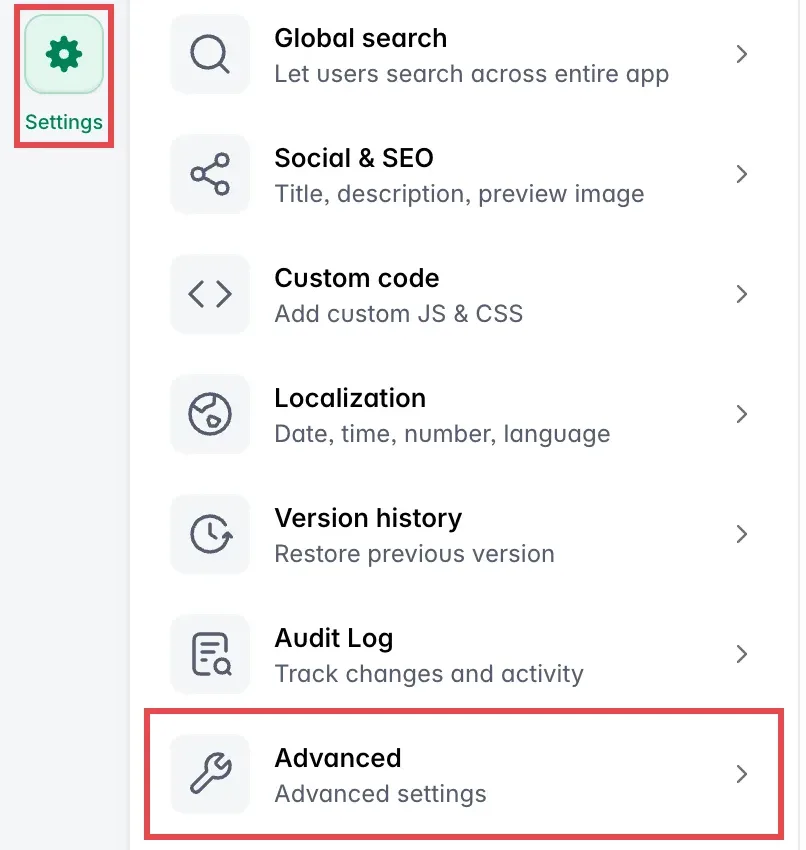
To open them, select Settings in the left rail of Studio, then Advanced at the bottom of the list. Select Save to apply a change.
User Caching
User caching keeps the logged-in user’s record for a short time, so pages and lists that depend on user data load faster. The table shows how long Softr reuses a user’s record before it reads it again from your data source.
| Data source of your users | User Caching on | User Caching off |
|---|---|---|
| Softr Databases, Google Sheets, Microsoft Excel, Notion, SmartSuite, Coda, SharePoint, Dataverse and SQL databases | 8 seconds | 4 seconds |
| Other data sources, such as HubSpot or monday.com | 2 minutes | 4 seconds |
A change to a user’s record can take that long to show in the app. User Caching is on by default, and we recommend keeping it on for most apps. If data freshness matters more than speed, turn it off.
Allow Embedding
Allow Embedding is on by default. When it is on, anyone with the link to your app can embed it in another web page or application with an iframe, such as your company website. If your app is internal or contains proprietary functionality, turn it off. Your app’s pages then refuse to load inside other websites. Blocks you embed with Page and Block Embed keep working.
Avoid embedding pages that contain iframes themselves, as this creates embeds within embeds.
Single page application (SPA)
In SPA mode, your app moves between pages without reloading the whole page, so navigation feels faster. It is off by default.
Custom code works differently in SPA mode. Code in the app’s header and footer runs only once, on the first page load, and page code must not interfere with other pages. Check your custom code before you turn it on. See SPA Custom Code Guidelines.