

Video
Overview
Before reading this article, we highly recommend watching the above video and checking out our Item Details help article. It will really help you understand how this should all work. One of the most powerful parts of Softr is being able to display not only individual details about a specific record, but also any other records that may be related to that specific record. For example, you may want to display a list of files, team members, or invoices related to a specific project. This is where Linked Lists come in. Below we’ll look at a quick example using Projects and Tasks related to projects, but you can do this with any data type you can imagine.Example Setup
-
Create a “Projects” table
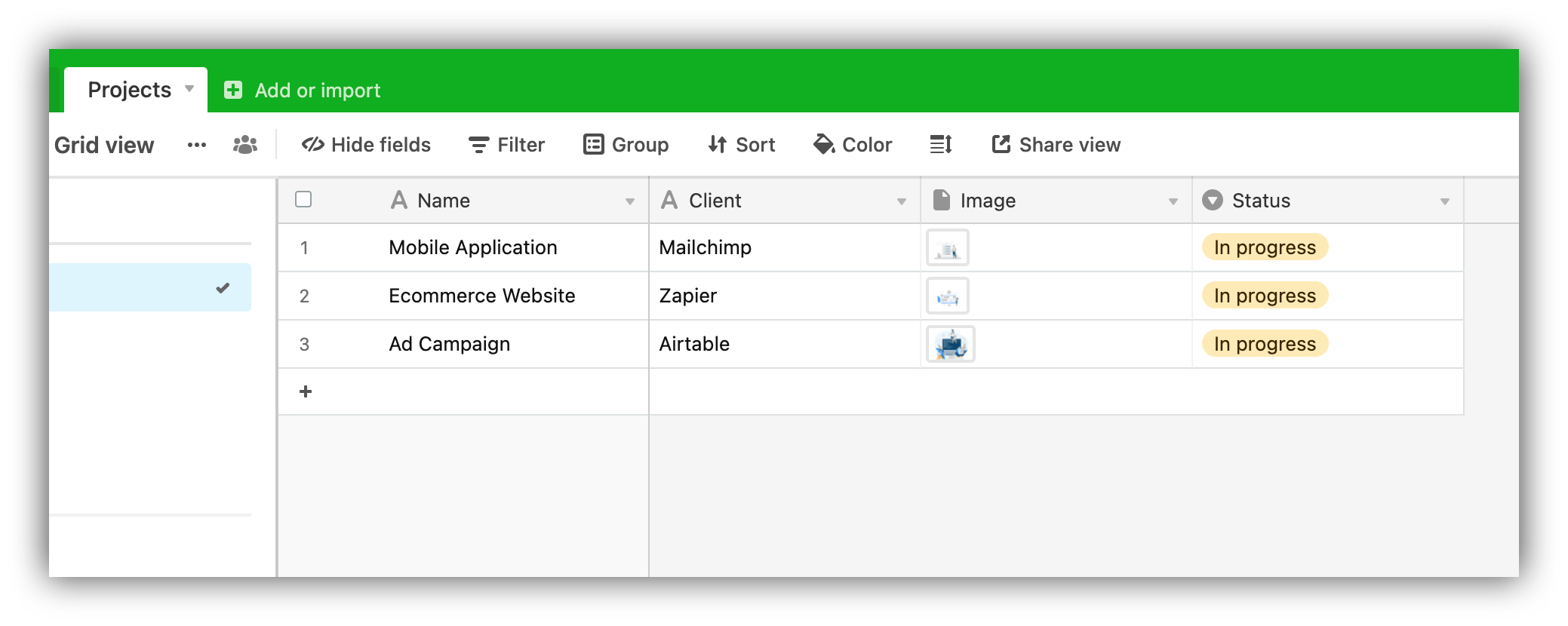
Projects table
-
Create “Tasks” table to hold task-related data, including a field referencing the associated Project. It can be a Lookup field that looks up the Name field from the Projects table, but it can also be a regular field that contains the names of the projects, as in the example below.
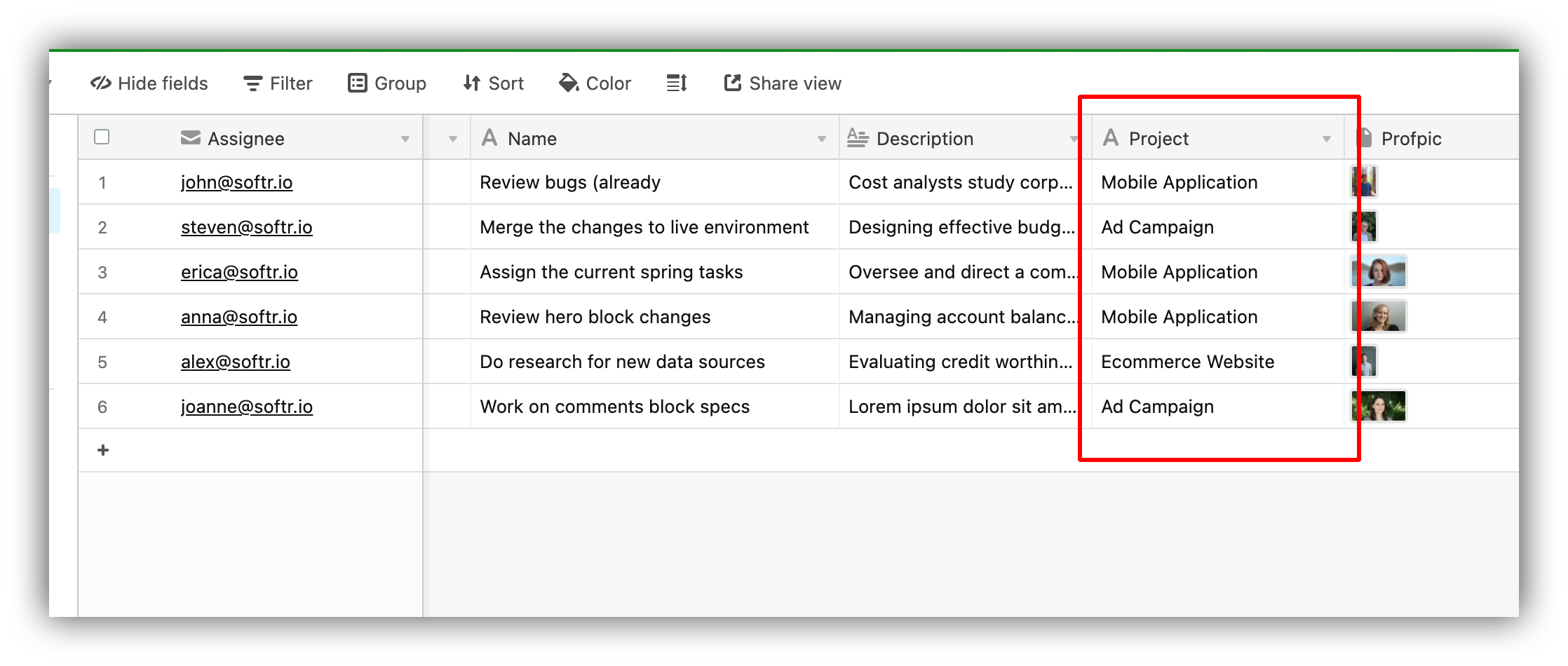
Table with tasks
Implementation
-
On e.g. “Projects” page, add a List block linked to the Project Airtable table as shown below.
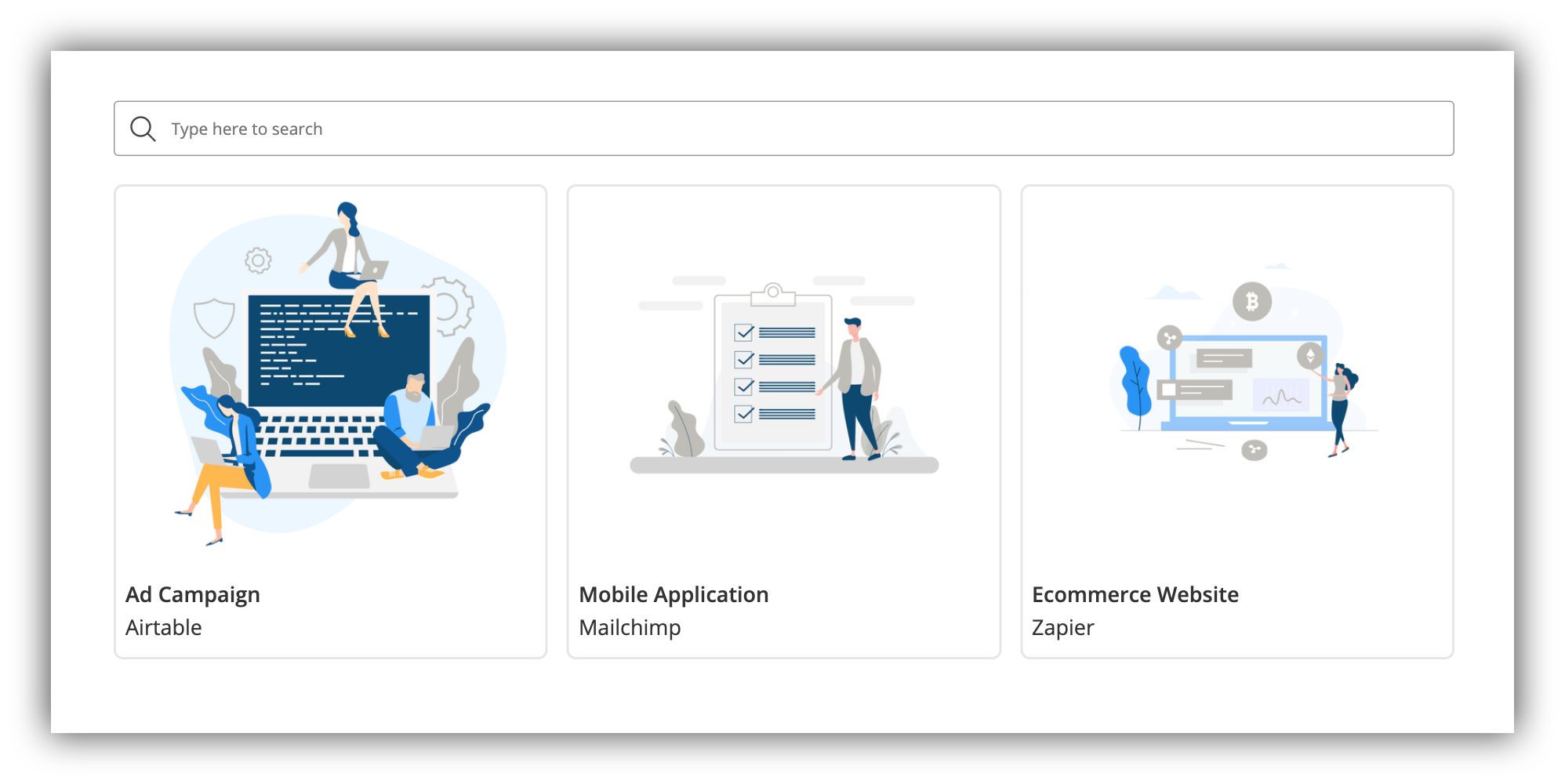
List block with projects
- On e.g. “Project details” page, add a List Details block, again linked to the Projects Airtable table.
-
On this detail page, add also a List block, linked to the Tasks Airtable table
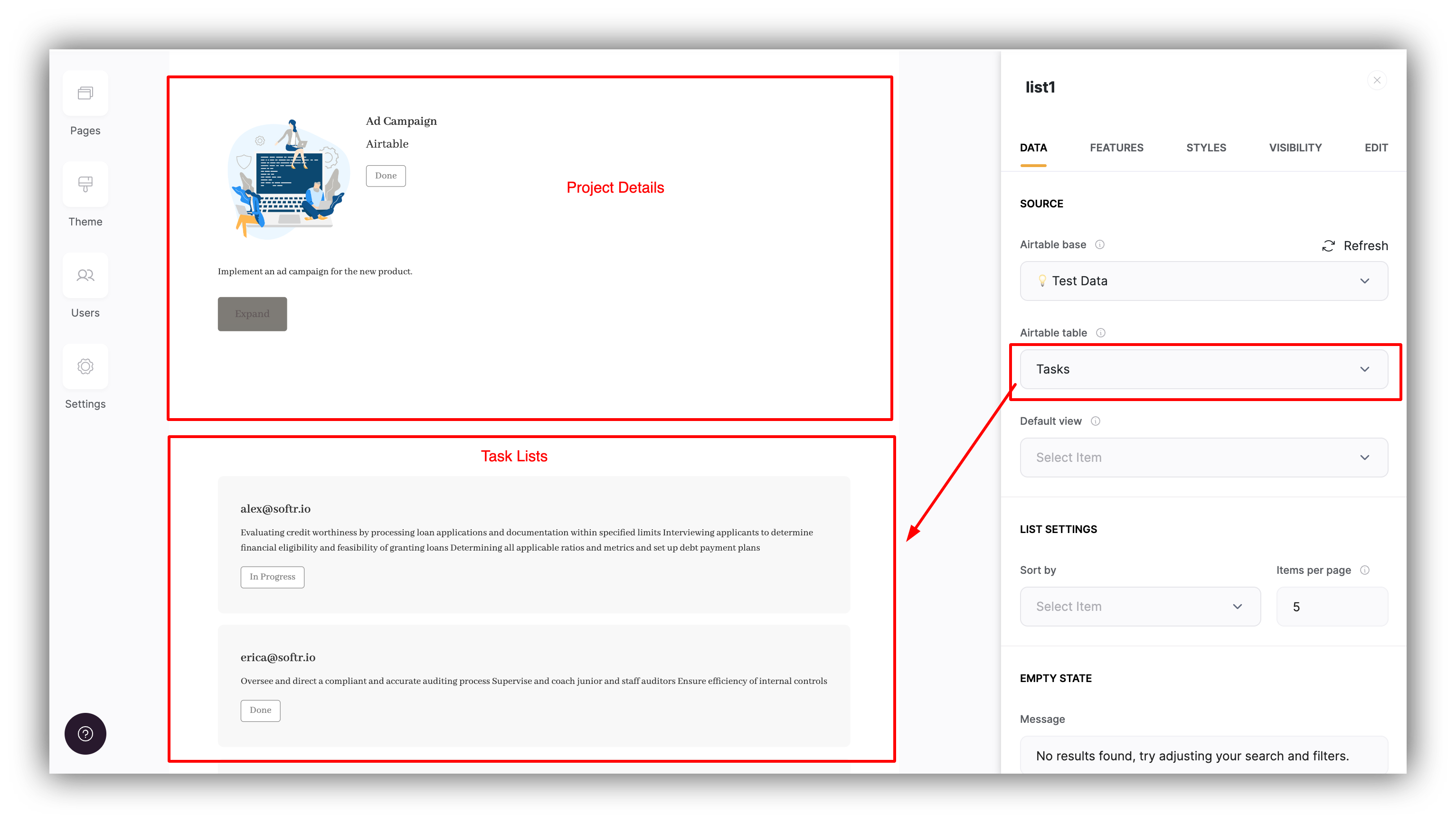
Task list added to the Project details page
Configuration
As soon as you add the Tasks list to the project’s details page, you’ll see that the Projects table’s fields will start appearing inside Conditional Filters of the Tasks list block.
Projects table inside Task List's conditional filters
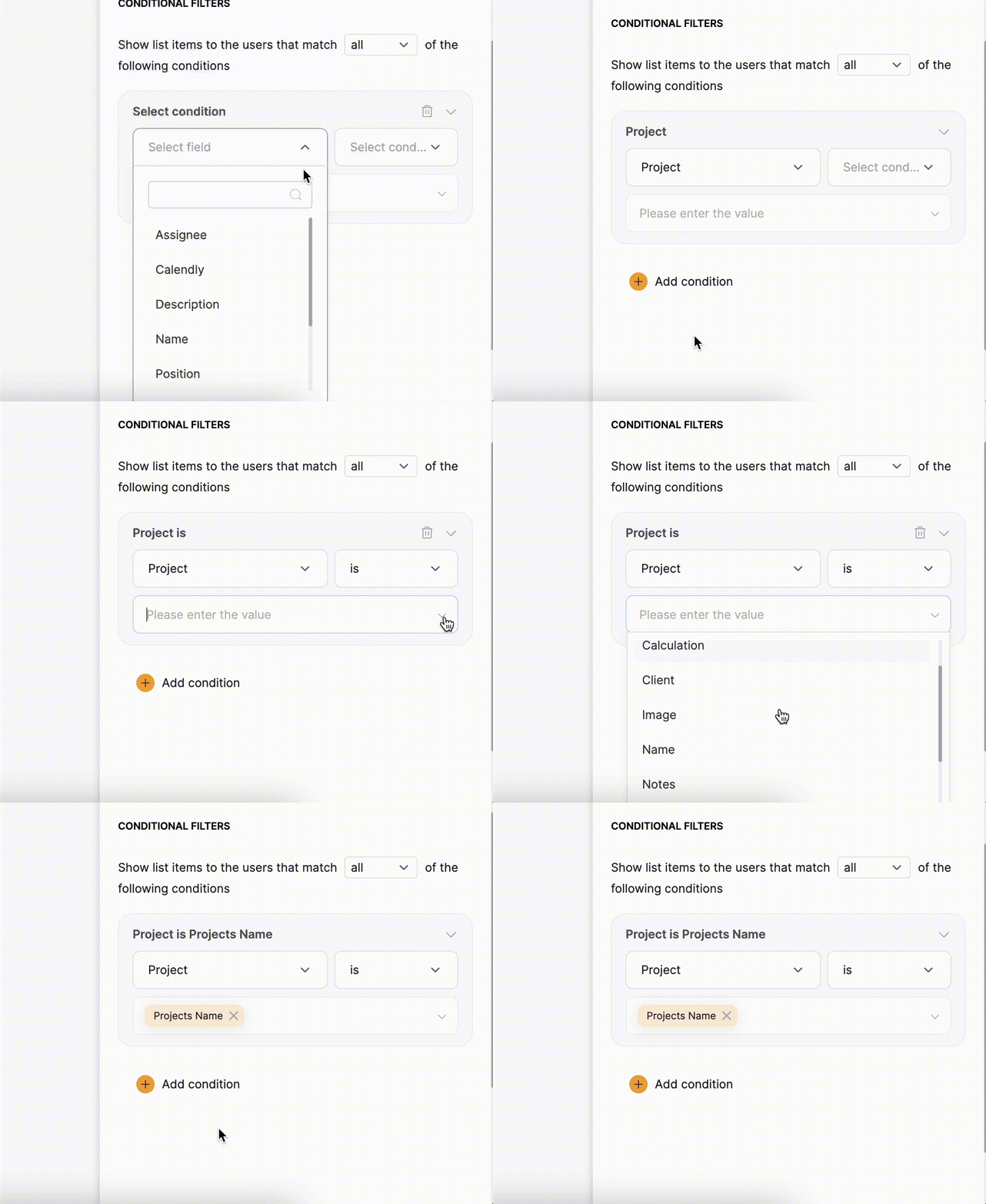
Setting the filtering condition
Result
Let’s check how that works for the Ad Campaign project that includes two tasks (assigned to steven@softr.io and joanne@softr.io).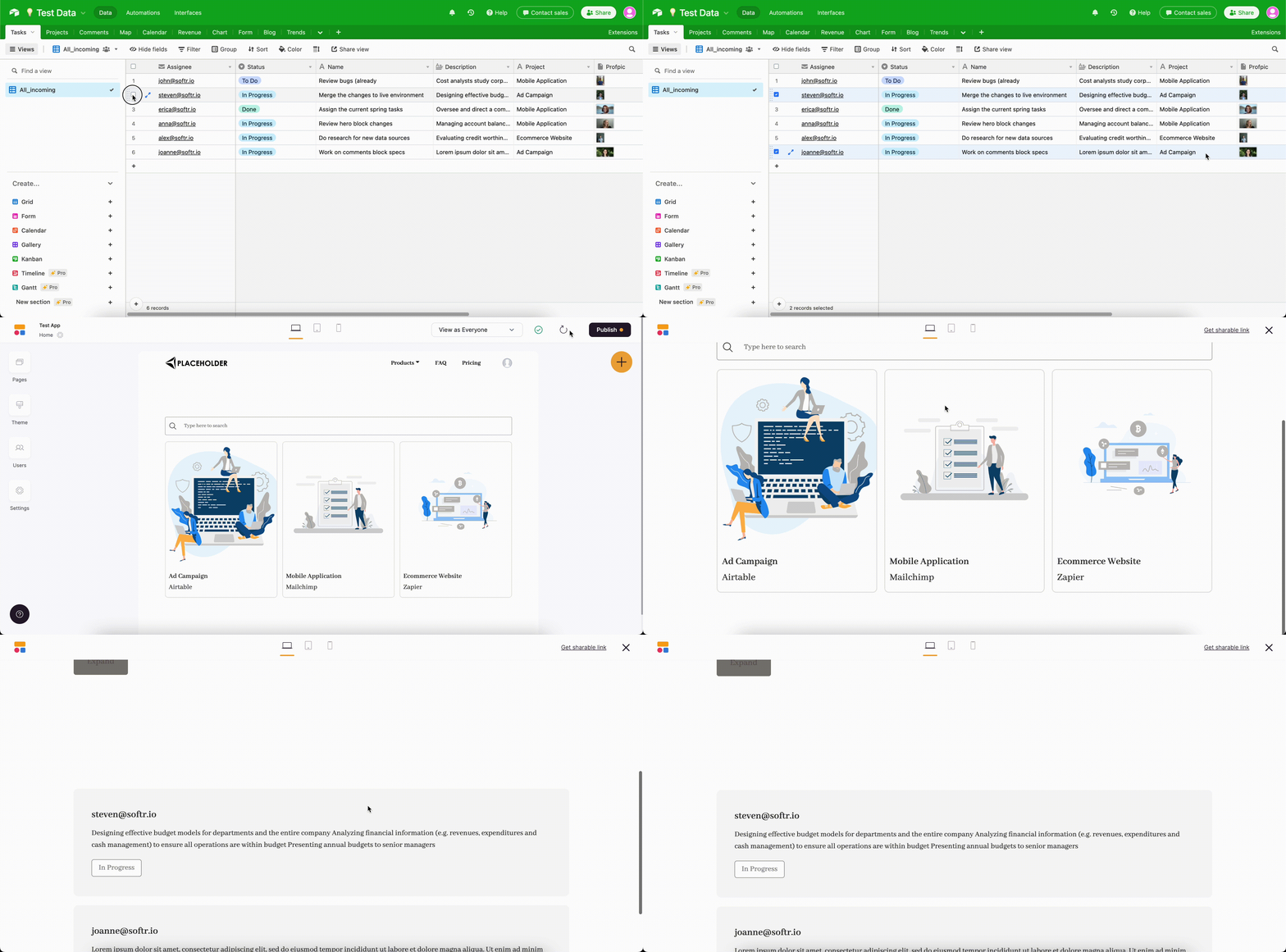
Testing the result