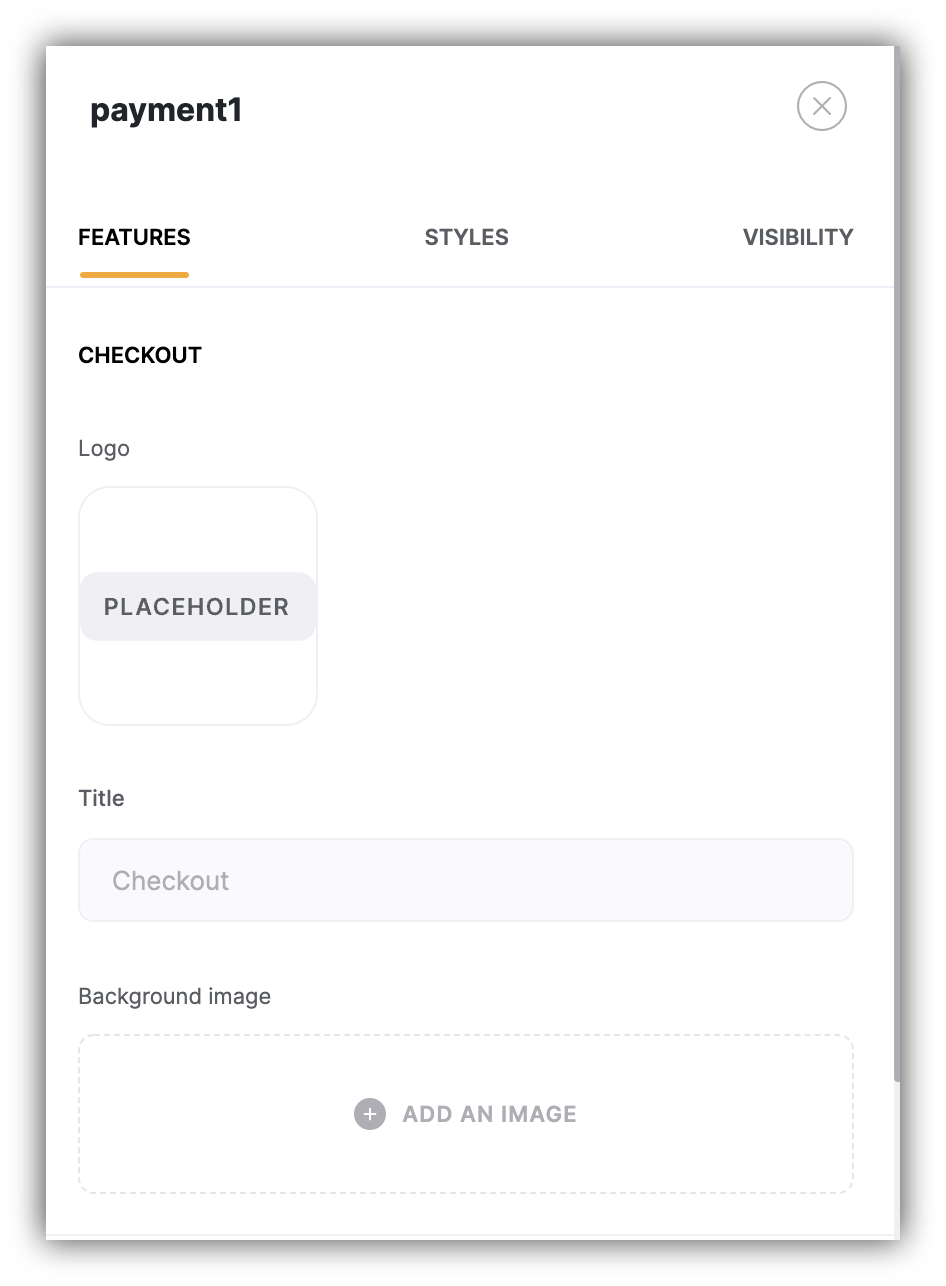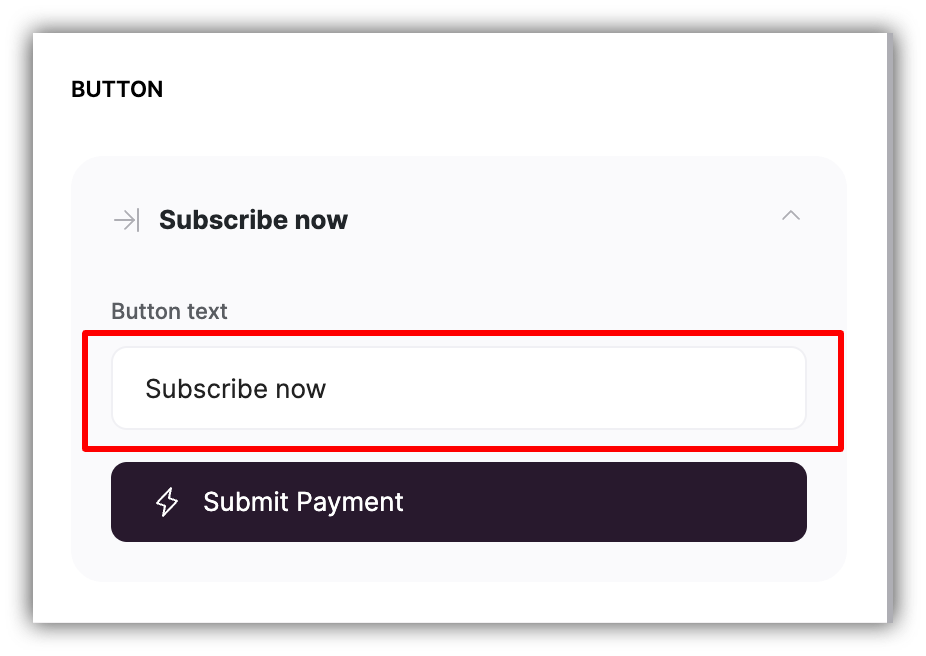
A Stripe checkout form to allow your users make purchases.
Using this block, you can set up paid membership and charge your users for accessing certain sections (pages or blocks) of your Softr app. Prior to setting up this block, you need to connect Stripe to be able to offer Stripe products (one-time products or subscriptions) to your users. So, let’s go ahead and examine the block settings.
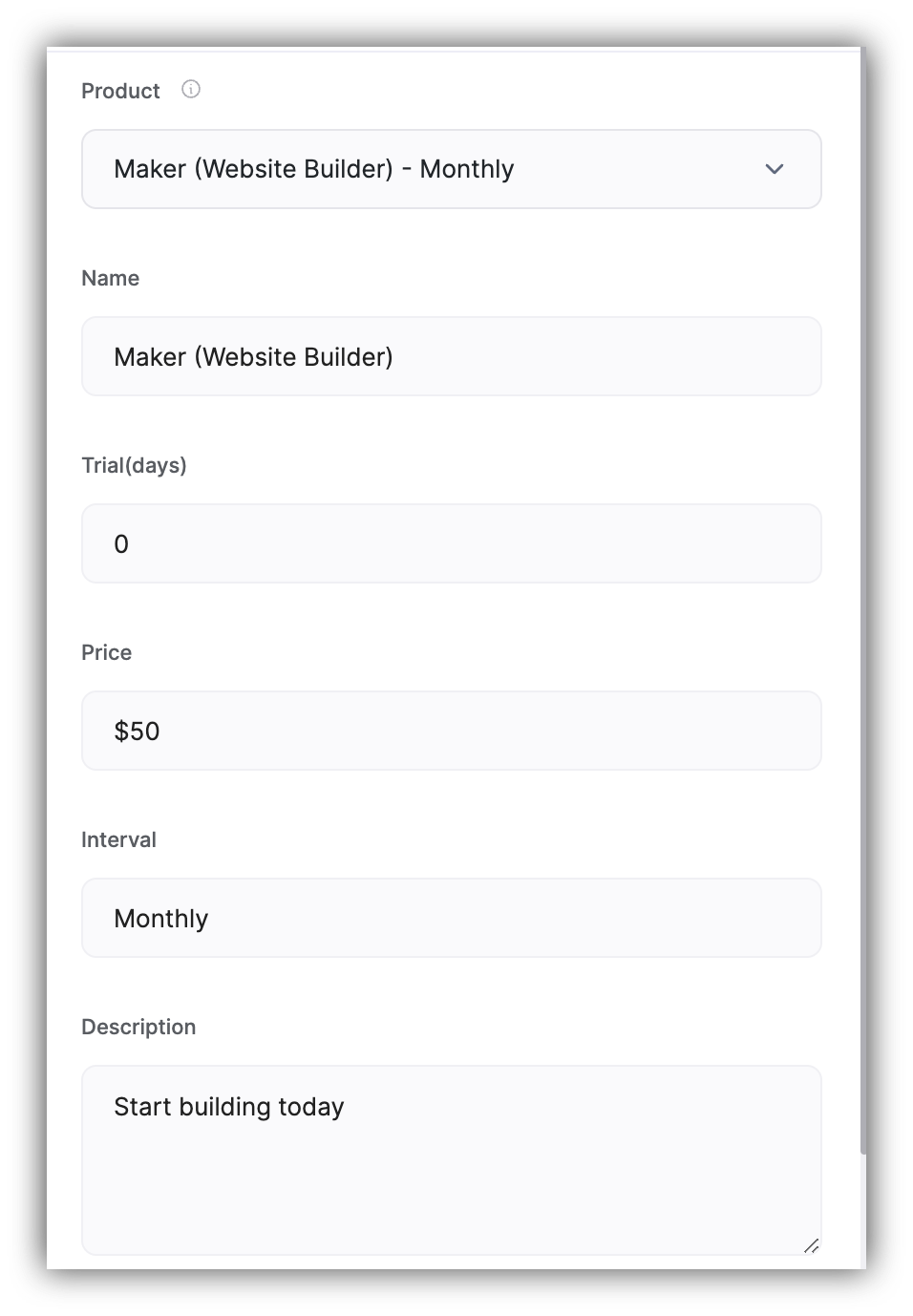
Next, you need to set up the product that you want to offer to your users.
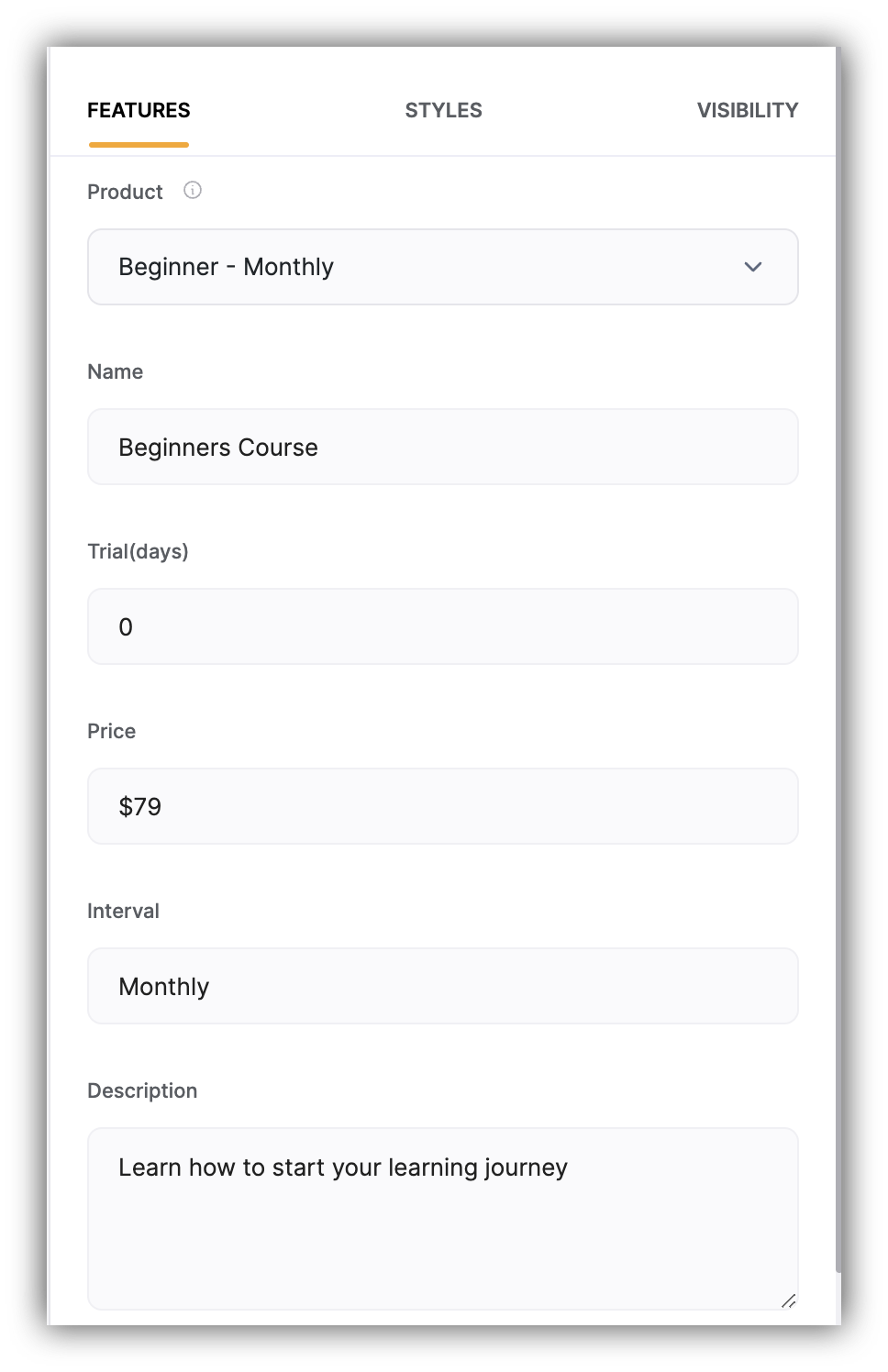
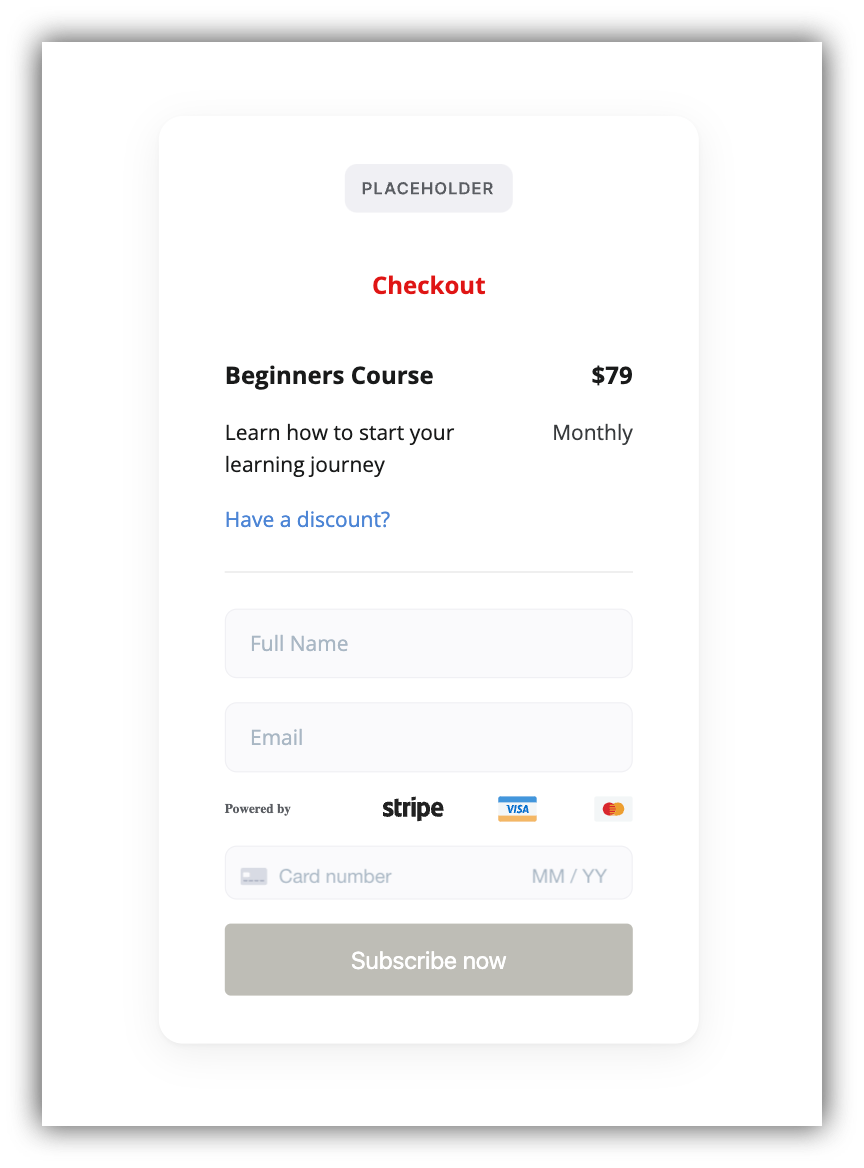
The Product dropdown is a list with all your Stripe products. First you need to select a certain product, then fill out the rest of the product fields (Name, Trial, Price, Interval, Description) as you wish them to be shown on your checkout page. In the example shown below, we’ve chosen the Maker (Website Builder) product, and set the other fields to their corresponding values.
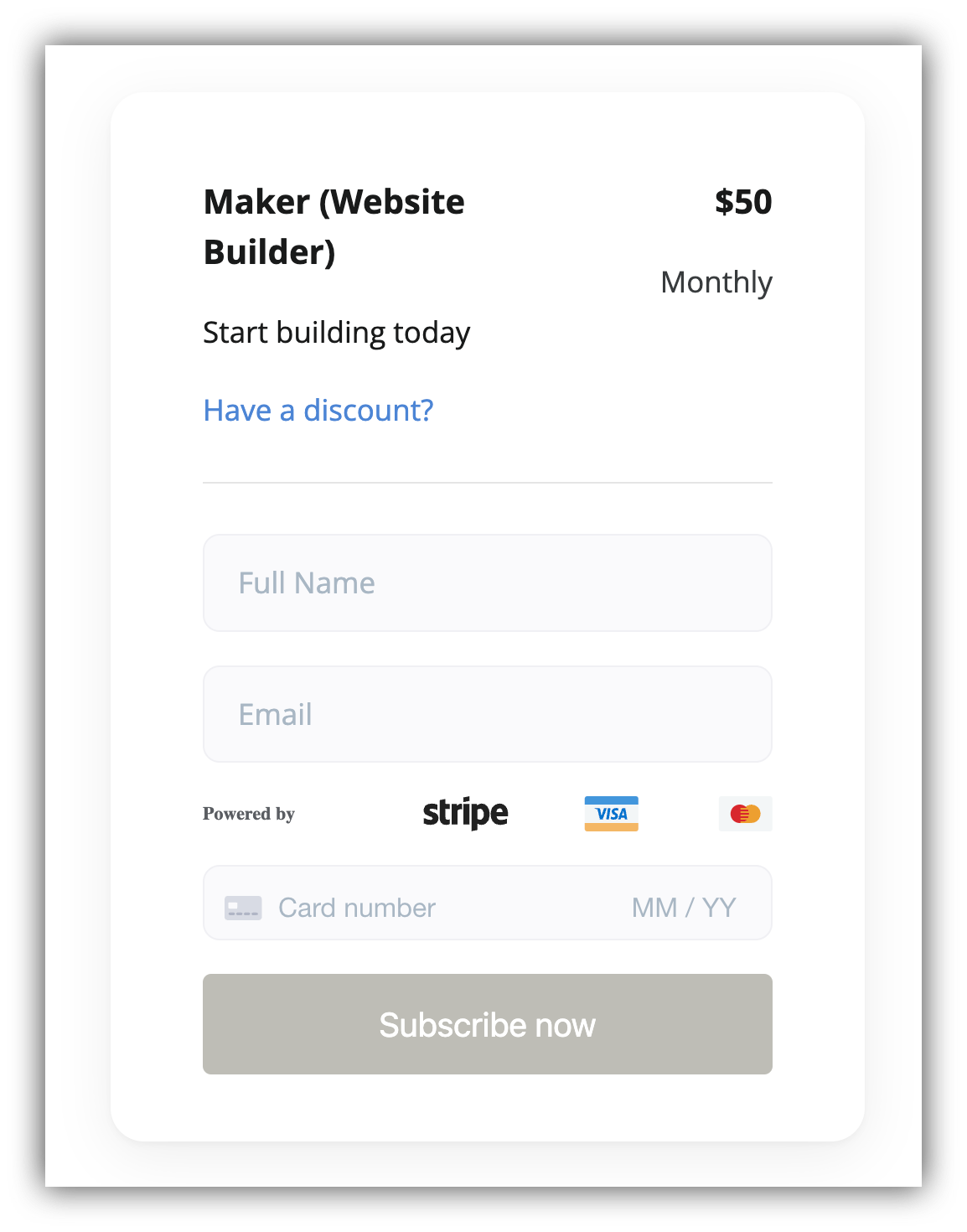
Below, you can see how it looks on the actual checkout form.
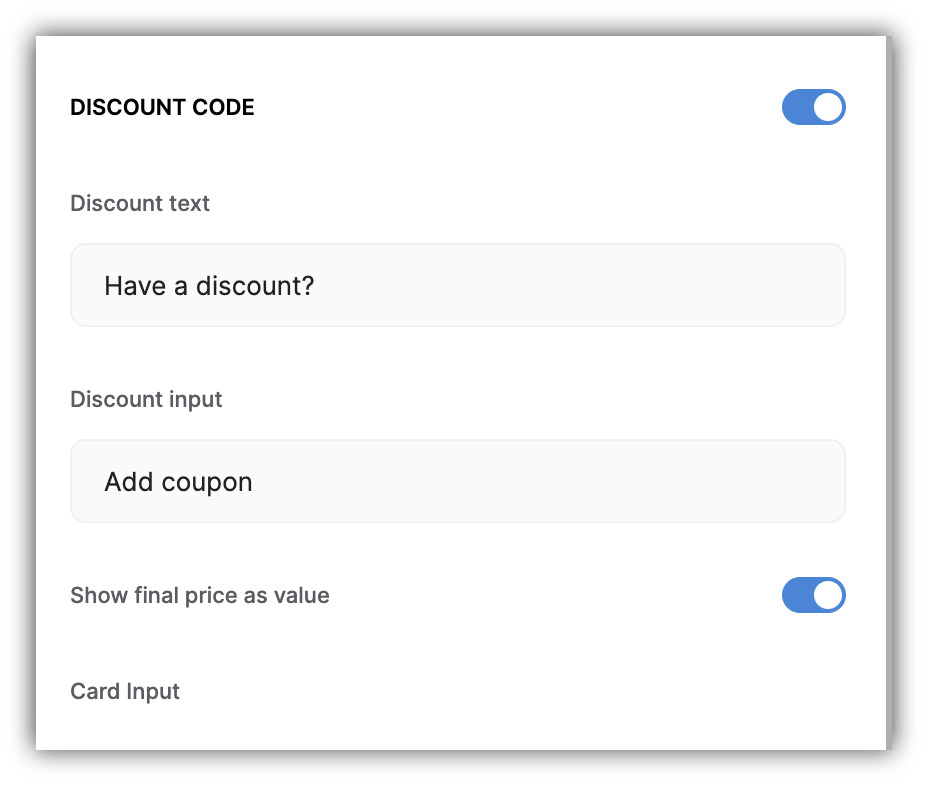
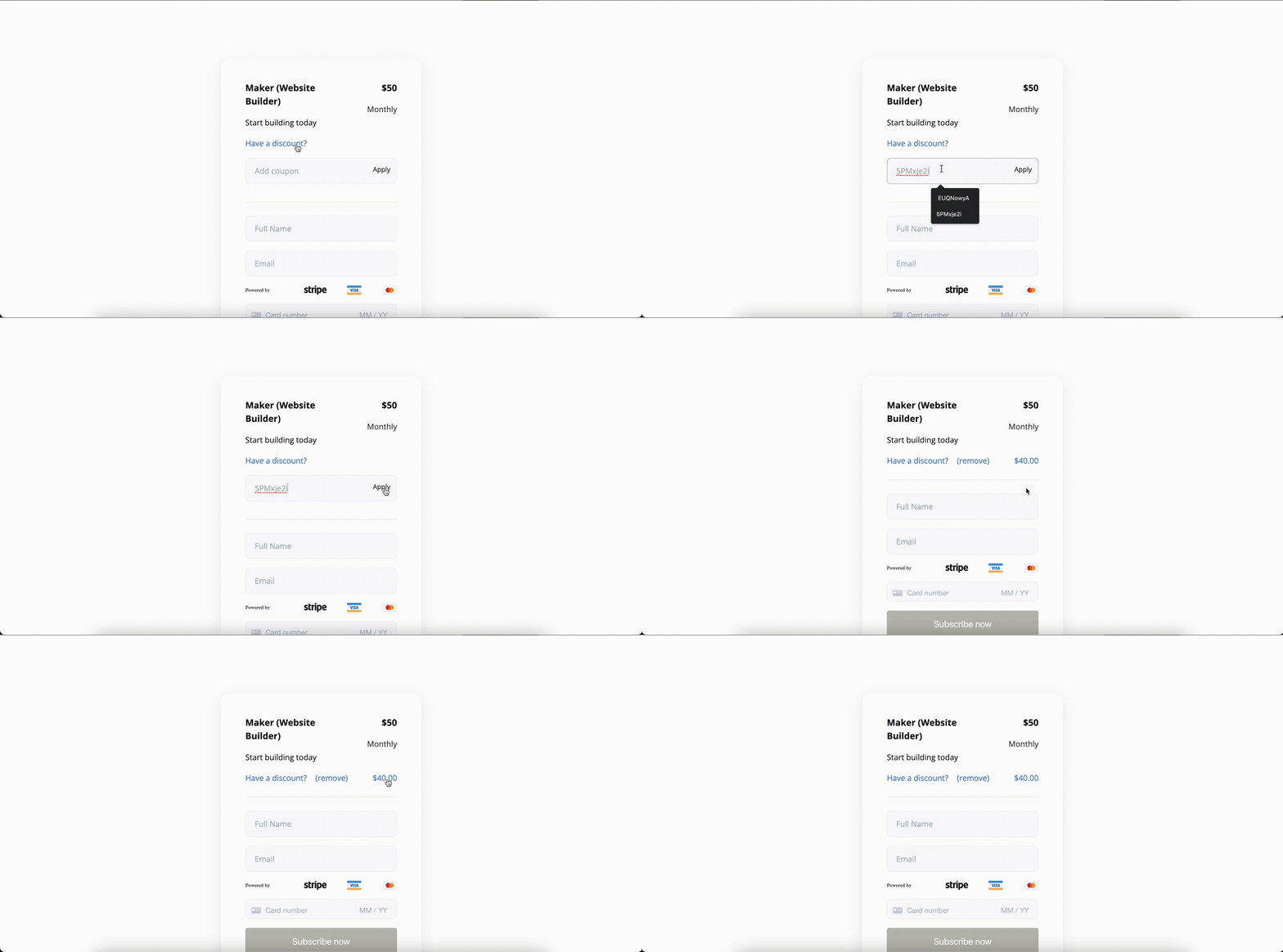
Here you can choose to show a discount code field. If it’s enabled, you can modify the text for the discount button and coupon input field. The form will acceptcouponsdefined for the selected Stripe product.
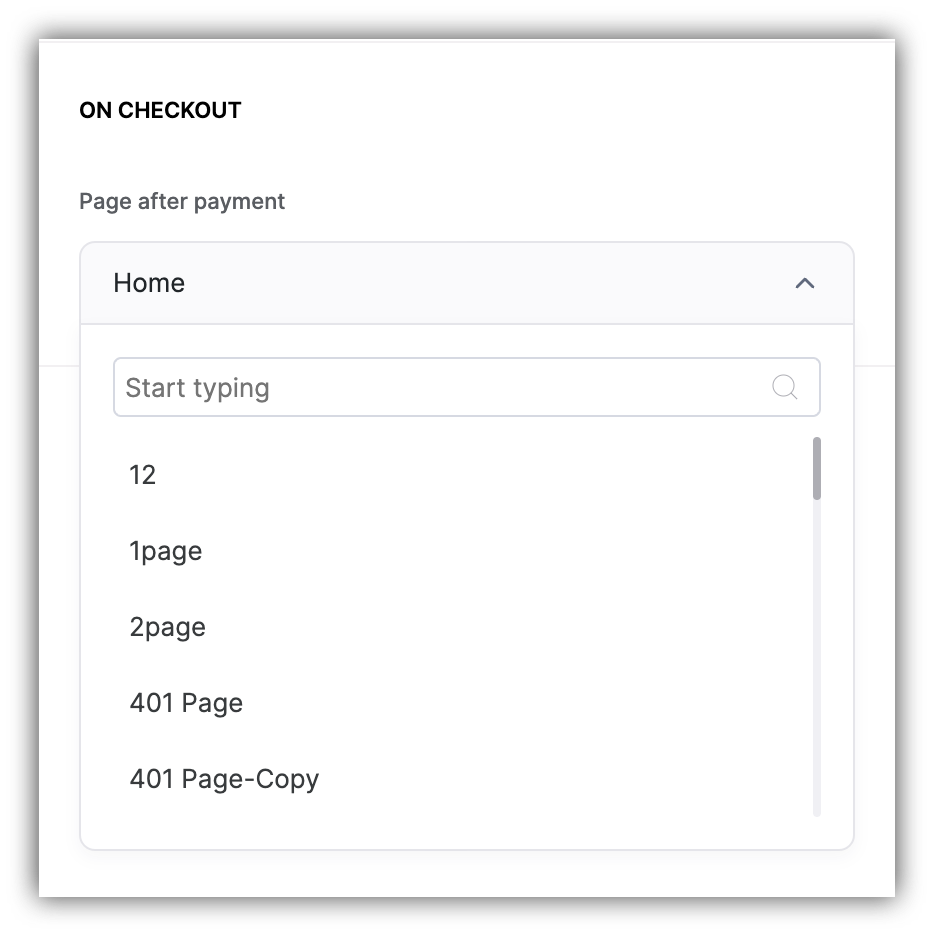
Lastly, you can choose to which page the user is taken after making the payment.That’s it. As soon as you have provided a checkout for a specific product, you can go ahead and define access conditions (for a block or a page) for users who have paid for the product.