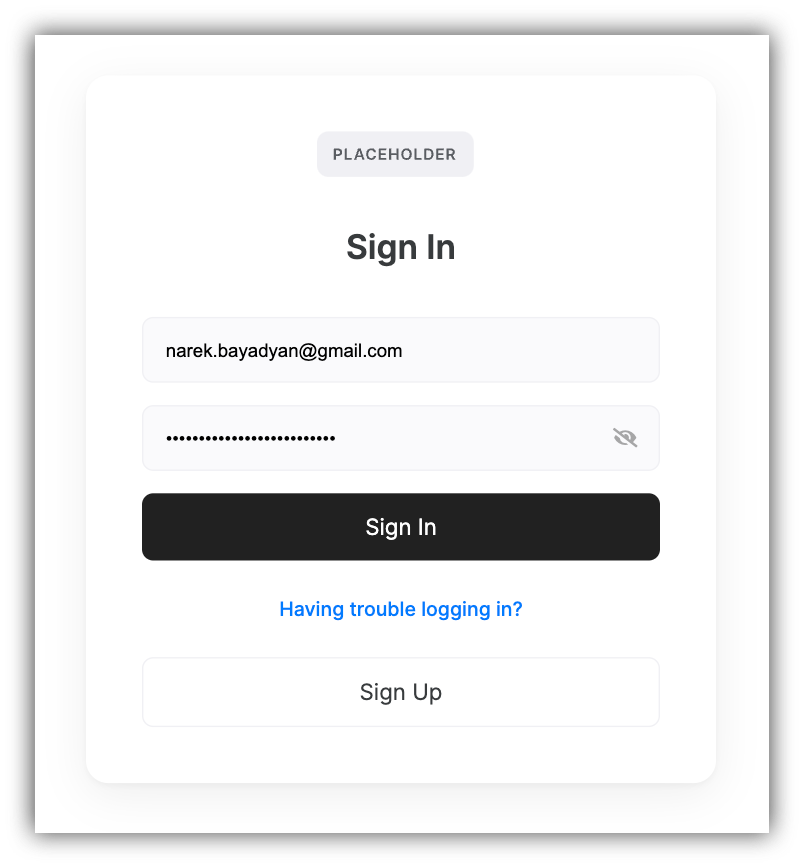
Documentation Index
Fetch the complete documentation index at: https://docs.softr.io/llms.txt
Use this file to discover all available pages before exploring further.
Logo, Title, and Background Image
You can configure these features in the Features tab in block settings, which is done the same way as on the Signup Form.
Sign in with Google
If you enable this option, a Sign in with Google button will be added to the form, allowing your users to sign in with their Google Accounts.
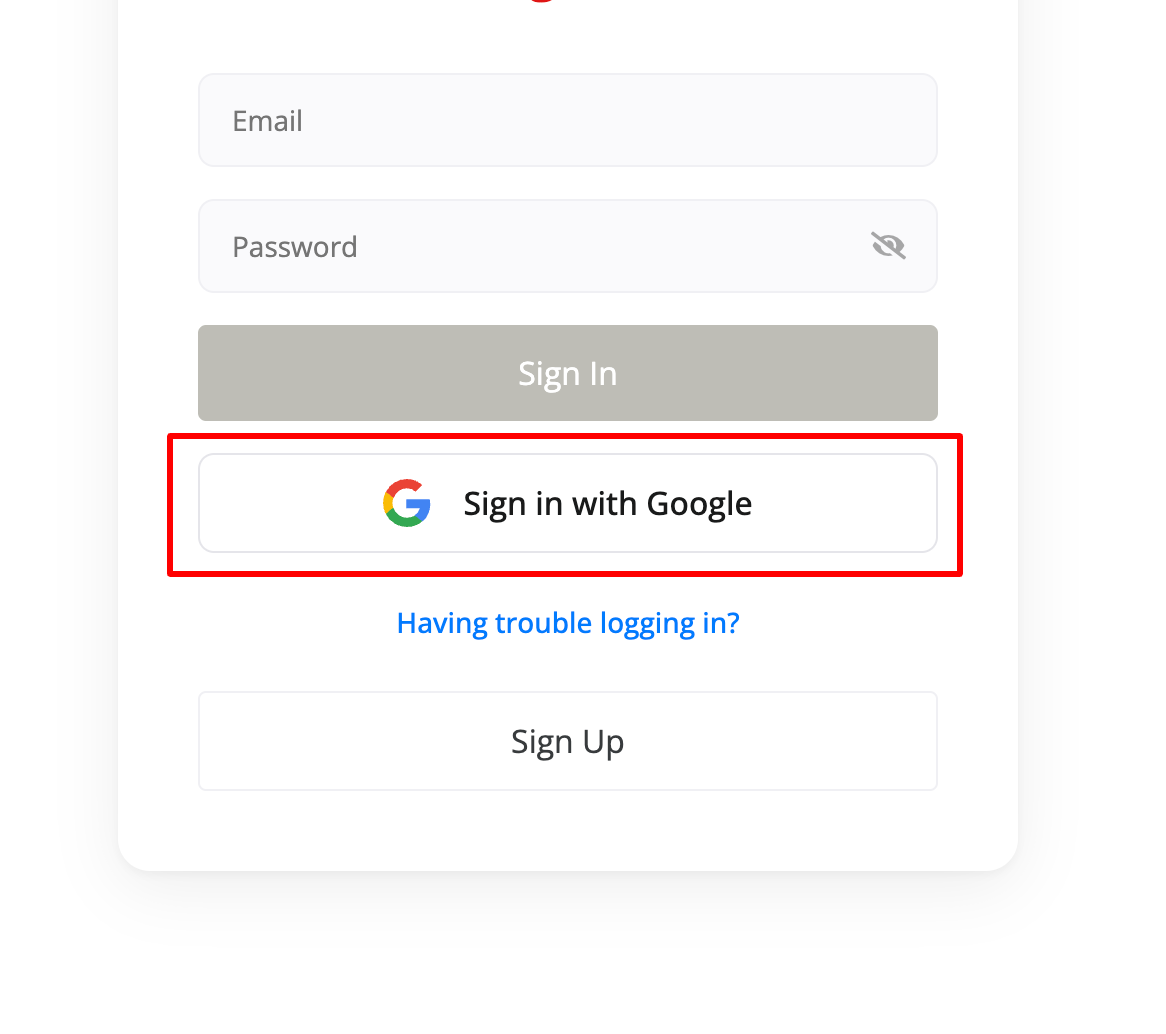
To enable Google Signup, you first need to add your Google APP Client details in
Integrations => Google Sign In. You can find instructions on getting the
Client ID and
Client Secret here.
If the Only registered users can sign in toggle is enabled, only the users that already have an account on your Softr app will be able to sign in with Google.
Email and Password
Here, you can configure the Email and Password fields. The placeholder texts of these fields can be modified.
Lastly, there’s the Sign In button. The button Text can be changed, while the Action is predefined and can’t be modified.
Forgot Password
You can enable this option to provide your users with a link to a page where they can reset their password. On that page, you simply need to add a Forgot Password block, where the users can enter their email and get a link to do a reset.
Show Signup
You can add an option to go to your Signup page for those users who have landed on your Signin page but don’t really have an account in your Softr app yet.
On Signin
Lastly, you should choose which page the users are taken to after signin.
Block visibility
The block is visible to all visitors of the app, and you have no control over its visibility, hence the default visibility setting is set to “Non-logged in users”.