> ## Documentation Index
> Fetch the complete documentation index at: https://docs.softr.io/llms.txt
> Use this file to discover all available pages before exploring further.
# Workspaces and Applications
> How apps and collaboration are organized.
When you log into your Softr account, you are taken to your workspace, which contains all the workspace applications as well as links to some useful resources on the left sidebar.
 By default, you’ll have at least one workspace where your first application resides. You can add more applications to your workspace, create new workspaces, or join other workspaces as a collaborator. So, let’s add a new workspace and see what the setup looks like.
You can add a new workspace from the menu in the bottom left corner of the dashboard.
By default, you’ll have at least one workspace where your first application resides. You can add more applications to your workspace, create new workspaces, or join other workspaces as a collaborator. So, let’s add a new workspace and see what the setup looks like.
You can add a new workspace from the menu in the bottom left corner of the dashboard.
 In the pop-up that opens next, you should provide a workspace name and can also add a custom icon.
 Next, you can invite your first collaborators or skip this step.
 Workspace collaborators can access and edit all the applications in the workspace. However, they can’t move (to another workspace) or remove any of the applications. Additionally, they can invite new **workspace collaborators** but can’t remove them.
**In the “Overview of workspace roles and permissions” section of this article you can find a detailed overview of each role’s permissions.**
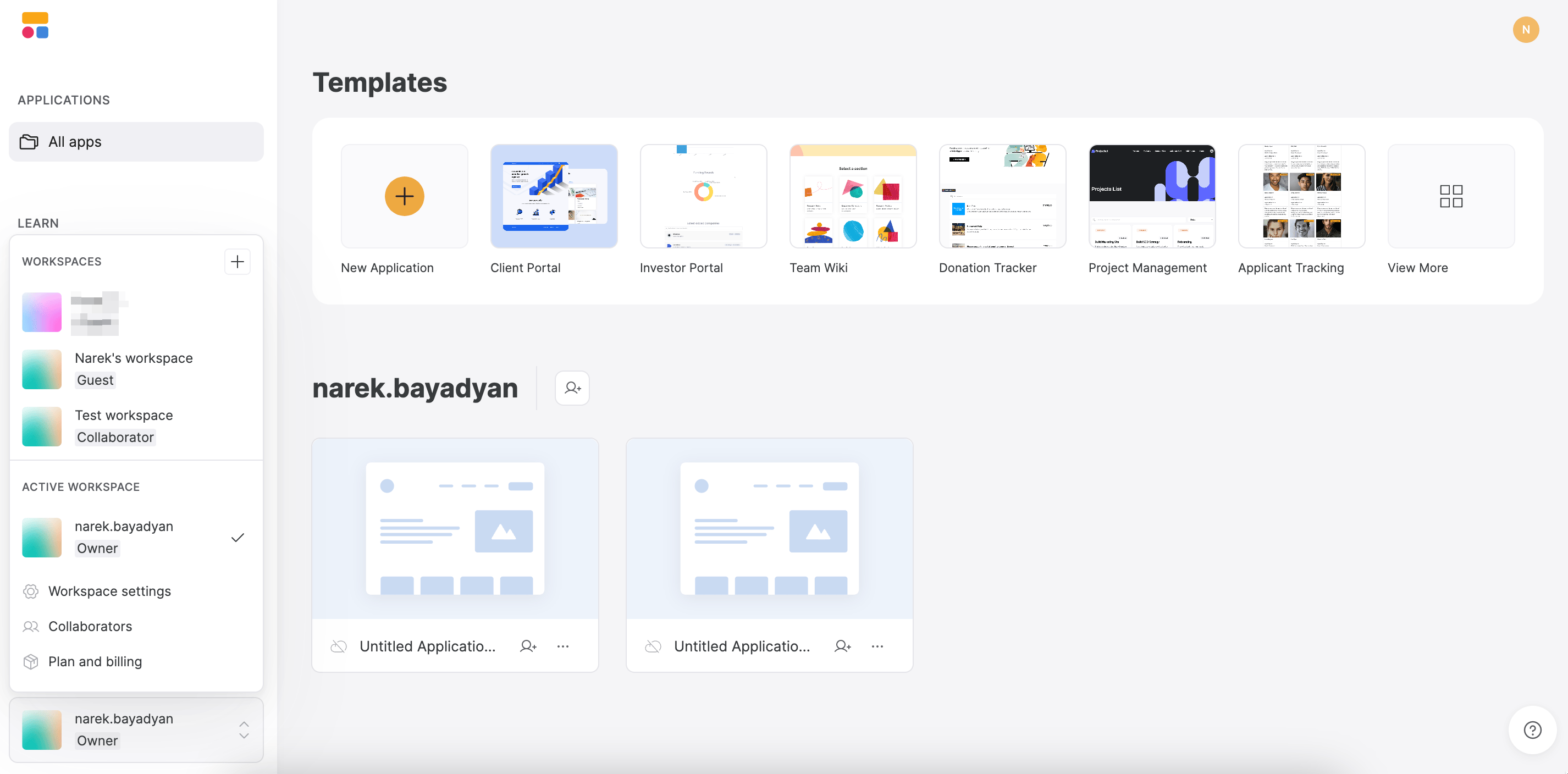
All your workspaces will be available in the bottom left-side menu, where you can also switch between them. The current workspace along with its **Settings**, **Members**, and **Billing** options, will be shown under **Active Workspace.**
Workspace collaborators can access and edit all the applications in the workspace. However, they can’t move (to another workspace) or remove any of the applications. Additionally, they can invite new **workspace collaborators** but can’t remove them.
**In the “Overview of workspace roles and permissions” section of this article you can find a detailed overview of each role’s permissions.**
All your workspaces will be available in the bottom left-side menu, where you can also switch between them. The current workspace along with its **Settings**, **Members**, and **Billing** options, will be shown under **Active Workspace.**
 Next, we are going to look into workspace settings, workspace plans and billing, roles and permissions, and more.
## Workspace settings
In **Workspace settings**, as a workspace **Owner**, you can modify the name of the workspace as well as customize its icon.
Next, we are going to look into workspace settings, workspace plans and billing, roles and permissions, and more.
## Workspace settings
In **Workspace settings**, as a workspace **Owner**, you can modify the name of the workspace as well as customize its icon.
 ## Workspace collaborators
In the **Collaborators** tab, you can invite new workspace collaborators, configure the permissions of the existing ones, or [Transfer Workspace Ownership](/workspace-and-billing/jZP6yaeXMiJCuB6HhS4xKd/transfer-workspace-ownership/s2GKnonVNH2yQeqhmZC8yV).
The option to invite new collaborators is available to both the owner and existing collaborators on the workspace.
## Workspace collaborators
In the **Collaborators** tab, you can invite new workspace collaborators, configure the permissions of the existing ones, or [Transfer Workspace Ownership](/workspace-and-billing/jZP6yaeXMiJCuB6HhS4xKd/transfer-workspace-ownership/s2GKnonVNH2yQeqhmZC8yV).
The option to invite new collaborators is available to both the owner and existing collaborators on the workspace.
 When you click on a collaborator entry in the list, a pop-up with the collaborator’s profile will open.
 If you’re the workspace **Owner**, you can see what permissions the collaborator has and can make changes to them. In the screenshot above, we have a **guest collaborator** (we’ll discuss this role in a bit), which means that this person only has access to specific app(s) within the workspace. In such cases, you have the option of adding the guest collaborator as a **workspace collaborator** to grant access to the whole workspace.
Using the **Revoke access from all** option, you can remove the given account from all of the applications in the workspace at once.
## Workspace plans and billing
Each workspace has its distinct subscription plan, and all the workspace collaborators can use the features that are available under that subscription plan.
Maximum number of workspace collaborators depends on the subscription plan. Legacy plans have collaborator limits, while current pricing offers unlimited collaborators. See [plan comparison](https://www.softr.io/pricing).
In the Plans and billing section of the workspace, you can make changes to your subscription plan (e.g. upgrade it) or modify your billing info. You can learn more about this in our articles on [billing](/workspace-and-billing/jZP6yaeXMiJCuB6HhS4xKd/billing/mMHQVxZ4Td6M91w6qjSrEy) and [pricing](/workspace-and-billing/jZP6yaeXMiJCuB6HhS4xKd/pricing-and-plans/7KRUMnHZSU6oMLjzJM84ie).
If you’re the workspace **Owner**, you can see what permissions the collaborator has and can make changes to them. In the screenshot above, we have a **guest collaborator** (we’ll discuss this role in a bit), which means that this person only has access to specific app(s) within the workspace. In such cases, you have the option of adding the guest collaborator as a **workspace collaborator** to grant access to the whole workspace.
Using the **Revoke access from all** option, you can remove the given account from all of the applications in the workspace at once.
## Workspace plans and billing
Each workspace has its distinct subscription plan, and all the workspace collaborators can use the features that are available under that subscription plan.
Maximum number of workspace collaborators depends on the subscription plan. Legacy plans have collaborator limits, while current pricing offers unlimited collaborators. See [plan comparison](https://www.softr.io/pricing).
In the Plans and billing section of the workspace, you can make changes to your subscription plan (e.g. upgrade it) or modify your billing info. You can learn more about this in our articles on [billing](/workspace-and-billing/jZP6yaeXMiJCuB6HhS4xKd/billing/mMHQVxZ4Td6M91w6qjSrEy) and [pricing](/workspace-and-billing/jZP6yaeXMiJCuB6HhS4xKd/pricing-and-plans/7KRUMnHZSU6oMLjzJM84ie).
 **Only workspace owners** have access to the “Plans and billing” section of the workspace.
## Guest collaborators
Now, let’s discuss the third role we have on workspaces **apart from the Owner and Collaborator**. It’s called a **Guest Collaborator** and is basically an application-level collaborator that has access to specific application(s) within the workspace but not the whole workspace.
You can invite Guest Collaborators directly from the application by clicking on the corresponding button on the application as shown below.
**Only workspace owners** have access to the “Plans and billing” section of the workspace.
## Guest collaborators
Now, let’s discuss the third role we have on workspaces **apart from the Owner and Collaborator**. It’s called a **Guest Collaborator** and is basically an application-level collaborator that has access to specific application(s) within the workspace but not the whole workspace.
You can invite Guest Collaborators directly from the application by clicking on the corresponding button on the application as shown below.
 The button will open a pop-up where you can enter the email of the guest and send an invite.
Guest collaborators only have access to the application they have been invited to and can’t access any other app in the workspace.
It’s also possible to add Guest Collaborators from inside the app as shown below.
The button will open a pop-up where you can enter the email of the guest and send an invite.
Guest collaborators only have access to the application they have been invited to and can’t access any other app in the workspace.
It’s also possible to add Guest Collaborators from inside the app as shown below.
 ## Overview of workspace roles and permissions
We’ve briefly discussed some of the things different workspace roles can and can’t do, but here you can find a complete list of permissions for each role.
**Owner can**
* Edit/delete workspace;
* Modify the workspace subscription plan and change billing info;
* Add/remove Collaborators;
* Add/remove Guest Collaborators;
* Create, move, and delete apps within the workspace.
**Collaborator (workspace collaborator) can**
* Leave the workspace;
* Add another Collaborator;
* Add a Guest Collaborator;
* Create an app within the workspace.
**Guest collaborator (application collaborator) can**
* Leave the workspace.
## Moving applications across workspaces
Moving applications is available for users on the [Professional plan and above](https://www.softr.io/pricing).
This option is **only available to workspace Owners**, allowing them to move the application from one of the workspaces they own to another workspace where they are either an **Owner** or a **Collaborator**.
When moving an application from one workspace to another, the receiving workspace needs to satisfy certain conditions depending on the features that your application has:
* If the application has 2 or more [Edit Permission](/actions/ntEfT9zSJk6aY54G6W5KGU/action-buttons-overview/idg8Fqf2kjFwcx6kyP3jNq) rules OR a Single Sign-on block ([SAML](/add-and-manage-users/pxnkp9H3qyEVMF6XUceqnj/saml-single-sign-on/j9hELMUfGtAGqoNzejgoif) or [OpenId](/add-and-manage-users/pxnkp9H3qyEVMF6XUceqnj/openid-single-sign-on/hqqStep7RUmiSMb6qnGLkq)), only **Business** plan workspaces can receive the application.
* If the application [has more than 5 users](/add-and-manage-users/pxnkp9H3qyEVMF6XUceqnj/add-or-import-users-manually/g5R1bGnBTFJ3sWLR8Mgdng), the receiving workspace needs to be either **Professional** or **Business**.
* If the application has a [custom code block](/custom-code/3idxDhKqz1qPdqBuWbs61G/custom-code-block-overview/6XNrxFopUEiwbWipq81Eq1), the following subscription plans can receive it: **Starter, Professional,** and **Business**.
* If the application doesn't contain any of the above-mentioned features, **any plan** (including the Free plan) can receive it.
When moving an application, **Guest Collaborators** will be moved along with the app.
When moving an app, you may need to re-add and re-map data sources - Softr will prompt you to do this with a popup modal. To move an app, simply click the three dots on the app and select **Move**, then choose the workspace you would like to move the app to.
## Overview of workspace roles and permissions
We’ve briefly discussed some of the things different workspace roles can and can’t do, but here you can find a complete list of permissions for each role.
**Owner can**
* Edit/delete workspace;
* Modify the workspace subscription plan and change billing info;
* Add/remove Collaborators;
* Add/remove Guest Collaborators;
* Create, move, and delete apps within the workspace.
**Collaborator (workspace collaborator) can**
* Leave the workspace;
* Add another Collaborator;
* Add a Guest Collaborator;
* Create an app within the workspace.
**Guest collaborator (application collaborator) can**
* Leave the workspace.
## Moving applications across workspaces
Moving applications is available for users on the [Professional plan and above](https://www.softr.io/pricing).
This option is **only available to workspace Owners**, allowing them to move the application from one of the workspaces they own to another workspace where they are either an **Owner** or a **Collaborator**.
When moving an application from one workspace to another, the receiving workspace needs to satisfy certain conditions depending on the features that your application has:
* If the application has 2 or more [Edit Permission](/actions/ntEfT9zSJk6aY54G6W5KGU/action-buttons-overview/idg8Fqf2kjFwcx6kyP3jNq) rules OR a Single Sign-on block ([SAML](/add-and-manage-users/pxnkp9H3qyEVMF6XUceqnj/saml-single-sign-on/j9hELMUfGtAGqoNzejgoif) or [OpenId](/add-and-manage-users/pxnkp9H3qyEVMF6XUceqnj/openid-single-sign-on/hqqStep7RUmiSMb6qnGLkq)), only **Business** plan workspaces can receive the application.
* If the application [has more than 5 users](/add-and-manage-users/pxnkp9H3qyEVMF6XUceqnj/add-or-import-users-manually/g5R1bGnBTFJ3sWLR8Mgdng), the receiving workspace needs to be either **Professional** or **Business**.
* If the application has a [custom code block](/custom-code/3idxDhKqz1qPdqBuWbs61G/custom-code-block-overview/6XNrxFopUEiwbWipq81Eq1), the following subscription plans can receive it: **Starter, Professional,** and **Business**.
* If the application doesn't contain any of the above-mentioned features, **any plan** (including the Free plan) can receive it.
When moving an application, **Guest Collaborators** will be moved along with the app.
When moving an app, you may need to re-add and re-map data sources - Softr will prompt you to do this with a popup modal. To move an app, simply click the three dots on the app and select **Move**, then choose the workspace you would like to move the app to.
 ## **Duplicating and deleting applications**
If you need to make a copy of an existing application in its current state, you can do so by choosing **Duplicate** in the application menu.
## **Duplicating and deleting applications**
If you need to make a copy of an existing application in its current state, you can do so by choosing **Duplicate** in the application menu.
 After performing the action, a copy of the application will be created, and you’ll be taken right into the studio, where you can start editing. The copy will appear in the same workspace next to the original one.
Both workspace **Owners and Collaborators** can duplicate applications.
Finally, you have the option of deleting any of the applications with the workspace **if you’re the workspace** **Owner**. You just need to click **Delete** in the application menu and confirm the action in the dialog box that appears afterwards.
After performing the action, a copy of the application will be created, and you’ll be taken right into the studio, where you can start editing. The copy will appear in the same workspace next to the original one.
Both workspace **Owners and Collaborators** can duplicate applications.
Finally, you have the option of deleting any of the applications with the workspace **if you’re the workspace** **Owner**. You just need to click **Delete** in the application menu and confirm the action in the dialog box that appears afterwards.
