> ## Documentation Index
> Fetch the complete documentation index at: https://docs.softr.io/llms.txt
> Use this file to discover all available pages before exploring further.
# Billing
> Billing options.
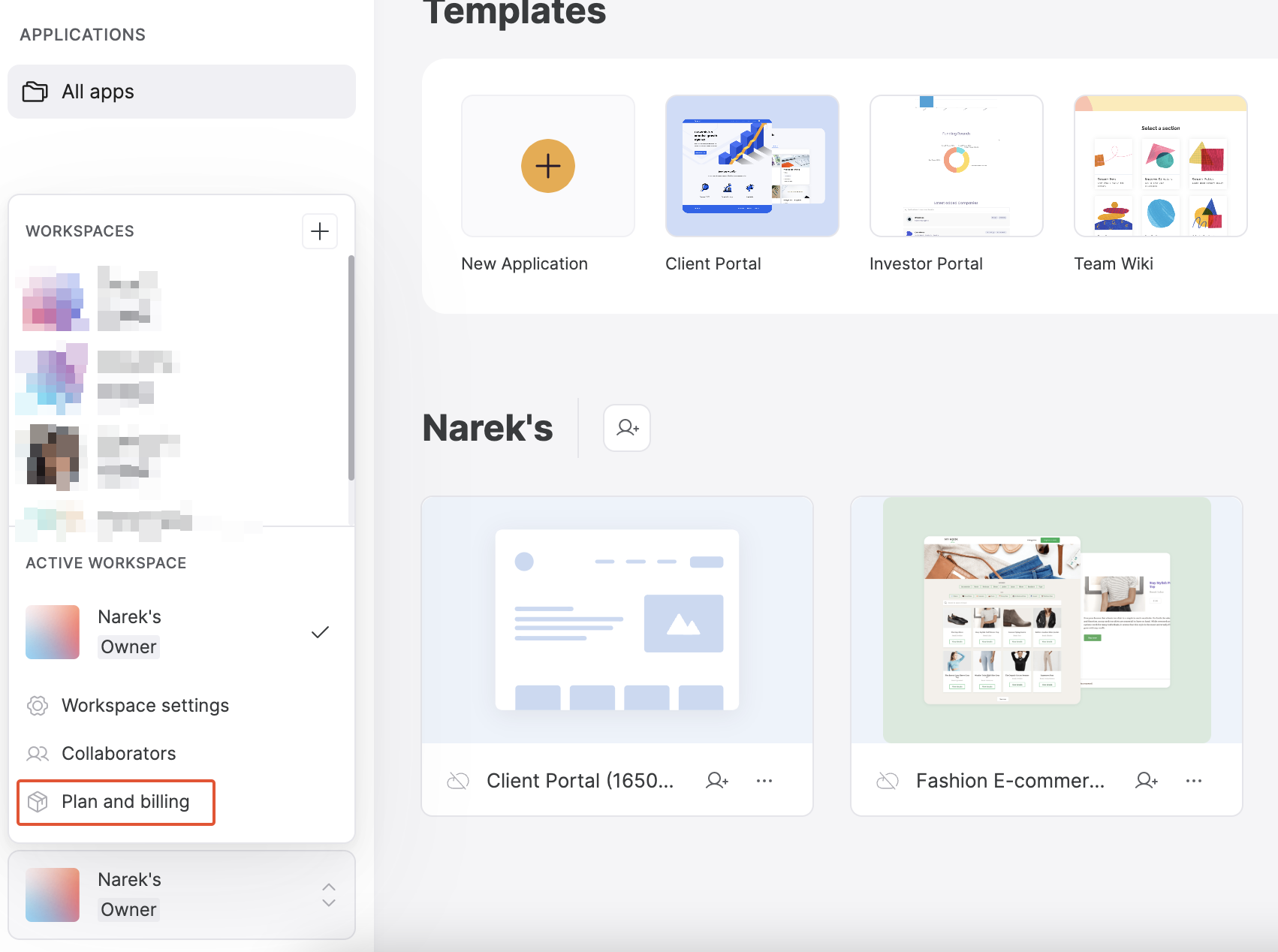
In Softr, each [workspace](/workspace-and-billing/jZP6yaeXMiJCuB6HhS4xKd/workspaces-and-applications/kTbEWSYXhBCbtTB4K9dpKs) has its own subscription plan and billing details. You can manage the billing of your current workspace from its **Plan and billing** sections.
 Here, you can manage your workspace’s subscriptions, payment methods, as well as view your invoices.
If you’re on a free plan, you won’t have much info available. However, you have the **Start free trial** button, using which you can upgrade your plan. You can find more info on pricing and plans [here](/workspace-and-billing/jZP6yaeXMiJCuB6HhS4xKd/pricing-and-plans/7KRUMnHZSU6oMLjzJM84ie).
Here, you can manage your workspace’s subscriptions, payment methods, as well as view your invoices.
If you’re on a free plan, you won’t have much info available. However, you have the **Start free trial** button, using which you can upgrade your plan. You can find more info on pricing and plans [here](/workspace-and-billing/jZP6yaeXMiJCuB6HhS4xKd/pricing-and-plans/7KRUMnHZSU6oMLjzJM84ie).
 If you are already on one of the paid plans, you’ll see all the relevant info and actions.
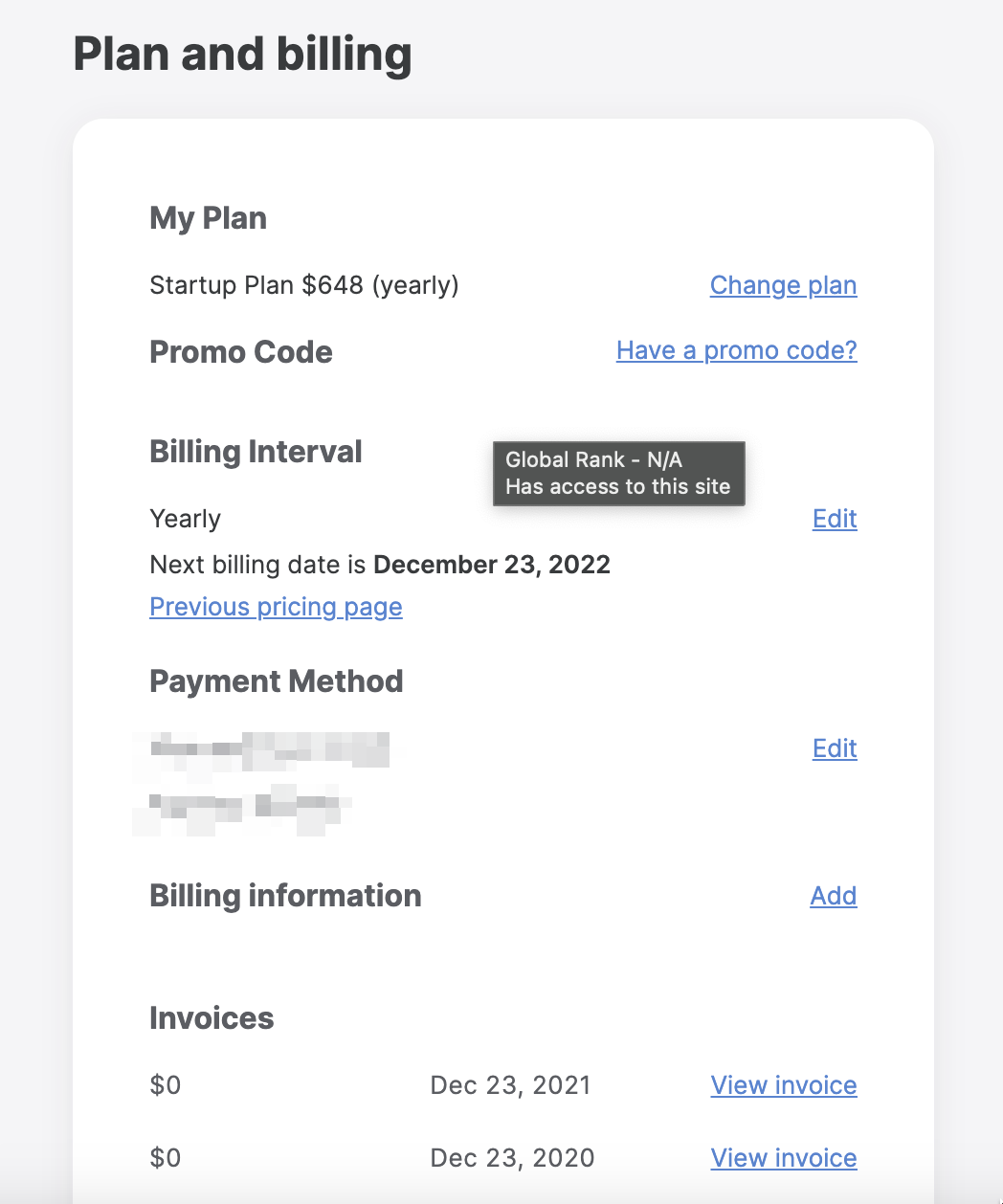 First, you have the **Subscription info**, where you see which plan you are on and have a button to [change the plan](/workspace-and-billing/jZP6yaeXMiJCuB6HhS4xKd/pricing-and-plans/7KRUMnHZSU6oMLjzJM84ie).
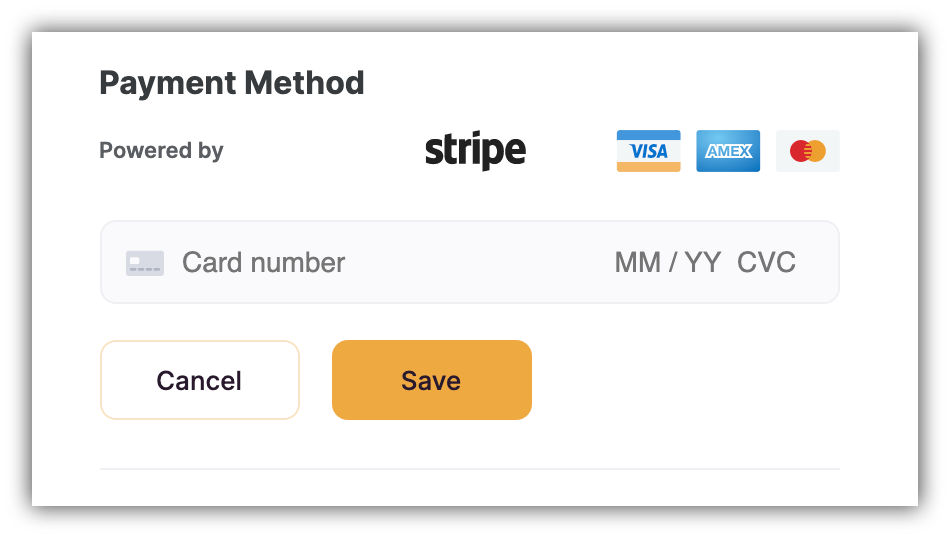
Next, there is the **Payment Method**, where you can hit **Edit** and enter a new payment method. Press **Save** after you've updated your payment details.
First, you have the **Subscription info**, where you see which plan you are on and have a button to [change the plan](/workspace-and-billing/jZP6yaeXMiJCuB6HhS4xKd/pricing-and-plans/7KRUMnHZSU6oMLjzJM84ie).
Next, there is the **Payment Method**, where you can hit **Edit** and enter a new payment method. Press **Save** after you've updated your payment details.
 Further on, there is the **Invoices** section, where you have the list of all of your invoices to date. Click **View** **invoice** to see the details, download the invoice, or download the receipt.
Lastly, you have the **Cancel Subscription** option.
Further on, there is the **Invoices** section, where you have the list of all of your invoices to date. Click **View** **invoice** to see the details, download the invoice, or download the receipt.
Lastly, you have the **Cancel Subscription** option.
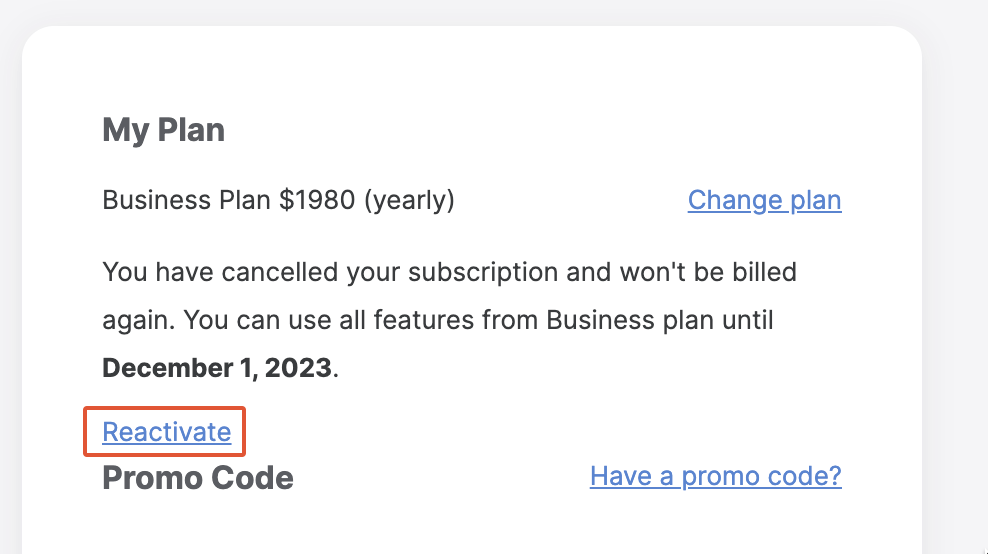
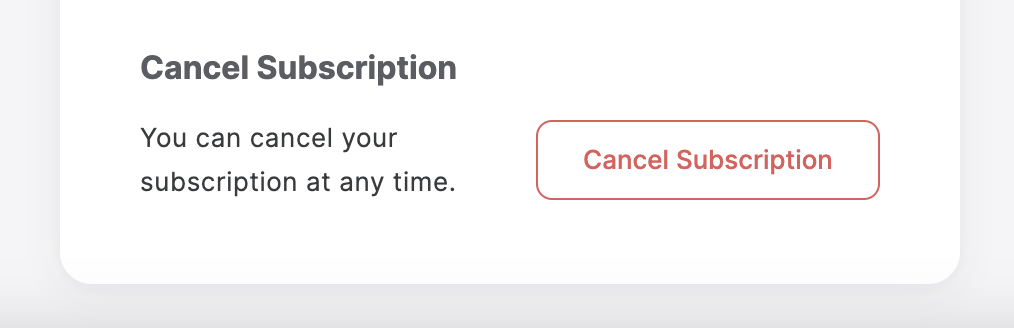 If your subscription is cancelled, the **Change Plan** button at the top will be altered. It will become **Re-activate** if you are still within the billed period and will be reset to **Upgrade** if you are past the billed period and have switched back to the free plan.