> ## Documentation Index
> Fetch the complete documentation index at: https://docs.softr.io/llms.txt
> Use this file to discover all available pages before exploring further.
# Workflows
> Automate tasks and processes in your Softr apps.
# **Softr Workflows Overview**
Softr Workflows let you automate tasks, logic, and AI-powered actions directly inside Softr. You can connect your apps, databases, and external tools to reduce manual work and keep everything in sync. Think of Workflows as the automation layer that powers your entire Softr stack.
Unlike external automation tools, Workflows are native to Softr, so they can respond to in-app user actions and database changes and use your app's data/permissions directly.
## **Step-by-Step: Create your first Workflow**
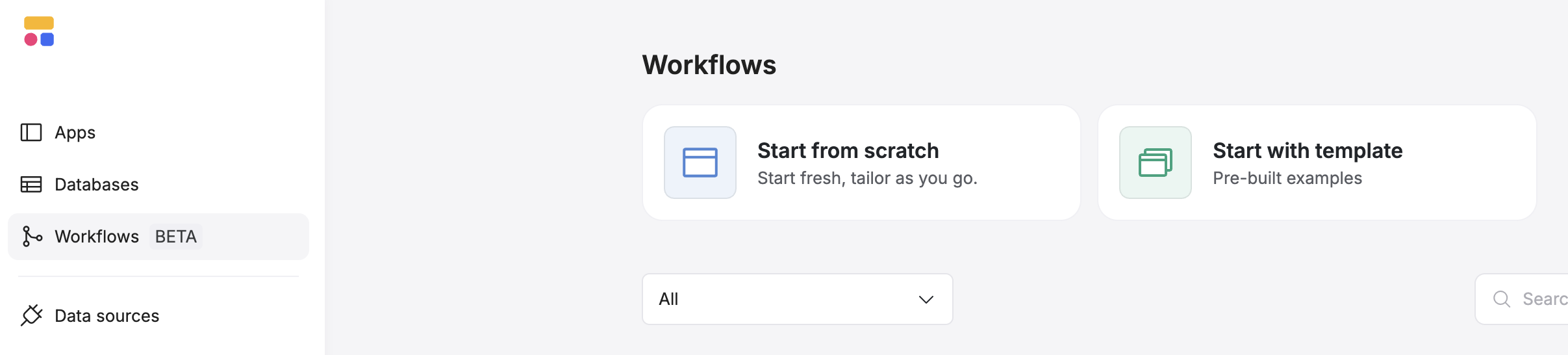
From your Softr workspace, click **Workflows** in the left sidebar to open the visual builder. You can start in one of two ways:
* **From scratch:** Build your workflow manually by choosing a trigger and adding actions.
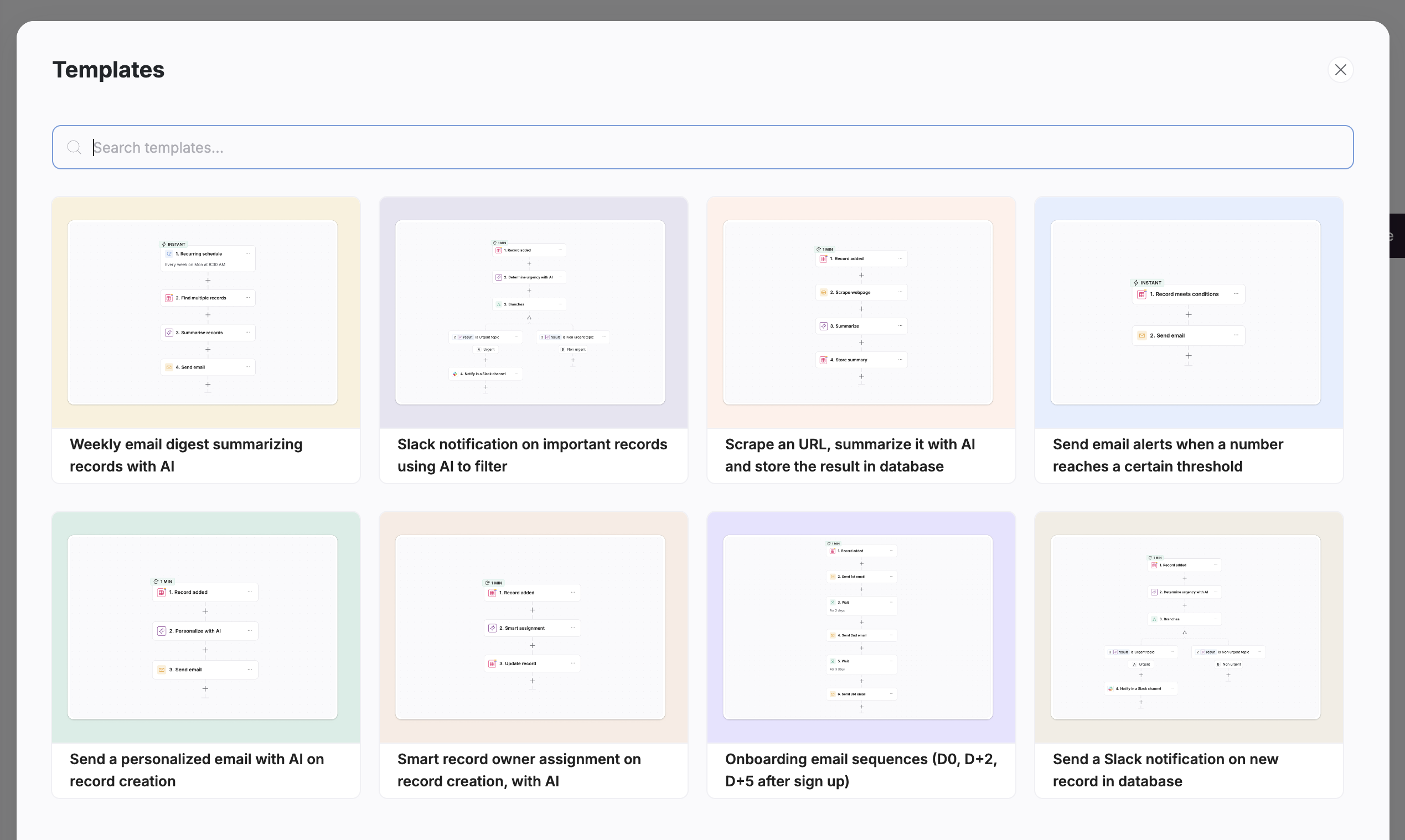
* **From a template:** Pick a ready-made automation (for example, "Send email alerts when a number reaches a certain threshold") and customize it.
* **With AI:** Click the AI Co-builder icon and describe your automation!
 ***
***
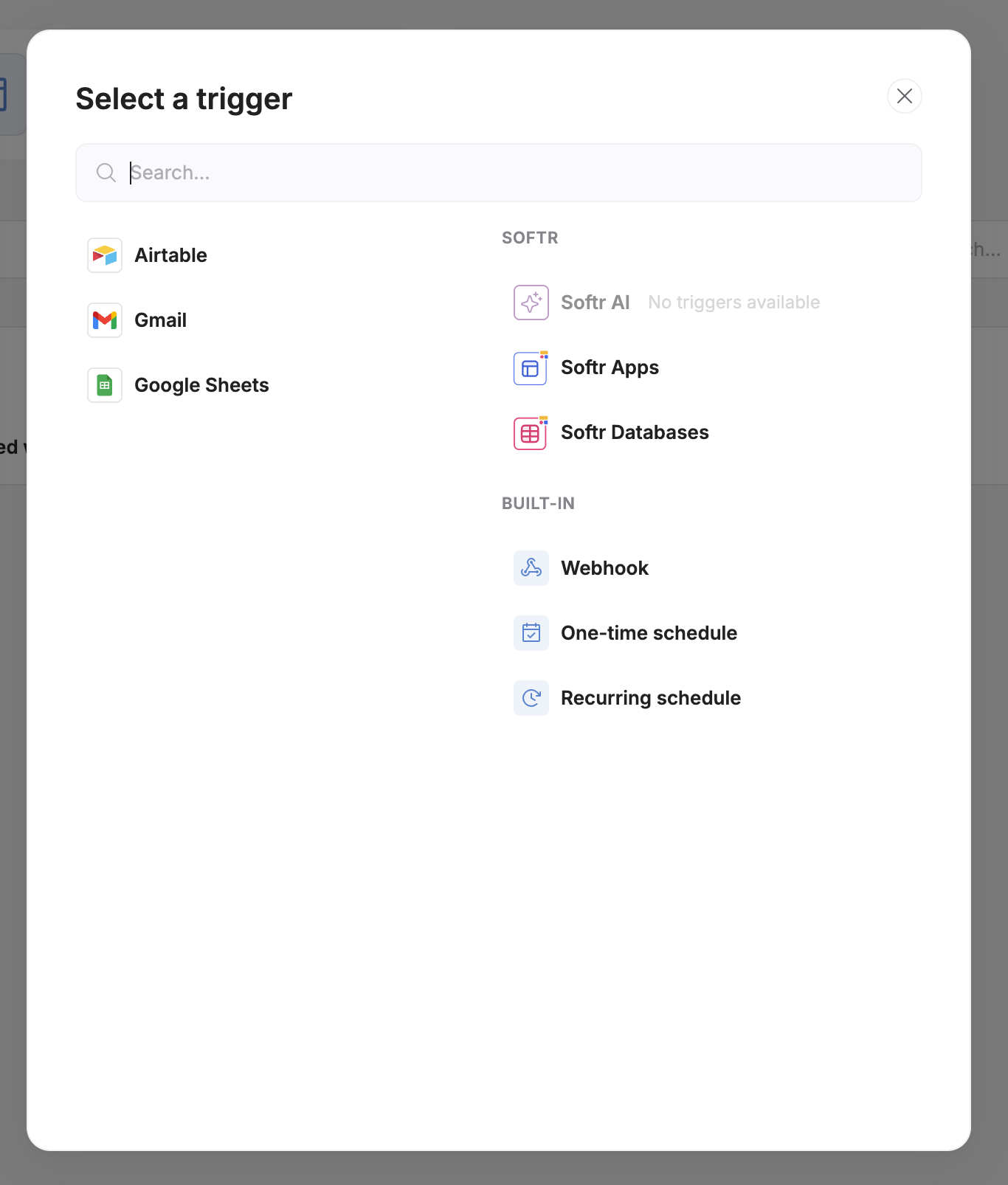
 Start by selecting a trigger for your workflow **to define when it runs**. Choose from the following:
**External Triggers**
* **Airtable:** When a new record is created or an existing record is updated.
* **Gmail:** When a new email is received.
* **Google Sheets:** When a new row is created.
**Softr Triggers**
* **Softr Apps:** Run a custom workflow when a user triggers a "Run Custom Workflow" action button in the app UI. You can also trigger a workflow when a new user is created.
* **Softr Databases:** Trigger a workflow when a record is **created**, **updated**, or **deleted,** or **meets certain conditions** (for example, run only when **Status changes to "Approved"** or **Sentiment = "negative"**).
**Built-in Triggers**
* **Webhook:** Start a workflow from any external app that can send an HTTP request.
* **One-time schedule:** Run a workflow once at a specific time.
* **Recurring schedule:** Run a workflow on a scheduled frequency.
**Note:** Triggers can reference your Softr app and Database directly—no external connectors required.
Start by selecting a trigger for your workflow **to define when it runs**. Choose from the following:
**External Triggers**
* **Airtable:** When a new record is created or an existing record is updated.
* **Gmail:** When a new email is received.
* **Google Sheets:** When a new row is created.
**Softr Triggers**
* **Softr Apps:** Run a custom workflow when a user triggers a "Run Custom Workflow" action button in the app UI. You can also trigger a workflow when a new user is created.
* **Softr Databases:** Trigger a workflow when a record is **created**, **updated**, or **deleted,** or **meets certain conditions** (for example, run only when **Status changes to "Approved"** or **Sentiment = "negative"**).
**Built-in Triggers**
* **Webhook:** Start a workflow from any external app that can send an HTTP request.
* **One-time schedule:** Run a workflow once at a specific time.
* **Recurring schedule:** Run a workflow on a scheduled frequency.
**Note:** Triggers can reference your Softr app and Database directly—no external connectors required.
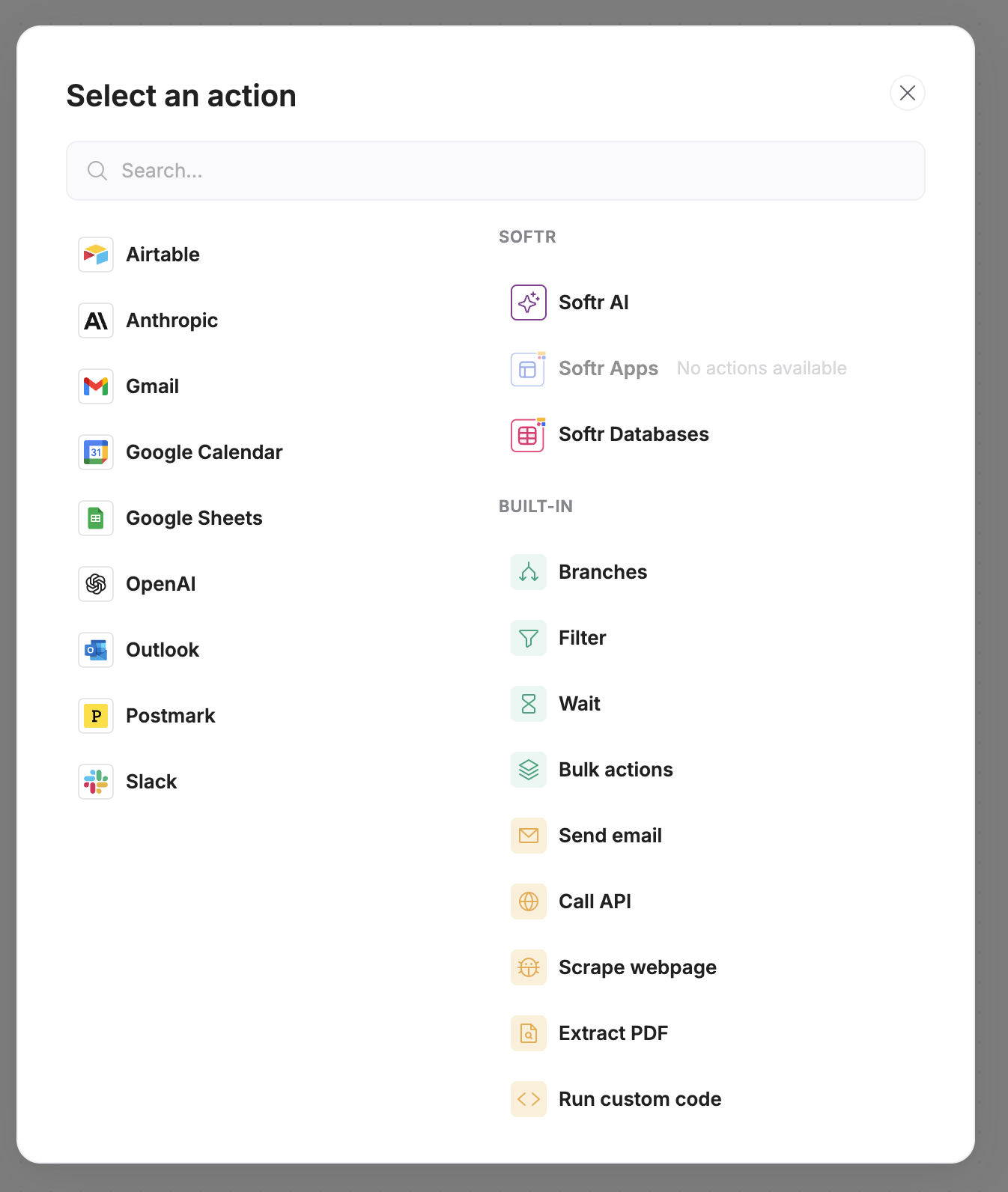
 Actions define what happens after the trigger. You can run simple to complex workflows depending on what you need. Common actions include:
* **Update, add, delete, or find records** in Softr Databases
* **Send** emails (in Gmail, Outlook, Postmark, or connect another tool with API)
* **Send** a Slack message
* **Generate** AI summaries or responses using Softr's built-in LLM integrations or by bringing your own API key.
* **Add** an event in Google Calendar
* **Call API** to connect to any external system that supports REST API calls
* **Extract PDF** or **scrape webpage** to find relevant information
* **Logic-based actions**, including **Branches**, **Filters**, **Wait times**, and **Bulk actions**.
Each action can use **variables** from earlier steps (e.g., fields from the triggering record or form submission). Map these inputs in the action's **Settings** tab on the right panel.
Note: AI-based actions using Softr's built-in LLM integrations (for example, summarizing text or enriching data) use **AI credits**. Learn more about AI credits →
Actions define what happens after the trigger. You can run simple to complex workflows depending on what you need. Common actions include:
* **Update, add, delete, or find records** in Softr Databases
* **Send** emails (in Gmail, Outlook, Postmark, or connect another tool with API)
* **Send** a Slack message
* **Generate** AI summaries or responses using Softr's built-in LLM integrations or by bringing your own API key.
* **Add** an event in Google Calendar
* **Call API** to connect to any external system that supports REST API calls
* **Extract PDF** or **scrape webpage** to find relevant information
* **Logic-based actions**, including **Branches**, **Filters**, **Wait times**, and **Bulk actions**.
Each action can use **variables** from earlier steps (e.g., fields from the triggering record or form submission). Map these inputs in the action's **Settings** tab on the right panel.
Note: AI-based actions using Softr's built-in LLM integrations (for example, summarizing text or enriching data) use **AI credits**. Learn more about AI credits →
 For each trigger and action you add, you choose settings and conditions (in the **Settings** tab on the right panel). For example:
* **For Softr Database triggers:** choose **Account → Database → Table**, and (optionally) **field-level conditions** that must be true for the workflow to run.
* **For action steps (e.g., Gmail/Slack/API/AI):** connect the provider/account, **map inputs** from earlier steps (such as subject, body, channel, payload), and configure any action-specific options.
* **For logic steps:** define conditions in **Filters/Branches** or **Wait** times.
For each trigger and action you add, you choose settings and conditions (in the **Settings** tab on the right panel). For example:
* **For Softr Database triggers:** choose **Account → Database → Table**, and (optionally) **field-level conditions** that must be true for the workflow to run.
* **For action steps (e.g., Gmail/Slack/API/AI):** connect the provider/account, **map inputs** from earlier steps (such as subject, body, channel, payload), and configure any action-specific options.
* **For logic steps:** define conditions in **Filters/Branches** or **Wait** times.
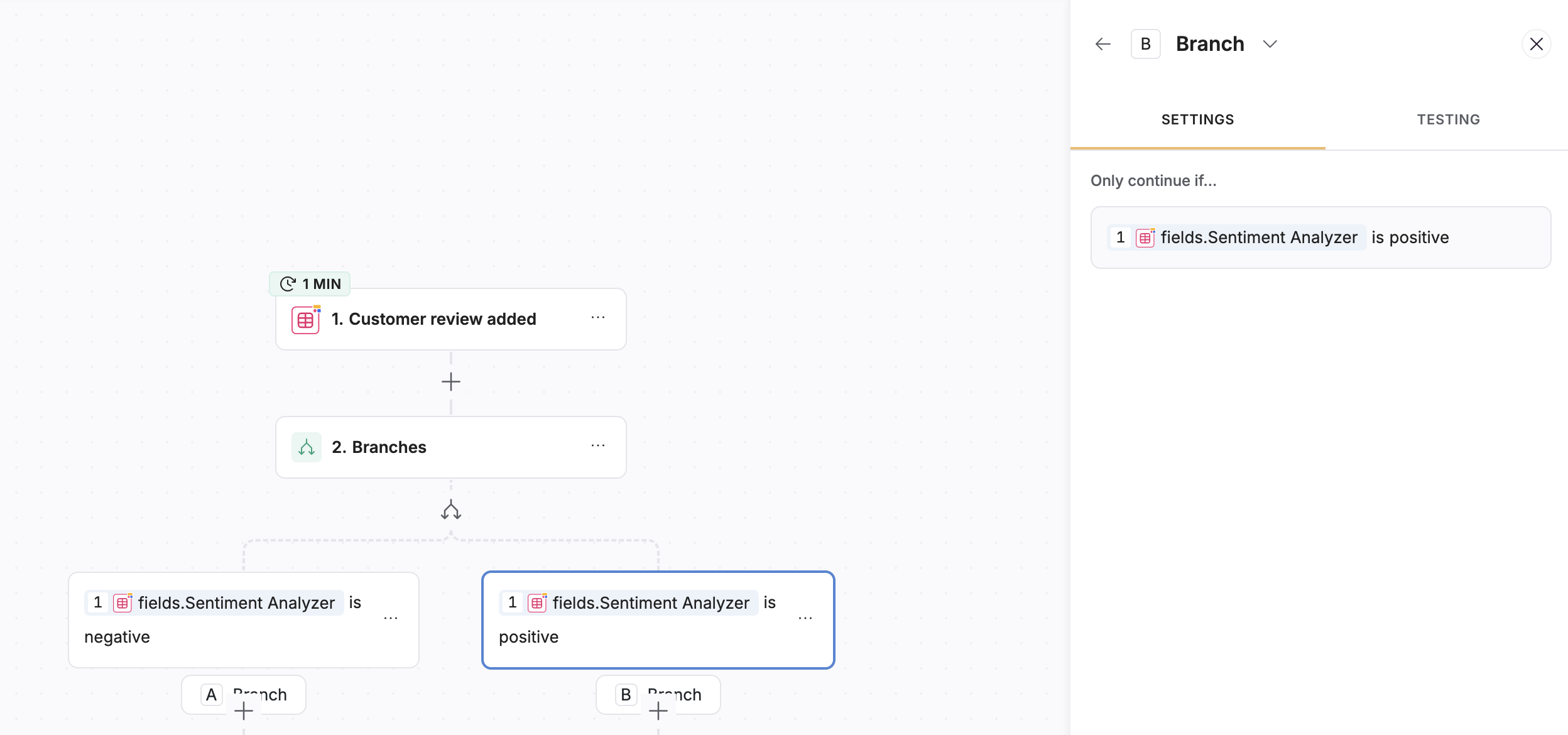 Before going live, use the **Testing** tab in the right panel to ensure the action is working correctly.
For event-based triggers (e.g., Softr App or Database), create a **real test event** first—submit the form, click the button, or add/update a record—then open **Testing** to pull in the latest sample data.
Some action types don't support test preview yet such as flow controls like branching and filtering. However subsequent steps don't need test data from these steps to be configured. You can continue testing in subsequent actions even without generating test data from flow controls.
Before going live, use the **Testing** tab in the right panel to ensure the action is working correctly.
For event-based triggers (e.g., Softr App or Database), create a **real test event** first—submit the form, click the button, or add/update a record—then open **Testing** to pull in the latest sample data.
Some action types don't support test preview yet such as flow controls like branching and filtering. However subsequent steps don't need test data from these steps to be configured. You can continue testing in subsequent actions even without generating test data from flow controls.
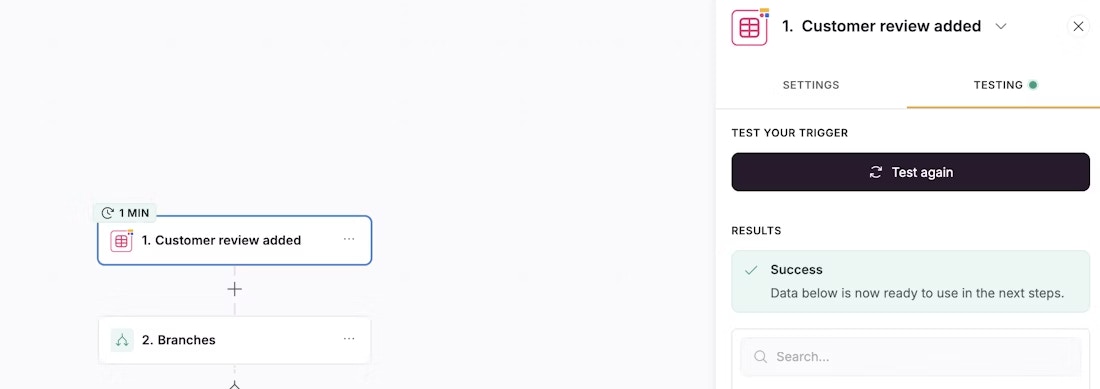 Once tested, click **Turn on** to set your workflow live. **It will** automatically run each time its trigger condition is met.
## Using the AI Co-builder
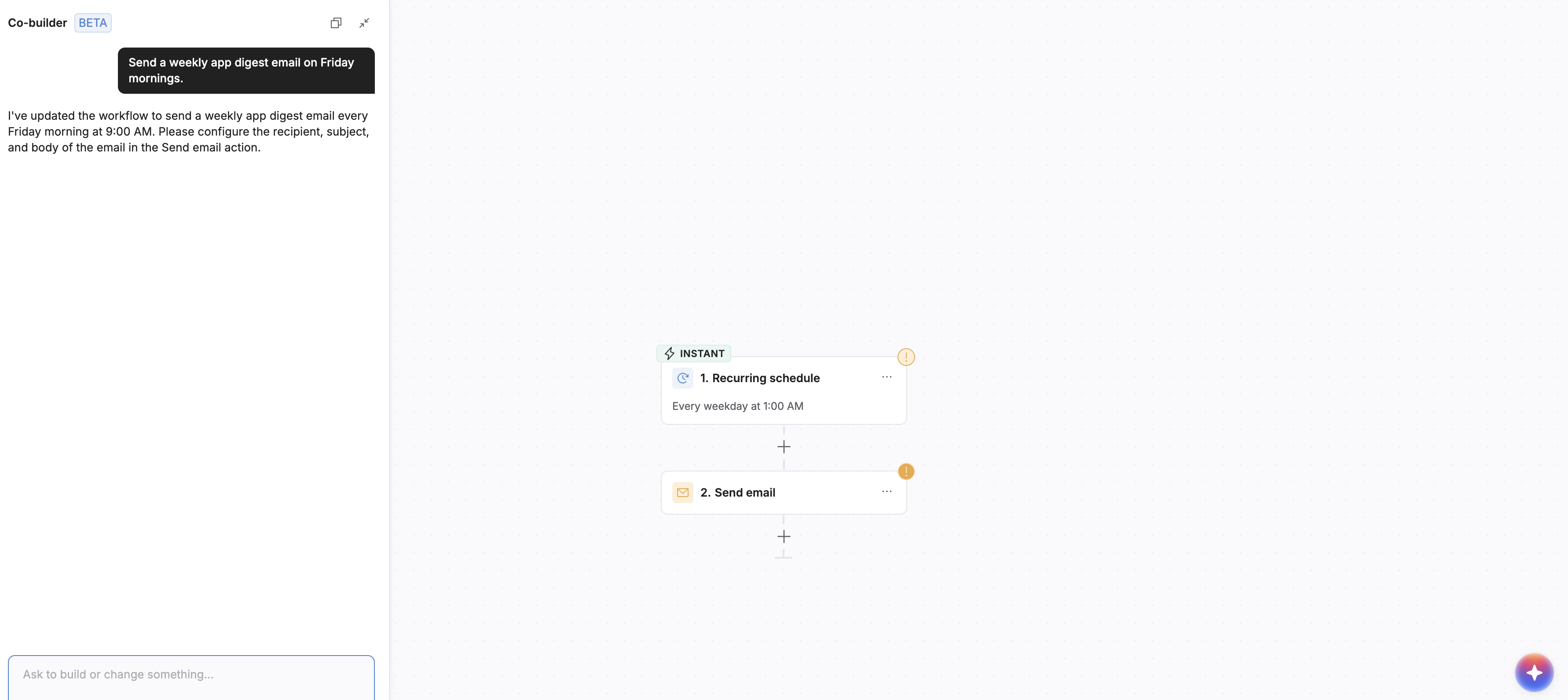
When building your workflow, you don't have to assemble everything step-by-step. Click the AI icon in the bottom right (above the chat icon) and describe what you want in plain English.
**Example Prompts:**
* *"When a new Deal is moved to 'Closed Won' in the CRM, send a Slack message and trigger a congratulatory email."*
* *"Every Monday morning, find all tasks that are overdue and email a summary to the manager."*
The AI Co-builder will instantly generate the full workflow outline (trigger, actions, and logic). You can then modify any of the steps visually before turning it on!
Once tested, click **Turn on** to set your workflow live. **It will** automatically run each time its trigger condition is met.
## Using the AI Co-builder
When building your workflow, you don't have to assemble everything step-by-step. Click the AI icon in the bottom right (above the chat icon) and describe what you want in plain English.
**Example Prompts:**
* *"When a new Deal is moved to 'Closed Won' in the CRM, send a Slack message and trigger a congratulatory email."*
* *"Every Monday morning, find all tasks that are overdue and email a summary to the manager."*
The AI Co-builder will instantly generate the full workflow outline (trigger, actions, and logic). You can then modify any of the steps visually before turning it on!
 ## **Connecting Workflows to your Softr apps**
Workflows can be triggered directly from user interactions inside your app.
To set up this trigger,
* Set up a workflow from **Softr Apps > Run custom workflow** and give it a name (e.g. Slack alert from record added). Publish the workflow when ready.
* Open your Softr app
* In the dynamic block you want to add the workflow, go to the **Actions** tab > **Add item button** and select **Run Custom Workflow**.
* Select the workflow.
* Define the **data to use in the workflow** (map form fields or record fields) and open **Preview** to trigger a test event
* Return to the workflow editor to **test your trigger**
Example: Pass `User name`, `Email`, and `Message` from the form to your Slack action so the team sees the full context.
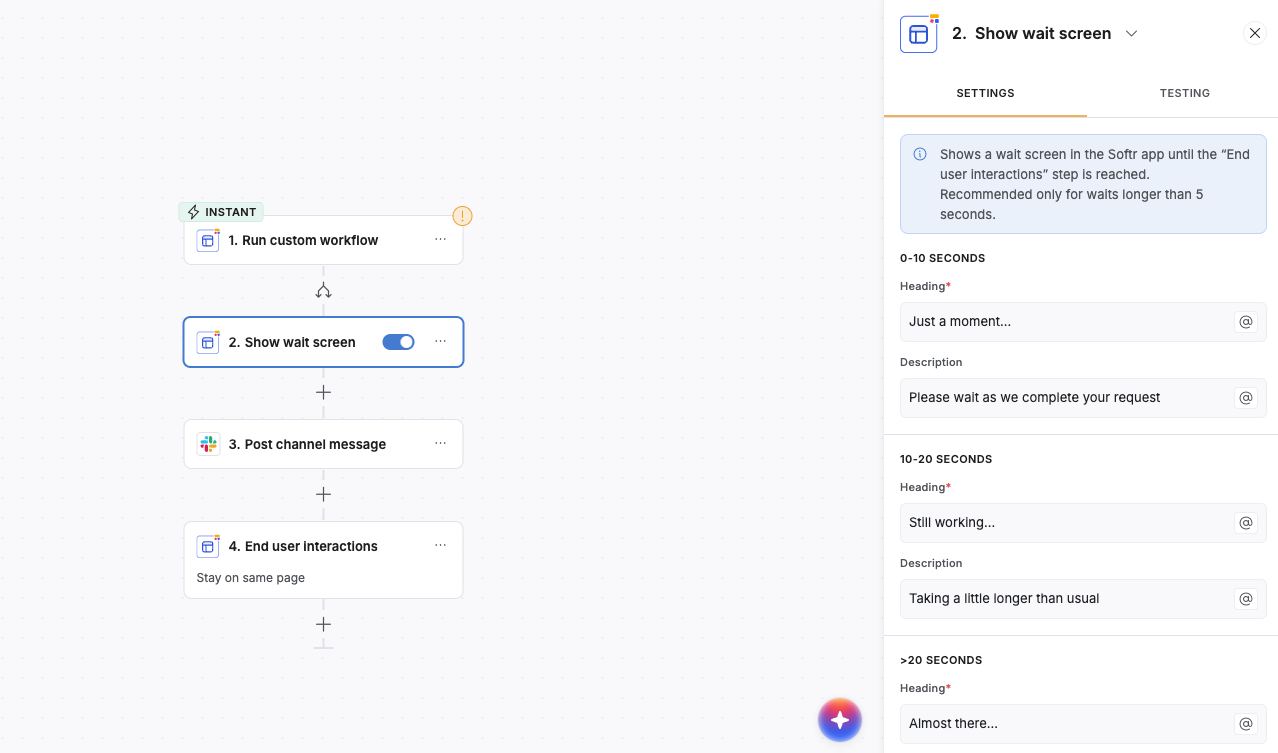
You can also guide users through the flow by showing **progress or wait screens** while the workflow runs, then display confirmation once it completes.
To add a wait screen:
* Toggle on **Show wait screen** in the app action that triggers the workflow
* Add your custom message
Note: Wait/progress screens apply to app-triggered workflows (not Database/scheduled triggers).
## **Connecting Workflows to your Softr apps**
Workflows can be triggered directly from user interactions inside your app.
To set up this trigger,
* Set up a workflow from **Softr Apps > Run custom workflow** and give it a name (e.g. Slack alert from record added). Publish the workflow when ready.
* Open your Softr app
* In the dynamic block you want to add the workflow, go to the **Actions** tab > **Add item button** and select **Run Custom Workflow**.
* Select the workflow.
* Define the **data to use in the workflow** (map form fields or record fields) and open **Preview** to trigger a test event
* Return to the workflow editor to **test your trigger**
Example: Pass `User name`, `Email`, and `Message` from the form to your Slack action so the team sees the full context.
You can also guide users through the flow by showing **progress or wait screens** while the workflow runs, then display confirmation once it completes.
To add a wait screen:
* Toggle on **Show wait screen** in the app action that triggers the workflow
* Add your custom message
Note: Wait/progress screens apply to app-triggered workflows (not Database/scheduled triggers).
 ## **Monitoring and managing your Workflows**
Click **Runs** in the top left of the visual builder to monitor performance and usage. The Runs list shows every execution with timestamps and step-by-step logs (inputs, outputs, and errors) for troubleshooting.
Run retention limits by plan:
* **Free plan:** 7 days
* **Starter:** 30 days
* **Professional:** 60 days
* **Business:** 90 days
You can pause, duplicate, or delete workflows anytime from the main **Workflows** list.
## Pricing and credits
Workflows are available on all Softr plans. Usage is based on **action executions** — how many workflow actions run while your workflows are active. Each action that runs counts toward your monthly **Workflow action limit**, depending on your plan.
### **Workflow usage**
Each time a workflow runs, Softr counts the **actions** that execute. Triggers and flow control steps (like **Wait**, **Branch**, **Filter**, and **Bulk actions**) don't count toward usage. Some actions (for example, sending emails) may use more than one execution, depending on the integration.
### **Other pricing notes**
* **Utilities:** Advanced actions like **Run code**, **Extract PDF**, and **Scrape webpage** are available on paid plans.
* **Webhook & API:** Available starting from the **Professional** plan and above.
* **AI credits:** Used for **AI Actions**. Business and Enterprise plans can also use their own API keys. Learn more about AI credits >
You can track your current usage and limits anytime in **Billing → Usage**, and view all plan allowances on the [**Pricing**](https://www.softr.io/pricing) [page](https://www.softr.io/pricing). Workflow actions reset each month.
## **FAQ**
### **Can I connect Workflows to AI Agents?**
* **AI Actions (in Workflows)** use Softr built-in AI integrations (or OpenAI or Anthropic API keys) to write, summarize, categorize, or run a custom prompt **inside** your workflow.
* **Database AI Agents (in Databases)** classify, summarize, enrich, or validate records when data is created or updated in your Softr Database.
**How they work together:**
A Database AI Agent can enrich or classify a new record (e.g., set `Sentiment = positive/negative`). Your **workflow** can then **branch** based on that value—send a follow-up email if negative, post a Slack kudos if positive.
**Both** AI Actions and Database AI Agents consume **AI credits**. [Learn more →](https://docs.softr.io/workspace-and-billing/jZP6yaeXMiJCuB6HhS4xKd/ai-credits/5VRMhf7Q6xvy7AJqyiQLx5)
### **Do I need any coding experience to build workflows?**
No. The Workflow builder is fully visual. You can drag and drop triggers and actions, use a template, or use the AI Co-builder to generate a workflow from plain-language instructions. A "Run Code" action is available for more advanced workflow needs.
### **Can I build workflows that connect to external tools?**
Yes. Use the **Call API** action to push or fetch data from any external system, or the **Webhook trigger** to start workflows from other apps like Stripe or HubSpot.
### **Are workflows available on the Free plan?**
Yes. You can build workflows on all plans. The Free plan includes 7 days of run history and limited step executions. Higher-tier plans include longer history and more generous limits. See the Pricing page for full details.
## **Monitoring and managing your Workflows**
Click **Runs** in the top left of the visual builder to monitor performance and usage. The Runs list shows every execution with timestamps and step-by-step logs (inputs, outputs, and errors) for troubleshooting.
Run retention limits by plan:
* **Free plan:** 7 days
* **Starter:** 30 days
* **Professional:** 60 days
* **Business:** 90 days
You can pause, duplicate, or delete workflows anytime from the main **Workflows** list.
## Pricing and credits
Workflows are available on all Softr plans. Usage is based on **action executions** — how many workflow actions run while your workflows are active. Each action that runs counts toward your monthly **Workflow action limit**, depending on your plan.
### **Workflow usage**
Each time a workflow runs, Softr counts the **actions** that execute. Triggers and flow control steps (like **Wait**, **Branch**, **Filter**, and **Bulk actions**) don't count toward usage. Some actions (for example, sending emails) may use more than one execution, depending on the integration.
### **Other pricing notes**
* **Utilities:** Advanced actions like **Run code**, **Extract PDF**, and **Scrape webpage** are available on paid plans.
* **Webhook & API:** Available starting from the **Professional** plan and above.
* **AI credits:** Used for **AI Actions**. Business and Enterprise plans can also use their own API keys. Learn more about AI credits >
You can track your current usage and limits anytime in **Billing → Usage**, and view all plan allowances on the [**Pricing**](https://www.softr.io/pricing) [page](https://www.softr.io/pricing). Workflow actions reset each month.
## **FAQ**
### **Can I connect Workflows to AI Agents?**
* **AI Actions (in Workflows)** use Softr built-in AI integrations (or OpenAI or Anthropic API keys) to write, summarize, categorize, or run a custom prompt **inside** your workflow.
* **Database AI Agents (in Databases)** classify, summarize, enrich, or validate records when data is created or updated in your Softr Database.
**How they work together:**
A Database AI Agent can enrich or classify a new record (e.g., set `Sentiment = positive/negative`). Your **workflow** can then **branch** based on that value—send a follow-up email if negative, post a Slack kudos if positive.
**Both** AI Actions and Database AI Agents consume **AI credits**. [Learn more →](https://docs.softr.io/workspace-and-billing/jZP6yaeXMiJCuB6HhS4xKd/ai-credits/5VRMhf7Q6xvy7AJqyiQLx5)
### **Do I need any coding experience to build workflows?**
No. The Workflow builder is fully visual. You can drag and drop triggers and actions, use a template, or use the AI Co-builder to generate a workflow from plain-language instructions. A "Run Code" action is available for more advanced workflow needs.
### **Can I build workflows that connect to external tools?**
Yes. Use the **Call API** action to push or fetch data from any external system, or the **Webhook trigger** to start workflows from other apps like Stripe or HubSpot.
### **Are workflows available on the Free plan?**
Yes. You can build workflows on all plans. The Free plan includes 7 days of run history and limited step executions. Higher-tier plans include longer history and more generous limits. See the Pricing page for full details.