> ## Documentation Index
> Fetch the complete documentation index at: https://docs.softr.io/llms.txt
> Use this file to discover all available pages before exploring further.
# User Groups
> Create, manage and utlize custom user groups in Softr.
User groups are an essential part of delivering a personalized experience and showing the right information to your users. In addition to making blocks and pages accessible to logged-in or non-logged-in users, Softr allows you to create custom user groups.
Let's start with how user groups are created.
Note that in order for changes to user groups to take effect, the application needs to be [published](/publishing/9qTmU2Lj8Gnpr1Ue6dEAkX/publishing-your-softr-app/gRrb1u7eLmRTrXyg3UNGkQ) after making the changes.
## Create a user group
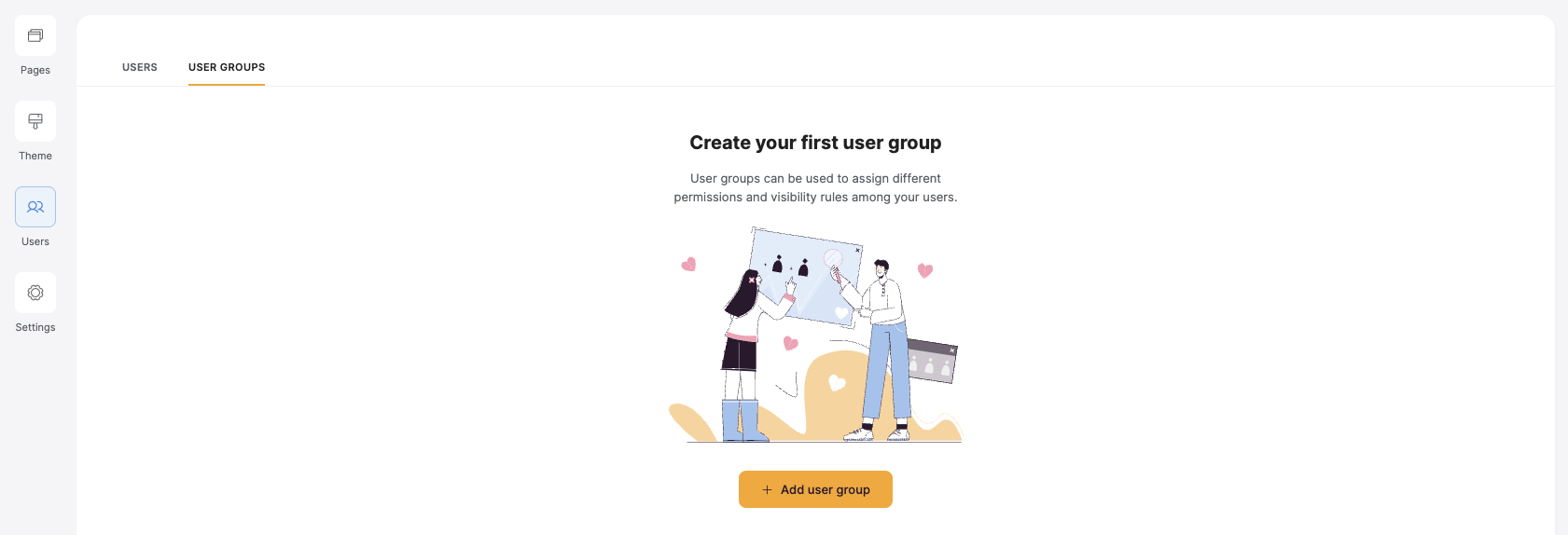
To create a user group head to users and hit add user group.
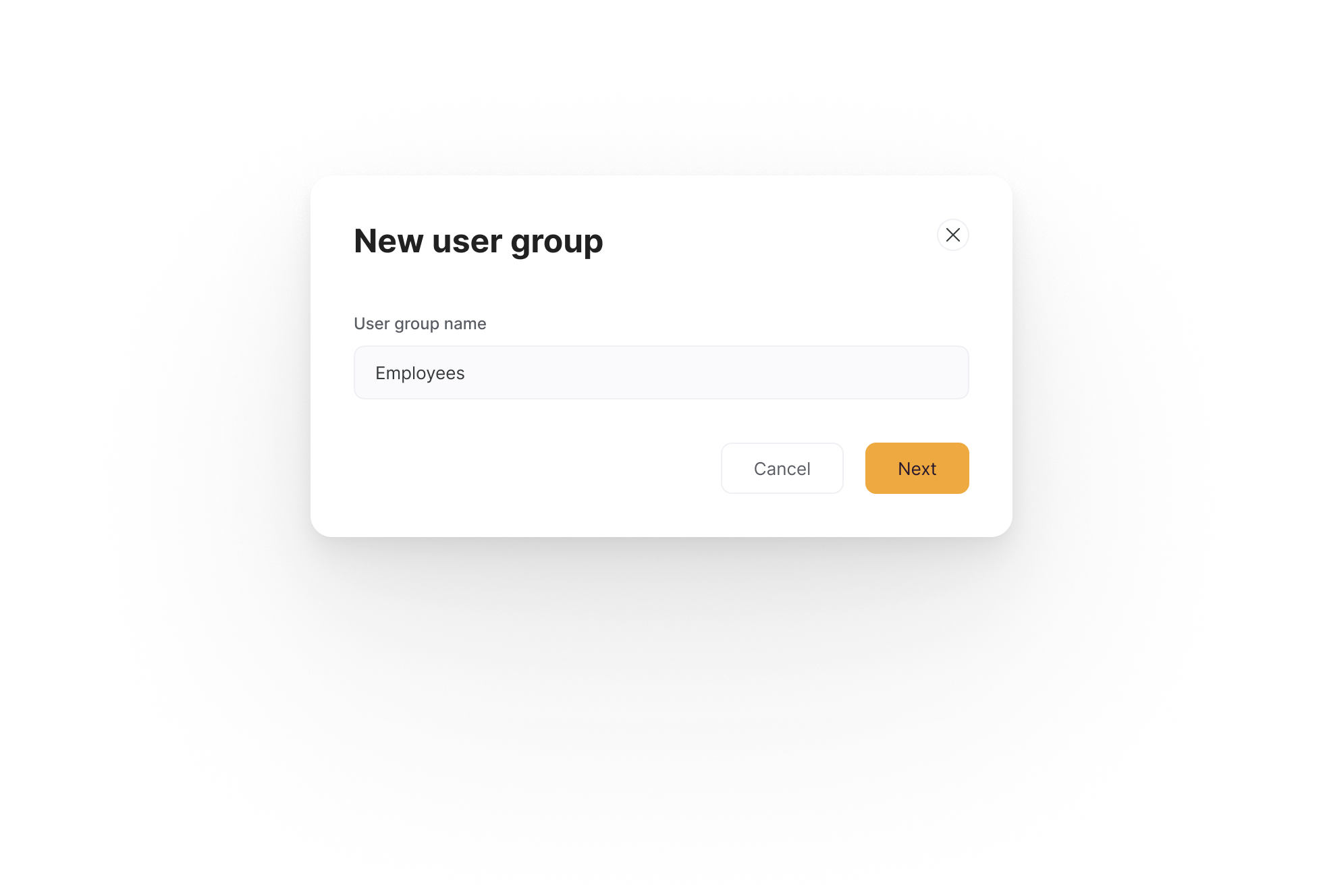
 Name your user group, and voila! Your user group is created. But we're not finished yet. Next, you'll need to add users to your user group.
 ## Add users to your user group
Once you have a user group, you need to add users to it. You can do this manually or by adding users based on their attributes with conditions.
### Add users manually
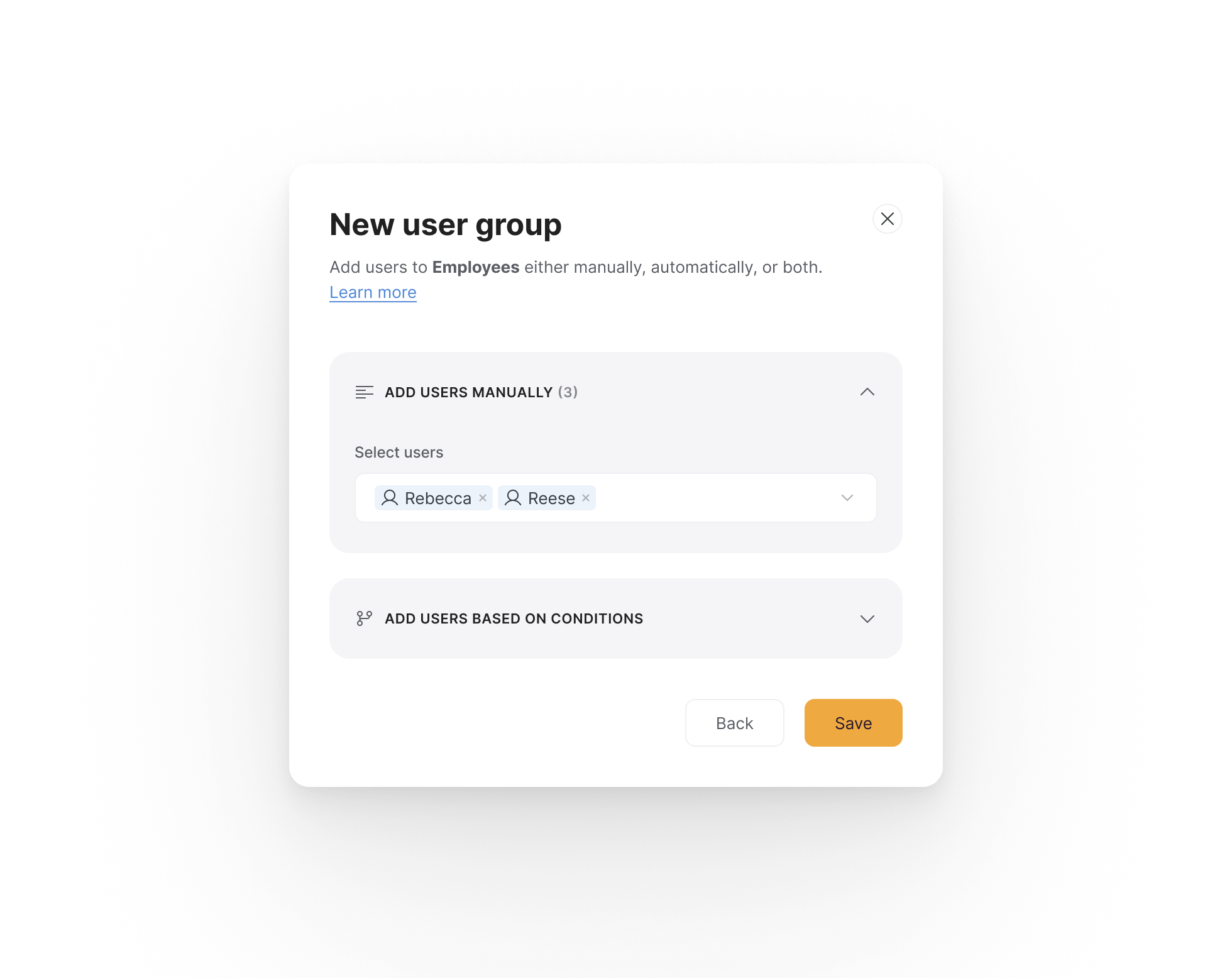
To add users manually, select one or more existing users from the dropdown list.
## Add users to your user group
Once you have a user group, you need to add users to it. You can do this manually or by adding users based on their attributes with conditions.
### Add users manually
To add users manually, select one or more existing users from the dropdown list.
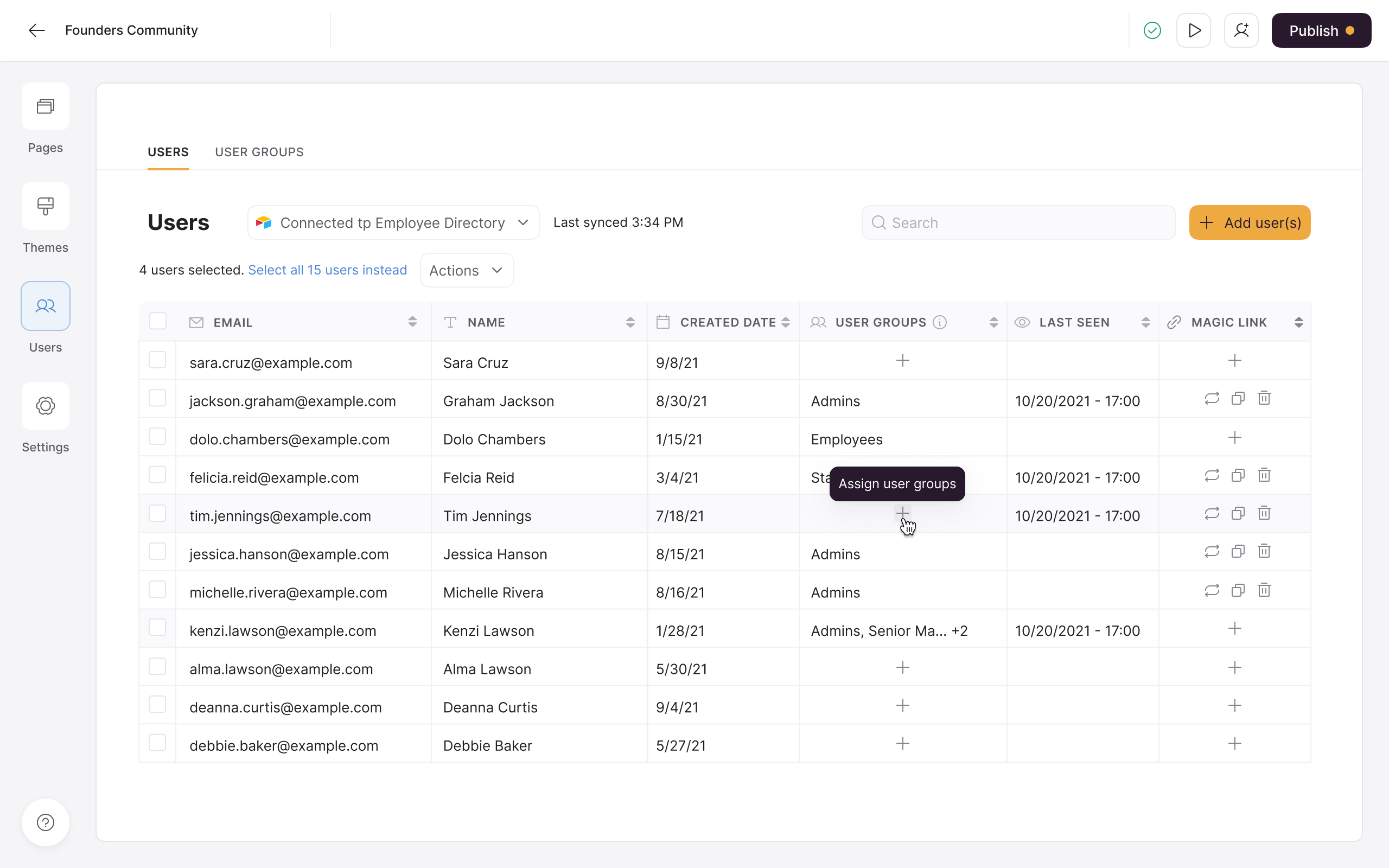
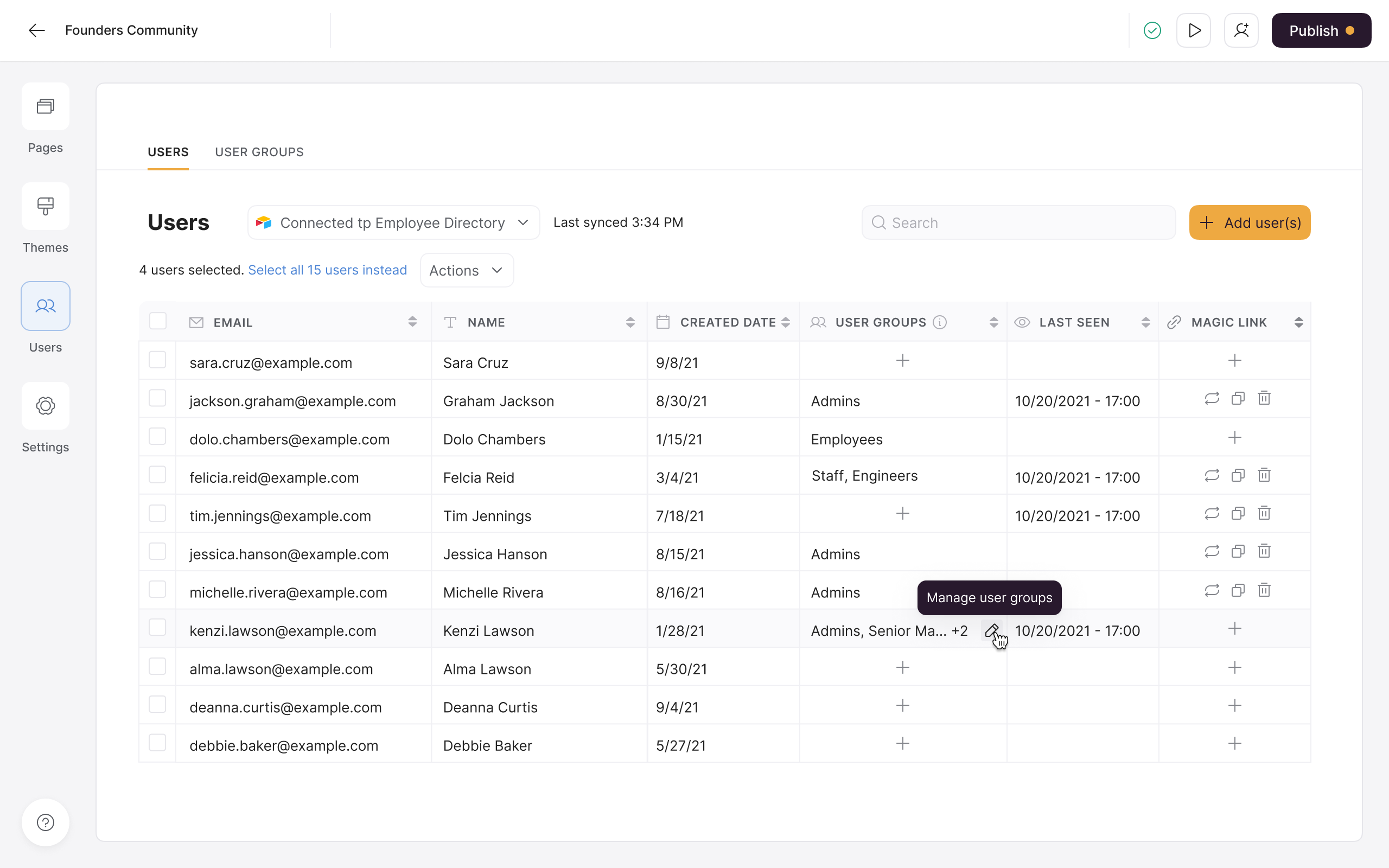
 You can also manually assign a user group to a user from the users table.
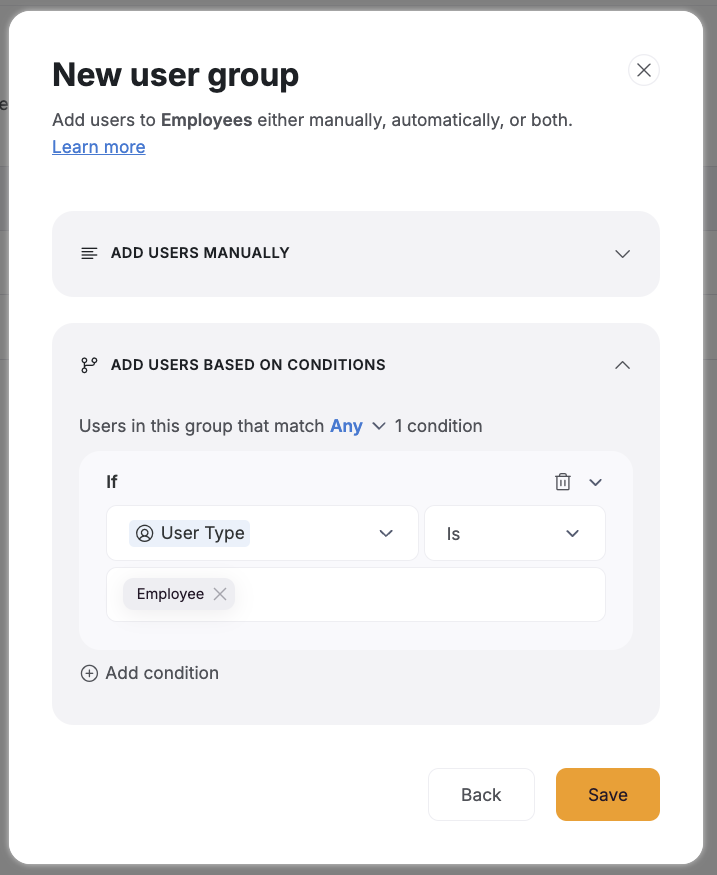
 ### Add users based on a condition
Select a logged-in user's attribute and specify a relevant condition and value.
You can learn more about using conditional filters here → [Conditional Filters](/user-groups-and-permissions/3oA6AaFzUiePs2sW2TpYrF/conditional-filters/mDnn7jnpPiYmJcT99jpt7m)
You can also specify conditions based on payment-related attributes, such as one-time products and subscriptions. To use these attributes, you must connect Stripe to your application. [Learn how to add users based on their Stripe attributes](/how-to-guides/ioi5BbuQ2RDM7aHPrpXnjG/add-users-to-user-groups-based-on-stripe-attributes/g1A2tEtjvmiCtGL1hgJmMe).
### Add users based on a condition
Select a logged-in user's attribute and specify a relevant condition and value.
You can learn more about using conditional filters here → [Conditional Filters](/user-groups-and-permissions/3oA6AaFzUiePs2sW2TpYrF/conditional-filters/mDnn7jnpPiYmJcT99jpt7m)
You can also specify conditions based on payment-related attributes, such as one-time products and subscriptions. To use these attributes, you must connect Stripe to your application. [Learn how to add users based on their Stripe attributes](/how-to-guides/ioi5BbuQ2RDM7aHPrpXnjG/add-users-to-user-groups-based-on-stripe-attributes/g1A2tEtjvmiCtGL1hgJmMe).
 ## **Manage user groups for each user from the users table**
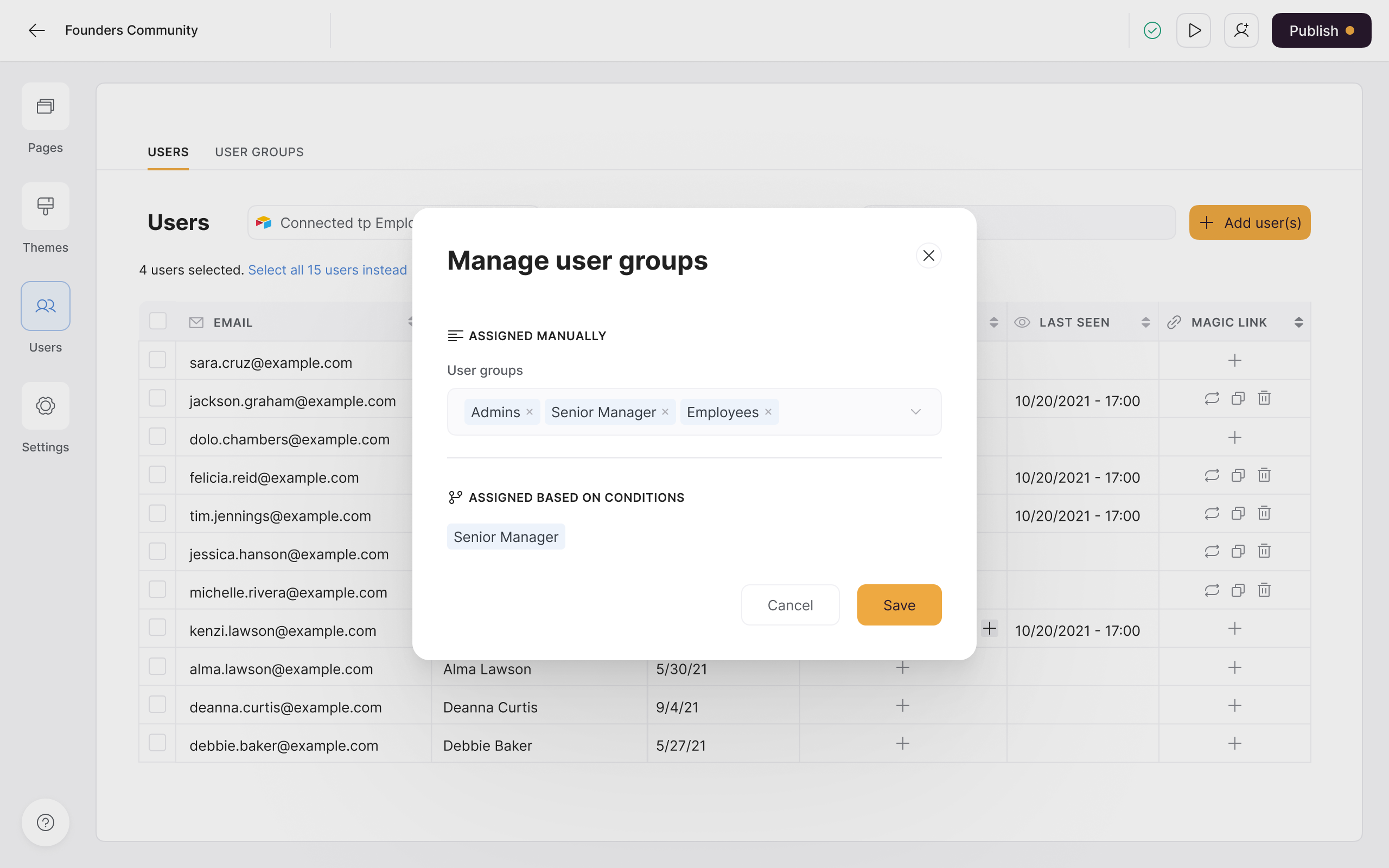
A user's user groups are visible in the users table. You can see which user groups they're in, and you can assign and remove any user group they were added to manually.
However, you cannot remove a user from a user group they were added to based on a condition. This is because of the rule yourself or a collaborator set up when creating the user group. To edit the conditions for a user group, go to the user groups tab and edit the condition(s) used to add users.
## **Manage user groups for each user from the users table**
A user's user groups are visible in the users table. You can see which user groups they're in, and you can assign and remove any user group they were added to manually.
However, you cannot remove a user from a user group they were added to based on a condition. This is because of the rule yourself or a collaborator set up when creating the user group. To edit the conditions for a user group, go to the user groups tab and edit the condition(s) used to add users.
 ## Set block and page visibility for your user group
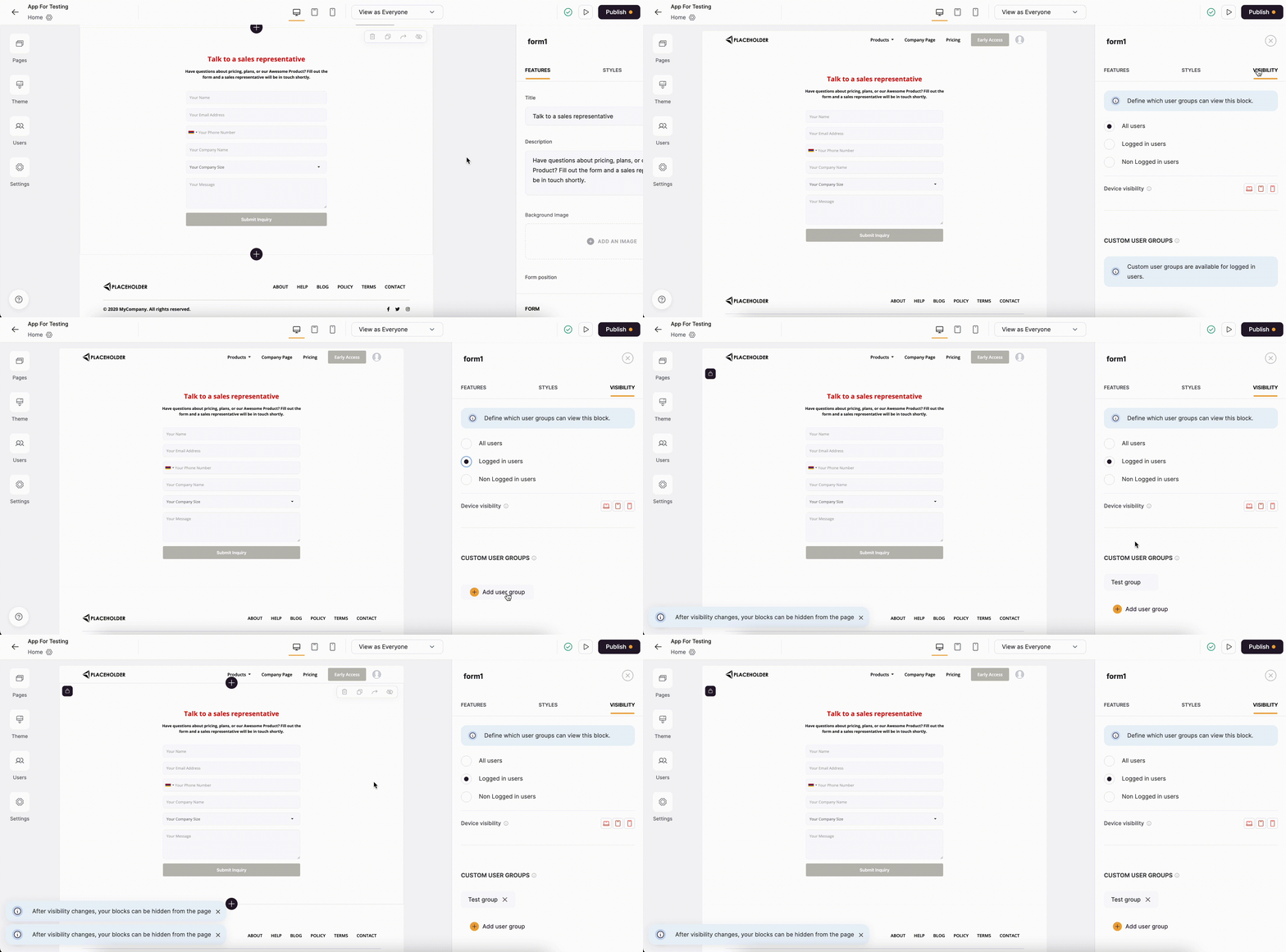
Once you've created a user group, you can use it to control who can see a particular block or page.
To set block visibility, go to the block's visibility settings, select Logged-in users, and select the relevant user group from the dropdown list.
To set page visibility, go to the page's settings, select Logged-in users, and select the relevant user group from the dropdown list.
Now, only users in the selected user group will be able to see the block or page.
## Set block and page visibility for your user group
Once you've created a user group, you can use it to control who can see a particular block or page.
To set block visibility, go to the block's visibility settings, select Logged-in users, and select the relevant user group from the dropdown list.
To set page visibility, go to the page's settings, select Logged-in users, and select the relevant user group from the dropdown list.
Now, only users in the selected user group will be able to see the block or page.
 ## Set advanced action permissions for your user group
You can also use user groups to control who can perform specific actions on a block.
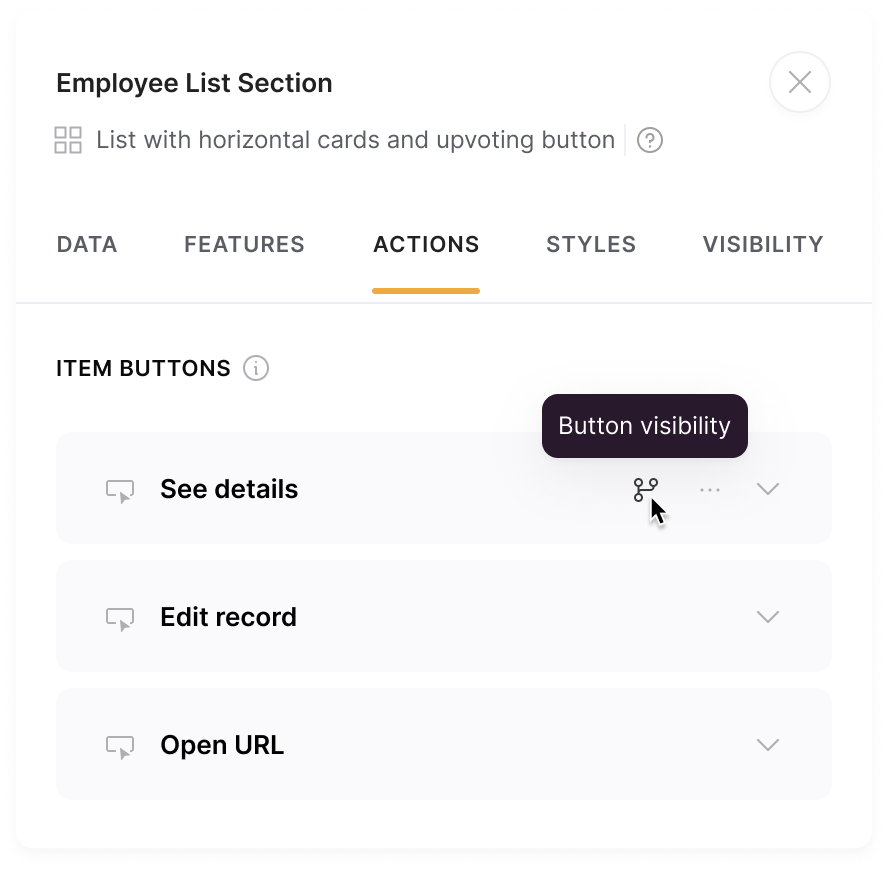
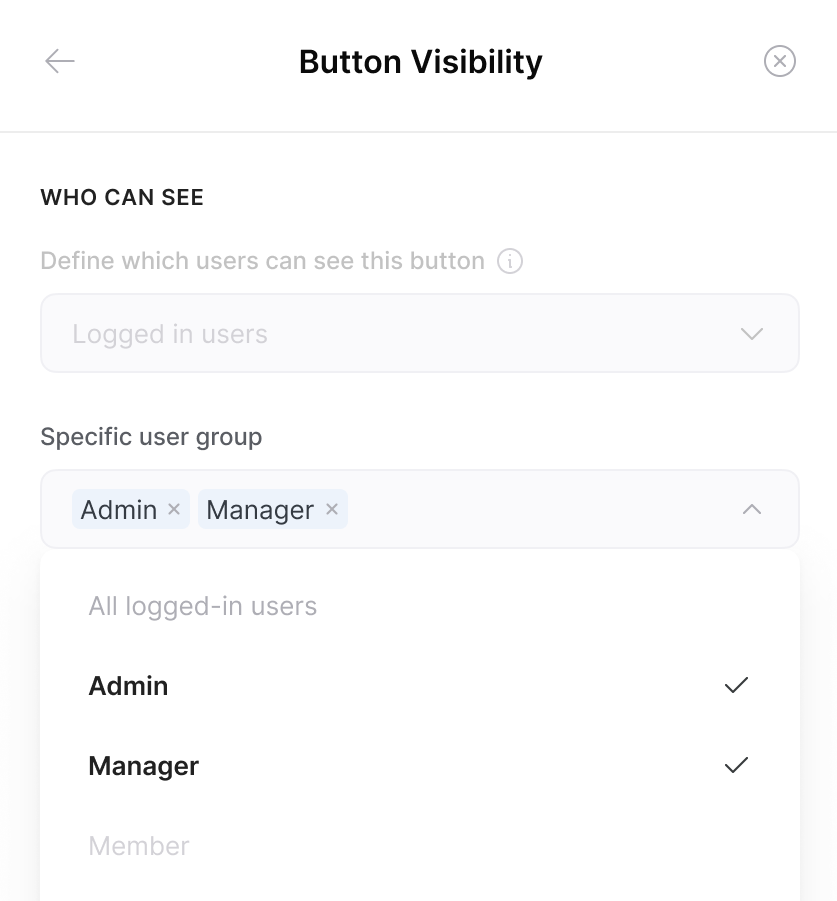
To do this, go to the relevant block and open the Button visibility settings from the Actions tab. From there, you can define which user groups should be able to see and interact with the action.
## Set advanced action permissions for your user group
You can also use user groups to control who can perform specific actions on a block.
To do this, go to the relevant block and open the Button visibility settings from the Actions tab. From there, you can define which user groups should be able to see and interact with the action.
 ## Edit, duplicate, remove user group
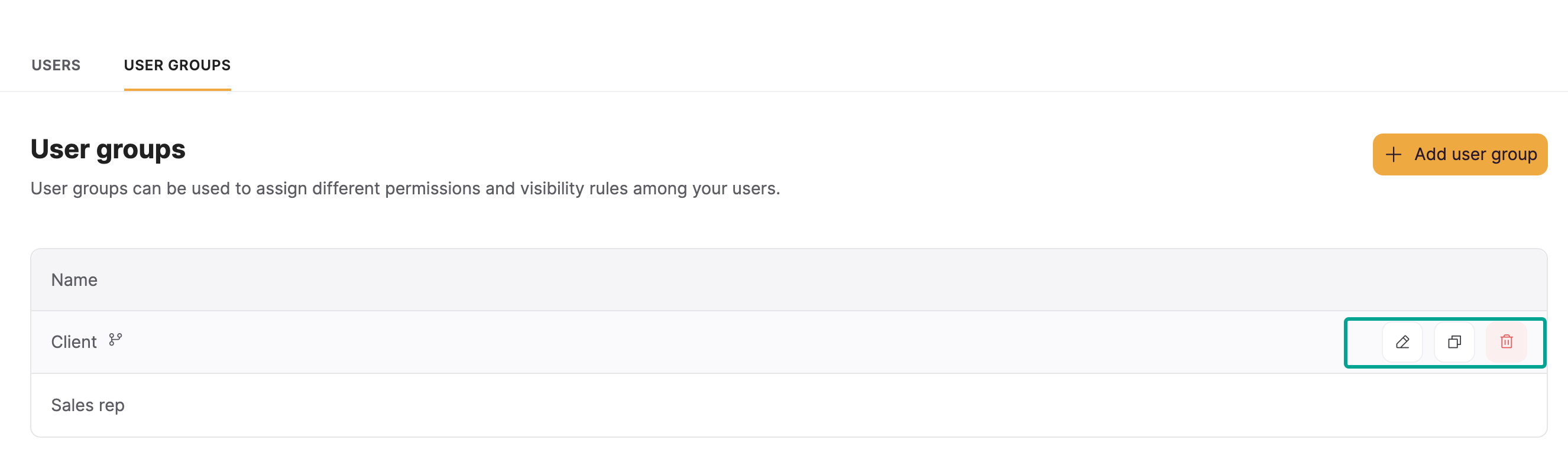
You can manage your user groups by navigating to Users > User Groups and hovering over relevant user group.
## Edit, duplicate, remove user group
You can manage your user groups by navigating to Users > User Groups and hovering over relevant user group.
 ## Security
Softr viability checks and record conditional filters are applied on the server side, and there is no way to trick the system. Learn more about [Softr App Security](/security/ummZ2CWNHXZCHzsZwbEwET/softr-app-security/1xC7Hgkvo67AnHKyebr1uC).
## Security
Softr viability checks and record conditional filters are applied on the server side, and there is no way to trick the system. Learn more about [Softr App Security](/security/ummZ2CWNHXZCHzsZwbEwET/softr-app-security/1xC7Hgkvo67AnHKyebr1uC).