> ## Documentation Index
> Fetch the complete documentation index at: https://docs.softr.io/llms.txt
> Use this file to discover all available pages before exploring further.
# Conditional Filters
> Setting up conditions to filter the list data.
The conditional filtering feature allows you to filter the list, as well as other dynamic blocks, based on the defined conditions.
Conditional filtering is also used when you want to display a main list of items, and upon selecting a specific item, show its details along with its associated sub-items. Learn about [Linked List](/building-blocks/vikC2AWEpQGkZd4jGyoVxo/linked-list/bWjTdKhbftofSEKRSxMFz9).
It's available through **Conditional Filters** in the block settings sidebar under the **Source** section.
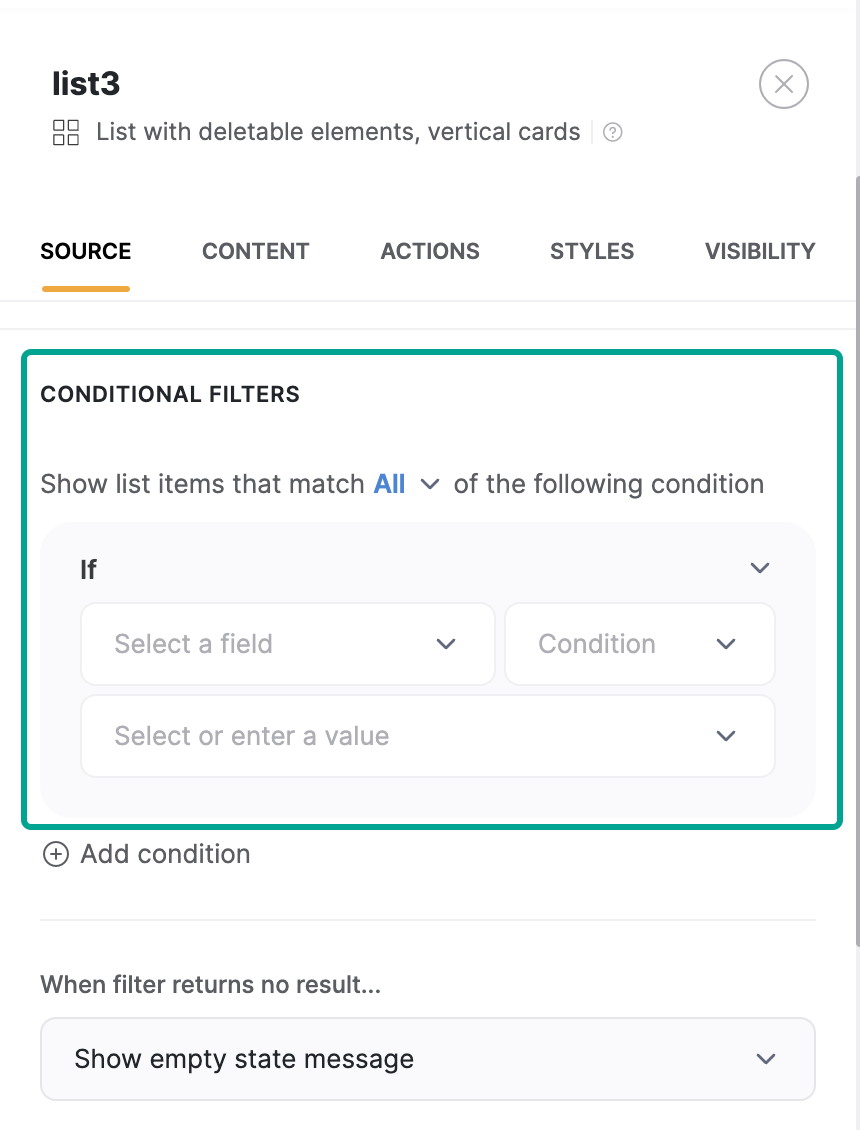 Now, let's see how it works.
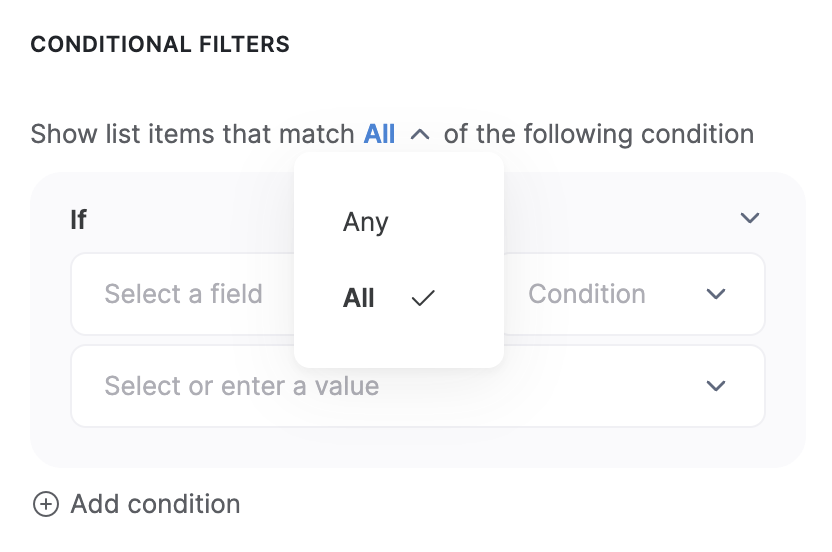
First of all, from the dropdown selector at the top, you can choose whether **any** or **all** of the defined conditions should be met for filtering the information.
Now, let's see how it works.
First of all, from the dropdown selector at the top, you can choose whether **any** or **all** of the defined conditions should be met for filtering the information.
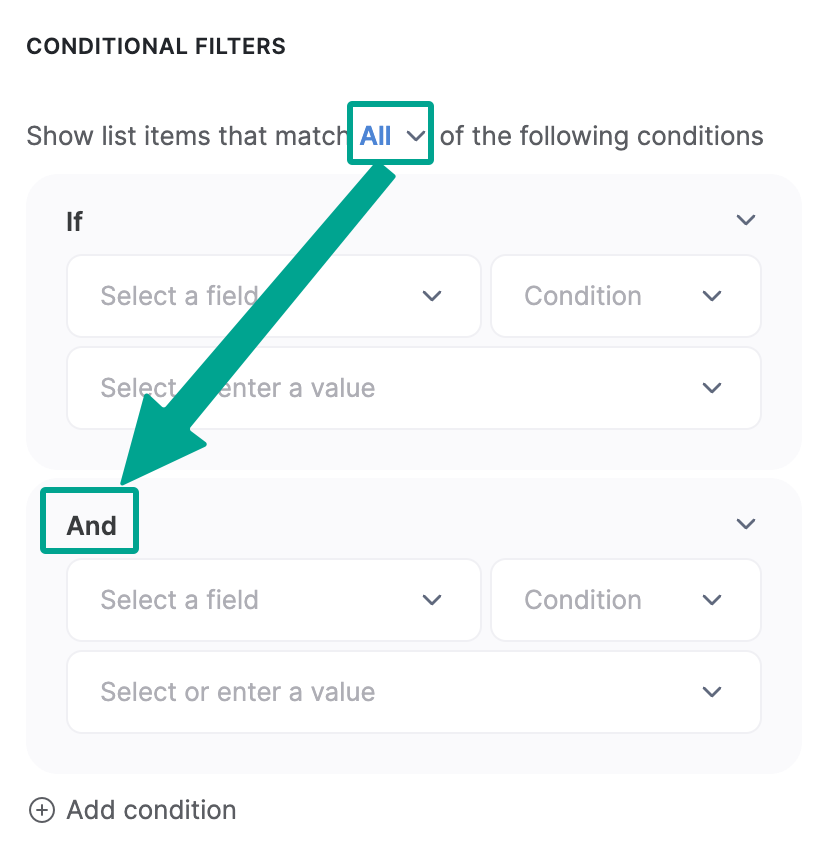
 Additional conditions can be joined with:
* AND (when "All" is selected)
* OR (when "Any" is selected)
Additional conditions can be joined with:
* AND (when "All" is selected)
* OR (when "Any" is selected)
 Moving on, let's see how the **Condition** is configured. There are three fields in **Condition Settings:**
## **1. Field**
Here, you need to select a field from the specified data source base, for which the condition will be defined.
## 2. Condition
Moving on, let's see how the **Condition** is configured. There are three fields in **Condition Settings:**
## **1. Field**
Here, you need to select a field from the specified data source base, for which the condition will be defined.
## 2. Condition
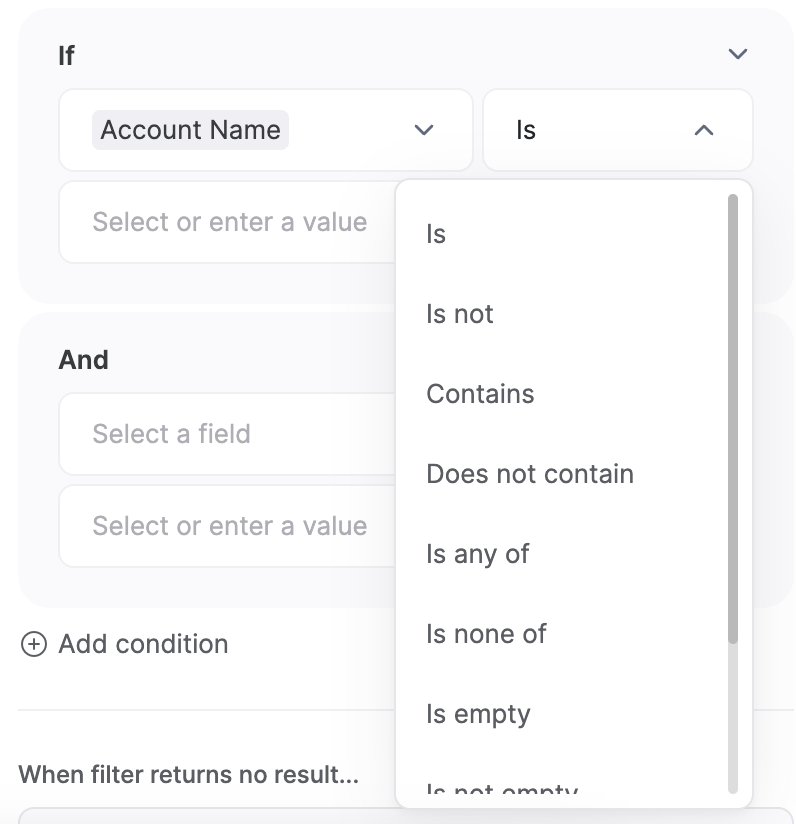 The following options are available for defining a relationship between the [Field](/building-blocks/vikC2AWEpQGkZd4jGyoVxo/list-block/pQhPYuA28VXr5tLLFBcbCU) and the [Value](/building-blocks/vikC2AWEpQGkZd4jGyoVxo/list-block/pQhPYuA28VXr5tLLFBcbCU).
**Text-like** **Fields**, e.g. emails, formulas, URLs, single select fields – can be used with the following available conditions:
* **Is** – the Field value needs to match the Valueexactly
* **Is not** – the Field value has any value apart from the Value
* **Contains** – the Field value partially matches the Value
* **Does not contain** - the Field value doesn’t partially match the Value. It checks if the given Value is not present within the Field value
* **Is any of** –the Field value is any of the Value(s). Multiple values can be added
* **Is none of** – the Field values have any other value apart from the Value(s). Multiple values can be added
* **Is empty** – the Field value is empty
* **Is not empty** – the Field value is not empty. Has some value
* **Starts with** – the Field value starts with the Value
* **Ends with** – the Field value ends with the Value
**Numeric Fields** can be used with the following available conditions:
* \=
* ≠
* \>
* \<
* ≥
* ≤
* Is between *(inclusive of min/max)*
* Is empty
* Is not empty
**Array-like Fields**, e.g. multi-select fields, linked records, tags, lookup fields can be used with the following available conditions:
* Includes any of
* Includes all of
* Includes exactly
* Includes none of
* Is empty
* Is not empty
**Boolean Fields**, e.g. checkbox fields:
* Is
* Is not
* Is empty
* Is not empty
At the moment Date fields can be used with the same conditions as Text-like Fields.
## 3. Value
Here, you have two options. Let's consider each one separately.
### Entering a specific value
You can enter a specific value for the selected field so that only the records having that value are displayed.
If the **value contains a space**, you'd need to copy it from somewhere else instead of typing it in.
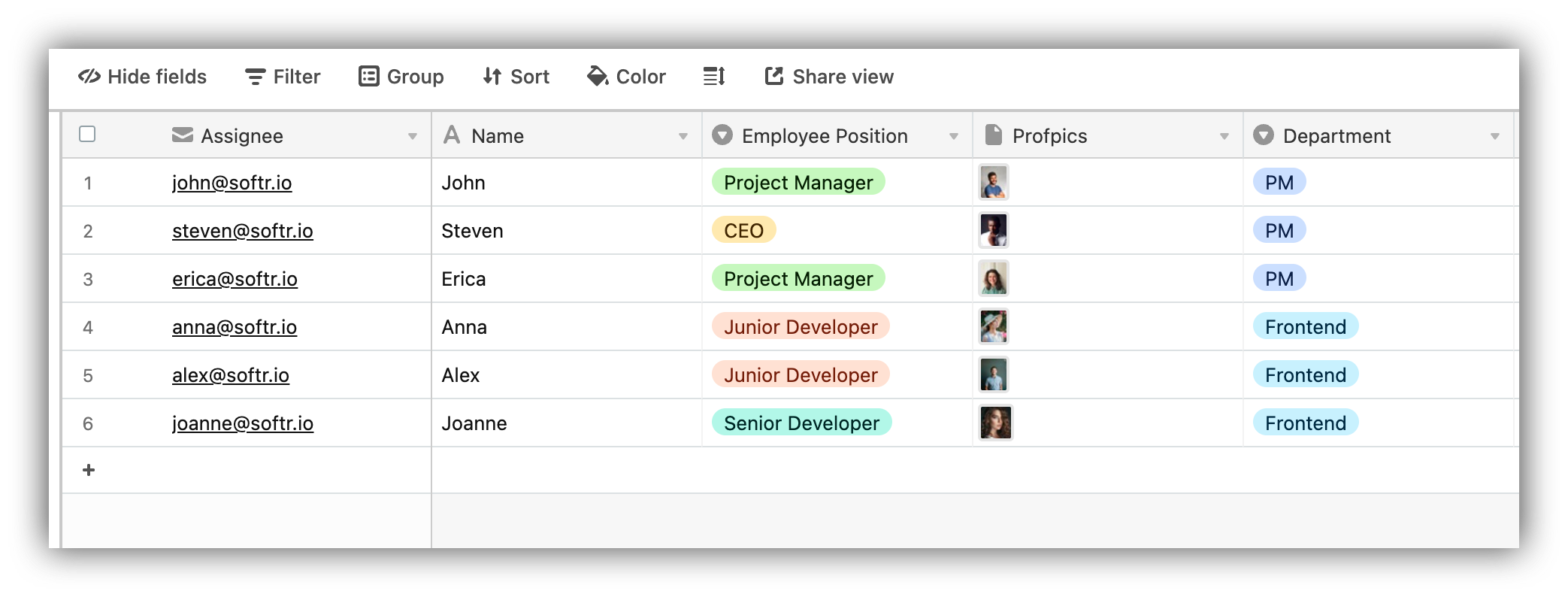
Let's say we have a list of employees in [Airtable](/data-sources/1YYStCJukT15Lh2j93qo9A/airtable/jHX7kfH7QvkVcELQvS3VoX) and want to display only the ones whose position is Project Manager.
The following options are available for defining a relationship between the [Field](/building-blocks/vikC2AWEpQGkZd4jGyoVxo/list-block/pQhPYuA28VXr5tLLFBcbCU) and the [Value](/building-blocks/vikC2AWEpQGkZd4jGyoVxo/list-block/pQhPYuA28VXr5tLLFBcbCU).
**Text-like** **Fields**, e.g. emails, formulas, URLs, single select fields – can be used with the following available conditions:
* **Is** – the Field value needs to match the Valueexactly
* **Is not** – the Field value has any value apart from the Value
* **Contains** – the Field value partially matches the Value
* **Does not contain** - the Field value doesn’t partially match the Value. It checks if the given Value is not present within the Field value
* **Is any of** –the Field value is any of the Value(s). Multiple values can be added
* **Is none of** – the Field values have any other value apart from the Value(s). Multiple values can be added
* **Is empty** – the Field value is empty
* **Is not empty** – the Field value is not empty. Has some value
* **Starts with** – the Field value starts with the Value
* **Ends with** – the Field value ends with the Value
**Numeric Fields** can be used with the following available conditions:
* \=
* ≠
* \>
* \<
* ≥
* ≤
* Is between *(inclusive of min/max)*
* Is empty
* Is not empty
**Array-like Fields**, e.g. multi-select fields, linked records, tags, lookup fields can be used with the following available conditions:
* Includes any of
* Includes all of
* Includes exactly
* Includes none of
* Is empty
* Is not empty
**Boolean Fields**, e.g. checkbox fields:
* Is
* Is not
* Is empty
* Is not empty
At the moment Date fields can be used with the same conditions as Text-like Fields.
## 3. Value
Here, you have two options. Let's consider each one separately.
### Entering a specific value
You can enter a specific value for the selected field so that only the records having that value are displayed.
If the **value contains a space**, you'd need to copy it from somewhere else instead of typing it in.
Let's say we have a list of employees in [Airtable](/data-sources/1YYStCJukT15Lh2j93qo9A/airtable/jHX7kfH7QvkVcELQvS3VoX) and want to display only the ones whose position is Project Manager.
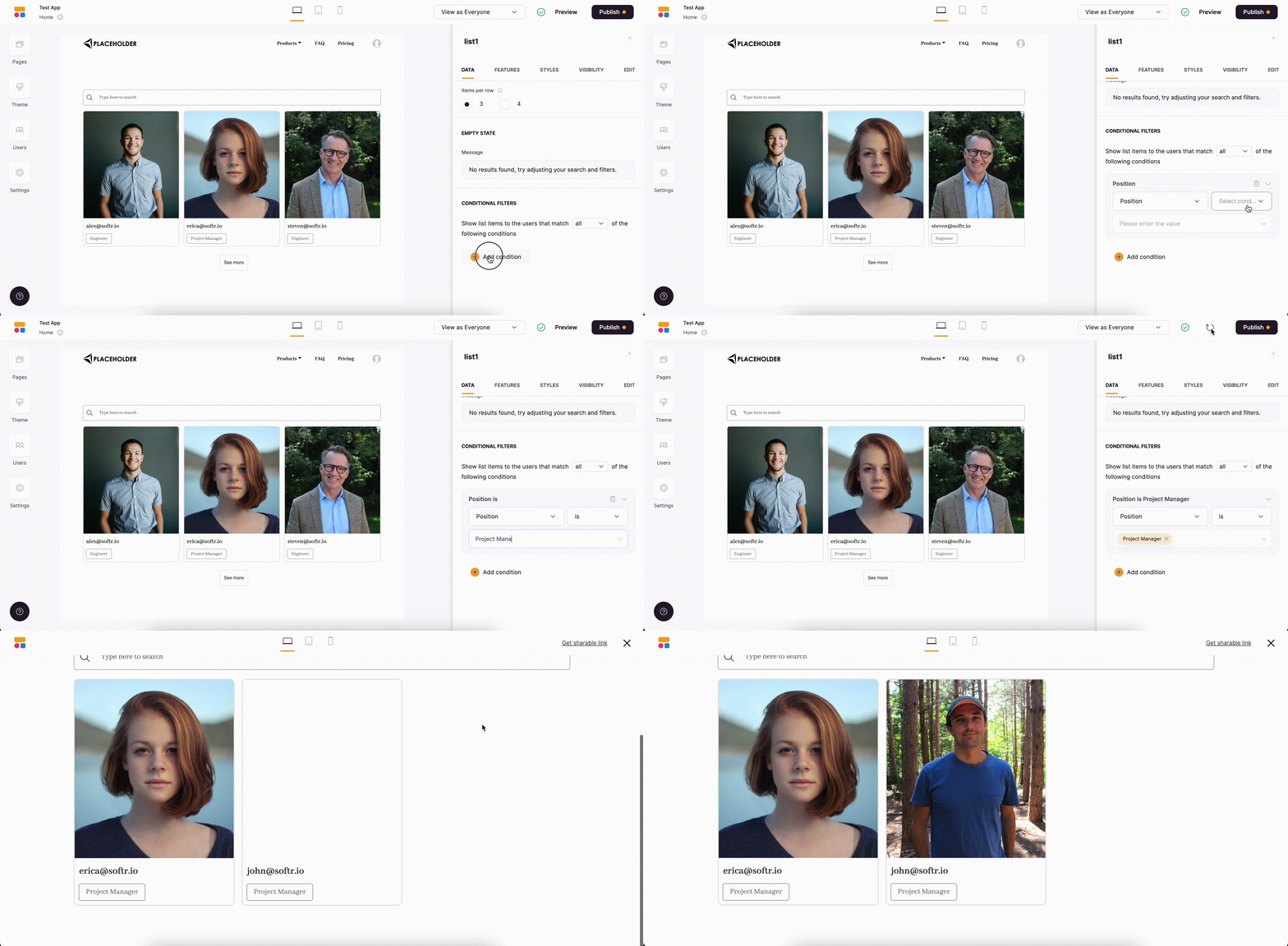
 Below you can see how we apply a conditional filter to show only the entries that meet this condition.
 ### **Using Logged-in user's parameters**
Using this option, you can set a condition to filter the list for each logged-in user personally, so that each user only sees entries related to him/her.
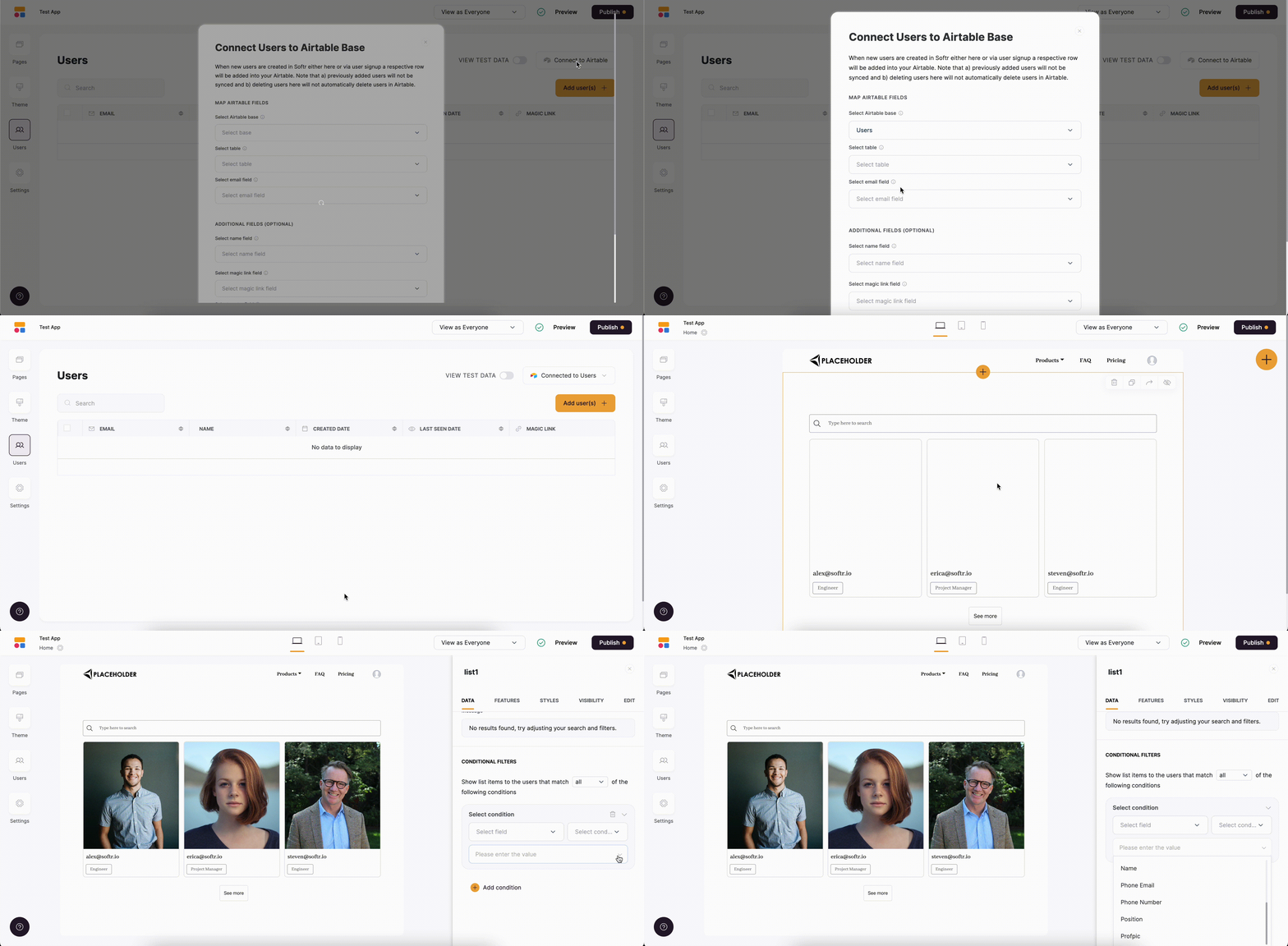
By default, you'll have user's **Email** and **Email-Domain** options here. However, if you've [connected users to a data source](/add-and-manage-users/pxnkp9H3qyEVMF6XUceqnj/syncing-users-with-a-data-source/hshRGygHr4T33EnaLntGf9), all the fields from the data source will also become available for your choice. Below, you can see how we add fields from the connected Airtable table.
### **Using Logged-in user's parameters**
Using this option, you can set a condition to filter the list for each logged-in user personally, so that each user only sees entries related to him/her.
By default, you'll have user's **Email** and **Email-Domain** options here. However, if you've [connected users to a data source](/add-and-manage-users/pxnkp9H3qyEVMF6XUceqnj/syncing-users-with-a-data-source/hshRGygHr4T33EnaLntGf9), all the fields from the data source will also become available for your choice. Below, you can see how we add fields from the connected Airtable table.
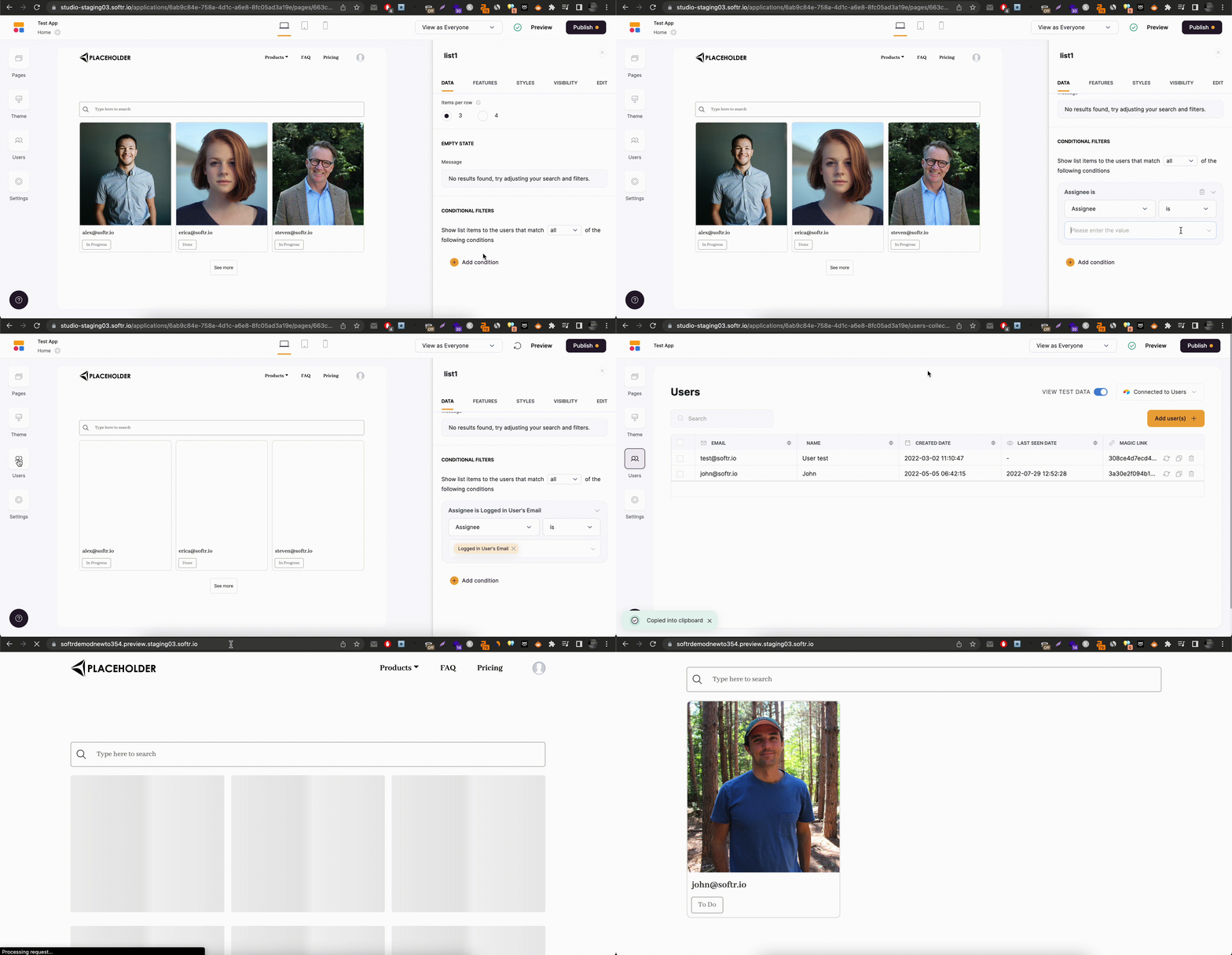
 Let's consider a specific example to make it clear how this works and in which cases it can be applied. Let's imagine you have a task list on [Airtable](/data-sources/1YYStCJukT15Lh2j93qo9A/airtable/jHX7kfH7QvkVcELQvS3VoX) with such fields as **Assignee, Description, and Status**. The **Assignee** field contains the emails of the users to which the task is assigned.
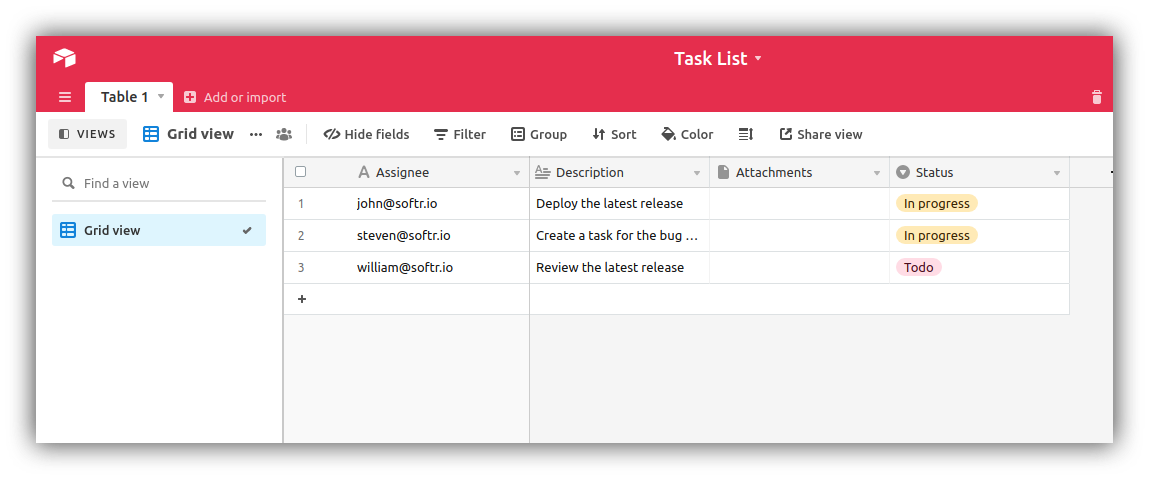 To be able to view their tasks, the users need to log into the system and navigate to the page with the list. However, you want each user to see only his/her tasks, and that can be achieved with a single condition. In **Condition Settings** we are going to set the **Field** to **Assignee** and **Action** to **Logged in User's Email**. This way the logged in user will only see those entries of the list, where the **Assignee** field corresponds to his/her email address. The below GIF illustrates this.
 That's it. This way, you can set a condition for any of the fields in your list and filter the list accordingly for your logged in users.
More attributes will be added soon to allow for more advanced filtering based on additional user attributes such as user roles, statuses, and so on.
Now, let’s consider some specific value use cases to see how you can handle them.
### Use Case: **Using a Checkbox field in a Conditional Filter**
Airtable has a Checkbox field type which you might want to use in a conditional filter.
The list block doesn't have a Checkbox field type (the [Table](/building-blocks/vikC2AWEpQGkZd4jGyoVxo/table-block-/j7rGwu7J7zuU69h3bZ7HFe) block has it though), but you can still use it in a conditional filter (if you have it on Airtable) even without displaying it.
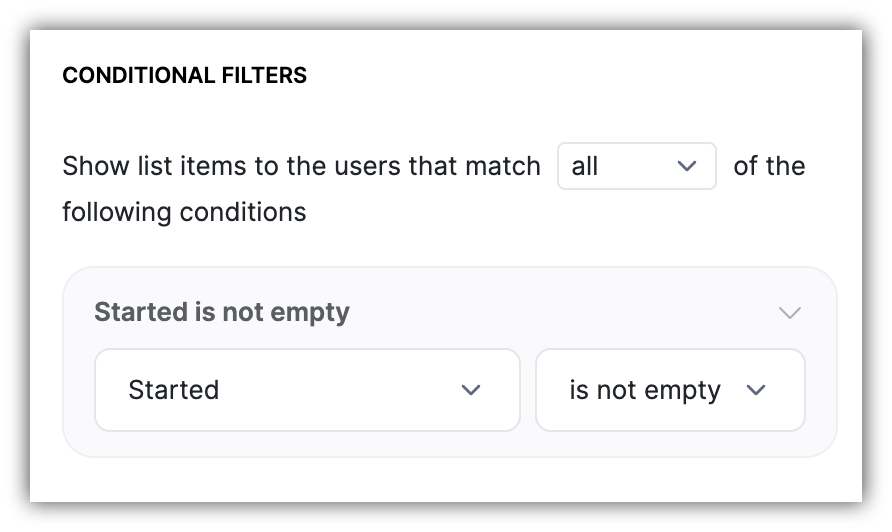
If you want to display the records that have the checkbox checked, you can use the **is not empty** condition as shown below. And vice versa, if you want to filter the unchecked records, you can use the **is empty** condition.
That's it. This way, you can set a condition for any of the fields in your list and filter the list accordingly for your logged in users.
More attributes will be added soon to allow for more advanced filtering based on additional user attributes such as user roles, statuses, and so on.
Now, let’s consider some specific value use cases to see how you can handle them.
### Use Case: **Using a Checkbox field in a Conditional Filter**
Airtable has a Checkbox field type which you might want to use in a conditional filter.
The list block doesn't have a Checkbox field type (the [Table](/building-blocks/vikC2AWEpQGkZd4jGyoVxo/table-block-/j7rGwu7J7zuU69h3bZ7HFe) block has it though), but you can still use it in a conditional filter (if you have it on Airtable) even without displaying it.
If you want to display the records that have the checkbox checked, you can use the **is not empty** condition as shown below. And vice versa, if you want to filter the unchecked records, you can use the **is empty** condition.
 ## Security
Softr viability checks and record conditional filters are applied on the server side, and there is no way to trick the system. Learn more about [Softr App Security](/security/ummZ2CWNHXZCHzsZwbEwET/softr-app-security/1xC7Hgkvo67AnHKyebr1uC).
## Security
Softr viability checks and record conditional filters are applied on the server side, and there is no way to trick the system. Learn more about [Softr App Security](/security/ummZ2CWNHXZCHzsZwbEwET/softr-app-security/1xC7Hgkvo67AnHKyebr1uC).