> ## Documentation Index
> Fetch the complete documentation index at: https://docs.softr.io/llms.txt
> Use this file to discover all available pages before exploring further.
# Tutorial: How to set up a custom domain for Namecheap
> Connect a Namecheap domain to your Softr app.
Custom domain and extra custom domain slots depend on the subscription plan. See [plan comparison](https://www.softr.io/pricing).
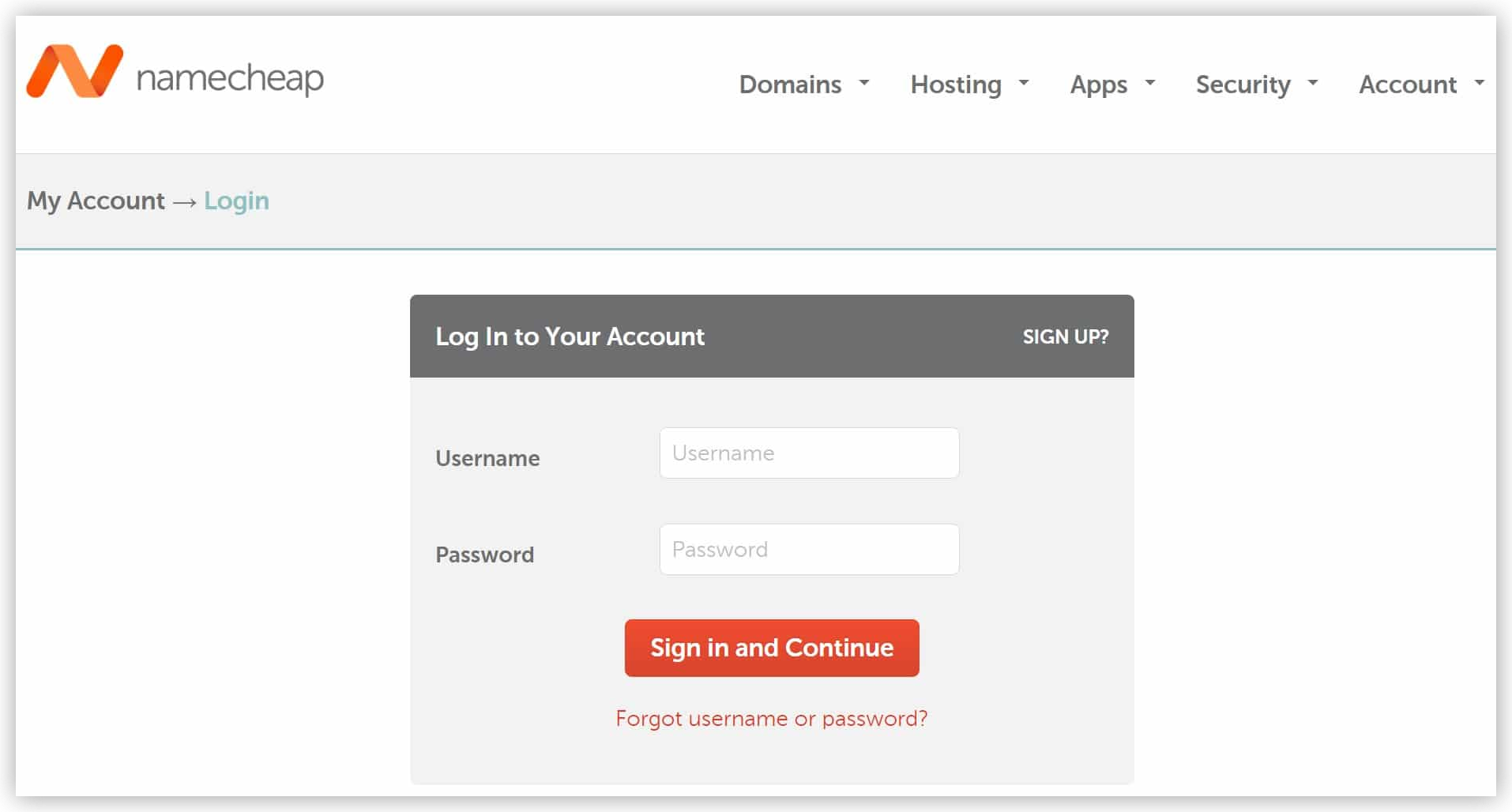
First, log in to your [Namecheap account dashboard](https://www.namecheap.com/myaccount/login/).
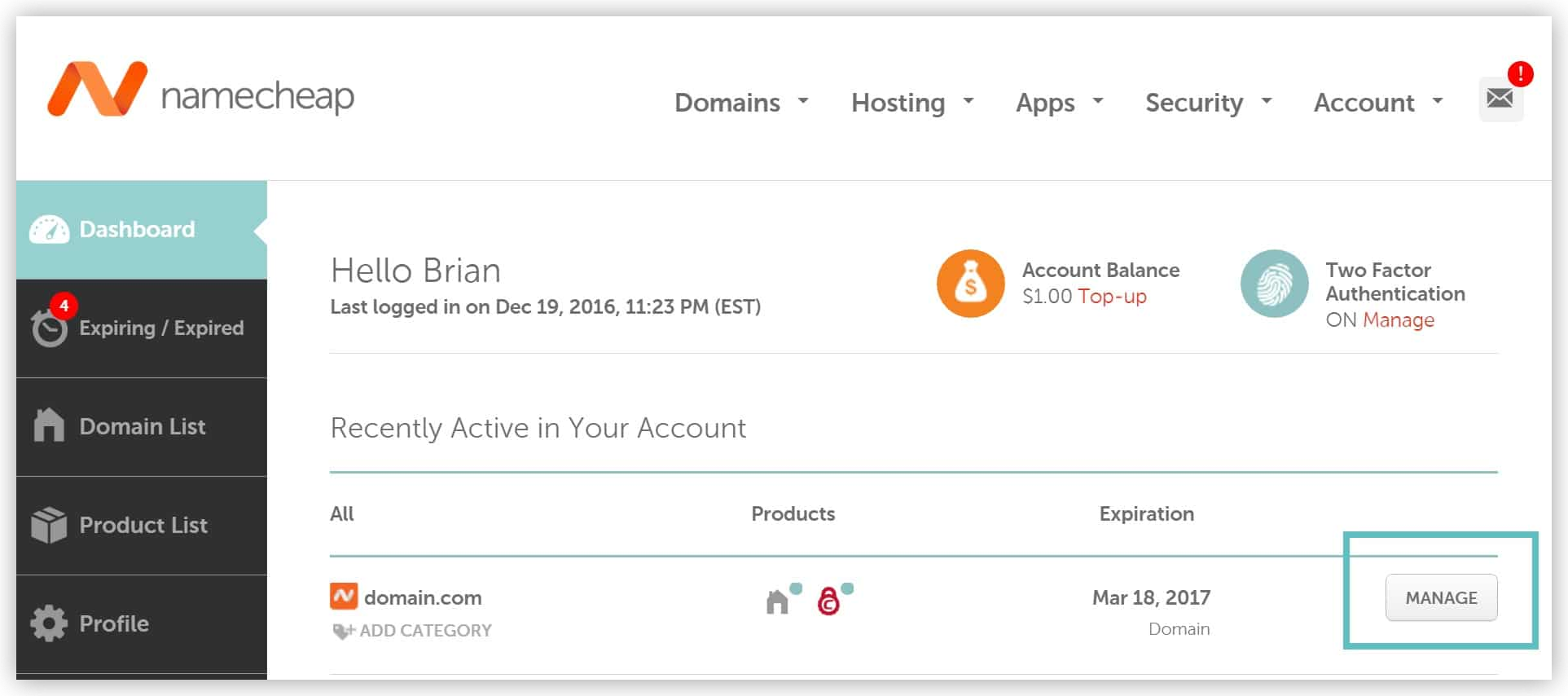
 Next to the domain you want to point to Softr, click on **“Manage”**.
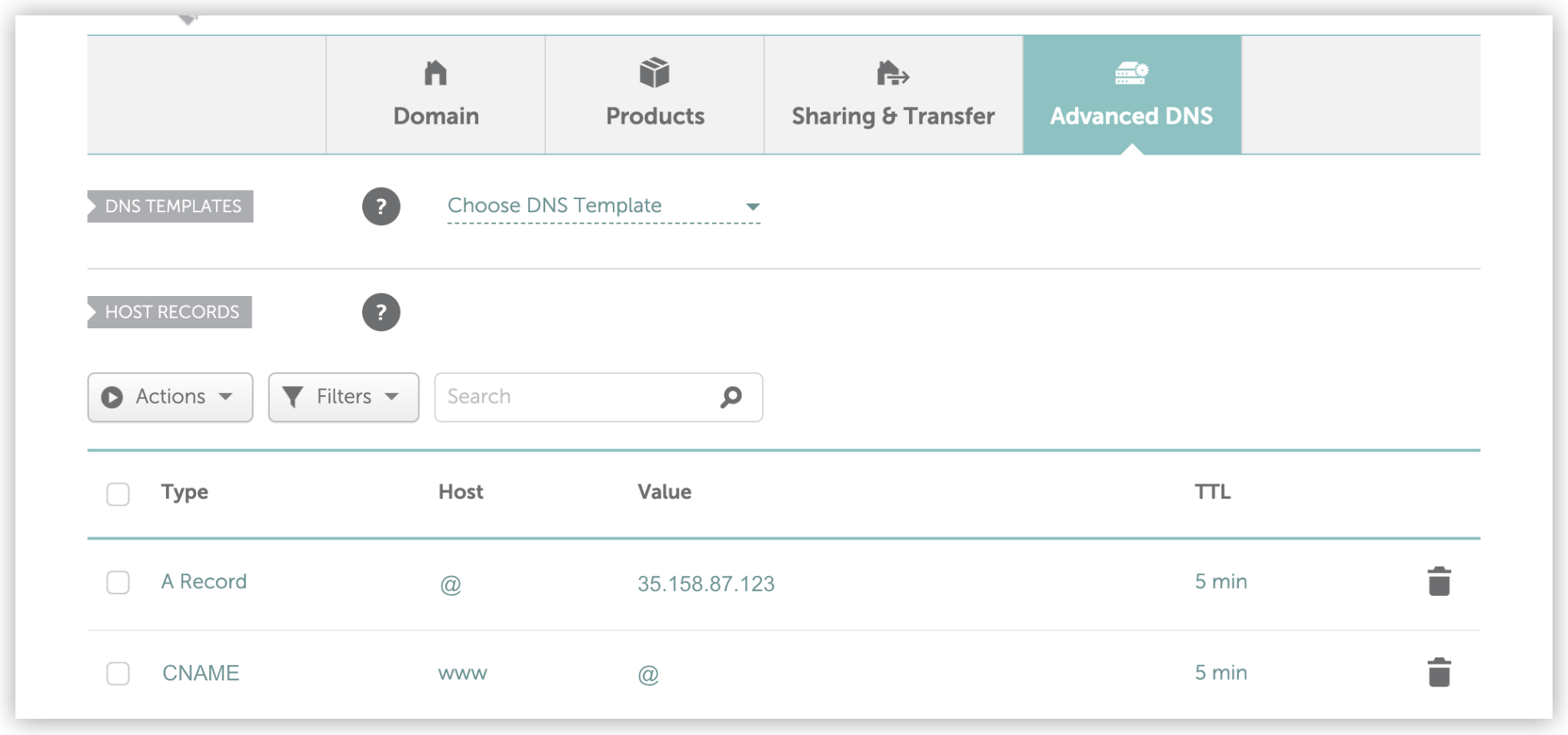
 Click into the **“Advanced DNS”** tab. If you see **CNAME Record** and **URL Redirect Record** with parkingpage.namecheap like values please delete them.
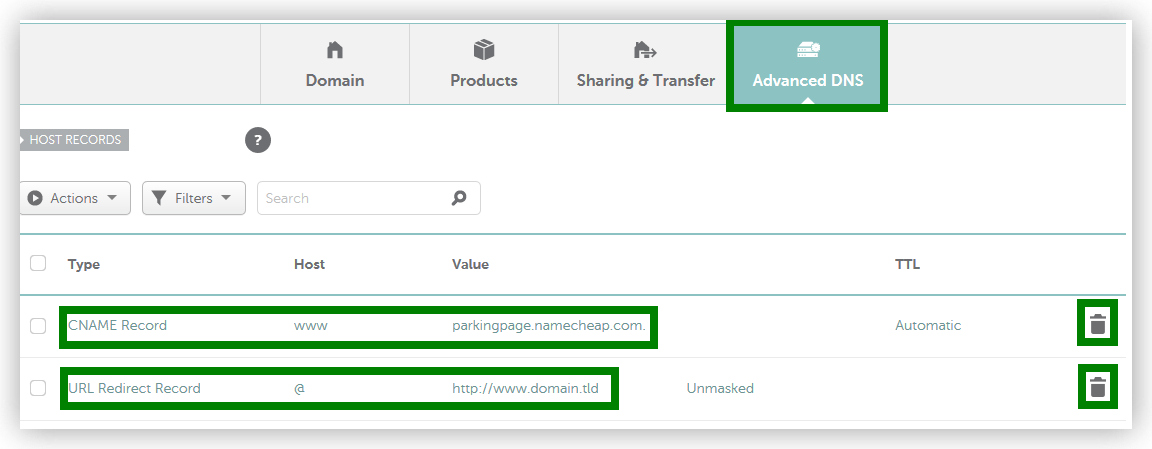 If your screen doesn’t look like the image above, it’s most likely because you have your DNS pointed elsewhere. In other words, to create DNS records at Namecheap, you need to be using **“Namecheap BasicDNS”** which is included with every domain. You can check by going into the **“Domain”** tab.
Click into the **“Advanced DNS”** tab and then click on “**Add New Record”.** If you see an A Record that already exists you will simply need to edit it (skip to the next step).
If your screen doesn’t look like the image above, it’s most likely because you have your DNS pointed elsewhere. In other words, to create DNS records at Namecheap, you need to be using **“Namecheap BasicDNS”** which is included with every domain. You can check by going into the **“Domain”** tab.
Click into the **“Advanced DNS”** tab and then click on “**Add New Record”.** If you see an A Record that already exists you will simply need to edit it (skip to the next step).
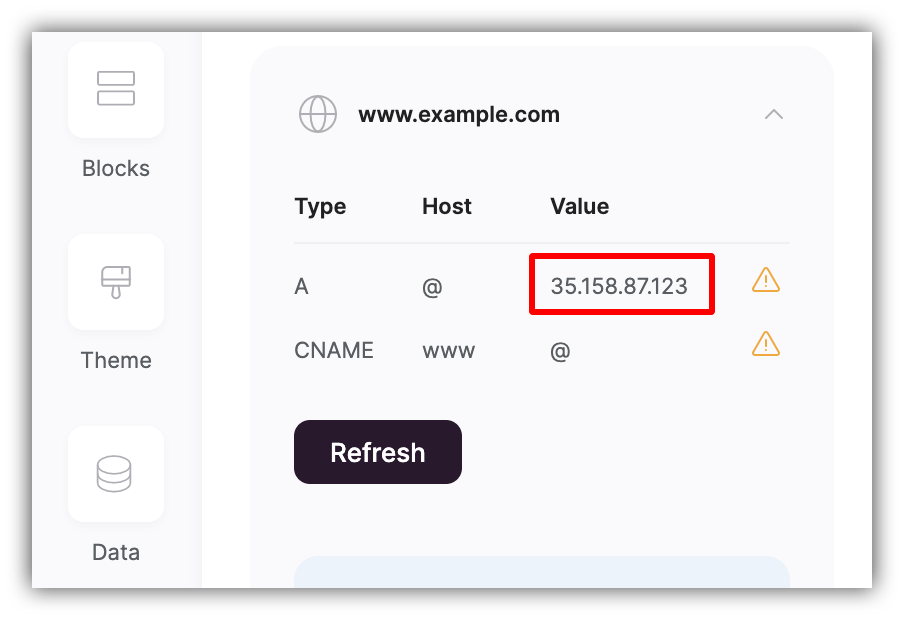
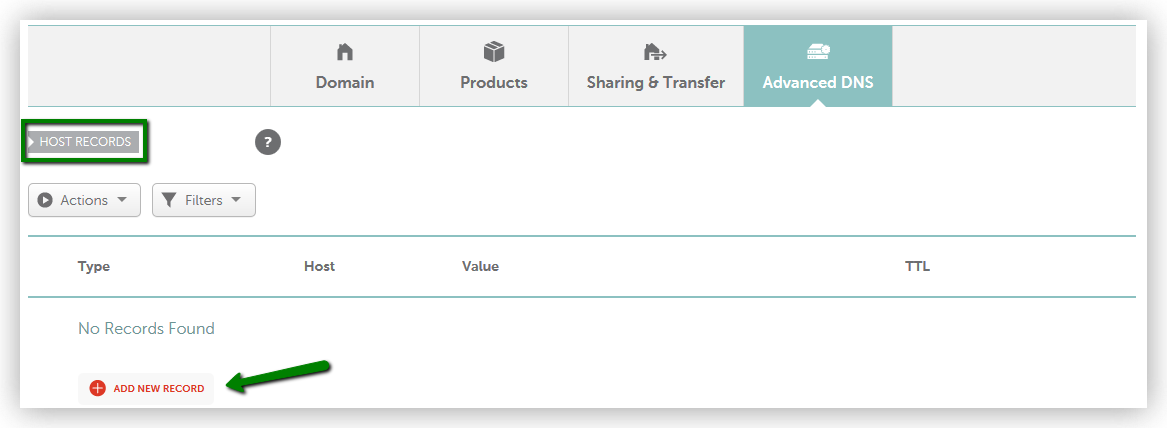 You will need to create an **A record** (with **@**)and a **CNAME** (with **www**)as well input the **IP address** provided by us (from **Settings => Custom Domain** in Softr Studio), as shown below.