> ## Documentation Index
> Fetch the complete documentation index at: https://docs.softr.io/llms.txt
> Use this file to discover all available pages before exploring further.
# Softr SEO Checklist
> Key steps for optimizing your app and tracking results.
Softr has all the features that you need to optimize your application for search engines as well as monitor traffic, conversions, and more. Here’s a list of some of the key things you should consider for your Softr app in terms of SEO (Search Engine Optimization).
## 1. Tracking and reporting
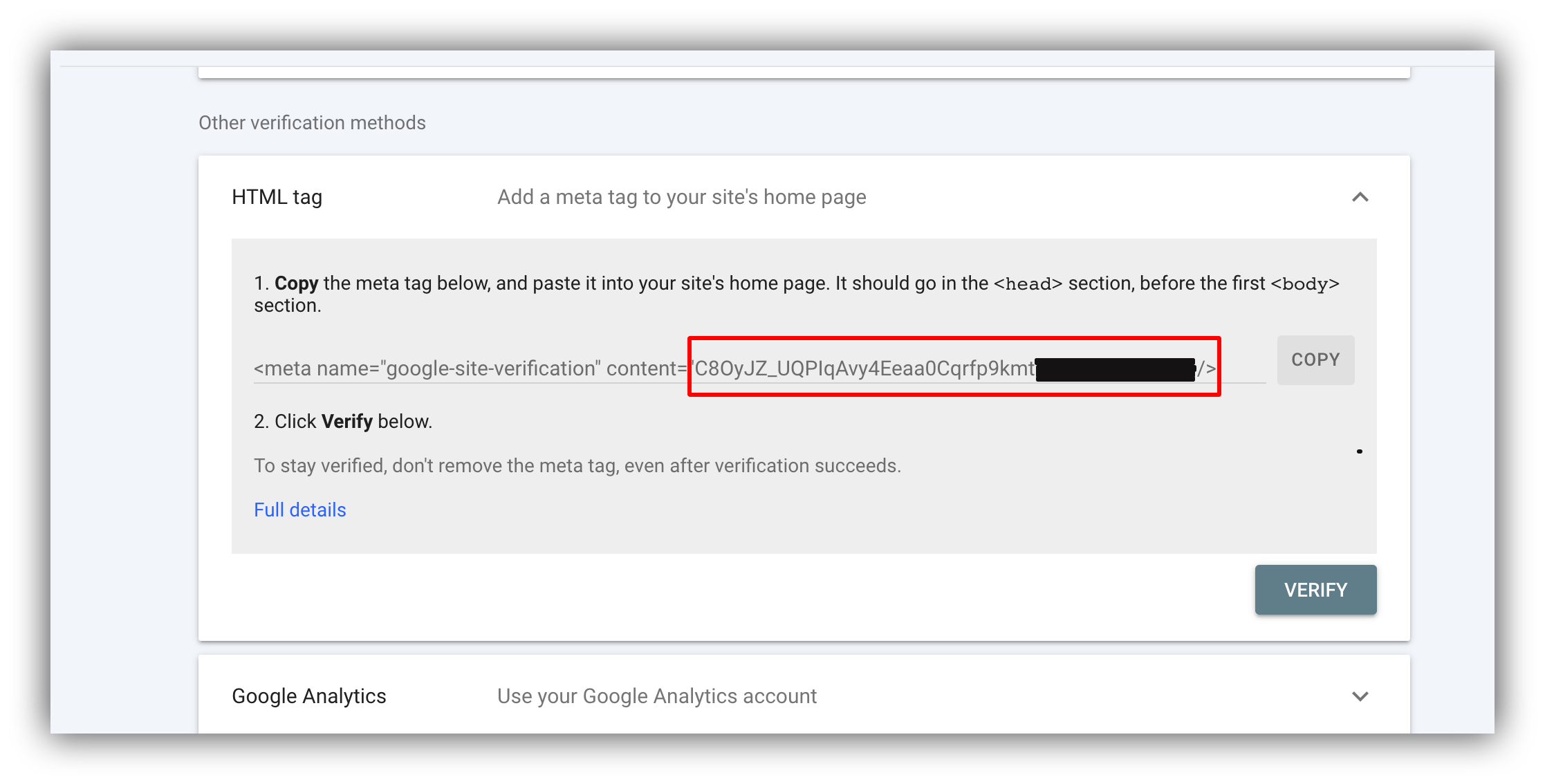
[Google Search Console](https://search.google.com/search-console/about) is an essential tool for measuring your site performance as well as detecting issues. To set it up, go to your Google Search Console dashboard, navigate to **Settings => Ownership Verification,** choose the **HTML tag** option, and copy the value of **content** as shown below.
 Next, navigate to your [Softr app’s settings](/application-settings/n3K2UEfpC9BpHgakMzUU5Y/general-settings/7YdGy1J8X2tjJSv8BGvWQU) and paste the tag under **Google Site Verification**. Hit **Save** and [publish your app](/publishing/9qTmU2Lj8Gnpr1Ue6dEAkX/publishing-your-softr-app/gRrb1u7eLmRTrXyg3UNGkQ), and you’re done.
Additionally, Softr offers integrations with such user analytics tools as [Google Analytics](/integrations/etS18kJqm1fuD58KCsjC3z/google-analytics/qt63nJLpVoXh7oyxJUVZL4), [Google Tag Manager,](/integrations/etS18kJqm1fuD58KCsjC3z/google-tag-manager/xn8tKtdvHywro9AipL7r53) and [Microsoft Clarity](/integrations/etS18kJqm1fuD58KCsjC3z/microsoft-clarity/dG1NQn87tXYYoJv7GRchym).
## 2. Page SEO
In page settings, you can configure **SEO Title and Description** to specify how your page appears in search results.
Next, navigate to your [Softr app’s settings](/application-settings/n3K2UEfpC9BpHgakMzUU5Y/general-settings/7YdGy1J8X2tjJSv8BGvWQU) and paste the tag under **Google Site Verification**. Hit **Save** and [publish your app](/publishing/9qTmU2Lj8Gnpr1Ue6dEAkX/publishing-your-softr-app/gRrb1u7eLmRTrXyg3UNGkQ), and you’re done.
Additionally, Softr offers integrations with such user analytics tools as [Google Analytics](/integrations/etS18kJqm1fuD58KCsjC3z/google-analytics/qt63nJLpVoXh7oyxJUVZL4), [Google Tag Manager,](/integrations/etS18kJqm1fuD58KCsjC3z/google-tag-manager/xn8tKtdvHywro9AipL7r53) and [Microsoft Clarity](/integrations/etS18kJqm1fuD58KCsjC3z/microsoft-clarity/dG1NQn87tXYYoJv7GRchym).
## 2. Page SEO
In page settings, you can configure **SEO Title and Description** to specify how your page appears in search results.
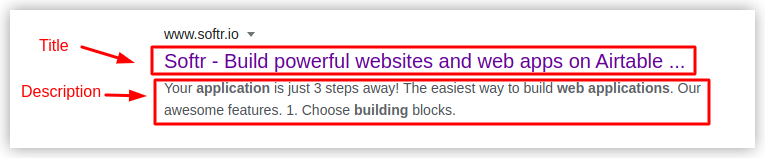 You need to make sure that your title and description fit the character limit. Google typically displays the first 50–60 characters of a title tag. Descriptions are limited to about 155 characters for desktop search and 120 characters for mobile search. There are also online tools such as [Mangool’s SERP Simulator](https://mangools.com/free-seo-tools/serp-simulator) that can help you with this.
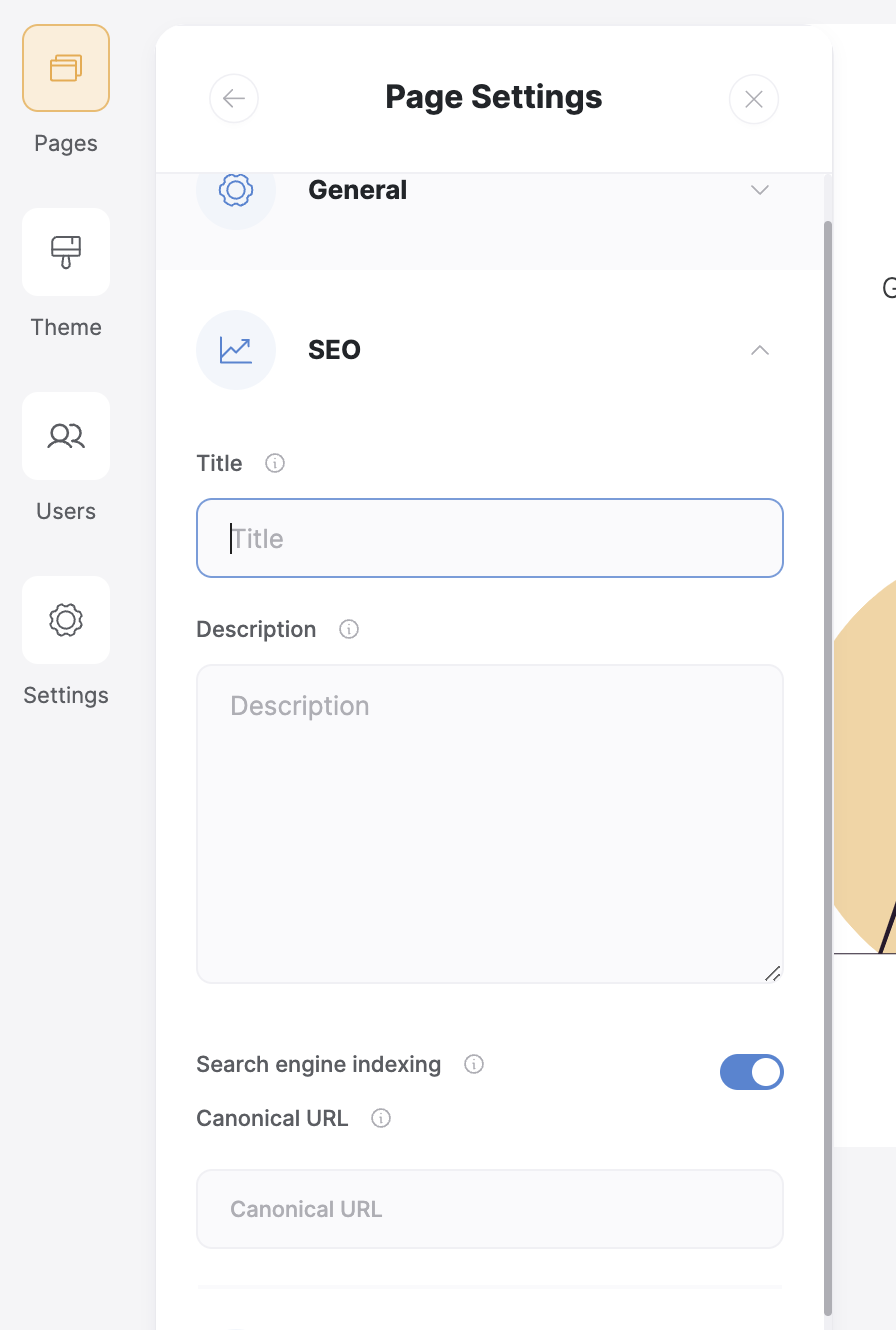 Further on, you can control your page’s [indexing](https://growhackscale.com/glossary/indexing-seo#:~:text=What%20Is%20Indexing%20in%20SEO,to%20be%20displayed%20in%20SERPs.) as well as add a [Canonical URL](https://moz.com/learn/seo/canonicalization).
To see which pages on your site are in the Google index, you can do a Google Web Search for "site:mywebsite.com."
To speed up indexing your new website on Google, submit your sitemap in Search Console's [Sitemaps report](https://support.google.com/webmasters/answer/7451001). Softr creates your sitemap automatically, available at **yourdomain.com/sitemap.xml.**
## 3. Using the Custom Code section
There is a **Custom Code** section in every [page’s settings](/0392ff65acfe4b1c96923c1aac7982f7) as well as in your app’s [general settings](/application-settings/n3K2UEfpC9BpHgakMzUU5Y/general-settings/7YdGy1J8X2tjJSv8BGvWQU). You can use it to add any sort of HTML or JavaScript (e.g. to integrate third-party tools that are not on the list of Softr’s integrations).
In particular, you can use the Custom Code section to add [structured data](https://developers.google.com/search/docs/appearance/structured-data/intro-structured-data) in order to assist search engines in reading and categorizing the information on your page.
## 4. URL redirects
When we move pages to new destinations or delete them, it’s a common practice to apply a redirect from the obsolete URL to a new one to let users find the page, avoid 404 not found errors, forward the authority of the page to the new destination, and more. Using the **URL Redirects** feature in your [app settings](/application-settings/n3K2UEfpC9BpHgakMzUU5Y/general-settings/7YdGy1J8X2tjJSv8BGvWQU), you can apply a redirect to any path on your app.
## 5. List Details SEO setup
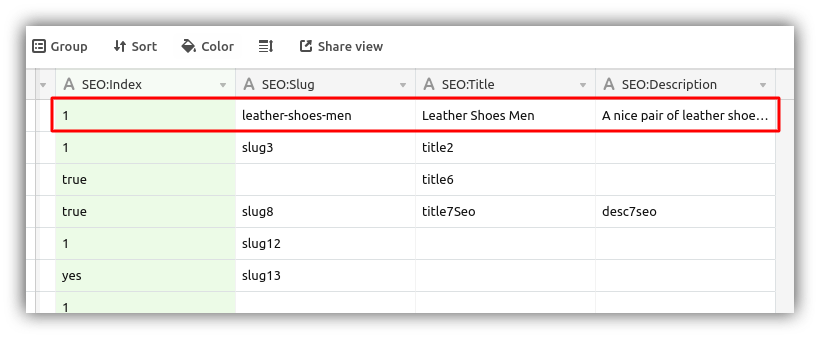
The [List Details block](/building-blocks/vikC2AWEpQGkZd4jGyoVxo/item-details-block-/4bE8XaFbJp45wkAwuWiz8f) works together with the [List block](/building-blocks/vikC2AWEpQGkZd4jGyoVxo/list-block/pQhPYuA28VXr5tLLFBcbCU) to display details for each item in the database. Since the List Details block occupies a single page on your Softr app and displays each database record’s details on the same page dynamically, you can’t really specify SEO parameters for each record using page settings. Therefore, Softr lets you configure SEO settings directly inside your [data source](/4230abecf813402aa2926466c313290a). Learn more on that [here](/building-blocks/vikC2AWEpQGkZd4jGyoVxo/item-details-block-/4bE8XaFbJp45wkAwuWiz8f).
Further on, you can control your page’s [indexing](https://growhackscale.com/glossary/indexing-seo#:~:text=What%20Is%20Indexing%20in%20SEO,to%20be%20displayed%20in%20SERPs.) as well as add a [Canonical URL](https://moz.com/learn/seo/canonicalization).
To see which pages on your site are in the Google index, you can do a Google Web Search for "site:mywebsite.com."
To speed up indexing your new website on Google, submit your sitemap in Search Console's [Sitemaps report](https://support.google.com/webmasters/answer/7451001). Softr creates your sitemap automatically, available at **yourdomain.com/sitemap.xml.**
## 3. Using the Custom Code section
There is a **Custom Code** section in every [page’s settings](/0392ff65acfe4b1c96923c1aac7982f7) as well as in your app’s [general settings](/application-settings/n3K2UEfpC9BpHgakMzUU5Y/general-settings/7YdGy1J8X2tjJSv8BGvWQU). You can use it to add any sort of HTML or JavaScript (e.g. to integrate third-party tools that are not on the list of Softr’s integrations).
In particular, you can use the Custom Code section to add [structured data](https://developers.google.com/search/docs/appearance/structured-data/intro-structured-data) in order to assist search engines in reading and categorizing the information on your page.
## 4. URL redirects
When we move pages to new destinations or delete them, it’s a common practice to apply a redirect from the obsolete URL to a new one to let users find the page, avoid 404 not found errors, forward the authority of the page to the new destination, and more. Using the **URL Redirects** feature in your [app settings](/application-settings/n3K2UEfpC9BpHgakMzUU5Y/general-settings/7YdGy1J8X2tjJSv8BGvWQU), you can apply a redirect to any path on your app.
## 5. List Details SEO setup
The [List Details block](/building-blocks/vikC2AWEpQGkZd4jGyoVxo/item-details-block-/4bE8XaFbJp45wkAwuWiz8f) works together with the [List block](/building-blocks/vikC2AWEpQGkZd4jGyoVxo/list-block/pQhPYuA28VXr5tLLFBcbCU) to display details for each item in the database. Since the List Details block occupies a single page on your Softr app and displays each database record’s details on the same page dynamically, you can’t really specify SEO parameters for each record using page settings. Therefore, Softr lets you configure SEO settings directly inside your [data source](/4230abecf813402aa2926466c313290a). Learn more on that [here](/building-blocks/vikC2AWEpQGkZd4jGyoVxo/item-details-block-/4bE8XaFbJp45wkAwuWiz8f).
 ## 6. Internal and External linking
Both external and internal links help search engines understand what your page is about and how the pages on your site are related to one another.
If you’re using the Simple Text block to add text to your app, you can easily add hyperlinks through the text editor.
## 6. Internal and External linking
Both external and internal links help search engines understand what your page is about and how the pages on your site are related to one another.
If you’re using the Simple Text block to add text to your app, you can easily add hyperlinks through the text editor.
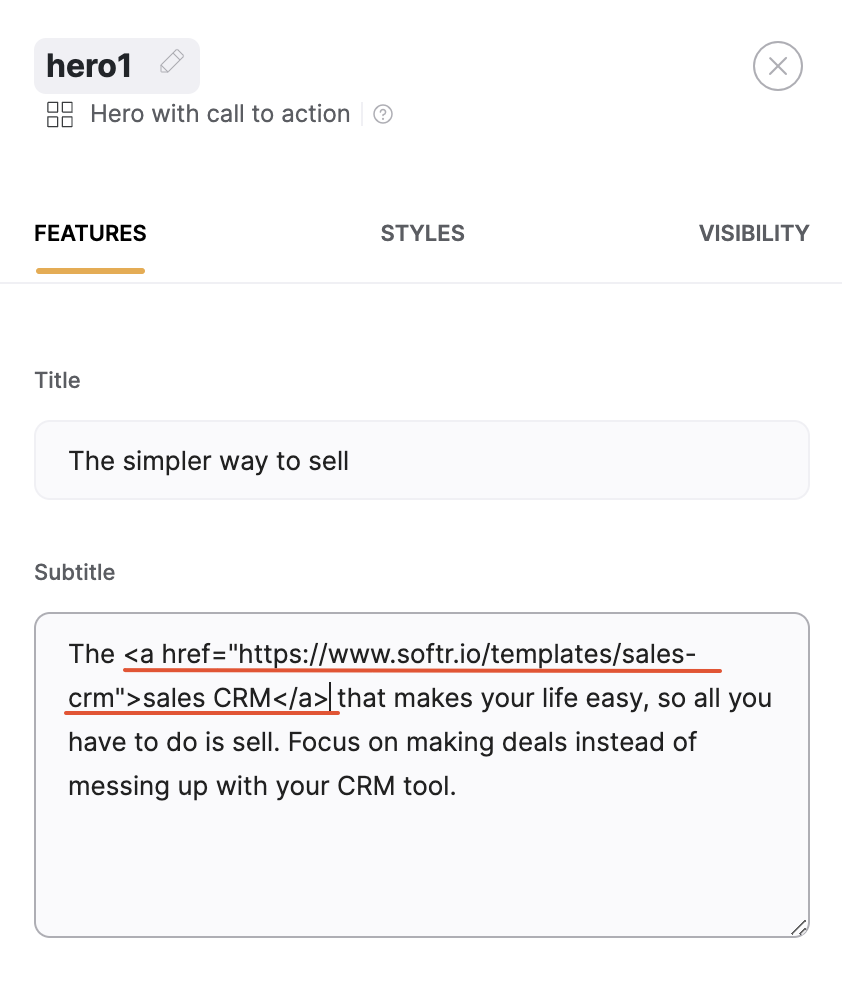
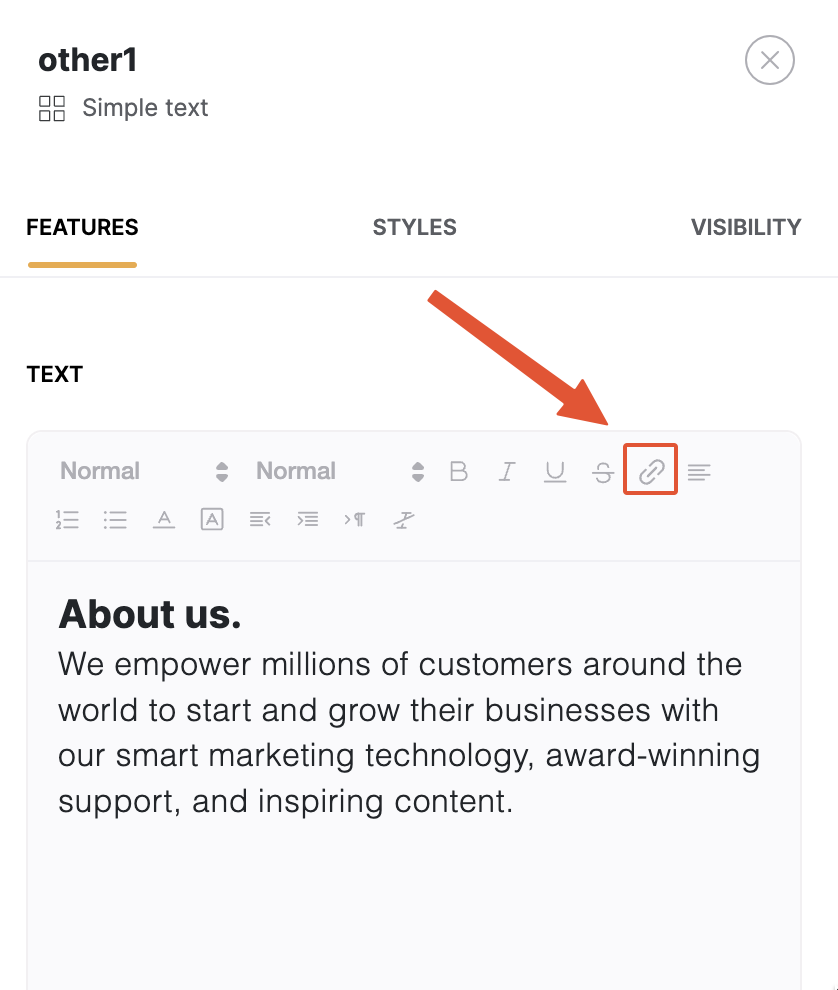 If you’re using another block type that doesn’t have a link option for text, you can simply add an **HTML {""} tag** inside the text. The following screenshot illustrates this on the example of a [Hero block](/building-blocks/vikC2AWEpQGkZd4jGyoVxo/hero/avyLWEvNZNUqYewF51kMLA).