> ## Documentation Index
> Fetch the complete documentation index at: https://docs.softr.io/llms.txt
> Use this file to discover all available pages before exploring further.
# Stripe Customer Portal
> Allow your users to manage their payment info through the Stripe Customer Portal.
Using this block, you can enable your Softr app users to access their personal portal on Stripe to manage their purchases/subscriptions and payment info. To start with, you need to integrate your Stripe account with your Softr app (find out more details on that [here](/integrations/etS18kJqm1fuD58KCsjC3z/stripe-checkout/iBomMEucRZtM2y6HuutYVC)). Next, you should configure your **Stripe Customer Portal** in your Stripe account. Let's see how that's done.
## Configuring Stripe Customer Portal
To access customer portal settings, you need to navigate to **Settings => Billing => Customer Portal** on your Stripe dashboard. Here you can specify what actions your customer should have access to (e.g. Cancel a subscription, Edit payment method, etc.). We won't go into details here, as you can learn more through Stripe [help docs](https://stripe.com/docs/billing/subscriptions/integrating-customer-portal). Just make sure to hit **Save** after making the changes.
Now, let's see how you can provide your customers with access to the portal.
## Setting up the portal block on Softr
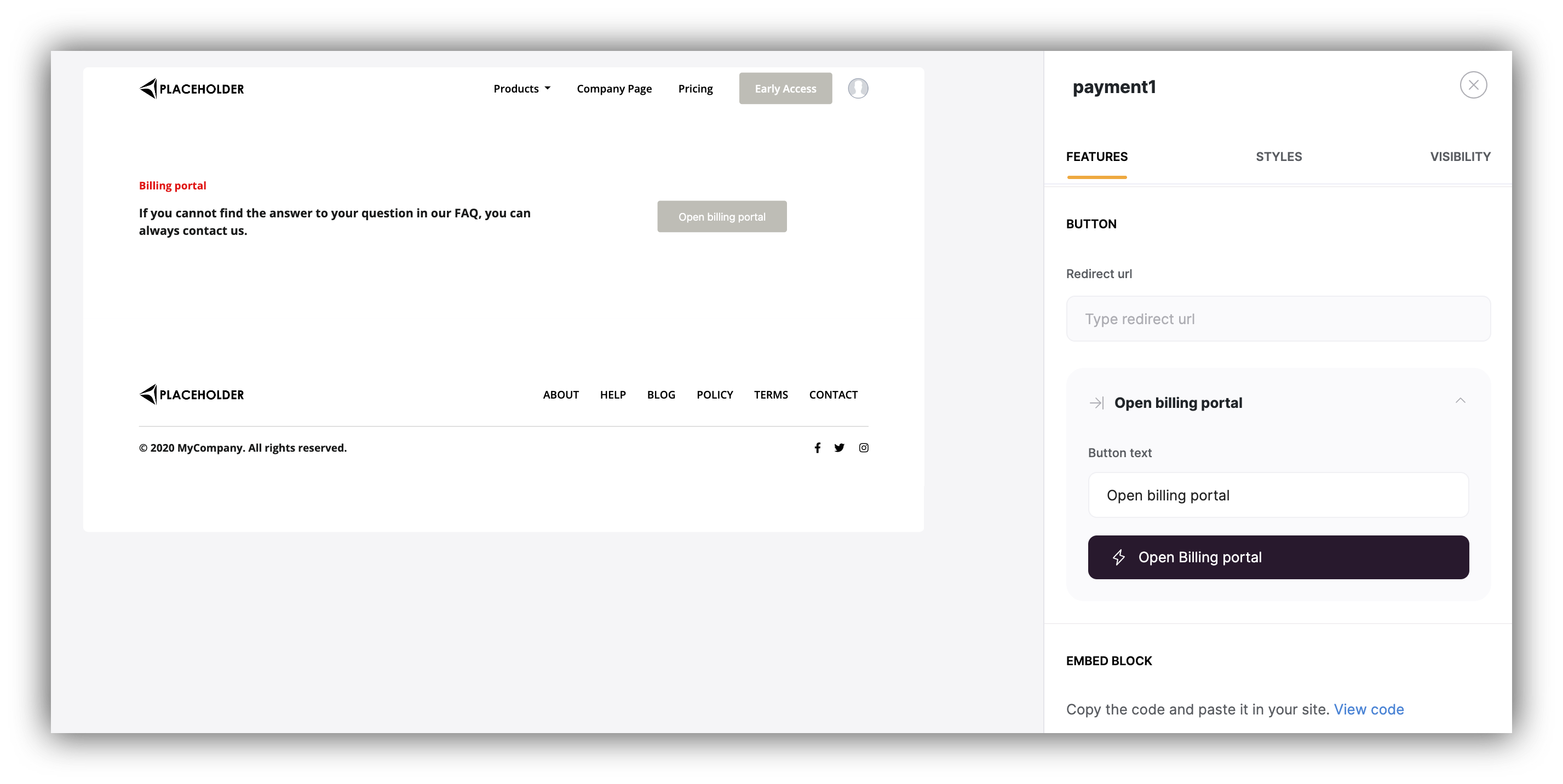 To provide your customer with access to the Customer Portal on Stripe you just need to add the corresponding block somewhere on your Softr app. In block settings, apart from titles and the background image, you need to set up the **Redirect URL**.
The Redirect URL is the page your users will be taken to after hitting **Return** on their **Customer Portal** page.
You'll see this in action a bit later when we show the whole process from the customer's perspective.
## How Customers Access the Portal
Finally, let's see what the portal looks like from the customer's viewpoint. We are going to log into our Softr app with a user account, purchase a subscription, and try to edit subscription details and access payment info using the Stripe Customer Portal. Let's proceed.
We've set up the checkout using the **Simple Checkout Form** (take a look at the [block docs](/integrations/etS18kJqm1fuD58KCsjC3z/simple-billing-block/9oj8iqzqLhBWFHVt2UAY1K) to see how it should be configured).
We've used the **Simple Checkout Form** in our example, but you can use any of the payment blocks integrated with Stripe (e.g. [Pricing block](/integrations/etS18kJqm1fuD58KCsjC3z/layout-pricing-in-card-view-with-details/pNspR4mKu6spj1KSzRf4p7)).
So, below you can see how the user purchases a Stripe subscription through the checkout form and then uses the portal block we just set up to access his portal on Stripe and make changes.
To provide your customer with access to the Customer Portal on Stripe you just need to add the corresponding block somewhere on your Softr app. In block settings, apart from titles and the background image, you need to set up the **Redirect URL**.
The Redirect URL is the page your users will be taken to after hitting **Return** on their **Customer Portal** page.
You'll see this in action a bit later when we show the whole process from the customer's perspective.
## How Customers Access the Portal
Finally, let's see what the portal looks like from the customer's viewpoint. We are going to log into our Softr app with a user account, purchase a subscription, and try to edit subscription details and access payment info using the Stripe Customer Portal. Let's proceed.
We've set up the checkout using the **Simple Checkout Form** (take a look at the [block docs](/integrations/etS18kJqm1fuD58KCsjC3z/simple-billing-block/9oj8iqzqLhBWFHVt2UAY1K) to see how it should be configured).
We've used the **Simple Checkout Form** in our example, but you can use any of the payment blocks integrated with Stripe (e.g. [Pricing block](/integrations/etS18kJqm1fuD58KCsjC3z/layout-pricing-in-card-view-with-details/pNspR4mKu6spj1KSzRf4p7)).
So, below you can see how the user purchases a Stripe subscription through the checkout form and then uses the portal block we just set up to access his portal on Stripe and make changes.
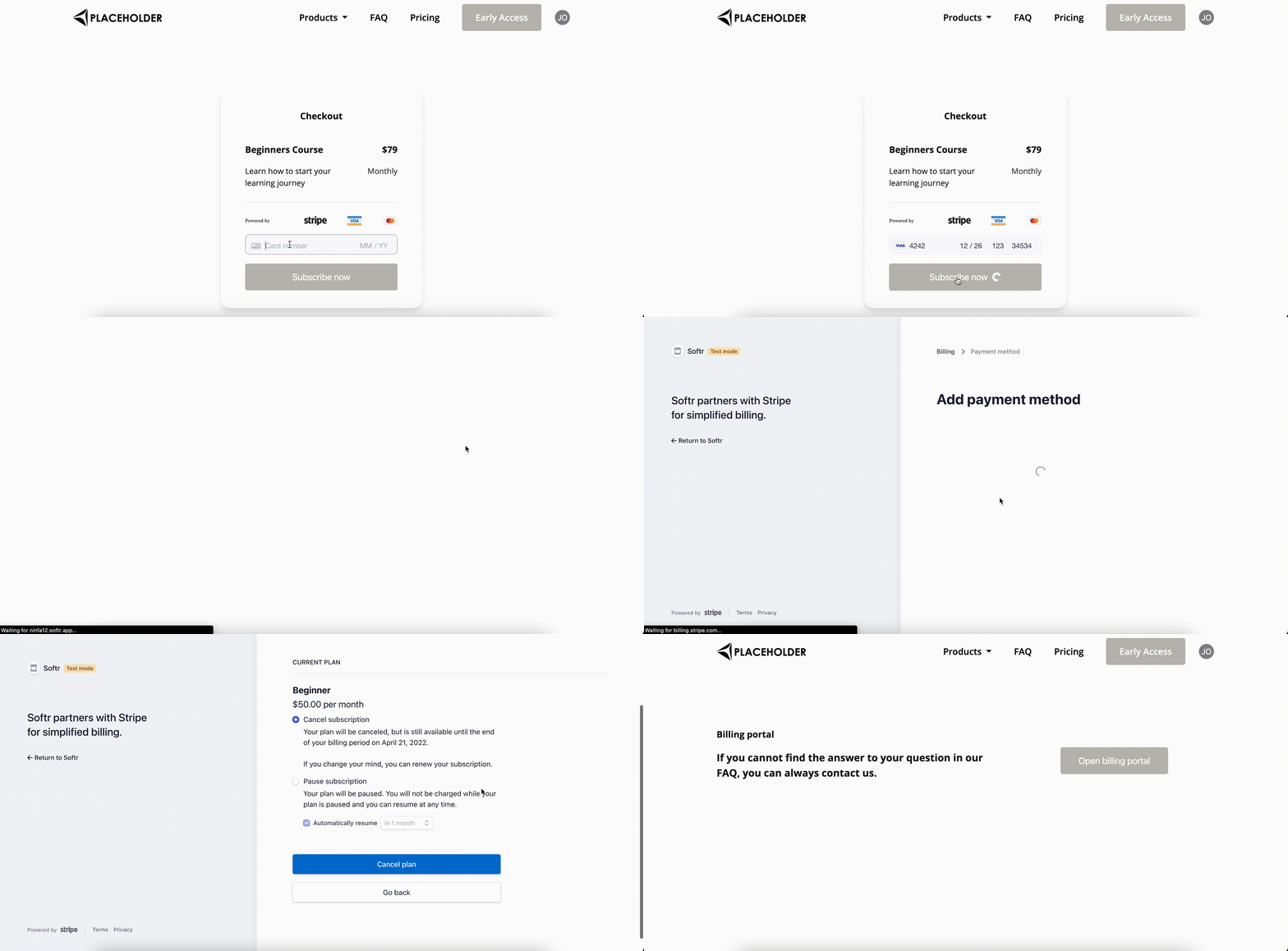 Notice that, at the end, when the user clicks on **Return to Softr**, he's taken to the portal page, as we had set it that way (under **Redirect URL**) in portal block settings previously. Nevertheless, the **Redirect URL** can be set to any page in or even outside of your Softr app (just needs to start with **https\://**).