> ## Documentation Index
> Fetch the complete documentation index at: https://docs.softr.io/llms.txt
> Use this file to discover all available pages before exploring further.
# Open AI
> Generate content and images for your Softr app using Open AI and allow your users do the same.
Now you can generate images and copy with the help of [Open AI](https://openai.com/) to really speed up the app creation process. Moreover, you can create apps that offer AI functionality to your users (like [copy.ai](http://copy.ai/) or [jasper.ai](http://jasper.ai/)). Read on to learn more.
The feature is available **on all subscription plans** including the Free plan.
## **Generating content for your Softr app**
Whenever adding an image to a block in your Softr app, you can use the Asset Generator to generate an image for you. The following videos show how that works.
Similarly, on any text field you have the option of adding AI-generated copy by providing a helpful prompt. The video below illustrates the process.
## **Allowing your users to generate content**
You can also allow your users to generate images and copy using the AI Dynamic Blocks. Just add one of the blocks to your app and make the magic available to your users. To make this happen, you first need to integrate with Open AI, which we’ll discuss in a bit.
## Sending custom prompts to OpenAI
Want to take one step further? Check out Softr Community member Dominic's video on how to integrate GPT-3 with Softr.
## Integrating with Open AI
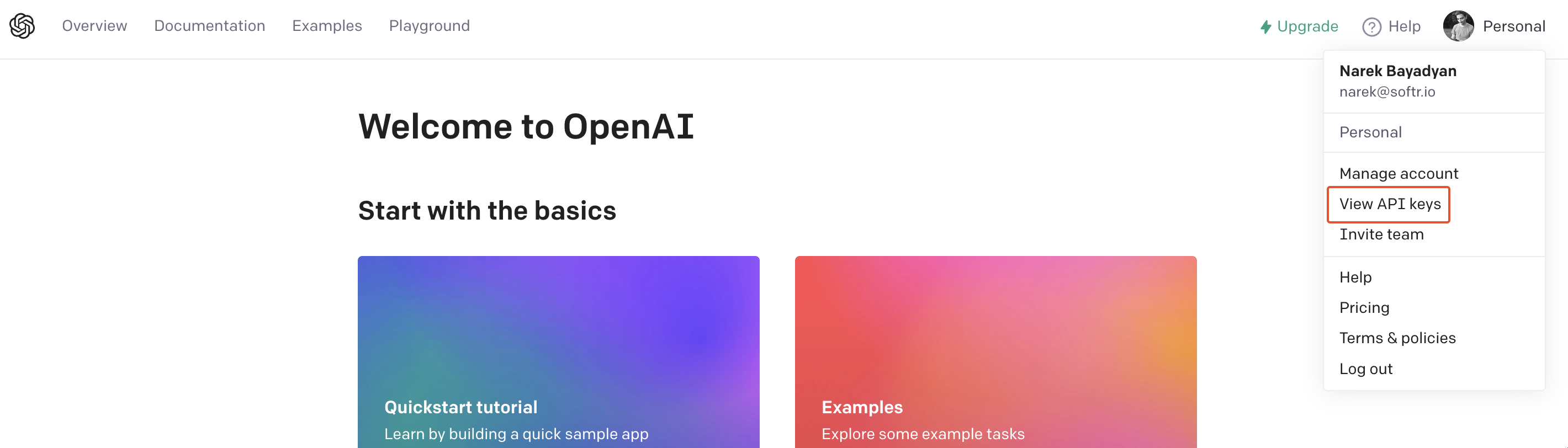
To integrate Open AI with your Softr app, you need to go to [https://openai.com/api/](https://openai.com/api/) and sign up. Next, under your account dropdown, select **View API keys**.
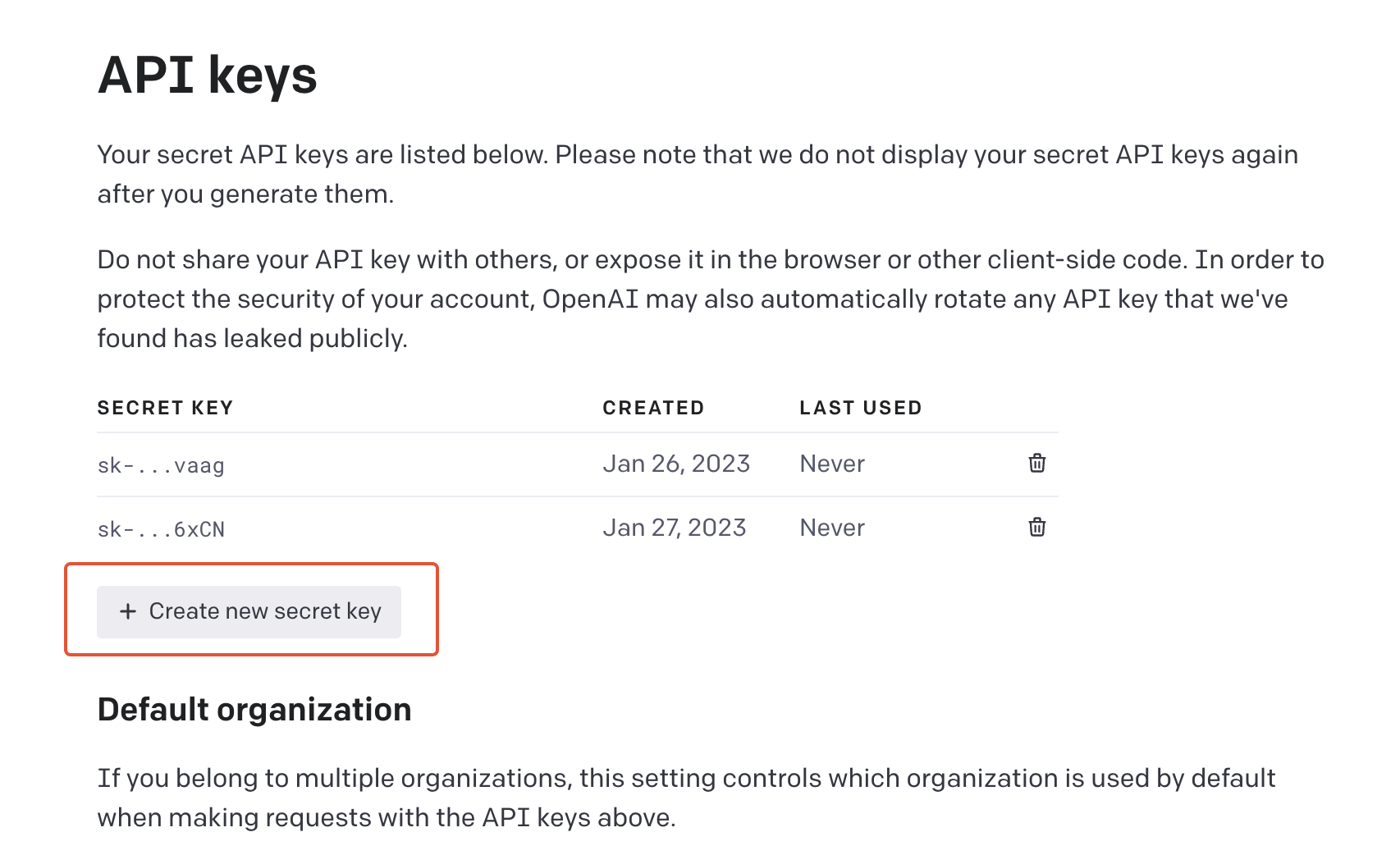
Hit **Create new secret key** and copy the generated key.
Lastly, in your Softr app, navigate to **Settings ⇒ Integrations ⇒ Open Ai**, add the key, and save your settings.Now, you can start adding AI blocks to your application.
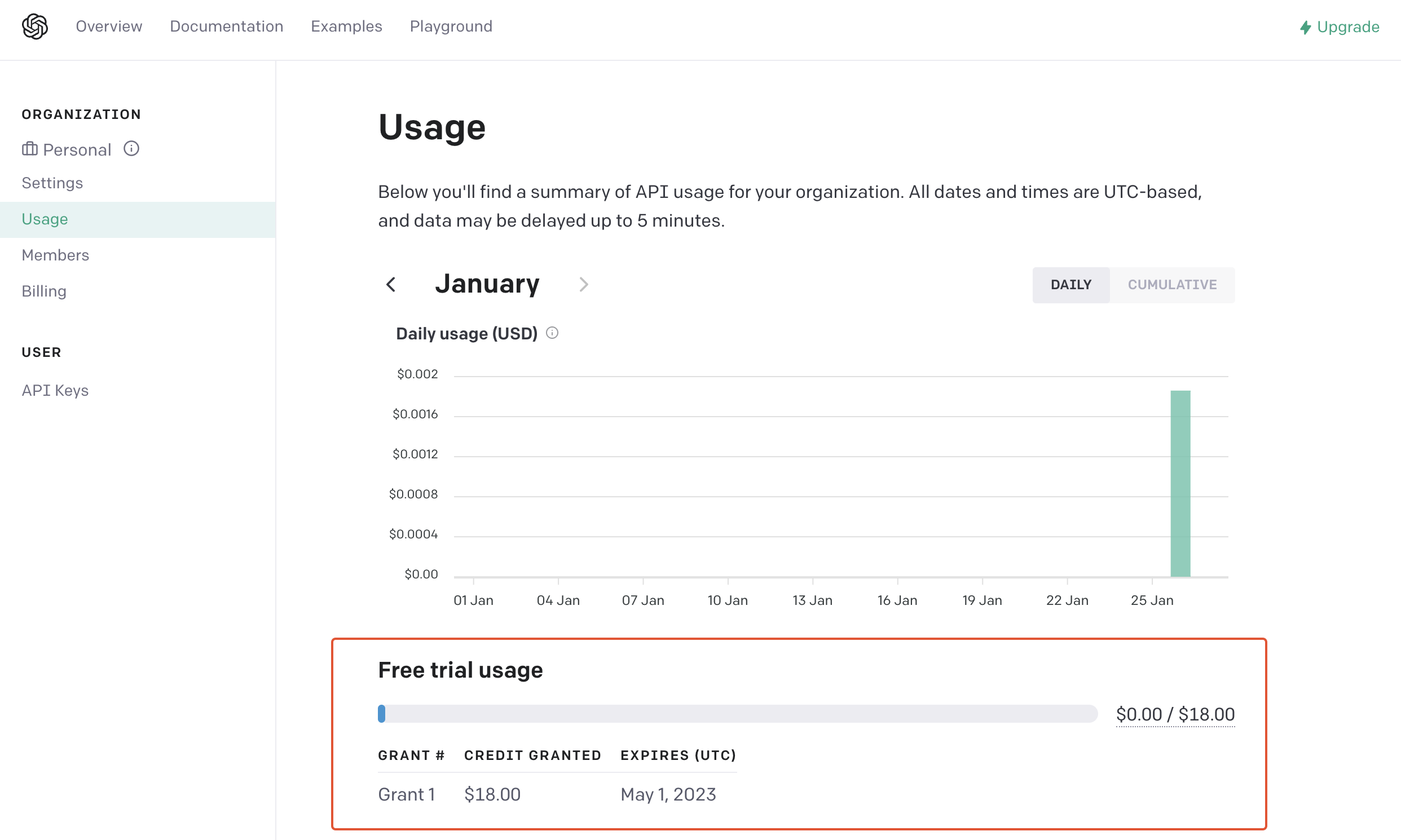
When you register on Open AI, you automatically enter a free trial, so, as soon as a user submits the first request (e.g. generates a text using the block), you’ll see your Open AI credit balance under **Usage**.
You’ll spend credits on each new user request, so, as soon as all the free trial credits expire, you’ll need to Upgrade your Open AI subscription in order to receive more credits.
 Hit **Create new secret key** and copy the generated key.
 Lastly, in your Softr app, navigate to **Settings ⇒ Integrations ⇒ Open Ai**, add the key, and save your settings.Now, you can start adding AI blocks to your application.
When you register on Open AI, you automatically enter a free trial, so, as soon as a user submits the first request (e.g. generates a text using the block), you’ll see your Open AI credit balance under **Usage**.
Lastly, in your Softr app, navigate to **Settings ⇒ Integrations ⇒ Open Ai**, add the key, and save your settings.Now, you can start adding AI blocks to your application.
When you register on Open AI, you automatically enter a free trial, so, as soon as a user submits the first request (e.g. generates a text using the block), you’ll see your Open AI credit balance under **Usage**.
 You’ll spend credits on each new user request, so, as soon as all the free trial credits expire, you’ll need to Upgrade your Open AI subscription in order to receive more credits.