> ## Documentation Index
> Fetch the complete documentation index at: https://docs.softr.io/llms.txt
> Use this file to discover all available pages before exploring further.
# Iubenda Cookie Solution
> Adding a cookie pop-up with Iubenda.
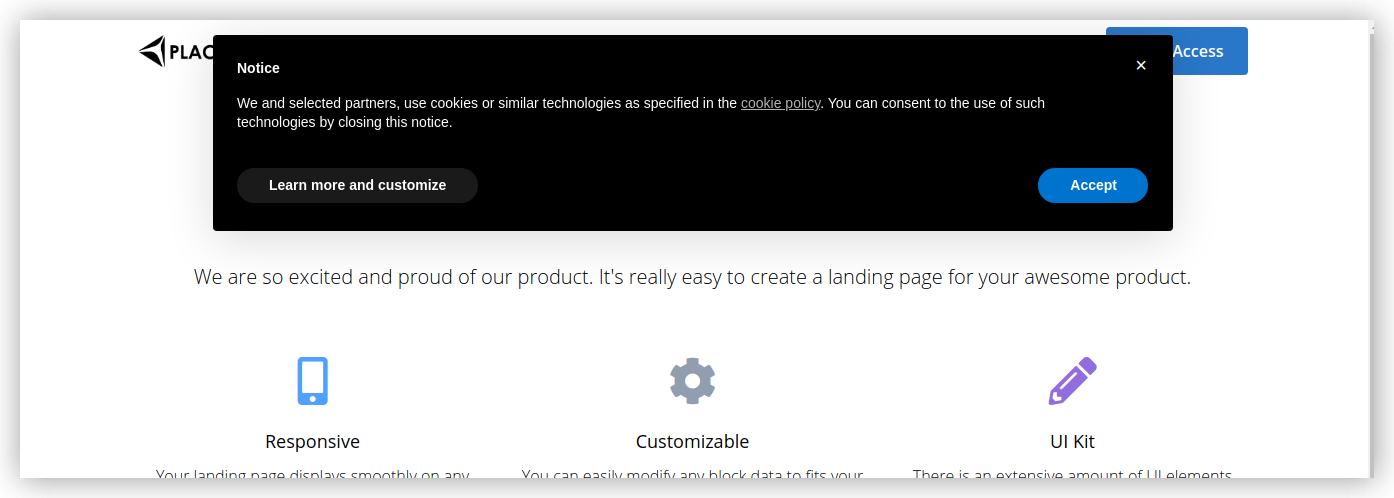
Iubenda Cookie Solution allows to add a customizable cookie consent banner on your site. You will need an Iubenda subscription for this integration. Let's see how it can be done.
By default, Iubenda will block the most common scripts on your site until the user hits **Accept**. More details on privacy controls and cookie solution configuration are available [here](https://www.iubenda.com/en/help/1205-how-to-configure-your-cookie-solution-advanced-guide).
## Generating a Banner
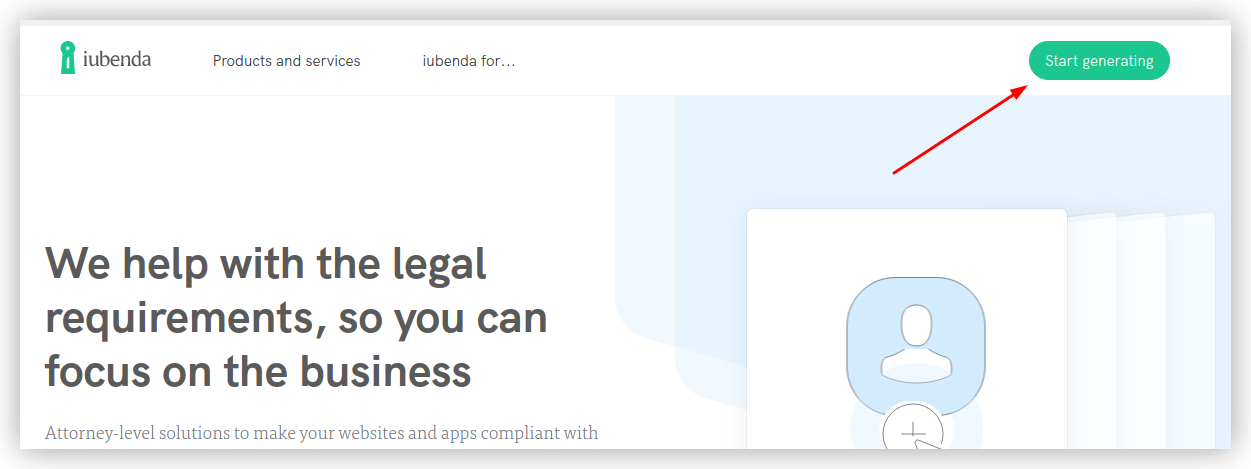
In your Iubenda account home page, click the **Start Generating** button.
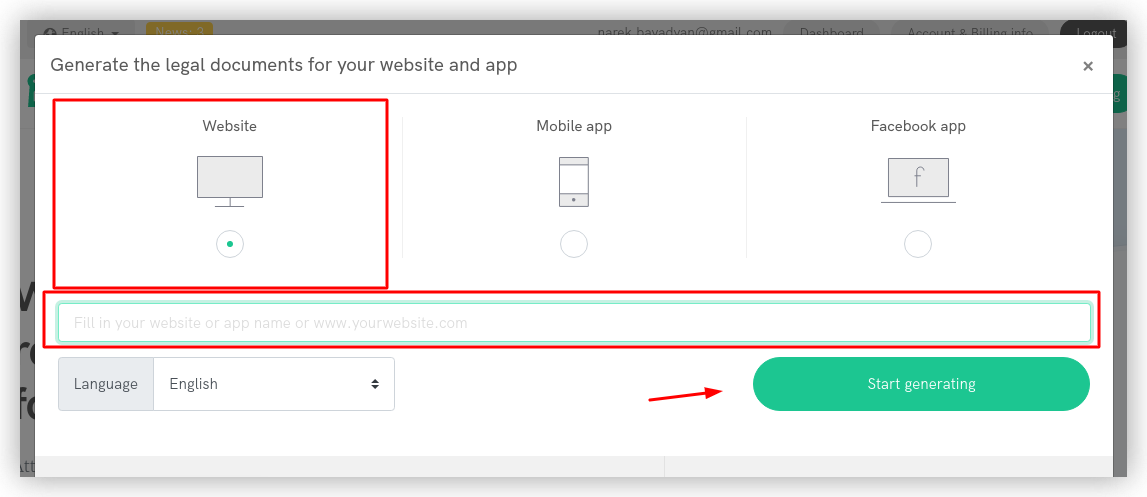
 Choose the **Website** option, specify a **Site Name**, and hit **Start Generating**.
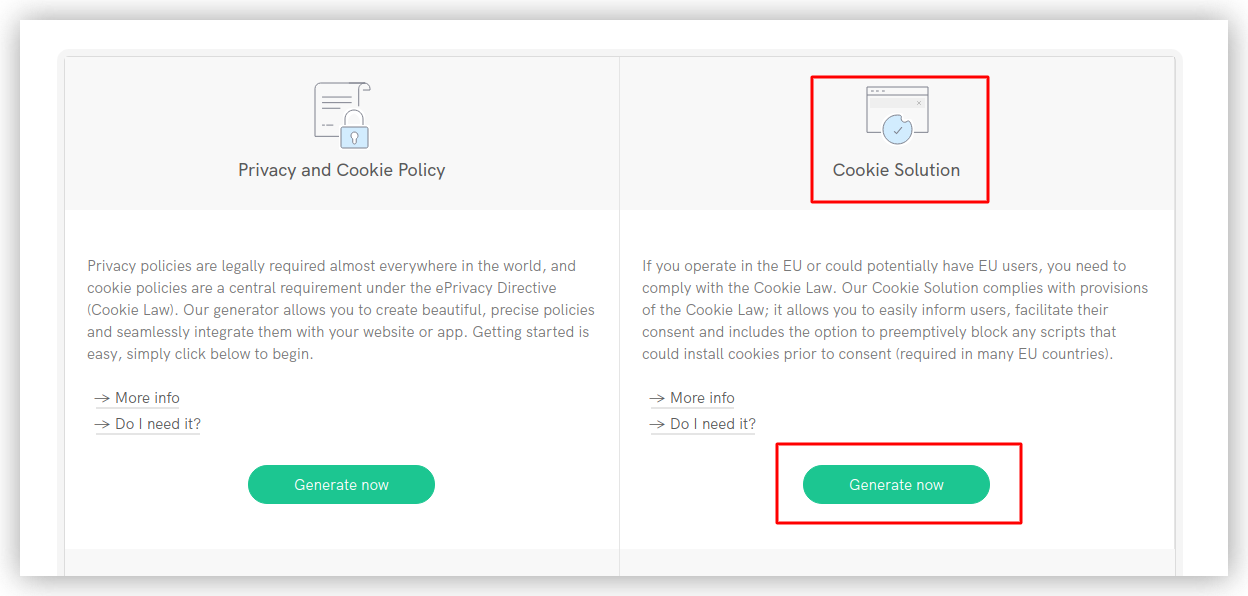
 Next, locate the **Cookie Solution** option and click **Generate Now**.
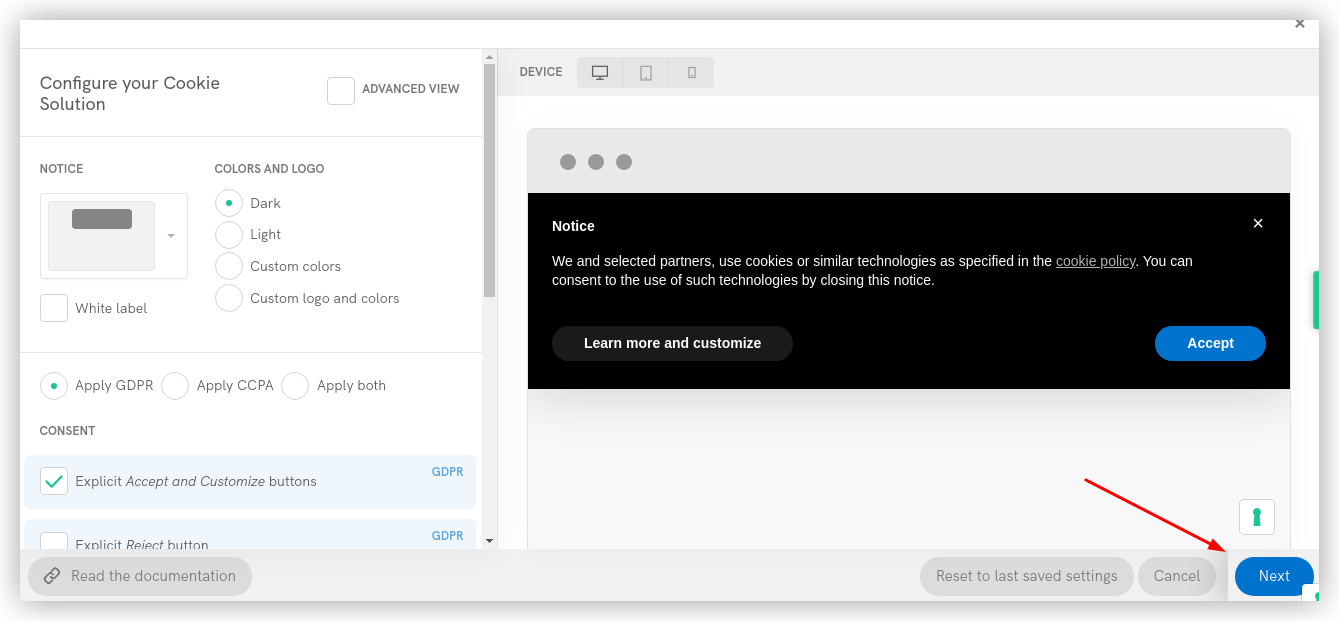
 In the following page, you can customize your banner's design and configure other settings. Hit **Next** as soon as you're done.
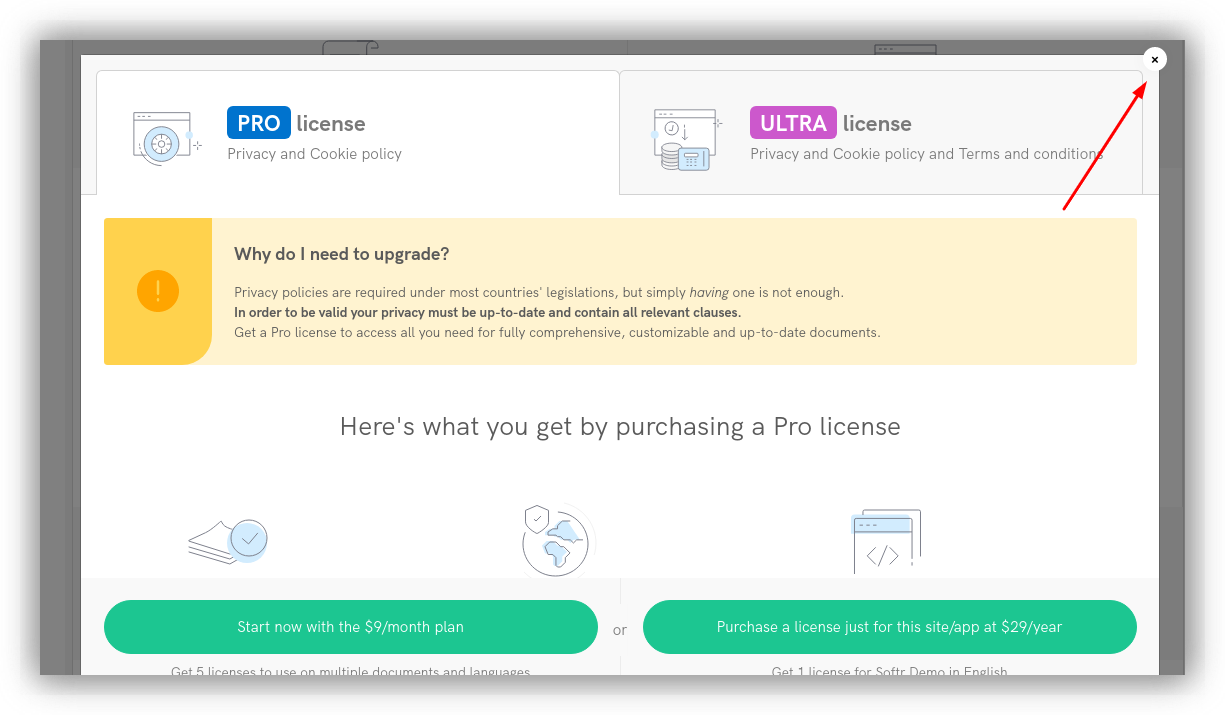
 Next, if you don't have a paid license, you'll see a pop-up with the upgrade options. You don't need a paid license for the cookie solution, so, if you don't want to upgrade at this point, simply close the pop-up.
 ## Getting the Banner Code
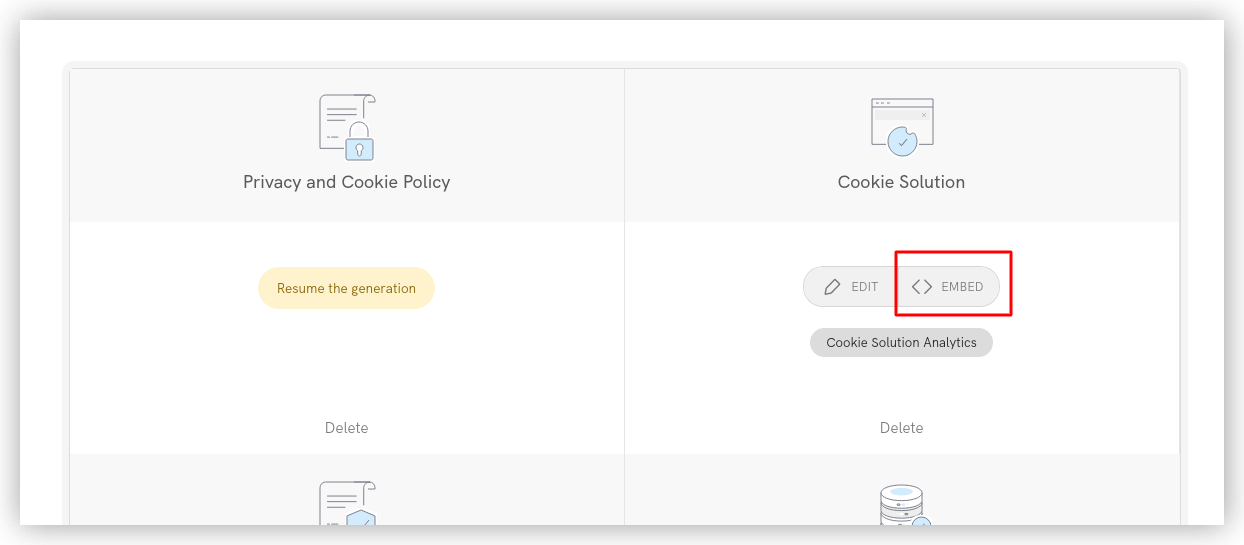
Now, you should see an **Embed** button under **Cookie Solution**. Click the button to get the banner code.
## Getting the Banner Code
Now, you should see an **Embed** button under **Cookie Solution**. Click the button to get the banner code.
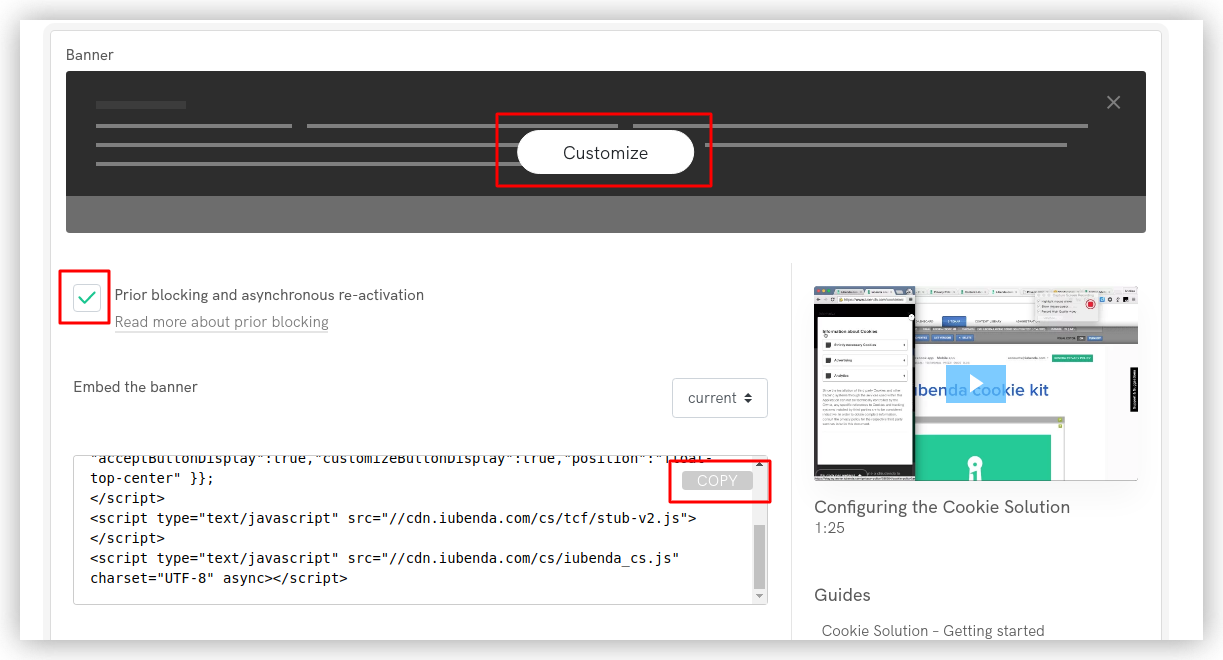
 Here, you can enable/disable **Prior blocking and asynchronous re-activation** and customize the banner further if needed. When everything is ready, simply click **Copy** to copy the banner code.
 ## Adding the Banner Code in Softr Studio
Now, switch to your Softr Studio, navigate to **Settings => Integrations => Iubenda Cookie Solution,** and paste the code.
## Adding the Banner Code in Softr Studio
Now, switch to your Softr Studio, navigate to **Settings => Integrations => Iubenda Cookie Solution,** and paste the code.
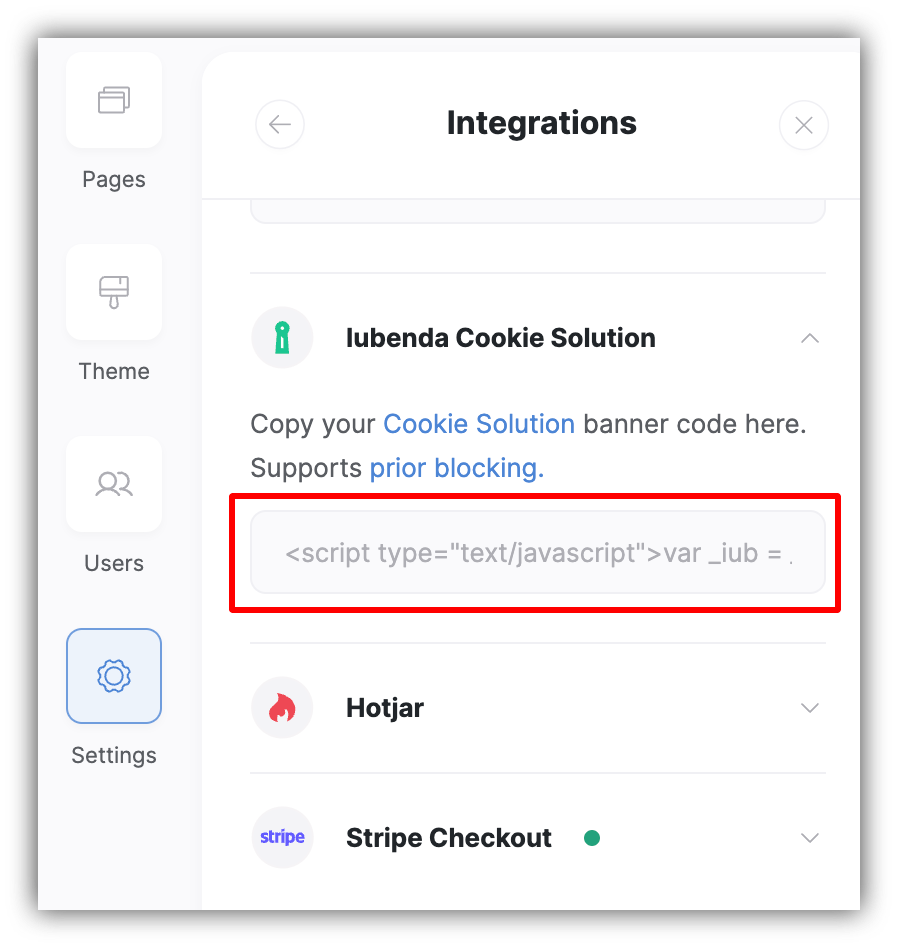 You're almost done. Just save the settings and republish your app, and you'll notice the cookie consent banner appearing.