> ## Documentation Index
> Fetch the complete documentation index at: https://docs.softr.io/llms.txt
> Use this file to discover all available pages before exploring further.
# Gumroad
> Creating a marketplace with Gumroad.
Gumroad is an online platform for creators to sell their products directly to consumers. The platform is mostly intended for selling digital content like albums, ebooks, music, tutorials, and so on.
Let's see how you can integrate Gumroad with Softr to start selling. When you create a product on Gumroad, it is assigned a unique link as shown below.
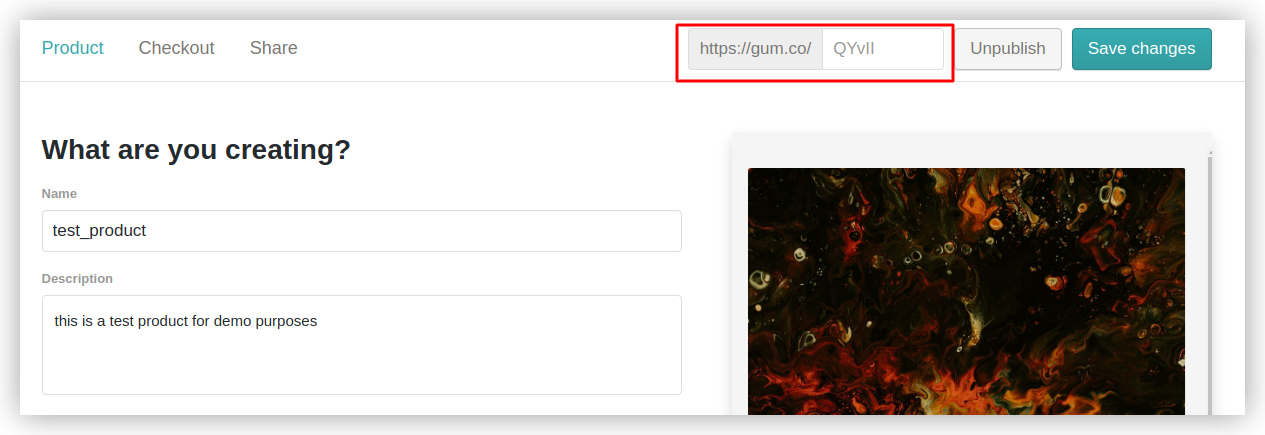 So, when creating a product on Softr, you just need to have a button (e.g. "Buy Now") that will open the corresponding Gumroad product link. In most of the cases, you'll be importing a list of products from Airtable. Let's assume you've created your app based on our e-commerce template (see how to create an app with template Airtable base [here](/5315870b0eb4473fb49dd13c97635d67)).
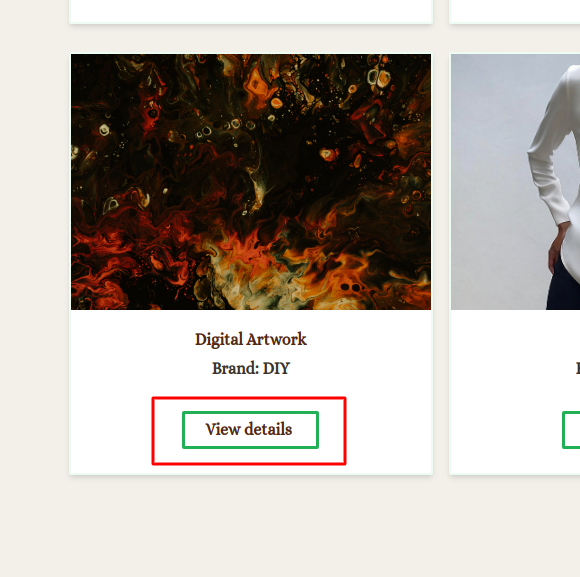
Thus, you have your products along with their names, images, descriptions and so on. Also, each product has a **View Details** button, which is linked to the item details page. Let's modify the button to open the product's Gumroad page instead.
So, when creating a product on Softr, you just need to have a button (e.g. "Buy Now") that will open the corresponding Gumroad product link. In most of the cases, you'll be importing a list of products from Airtable. Let's assume you've created your app based on our e-commerce template (see how to create an app with template Airtable base [here](/5315870b0eb4473fb49dd13c97635d67)).
Thus, you have your products along with their names, images, descriptions and so on. Also, each product has a **View Details** button, which is linked to the item details page. Let's modify the button to open the product's Gumroad page instead.
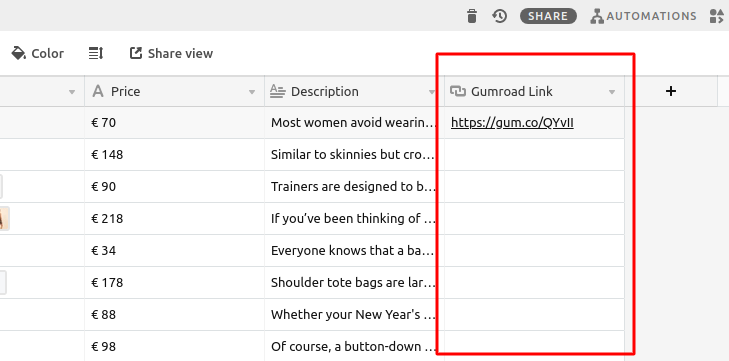
 To achieve that, you need to create a new field in your Airtable base, where each product's Gumroad link will be stored. So, let's add a new column and call it "Gumroad Link.”
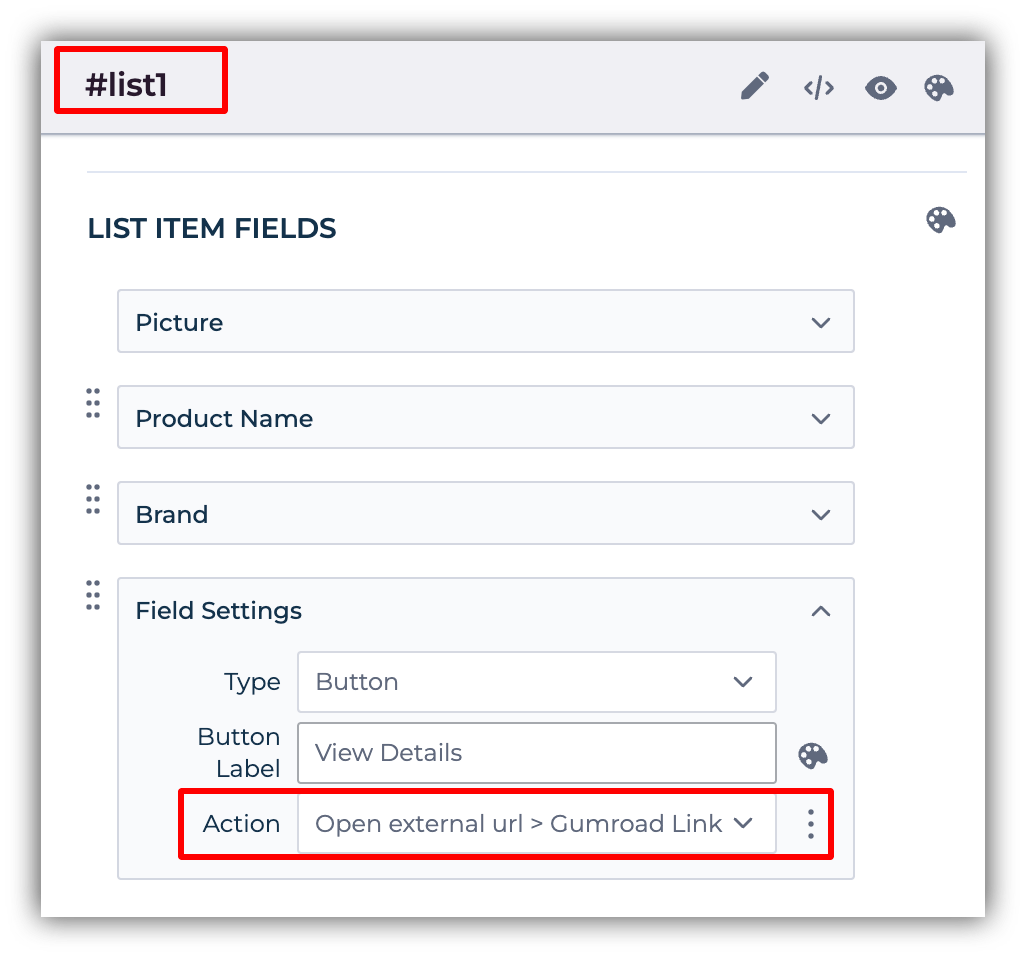
 Now, in your product listing configuration, you need to scroll down to the **View Details**
button, set the **Action** to **Open external url,** and set the Url to the "Gumroad Link" field.
Now, in your product listing configuration, you need to scroll down to the **View Details**
button, set the **Action** to **Open external url,** and set the Url to the "Gumroad Link" field.
 That's all. Now, when the users click on the **View Details** button on the product, they'll be taken to the product's Gumroad page.
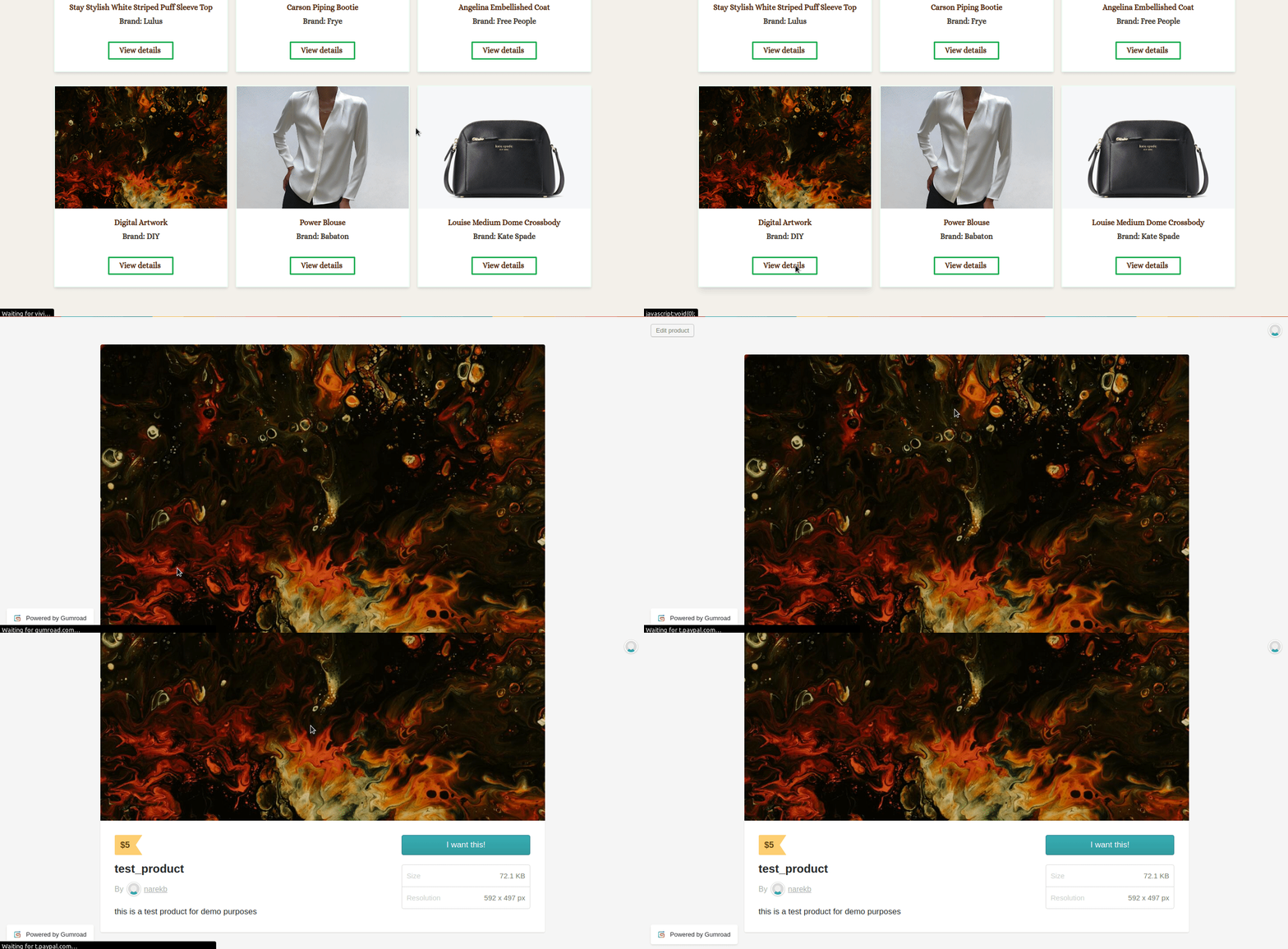 You can also add the Gumroad link on the product details page or anywhere else the same way. You just need to set the button **Action** to **Open external Url** and set the corresponding Airtable field with product links.
Alternatively, you can add the link directly if the product is a standalone item (e.g. you are using a [CTA button](/building-blocks/vikC2AWEpQGkZd4jGyoVxo/cta/oPDoXzSUpMuKki92WuBDDH)), as shown in the example below.
You can also add the Gumroad link on the product details page or anywhere else the same way. You just need to set the button **Action** to **Open external Url** and set the corresponding Airtable field with product links.
Alternatively, you can add the link directly if the product is a standalone item (e.g. you are using a [CTA button](/building-blocks/vikC2AWEpQGkZd4jGyoVxo/cta/oPDoXzSUpMuKki92WuBDDH)), as shown in the example below.
