> ## Documentation Index
> Fetch the complete documentation index at: https://docs.softr.io/llms.txt
> Use this file to discover all available pages before exploring further.
# Google Maps
> Integrate Google Maps with Softr.
You can add a Google Map to your application using the [Contact form with Map](/79a9d5f0f13c4e14a510db94242e668c) or the [Map](/building-blocks/vikC2AWEpQGkZd4jGyoVxo/map/e1zLdwuFNU7A9WakvLBHsq) block. Here are the steps to do that:
## ****Step 1: Get the API key****
To use the Maps in your application you must have an API key. The API key is a unique identifier that is used to authenticate requests associated with your application for usage and billing purposes.
Go to this page and follow the instructions described in [Google documentation](https://developers.google.com/maps/documentation/javascript/get-api-key?hl=en).
## ****Step 2: Copy the API key****
Copy the API Key created for your project (Note: you need to create a new project if you don't have one).
## ****Step 3: Apply the API key****
Go back to your Softr app and add the key in [Settings](/application-settings/n3K2UEfpC9BpHgakMzUU5Y/general-settings/7YdGy1J8X2tjJSv8BGvWQU) ⇒ Integrations ⇒ Google Maps Integration as shown below.
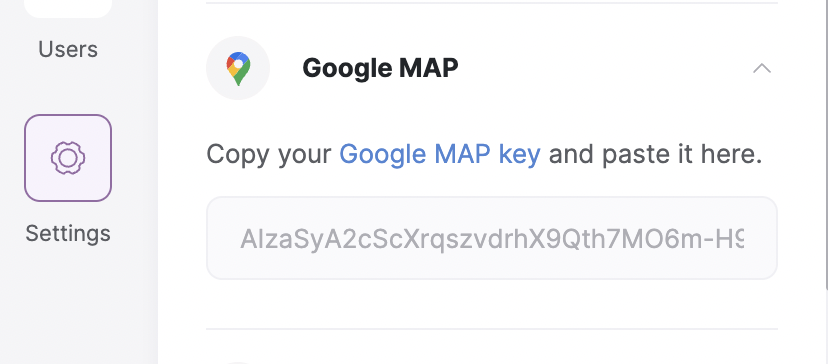 Now, you can go to your map and start configuring it.