> ## Documentation Index
> Fetch the complete documentation index at: https://docs.softr.io/llms.txt
> Use this file to discover all available pages before exploring further.
# Google Analytics
> Using Google Analytics to track user behavior.
In this guide, we'll go through the process of integrating **Google Analytics** with your Softr app. You can integrate both **Universal Analytics** and **Google Analytics 4**, and below you can find separate guides for each of the versions.
## Universal Analytics
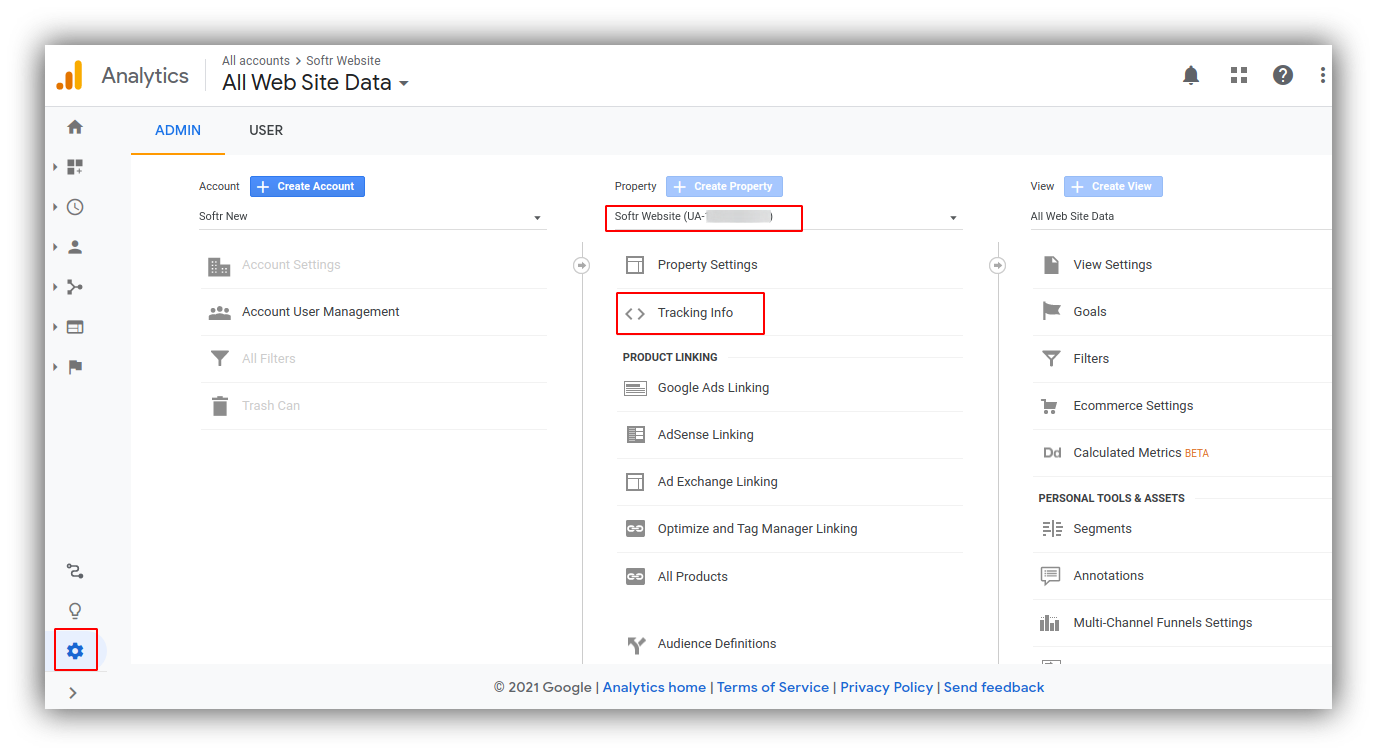
After [setting up a Google Analytics property](https://support.google.com/analytics/answer/10269537?ref_topic=1009620) for your site, you need to navigate to **Admin**, choose the required property, and click **Tracking Info**, as shown below.
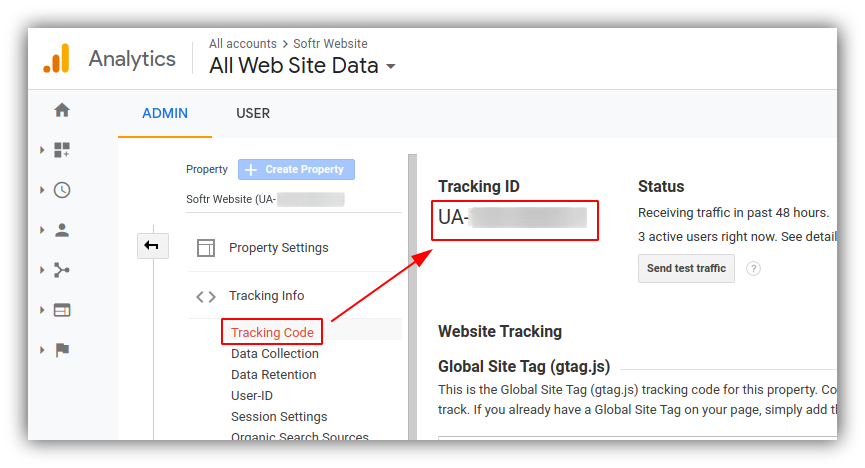
 From the opened dropdown, click on **Tracking Code** and copy the **Tracking ID** (starting with "UA-") as shown below.
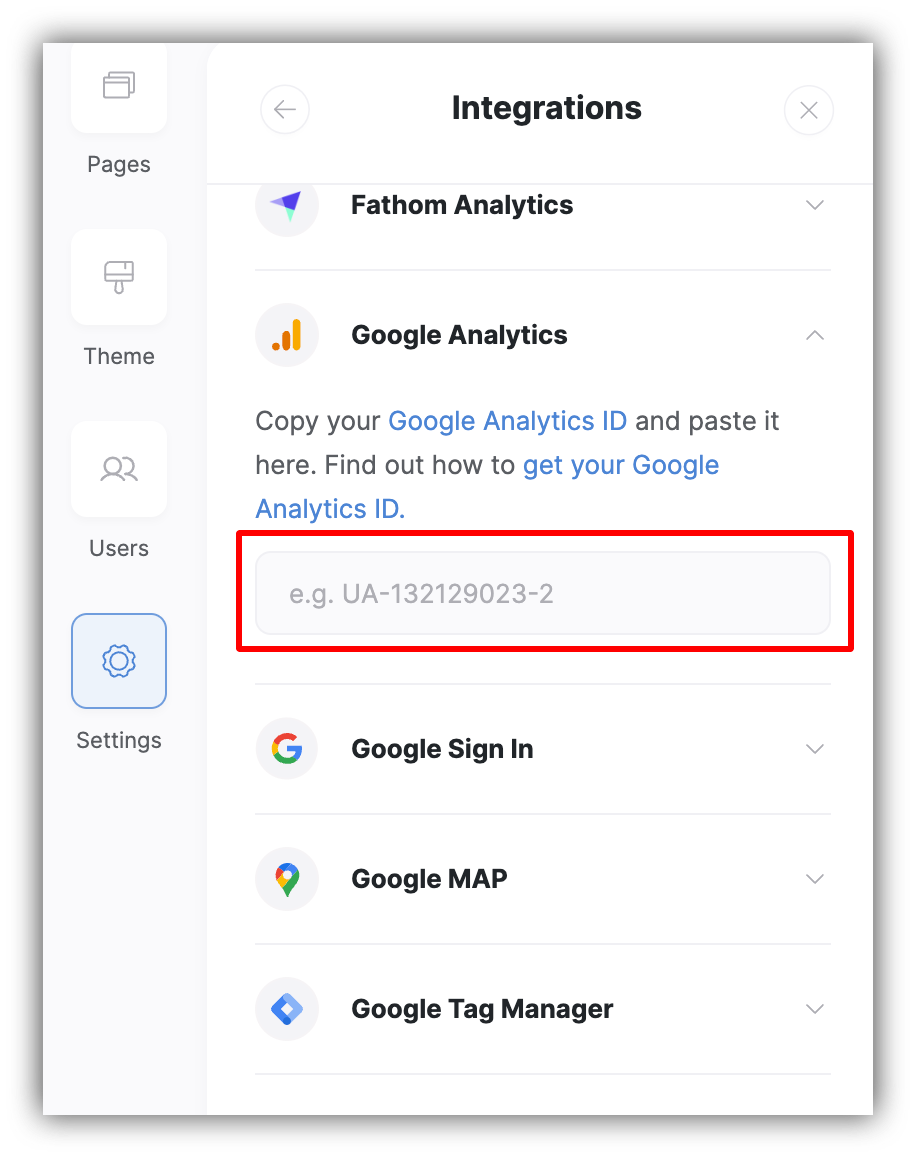
 That's it, now you just need to paste the ID in **Settings =>** **Integrations => Google Analytics**
in the left-hand toolbar of your [Softr Studio](/5315870b0eb4473fb49dd13c97635d67) and hit **Save.**
That's it, now you just need to paste the ID in **Settings =>** **Integrations => Google Analytics**
in the left-hand toolbar of your [Softr Studio](/5315870b0eb4473fb49dd13c97635d67) and hit **Save.**
 ## Google Analytics 4
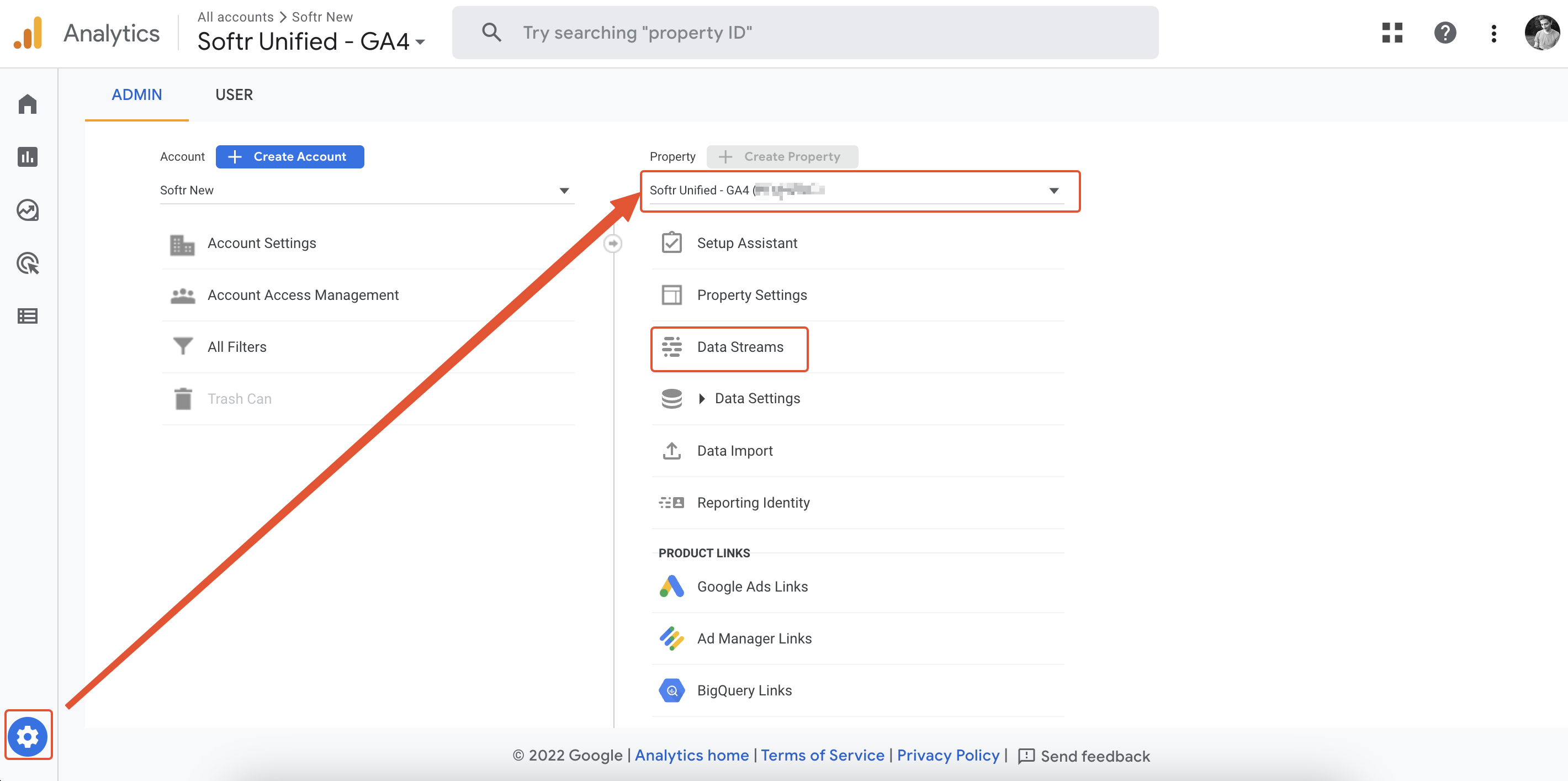
After setting up a [Google Analytics 4 property](https://support.google.com/analytics/answer/9304153#zippy=%2Cweb%2Cadd-the-tag-to-a-website-builder-or-cms-hosted-website-eg-wordpress-shopify-etc), you need to go to **Admin**, select the required **property** and navigate to **Data Streams**.
## Google Analytics 4
After setting up a [Google Analytics 4 property](https://support.google.com/analytics/answer/9304153#zippy=%2Cweb%2Cadd-the-tag-to-a-website-builder-or-cms-hosted-website-eg-wordpress-shopify-etc), you need to go to **Admin**, select the required **property** and navigate to **Data Streams**.
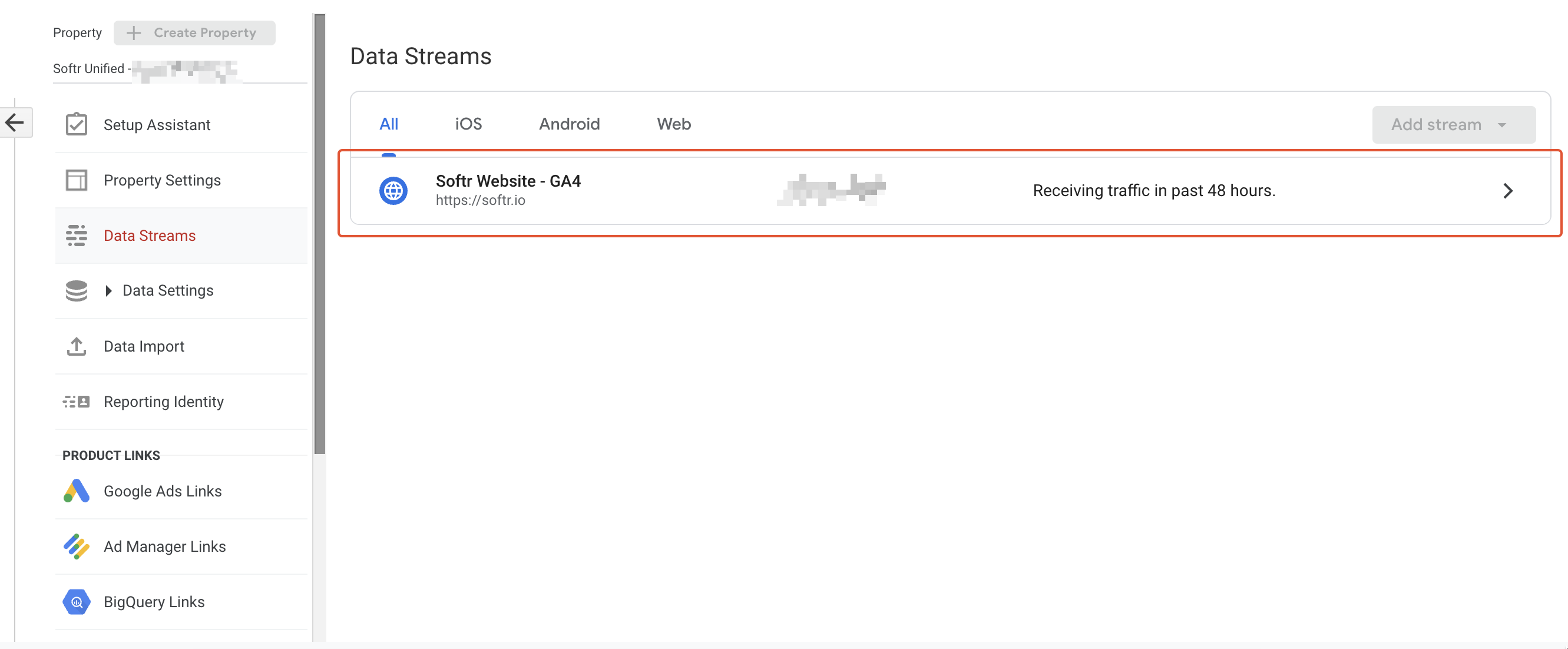
 Next, select the data stream.
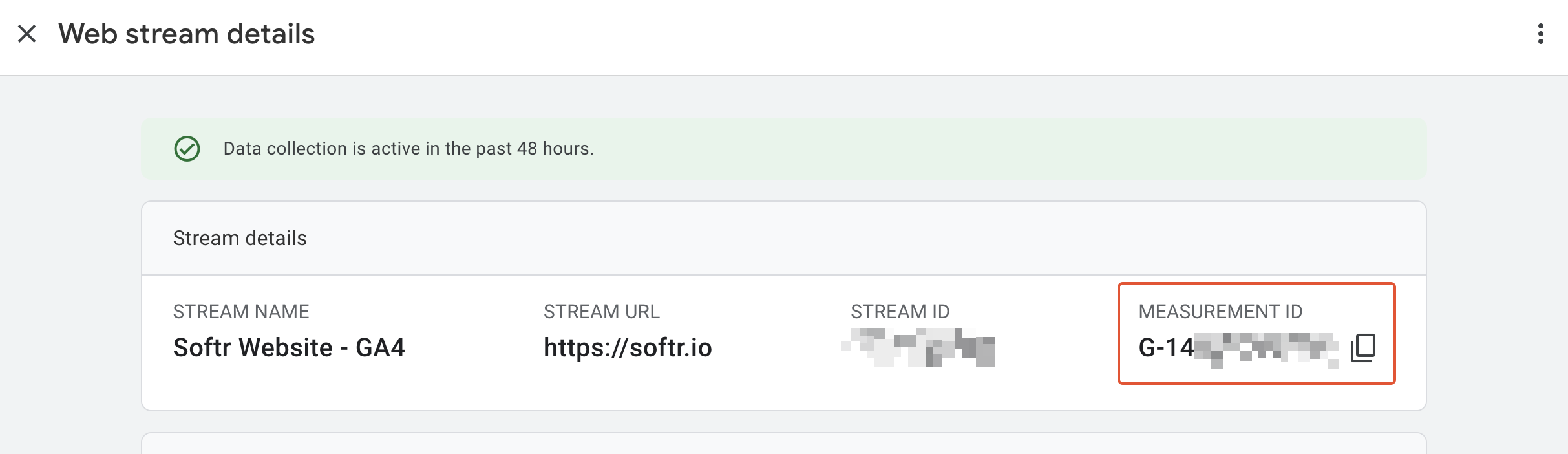
 In the screen that comes next, locate the **Measurement ID** and copy it.
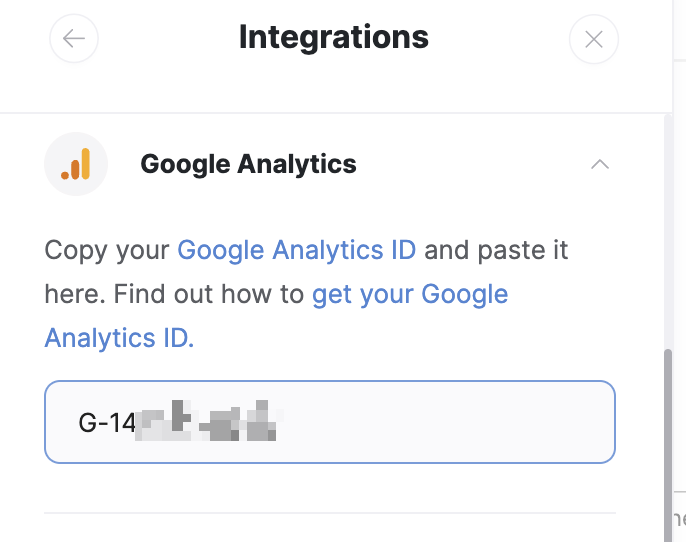
 Finally, you just need to go back to your Softr app and add the ID into [Settings](/application-settings/n3K2UEfpC9BpHgakMzUU5Y/general-settings/7YdGy1J8X2tjJSv8BGvWQU)**⇒Integrations ⇒ Google Analytics** as shown in the following screenshot.