> ## Documentation Index
> Fetch the complete documentation index at: https://docs.softr.io/llms.txt
> Use this file to discover all available pages before exploring further.
# Crisp
> Crisp is an all-in-one multichannel messaging platform that helps you and your customers connect.
## Adding your website
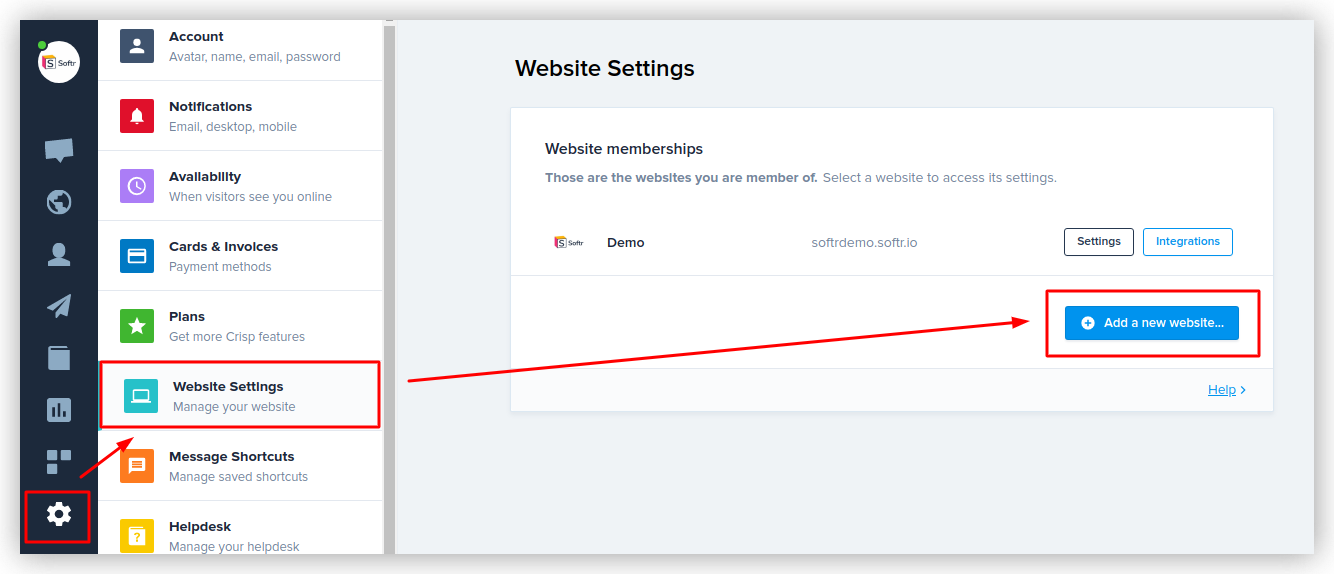
To integrate Crisp on your Softr app, you need to add your site domain and name when registering on Crisp or in **Settings => Website Settings => Add a new website**.
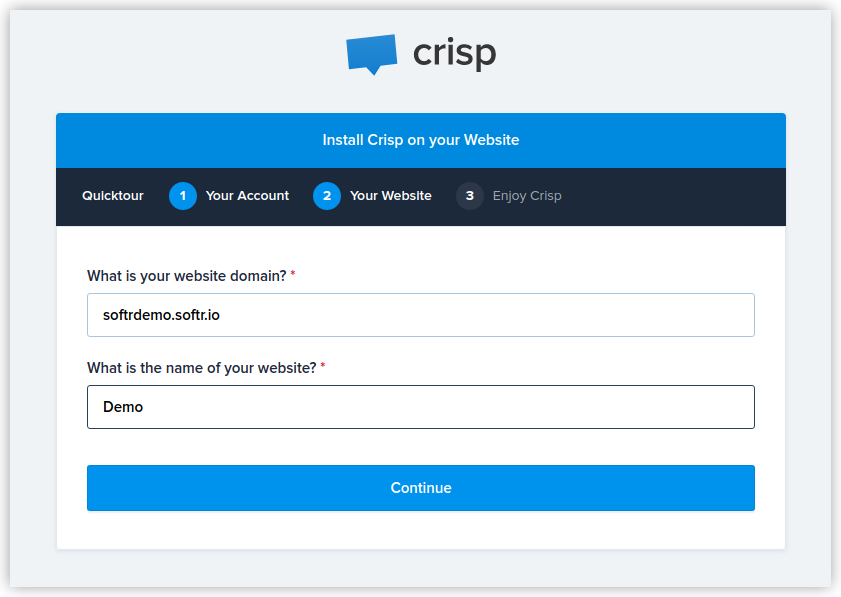
 Add your website details as shown below.
 ## Getting the website ID
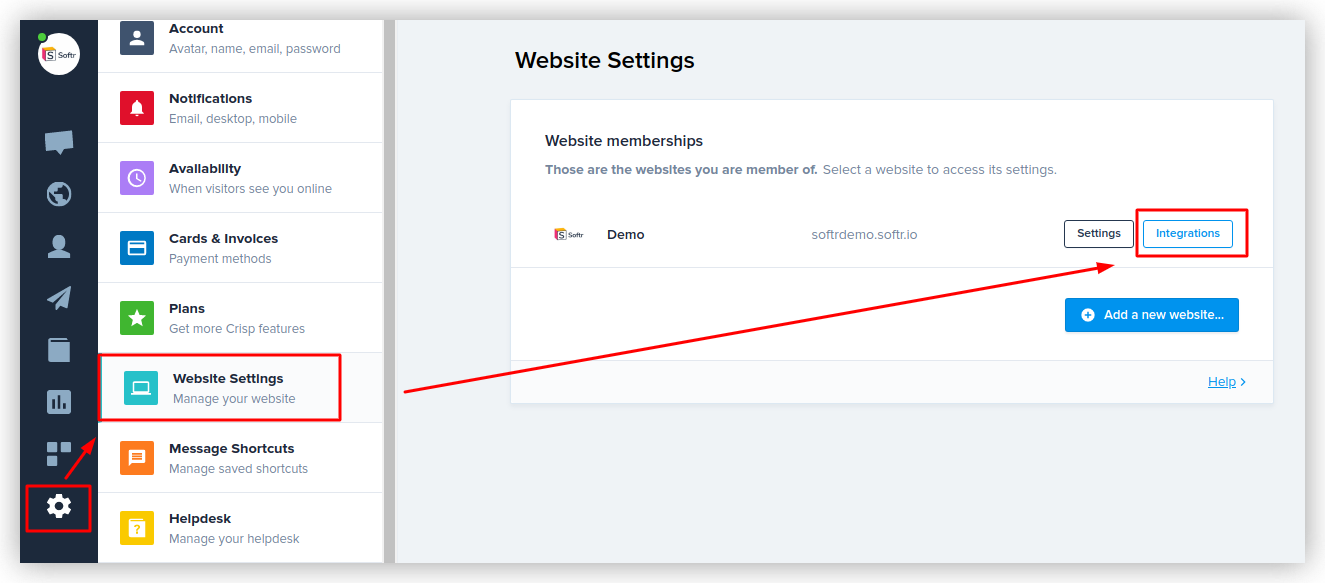
As soon as your site is set up, go ahead and connect Crisp. First, you need to click **Integrations**
next to your site name in **Settings => Website settings**.
## Getting the website ID
As soon as your site is set up, go ahead and connect Crisp. First, you need to click **Integrations**
next to your site name in **Settings => Website settings**.
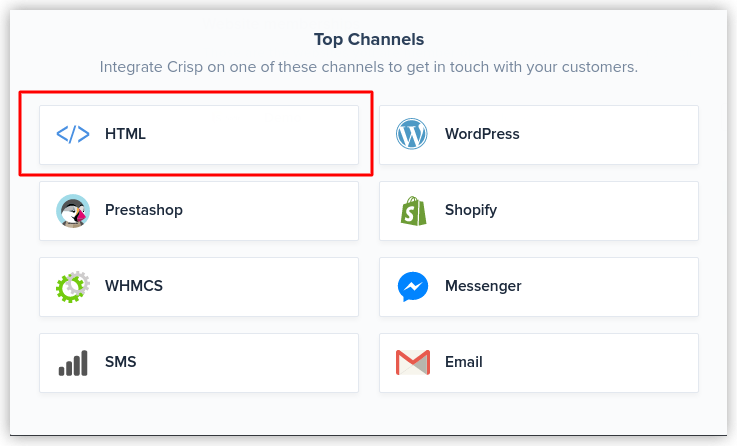
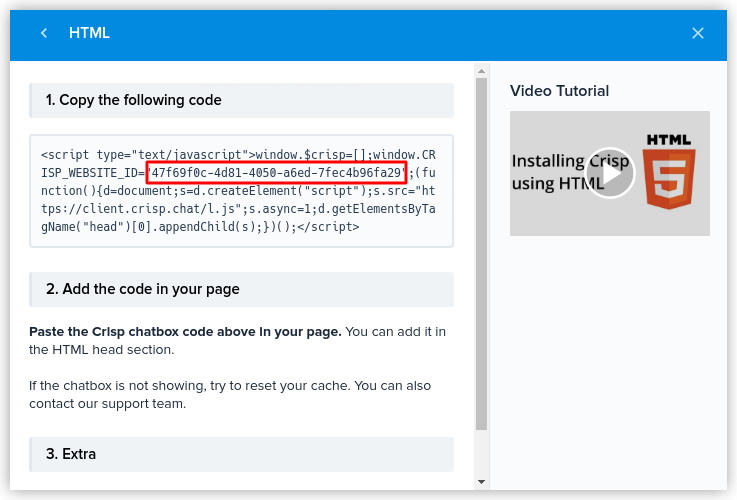
 In the pop-up that appears next, choose the **HTML** option.
 In the HTML code, locate the **Website ID** and copy it.
 ## Adding the Website ID in Softr Studio
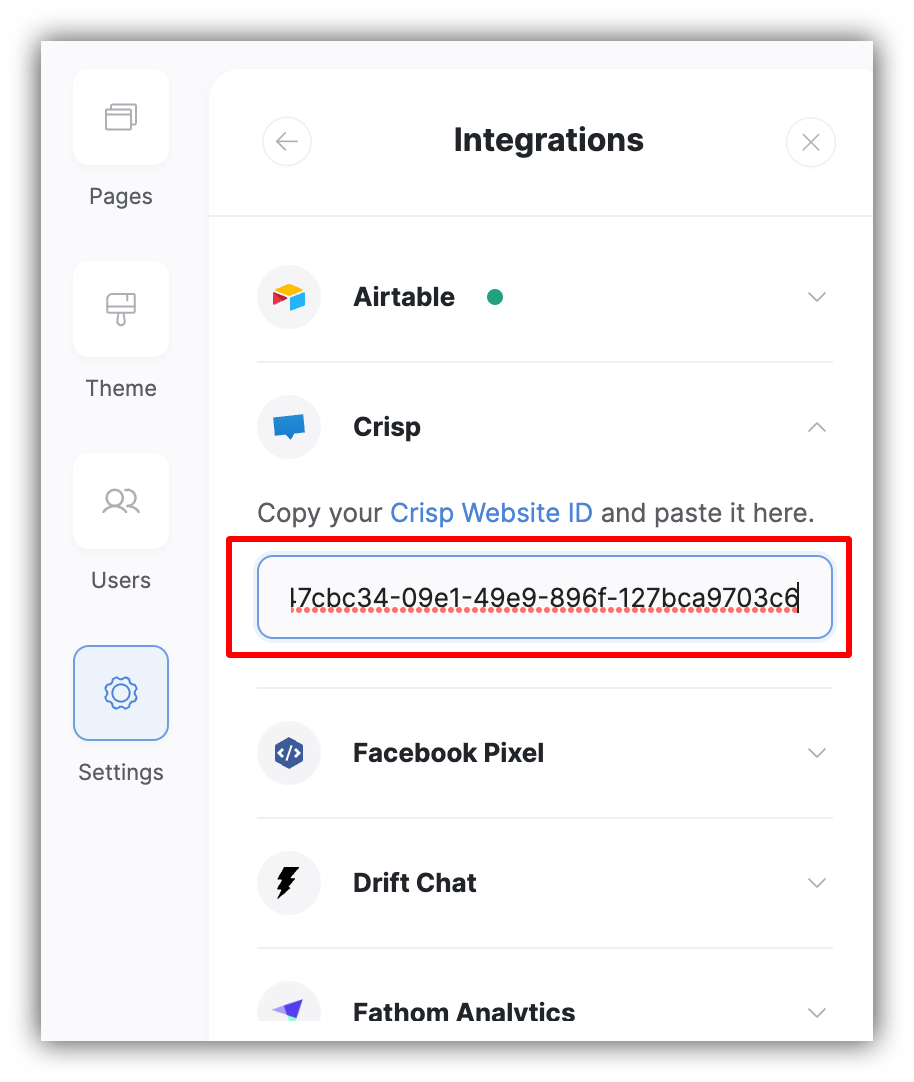
Finally, go back to Softr Studio and paste the code in **Settings => Integrations => Crisp**.
## Adding the Website ID in Softr Studio
Finally, go back to Softr Studio and paste the code in **Settings => Integrations => Crisp**.
 Save the settings, publish your app again, and you’re done. Now, the Crisp chat icon should appear on your site, allowing your customers to contact you at any time.