> ## Documentation Index
> Fetch the complete documentation index at: https://docs.softr.io/llms.txt
> Use this file to discover all available pages before exploring further.
# How to Share Access With Support?
> Giving access to the support
Our support team is normally able to help customers without logging into their [application](/workspace-and-billing/jZP6yaeXMiJCuB6HhS4xKd/workspaces-and-applications/kTbEWSYXhBCbtTB4K9dpKs)’s [studio](/5315870b0eb4473fb49dd13c97635d67). But once in a while there can be cases when such access level is needed to understand the issue and provide a solution. So, let’s see what you need to do to quickly share access to the app you are working on.
## Sharing access to a Softr app
The best way to give a support agent access to a specific app is to add him/her as a [Guest Collaborator](/workspace-and-billing/jZP6yaeXMiJCuB6HhS4xKd/workspaces-and-applications/kTbEWSYXhBCbtTB4K9dpKs). You can invite Guest Collaborators from your [workspace](/workspace-and-billing/jZP6yaeXMiJCuB6HhS4xKd/workspaces-and-applications/kTbEWSYXhBCbtTB4K9dpKs) by clicking on the corresponding button on the application thumbnail as shown below.
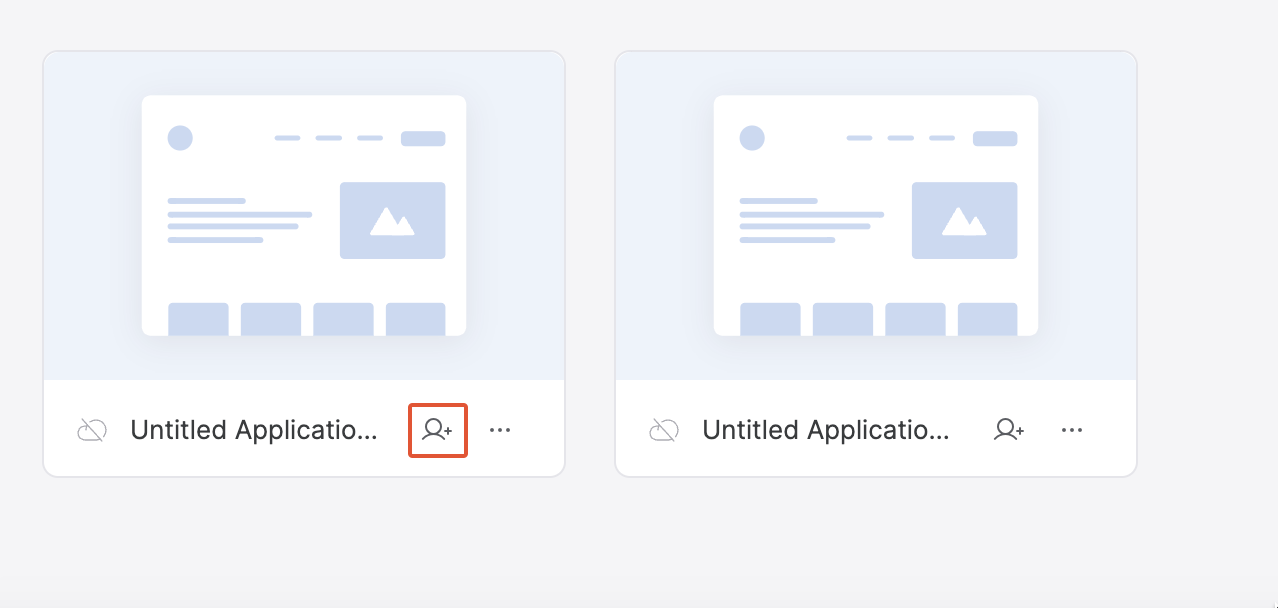 The button will open a pop-up where you can enter the email of the guest and send an invite.
Note that Guest Collaborators only have access to the application they have been invited to and can’t access any other app in the workspace.
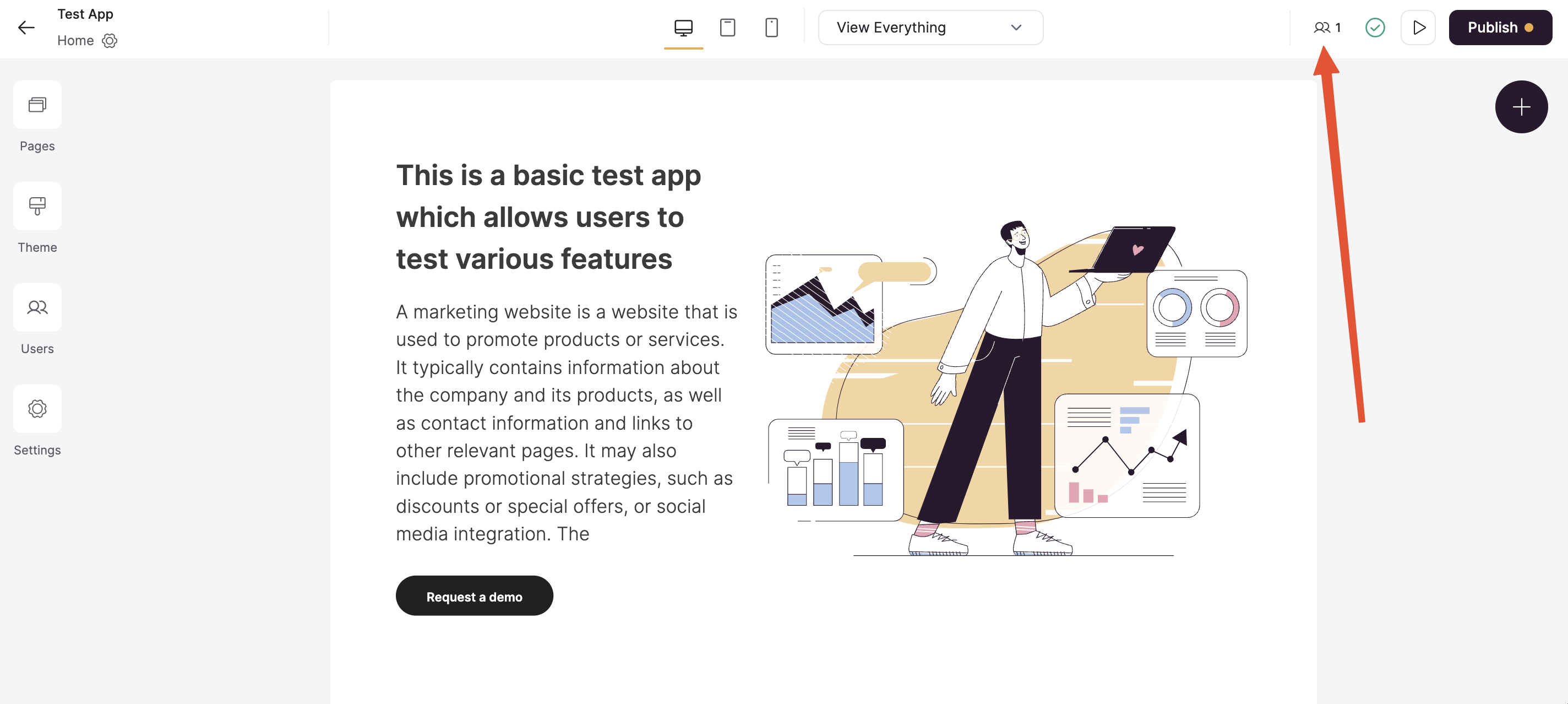
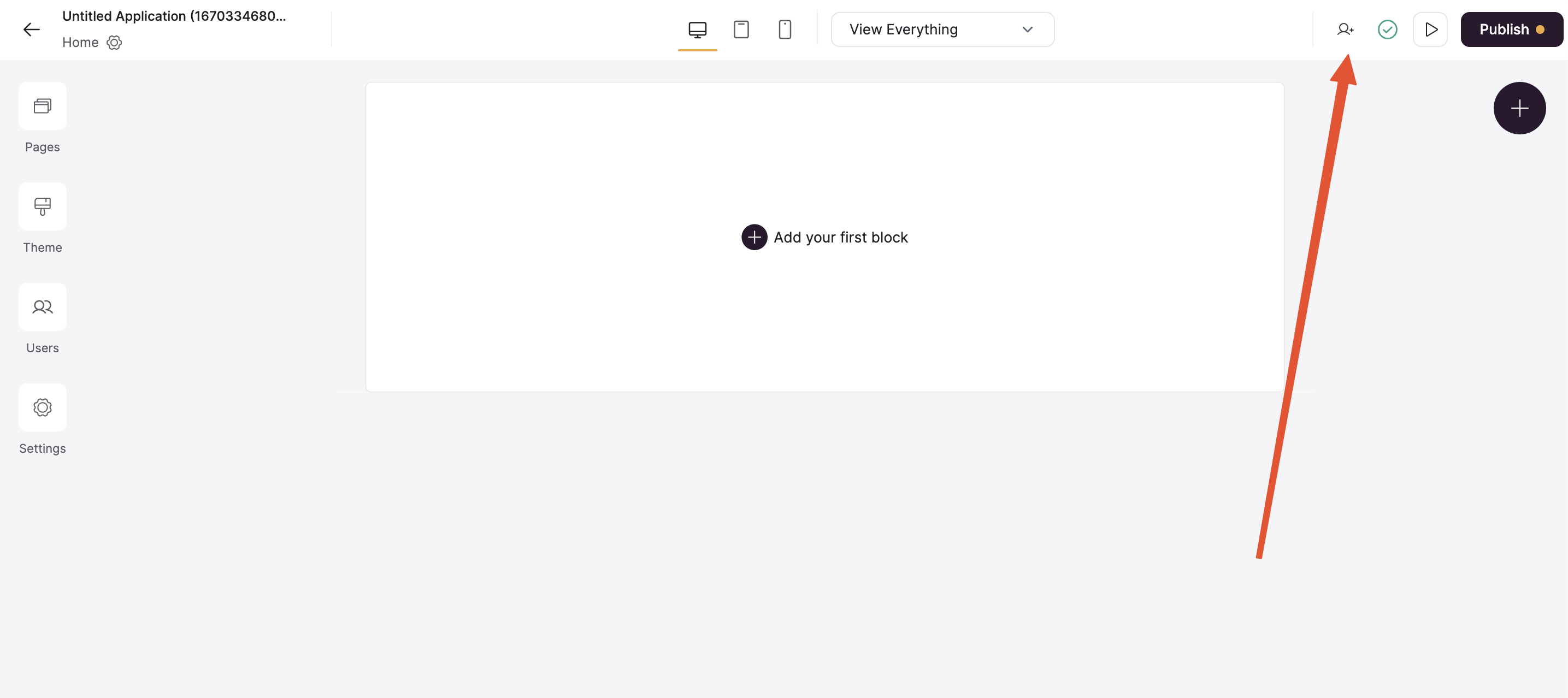
It’s also possible to add Guest Collaborators from the app studio.
The button will open a pop-up where you can enter the email of the guest and send an invite.
Note that Guest Collaborators only have access to the application they have been invited to and can’t access any other app in the workspace.
It’s also possible to add Guest Collaborators from the app studio.
 ## Revoking access
As soon as the support agent has completed investigating the issue(s) and no longer needs access, you can simply revoke this user from your app. To do that, you need to click on the same Collaborators icon on your app thumbnail and use the delete option as shown below.
## Revoking access
As soon as the support agent has completed investigating the issue(s) and no longer needs access, you can simply revoke this user from your app. To do that, you need to click on the same Collaborators icon on your app thumbnail and use the delete option as shown below.
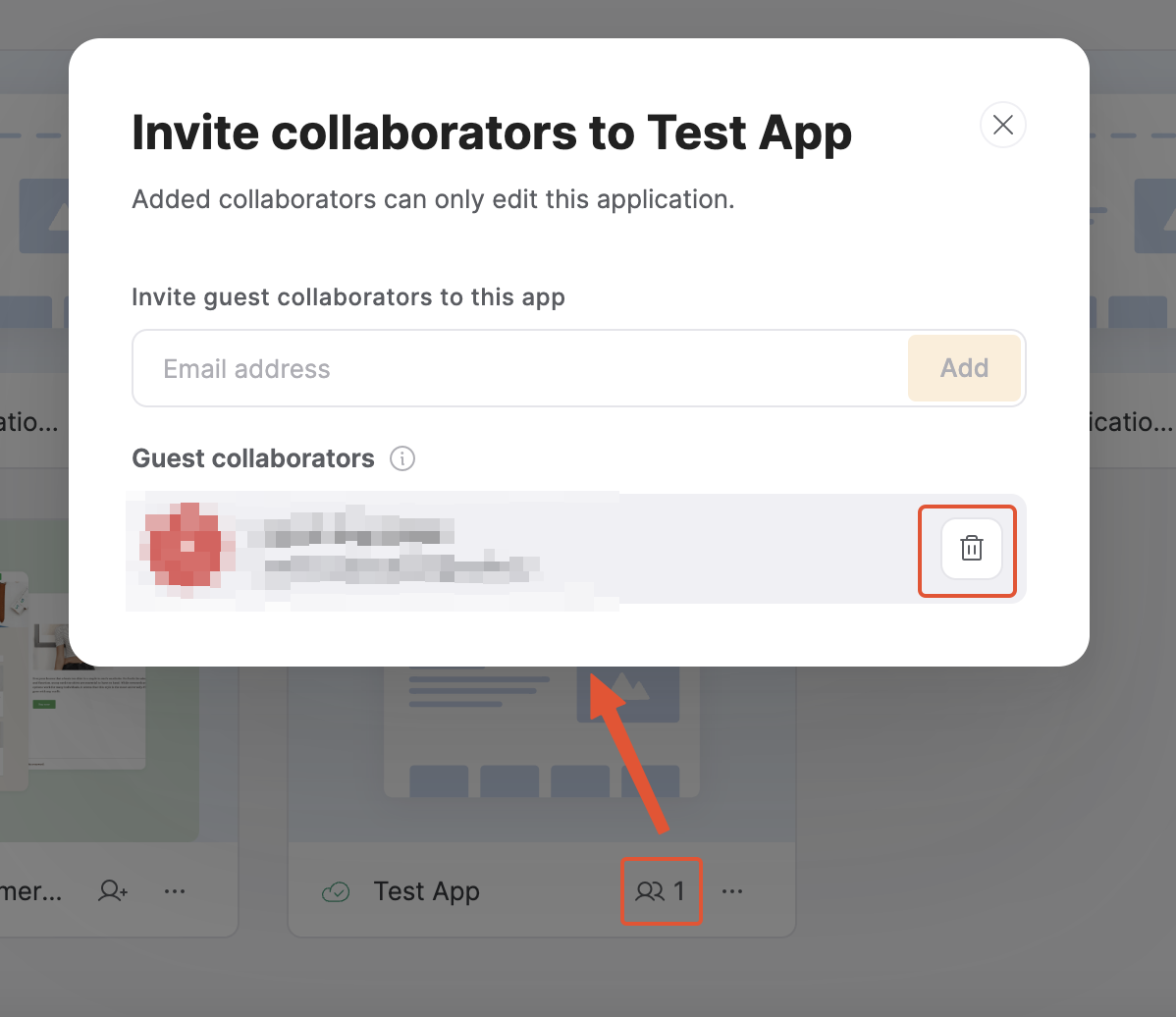 The same list can be accessed from your app’s studio.