> ## Documentation Index
> Fetch the complete documentation index at: https://docs.softr.io/llms.txt
> Use this file to discover all available pages before exploring further.
# How to filter list by Page URL parameters?
## Filtering Lists with Page URL Parameters
You can automatically filter a list without needing the search bar of user-facing filters by using URL parameters in your page URL. For example, on a page where you want to filter a project list by the name using the URL itself such as [`https://example.com/projects?projectName=Kingsport%20Diner`](https://example.com/projects?projectName=Kingsport%20Diner) you would create a conditional filter for the Project Name with the value `{URL_PARAM:projectName}`.
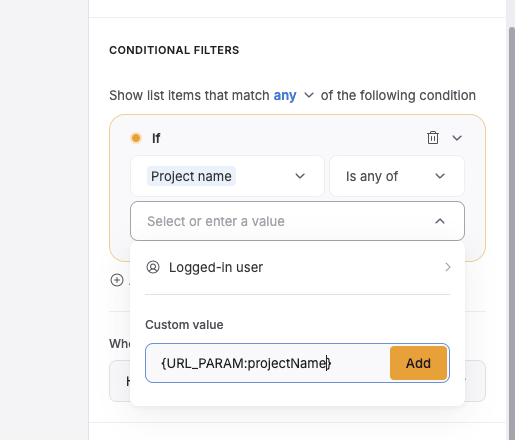 Notice that the `projectName` is subjective and can be whatever you like, but it needs to be used in both the URL and the conditional filter to work properly. Avoid using spaces and symbols in URL parameter names. If you need to use spaces or symbols in the parameter’s value, make sure they are URL encoded such as `Kingsport%20Diner` (Kingsport Diner).