> ## Documentation Index
> Fetch the complete documentation index at: https://docs.softr.io/llms.txt
> Use this file to discover all available pages before exploring further.

# Xano

> Connect to your Xano instance to interact with your data in your Softr apps.

Xano is a powerful backend-as-a-service platform that enables you to build and manage databases, APIs, and business logic without writing code. By integrating Xano with Softr, you can seamlessly use your Xano data in your Softr applications.

This integration allows you to:

* Store and retrieve structured data dynamically

* Use API-driven workflows in your Softr apps

* Securely manage and scale your backend

<Warning>**Data Connector** is a Xano add-on that you will need in order to connect Xano to your Softr apps. [Learn more](https://docs.xano.com/database/database-connector)</Warning>

<iframe src="https://www.youtube.com/embed/MO9RhoTSHTQ?rel=0" width="100%" height="500px" title="YouTube video" />

## **1. Connect Xano to Softr**

To use Xano in Softr, you need to connect your Xano instance as a data source. Note that one connected, all workspaces inside an instance will be available inside your Softr apps.

<Steps>
  <Step title="Open the database connector in Xano">
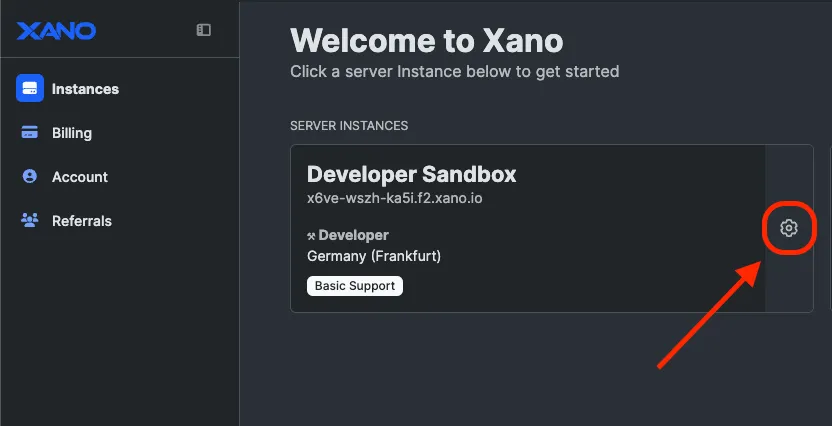
    1. **Log in to Xano** and go to the **server instance** you want to connect.

    2. Click the **gear icon** next to the server instance.<br />
           <Frame caption="Click on the gear icon next to the server instance you want to connect to.">
             <img src="https://mintcdn.com/softr-2b8a27e1/wZsu0rPwV3m7R1-j/data-sources/images/xano/image1.png?fit=max&auto=format&n=wZsu0rPwV3m7R1-j&q=85&s=e4e77241fe8de5e0d727495fe151e4ea" alt="Click on the gear icon next to the server instance you want to connect to." width="832" height="426" data-path="data-sources/images/xano/image1.png" />
           </Frame>

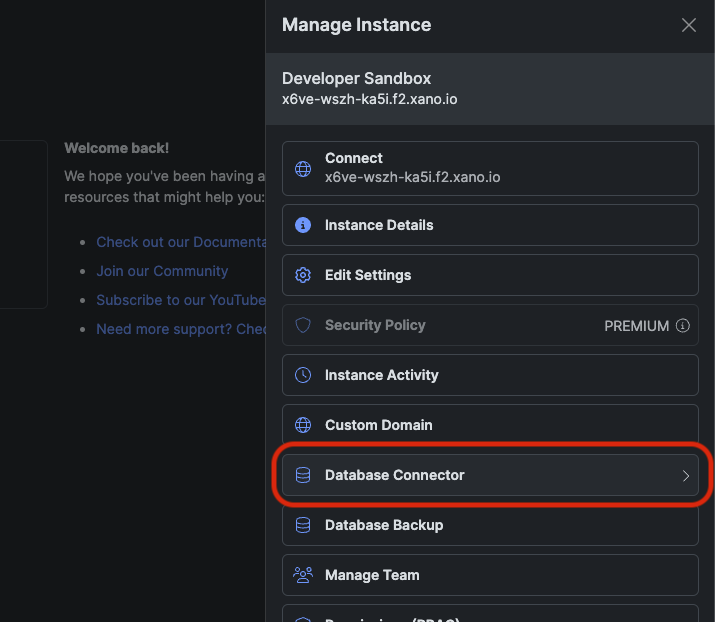
    3. In the menu on the right, select **Database Connector**.<br />
           <Frame caption="Select the Database Connector option">
             <img src="https://mintcdn.com/softr-2b8a27e1/wZsu0rPwV3m7R1-j/data-sources/images/xano/image2.png?fit=max&auto=format&n=wZsu0rPwV3m7R1-j&q=85&s=84ecf7e5094c1a5e41825e975981f27b" alt="Select the Database Connector option" width="715" height="622" data-path="data-sources/images/xano/image2.png" />
           </Frame>
  </Step>

  <Step title="Generate your instance’s public IP and credentials">
    In order for Softr to be able to access your instance, you’ll need to create a publicly accessible IP address and get some credentials so that only those with the credentials can access it.

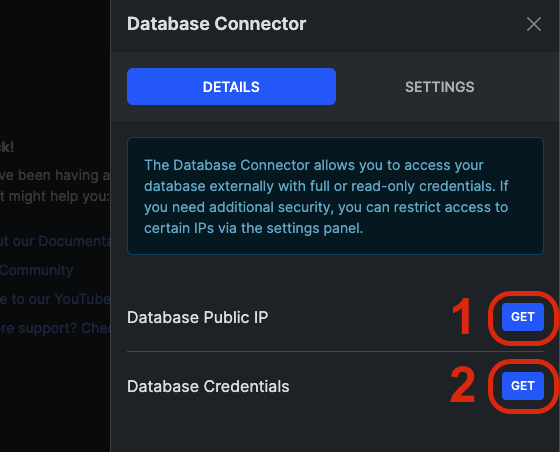
    1. Click the **GET buttons** to generate:<br />
       * A **public IP address** (required for Softr to access Xano)
       * **Access credentials** (used to authenticate Softr)<Frame caption="Click the GET buttons to generate a public IP and server credentials."><img src="https://mintcdn.com/softr-2b8a27e1/wZsu0rPwV3m7R1-j/data-sources/images/xano/image3.png?fit=max&auto=format&n=wZsu0rPwV3m7R1-j&q=85&s=f827a0ff4dd823a7a3c414d68a5cd1e6" alt="Click the GET buttons to generate a public IP and server credentials." width="560" height="452" data-path="data-sources/images/xano/image3.png" /></Frame>

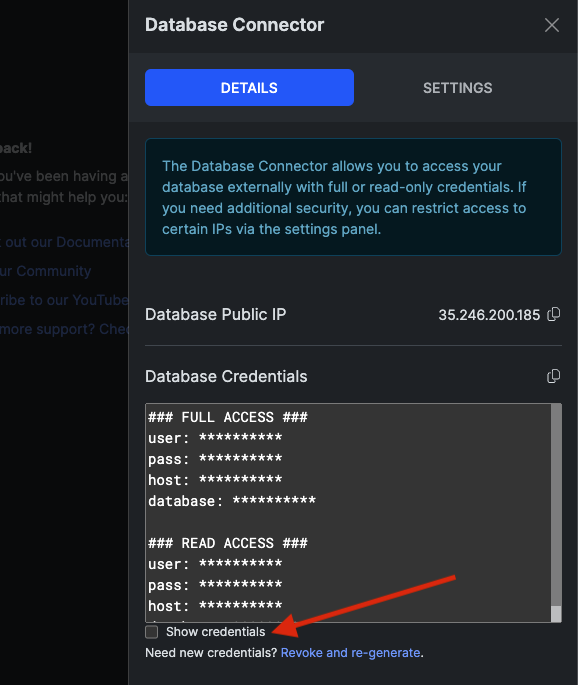
    2. **Copy and securely store your credentials**. By default, they are hidden for security reasons. Click **Show credentials**, then copy and save them in a secure location.<br />
           <Frame caption="Click on Show credentials to reveal them">
             <img src="https://mintcdn.com/softr-2b8a27e1/wZsu0rPwV3m7R1-j/data-sources/images/xano/image4.png?fit=max&auto=format&n=wZsu0rPwV3m7R1-j&q=85&s=28e36c20a83c786dedb1c3729f6314d1" alt="Click on Show credentials to reveal them" width="578" height="685" data-path="data-sources/images/xano/image4.png" />
           </Frame>
  </Step>

  <Step title="Allow Softr’s IP addresses in Xano">
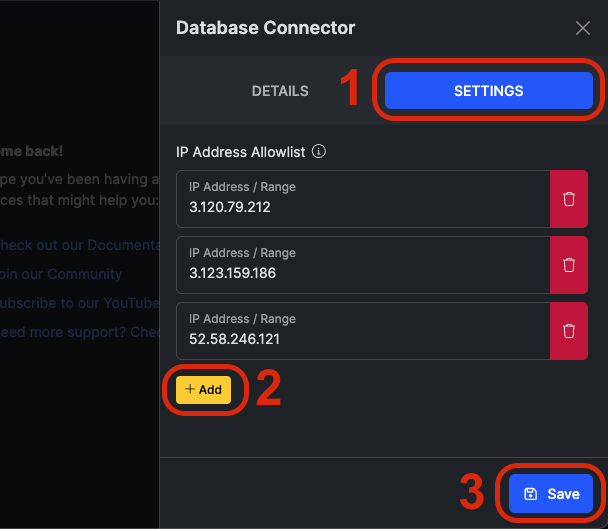
    1. Go to the **Settings tab** in the Database Connector.

    2. Click **+ Add** and enter the following Softr IP addresses:<br />
       * `3.120.79.212`
       * `3.123.159.186`
       * `52.58.246.121`

    3. Click **Save**.<br />
           <Frame caption="Click on the settings tab, add Softr’s IP addresses, then click Save.">
             <img src="https://mintcdn.com/softr-2b8a27e1/wZsu0rPwV3m7R1-j/data-sources/images/xano/image5.png?fit=max&auto=format&n=wZsu0rPwV3m7R1-j&q=85&s=b900e8e6ac97eb52e0cbb8e247203c4a" alt="Click on the settings tab, add Softr’s IP addresses, then click Save." width="608" height="529" data-path="data-sources/images/xano/image5.png" />
           </Frame>
  </Step>

  <Step title="Connect Xano in Softr">
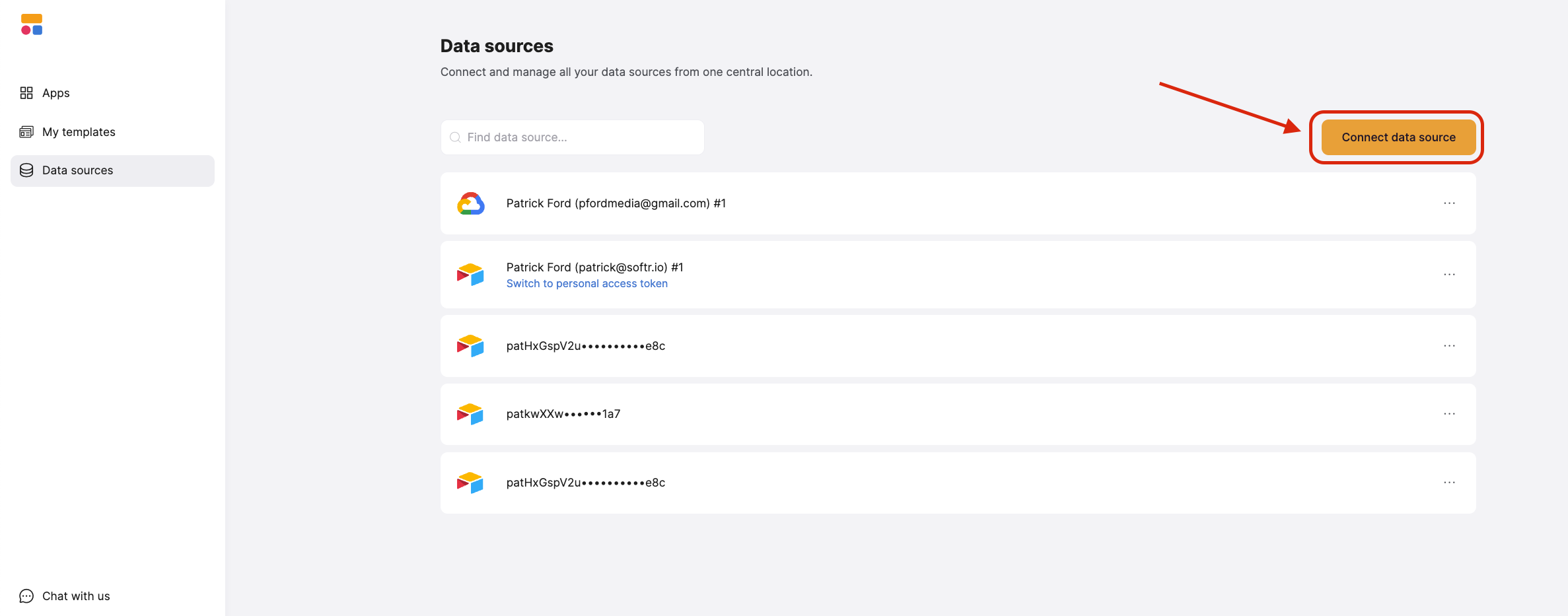
    1. **Log in to Softr** and go to [Data Sources](https://studio.softr.io/dashboard/data-sources) in the left-hand menu.

    2. Click **Connect Data Source** in the upper-right corner.

    3. Select **Xano** from the list of data sources.
           <Frame caption="Click on Connect Datasource">
             <img src="https://mintcdn.com/softr-2b8a27e1/wZsu0rPwV3m7R1-j/data-sources/images/xano/image6.png?fit=max&auto=format&n=wZsu0rPwV3m7R1-j&q=85&s=ebfdcf9f55152503d780a0720b062593" alt="Click on Connect Datasource" width="2374" height="933" data-path="data-sources/images/xano/image6.png" />
           </Frame>
  </Step>

  <Step title="Enter your Xano credentials in Softr">
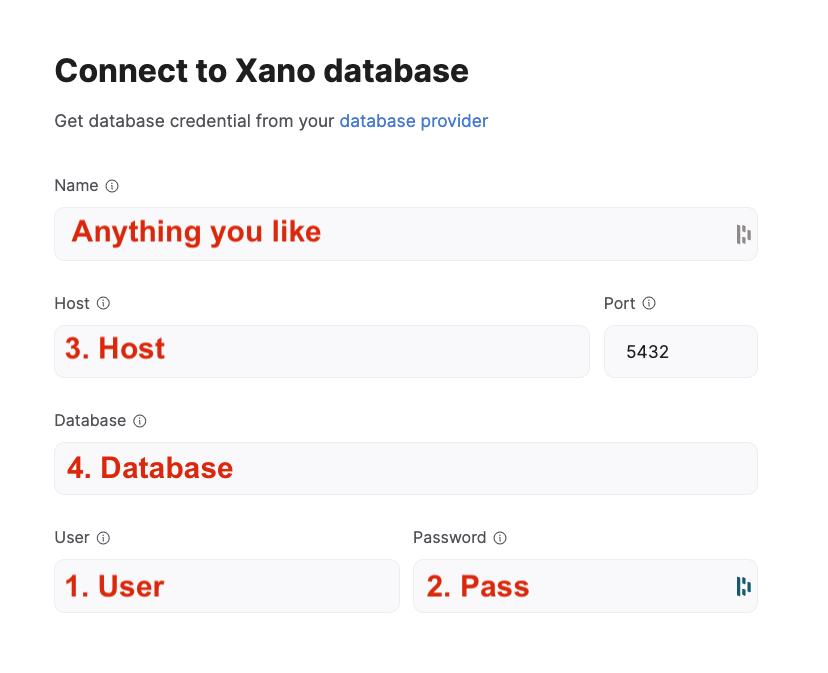
    Note that you have Full Access credentials as well as Read-Only credentials, so make sure to use the correct ones for your use case. We always recommend using the Full Access credentials so you don’t have to re-authenticate later if you expand your Softr apps’ capabilities.

    1. Copy and paste your Xano credentials into the appropriate fields in Softr:<br />
       * **User**
       * **Pass**
       * **Host**
       * **Database**

    2. **Set the Port to** `5432` (default for Xano).

    3. Enter a **custom name** for your connection (optional).<br />
           <Frame caption="Fill in the fields with the parts of your server credentials.">
             <img src="https://mintcdn.com/softr-2b8a27e1/wZsu0rPwV3m7R1-j/data-sources/images/xano/image7.png?fit=max&auto=format&n=wZsu0rPwV3m7R1-j&q=85&s=1301f6bdfd4777fa22eb1785a0a5e803" alt="Fill in the fields with the parts of your server credentials." width="828" height="673" data-path="data-sources/images/xano/image7.png" />
           </Frame>
           <Warning>
             If you copy your credentials and they paste in as ***xxxxxxxxxxx*** then you need to unhide them before copying, as explained in Step 3.
           </Warning>
  </Step>

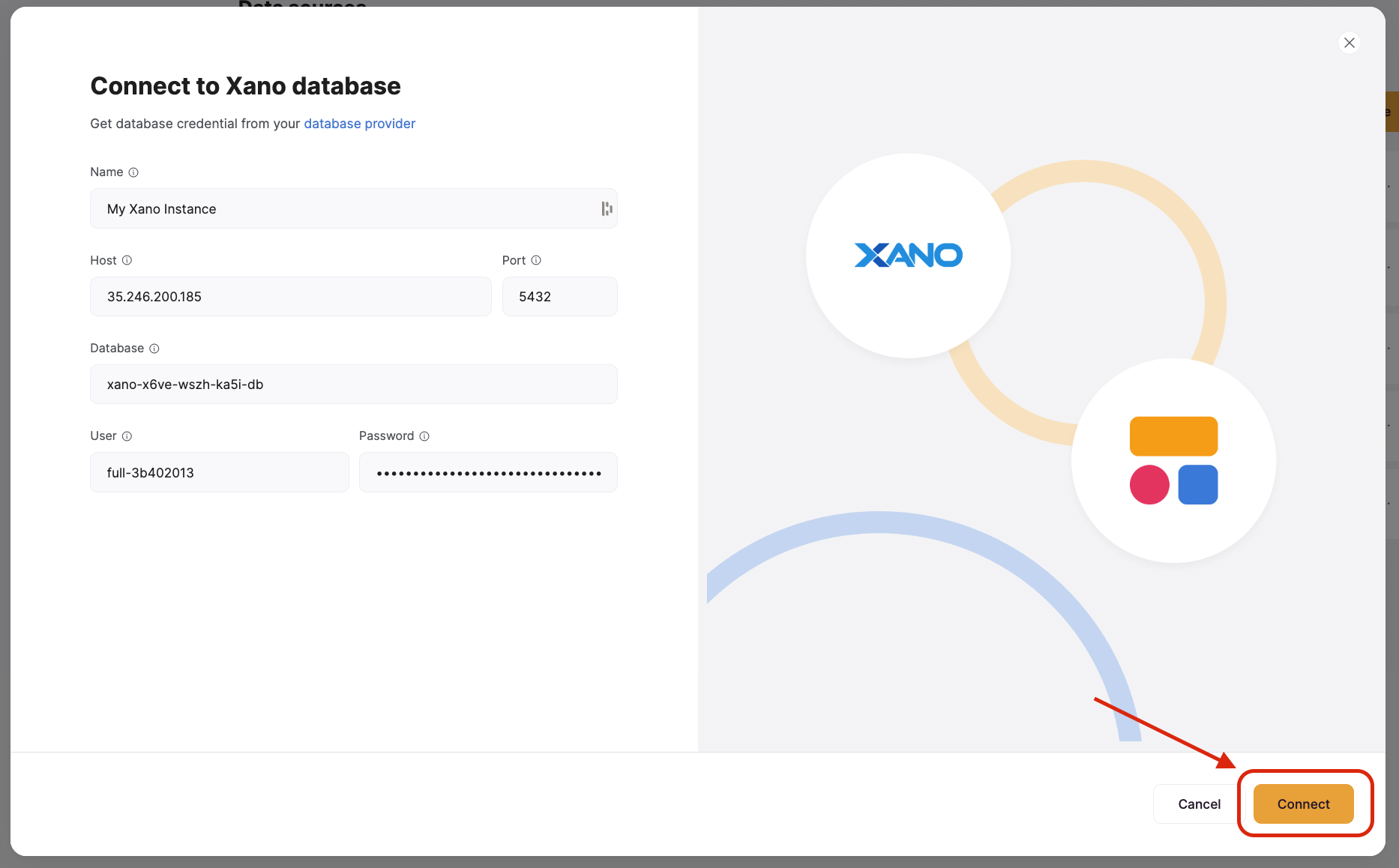
  <Step title="Click 'Connect' to complete setup">
    Once all fields are correctly filled in, click **Connect** to finalize the connection.

    <Frame caption="Click Connect once you’ve pasted in your credentials.">
      <img src="https://mintcdn.com/softr-2b8a27e1/wZsu0rPwV3m7R1-j/data-sources/images/xano/image8.png?fit=max&auto=format&n=wZsu0rPwV3m7R1-j&q=85&s=00b3756981c1cad64c3471463833bff1" alt="Click Connect once you’ve pasted in your credentials." width="1866" height="1158" data-path="data-sources/images/xano/image8.png" />
    </Frame>
  </Step>
</Steps>

## **2. Connect your Xano data to your Softr app**

Once your Xano account is connected, you can use it in any Softr application.

<Steps>
  <Step title="Connect your data to a dynamic block">
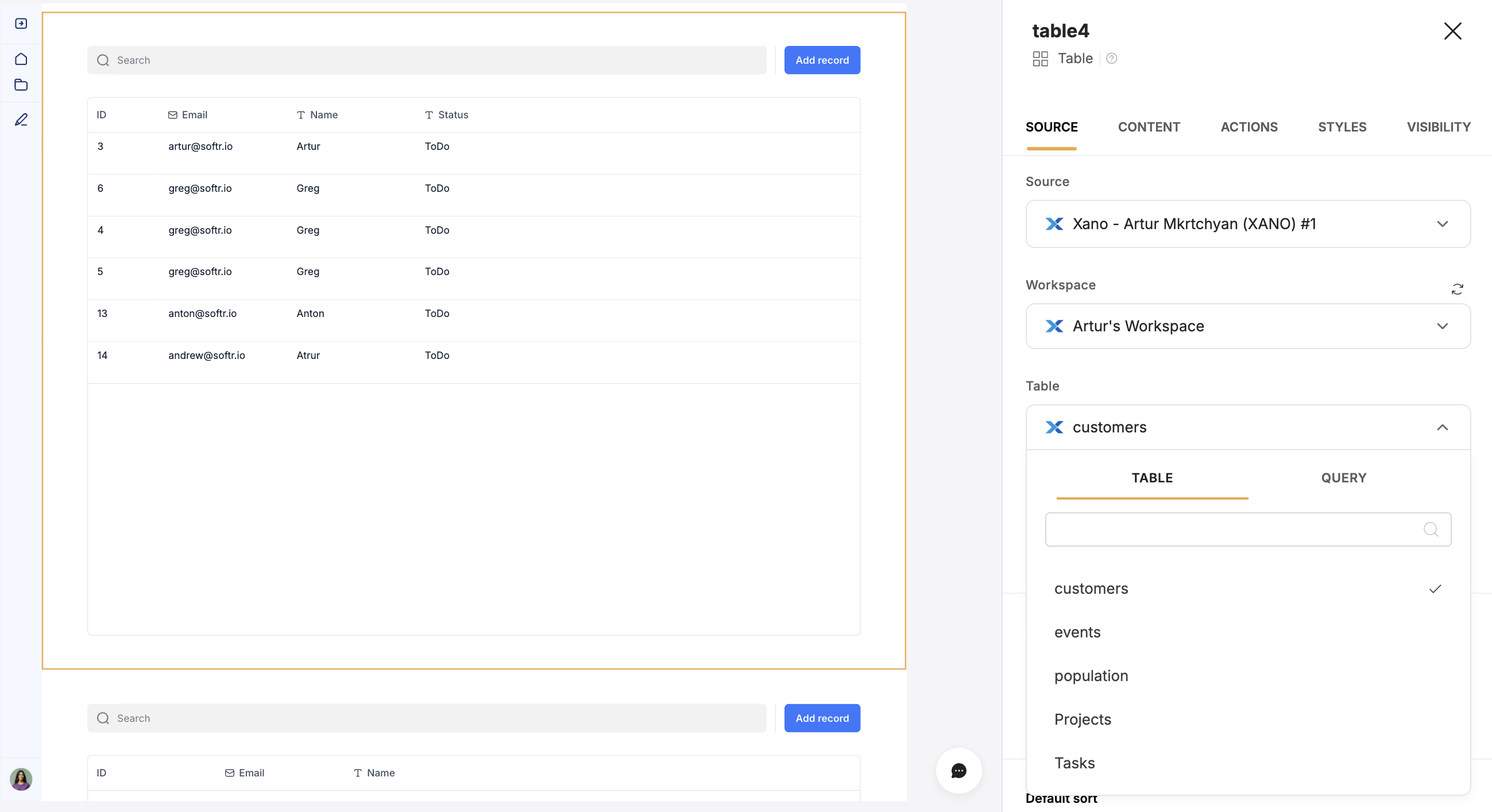
    To display your data in the app, connect a [dynamic block](/core-concepts-overview/c5VwEbsWtTfPyUZjmEKvfx/visualize-data-with-building-blocks/41p6U2eZs7zgY8zWmFV4eH#1859a723d691803d9551ecd7b3b0c043) (e.g. [List](/building-blocks/vikC2AWEpQGkZd4jGyoVxo/list-block/pQhPYuA28VXr5tLLFBcbCU), [Grid](/building-blocks/vikC2AWEpQGkZd4jGyoVxo/grid-block/42JZoeYwMsogZcveqh74QH), [Table](/building-blocks/vikC2AWEpQGkZd4jGyoVxo/table-block-/j7rGwu7J7zuU69h3bZ7HFe)) to your Xano table:

    1. Go to the Block **source** **tab** and select your Xano integration.

    2. Select the **workspace** you want to connect.

    3. Pick the **table** you want to use or **add a new** **query**

    4. Optionally, select the **primary field**.<br />
           <Frame caption="Connect Xano table to dynamic block">
             <img src="https://mintcdn.com/softr-2b8a27e1/wZsu0rPwV3m7R1-j/data-sources/images/xano/image9.png?fit=max&auto=format&n=wZsu0rPwV3m7R1-j&q=85&s=e72bd08cfd7da9da63fc10b051e253ed" alt="Connect Xano table to dynamic block" width="2598" height="1414" data-path="data-sources/images/xano/image9.png" />
           </Frame>
  </Step>

  <Step title="Map Xano fields to item fields">
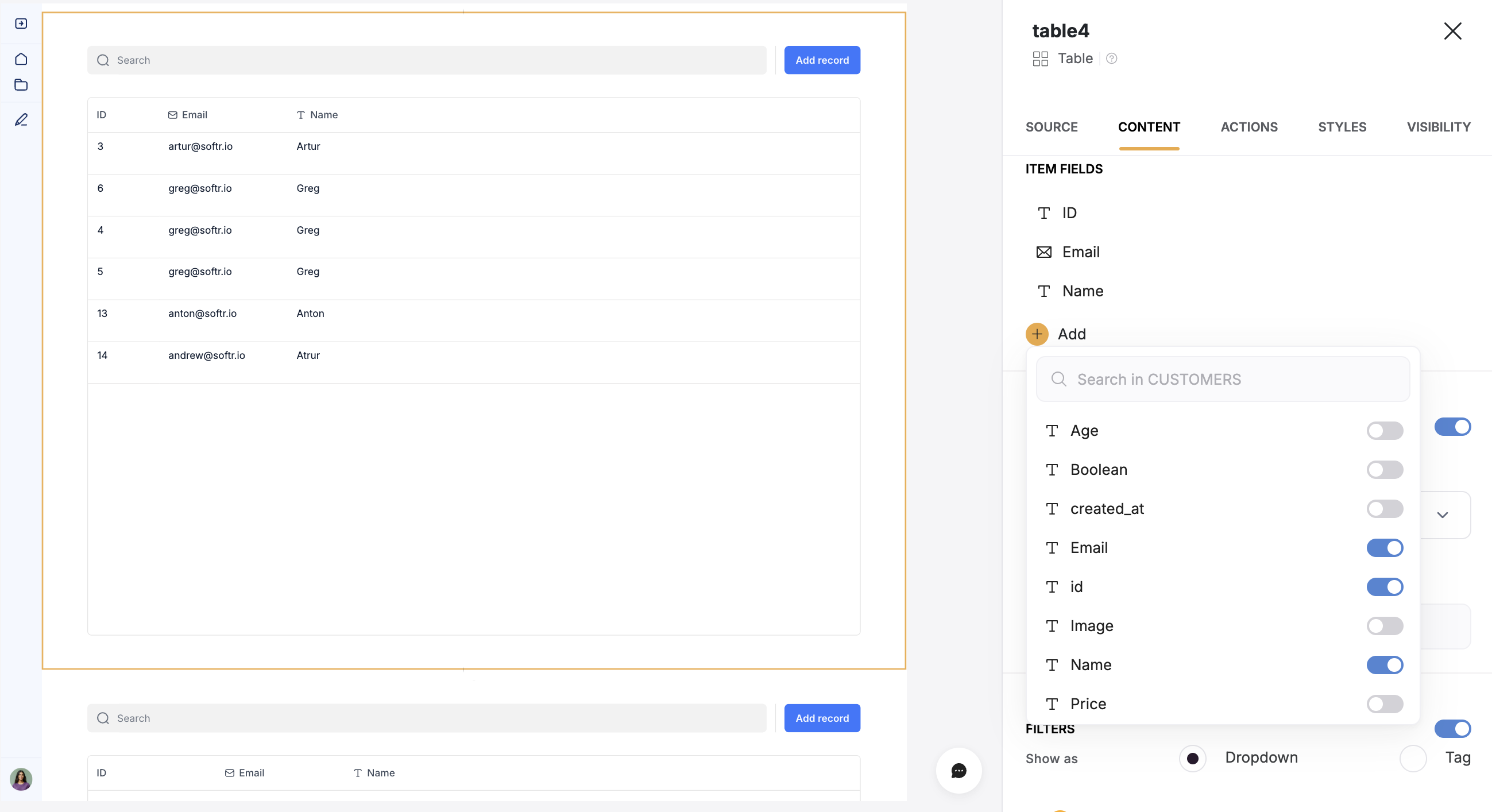
    When you connect your table to a block, you can choose which Xano **properties** to display and map to Softr fields. This lets you control how your data appears in Softr.

    **Example:** If you have an **email field** in Xano, select **an email field** in Softr.
    <Frame caption="Map Xano fields to item fields">
      <img src="https://mintcdn.com/softr-2b8a27e1/wZsu0rPwV3m7R1-j/data-sources/images/xano/image10.png?fit=max&auto=format&n=wZsu0rPwV3m7R1-j&q=85&s=2ea6c412467c8f450de0c0b8c512d336" alt="Map Xano fields to item fields" width="2598" height="1414" data-path="data-sources/images/xano/image10.png" />
    </Frame>
  </Step>
</Steps>