> ## Documentation Index
> Fetch the complete documentation index at: https://docs.softr.io/llms.txt
> Use this file to discover all available pages before exploring further.

# Supabase

> Connect Supabase to your Softr apps to interact with your data.

Supabase is a powerful open-source backend-as-a-service platform that allows you to store, manage, and query your data effortlessly. By integrating Supabase with Softr, you can seamlessly use your Supabase database in your Softr applications.

This integration allows you to:

* Store and retrieve structured data dynamically

* Use real-time updates in your Softr apps

* Securely manage and scale your backend

<Info>Supabase is available on **Professional** and higher plans.</Info>

<iframe src="https://www.youtube.com/embed/3xckjKoi6pU?rel=0" width="100%" height="500px" title="YouTube video" />

## 1. Connect Supabase to Softr

To use Supabase in Softr, you need to connect your Supabase project as a data source.

<Steps>
  <Step title="Select your Supabase project">
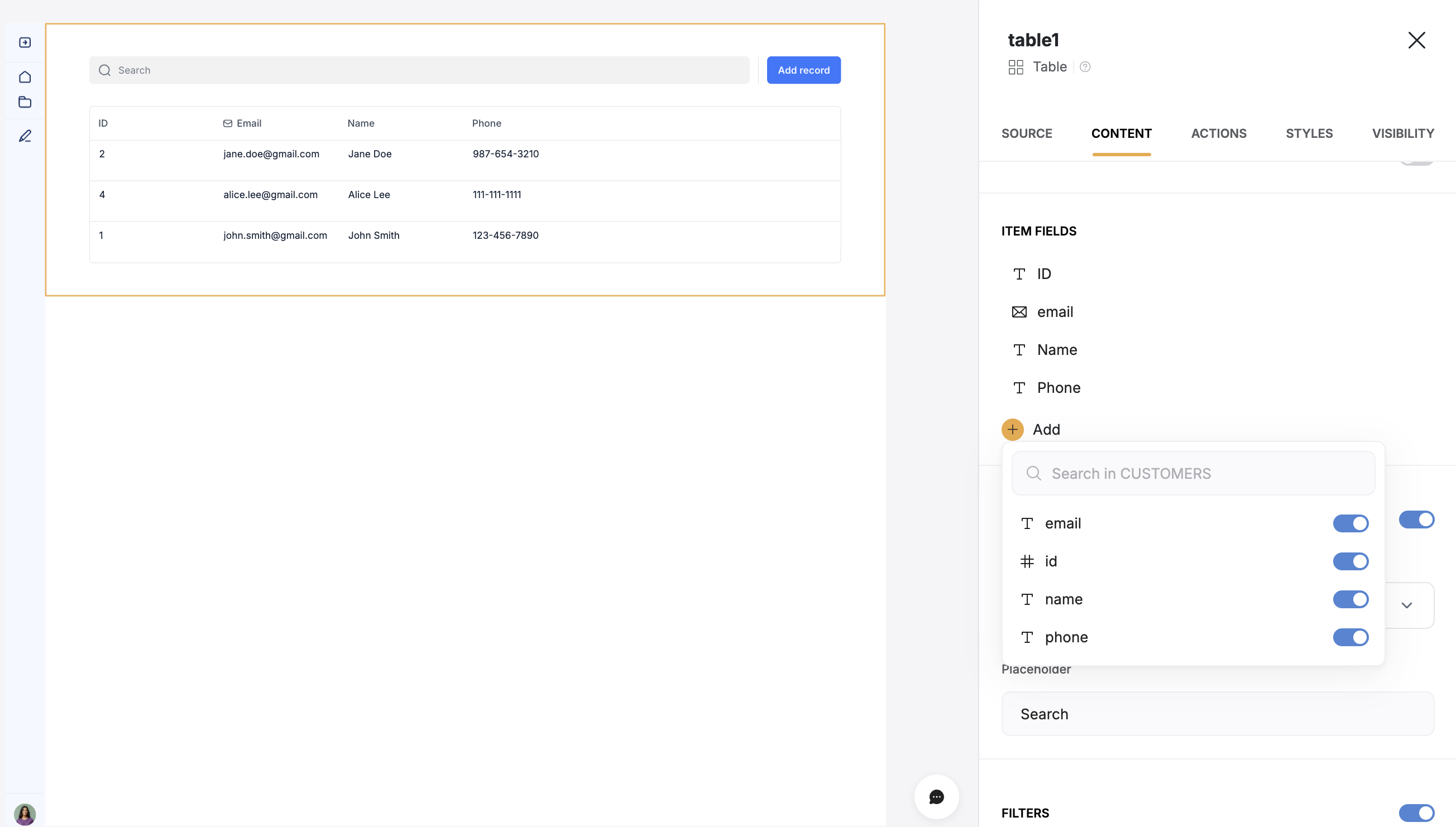
    1. **Log in to Supabase** and go to the **dashboard**.

    2. Click on the **project** you want to connect to Softr.<br />
           <Frame caption="Click on the project you want to connect to Softr">
             <img src="https://mintcdn.com/softr-2b8a27e1/wZsu0rPwV3m7R1-j/data-sources/images/supabase/image1.png?fit=max&auto=format&n=wZsu0rPwV3m7R1-j&q=85&s=1e75def04673f3fbc775be740ec4daa8" alt="Click on the project you want to connect to Softr" width="1789" height="953" data-path="data-sources/images/supabase/image1.png" />
           </Frame>
  </Step>

  <Step title="Configure project settings">
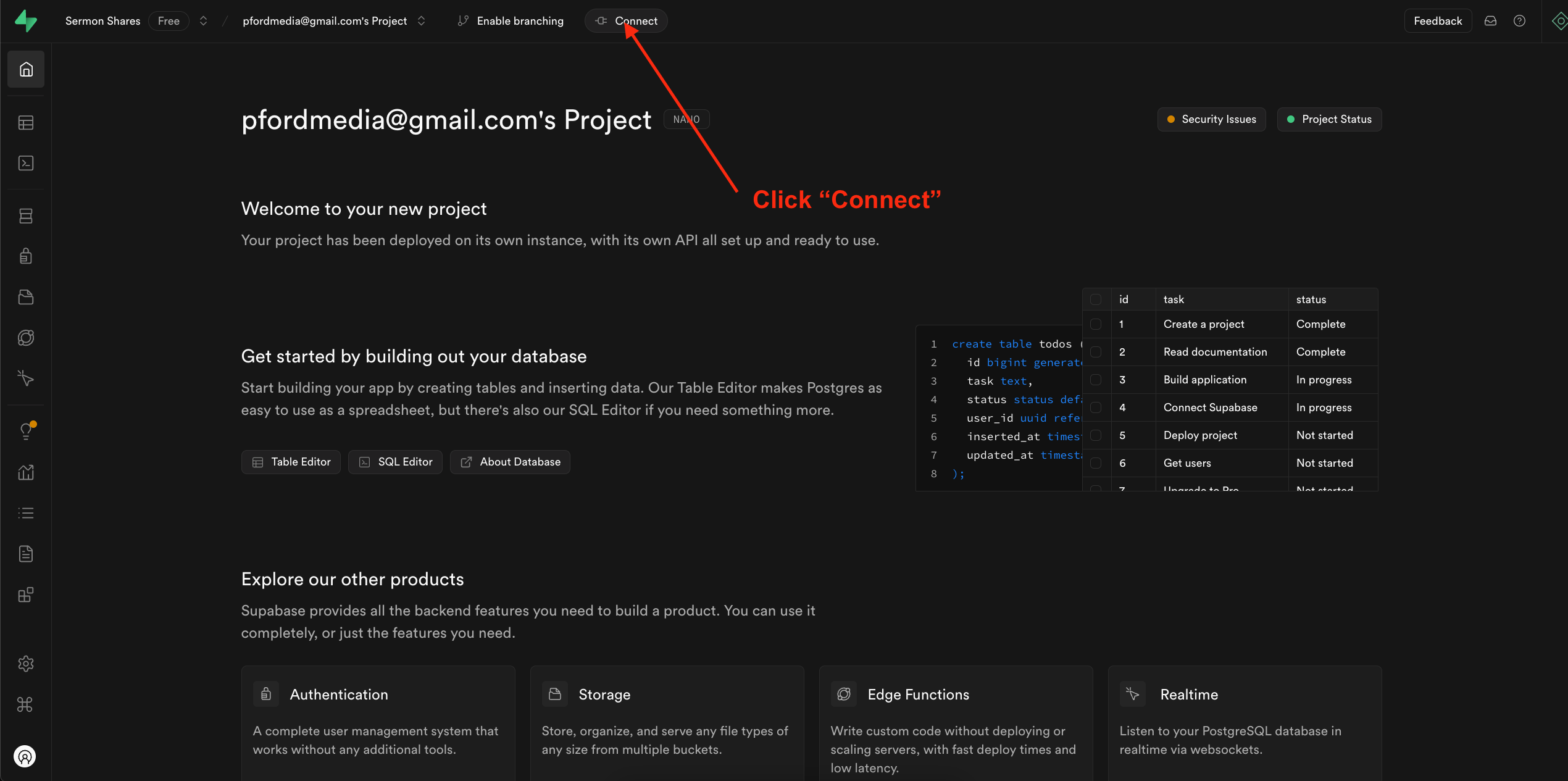
    1. Click the **Connect** button at the top of the project settings page.<br />
           <Frame caption="Click on Project settings in the bottom left menu">
             <img src="https://mintcdn.com/softr-2b8a27e1/wZsu0rPwV3m7R1-j/data-sources/images/supabase/image2.png?fit=max&auto=format&n=wZsu0rPwV3m7R1-j&q=85&s=199607f6839b4bec149c912743c739bb" alt="Click on Project settings in the bottom left menu" width="2540" height="1265" data-path="data-sources/images/supabase/image2.png" />
           </Frame>

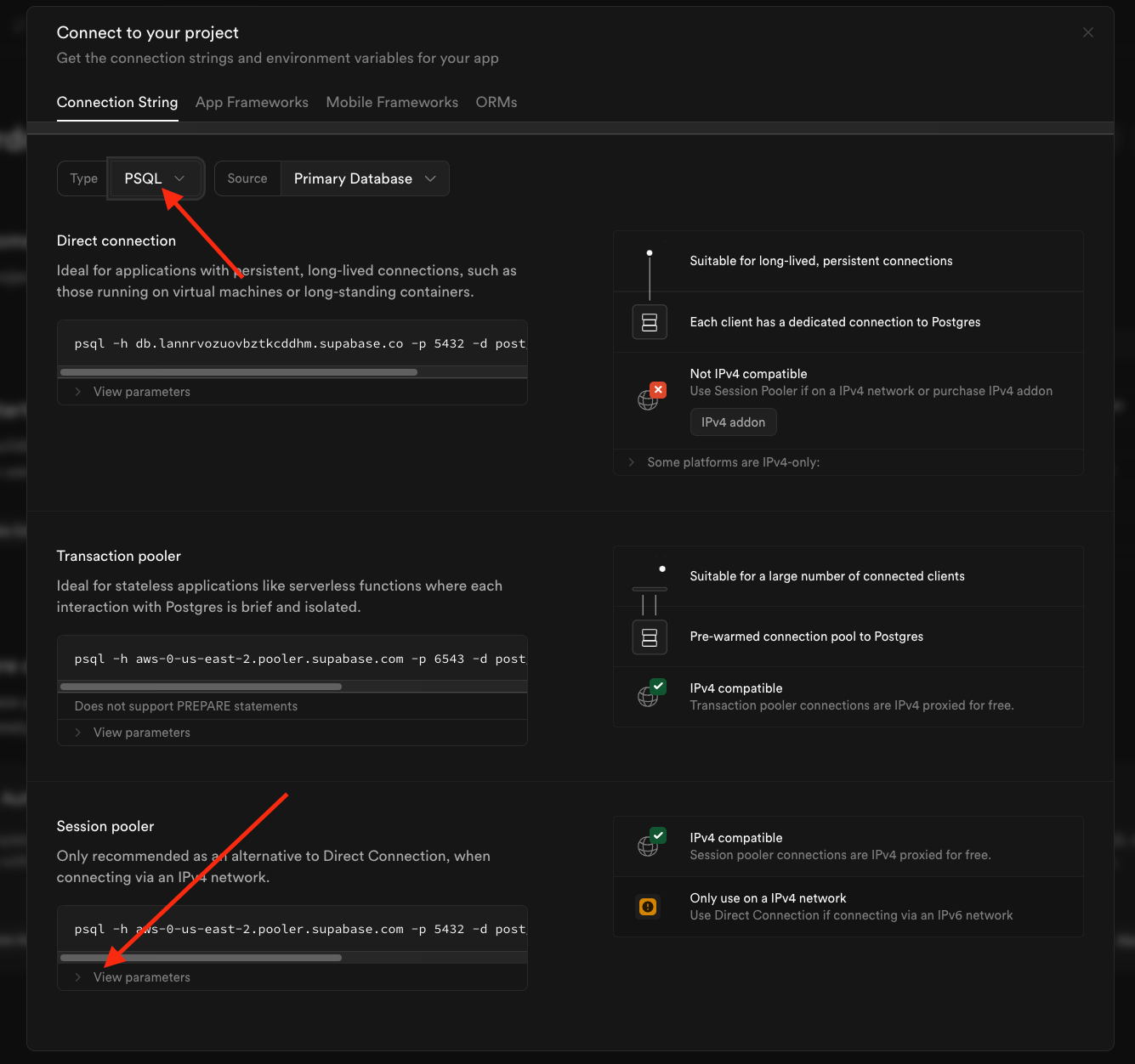
    2. Change the **Type** to **PSQL**.

    3. Open the **View parameters** dropdown under the **Session Pooler** section.<br />
           <Frame caption="Click on the Database tab under Configuration">
             <img src="https://mintcdn.com/softr-2b8a27e1/wZsu0rPwV3m7R1-j/data-sources/images/supabase/image3.png?fit=max&auto=format&n=wZsu0rPwV3m7R1-j&q=85&s=870d45ec7104a8e45dde169b754266f2" alt="Click on the Database tab under Configuration" width="1335" height="1252" data-path="data-sources/images/supabase/image3.png" />
           </Frame>
  </Step>

  <Step title="Copy your supabase credentials">
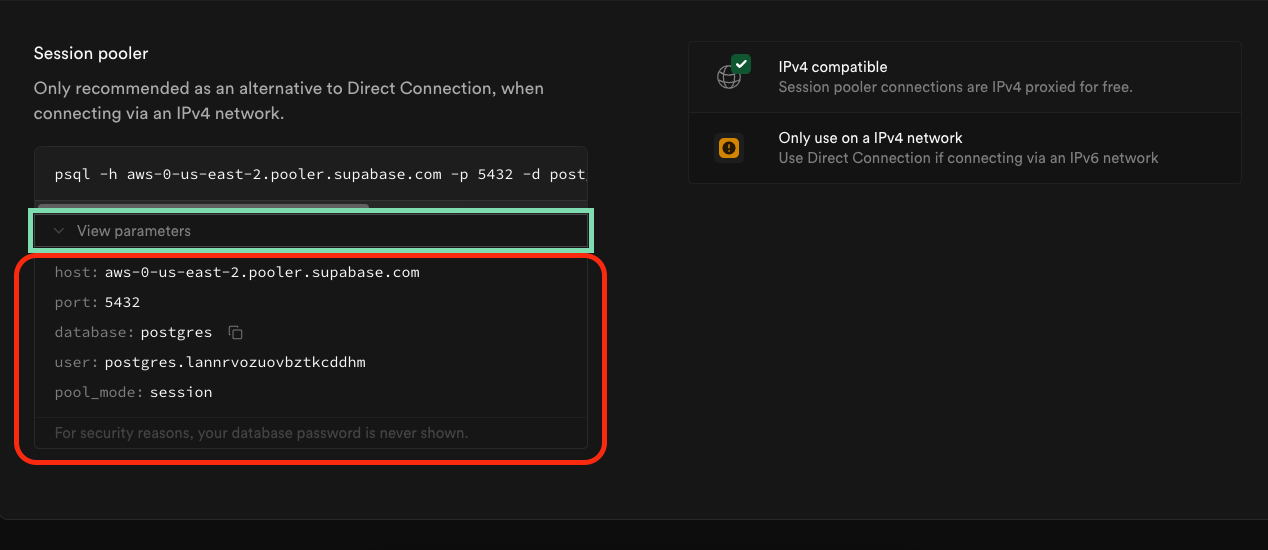
    1. Locate the **Configuration Parameters** section.

    2. Copy and securely store the following credentials:<br />
       * **Host**
       * **Database**
       * **Port** (default is `5432`)
       * **User**
       * **Password** (usually the project password)<Frame caption="Find the Connection parameters section and copy down the credentials"><img src="https://mintcdn.com/softr-2b8a27e1/wZsu0rPwV3m7R1-j/data-sources/images/supabase/image4.png?fit=max&auto=format&n=wZsu0rPwV3m7R1-j&q=85&s=16b1c663f364ffd5a10b6ef6708feac2" alt="Find the Connection parameters section and copy down the credentials" width="1268" height="550" data-path="data-sources/images/supabase/image4.png" /></Frame>
  </Step>

  <Step title="Set the Pool Size">
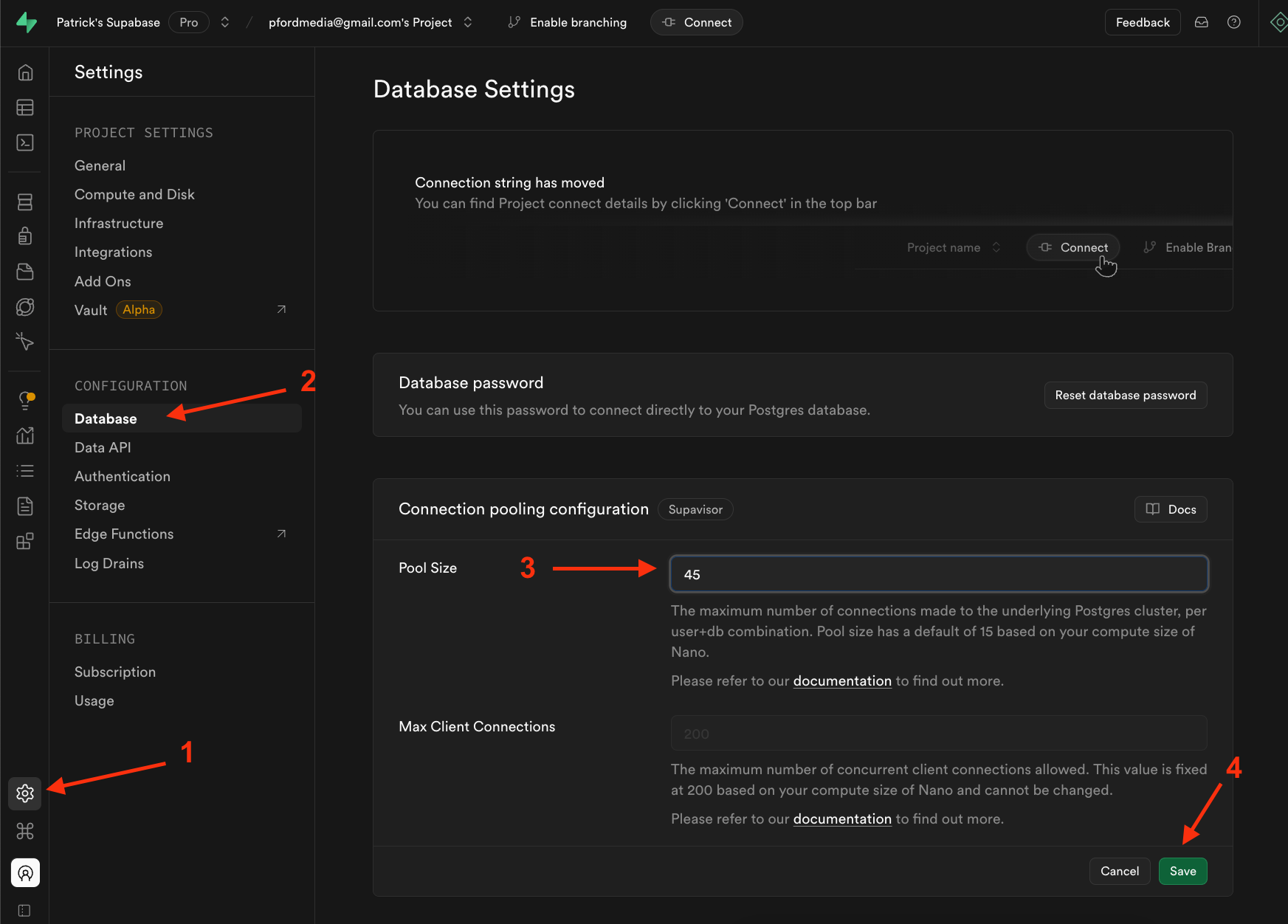
    Setting the pool size ensures your Supabase database can support multiple connections from Softr at the same time. You set this number to 45 ***or greater***.

    1. Click on Project Settings

    2. Click on Database

    3. Type in the pool size number (should be 45 or greater)

    4. Click Save
           <Frame>
             <img src="https://mintcdn.com/softr-2b8a27e1/wZsu0rPwV3m7R1-j/data-sources/images/supabase/image5.png?fit=max&auto=format&n=wZsu0rPwV3m7R1-j&q=85&s=5bc432ac6c021c6cc8873e46e8dd88ea" alt="Notion image" width="1745" height="1252" data-path="data-sources/images/supabase/image5.png" />
           </Frame>
  </Step>

  <Step title="Connect Supabase to Softr">
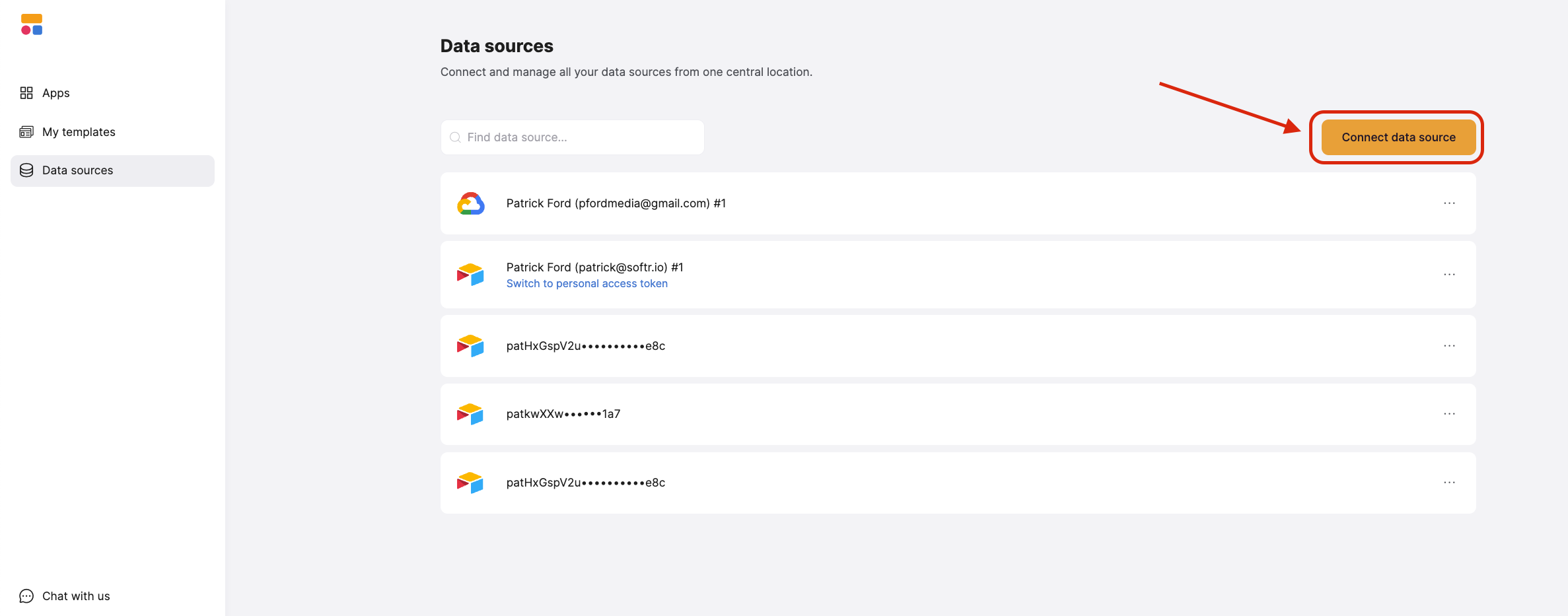
    1. **Log in to Softr** and go to **Data Sources** in the left-hand menu.

    2. Click the **Connect Data Source** button in the upper-right corner.

    3. Select **Supabase**, then click **Continue**.
           <Frame caption="Click on Connect Datasource">
             <img src="https://mintcdn.com/softr-2b8a27e1/wZsu0rPwV3m7R1-j/data-sources/images/supabase/image6.png?fit=max&auto=format&n=wZsu0rPwV3m7R1-j&q=85&s=170f97d050400b1b46561232e2a34ab6" alt="Click on Connect Datasource" width="2374" height="933" data-path="data-sources/images/supabase/image6.png" />
           </Frame>
  </Step>

  <Step title="Enter your Supabase credentials in Softr">
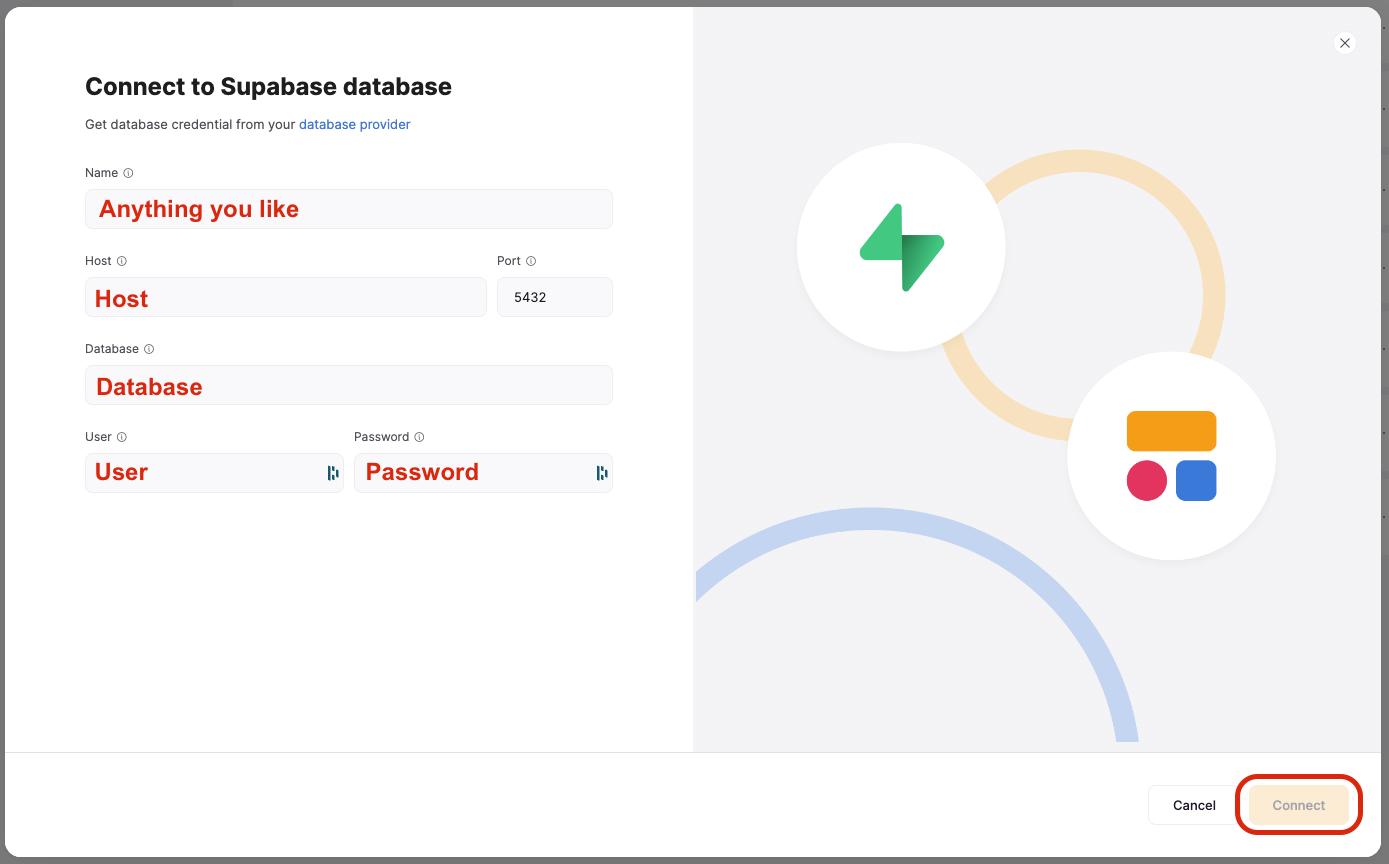
    1. Copy and paste your Supabase credentials into the appropriate fields in Softr:<br />
       * **Host**
       * **Database**
       * **Port** (`5432` by default)
       * **User**
       * **Password**

    2. Enter a **custom name** for your connection (optional).

    3. Click **Connect** to complete the setup.
           <Frame caption="Fill in the fields with the info from Supabase, then click Connect in the lower Right">
             <img src="https://mintcdn.com/softr-2b8a27e1/wZsu0rPwV3m7R1-j/data-sources/images/supabase/image7.png?fit=max&auto=format&n=wZsu0rPwV3m7R1-j&q=85&s=fa6f14e8dc228572baf8ec5dcca672af" alt="Fill in the fields with the info from Supabase, then click Connect in the lower Right" width="1389" height="864" data-path="data-sources/images/supabase/image7.png" />
           </Frame>

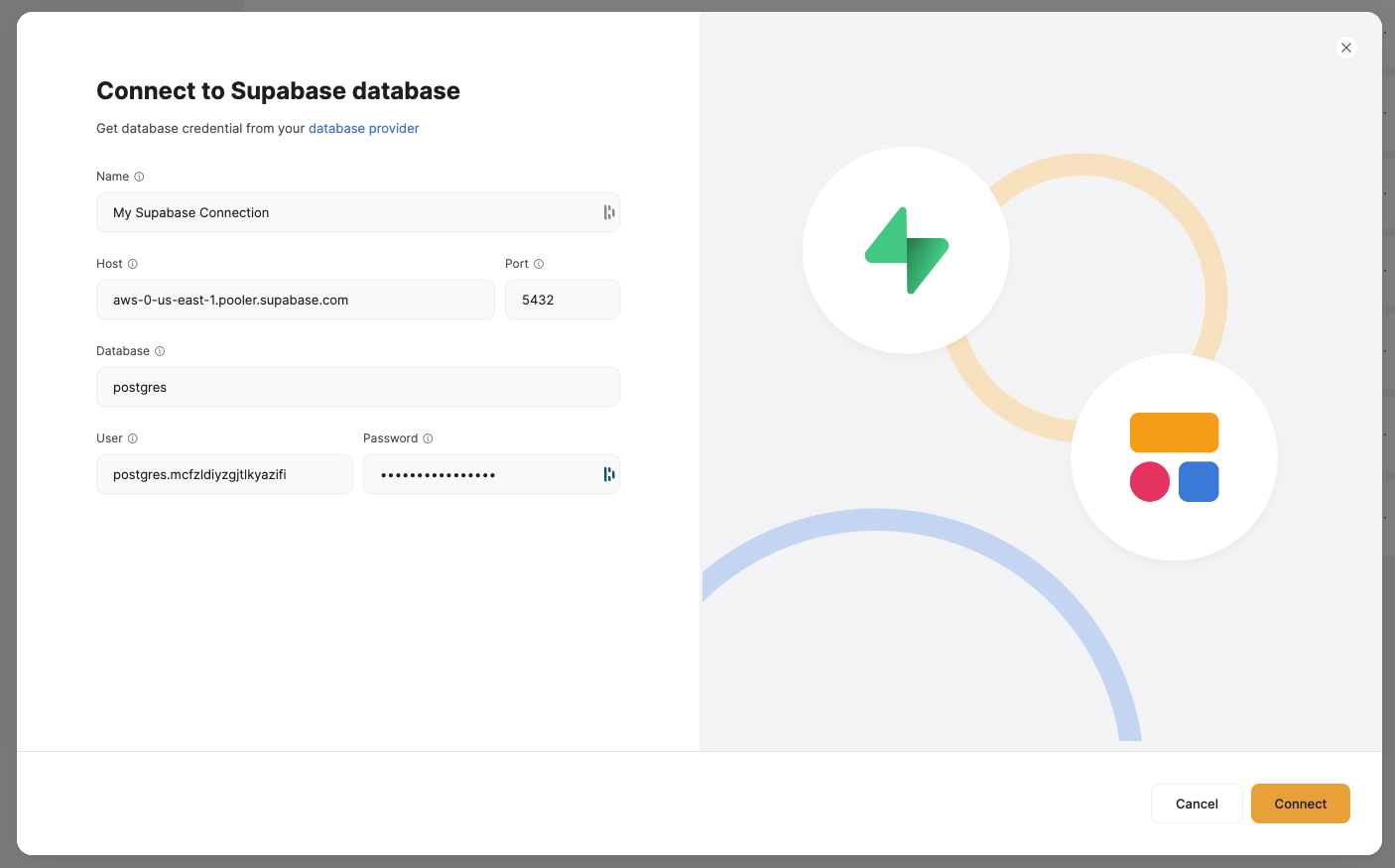
    You should end up with something like this:

    <Frame caption="Example connection information">
      <img src="https://mintcdn.com/softr-2b8a27e1/wZsu0rPwV3m7R1-j/data-sources/images/supabase/image8.png?fit=max&auto=format&n=wZsu0rPwV3m7R1-j&q=85&s=dde232a05e4779b316334f4b7a6e7ad1" alt="Example connection information" width="1406" height="875" data-path="data-sources/images/supabase/image8.png" />
    </Frame>
  </Step>

  <Step title="Restrict IP Access (Optional)">
    If you need to restrict IP addresses inside Supabase, add **Softr’s IP addresses** to your allowed list:

    * `3.120.79.212`

    * `3.123.159.186`

    * `52.58.246.121`
  </Step>
</Steps>

## 2. Connect your Supabase data to your Softr app

Once your Supabase account is connected, you can use it in any Softr application.

<Steps>
  <Step title="Connect your data to a dynamic block">
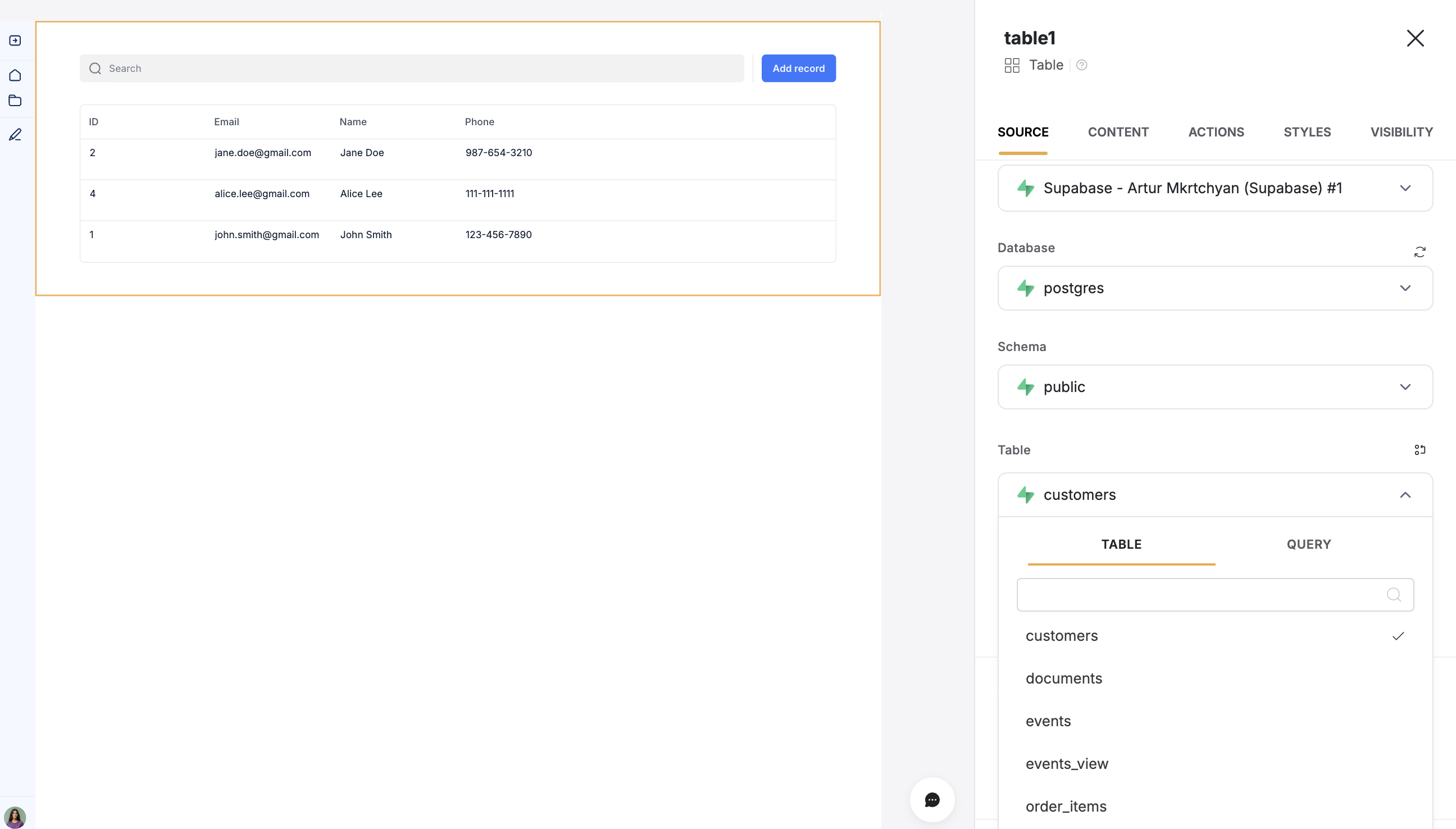
    To display your data in the app, connect a [dynamic block](/core-concepts-overview/c5VwEbsWtTfPyUZjmEKvfx/visualize-data-with-building-blocks/41p6U2eZs7zgY8zWmFV4eH#1859a723d691803d9551ecd7b3b0c043) (e.g. [List](/building-blocks/vikC2AWEpQGkZd4jGyoVxo/list-block/pQhPYuA28VXr5tLLFBcbCU), [Grid](/building-blocks/vikC2AWEpQGkZd4jGyoVxo/grid-block/42JZoeYwMsogZcveqh74QH), [Table](/building-blocks/vikC2AWEpQGkZd4jGyoVxo/table-block-/j7rGwu7J7zuU69h3bZ7HFe)) to your Supabase table:

    1. Go to the Block **source** **tab** and select your Supabase integration.

    2. Select the **database** and **schema** you want to connect.

    3. Pick the **table** you want to use or **add a new** **query**

    4. Optionally, select the **primary field**.
           <Frame>
             <img src="https://mintcdn.com/softr-2b8a27e1/wZsu0rPwV3m7R1-j/data-sources/images/supabase/image9.png?fit=max&auto=format&n=wZsu0rPwV3m7R1-j&q=85&s=739759b2aa6c7e022d3bc7c8fc03d37d" alt="Notion image" width="2592" height="1476" data-path="data-sources/images/supabase/image9.png" />
           </Frame>
  </Step>

  <Step title="Map Supabase fields to item fields">
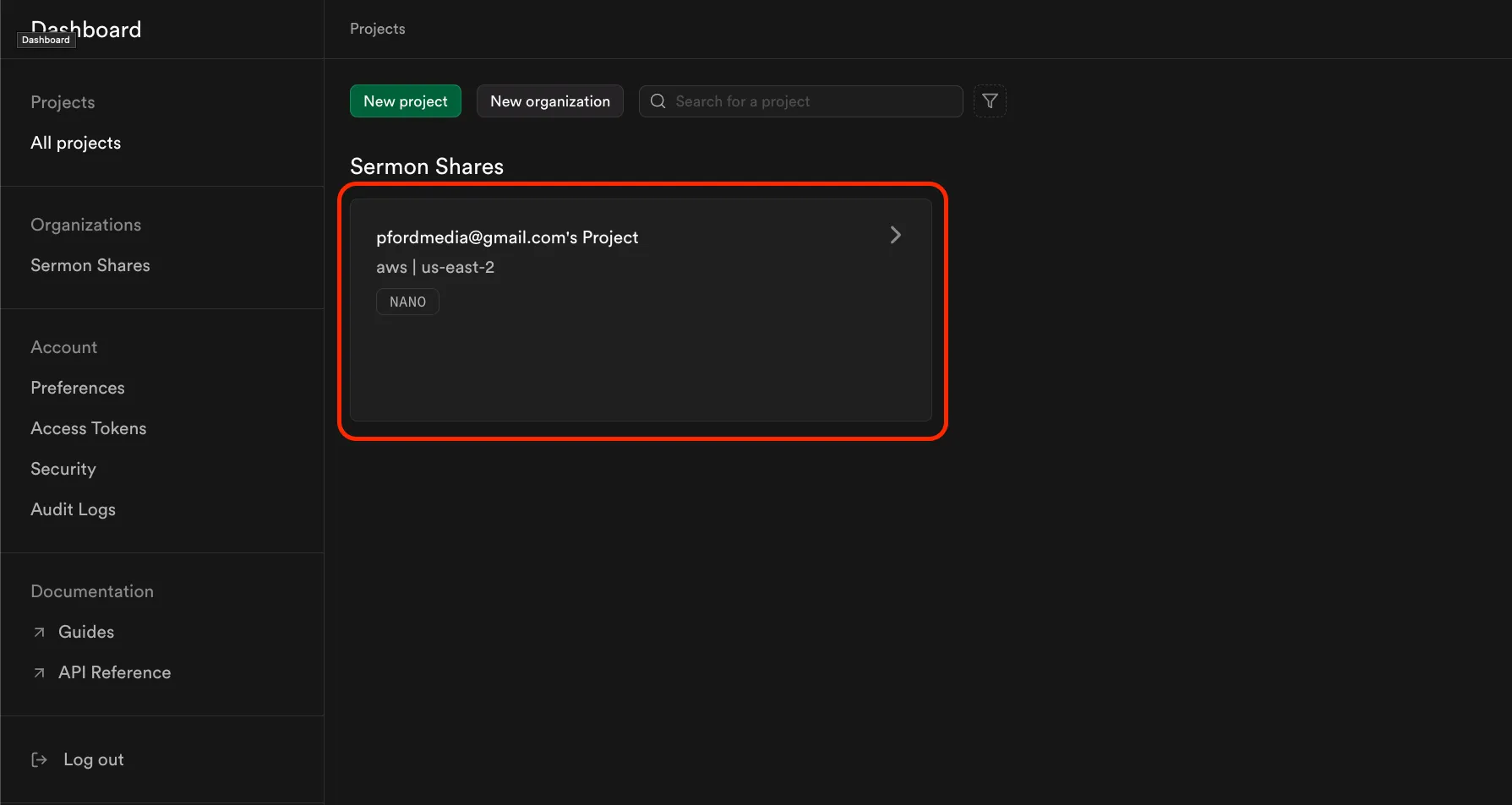
    When you connect your table to a block, you can choose which Supabase **properties** to display and map to a Softr field. This lets you control how your data appears in Softr.

    **Example:** If you have an **email field** in Supabase, select **an email field** in Softr.
    <Frame>
      <img src="https://mintcdn.com/softr-2b8a27e1/wZsu0rPwV3m7R1-j/data-sources/images/supabase/image10.png?fit=max&auto=format&n=wZsu0rPwV3m7R1-j&q=85&s=5881ac261c33ddb2e1e54ff09e1b939b" alt="Notion image" width="2608" height="1482" data-path="data-sources/images/supabase/image10.png" />
    </Frame>
  </Step>
</Steps>