> ## Documentation Index
> Fetch the complete documentation index at: https://docs.softr.io/llms.txt
> Use this file to discover all available pages before exploring further.
# SQL Database
> Connect your PostgreSQL, MySQL, SQL Server and MariaDB databases to Softr apps.
In Softr, you can easily build powerful, data-driven applications by using **PostgreSQL, MySQL, SQL Server, and MariaDB** as data sources.
With SQL data sources, you can:
* Integrate your structured data into **custom apps and dashboards**
* Enable **secure access** for internal teams and external partners
* Scale without hitting **record limitations**
SQL data sources is available on Business and Enterprise plans.
## **1. Connect your SQL database to Softr**
To use the SQL database in Softr, you must first **link your account**. Before connecting, make sure you have:
* Access to your **SQL database credentials** (hostname, database name, username, and password).
* Necessary **permissions to access and modify** the database.
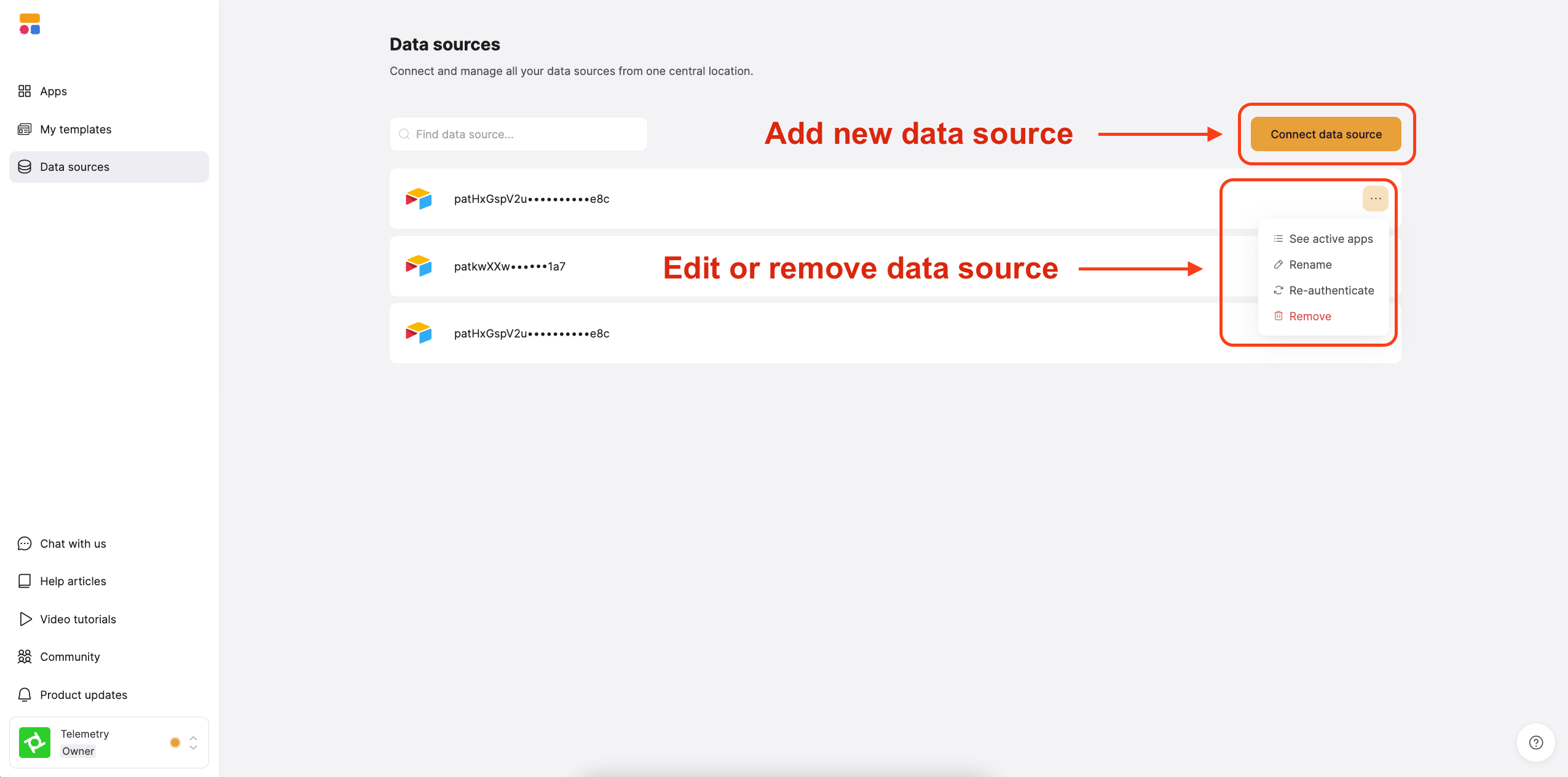
1. Log in to Softr and go to [Data Sources](https://studio.softr.io/dashboard/data-sources) in the left-hand menu.
2. Click **Connect Data Source**.
 Choose one of the following supported databases:
* **PostgreSQL**
* **MySQL**
* **SQL Server**
* **MariaDB**
After selecting your database type, enter the following credentials:
* **Host** – The database server address (e.g., `db.example.com`)
* **Port** – Default ports: `5432` (PostgreSQL), `3306` (MySQL & MariaDB), `1433` (SQL Server)
* **Database Name** – The name of your database
* **User** – Your database username
* **Password** – Your database password
Choose one of the following supported databases:
* **PostgreSQL**
* **MySQL**
* **SQL Server**
* **MariaDB**
After selecting your database type, enter the following credentials:
* **Host** – The database server address (e.g., `db.example.com`)
* **Port** – Default ports: `5432` (PostgreSQL), `3306` (MySQL & MariaDB), `1433` (SQL Server)
* **Database Name** – The name of your database
* **User** – Your database username
* **Password** – Your database password
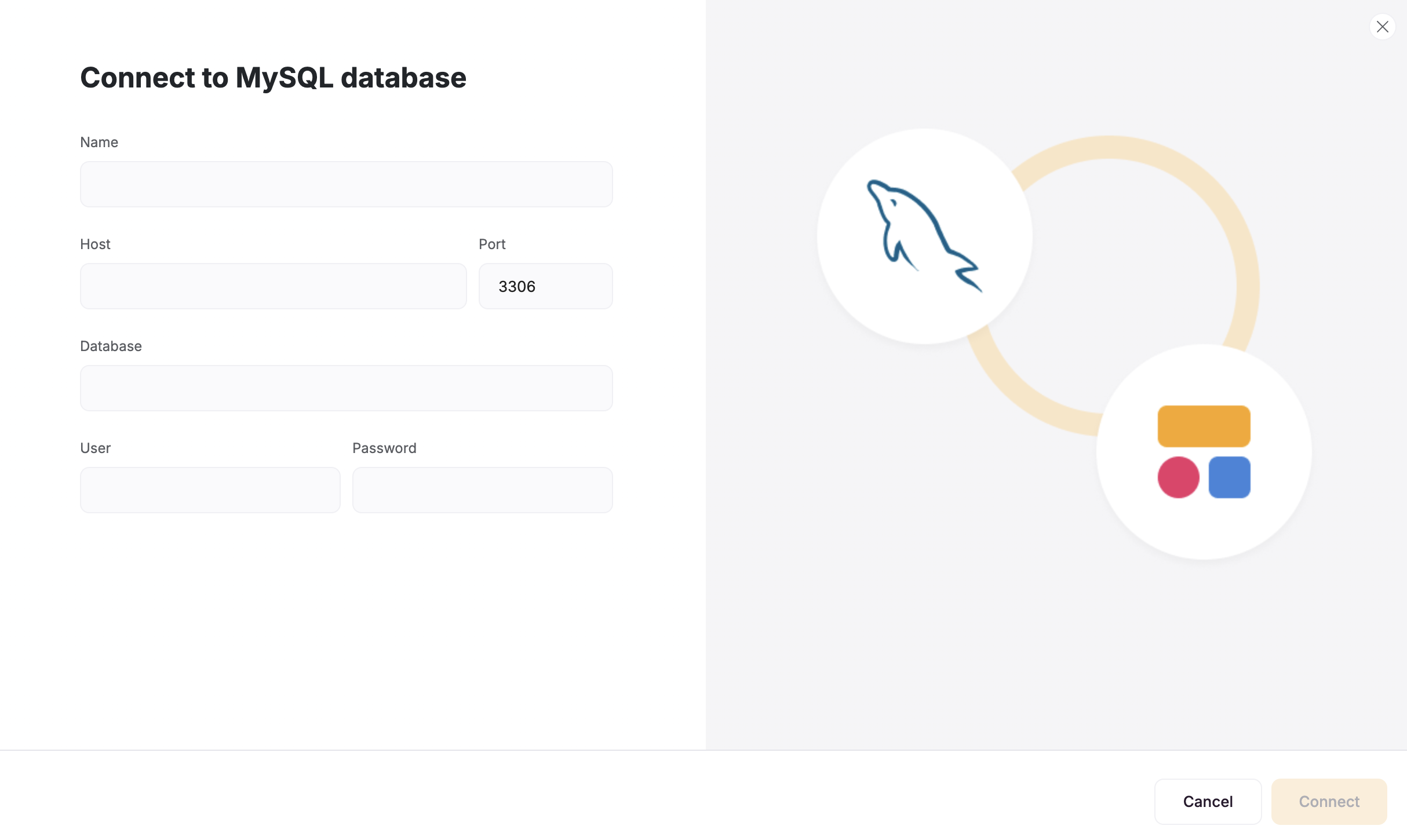 Click **Connect** to verify and establish the connection. If the connection fails, double-check your credentials and try again.
## **2. Connect your SQL data to your Softr app**
Once your SQL account is connected, you can use it in any Softr application.
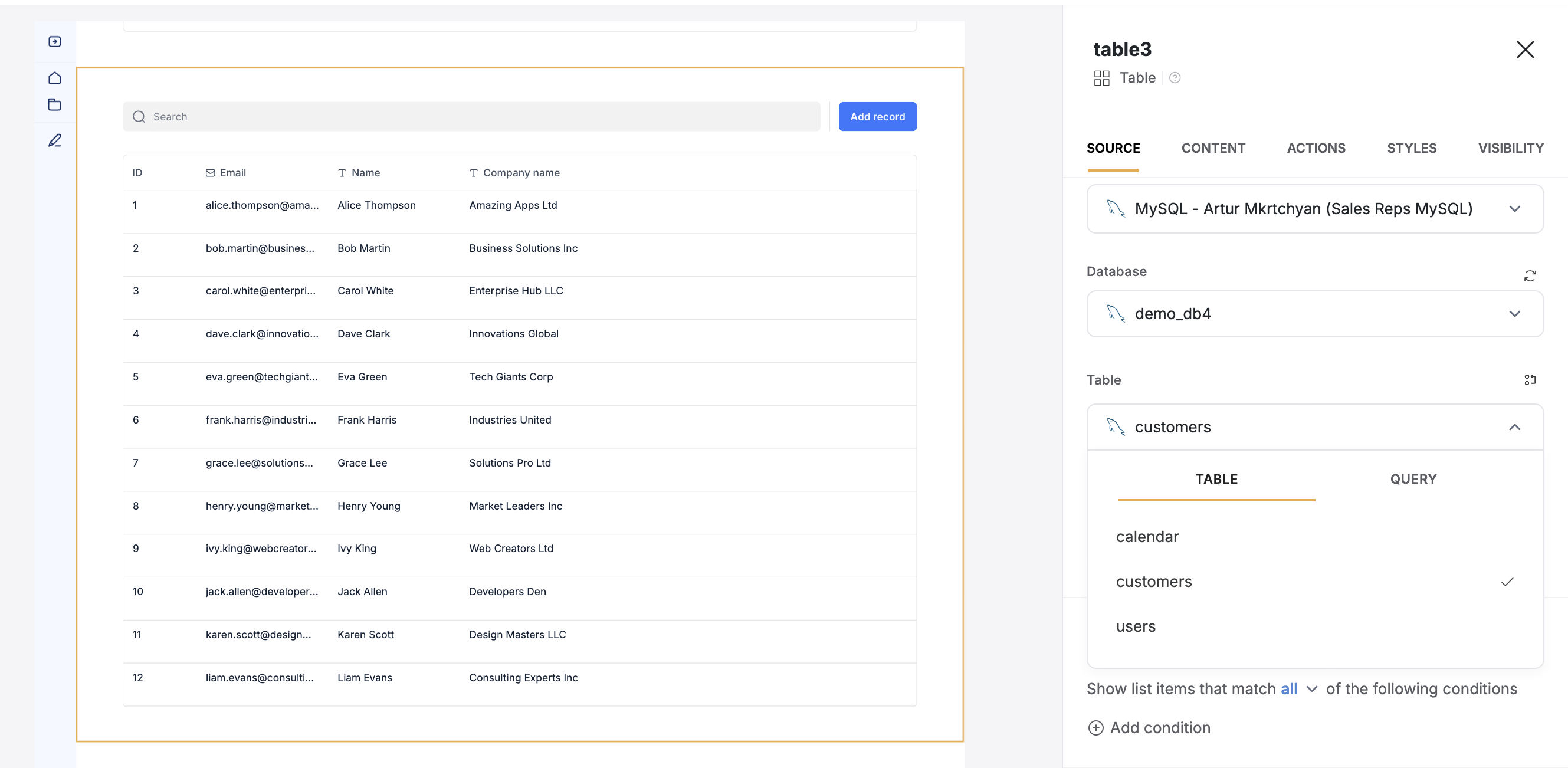
To display your data in the app, connect a [dynamic block](/core-concepts-overview/c5VwEbsWtTfPyUZjmEKvfx/visualize-data-with-building-blocks/41p6U2eZs7zgY8zWmFV4eH#1859a723d691803d9551ecd7b3b0c043) (e.g. [List](/building-blocks/vikC2AWEpQGkZd4jGyoVxo/list-block/pQhPYuA28VXr5tLLFBcbCU), [Grid](/building-blocks/vikC2AWEpQGkZd4jGyoVxo/grid-block/42JZoeYwMsogZcveqh74QH), [Table](/building-blocks/vikC2AWEpQGkZd4jGyoVxo/table-block-/j7rGwu7J7zuU69h3bZ7HFe)) to your SQL table:
1. Go to the Block **source** **tab** and select your SQL integration.
2. Select the **database** you want to connect.
3. Pick the **table** you want to use or **add a new** **query**
4. Optionally, select the **primary field**.
Click **Connect** to verify and establish the connection. If the connection fails, double-check your credentials and try again.
## **2. Connect your SQL data to your Softr app**
Once your SQL account is connected, you can use it in any Softr application.
To display your data in the app, connect a [dynamic block](/core-concepts-overview/c5VwEbsWtTfPyUZjmEKvfx/visualize-data-with-building-blocks/41p6U2eZs7zgY8zWmFV4eH#1859a723d691803d9551ecd7b3b0c043) (e.g. [List](/building-blocks/vikC2AWEpQGkZd4jGyoVxo/list-block/pQhPYuA28VXr5tLLFBcbCU), [Grid](/building-blocks/vikC2AWEpQGkZd4jGyoVxo/grid-block/42JZoeYwMsogZcveqh74QH), [Table](/building-blocks/vikC2AWEpQGkZd4jGyoVxo/table-block-/j7rGwu7J7zuU69h3bZ7HFe)) to your SQL table:
1. Go to the Block **source** **tab** and select your SQL integration.
2. Select the **database** you want to connect.
3. Pick the **table** you want to use or **add a new** **query**
4. Optionally, select the **primary field**.
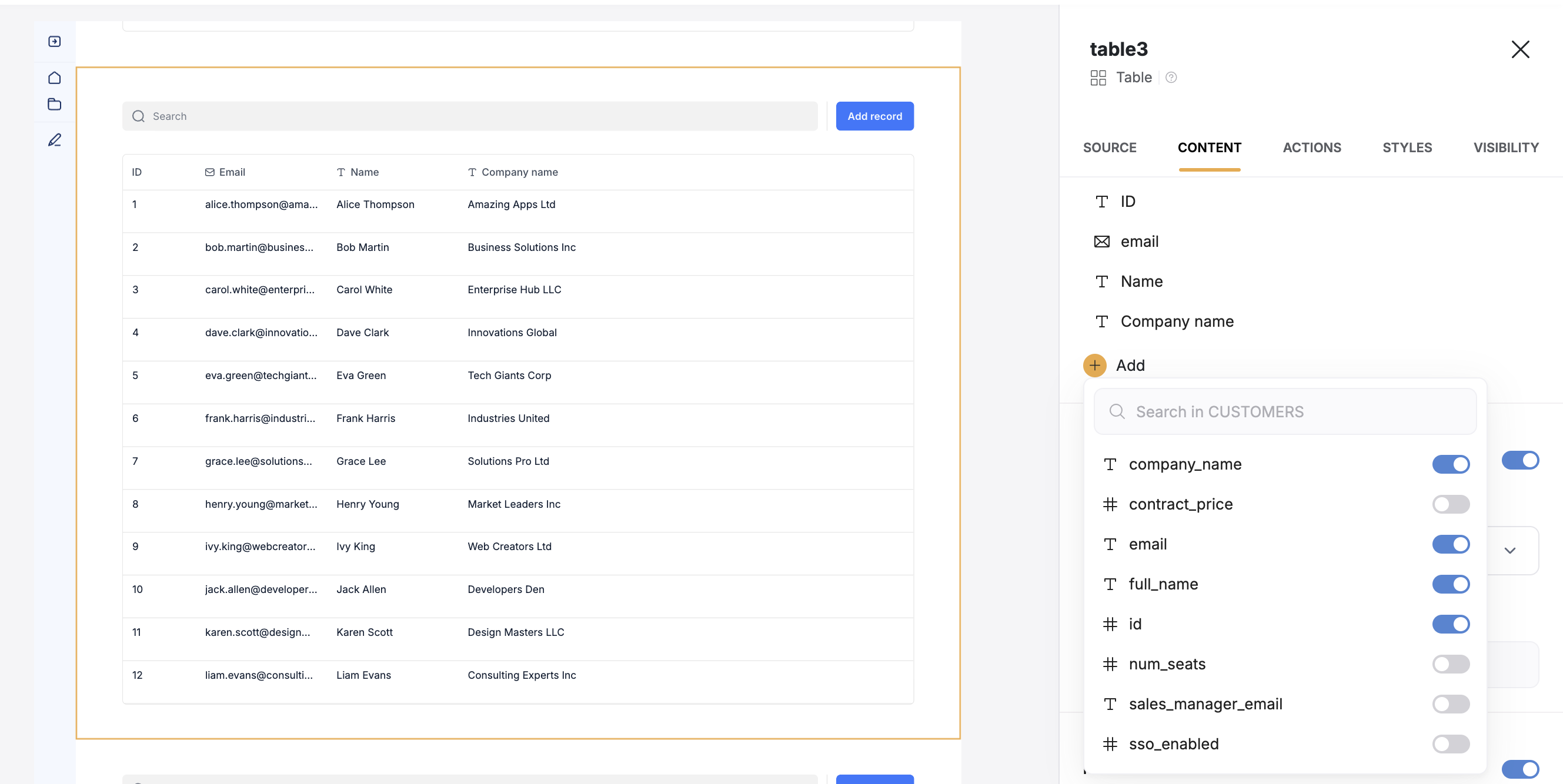
 When you connect your table to a block, you can choose which table **properties** to display and map to Softr fields. This lets you control how your data appears in Softr.
**Example:** If you have an **email field** in the SQL database, select **an email field** in Softr.
When you connect your table to a block, you can choose which table **properties** to display and map to Softr fields. This lets you control how your data appears in Softr.
**Example:** If you have an **email field** in the SQL database, select **an email field** in Softr.
 ### **Restricting IP Access**
If needed, add Softr’s IPs to your database’s **allowed list**:
* `3.120.79.212`
* `3.123.159.186`
* `52.58.246.121`
## **FAQs**
Yes! You can create forms in Softr that **write data back** to your SQL database.
Absolutely! Softr uses **industry-standard encryption** to protect your data.
Yes! You can connect **multiple SQL databases** and use them within the same app.
March 7, 2025
### **Restricting IP Access**
If needed, add Softr’s IPs to your database’s **allowed list**:
* `3.120.79.212`
* `3.123.159.186`
* `52.58.246.121`
## **FAQs**
Yes! You can create forms in Softr that **write data back** to your SQL database.
Absolutely! Softr uses **industry-standard encryption** to protect your data.
Yes! You can connect **multiple SQL databases** and use them within the same app.
March 7, 2025