> ## Documentation Index
> Fetch the complete documentation index at: https://docs.softr.io/llms.txt
> Use this file to discover all available pages before exploring further.
# SmartSuite
> Using SmartSuite as a data source for your Softr app.
SmartSuite is a spreadsheet-based database and work management system that can also function as a relational database.
This integration allows you to:
* Connect your SmartSuite data to Softr effortlessly
* Display and manage SmartSuite records within your Softr apps
* Utilize relational data for enhanced workflows
Smartsuite is available on **Professional** and higher plans.
## **1. Connect your SmartSuite account**
To use SmartSuite in Softr, you must first **connect your SmartSuite account**. Any SmartSuite data source you add to Softr can be used across all apps within your Softr workspace.
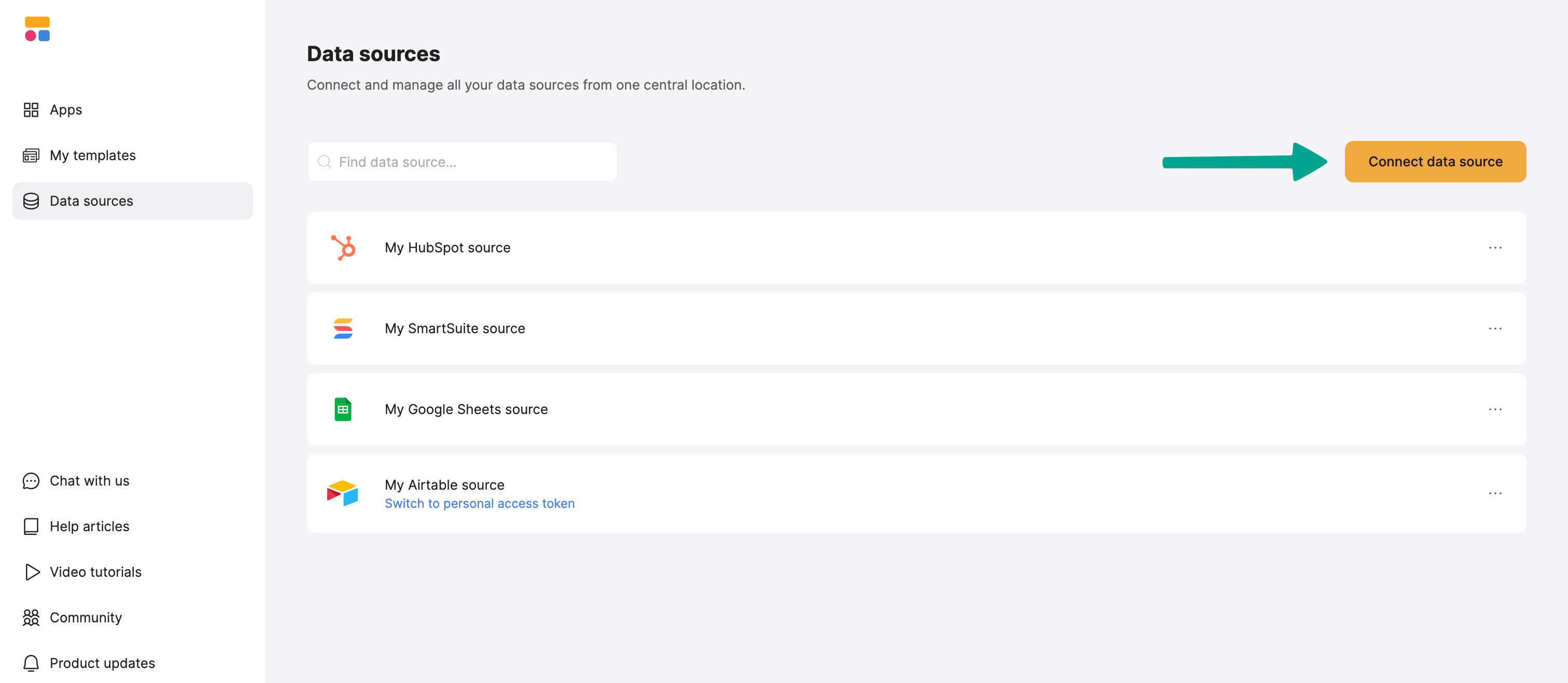
1. Open [**Softr’s Data Sources**](https://studio.softr.io/dashboard/data-sources) settings.
2. Click **Connect data source**.
3. Select **SmartSuite** from the list.
4. Log in to your **SmartSuite** account (if not already).
5. Authorize Softr to access your SmartSuite data.
Once connected, your SmartSuite data will be available to use in Softr.
## **2. Connect your SmartSuite data to your Softr app**
After connecting SmartSuite, you can use its data in any Softr app.
To display your data in the app, connect a [dynamic block](/core-concepts-overview/c5VwEbsWtTfPyUZjmEKvfx/visualize-data-with-building-blocks/41p6U2eZs7zgY8zWmFV4eH#1859a723d691803d9551ecd7b3b0c043) (e.g., [List](/building-blocks/vikC2AWEpQGkZd4jGyoVxo/list-block/pQhPYuA28VXr5tLLFBcbCU), [Grid](/building-blocks/vikC2AWEpQGkZd4jGyoVxo/grid-block/42JZoeYwMsogZcveqh74QH), [Table](/building-blocks/vikC2AWEpQGkZd4jGyoVxo/table-block-/j7rGwu7J7zuU69h3bZ7HFe)) to your SmartSuite table:
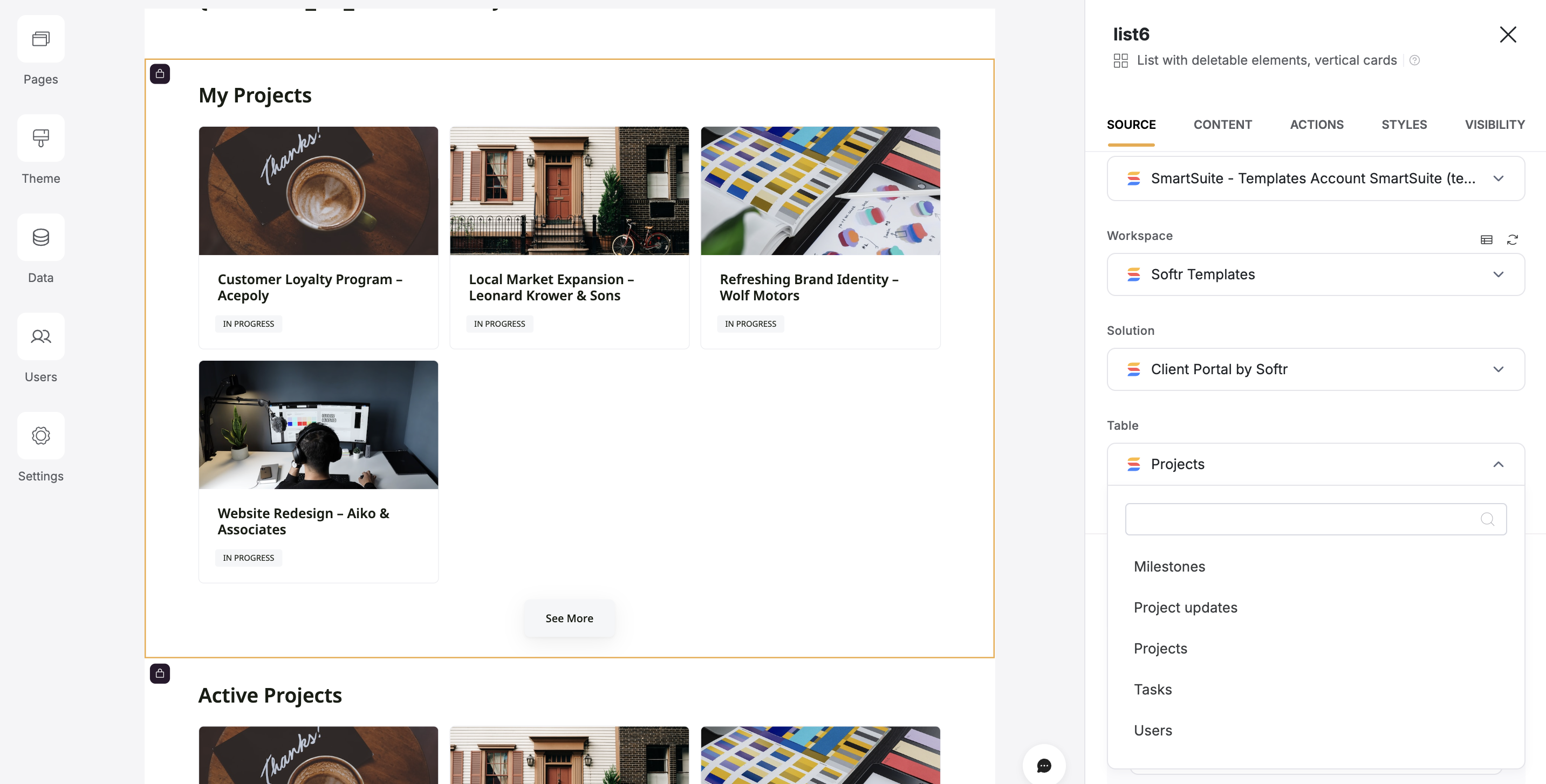
1. Go to the Block **source** **tab** and select your SmartSuite integration.
2. Select the **workspace** and **solution** you want to connect.
3. Pick the **table** you want to use.
**Important**: Each **block can connect to only one SmartSuite table**. If you need to display data from multiple tables, use separate blocks.
Each SmartSuite table has multiple fields (columns) with predefined types (e.g., File, Yes/No, Formula). Connecting your table to a block lets you choose which SmartSuite **fields** to display and map it to a Softr field. This lets you control how your Smartusuite data appears in Softr.
**Example:** If your SmartSuite table has a **Photos (Files & Images field)**, map it to an **Image field** in Softr to display it correctly.
Learn more about Softr field types in the [List Block Overview](/building-blocks/vikC2AWEpQGkZd4jGyoVxo/list-block/pQhPYuA28VXr5tLLFBcbCU).
### **Supported Fields**
Most editable SmartSuite fields can be modified in Softr, but some computed fields are **read-only**, including:
* **Formula fields**
* **Rollup fields**
* **Lookup fields**
### **Linked Records**
One of SmartSuite’s key features is **Linked Records**, which allows you to create relationships between tables. This makes SmartSuite a **relational database**.
For example, if you have two SmartSuite tables:
* **Tasks**
* **Projects**
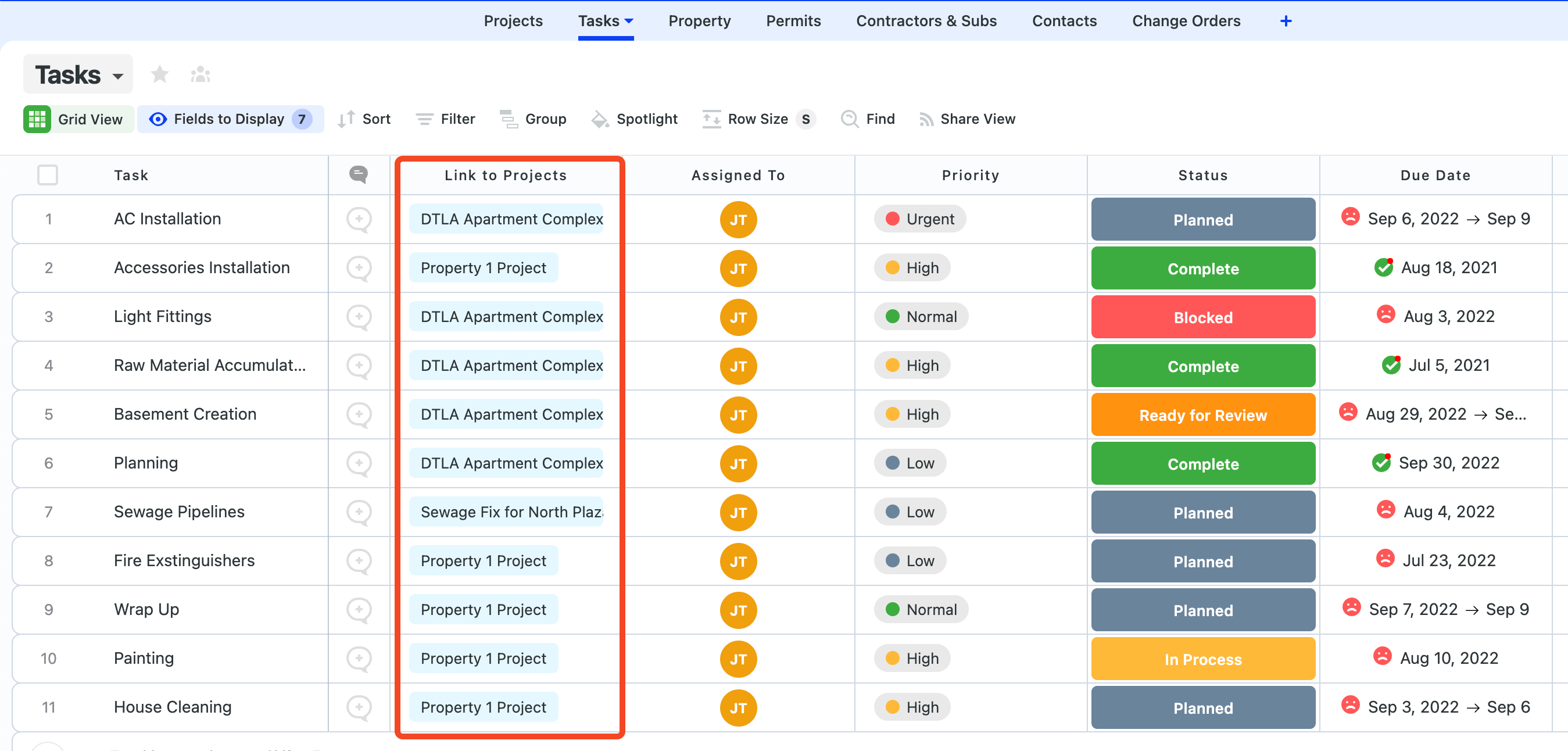
You can link the **Tasks table** to the **Projects table** to show which project each task belongs to.
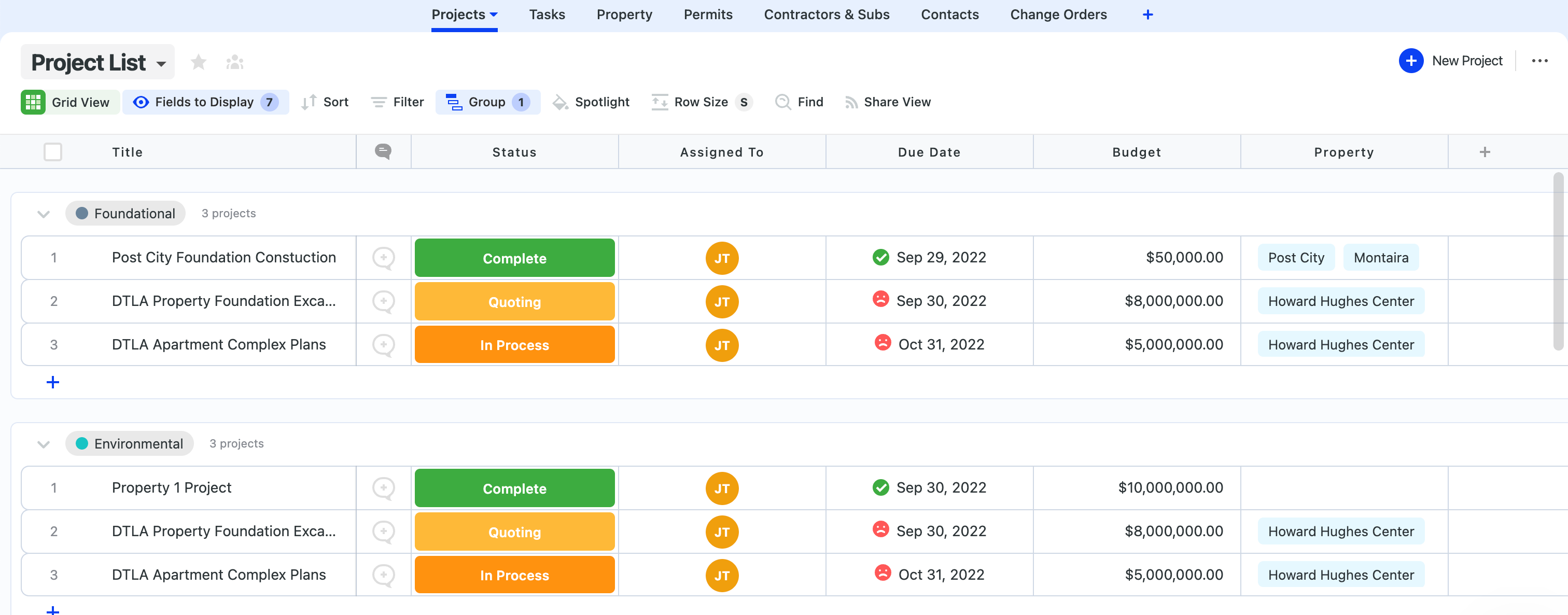
Below, you can see the **Tasks table**, where the **Project field** is a linked record showing data from the **Projects table**.