> ## Documentation Index
> Fetch the complete documentation index at: https://docs.softr.io/llms.txt
> Use this file to discover all available pages before exploring further.
# monday.com
> Using monday.com as a data source for your Softr app.
monday.com is like a spreadsheet database and work management system that can also act as a relational database. As a result, it is a more robust data management option than simple spreadsheet solutions.
This integration allows you to:
* give your clients real-time project visibility
* collect information faster
* create user-friendly dashboards without board limits
monday.com is available on **Professional** and higher plans.
## **1. Connect your monday.com account**
To use monday.com in Softr, you must first **connect your monday.com account**. Any monday.com account you connect in Softr can be used by all of the workspace's collaborators in all of the workspace’s apps.
To connect your monday.com data to Softr you will need **admin** access in your monday.com workspace.
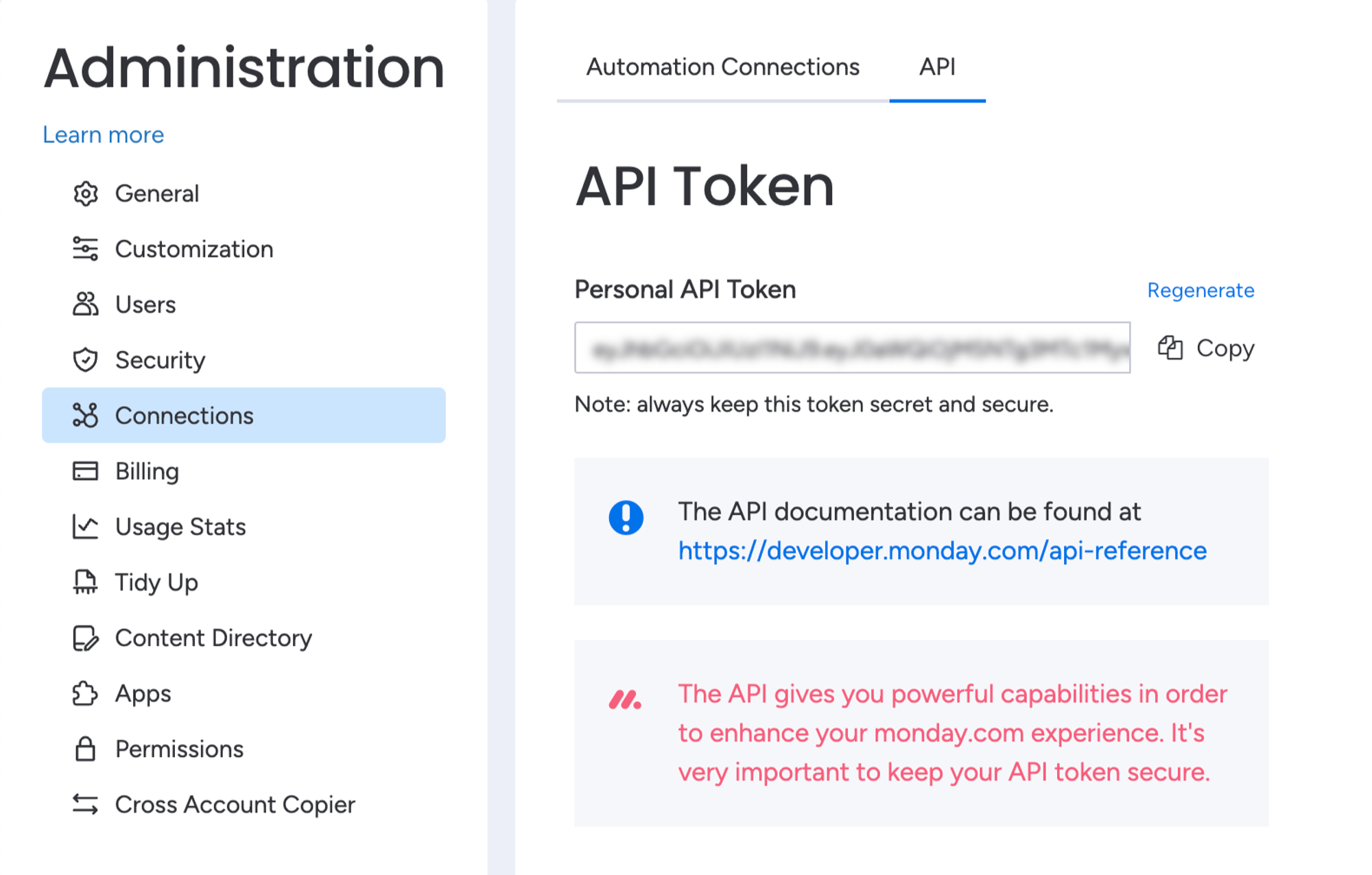
* Go to **Administration** > **Connections** > [API in monday.com.](https://developer.monday.com/api-reference/docs/authentication#admin-tab)
* Copy your **Personal API Token**.
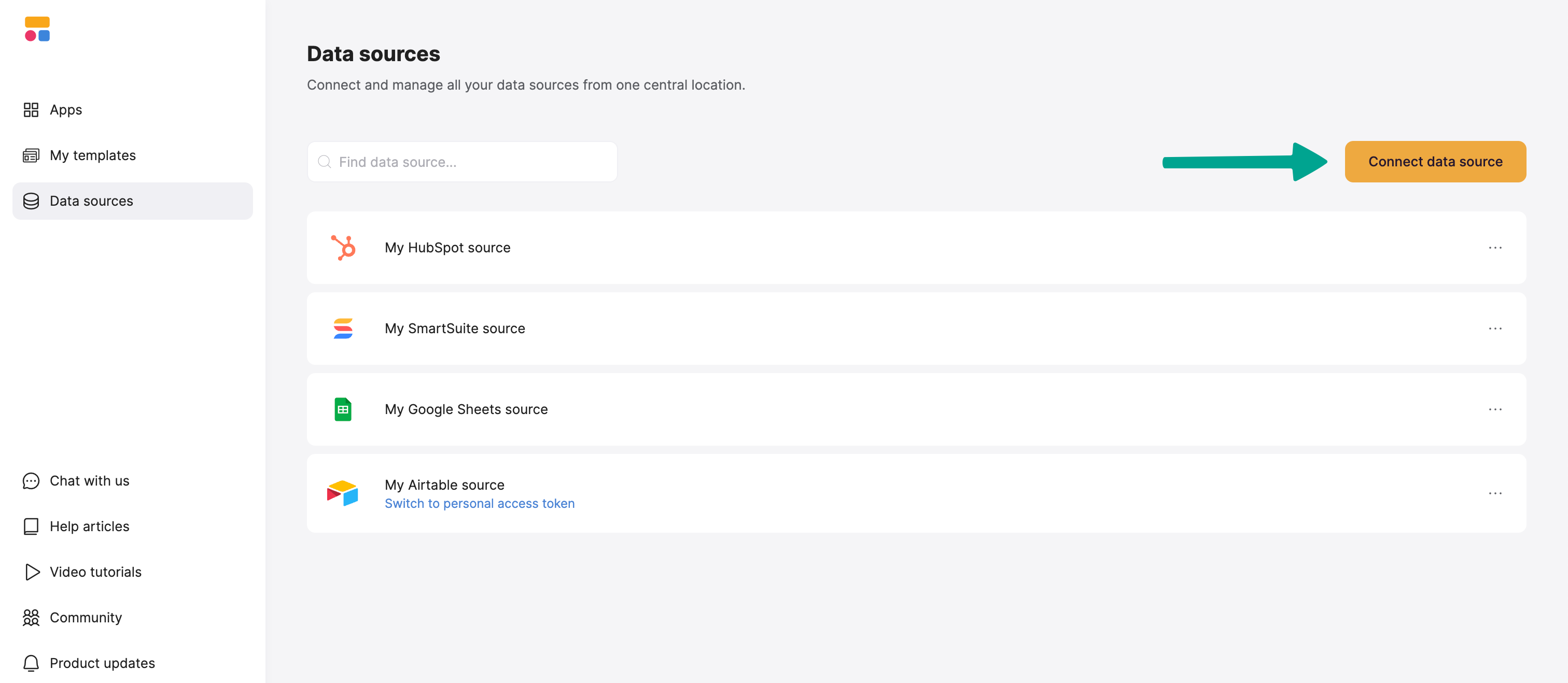
* Open [Softr’s Data Sources](https://studio.softr.io/dashboard/data-sources) settings.
* Click the **Connect data source.**
* Select **monday.com** and paste your API token.
## **2. Connect your monday.com data to your Softr app**
Once your monday.com account is connected, you can use it in any Softr application.
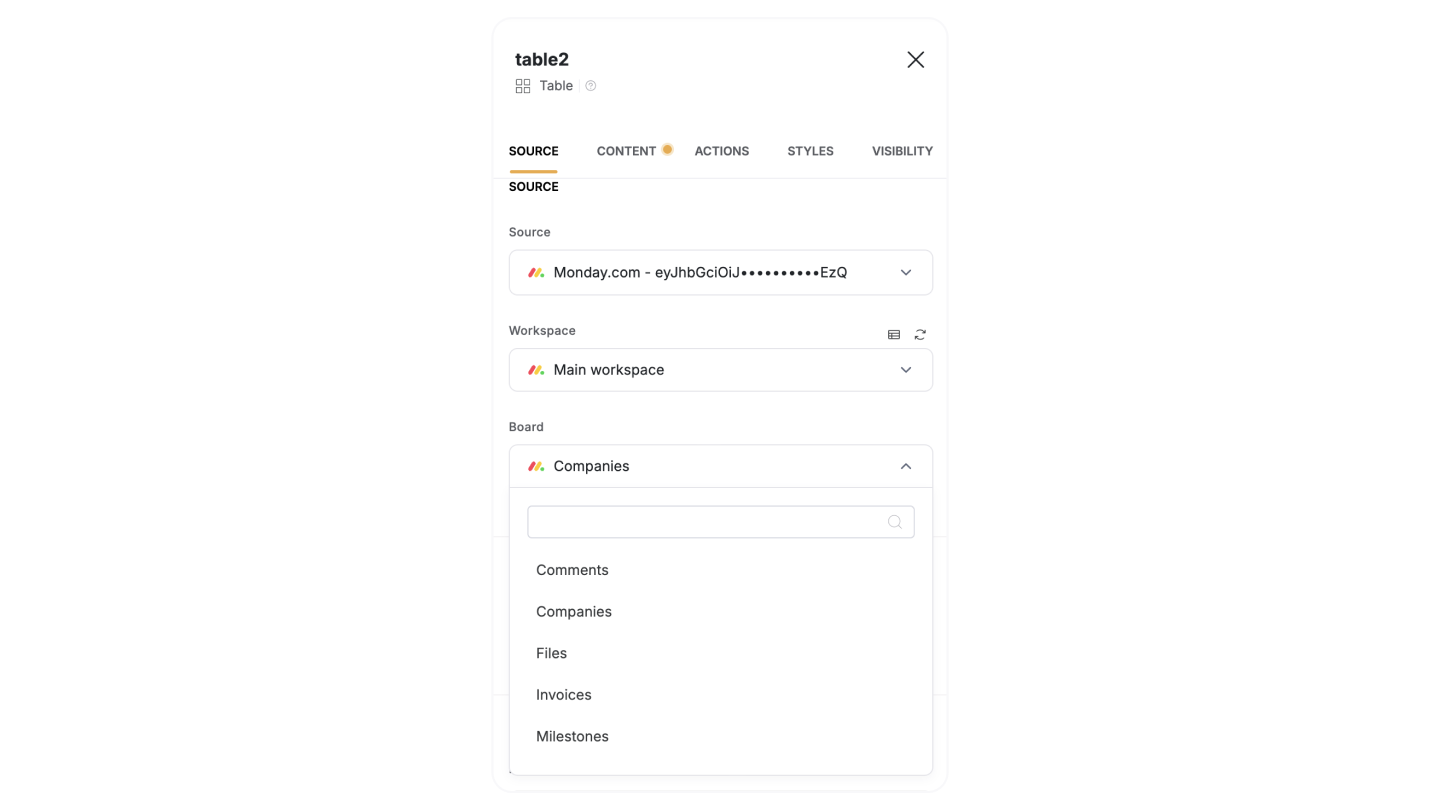
To display your data in the app, connect a [dynamic block](/core-concepts-overview/c5VwEbsWtTfPyUZjmEKvfx/visualize-data-with-building-blocks/41p6U2eZs7zgY8zWmFV4eH#1859a723d691803d9551ecd7b3b0c043) (e.g. [List](/building-blocks/vikC2AWEpQGkZd4jGyoVxo/list-block/pQhPYuA28VXr5tLLFBcbCU), [Grid](/building-blocks/vikC2AWEpQGkZd4jGyoVxo/grid-block/42JZoeYwMsogZcveqh74QH), [Table](/building-blocks/vikC2AWEpQGkZd4jGyoVxo/table-block-/j7rGwu7J7zuU69h3bZ7HFe)) to your monday.com board:
1. Go to the Block **Source** **tab** and select your monday.com integration.
2. Select the **workspace** you want to connect.
3. Pick the **board** you want to use.
**Important:** You can connect **only one board to one block**. For example, if you want to show a list of clients, you can select the **Companies** board. If you would like to show **Tickets**, you will need to add another **dynamic block.**
When you connect your board to a block, you can choose which monday.com **columns** to display and map it to a Softr field. This lets you control how your monday.com data appears in Softr.
**Example:** If your Airtable base has a **Profile Picture (Attachment field)**, map it to an **Image field** in Softr so it displays correctly
You can learn more about Softr field types in the [List block overview](/building-blocks/vikC2AWEpQGkZd4jGyoVxo/list-block/pQhPYuA28VXr5tLLFBcbCU).
### **Supported fields**
Most fields you edit in monday **monday.com** can be edited in Softr, but there are some exceptions:
* **Read-Only Fields:** Some fields can be displayed but **not edited**, including:
* **Created by**
* **Created at**
* **Last updated**
* **Item ID**
* **Mirror fields**
Currently Formula fields, Progress fields, and Workdocs are not supported.
### **Connected boards in monday.com**
Connected Boards let you link data between different boards, making **monday.com a relational database**.
For example, if you have two boards:
* **Clients**
* **Projects**
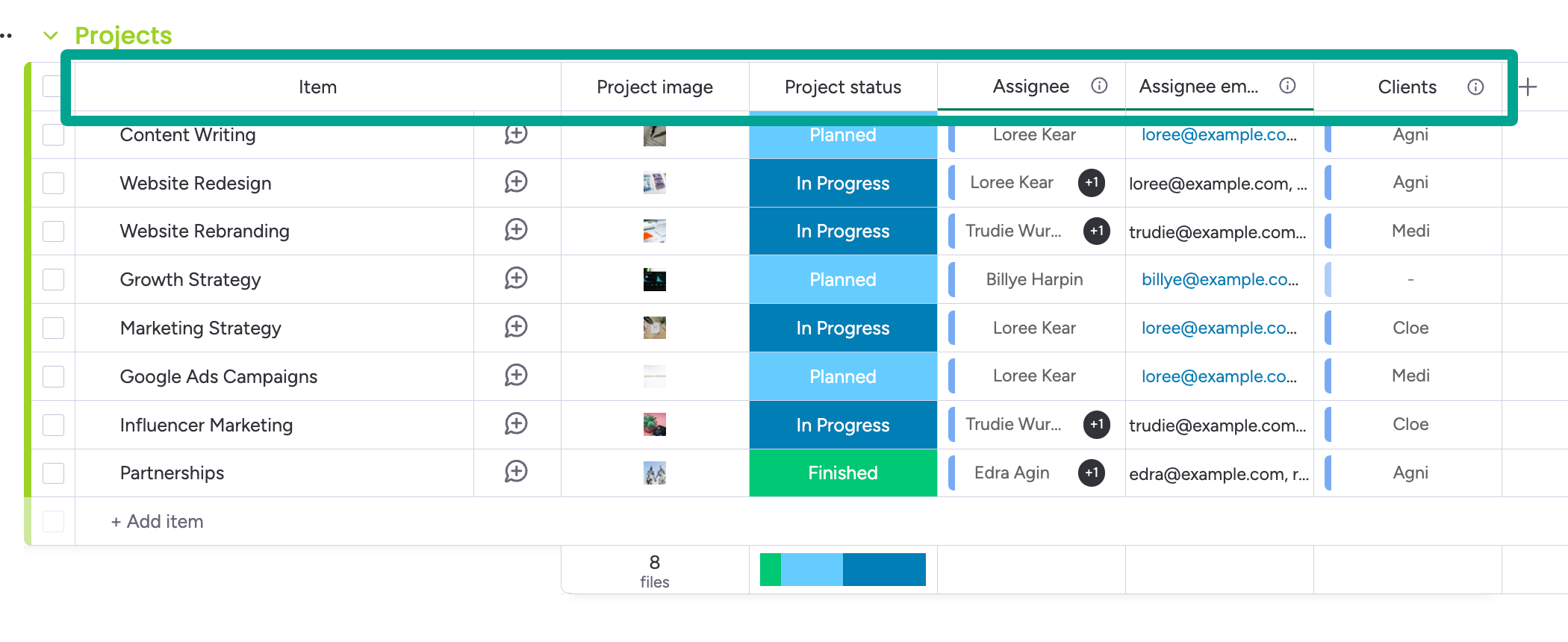
You can **connect Clients to Projects** to see which projects each client is involved in. This helps keep all related information in one place.
Below, you can see the Clients table, where the Project field is a Connected board that shows records from the Projects table.
### Subitems
[Subitems](https://support.monday.com/hc/en-us/articles/360011905480-All-about-subitems) in monday.com help you add extra layers of information to your board items. You can sync these subitems to your Softr application as a [Linked List](/building-blocks/vikC2AWEpQGkZd4jGyoVxo/linked-list/bWjTdKhbftofSEKRSxMFz9).
To do this, ensure you have a page with your Items mapped to any Dynamic [List](/building-blocks/vikC2AWEpQGkZd4jGyoVxo/list-block/pQhPYuA28VXr5tLLFBcbCU) block, along with a corresponding [List Detail](/building-blocks/vikC2AWEpQGkZd4jGyoVxo/item-details-block-/4bE8XaFbJp45wkAwuWiz8f) page mapped to the same board.
When you add a List block to this page, you’ll have the option to display either **Items** or **Subitems**.
If you choose **Subitems**, only the sub-items will be shown, automatically filtered based on the parent task details in the view. (This filtering applies in both the preview and the published app.)
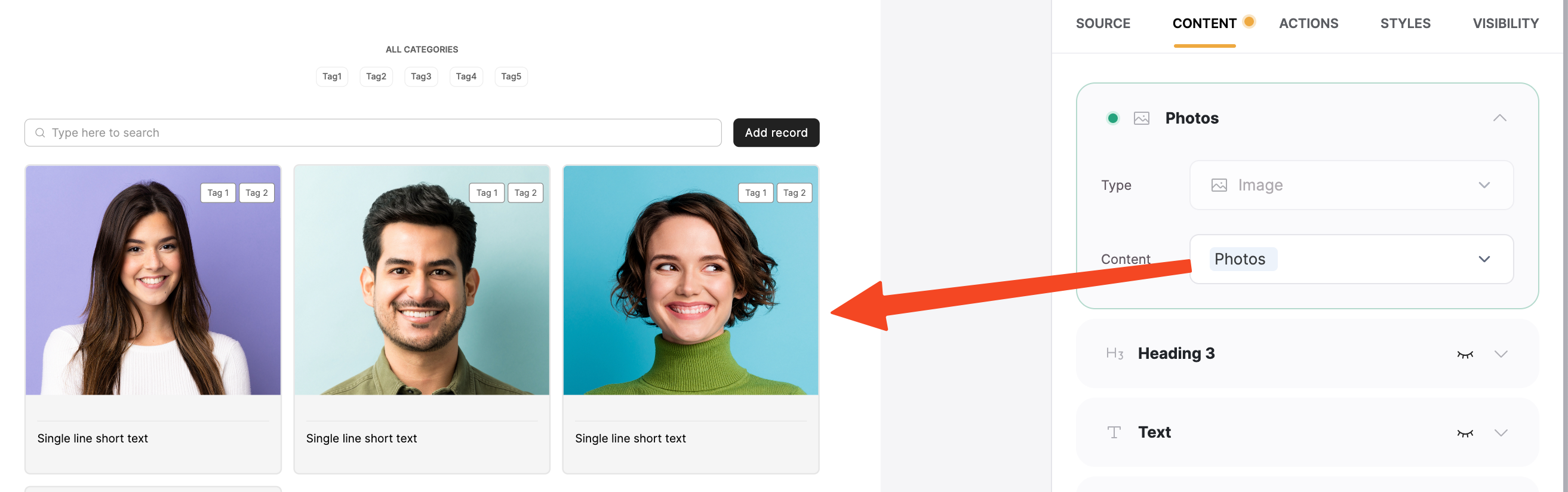 You can learn more about Softr field types in the [List block overview](/building-blocks/vikC2AWEpQGkZd4jGyoVxo/list-block/pQhPYuA28VXr5tLLFBcbCU).
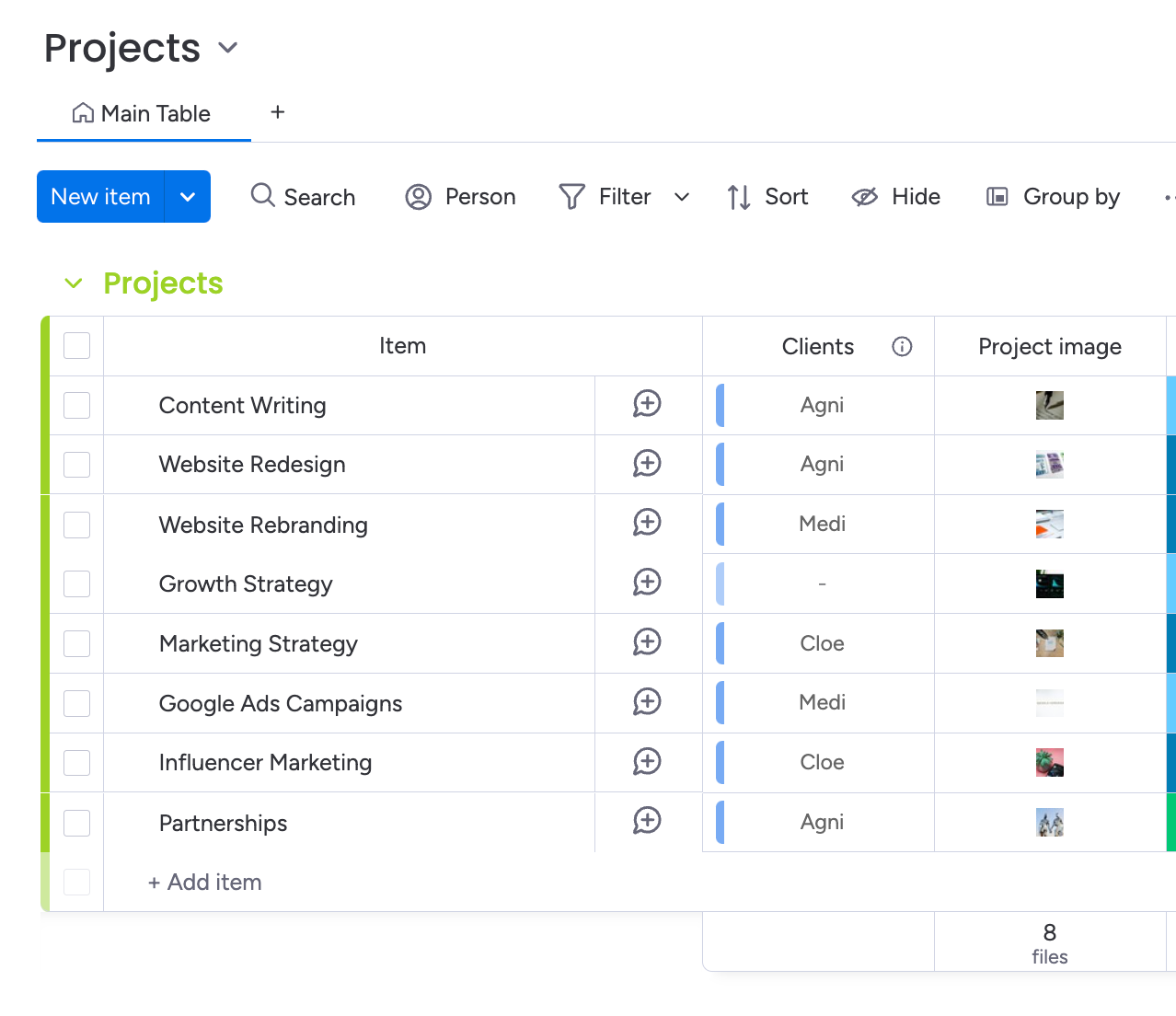 Below, you can see the Clients table, where the Project field is a Connected board that shows records from the Projects table.
 ### Subitems
[Subitems](https://support.monday.com/hc/en-us/articles/360011905480-All-about-subitems) in monday.com help you add extra layers of information to your board items. You can sync these subitems to your Softr application as a [Linked List](/building-blocks/vikC2AWEpQGkZd4jGyoVxo/linked-list/bWjTdKhbftofSEKRSxMFz9).
To do this, ensure you have a page with your Items mapped to any Dynamic [List](/building-blocks/vikC2AWEpQGkZd4jGyoVxo/list-block/pQhPYuA28VXr5tLLFBcbCU) block, along with a corresponding [List Detail](/building-blocks/vikC2AWEpQGkZd4jGyoVxo/item-details-block-/4bE8XaFbJp45wkAwuWiz8f) page mapped to the same board.
When you add a List block to this page, you’ll have the option to display either **Items** or **Subitems**.
If you choose **Subitems**, only the sub-items will be shown, automatically filtered based on the parent task details in the view. (This filtering applies in both the preview and the published app.)
### Subitems
[Subitems](https://support.monday.com/hc/en-us/articles/360011905480-All-about-subitems) in monday.com help you add extra layers of information to your board items. You can sync these subitems to your Softr application as a [Linked List](/building-blocks/vikC2AWEpQGkZd4jGyoVxo/linked-list/bWjTdKhbftofSEKRSxMFz9).
To do this, ensure you have a page with your Items mapped to any Dynamic [List](/building-blocks/vikC2AWEpQGkZd4jGyoVxo/list-block/pQhPYuA28VXr5tLLFBcbCU) block, along with a corresponding [List Detail](/building-blocks/vikC2AWEpQGkZd4jGyoVxo/item-details-block-/4bE8XaFbJp45wkAwuWiz8f) page mapped to the same board.
When you add a List block to this page, you’ll have the option to display either **Items** or **Subitems**.
If you choose **Subitems**, only the sub-items will be shown, automatically filtered based on the parent task details in the view. (This filtering applies in both the preview and the published app.)