> ## Documentation Index
> Fetch the complete documentation index at: https://docs.softr.io/llms.txt
> Use this file to discover all available pages before exploring further.
# HubSpot
> Using HubSpot as a data source for your Softr app.
HubSpot is an integrated marketing, sales, and customer service platform that provides businesses with tools to attract, engage, and delight customers throughout their lifecycle.
It can also act as a relational database. To learn more about HubSpot and its features, visit the [official HubSpot website](https://www.hubspot.com/).
In this article, we will cover how to connect HubSpot and then take a closer look at some of the features that are important to consider in that context.
**HubSpot** integration is available on **Business** and **Enterprise** plans.
## 1. Connect your HubSpot account
To use HubSpot in Softr, you must first **connect your HubSpot account**. Any HubSpot data source you connect in Softr can be used by all of the workspace's collaborators in all of the workspace’s apps.
To connect HubSpot, you must have HubSpot Super Admin access.
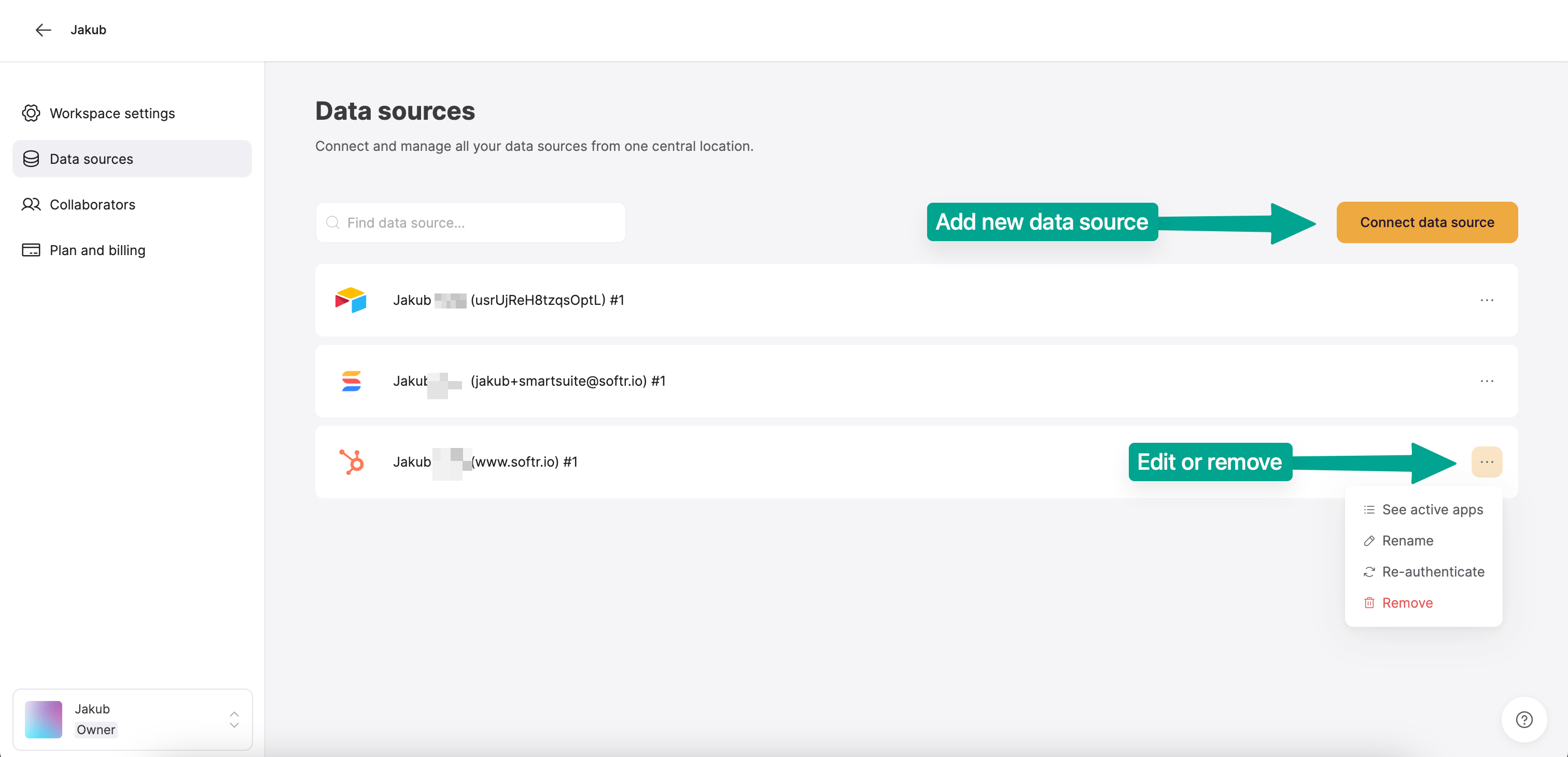
1. In your [Softr Dashboard](https://studio.softr.io/dashboard/data-sources), navigate to **Data Sources** in the left menu.
2. Click **Connect Data Source.**
3. Select **HubSpot** and proceed to authenticate your account.
1. Sign in to your HubSpot account.
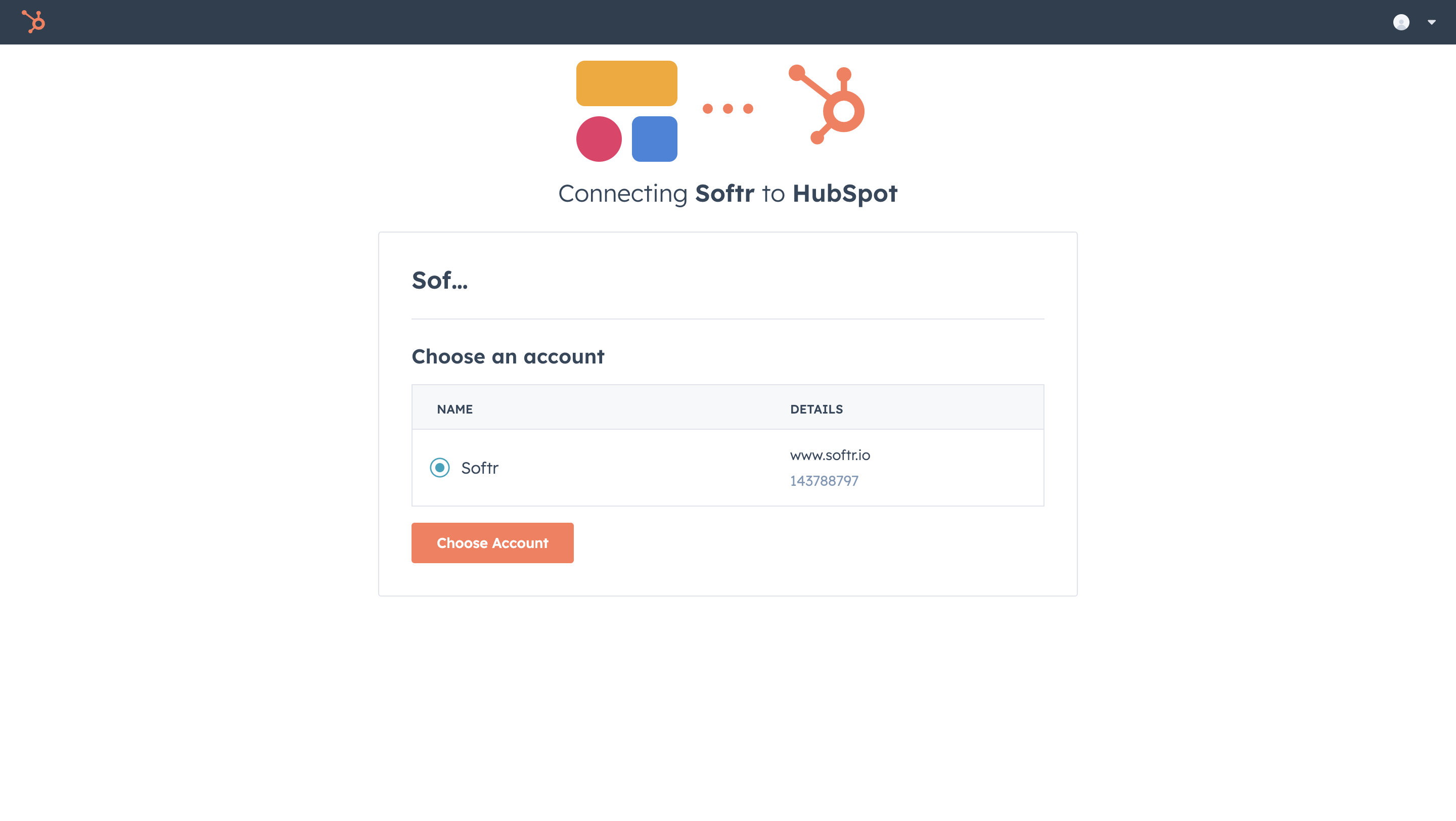
2. Select which account you want to connect to Softr.
## 2. Connect your HubSpot data to a Softr app
Once your HubSpot account is connected, you can use the authorized account across one or multiple Softr applications.
To display your data in the app, connect a [dynamic block](/core-concepts-overview/c5VwEbsWtTfPyUZjmEKvfx/visualize-data-with-building-blocks/41p6U2eZs7zgY8zWmFV4eH#1859a723d691803d9551ecd7b3b0c043) (e.g. [List](/building-blocks/vikC2AWEpQGkZd4jGyoVxo/list-block/pQhPYuA28VXr5tLLFBcbCU), [Grid](/building-blocks/vikC2AWEpQGkZd4jGyoVxo/grid-block/42JZoeYwMsogZcveqh74QH), [Table](/building-blocks/vikC2AWEpQGkZd4jGyoVxo/table-block-/j7rGwu7J7zuU69h3bZ7HFe)) to your HubSpot objects:
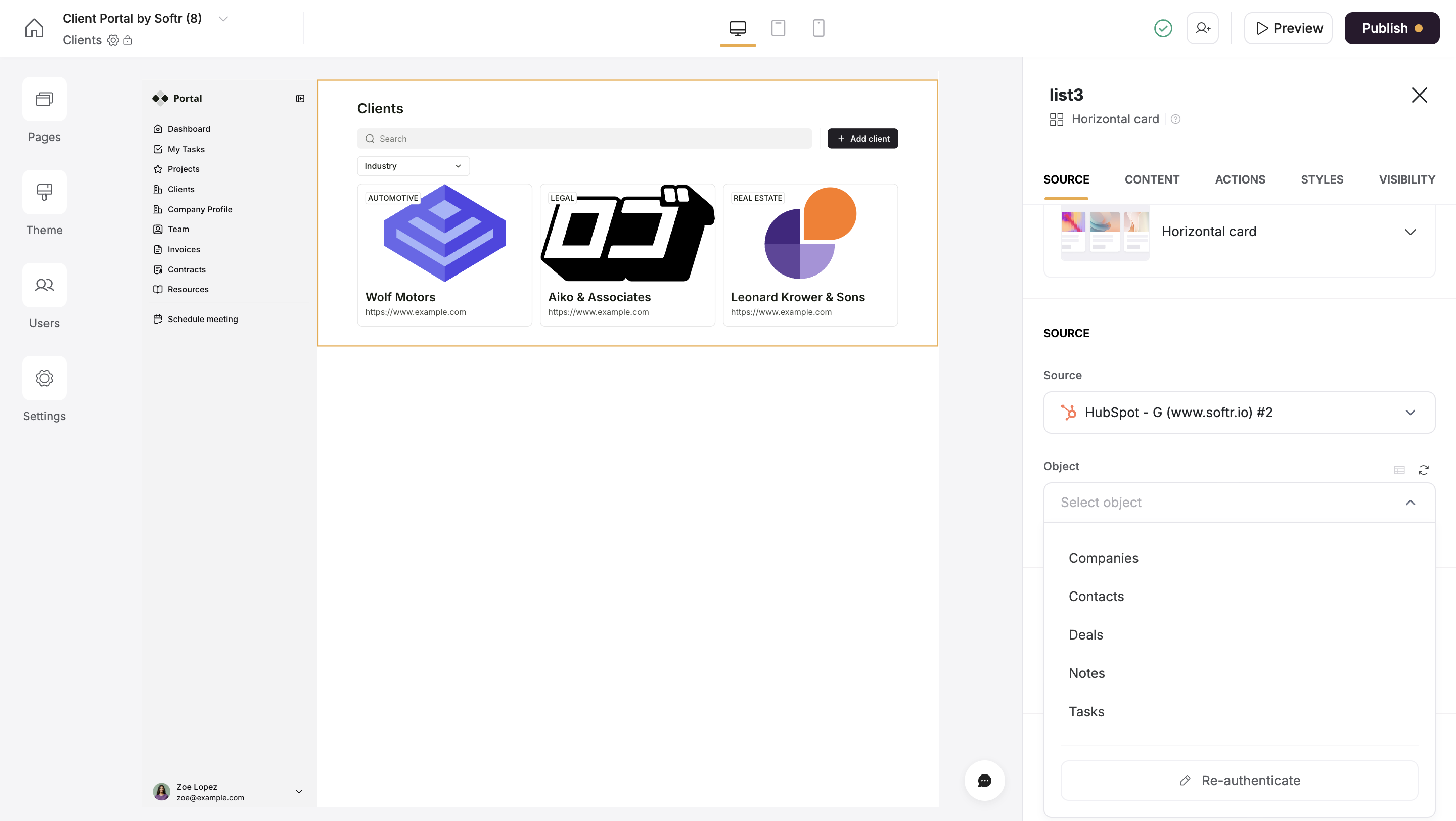
1. In the Block **source tab**, select the authenticated HubSpot integration.
2. Choose the **Object** you want to use.
**Important:** You can connect only one object type to one block. For example, if you want to show a list of clients, you can select the **Companies** object. If you would like to show **Tickets**, you will need to add another **dynamic block**.
### Supported HubSpot Objects
Softr supports the following **HubSpot objects**:
* **Contacts**
* **Companies**
* **Deals**
* **Tickets**
* **Notes**
* **Tasks**
* **Custom Objects**
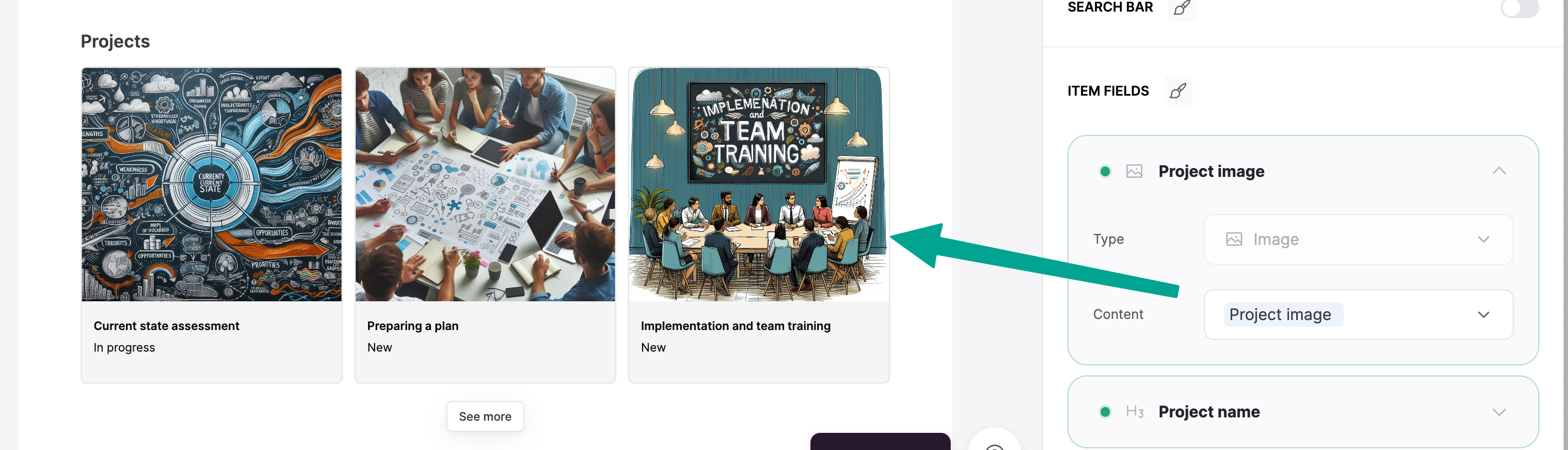
When you select the object type you want to show, you can customize which object properties you want to visualize alongside. Each HubSpot object has **predefined field types** like text, dropdowns, and date pickers. Since Softr also has its field types, it's important to **map fields correctly** to ensure your data appears as expected.
For example, if a HubSpot **deal property** contains an image stored as a **File type**, you should map it to a **Softr Image field** in a **List block** so it displays correctly.
### Supported Properties
Softr supports:
* All default HubSpot object properties
* All custom properties you’ve created in HubSpot
However, some **read-only fields** cannot be edited in Softr, including:
* Computed fields like **Calculation** fields, **Rollup**, **Count**, and **Formula** fields.
### HubSpot object associations
HubSpot works as a **relational database**, meaning objects can be linked together through **associations**. This allows you to display related data, such as:
* A **Deal** with multiple **Tasks** linked to it
* A **Company** associated with multiple **Contacts**
In Softr, you can show associated objects using:
1. [Linked List Block](/building-blocks/vikC2AWEpQGkZd4jGyoVxo/linked-list/bWjTdKhbftofSEKRSxMFz9)
2. Associated Object IDs property
**Limitations**
Associated objects cannot currently be used in [Visibility Conditional Filters](/user-groups-and-permissions/3oA6AaFzUiePs2sW2TpYrF/block-visibility/3spA2dfQNrcGcPNmnDXHB3).
## FAQs
Some HubSpot fields and objects require **Sensitive Data scopes** for API access. You may need to enable these permissions in HubSpot if certain data is missing or restricted. [Learn how to enable Sensitive Data Scopes in HubSpot](https://knowledge.hubspot.com/properties/store-sensitive-data).
Yes! You can connect multiple HubSpot accounts but need to use **separate Softr blocks** for each object.
## Need More Help?
* 🛠️ Troubleshooting? Check our [Troubleshooting HubSpot errors](https://softrdocs.helpkit.so/troubleshooting/c7mbQk6nyqGUTGoVjojr9E/troubleshooting-hubspot-errors/3hLzPdvf8frTjFowAHKEMt).
* ▶️ Watch a tutorial on[how to create a Client Portal with HubSpot + Softr](https://youtu.be/uNss7EangWI?si=zunQ_lZC8ciAB4zF).
* 📖 Learn more about [HubSpot Chat](/integrations/etS18kJqm1fuD58KCsjC3z/hubspot-chat/4UocQQqLC2q288N74eoLfL).
 ### Supported HubSpot Objects
Softr supports the following **HubSpot objects**:
* **Contacts**
* **Companies**
* **Deals**
* **Tickets**
* **Notes**
* **Tasks**
* **Custom Objects**
### Supported HubSpot Objects
Softr supports the following **HubSpot objects**:
* **Contacts**
* **Companies**
* **Deals**
* **Tickets**
* **Notes**
* **Tasks**
* **Custom Objects**