> ## Documentation Index
> Fetch the complete documentation index at: https://docs.softr.io/llms.txt
> Use this file to discover all available pages before exploring further.
# Google Sheets
> Using Google Sheets as a data source for your Softr app.
Google Sheets is a cloud-based spreadsheet solution used by millions worldwide. While it may not be as powerful as Airtable in terms of data management, it is a popular and free tool that many users already rely on. In this guide, we'll walk you through **connecting Google Sheets as a data source** for your Softr app and discuss some of its **advantages and limitations**.
## **1. Connecting your Google Sheets account**
To start using Google Sheets in Softr, you must first connect your account.
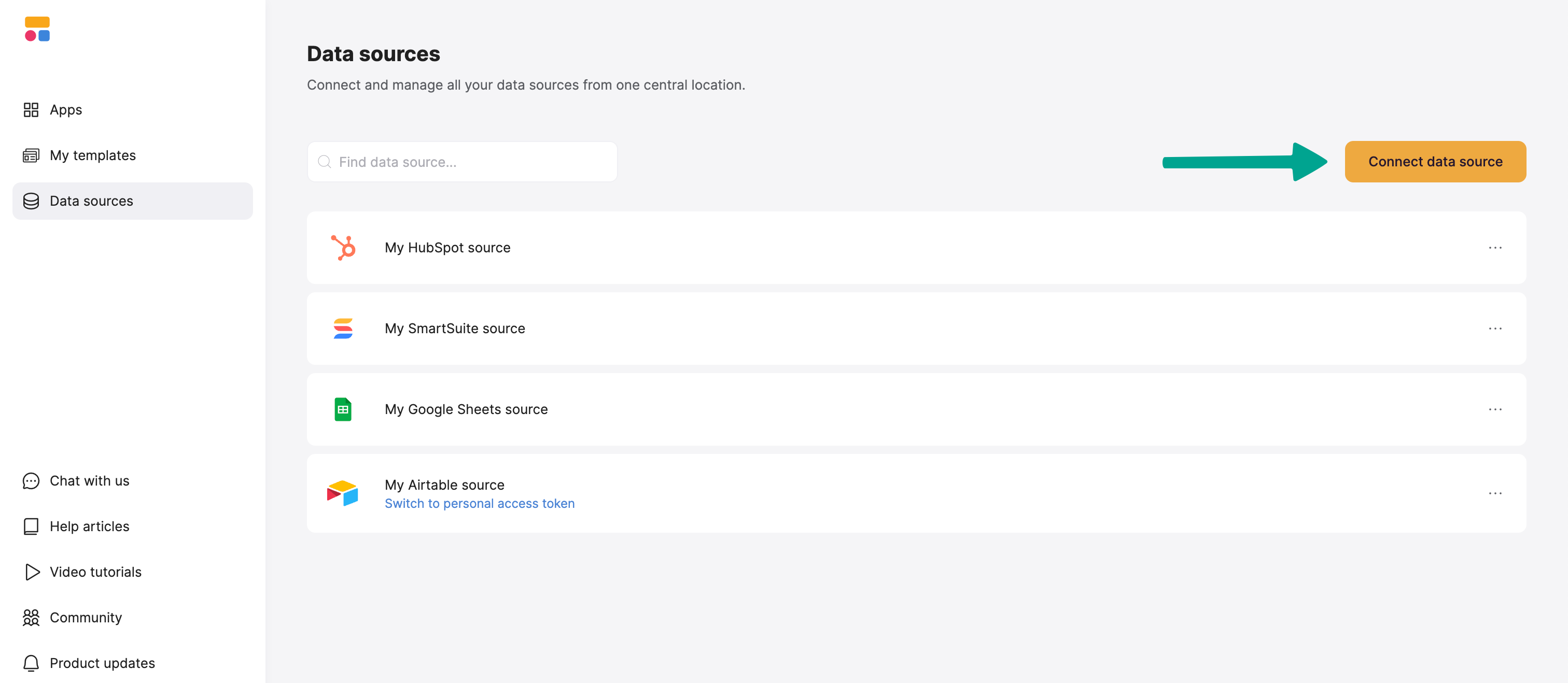
* Open [Softr’s Data Sources](https://studio.softr.io/dashboard/data-sources) settings.
* Click the **Connect data source.**
* Select **Google Sheets** and log in to your account.
* Check all required permission boxes.
## **2. Connect your Google Sheet data to your Softr app**
Once your Google Sheets account is connected, you can use it in any Softr application.
To display your data in the app, connect a **dynamic block** to your Google Sheet.
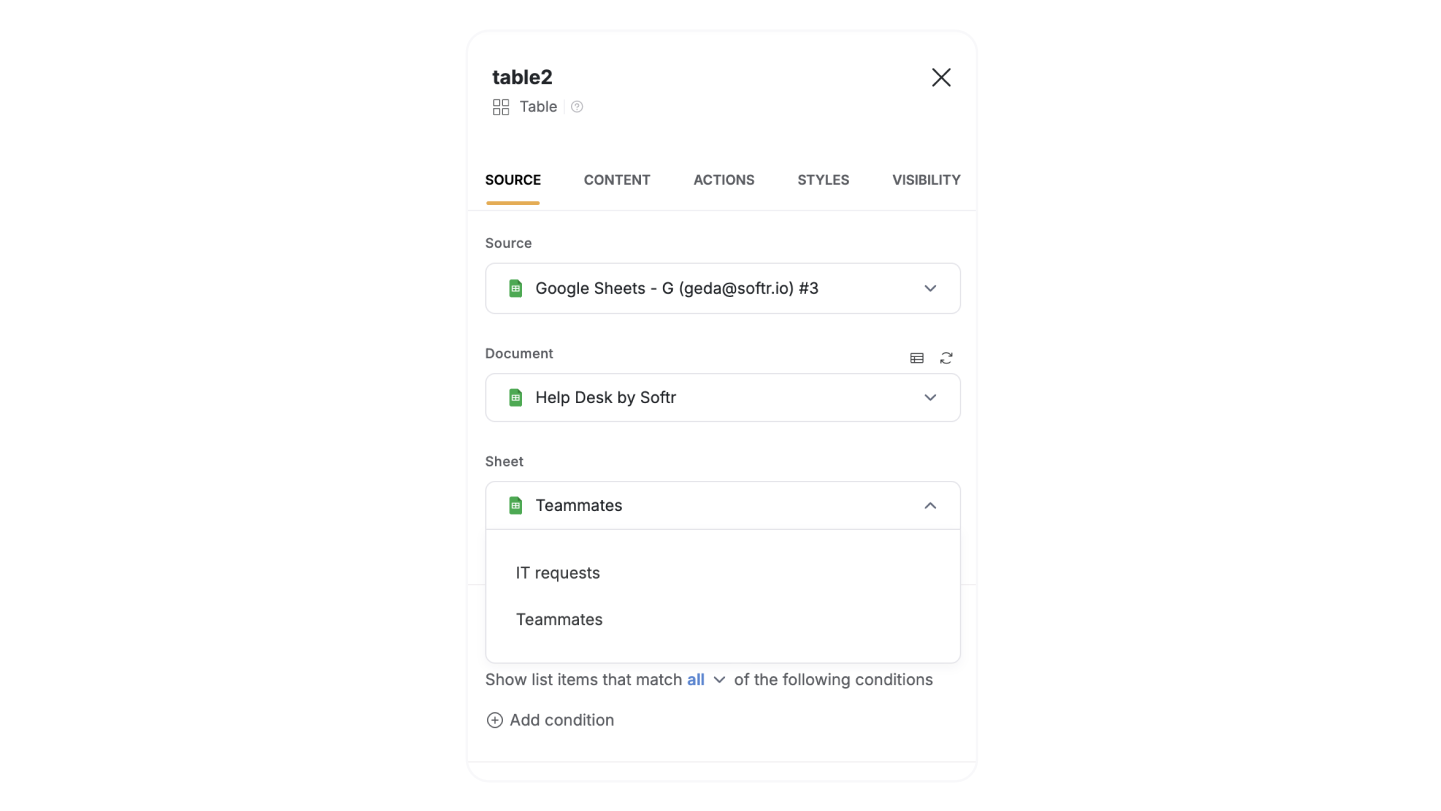
1. Go to the Block **Source** **tab** and select your GSheet integration.
2. Select the **document** you want to connect.
3. Pick the **sheet** you want to use.
When mapping Sheets data to Softr, it’s best to have at least 1 row of sample data in each table/sheet so that Softr can properly determine the field types.
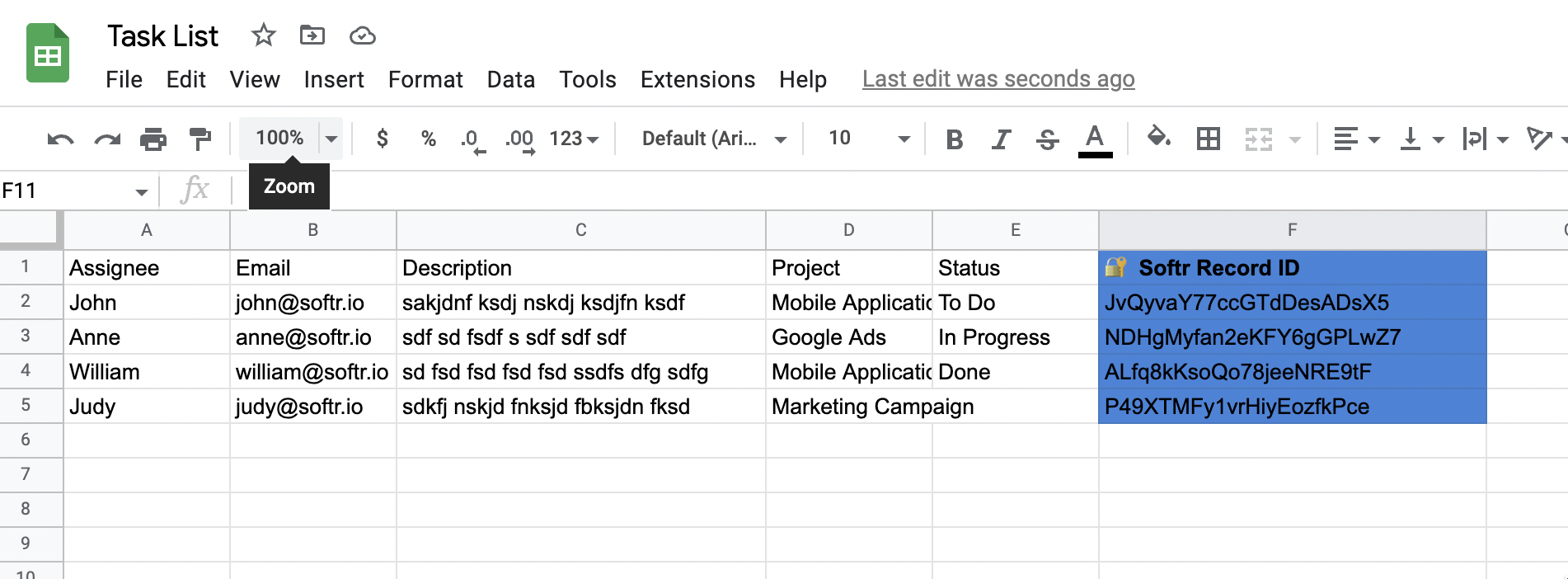
Google Sheets stores data in a table format, where each **column represents a field**, and each **row is a record**. To ensure smooth integration, structure your sheet with:
* **The first row as field names** (e.g., "Assignee," "Status," "Description").
* **Data stored in rows** under the appropriate column headers.
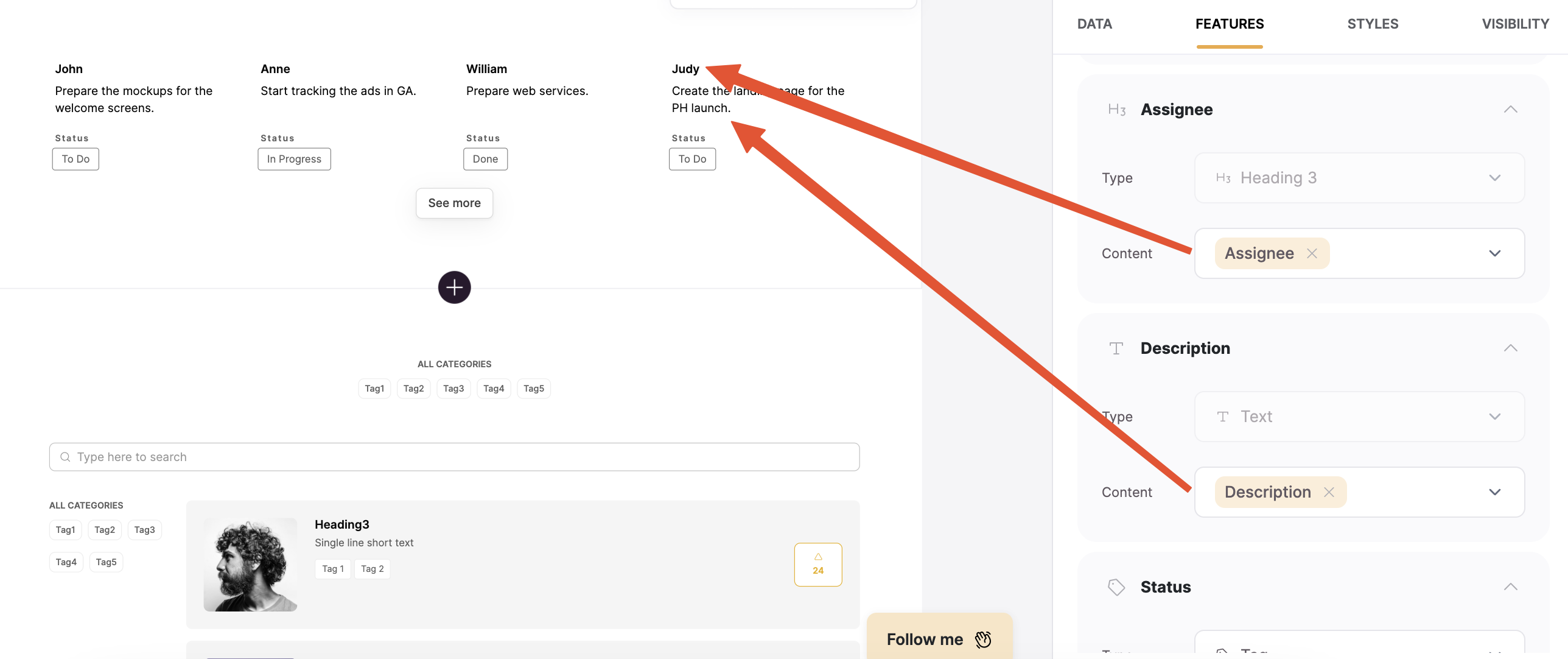
When you connect your board to a block, you can choose which Sheet **columns** to display and map it to a Softr field. This lets you control how your GSheet data appears in Softr.
### **Record ID Column**
Once you connect a sheet to Softr, a **Softr Record ID** column is automatically added. This unique ID helps Softr reference records (e.g., linking a List block to a List Details block).
**Ensure you have edit permissions** for your Google Sheet so Softr can add and update this column. Do not delete it.
**Tip**: Use **Softr Record IDs** to link related records across sheets (e.g., setting a "Manager ID" as another user's Softr ID).
### **Supported Field Types in Softr**
Google Sheets doesn’t have built-in field types like Airtable, but you can organize data to match Softr’s supported formats.
**Supported Field Types & Workarounds**
* **Text** – Standard text fields.
* **Number** – Whole numbers, decimals, currency.
* **Date & Time** – Standard date formats. See below for supported formats:
Date patterns with month as whole or 3 letter (August, Aug) - Currently only English language is supported.
```plain theme={null}
MMMM d, yyyy
MMMM dd, yyyy
yyyy MMM d
yyyy MMM dd
dd-MMM-yyy
```
Date patterns with month as numberSupported separators: `-`, `/`, `.`, `space`
```plain theme={null}
yyyy MM dd
yyyy MM d
yyyy M dd
yyyy M d
MM dd yyyy
MM d yyyy
M dd yyyy
M d yyyy
dd yyyy MM
d yyyy MM
dd yyyy M
d yyyy M
```
Date timeDate part is same (both formats), times
```plain theme={null}
hh:mm a
hh:mma
hh:mm:ss a
hh:mm:ssa
hh:mm:ss.SSS a
hh:mm:ss.SSSa
h:mm a
h:mma
h:mm:ss a
h:mm:ssa
h:mm:ss.SSS a
h:mm:ss.SSSa
HH:mm
HH:mm:ss
HH:mm:ss.SSS
H:mm
H:mm:ss
H:mm:ss.SSS
HH:mmZ
HH:mm:ssZ
HH:mm:ss.SSSZ
H:mmZ
H:mm:ssZ
H:mm:ss.SSSZ
```
Here are few samples for time
```plain theme={null}
01:24:41 AM
01:24:41AM
23:24:41
01:24 AM
01:24AM
16:24
01:24:41Z
01:24:41+03:00
```
Date and time combined is`Date format`T`Time format` like
```plain theme={null}
1994-11-05T08:15:30-05:00
1994-11-05T13:15:30Z
```
* **Checkbox** – Use "true" (checked) or "false" (unchecked).
* **Image, File, Video/Audio** – Store file URLs. If storing multiple image URLs in the same cell, separate them with a comma
* **Tag Field** – Separate multiple values with commas.
* **Rating** – Use integer values from 1 to 5.
* **File Uploads:** Google Sheets doesn’t support direct file uploads. Use URLs instead.
 When you connect your board to a block, you can choose which Sheet **columns** to display and map it to a Softr field. This lets you control how your GSheet data appears in Softr.
 ## **2. Connect your Google Sheet data to your Softr app**
Once your Google Sheets account is connected, you can use it in any Softr application.
## **2. Connect your Google Sheet data to your Softr app**
Once your Google Sheets account is connected, you can use it in any Softr application.