> ## Documentation Index
> Fetch the complete documentation index at: https://docs.softr.io/llms.txt
> Use this file to discover all available pages before exploring further.
# ClickUp
> Using ClickUp as a data source within your Softr app
ClickUp is a comprehensive project management and productivity tool that you can use to manage projects, clients, tasks, files, and more. Softr supports all Lists within ClickUp. This allows you to:
* Connect your ClickUp data to Softr for a branded app
* Read, write, update, and delete data in ClickUp from within your Softr app
* Share with external parties or larger groups without sacrificing privacy or paying for each access
ClickUp as a data source is available on Softr’s **Professional** plan and above.
## Connect ClickUp Data to Softr
From your Softr workspace dashboard, click on the Data sources tab on the left menu.
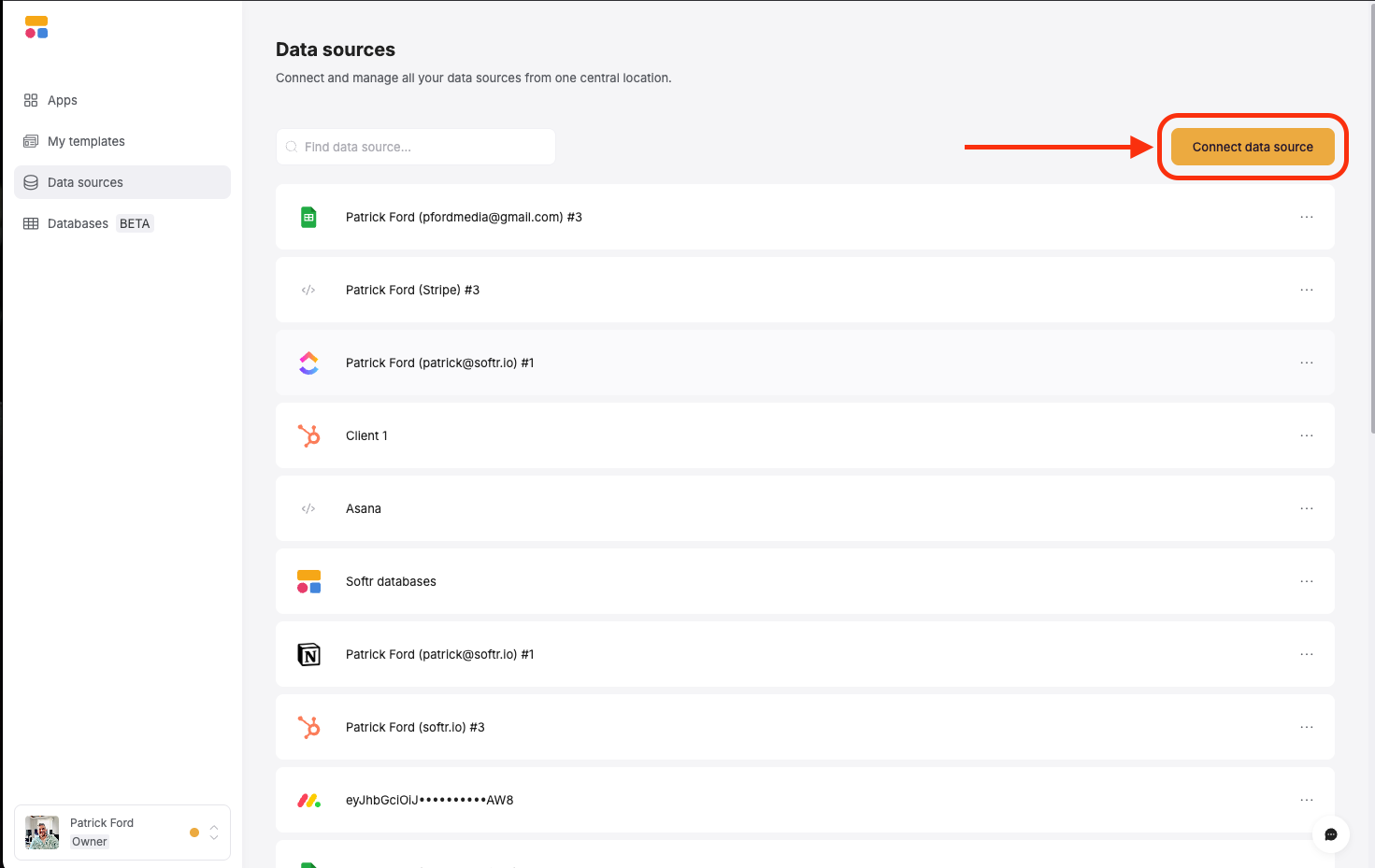
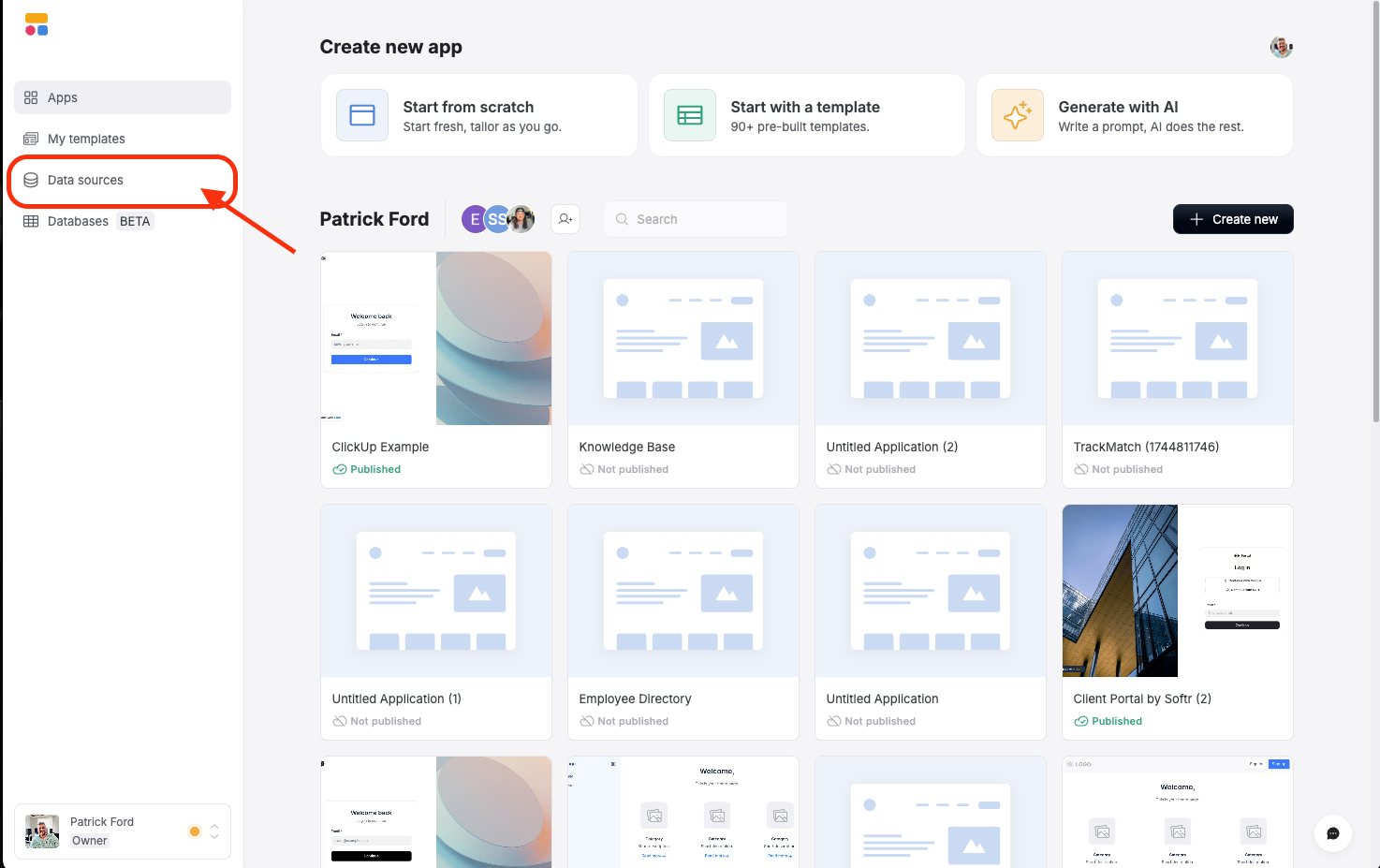 Click on “Connect to Data source” button in the upper right
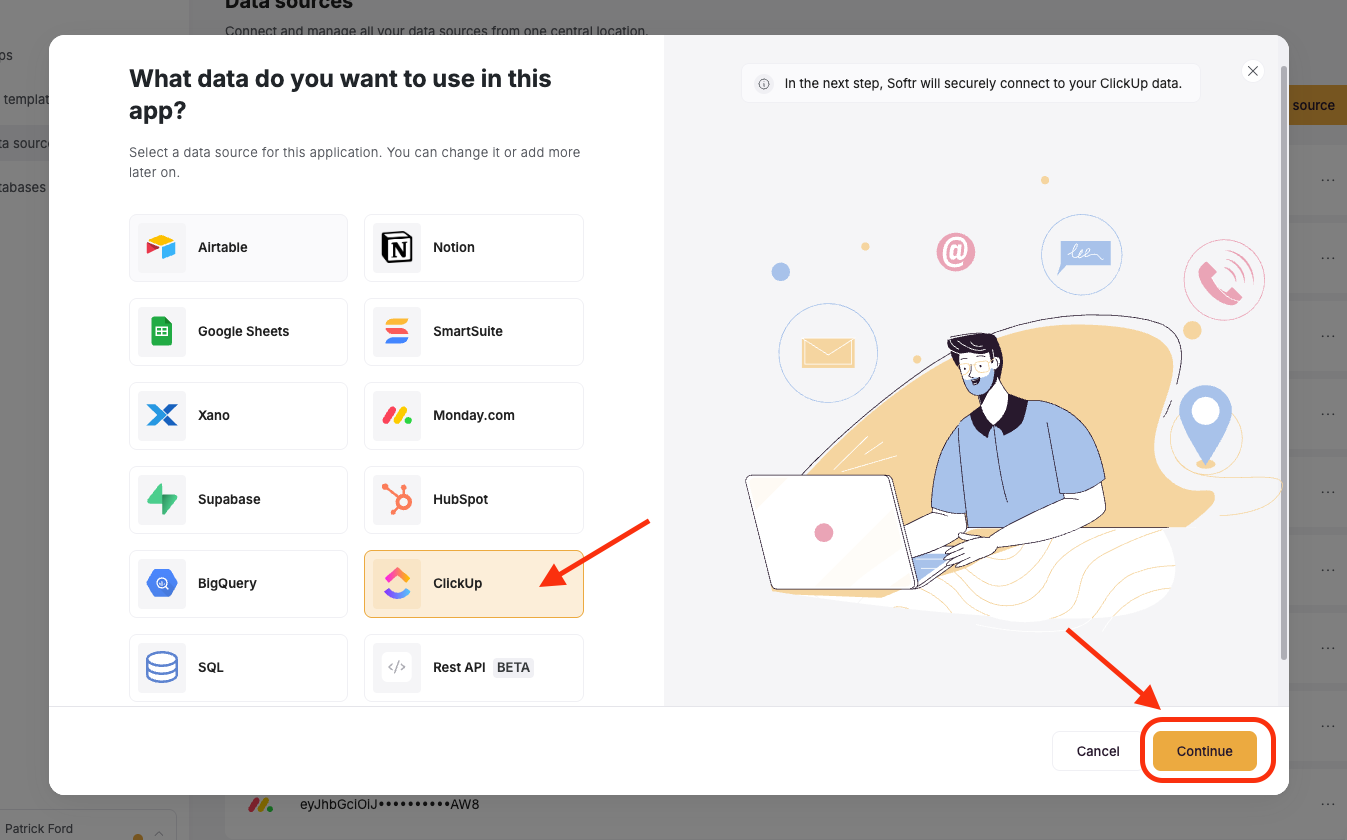
 Select ClickUp from the list and click the Continue button in the bottom right:
 If you’re not logged in to ClickUp, you’ll be prompted to sign in first. Then you’ll see a screen that let’s you choose which Workspaces to connect to Softr. Select any or all of the workspace(s) you want to connect to and click “Connect Workspace(s)”:
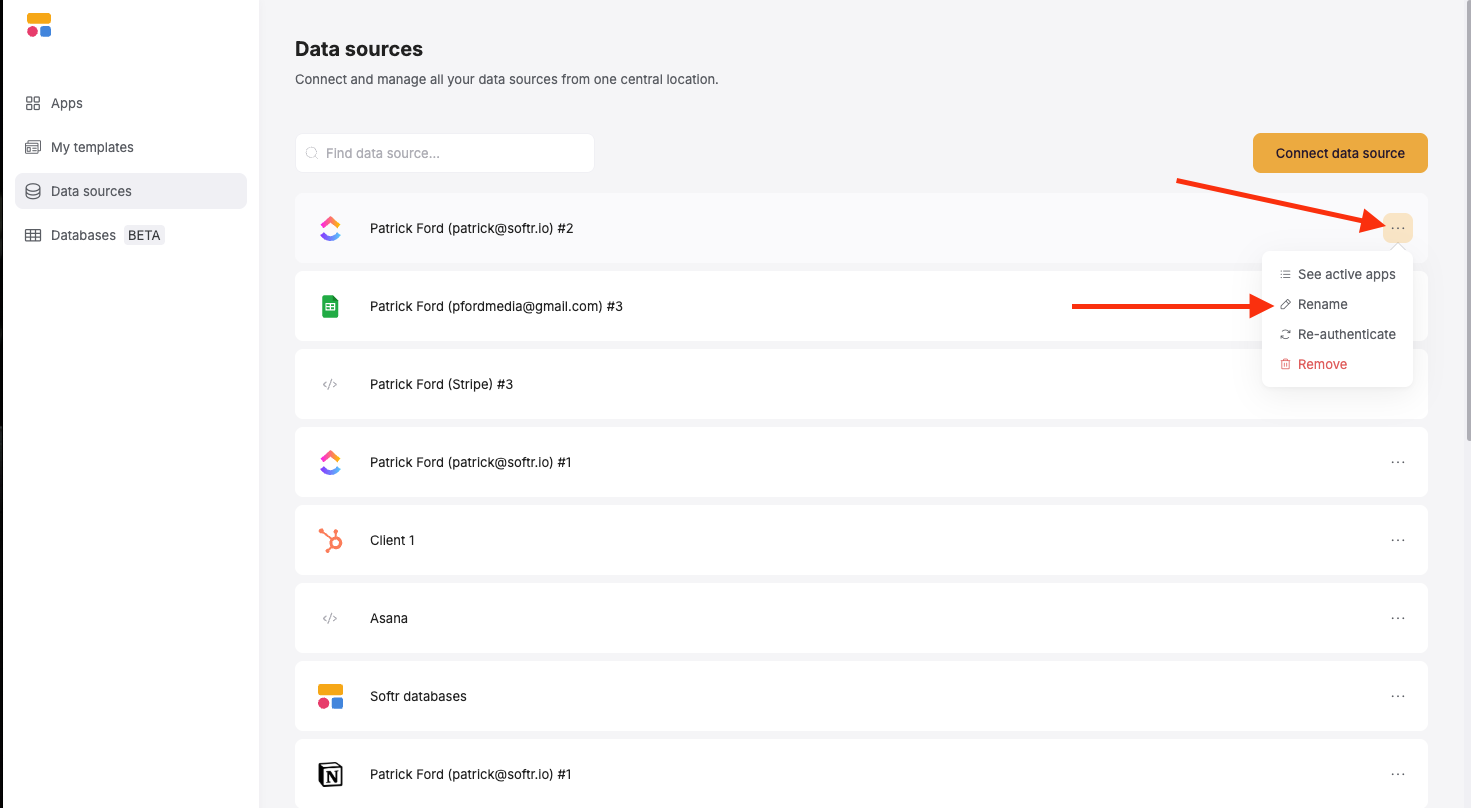
 You will be redirected back to your Softr browser tab and your new ClickUp connection will be available to use in any and all of your Softr apps. If you need to rename, delete or see which apps the data source is being used in, just click the three dots on the data source:
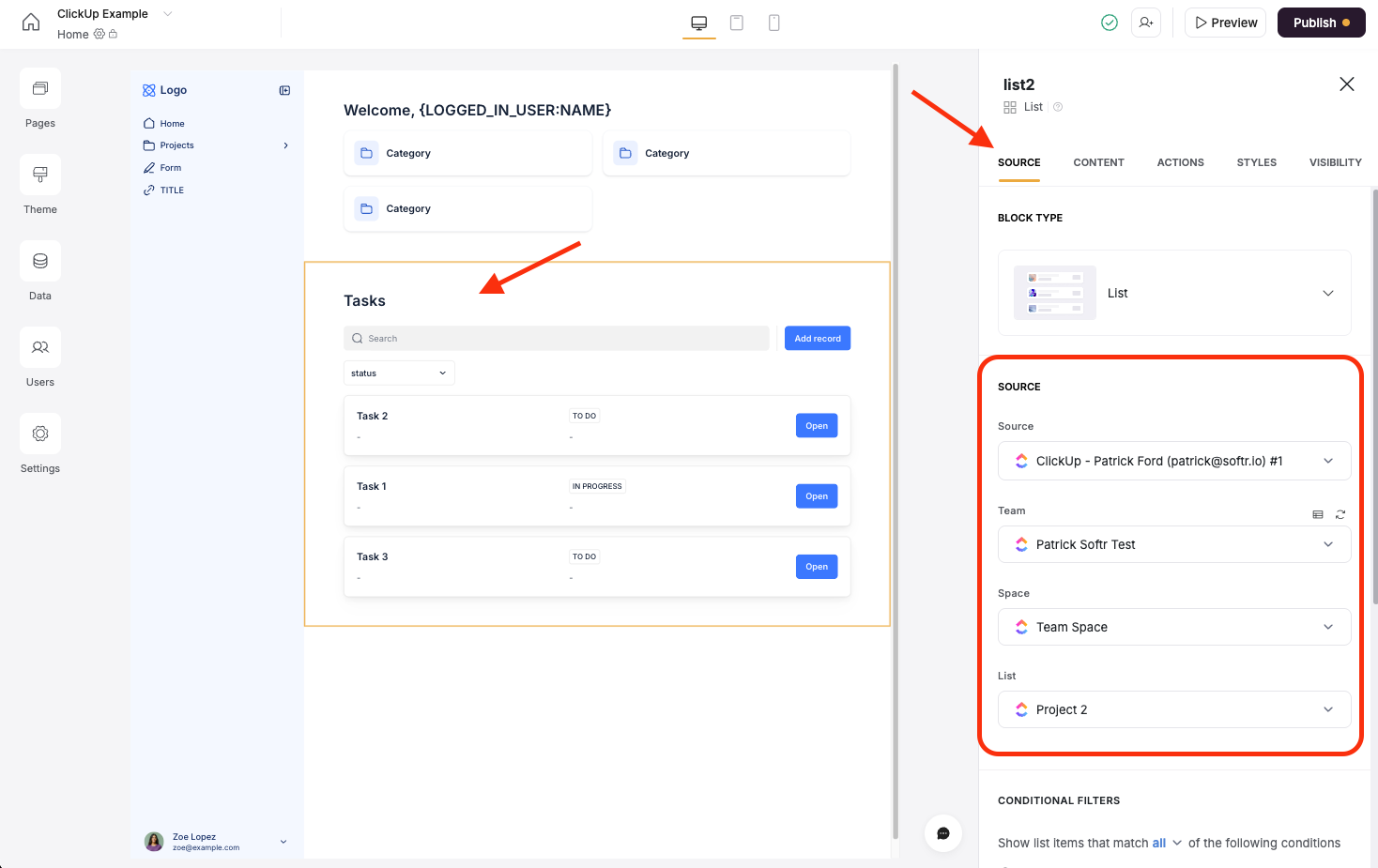
 In any of your Softr apps, you can select almost any dynamic block and choose ClickUp as the connected data source for the block. Just select the Data source, the Workspace, Space, and List for the block.
You can get any List from Clickup, whether it is in a folder or not. Softr ignores the heirarchy in ClickUp to show all List within a given Space.
In any of your Softr apps, you can select almost any dynamic block and choose ClickUp as the connected data source for the block. Just select the Data source, the Workspace, Space, and List for the block.
You can get any List from Clickup, whether it is in a folder or not. Softr ignores the heirarchy in ClickUp to show all List within a given Space.
 You can tell which blocks support ClickUp as a datasource by hovering over the block you want to add.
 Click on the block and select the Content tab to edit the fields and map your columns/properties in ClickUp to the visual elements of the block.
 You can add new fields, delete fields, duplicate fields or even change the styling of individual fields and elements. You can also change the field type if it doesn’t match how you want it to display. Read more about mapping data [here](/building-blocks/vikC2AWEpQGkZd4jGyoVxo/list-block/pQhPYuA28VXr5tLLFBcbCU#content).
You can sync a list of contacts or people in ClickUp so that they become Users of your Softr app. To learn more about users and how to sync them, check out [this article](/add-and-manage-users/pxnkp9H3qyEVMF6XUceqnj/syncing-users-with-a-data-source/hshRGygHr4T33EnaLntGf9).
## Supported ClickUp Fields
Not all fields are currently supported by Softr, but we’re adding more all the time. Some fields, such as Rollup are not exposed by the ClickUp API and are unretrievable by Softr.
| | | |
| ---------------------------- | ------------------ | ----------------- |
| **Supported** | **Read-Only** | **Not Supported** |
| Number | Formula | Rollup |
| Text | People | |
| Long Text | Tasks | |
| Dropdown | Voting | |
| Date | Location | |
| Text area (Long text) | Users | |
| Money | Date created | |
| Website | Date updated | |
| Email | Creator | |
| Manual Progress | Assignees | |
| Phone | Signature | |
| Relationship | Files | |
| Location | Automatic Progress | |
| Rating | | |
| Translation | | |
| Status | | |
| Start Date | | |
| Due Date | | |
| Points | | |
| Description | | |
| Time Estimate | | |
| Action Items | | |
| Summary | | |
| Progress Updates | | |
| Custom Autofill with AI | | |
| Categorize | | |
| T-Shirt Size | | |
| Sentiment | | |
| Labels | | |
| Name | | |
| Priority | | |
| Checkbox | | |
| Relationship (between lists) | | |
## Softr Support for Tasks in Multiple Lists
ClickUp allows you to show tasks from one list inside other lists. Accessing these multiple lists is also possible in Softr, regardless of which list a task is housed in. For more information about these fields in ClickUp, see [this article](/add-and-manage-users/pxnkp9H3qyEVMF6XUceqnj/syncing-users-with-a-data-source/hshRGygHr4T33EnaLntGf9).
## ClickUp API Rate Limits
ClickUp has Rate limits based on the subscription plan on each Workspace level. This means that the rate at which you can read and interact with data from ClickUp will depend on your ClickUp plan. For API calls to ClickUp these are the current rate limits for ClickUp plans:
* Free Forever, Unlimited, and Business: 100 requests per minute per token.
* Business Plus: 1,000 requests per minute per token.
* Enterprise: 10,000 requests per minute per token.
## FAQ
Yes. Each Softr template comes with a sample Airtable base, so you can see how data is structured for the use case (e.g. client portal, inventory management). But you can use templates with another Softr-supported data source (like ClickUp), by connecting your own data. We recommend you follow the data structure in the sample base.
Currently this is no supported, but we will be adding this soon! In the meantime, you can use our REST API datasource to pull in other resources from ClickUp like sub-tasks, built-in ClickUp comments, and more.
Softr can connect one list to one block at a time. The list can be within a folder as well.
You can add new fields, delete fields, duplicate fields or even change the styling of individual fields and elements. You can also change the field type if it doesn’t match how you want it to display. Read more about mapping data [here](/building-blocks/vikC2AWEpQGkZd4jGyoVxo/list-block/pQhPYuA28VXr5tLLFBcbCU#content).
You can sync a list of contacts or people in ClickUp so that they become Users of your Softr app. To learn more about users and how to sync them, check out [this article](/add-and-manage-users/pxnkp9H3qyEVMF6XUceqnj/syncing-users-with-a-data-source/hshRGygHr4T33EnaLntGf9).
## Supported ClickUp Fields
Not all fields are currently supported by Softr, but we’re adding more all the time. Some fields, such as Rollup are not exposed by the ClickUp API and are unretrievable by Softr.
| | | |
| ---------------------------- | ------------------ | ----------------- |
| **Supported** | **Read-Only** | **Not Supported** |
| Number | Formula | Rollup |
| Text | People | |
| Long Text | Tasks | |
| Dropdown | Voting | |
| Date | Location | |
| Text area (Long text) | Users | |
| Money | Date created | |
| Website | Date updated | |
| Email | Creator | |
| Manual Progress | Assignees | |
| Phone | Signature | |
| Relationship | Files | |
| Location | Automatic Progress | |
| Rating | | |
| Translation | | |
| Status | | |
| Start Date | | |
| Due Date | | |
| Points | | |
| Description | | |
| Time Estimate | | |
| Action Items | | |
| Summary | | |
| Progress Updates | | |
| Custom Autofill with AI | | |
| Categorize | | |
| T-Shirt Size | | |
| Sentiment | | |
| Labels | | |
| Name | | |
| Priority | | |
| Checkbox | | |
| Relationship (between lists) | | |
## Softr Support for Tasks in Multiple Lists
ClickUp allows you to show tasks from one list inside other lists. Accessing these multiple lists is also possible in Softr, regardless of which list a task is housed in. For more information about these fields in ClickUp, see [this article](/add-and-manage-users/pxnkp9H3qyEVMF6XUceqnj/syncing-users-with-a-data-source/hshRGygHr4T33EnaLntGf9).
## ClickUp API Rate Limits
ClickUp has Rate limits based on the subscription plan on each Workspace level. This means that the rate at which you can read and interact with data from ClickUp will depend on your ClickUp plan. For API calls to ClickUp these are the current rate limits for ClickUp plans:
* Free Forever, Unlimited, and Business: 100 requests per minute per token.
* Business Plus: 1,000 requests per minute per token.
* Enterprise: 10,000 requests per minute per token.
## FAQ
Yes. Each Softr template comes with a sample Airtable base, so you can see how data is structured for the use case (e.g. client portal, inventory management). But you can use templates with another Softr-supported data source (like ClickUp), by connecting your own data. We recommend you follow the data structure in the sample base.
Currently this is no supported, but we will be adding this soon! In the meantime, you can use our REST API datasource to pull in other resources from ClickUp like sub-tasks, built-in ClickUp comments, and more.
Softr can connect one list to one block at a time. The list can be within a folder as well.