> ## Documentation Index
> Fetch the complete documentation index at: https://docs.softr.io/llms.txt
> Use this file to discover all available pages before exploring further.
# BigQuery
> Use BigQuery as a data source for your Softr app or dashboard.
BigQuery is a powerful cloud-based data warehouse that enables you to analyze massive datasets quickly. WithSoftr’s BigQuery integration, you can build custom dashboards, reports, and even full-fledged apps tailored to your business needs.
This integration allows you to:
* Create **real-time dashboards** and reports
* Run **custom SQL queries** for deeper insights
* Securely **control access** to data
* Share **data-driven insights** with partners and stakeholders
BigQuery is available on Business and Enterprise plans.
**Important**: **BigQuery is read-only**, so you can’t add, update, or delete data via Softr. This makes blocks like Forms unusable, and you can’t manage or store Softr user data in BigQuery. However, you can still manage user data within Softr.
**Example Use Cases:**
* **Dashboards** – Track **user activity, app performance, and sales trends** in a single dashboard without complex analytics tools.
* **Partner Insights** – Share **product performance data** with vendors using secure, real-time BigQuery dashboards.
## **1. Connect BigQuery to Softr**
To use BigQuery in Softr, you must first **link your account**. Before connecting BigQuery to Softr, make sure you have:
* A **Google Cloud Platform** project with **BigQuery enabled**
* A **dataset** within your BigQuery project
* At least **read-only access** for Softr to your BigQuery dataset
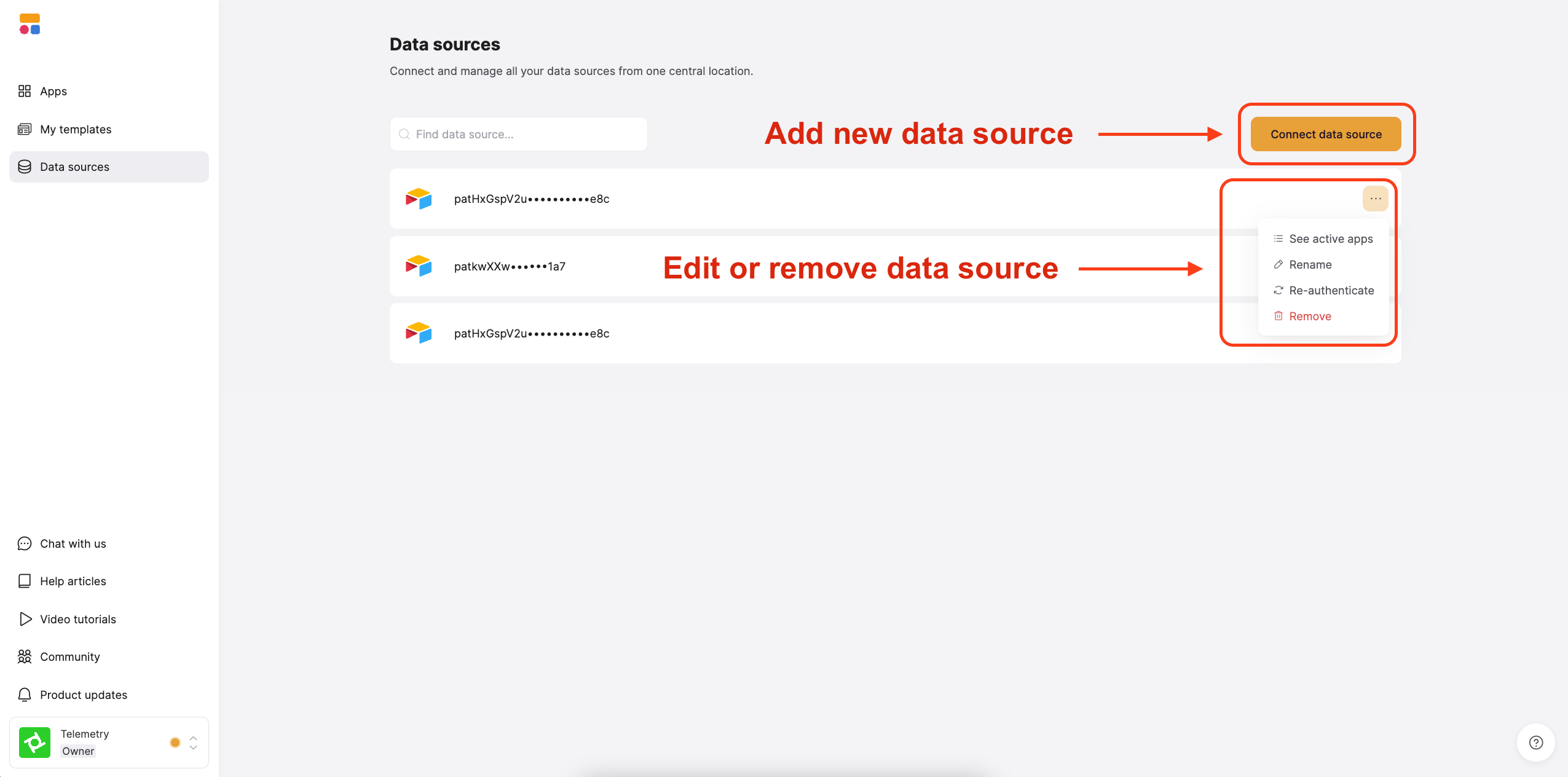
1. Navigate to **Data Sources** in your [**Softr Dashboard**](https://studio.softr.io/dashboard/data-sources).
2. Click **Connect Data Source**.
1. Select **BigQuery** from the list of available data sources.
2. Follow the on-screen prompts to authenticate with **Google OAuth**.
3. **Grant Softr the necessary read-only permissions** to your BigQuery datasets.
## **2. Connect your BigQuery data to the Softr app**
Once connected, you can use your BigQuery data to build dashboards and display records in your Softr apps.
To display your data in the app, connect a [dynamic block](/core-concepts-overview/c5VwEbsWtTfPyUZjmEKvfx/visualize-data-with-building-blocks/41p6U2eZs7zgY8zWmFV4eH#1859a723d691803d9551ecd7b3b0c043) (e.g. [List](/building-blocks/vikC2AWEpQGkZd4jGyoVxo/list-block/pQhPYuA28VXr5tLLFBcbCU), Chart) to your BiqQuery table:
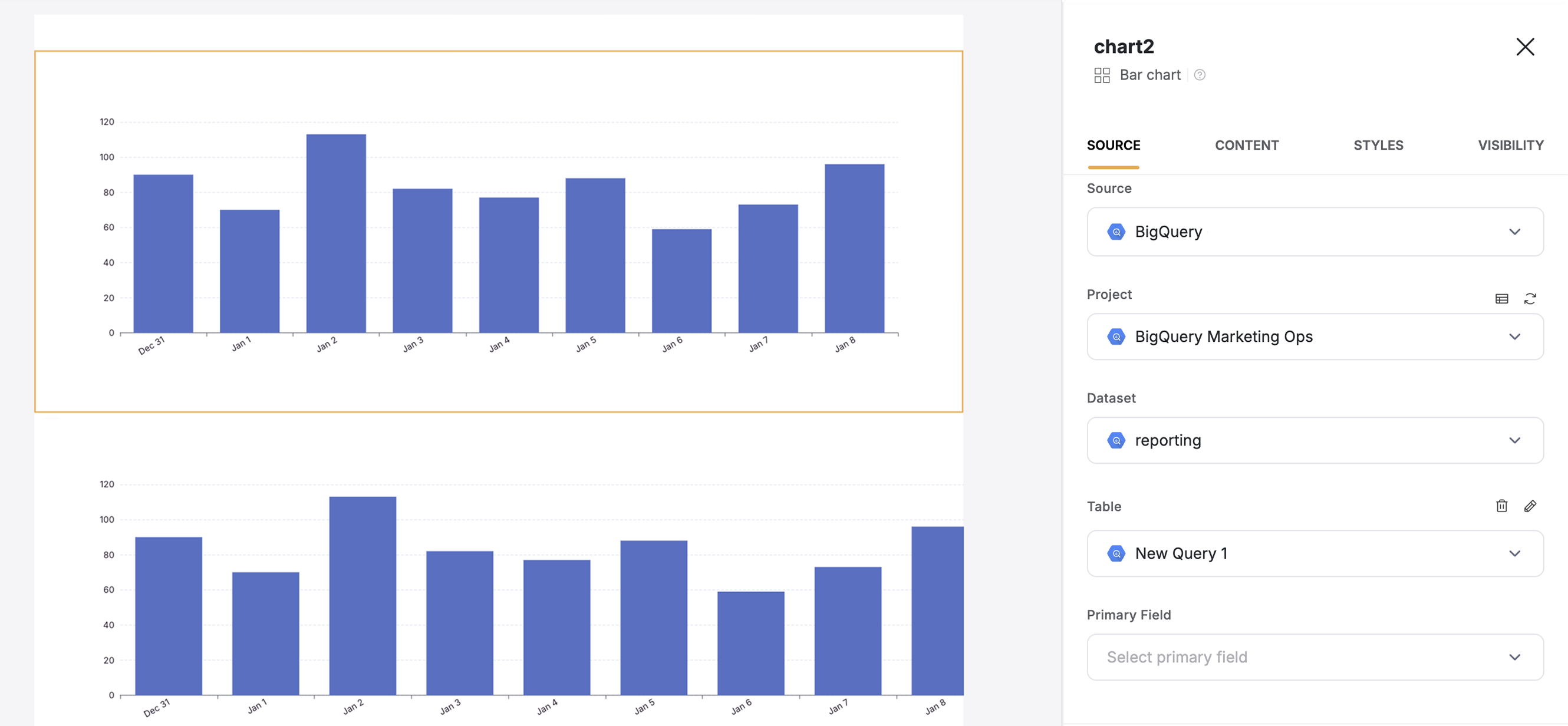
1. Go to the Block **source** **tab** and select your BigQuery integration.
2. Select the **project** and **dataset** you want to connect.
3. Pick the **table** you want to use or **create a new** **query**
4. Optionally, select the **primary field**.
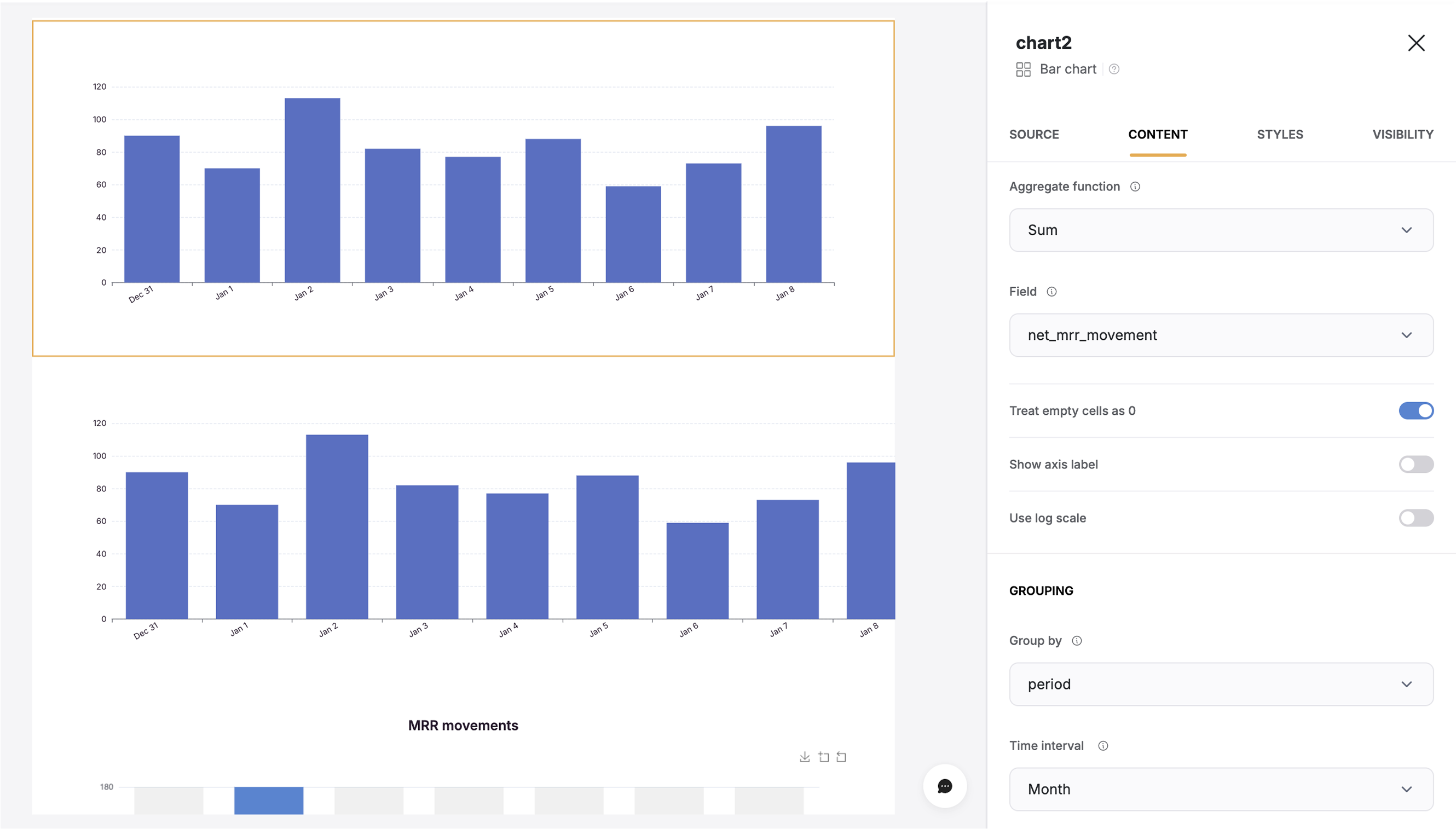
When you connect your table to a block, you can choose which BigQuery **properties** to display and map to a Softr field. This lets you control how your data appears in Softr.
**Example:** If you have a **date** in BigQuery, map it to **grouping** in Softr.
### **Custom SQL Queries (Optional)**
You can use **Softr’s built-in query editor** to write SQL queries directly against your BigQuery dataset for advanced data analysis.
1. Write and run **custom queries** inside Softr.
2. Connect query results to **dynamic blocks** to display **custom tables and visualizations**.
## **Troubleshooting**
If you encounter errors while connecting BigQuery to Softr, check for these common issues:
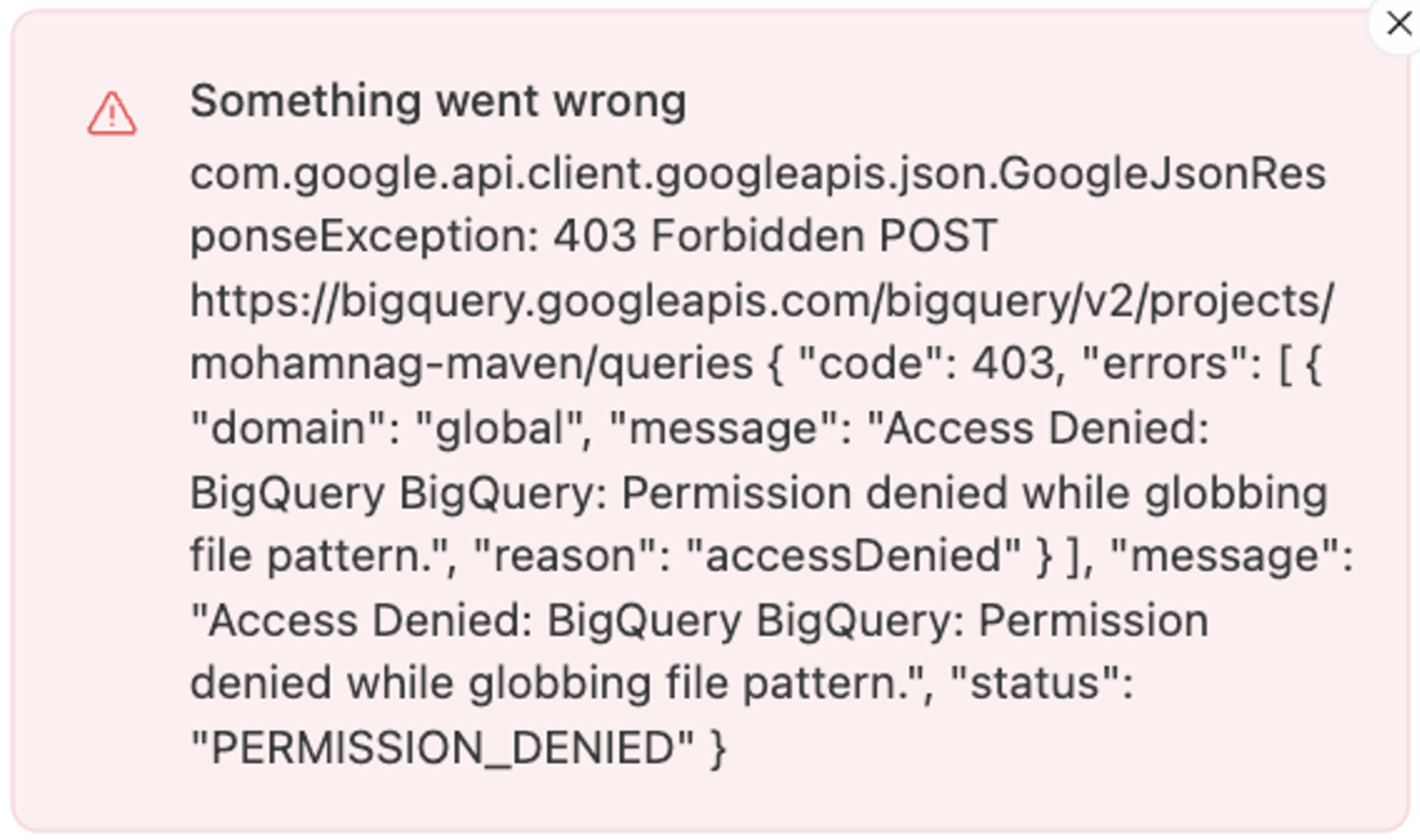
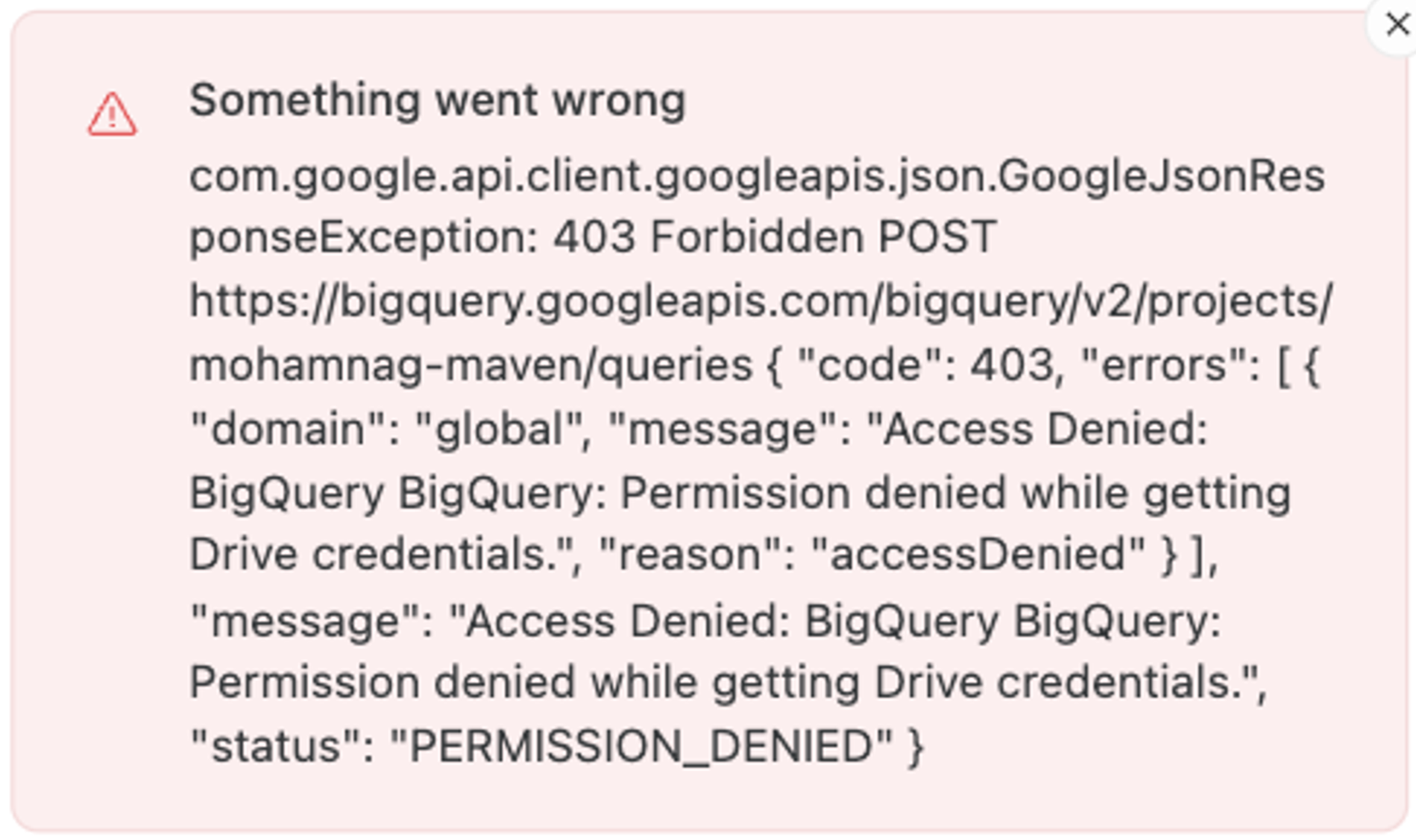
### **Error: Something went wrong “Access Denied”**
**Cause:** BigQuery **external tables** (from Google Drive, Sheets, or Cloud Storage) require additional permissions that Softr does not request.
**Internal vs external tables**
In BigQuery, while creating a table in some cases user can decide or has only the option to create an external datasource.
External tables are forced or available when a user creates a table from:
* A file on Google Drive with supported format (CSV, Avro, …)
* A Google Sheet document
* A file on Google Cloud Storage
If the user goes for an external table in these cases, trying to integrate such a table with Softr will give them an error message similar to those mentioned above.
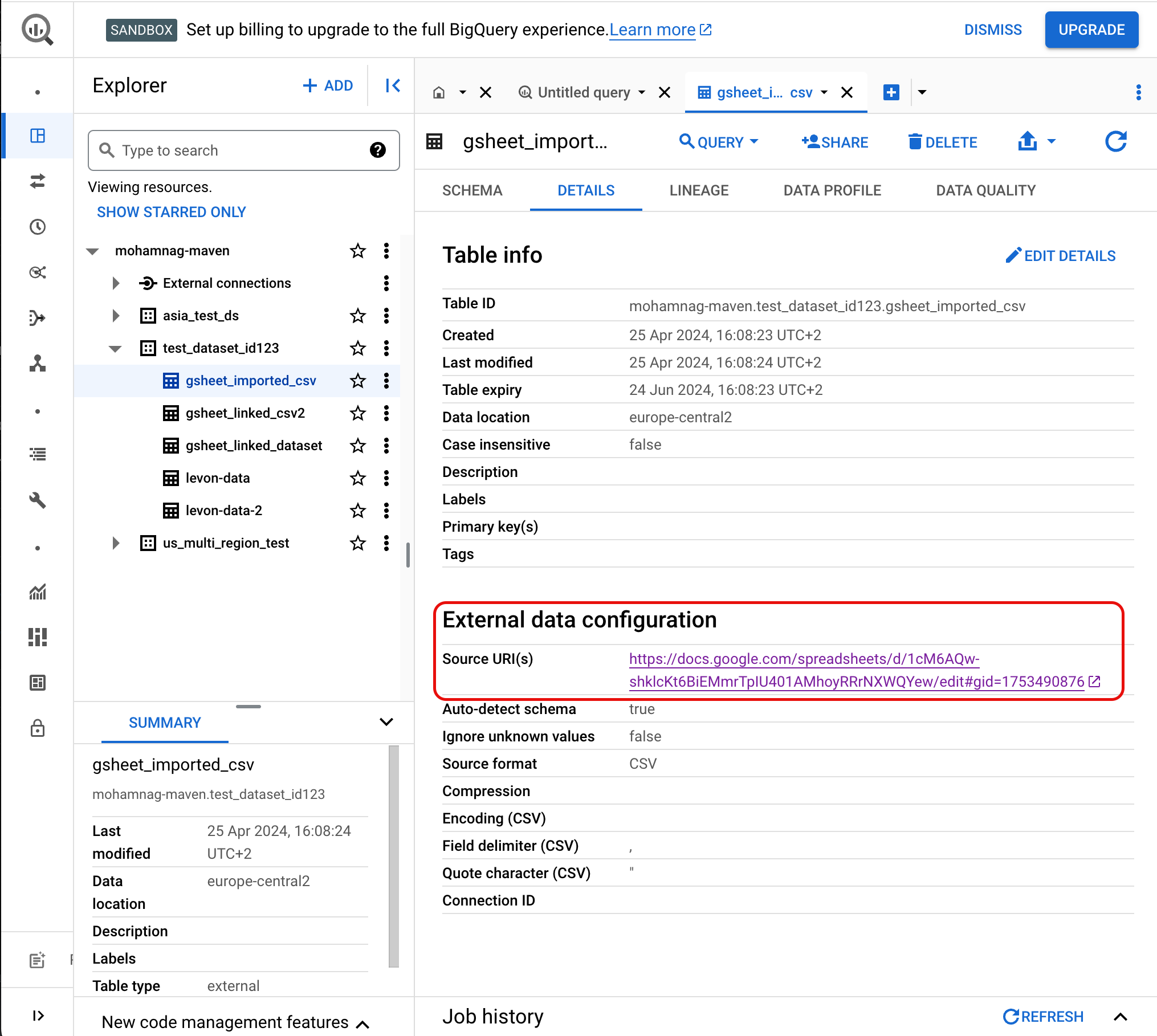
To identify an existing table as either internal or external, one could take a look at table details and would see an “External data configuration” section for external tables similar to the following:
**Solution 1: Use a Native Table**
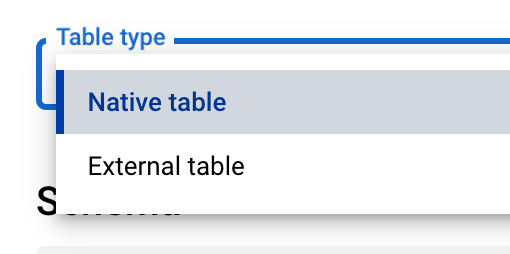
To avoid issues, set the table type to **Native Table** when creating it (if available).
**Note:** A Native Table **won’t sync** with the original source, so any updates to the external source **won’t be reflected** in Softr.
**Solution 2: Copy the External Table**
If using a Native Table isn’t an option, create a **duplicate** of the external table as a new **Native Table** and use that in Softr.
📌 **SQL Example:**
```sql theme={null}
sql
CopyEdit
CREATE TABLE native_table_copy AS
SELECT * FROM external_table;
```
**Downside:** This method **duplicates data**, which may increase storage costs.
### Error: Google BigQuery does not stay connected to Softr
This issue is caused by the Reauthentication Policy settings in Google Admin console.
To resolve things you can:
Set Softr as a Trusted App and then exempt Trusted Apps from reauthentication.
Alternatively, you can change the settings to never require reauthentication for any app.
See this link ([https://support.google.com/a/answer/9368756](https://support.google.com/a/answer/9368756)) for more details on this. Once you have changed your settings in Google Admin, please reconnect your Google account with Softr.
 External tables are forced or available when a user creates a table from:
* A file on Google Drive with supported format (CSV, Avro, …)
* A Google Sheet document
* A file on Google Cloud Storage
If the user goes for an external table in these cases, trying to integrate such a table with Softr will give them an error message similar to those mentioned above.
To identify an existing table as either internal or external, one could take a look at table details and would see an “External data configuration” section for external tables similar to the following:
External tables are forced or available when a user creates a table from:
* A file on Google Drive with supported format (CSV, Avro, …)
* A Google Sheet document
* A file on Google Cloud Storage
If the user goes for an external table in these cases, trying to integrate such a table with Softr will give them an error message similar to those mentioned above.
To identify an existing table as either internal or external, one could take a look at table details and would see an “External data configuration” section for external tables similar to the following:
 **Solution 1: Use a Native Table**
To avoid issues, set the table type to **Native Table** when creating it (if available).
**Solution 1: Use a Native Table**
To avoid issues, set the table type to **Native Table** when creating it (if available).