> ## Documentation Index
> Fetch the complete documentation index at: https://docs.softr.io/llms.txt
> Use this file to discover all available pages before exploring further.
# Use Case: Creating a User Profile with Item Details
> Let users view and edit their profiles.
Here, we are going to create a user profile section using the List Details block, which will let each logged-in user see their own data.
First of all, we need to have a [users Airtable base linked](/add-and-manage-users/pxnkp9H3qyEVMF6XUceqnj/syncing-users-with-a-data-source/hshRGygHr4T33EnaLntGf9) in Users section. Below, we have a list of users from [Airtable](/data-sources/1YYStCJukT15Lh2j93qo9A/airtable/jHX7kfH7QvkVcELQvS3VoX).
 Then, we are going to create a separate page (called "My Profile"), add a List Details block there, and link it to the same Users base and table in Airtable. Moreover, we are going to define a conditional filter so that a logged-in user sees the record where the **Email** matches his/her **Email value**.
Please, note that if there are multiple records that meet the defined condition, the **first**
record in the list will be shown.
Then, we are going to create a separate page (called "My Profile"), add a List Details block there, and link it to the same Users base and table in Airtable. Moreover, we are going to define a conditional filter so that a logged-in user sees the record where the **Email** matches his/her **Email value**.
Please, note that if there are multiple records that meet the defined condition, the **first**
record in the list will be shown.
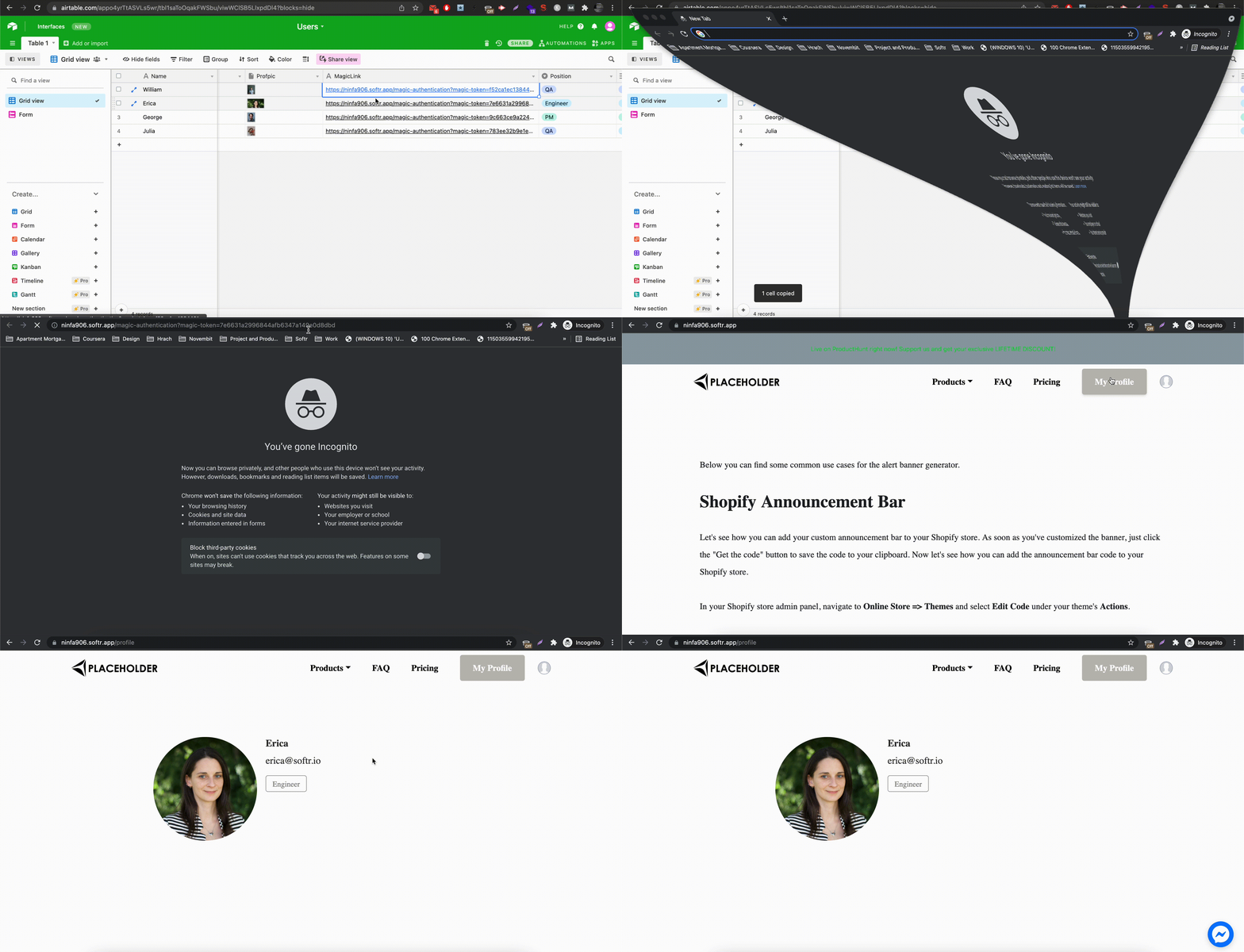
 So, that's the setup. Now, any logged-in user that opens the My Profile page, will see his/her own profile info. The process is shown below.