> ## Documentation Index
> Fetch the complete documentation index at: https://docs.softr.io/llms.txt
> Use this file to discover all available pages before exploring further.
# Summary Cards
> Summarize your data through cards.
The Summary Cards block is a legacy block and is no longer available for use in new apps. It has been deprecated as of September 9, 2025. The block will continue to function inside any existing applications where it is being used.
This block is for displaying data from a [data source](/4230abecf813402aa2926466c313290a) in a specific format that's suitable for summaries, key stats, and similar. So, let's go through the block settings and see how it works.
## Conditional Filters
You can learn more about conditional filters [here](/building-blocks/vikC2AWEpQGkZd4jGyoVxo/list-block/pQhPYuA28VXr5tLLFBcbCU).
## Summary Options
In this section, you can customize the **Title** and **Subtitle** of the block.
## Summary Card
This is where you customize the layout of the summary card and map the fields from your [data source](/4230abecf813402aa2926466c313290a). So, let's see how this works on a practical example. Let's say you have an [Airtable](/data-sources/1YYStCJukT15Lh2j93qo9A/airtable/jHX7kfH7QvkVcELQvS3VoX) table with quarterly revenue data for a number of companies, and you want to summarize the annual revenue of each company on your Softr app. Below you can see our table, where we have added a **Sum** formula field that calculates the annual revenue based on data from each quarter. We also have the **names** of the companies and a **Color** field, which we are going to use to apply different colors to each summary card.
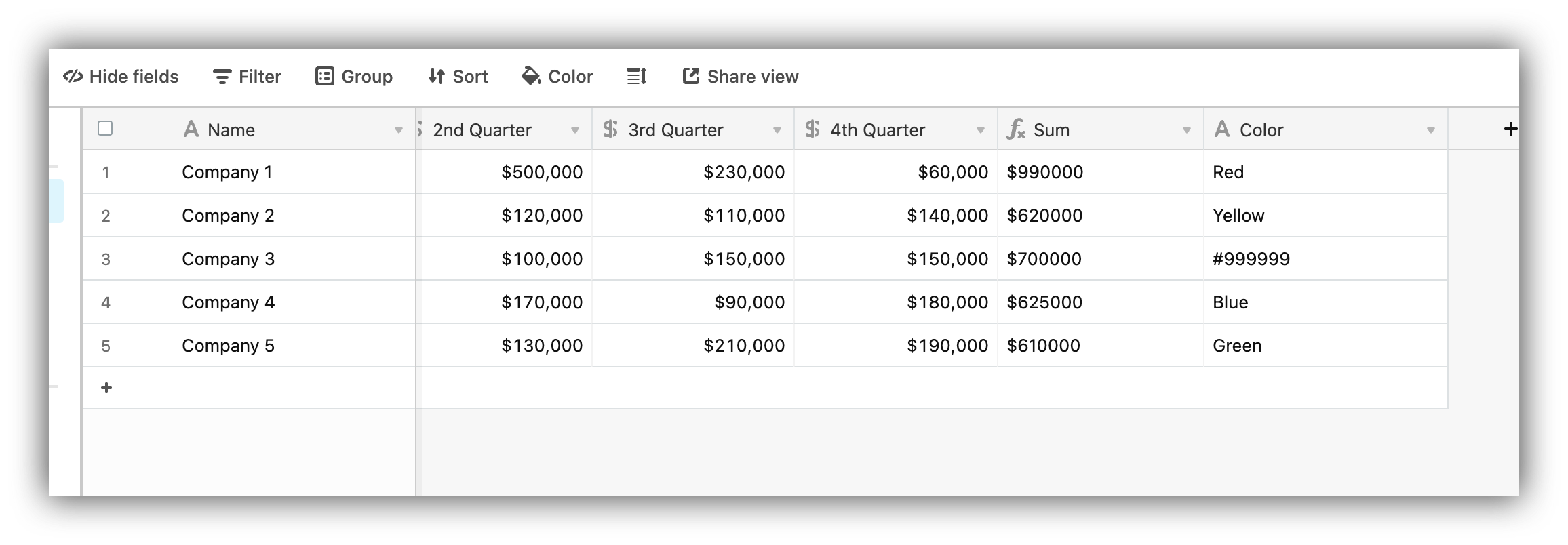 For the **Color** field, the values need to be specified either as text (e.g. "Red") or as the HEX equivalent of the preferred color (e.g. "#FF00000"). In Airtable, you can use any text field type (e.g. Single Select or Single line text).
If you don't connect a Color field, the cards will be assigned random colors.
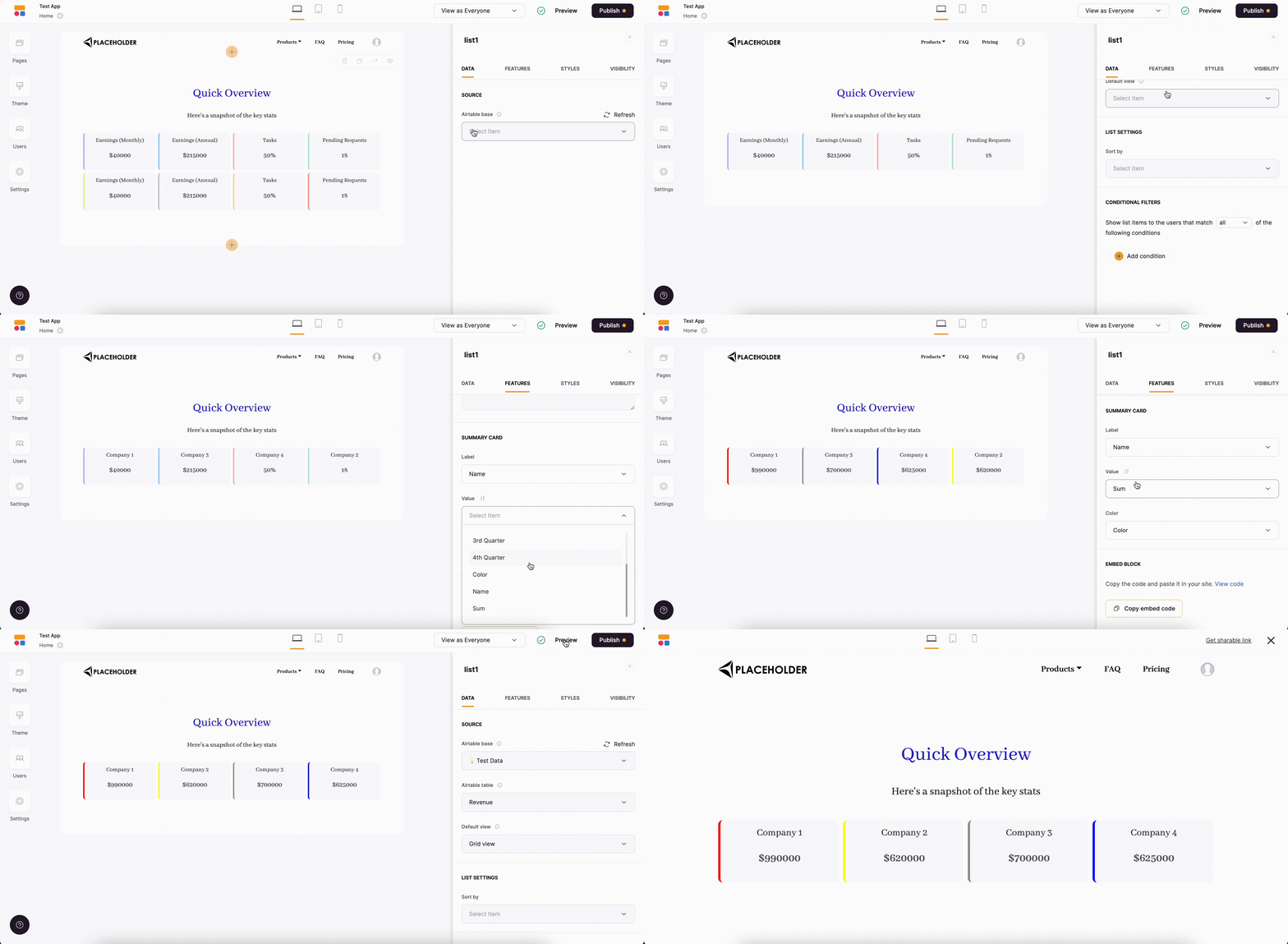
Finally, let's connect the data to our Summary block and set it up.
For the **Color** field, the values need to be specified either as text (e.g. "Red") or as the HEX equivalent of the preferred color (e.g. "#FF00000"). In Airtable, you can use any text field type (e.g. Single Select or Single line text).
If you don't connect a Color field, the cards will be assigned random colors.
Finally, let's connect the data to our Summary block and set it up.