> ## Documentation Index
> Fetch the complete documentation index at: https://docs.softr.io/llms.txt
> Use this file to discover all available pages before exploring further.
# Partner
> A block for showcasing partner brands and providing links to their websites.
 Using the **Partner** block you can present your partners, key customers, and so on. The block consists of a **Title**, **Subtitle**, and a list of partner logos. Let's see how each of those is configured.
## Title and Subtitle
Using the **Partner** block you can present your partners, key customers, and so on. The block consists of a **Title**, **Subtitle**, and a list of partner logos. Let's see how each of those is configured.
## Title and Subtitle
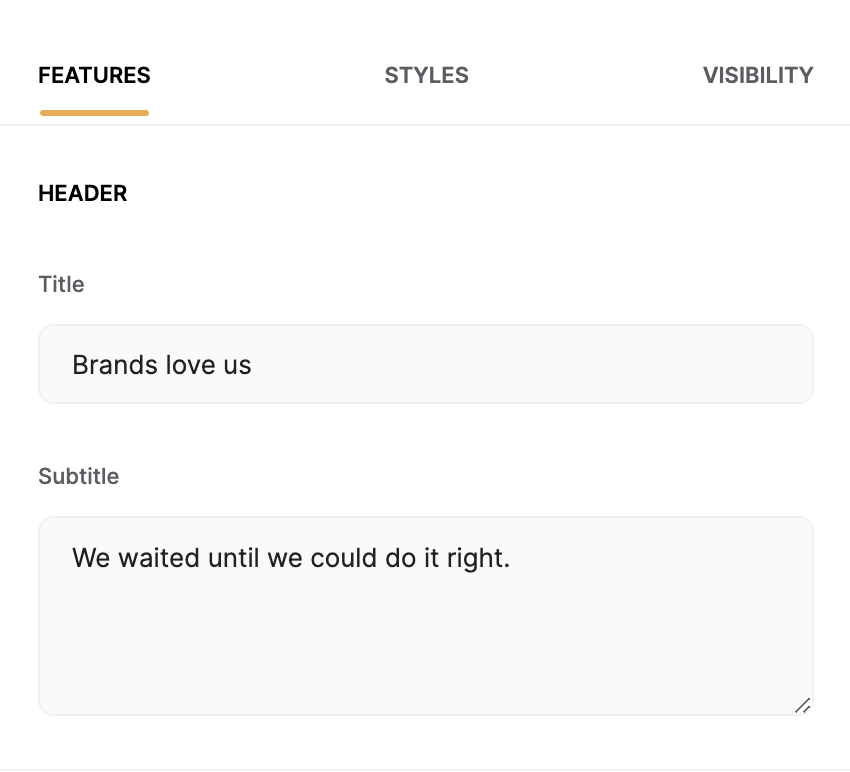 Here you enter the **Title** and **Subtitle** texts.
## Partners
In this section you add the partners along with their **Image** and **Link.**
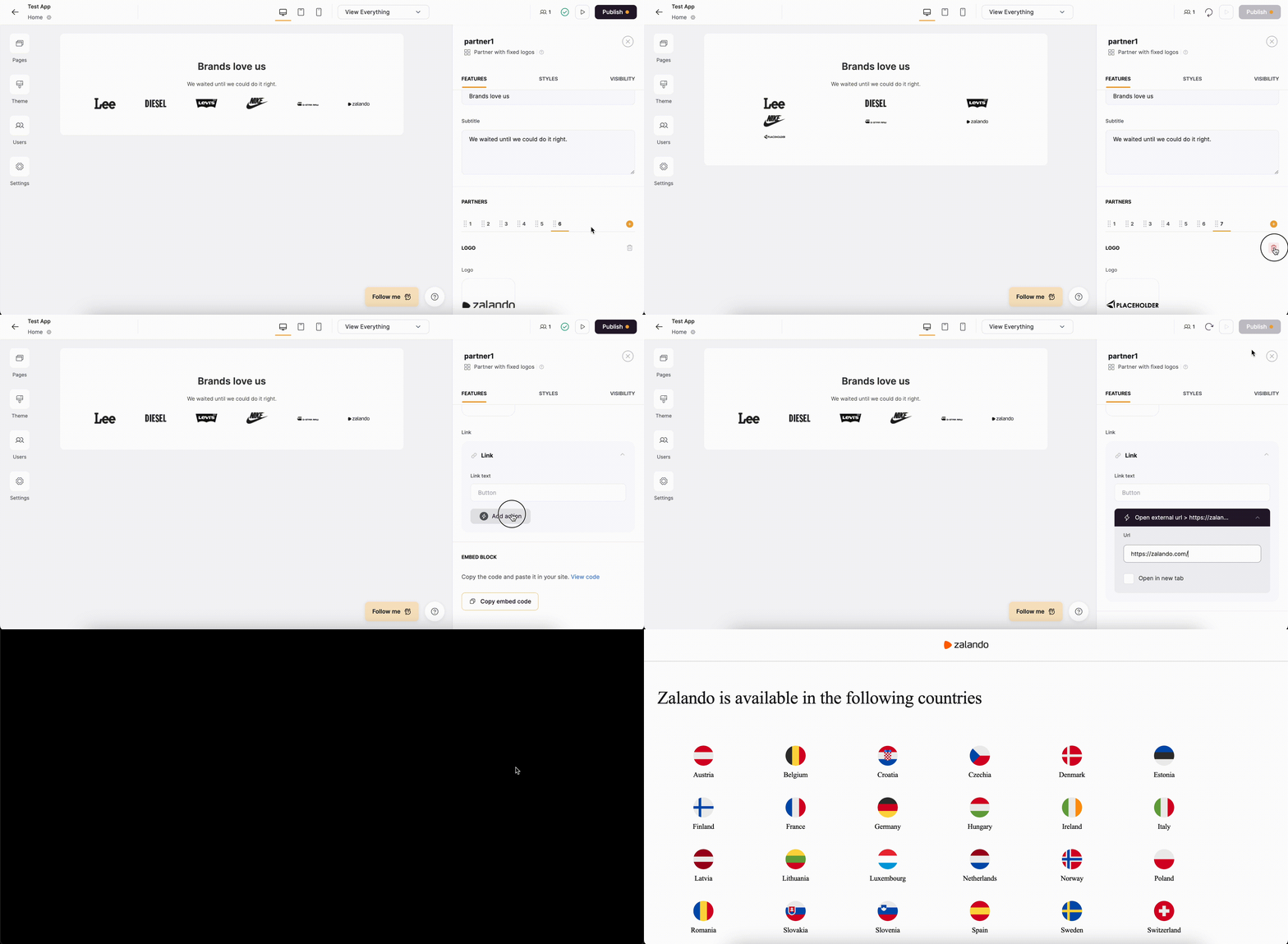
Each partner item is added within a separate tab. You can add new tabs, delete, and reorganize them. Additional rows will be added depending on the number of partner items. Check out the gif below to get a better idea.
Here you enter the **Title** and **Subtitle** texts.
## Partners
In this section you add the partners along with their **Image** and **Link.**
Each partner item is added within a separate tab. You can add new tabs, delete, and reorganize them. Additional rows will be added depending on the number of partner items. Check out the gif below to get a better idea.
 # Partner Block Layouts
## Layout: **Partner with fixed logos**
# Partner Block Layouts
## Layout: **Partner with fixed logos**
 In this layout, the grid with partner logos is static, and new rows are added as the number of logos increases.
## Layout: **Partner with sliding logos**
In this layout, the grid with partner logos is static, and new rows are added as the number of logos increases.
## Layout: **Partner with sliding logos**
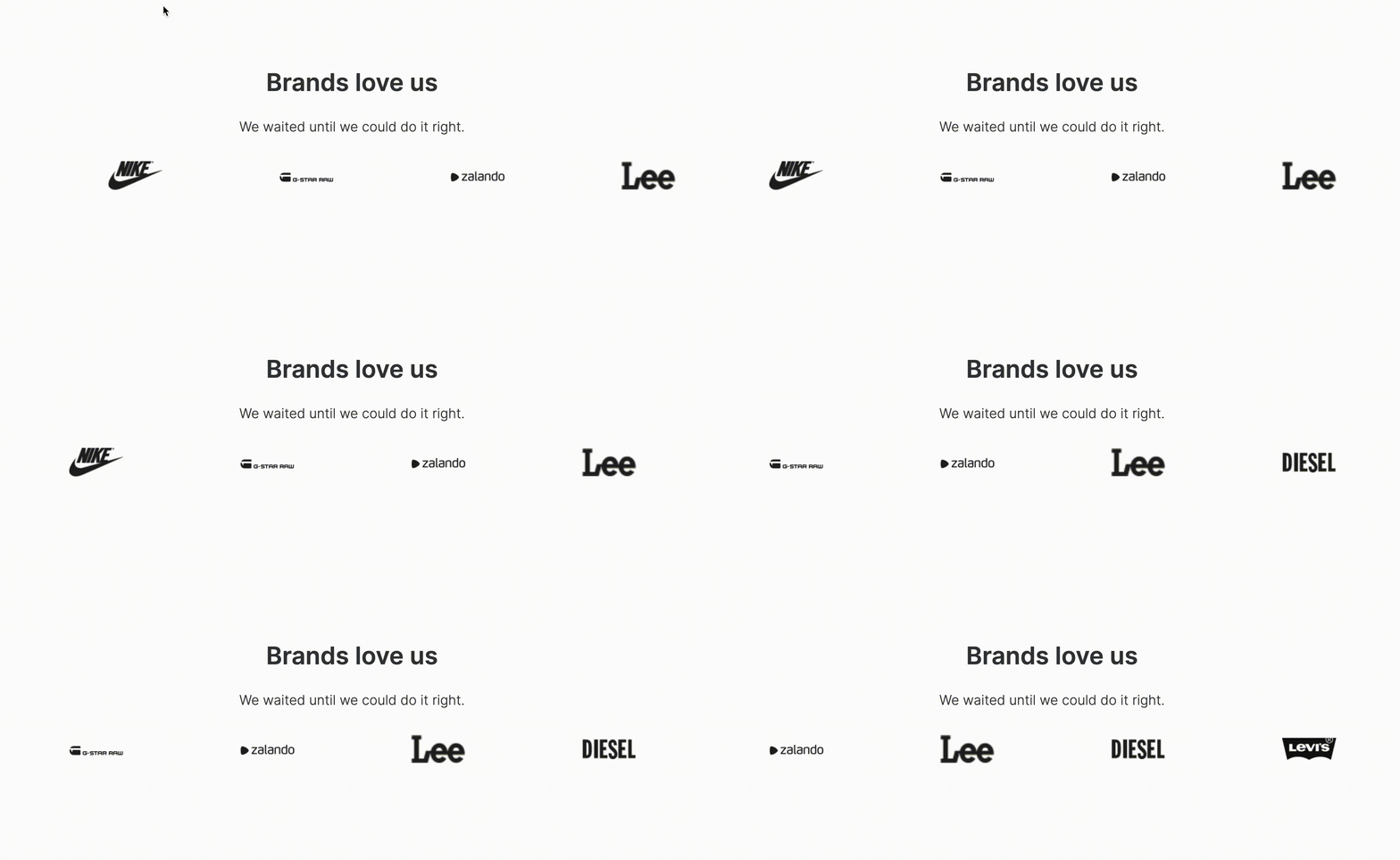 In this layout, all the logos are presented through a sliding animation in a single row, as shown above.