> ## Documentation Index
> Fetch the complete documentation index at: https://docs.softr.io/llms.txt
> Use this file to discover all available pages before exploring further.
# Linked List
> How to configure linked lists through a List Details block.
## Video
## Overview
Before reading this article, we highly recommend watching the above video and checking out our Item Details help article. It will really help you understand how this should all work.
One of the most powerful parts of Softr is being able to display not only individual details about a specific record, but also any other records that may be related to that specific record. For example, you may want to display a list of files, team members, or invoices related to a specific project. This is where Linked Lists come in.
Below we’ll look at a quick example using Projects and Tasks related to projects, but you can do this with any data type you can imagine.
Linked Lists work best when they are placed below Item Details blocks that they are using for filtering, visibility, etc. Placing them above Item Details blocks they are using may cause issues in rendering them on the page.
# **Example Setup**
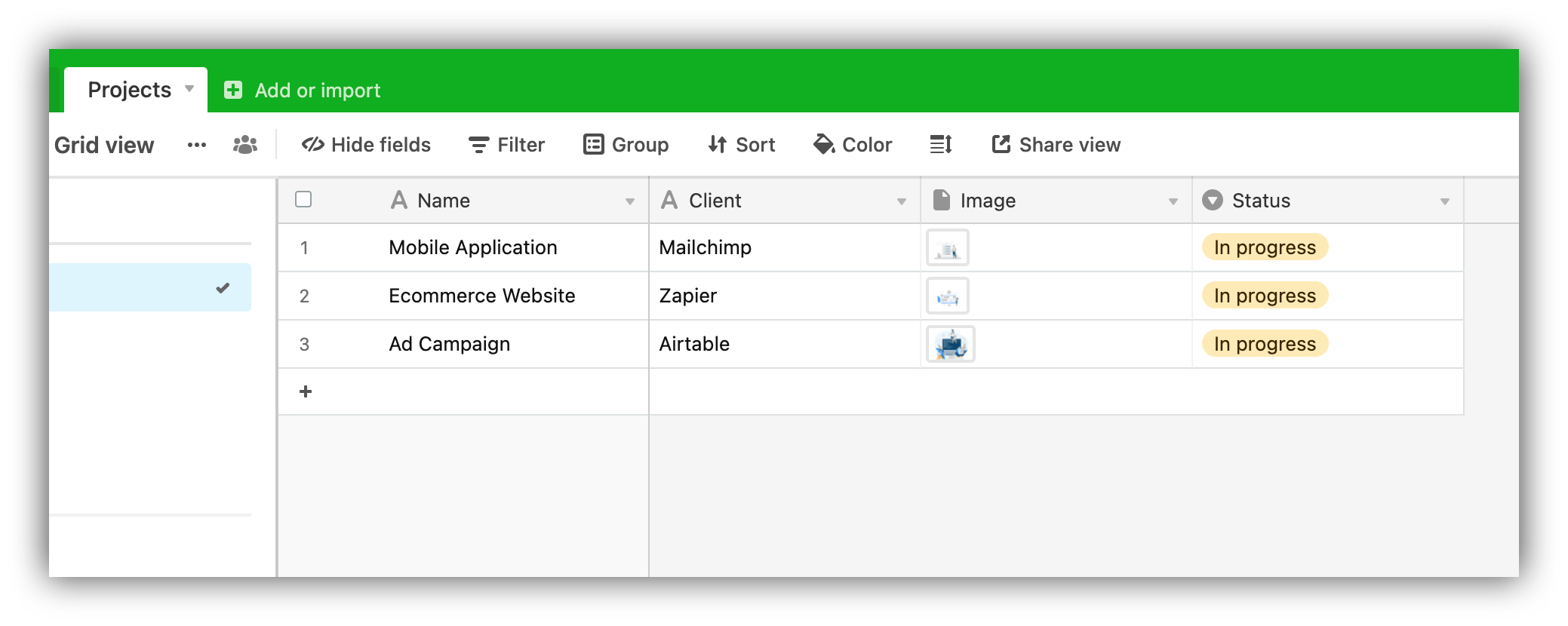
1. Create a "Projects" table
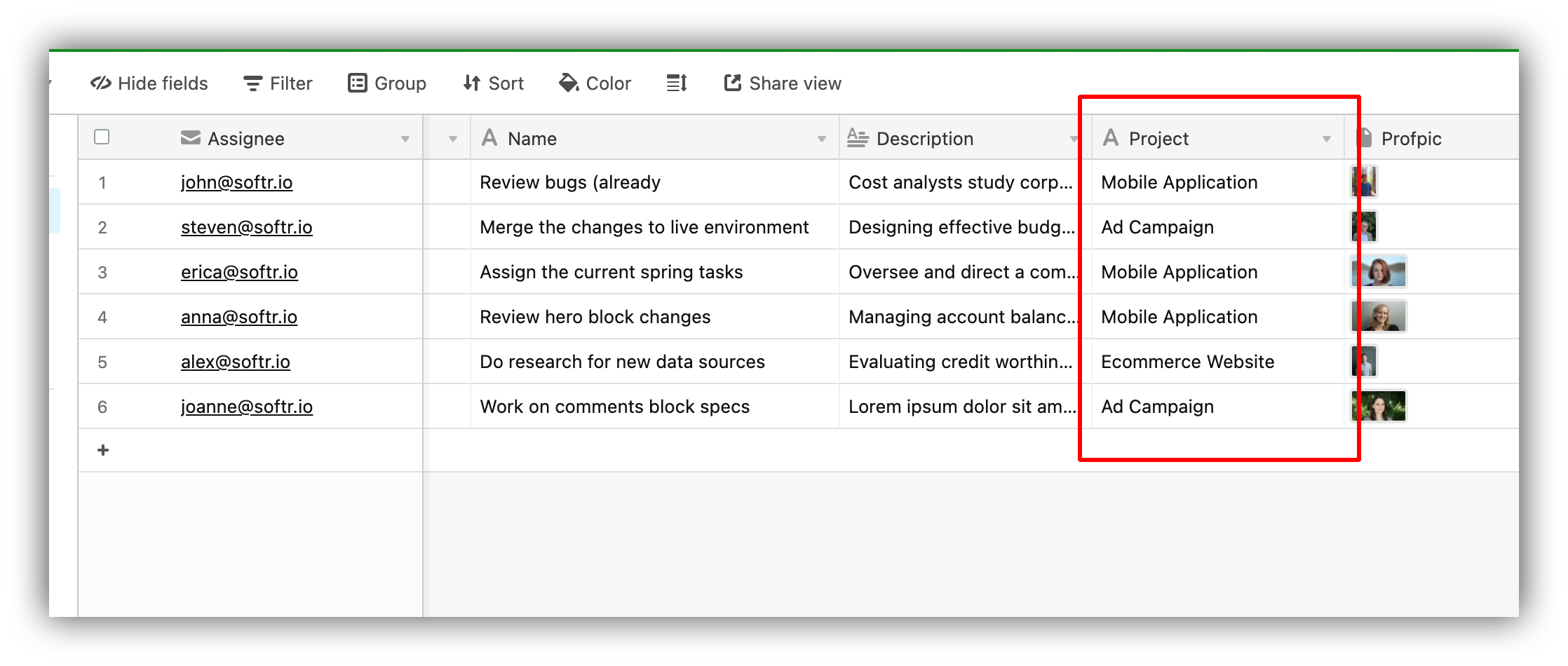
2. Create "Tasks" table to hold task-related data, including a field referencing the associated Project. It can be a [Lookup field](https://support.airtable.com/hc/en-us/articles/360042312194-Lookup-field-overview) that looks up the **Name** field from the **Projects** table, but it can also be a regular field that contains the names of the projects, as in the example below.
# **Implementation**
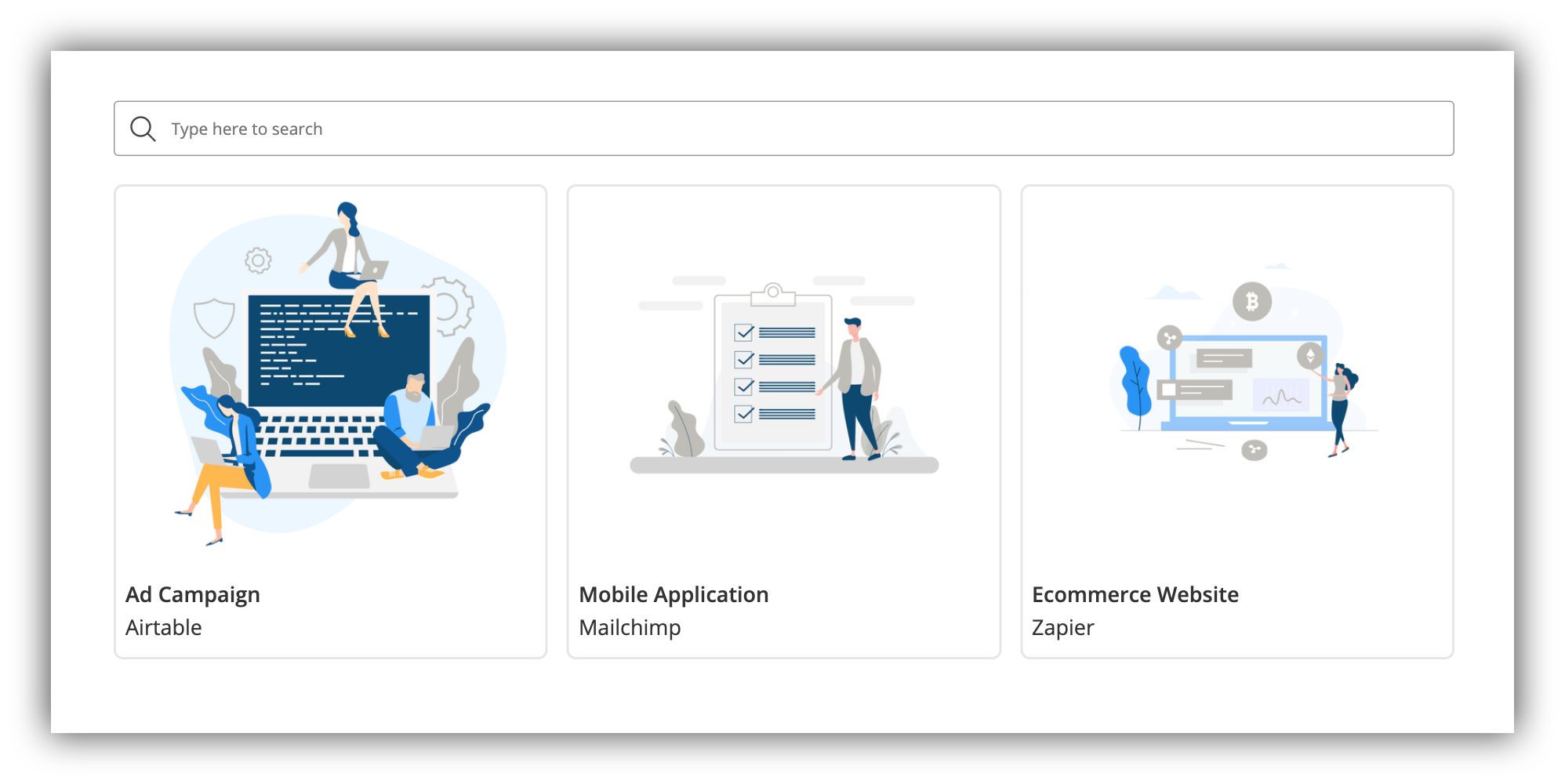
1. On e.g. “Projects” page, add a **List** block linked to the Project [Airtable](/data-sources/1YYStCJukT15Lh2j93qo9A/airtable/jHX7kfH7QvkVcELQvS3VoX) table as shown below.
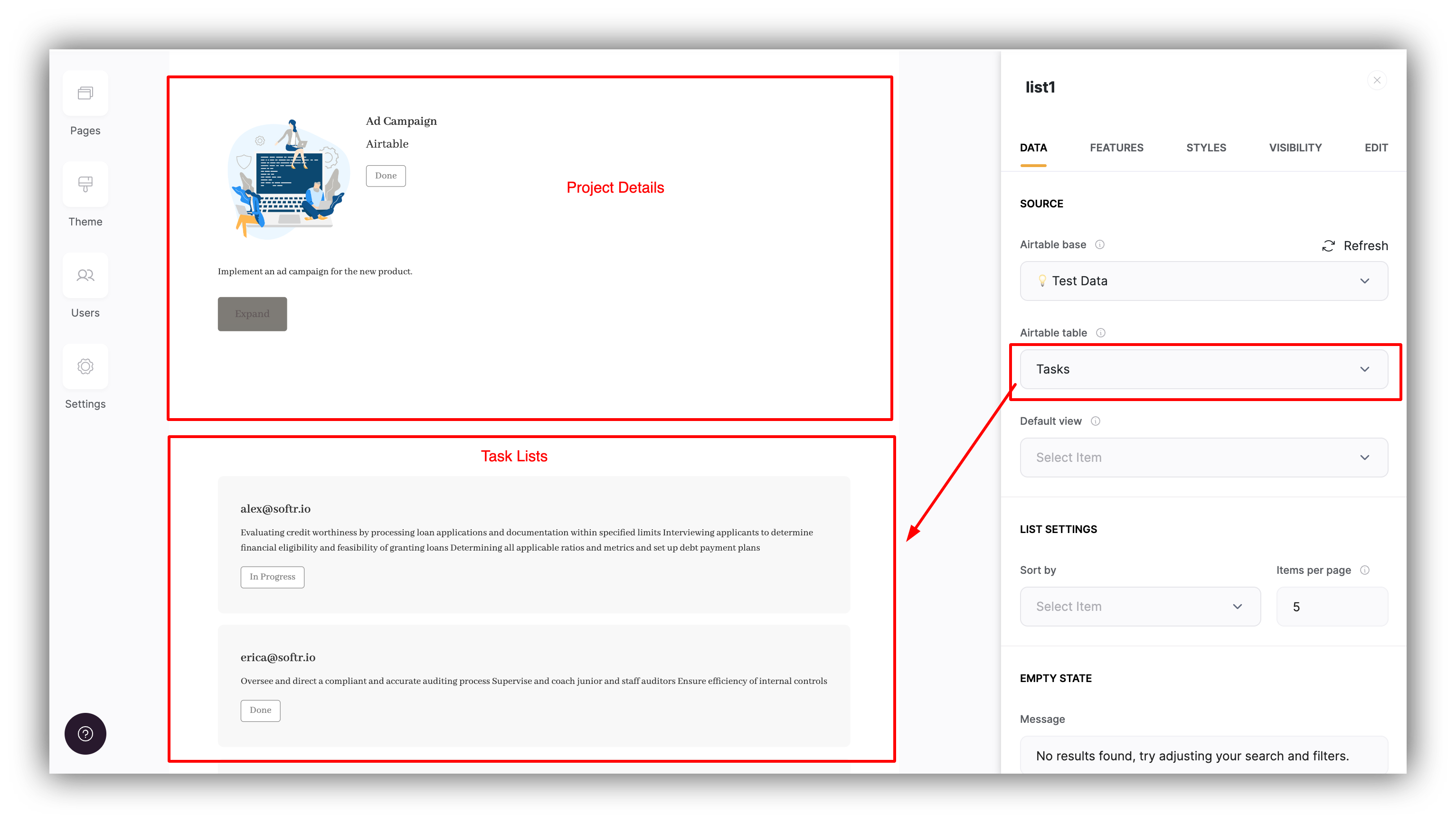
2. On e.g. “Project details” page, add a List Details block, again linked to the Projects Airtable table.
3. On this detail page, add also a List block, linked to the Tasks Airtable table
# **Configuration**
As soon as you add the **Tasks** list to the project's details page, you'll see that the **Projects** table's fields will start appearing inside **Conditional Filters** of the **Tasks** list block.
Using this, we can now set a condition to filter the **Tasks** list to show only the tasks that are associated with the project that's currently opened in the page. The condition will be set as shown below.
So, only the tasks for which the value in the **Project** column corresponds to the current project's **Name** will be shown.
# Result
Let's check how that works for the **Ad Campaign** project that includes two tasks (assigned to [steven@softr.io](mailto:steven@softr.io) and [joanne@softr.io](mailto:joanne@softr.io)).
That's it. Now, each project details page will also show all the tasks associated to it.
 2. Create "Tasks" table to hold task-related data, including a field referencing the associated Project. It can be a [Lookup field](https://support.airtable.com/hc/en-us/articles/360042312194-Lookup-field-overview) that looks up the **Name** field from the **Projects** table, but it can also be a regular field that contains the names of the projects, as in the example below.
 # **Implementation**
1. On e.g. “Projects” page, add a **List** block linked to the Project [Airtable](/data-sources/1YYStCJukT15Lh2j93qo9A/airtable/jHX7kfH7QvkVcELQvS3VoX) table as shown below.
# **Implementation**
1. On e.g. “Projects” page, add a **List** block linked to the Project [Airtable](/data-sources/1YYStCJukT15Lh2j93qo9A/airtable/jHX7kfH7QvkVcELQvS3VoX) table as shown below.
 2. On e.g. “Project details” page, add a List Details block, again linked to the Projects Airtable table.
3. On this detail page, add also a List block, linked to the Tasks Airtable table
2. On e.g. “Project details” page, add a List Details block, again linked to the Projects Airtable table.
3. On this detail page, add also a List block, linked to the Tasks Airtable table
 # **Configuration**
As soon as you add the **Tasks** list to the project's details page, you'll see that the **Projects** table's fields will start appearing inside **Conditional Filters** of the **Tasks** list block.
# **Configuration**
As soon as you add the **Tasks** list to the project's details page, you'll see that the **Projects** table's fields will start appearing inside **Conditional Filters** of the **Tasks** list block.
 Using this, we can now set a condition to filter the **Tasks** list to show only the tasks that are associated with the project that's currently opened in the page. The condition will be set as shown below.
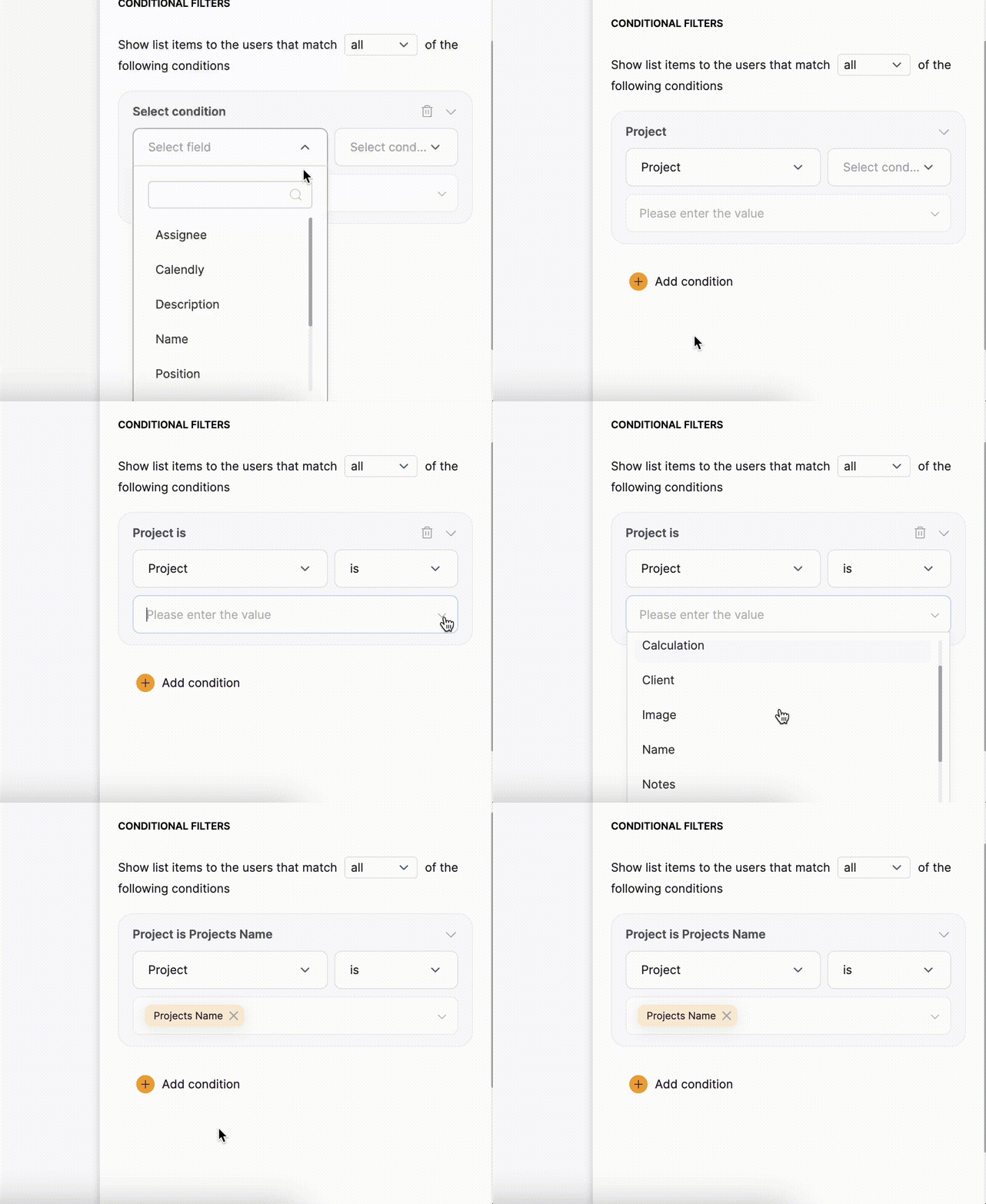 So, only the tasks for which the value in the **Project** column corresponds to the current project's **Name** will be shown.
# Result
Let's check how that works for the **Ad Campaign** project that includes two tasks (assigned to [steven@softr.io](mailto:steven@softr.io) and [joanne@softr.io](mailto:joanne@softr.io)).
So, only the tasks for which the value in the **Project** column corresponds to the current project's **Name** will be shown.
# Result
Let's check how that works for the **Ad Campaign** project that includes two tasks (assigned to [steven@softr.io](mailto:steven@softr.io) and [joanne@softr.io](mailto:joanne@softr.io)).
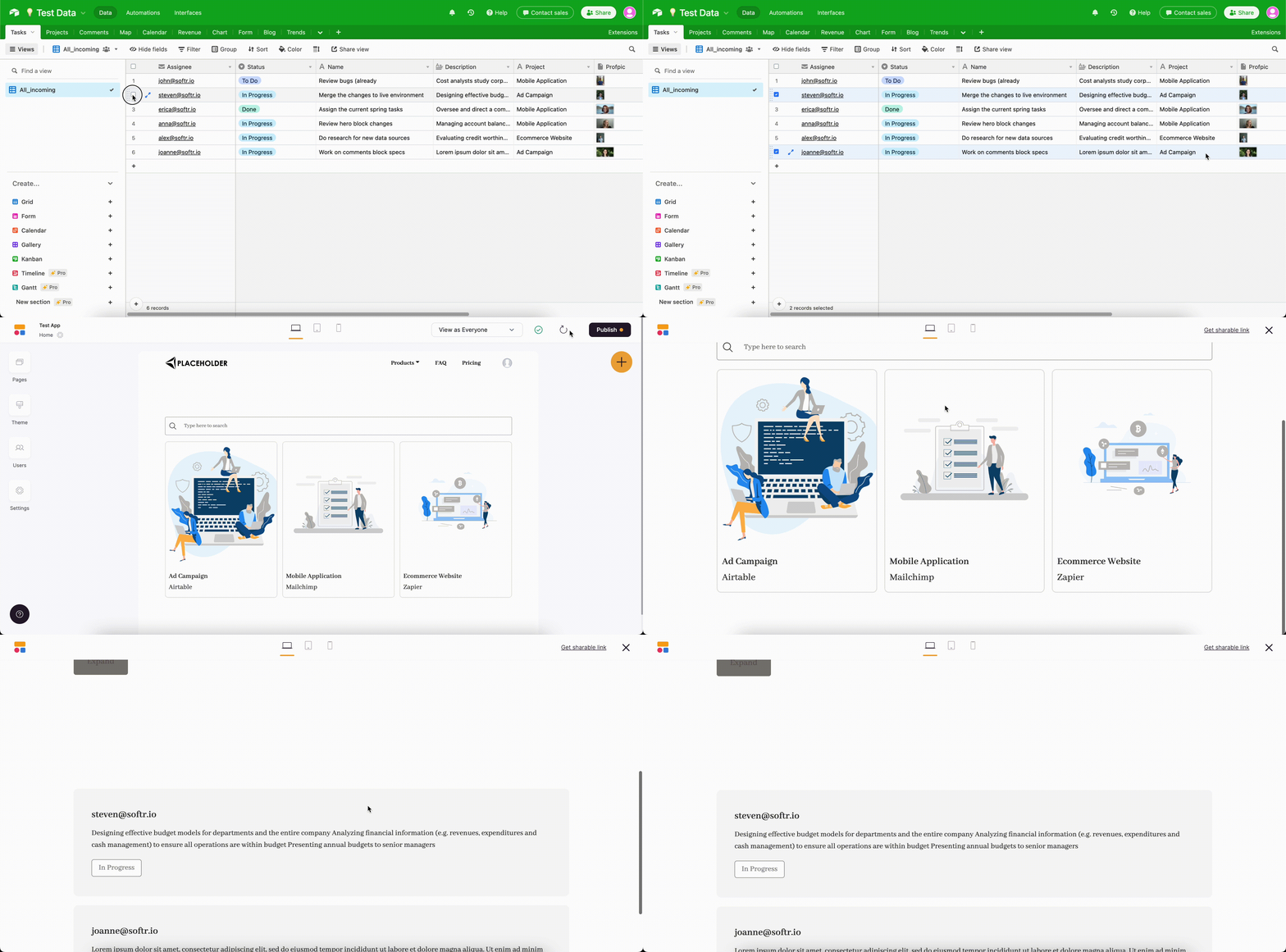 That's it. Now, each project details page will also show all the tasks associated to it.