> ## Documentation Index
> Fetch the complete documentation index at: https://docs.softr.io/llms.txt
> Use this file to discover all available pages before exploring further.
# Kanban
> Display data as a Kanban board.
Kanban block is available for users on the [Professional plan and above](https://www.softr.io/pricing).
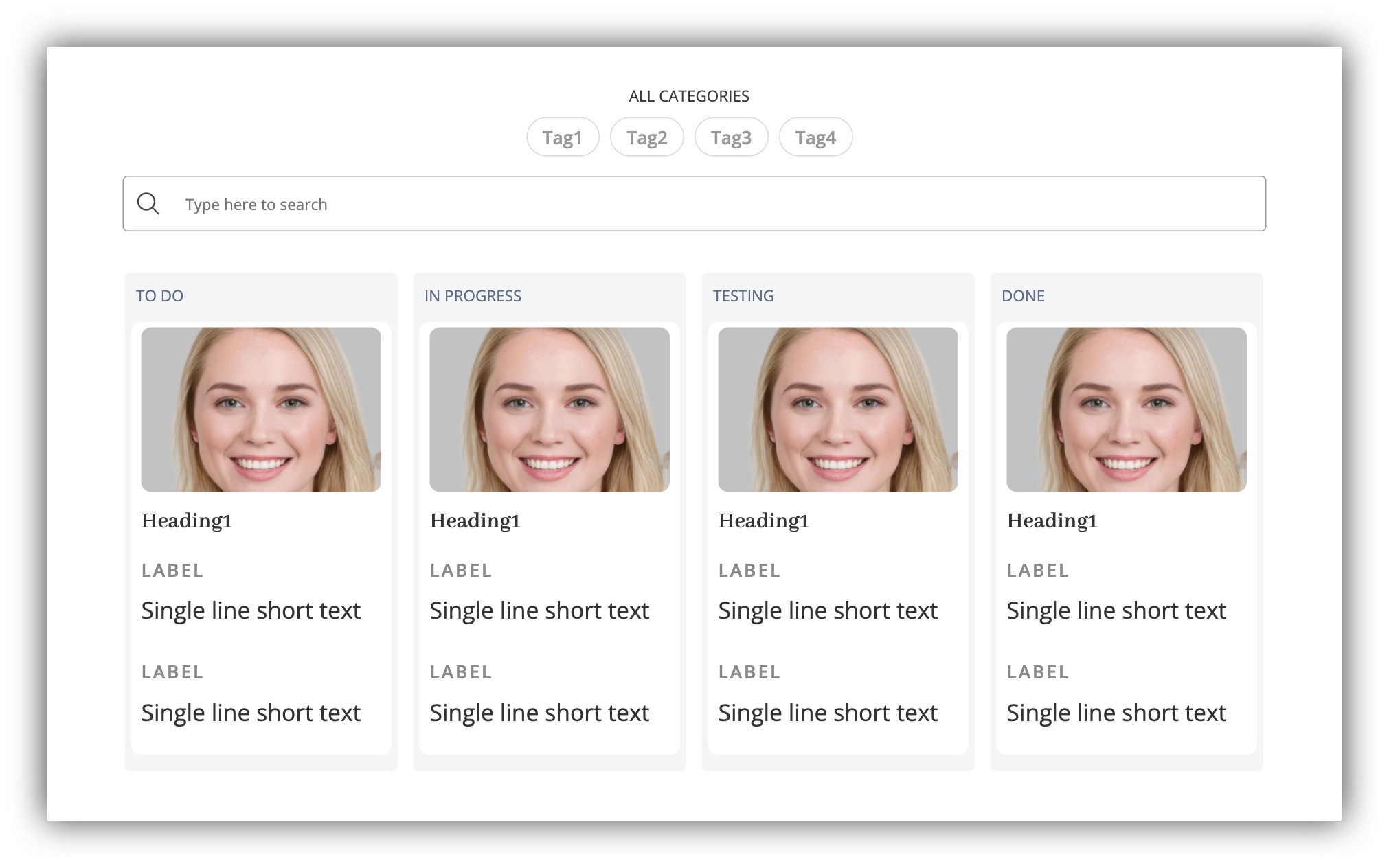 The Kanban block allows you to display data from a [data source](/4230abecf813402aa2926466c313290a) in a [Kanban Board](https://en.wikipedia.org/wiki/Kanban_board) layout. Most of the setup such as connecting the data source or configuring inline filters and search is similar to that of the [List](/building-blocks/vikC2AWEpQGkZd4jGyoVxo/list-block/pQhPYuA28VXr5tLLFBcbCU) block, so let's skip those sections and proceed to the settings that are unique for this block.
You can let users **Drag and Drop** items, [Add Records](/actions/ntEfT9zSJk6aY54G6W5KGU/add-record/3LrUMpQY4BKfDDQj6eb8h8), [Edit Records](/actions/ntEfT9zSJk6aY54G6W5KGU/edit-record/irSJXPF1gCMXNmfsQFscvx), and more in the **Actions** tab of block settings through [Action Buttons](/actions/ntEfT9zSJk6aY54G6W5KGU/action-buttons-overview/idg8Fqf2kjFwcx6kyP3jNq).
**Build with AI:** Instead of configuring manually, you can add a Kanban block instantly with the **AI Co-Builder**. Just click the AI icon in the editor and type: *"Create a Kanban board of my tasks grouped by their priority."*
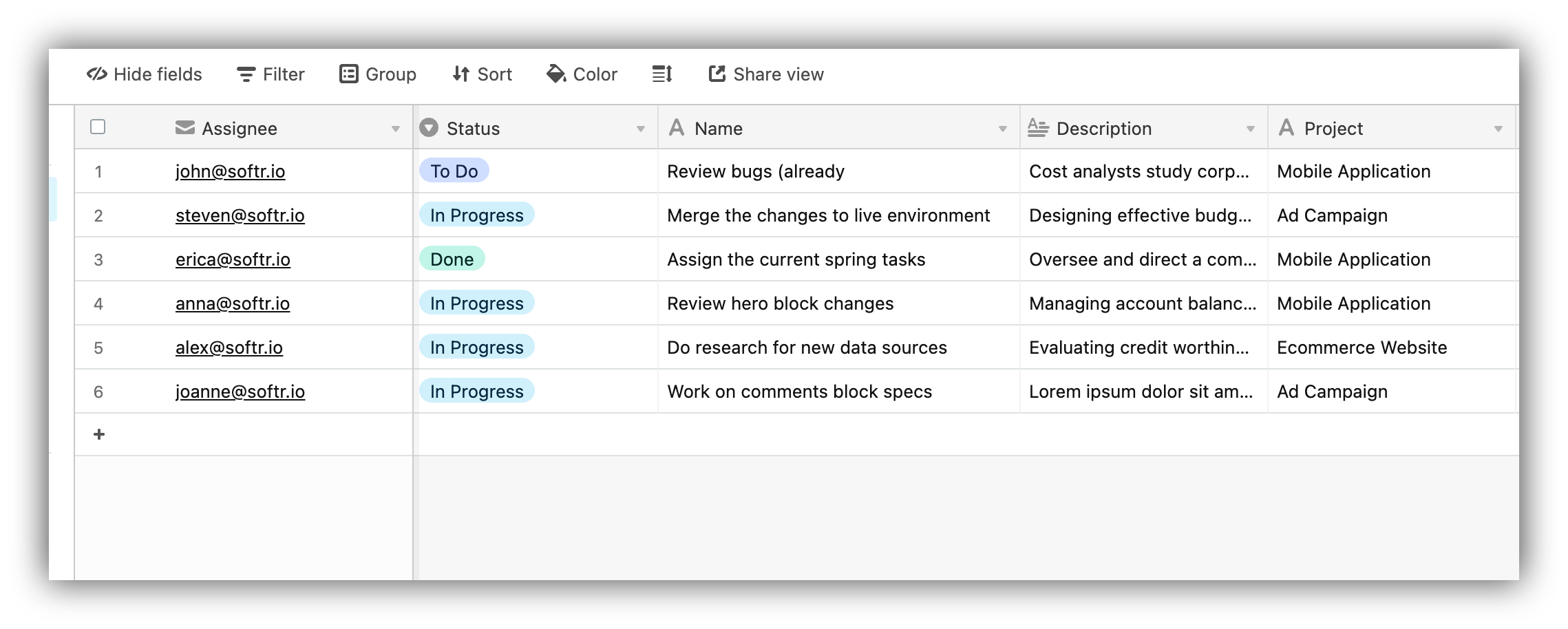
To demonstrate how the block works, we'll use an [Airtable](/data-sources/1YYStCJukT15Lh2j93qo9A/airtable/jHX7kfH7QvkVcELQvS3VoX) base that contains a list of tasks. It has such fields as Assignee, Task Status, Task Description, etc. as shown below.
The Kanban block allows you to display data from a [data source](/4230abecf813402aa2926466c313290a) in a [Kanban Board](https://en.wikipedia.org/wiki/Kanban_board) layout. Most of the setup such as connecting the data source or configuring inline filters and search is similar to that of the [List](/building-blocks/vikC2AWEpQGkZd4jGyoVxo/list-block/pQhPYuA28VXr5tLLFBcbCU) block, so let's skip those sections and proceed to the settings that are unique for this block.
You can let users **Drag and Drop** items, [Add Records](/actions/ntEfT9zSJk6aY54G6W5KGU/add-record/3LrUMpQY4BKfDDQj6eb8h8), [Edit Records](/actions/ntEfT9zSJk6aY54G6W5KGU/edit-record/irSJXPF1gCMXNmfsQFscvx), and more in the **Actions** tab of block settings through [Action Buttons](/actions/ntEfT9zSJk6aY54G6W5KGU/action-buttons-overview/idg8Fqf2kjFwcx6kyP3jNq).
**Build with AI:** Instead of configuring manually, you can add a Kanban block instantly with the **AI Co-Builder**. Just click the AI icon in the editor and type: *"Create a Kanban board of my tasks grouped by their priority."*
To demonstrate how the block works, we'll use an [Airtable](/data-sources/1YYStCJukT15Lh2j93qo9A/airtable/jHX7kfH7QvkVcELQvS3VoX) base that contains a list of tasks. It has such fields as Assignee, Task Status, Task Description, etc. as shown below.
 ## Group By
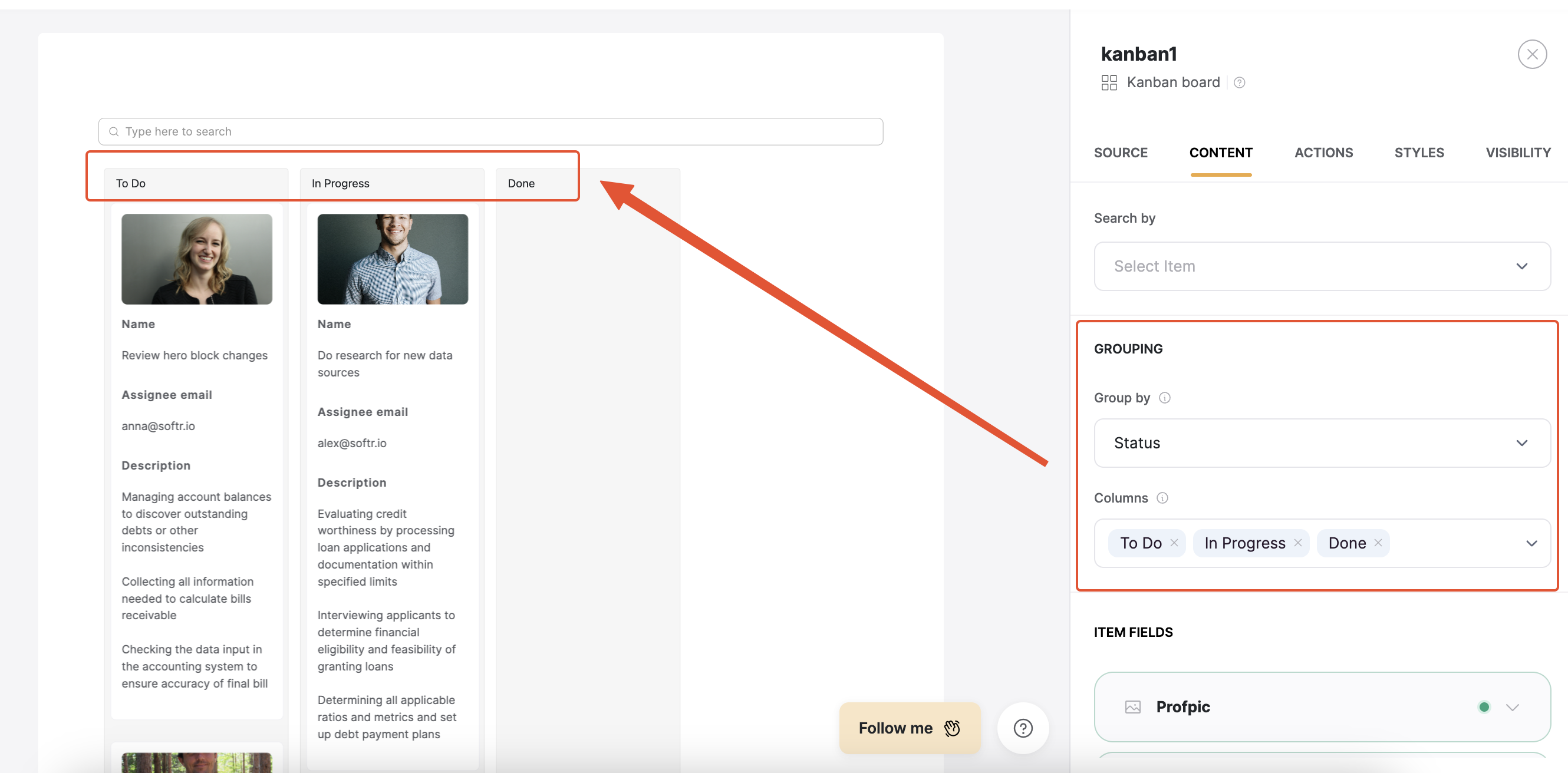
Let's navigate to the **Content** tab of the block settings and look into the **Grouping** option. Here, you select the field by which you want to group the board items. If, for instance, the field has 3 values, the board will consist of 3 columns (each column is assigned one of the field values) and the records will be grouped accordingly.
In our example, we have grouped by the task **Status** field. Therefore, we have four columns (**To Do, In Progress, Done**) and tasks are grouped under each column based on their status.
## Group By
Let's navigate to the **Content** tab of the block settings and look into the **Grouping** option. Here, you select the field by which you want to group the board items. If, for instance, the field has 3 values, the board will consist of 3 columns (each column is assigned one of the field values) and the records will be grouped accordingly.
In our example, we have grouped by the task **Status** field. Therefore, we have four columns (**To Do, In Progress, Done**) and tasks are grouped under each column based on their status.
 ## Mapping the fields
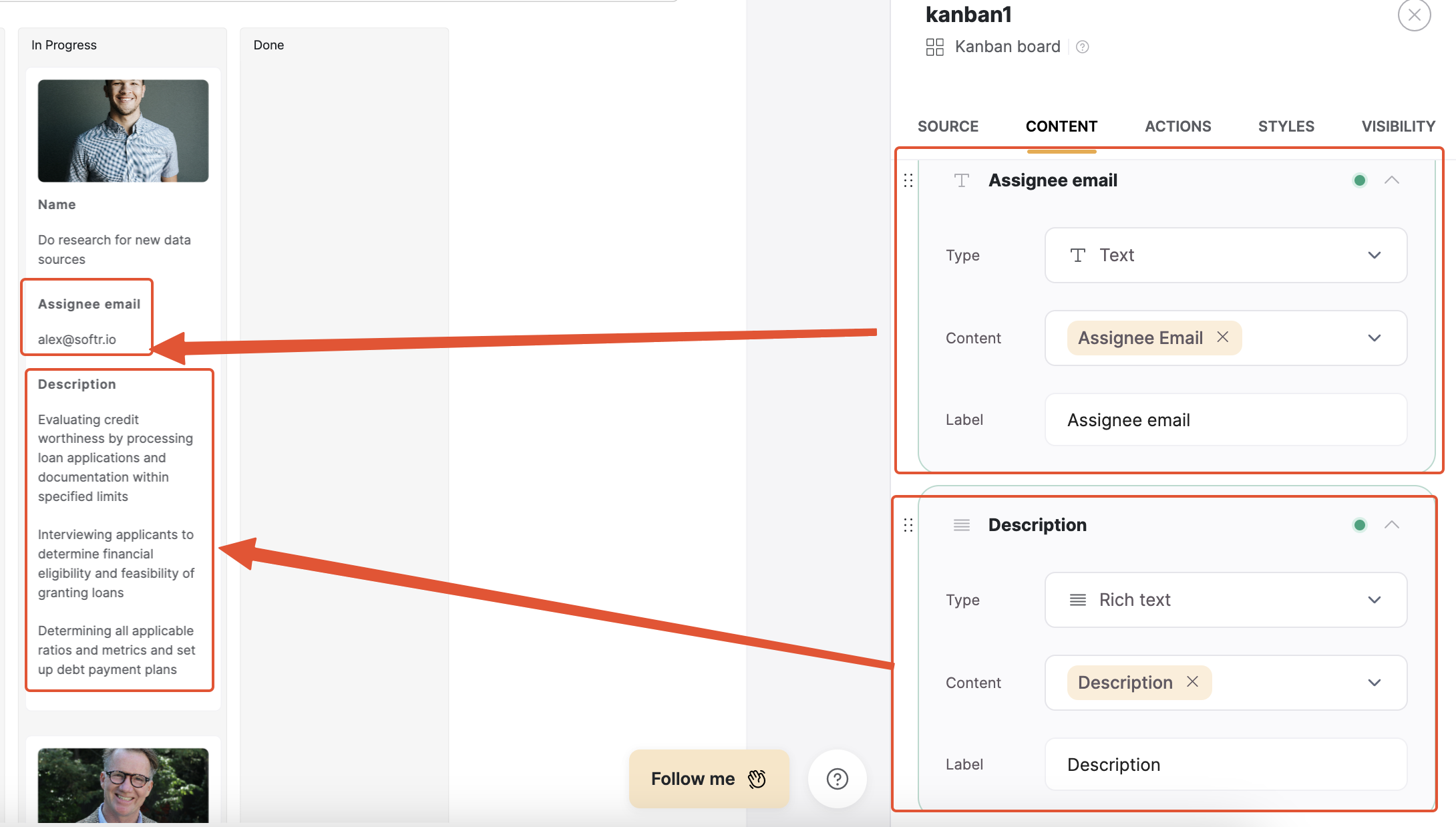
In the **Item Fields**, you map the fields that should be shown on board cards. In our example, we have connected the **Image**, **Name**, **Assignee email**, and **Description** fields as you can see in the screenshot below.
## Mapping the fields
In the **Item Fields**, you map the fields that should be shown on board cards. In our example, we have connected the **Image**, **Name**, **Assignee email**, and **Description** fields as you can see in the screenshot below.
 ## Conditional Filters
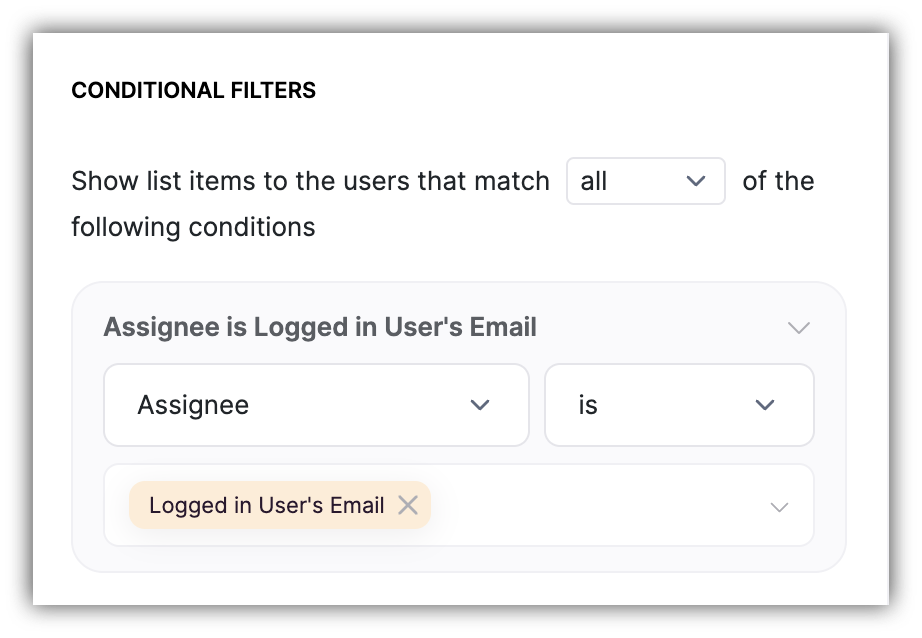
Kanban's conditional filters work similar to those of the [List](/building-blocks/vikC2AWEpQGkZd4jGyoVxo/list-block/pQhPYuA28VXr5tLLFBcbCU) block and are also located in the **Source** tab of block settings. For our use case, it could be relevant to configure them so that each logged-in **Assignee** only sees his/her tasks. To achieve that, we need to set up a filter to show each user only the tasks where the **Assignee** fields corresponds to his/her email.
## Conditional Filters
Kanban's conditional filters work similar to those of the [List](/building-blocks/vikC2AWEpQGkZd4jGyoVxo/list-block/pQhPYuA28VXr5tLLFBcbCU) block and are also located in the **Source** tab of block settings. For our use case, it could be relevant to configure them so that each logged-in **Assignee** only sees his/her tasks. To achieve that, we need to set up a filter to show each user only the tasks where the **Assignee** fields corresponds to his/her email.
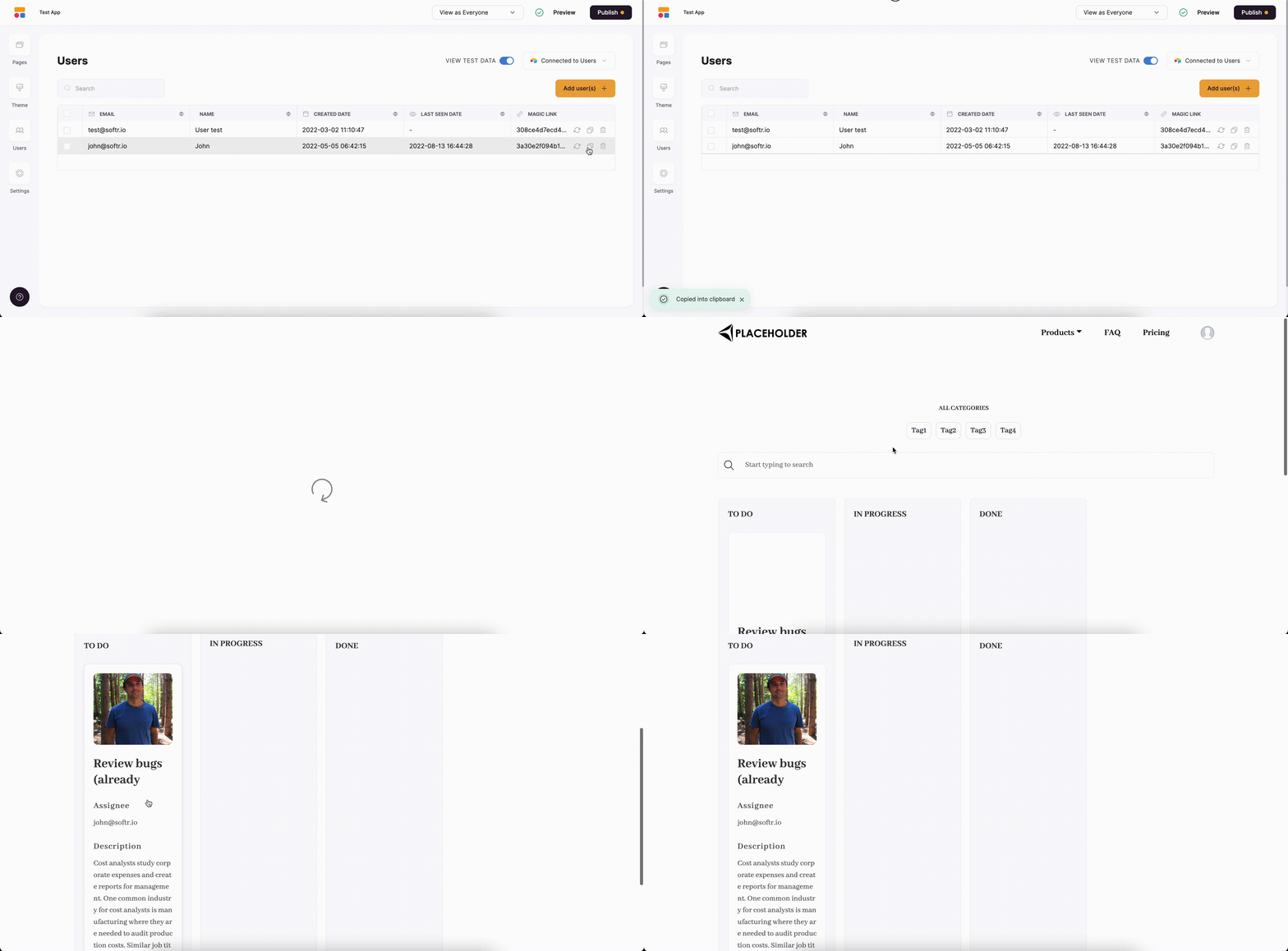
 Here's what **[john@softr.io](mailto:john@softr.io)** will see after logging in and navigating to the board.
 ## Moving Board Cards
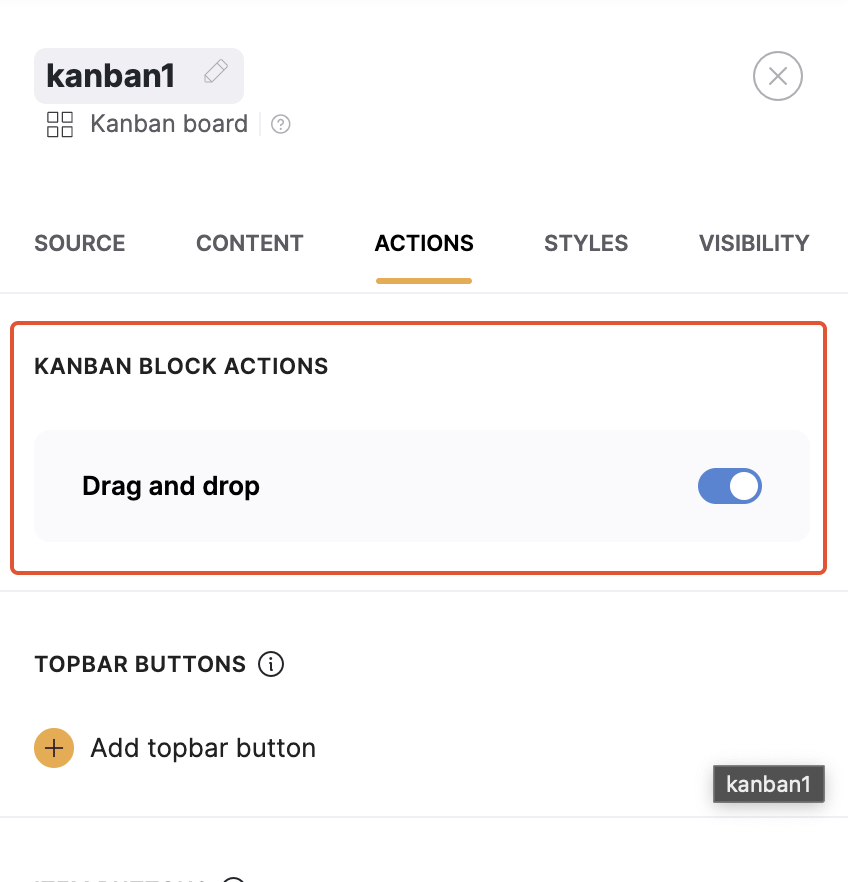
If the **Drag and drop** toggle is enabled under **Actions**, logged-in users can drag and drop board items. It’s also possible to let only specific user groups perform the action through [visibility settings](/user-groups-and-permissions/3oA6AaFzUiePs2sW2TpYrF/action-button-visibility/tqpb8TkUD4U4DCAUA2hjKo) of the toggle.
## Moving Board Cards
If the **Drag and drop** toggle is enabled under **Actions**, logged-in users can drag and drop board items. It’s also possible to let only specific user groups perform the action through [visibility settings](/user-groups-and-permissions/3oA6AaFzUiePs2sW2TpYrF/action-button-visibility/tqpb8TkUD4U4DCAUA2hjKo) of the toggle.
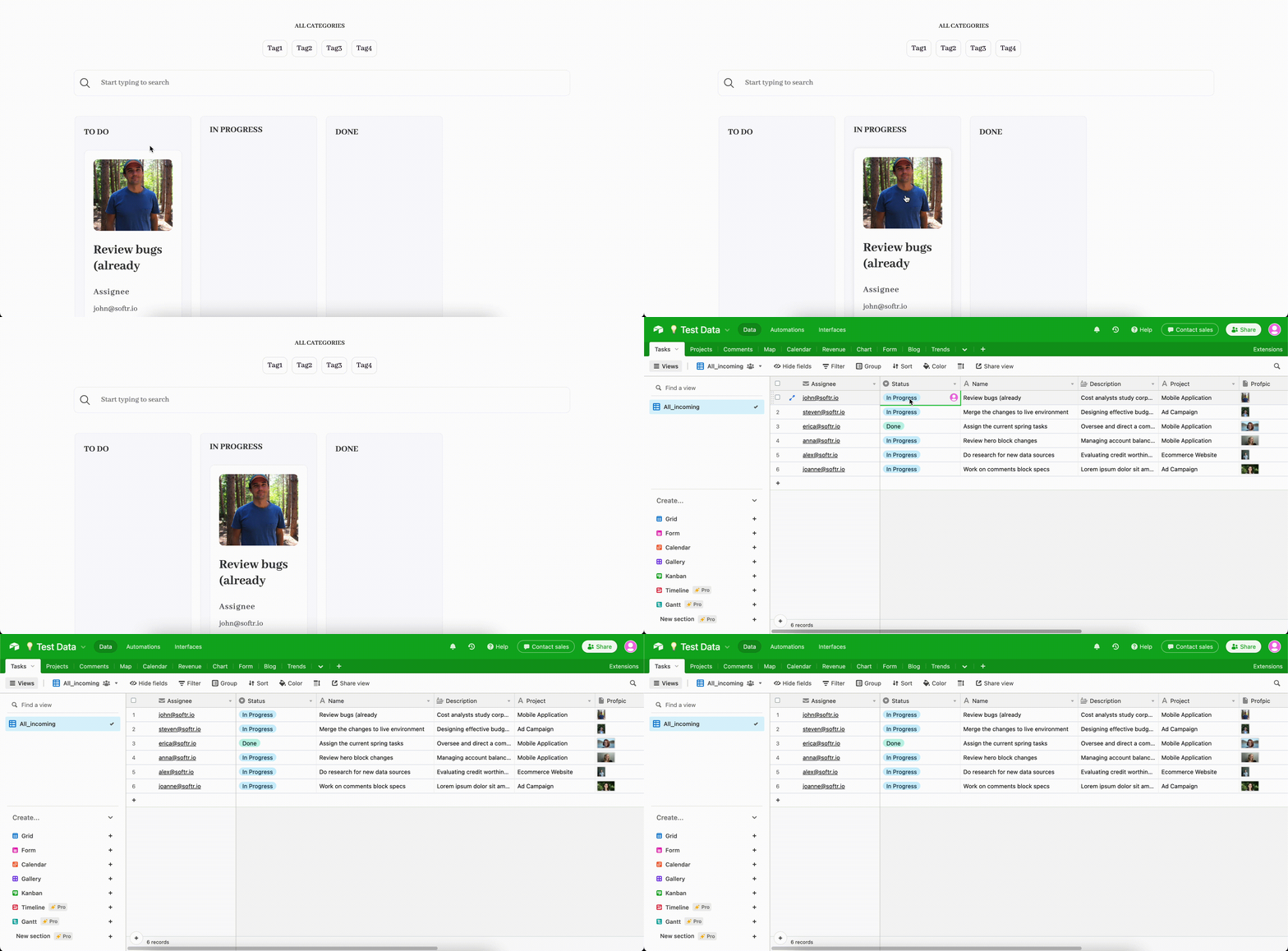
 If a user moves and item from one column to another, the corresponding value of the card will be updated as well. Below we move a task from the **To Do** column to **In** **Progress**. As you can see, its **Status** field value changes to **Done** on Airtable.